Thousands of People Were Struggling With Money Until They Discovered This One Ancient Secret Hidden in Sound
>>> Unlock It Now <<<

Trying to pair a new smartwatch or reconnect after a sudden disconnect can feel like a tech hurdle, especially when your workout depends on it. If your phone won’t connect, you’re not alone. This guide cuts through the confusion with practical steps that work on both Android and iPhone setups, whether you’re using Apple Watch, Galaxy Watch, or Pixel Watch.
First, check the basics. Make sure Bluetooth is on and location services are enabled on your phone, since many watches rely on both for pairing. Restart both devices to clear small glitches, then reopen the official companion app and verify you’re using the latest software. A quick update or reset often resolves most connection issues.
Next, address common blockers. If the watch is linked to another device, forget the pairing or reset the watch to factory settings. Use the right app for your watch: Apple Watch app on iPhone, Galaxy Wearable for Galaxy Watch, or Wear OS for Pixel Watch. Grant the necessary permissions and ensure the watch is in pairing mode when you start the process.
If problems persist, simplify the setup. Reinstall the companion app, reinitiate pairing, and follow the on-screen prompts carefully. For non official or budget models, follow the manufacturer’s specific instructions to avoid compatibility gaps. By tackling these steps in order, you can restore a stable connection and keep your routine on track. Follow along for a smoother pairing journey with your smartphone and smartwatch.
What If the Only Thing Between You and the Life You Deserve Is a Hidden Wealth Code Waiting to Be Activated
>>> Open the Door <<<

Common Reasons Phones Fail to Connect to Smartwatches
When a smartwatch won’t pair with your phone, it can throw off your entire routine. This section breaks down the two most frequent culprits and what you can do right now. The goal is to get you back to tracking, messaging, and music without a long detour.
 Photo by I’m Zion
Bluetooth and Location Permissions Issues
Your first stop is the phone’s permissions. Pairing a watch almost always needs both Bluetooth and location services enabled. Android and iOS handle these a bit differently, so here are quick, direct steps.
- Android
- Open Settings > Connections > Bluetooth. Ensure Bluetooth is ON.
- Go to Location > Location permission and set to “Allowed all the time” or at least “Allow all the time while using the app.”
- In Settings > Apps > [Watch App], grant any required permissions, especially Location and Bluetooth.
- Retry pairing in the watch’s companion app when the watch is in pairing mode.
- iPhone
- Open Settings > Bluetooth and toggle Bluetooth ON.
- Open Settings > Privacy & Security > Location Services. Make sure it’s ON and that the watch app has permission to use Location.
- If you’ve recently updated iOS, double check that the watch app has not lost permissions during the update.
- Retry pairing with the watch in pairing mode, using the official app (Apple Watch app for Apple Watch, Wear OS app for Pixel or other Wear OS watches).
Why location matters: some watches use your location to optimize Bluetooth connections and to verify proximity during pairing. If location is off, the phone may not discover the watch reliably or may fail the pairing handshake. Keeping these settings active reduces repeated prompts and common timeouts.
For further guidance, see Wear OS setup and Android pairing steps. You’ll find practical how-tos and troubleshooting tips that align with what you’re doing on your phone right now:
- Your watch won’t stay connected – iPhone & iPad
- Fix issues with setting up your watch – Android – Wear OS
Software Glitches After Updates
Software bumps can throw a wrench in the pairing process. A simple restart often clears the cobwebs, especially after a 2025 update. Here’s how to approach it.
- Restart both devices: turn off your phone and watch, then power them back on. This short reset refreshes connections and clears temporary software hiccups.
- Update apps and OS: ensure the watch app and the phone’s OS are current. Developers push fixes specifically to improve compatibility after updates.
- If issues persist, rebind using the official method: remove the watch from the phone, then re-enter pairing mode and follow the on-screen prompts exactly.
- Factory reset as a last resort: if the watch still refuses to pair, a factory reset on the watch can resolve stubborn issues. Keep in mind you’ll lose stored settings and data.
Recent 2025 models sometimes exhibit post-update quirks that resolve with a fresh pairing cycle or a minor app patch. If you see repeated pairing failures after an OS update, check for the latest advisory from the watch maker and apply any available patches. For additional guidance and a quick checklist, consider resources that cover common post-update fixes across Android and iPhone devices.
- Why My Smartwatch is not Connecting to My Phone? Common Issues and Fixes
- Your watch won’t stay connected – iPhone & iPad
If you’d like a visual walkthrough, a short how-to video can speed things up. Just follow the official pairing flow and confirm every permission prompt along the way.
Basic Steps to Fix Most Connection Problems Right Away
When your phone and smartwatch refuse to play nice, it helps to start with simple, universal fixes. These steps work across Android and iPhone setups and across several watch brands. They target the most common culprits: temporary glitches, stuck Bluetooth handshakes, and misconfigured settings. Follow these quick moves in order, and you’ll usually get back to tracking, messaging, and music without a long detour. The goal is a stable, responsive connection that you can rely on during workouts, commutes, and daily routines.
Restart Your Phone and Smartwatch
A fresh start clears out minor software hiccups that can block pairing. Here’s a straightforward way to restart without losing data.
- Power off both devices.
- Wait 15–20 seconds.
- Turn the phone back on first, then the smartwatch.
- Open the official companion app and retry the pairing process, ensuring both devices are in close proximity.
Restarting helps reset radios, refresh permissions, and reinitialize the pairing flow. If you’re still facing issues, confirm you’re running the latest versions of the OS and the watch app. A quick update can fix compatibility quirks introduced by recent software changes. For more guided steps, see Wear OS setup and Android pairing tips. Also, if you’re troubleshooting on an iPhone, check the Apple Watch pairing flow in the official support resources. If the problem persists, a complete restart is a reliable next move.
- Helpful links: Fix issues with setting up your watch – Android – Wear OS | Fix issues with setting up your watch – iPhone & iPad
Clear Old Pairings and Airplane Mode
If a watch refuses to connect, the culprit is often an existing pairing that still holds a stale connection or a miswired mode. Start fresh by clearing old pairings and toggling airplane mode as needed.
- Unpair from the phone’s Bluetooth list: go to Settings > Bluetooth, find the watch, and choose Forget or Unpair. This frees the watch to start a clean pairing later.
- Reset the watch pairing state on the watch itself if needed: open Settings > Connectivity > Bluetooth and ensure it is ready to pair.
- Toggle Airplane mode on, then off: this resets wireless radios and helps the phone discover the watch.
- Reinitiate pairing using the official app for your device: Apple Watch app on iPhone, Wear OS app for Wear OS or Pixel Watch, and the Galaxy Wearable app for Galaxy Watch.
This approach works well across platforms because it removes lingering connection data that can stall the handshake. After unpairing, place the devices close together and retry the pairing flow with the watch in pairing mode. If problems persist, reinstall the official companion app and rebind from scratch. For more in-depth steps across platforms, refer to theWear OS setup guidance and iPhone pairing support. If you run into persistent trouble, checking the manufacturer’s troubleshooting page can provide device-specific fixes.
- Helpful links: Your watch won’t stay connected – iPhone & iPad | How To Fix Android Smartwatch Connection
Android-Specific Fixes for Galaxy Watch and Pixel Watch
If you wear a Galaxy Watch or Pixel Watch, you know how frustrating it can be when the phone won’t connect. This section focuses on Android-specific steps that address the most common pitfalls. You’ll learn practical actions you can take today to restore a smooth pairing experience, minimize dropouts, and keep your workouts and notifications flowing. Think of this as the targeted elbow room you need to get back to routines without fiddling for hours. The tips here apply whether you’re using a Galaxy phone, a Pixel, or another Android device.
Update Wear OS App and Firmware
Keeping the Wear OS app and watch firmware up to date is one of the fastest ways to fix stubborn pairing issues. Updates often include fixes for Bluetooth handshakes, permission prompts, and background services that govern how the watch talks to your phone. Here’s how to get these updates quickly:
- Galaxy Watch users: open the Galaxy Wearable app, head to the watch’s software update section, and apply any available firmware updates. Then confirm the Wearable app itself is on its latest version via the Google Play Store.
- Pixel Watch users: open the Wear OS app on your phone, check for a firmware update in the Settings menu, and install any available patches. At the same time, ensure Google Play services are current since many fixes roll through that component.
- Why updates help: firmware and app updates fix known bugs, improve Bluetooth stability, and refresh permission handling. They also align the watch’s pairing flow with the current Android Bluetooth stack, reducing rare but irritating timeouts.
For quick reference, see official guidance on fixing setup issues for Android watches, which covers how updates influence the pairing process: Fix issues with setting up your watch – Android – Wear OS. If you’re troubleshooting specific Samsung devices, the Samsung support page also provides step-by-step firmware and app update paths: Samsung smart watch will not connect to a phone. Keeping both the watch and the phone current reduces the chances of a stubborn mismatch between what your phone expects and what the watch can deliver.
Manual Re-pairing Without Auto-Detect
Sometimes the easiest fix is to bypass auto-detect and run a clean, manual re-pair. This approach minimizes interference from residual pairings and ensures the official pairing flow is followed end to end.
- Start by clearing old pairings: on your Android phone, go to Settings > Bluetooth, find the watch, and choose Forget or Unpair. This frees the watch to start fresh.
- Put the watch in pairing mode: follow the on-screen prompts on the watch to enter pairing state. Keep the devices close together during the process.
- Use the official app path: Galaxy Watch uses the Galaxy Wearable app for pairing, while Pixel Watch uses the Wear OS app. Make sure the chosen app has all necessary permissions, especially Location and Bluetooth.
- Restart the pairing flow: after unpairing, reinitiate the process and follow each step exactly as it appears on the screen.
This method works well because it eliminates lingering connection data that can block the handshake. If you still see a failure, reinstall the official companion app and try again from the beginning. For a quick refresher on Android pairing best practices, consult the Wear OS setup guide and Android troubleshooting resources: the Android Wear OS article on setup issues provides a reliable, model-agnostic path to reconnection. For Samsung devices, Samsung’s troubleshooting page can guide you through a clean re-pairing sequence if the Galaxy Wearable app acts up. In scenarios where you must, a quick factory reset of the watch may be your final option, but only after you’ve saved essential data. For additional context on common Samsung Galaxy watch connection steps, see Samsung support’s troubleshooting steps: Samsung smart watch will not connect to a phone.
What If the Only Thing Between You and the Life You Deserve Is a Hidden Wealth Code Waiting to Be Activated
>>> Open the Door <<<
iPhone and Apple Watch Pairing Troubleshooting
If your iPhone and Apple Watch won’t pair, you’re not alone. This section focuses on two practical steps you can take right away to reset and refresh the pairing. These actions are designed to be straightforward, using the official paths and prompts you’ll see on the screen. Think of it as giving your watch a fresh start with your iPhone, just like rebooting a laptop to clear a stubborn snag.
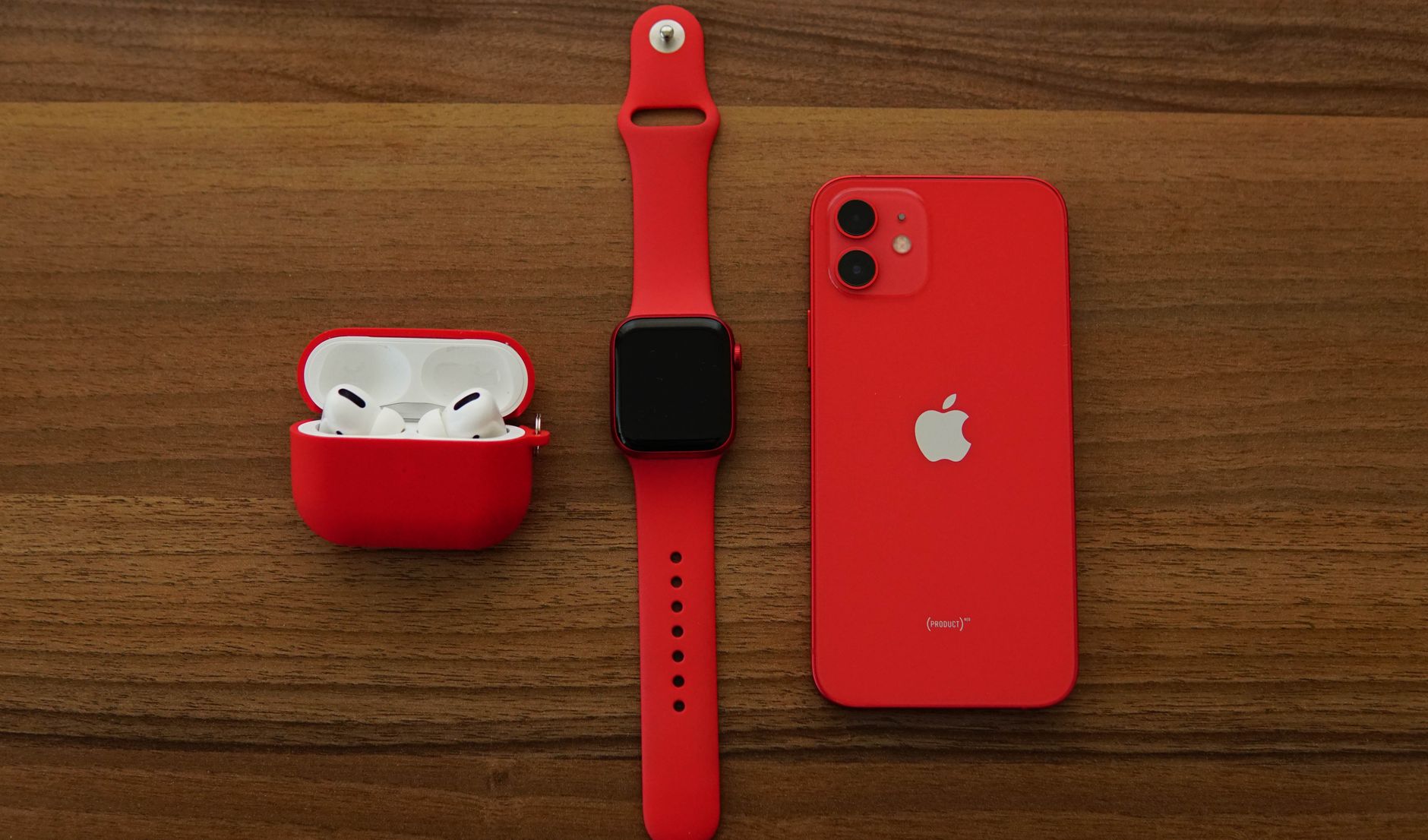 Photo by Melike B
Use the Watch App to Reset Pairing
If the pairing flow stalls or the watch shows a clock face without finishing setup, resetting the pairing from the Watch app is the fastest route. Start by unpairing the Apple Watch from your iPhone. This process wipes the watch clean, removes Activation Lock, and resets the watch to factory defaults, so you’ll be ready for a fresh bond. After unpairing, the re-pair animation will guide you through the setup again. During this step, keep both devices close and follow the on-screen prompts precisely.
To unpair, open the Watch app on your iPhone, tap the My Watch tab, select your watch, then choose Unpair Apple Watch. If you don’t have the paired iPhone nearby, you can erase the watch instead, but Activation Lock remains until you re-pair with a different iPhone. When you’re ready to re-pair, start the process in the same Watch app and hold the watch near your iPhone to trigger the pairing camera.
For reference, Apple’s official guidance covers unpairing and erasing procedures and how to handle Activation Lock: Unpair and erase your Apple Watch. If you encounter hurdles during pairing, review the steps for erasing or re-pairing as needed. You’ll find practical steps and cautions in the official support article: Unpair and erase your Apple Watch.
- https://support.apple.com/en-us/108372
Reset Network Settings on iPhone
Sometimes the blocker is a network setting clash. Resetting network settings on the iPhone can clear corrupted Bluetooth or Wi‑Fi configurations that interfere with the pairing handshake. Doing this won’t erase your personal data, but you will need to re-enter Wi‑Fi passwords and reconfigure Bluetooth devices afterward.
To reset network settings, go to Settings > General > Transfer or Reset iPhone > Reset > Reset Network Settings. After the reset, re-enable Bluetooth and reconnect to your watch through the official Watch app. If you still see issues, verify that Location Services are enabled for the pairing process and ensure your iPhone and Apple Watch are both updated to the latest software. For additional help, see If you can’t pair an Apple Watch with your iPhone, which walks you through common causes and fixes: If you can’t pair an Apple Watch with your iPhone.
- https://support.apple.com/en-us/111821
When Fixes Fail: Next Steps and Support Options
Even after you’ve tried the standard steps, some problems refuse to budge. When that happens, you need a clear plan for escalation and professional help. This section maps out practical paths, from deeper DIY diagnostics to official support channels. The goal is to get you back to normal quickly, with confidence and solid options at hand.
 Photo by Anna Tarazevich
When to escalate and what to try first
If you’ve exhausted the basic fixes and the watch still won’t connect, it’s time to escalate. Start with a structured approach that preserves your data and reduces wasted time.
- Reconfirm basics one more time: ensure both devices are close, Bluetooth is on, and the watch is in pairing mode. A fresh, near-field try often clears a stubborn handshake.
- Check for model-specific quirks: some watches have known compatibility issues after certain updates. A quick check of official advisories can save hours. For Pixel Watch and Wear OS, look at the Android setup guidance; for Apple devices, the Apple Watch pairing docs are the go-to. See official resources for setup and troubleshooting:
- Pixel Watch setup and pairing issues
- Apple Watch not connected or paired with iPhone
- If you still fail, collect key data: model names, OS versions, app versions, and exact error prompts. This makes it easier to get targeted help from support staff or online communities.
When you decide to escalate, you’re not giving up — you’re buying time to stay productive while you pursue a reliable fix. Helpful, step-by-step guides and support articles can prevent you from spinning your wheels.
- Pixel Watch resources and setup guidance:
https://support.google.com/wearos/answer/13579999 - Apple Watch pairing help:
https://support.apple.com/en-us/108372 - General Android setup help for watches:
https://support.google.com/wearos/answer/6057772 - Samsung Galaxy Watch troubleshooting:
https://www.samsung.com/us/support/troubleshooting/TSG01003238/
Choosing the right support option
Not every issue needs a full service call, but some do. Here’s how to decide your next step, based on the problem’s severity and your setup.
- Self-service with a guided path: If you’re dealing with a minor glitch or recent update hiccup, official support pages often include a step-by-step path. They’re fast and model-specific, reducing missteps. Try the relevant walkthroughs for Pixel Watch, Apple Watch, or Galaxy Watch first.
- Community-driven help: Forums and user communities can offer practical, real-world fixes from people who’ve faced the same issue. They’re fast and often cover edge cases not documented in official guides. If you use Reddit, Samsung Community, or Android Wear OS forums, describe your setup clearly and include device models and OS versions.
- Direct support from the brand: When problems persist, reaching out to customer support ensures you’re dealing with trained technicians who can run advanced diagnostics on your device. Have your purchase details, serial numbers, and a list of steps you’ve already tried ready.
- In-store or carrier visit: If you rely on a watch for work or fitness, a hands-on check can reveal hardware faults or misconfigurations that aren’t obvious online. This option is especially helpful if you suspect a defective Bluetooth radio or charging dock.
For reliable results, mix approaches as needed. Start with official guides, lean on communities for quick tips, then escalate to direct support if nothing else works. This balanced path keeps downtime short and solutions practical.
- Pixel Watch support hub: https://support.google.com/googlepixelwatch/answer/13579999
- Apple pairing help: https://support.apple.com/en-us/108372
- Android Wear OS setup help: https://support.google.com/wearos/answer/6057772
- Samsung support troubleshooting: https://www.samsung.com/us/support/troubleshooting/TSG01003238/
What to expect from professional support
If you contact support, here’s what typically happens and how to stay productive during the process.
- Diagnostic review: a technician will confirm device data, OS versions, and app settings. They may request permission to run remote checks or request logs from the pairing process.
- Guided fixes or firmware updates: you’ll receive targeted steps, which may include firmware updates for the watch, app updates, or specific permission changes.
- Potential hardware check: if the issue seems hardware related, you might be offered service options or a replacement if your device is under warranty.
- Clear timelines and next steps: reputable support teams provide a realistic timeline and explicit actions you should take, so you aren’t left guessing.
Keep notes during the process. Document dates, steps taken, and any error messages. This record helps you compare progress across different support channels and speeds up resolution.
How to prepare before you contact support
A quick prep work can save you hours. Gather the essentials and present them clearly to support.
He Was Drowning in Bills and Burnout Until a Simple Daily Ritual Rewired His Brain for Wealth in Less Than a Week
>>> Start Your Shift Today <<<

- Device basics: list model numbers for your phone and watch, current OS versions, and the official app names you use for pairing.
- Symptoms and patterns: note when the issue started, what you were doing, and whether it affects all functions (notifications, calls, health data, music playback).
- What you’ve tried: write down each step you took in the order you attempted it. Include any error codes or screens.
- A clean environment: ensure you’re testing in a stable environment with minimal interference from other Bluetooth devices.
With a clear picture, support can zero in on the root cause faster, and you’ll spend less time on the phone or chat following generic steps.
When to consider a swap or repair
If the watch or phone shows clear hardware symptoms — battery swelling, inconsistent power, or a Bluetooth module that won’t respond — professional repair or replacement might be the best path. Don’t delay if you notice physical damage or overheating. Early action reduces the risk of more extensive issues and keeps your daily routine intact.
- Hardware hazards warrant prompt assessment by a professional.
- If a device is out of warranty, compare the cost of repair against a replacement.
- Consider upgrade timing if your watch or phone is several generations old; newer models often bring better Bluetooth stability and longer software support.
Quick recap of next steps
- Verify and document the issue with precise details.
- Start with official guides and model-specific support pages.
- Reach out to communities for practical, real-world fixes.
- Engage brand support if needed, with a well-prepared information packet.
- Assess hardware condition if the problem persists after all software fixes.
If you want a handy reference as you work through these steps, you can revisit the Pixel Watch and Apple Watch pairing resources linked above. These sources provide concrete paths for both Android and iPhone users, helping you choose the most effective route for your setup.
Conclusion
A stable pairing between your phone and smartwatch unlocks a smoother routine, from timely notifications to accurate fitness data. By following the practical steps in this guide, you can quickly resolve most connection hiccups, starting with simple checks like Bluetooth and location permissions, moving through the official pairing apps, and applying a clean restart if needed. If issues persist, unpairing old connections and reestablishing a fresh pairing cycle often clears stubborn handshakes, with a factory reset reserved for the rare, unresolved cases.
Tighten the bond between your smartphone and wearable by keeping software and apps up to date, and by granting the necessary permissions during setup. Even small actions, like ensuring proximity during pairing and confirming each on screen prompt, can save hours of frustration. When the connection holds, you’ll enjoy reliable health tracking, quicker access to controls, and seamless message delivery that supports your daily schedule.
If you try these fixes, drop a comment with what worked for you and any model specifics. Your experience helps others facing the same issues. For readers who want more, check out related posts on optimizing smartphone accessories, troubleshooting wearables, and improving overall connectivity across devices. Your next read awaits, and a faster, steadier smartwatch pairing could be just a click away.
He Was Drowning in Bills and Burnout Until a Simple Daily Ritual Rewired His Brain for Wealth in Less Than a Week
>>> Start Your Shift Today <<<