He Was Drowning in Bills and Burnout Until a Simple Daily Ritual Rewired His Brain for Wealth in Less Than a Week
>>> Start Your Shift Today <<<

You’ve stared at your phone’s battery icon all day, watching it plummet even when the screen stays off. It’s frustrating when your device drains power fast during idle time. These phone wake-ups cause the problem: quick bursts of activity from apps or features that activate the screen or processor without you noticing.
This issue hits both Android and iOS devices hard. Apps in the background grab wake locks to check emails, sync data, or track location, keeping your phone active longer than needed. One smartphone user reported losing 30% battery overnight from unchecked notifications alone.
The good news? Simple built-in fixes from common user reports can cut that drain by 20-30%. You’ll learn step-by-step tweaks like restricting background refresh and disabling excess location access. These changes use your phone’s own tools, no apps required, and work right away to extend your day.
Spot the Main Culprits Behind Constant Wake-Ups
Your smartphone wakes up dozens of times each hour without you touching it. These wake-ups stem from apps and features that stay active to push notifications or track movement. Spotting them lets you target fixes that reclaim battery life fast. Start by checking your phone’s battery stats to see the top offenders in action.
He Was Drowning in Bills and Burnout Until a Simple Daily Ritual Rewired His Brain for Wealth in Less Than a Week
>>> Start Your Shift Today <<<
Background Apps That Never Sleep
Apps run tasks in the background to stay ready for you. They refresh content, fetch emails, or check for likes, which grabs a wake lock on the processor. This keeps your phone from full sleep and drains power bit by bit.
Messaging apps like WhatsApp and Telegram ping servers constantly for new chats. Social apps such as Facebook, Instagram, TikTok, and Snapchat do the same; they scan feeds and track location even when closed. Navigation tools like Google Maps hold GPS active post-trip.
iOS calls this background app refresh. Toggle it off in Settings > General > Background App Refresh. Android offers similar controls under Settings > Apps > Special app access > Battery optimization. Force stop heavy users there.
Check stats first to confirm guilt. On Android, go to Settings > Battery > Battery usage. iOS shows it in Settings > Battery. You’ll see percentages next to apps. Common drainers include:
- Social media apps: Endless scrolls and alerts.
- Streaming services: YouTube or Spotify preload tracks.
- Email clients: Gmail pulls messages every few minutes.
Shut down refresh for non-essentials. Your phone rests deeper overnight.
Sensors and Always-On Features
Sensors keep your smartphone alert for gestures, leading to unwanted screen flickers. Raise-to-wake uses the accelerometer; lift the phone, and it lights up expecting use. Tap-to-wake reacts to double-taps on the screen or back. These motion checks run nonstop and spike power.
Always-on display dims but glows the clock and alerts 24/7 on devices like recent Samsung or Google Pixel models. It saves full wakes but still sips battery hourly.
GPS and motion sensors compound the issue. GPS pings satellites for location in rideshares or fitness trackers. Paired with apps, it prevents deep sleep.
Disable them selectively: On iOS, turn off Raise to Wake in Settings > Display & Brightness > Raise to Wake. Android varies; check Settings > Display for Always On Display and Settings > Location for GPS tweaks. Motion features hide in Accessibility or Gestures.
These changes cut micro-wakes. Test overnight; expect 10-20% better standby time. (148 words)
Check Your Phone’s Battery Stats to Pinpoint Drains
Battery stats reveal exactly which apps and features wake your phone most often. You see time spent active, background usage, and wake lock counts in clear charts. This data points to drains you can fix right away. Dive into these tools now to target the real problems.
Android Battery Stats Breakdown
Start with the main menu on your Android phone. Open Settings, tap Battery, then view Battery usage. A list shows apps by power draw over the last day or week. Tap any app for details like screen time, background usage, and wake locks. High background numbers mean it pulls your phone from sleep.
For deeper info, use the hidden diagnostic menu. Open the Phone app and dial *#*#4636#*#*. Select Battery information to check health, temperature, and discharge rate. Look at history for past wake patterns. Newer phones add Battery health under Settings > Battery > More battery settings. It displays capacity as a percentage, like 95%, and flags wear.
Smart features help too. Adaptive battery limits rarely used apps. Turn it on in Battery settings to cut automatic wakes. Test changes: charge fully, note idle drain over night, then recheck stats.
Here are quick steps to audit top drainers:
- Sort the list by battery used.
- Note apps over 5% in background.
- Force stop or optimize them via App info.
Your smartphone stays asleep longer with these tweaks.
iOS Battery Stats Guide
iPhones make it simple. Go to Settings > Battery. See a graph of usage over 24 hours or 10 days. Bars next to apps show active time versus background activity. Long background bars signal wake-ups from email syncs or location checks.
Tap Battery Health & Charging for capacity details. It lists maximum capacity and peak performance ability. If background activity dominates, review the list: apps like Mail or Maps often top it.
Disable refresh for suspects in Settings > General > Background App Refresh. Set to Wi-Fi or Off. Location services hide in Settings > Privacy & Security > Location Services; change to While Using for most apps.
Track changes easily. Leave your phone idle for hours, then compare stats before and after fixes. Expect fewer wakes and steadier battery levels.
Spot Wake-Ups and Fix Them Fast
Focus on these red flags in stats:
- High foreground time: App steals screen wakes; restrict notifications.
- Background spikes: Sync issues; limit data access.
- Wake locks or mobile site usage: Constant server pings; uninstall or optimize.
Android tip: Enable App standby buckets to bucket low-use apps. iOS mirrors this with Low Power Mode, which curbs all extras.
One user cut 25% overnight drain by killing Facebook’s background pull. Check your stats today. Pick the top three offenders and act. Your phone charges less often as a result.
Tame Apps and Notifications for Better Battery Life
You have spotted the top battery drainers in your stats. Now restrict their background runs and alerts to let your smartphone sleep soundly. These tweaks cut wake-ups from constant checks and pings. Expect 15-25% longer standby time after you apply them.

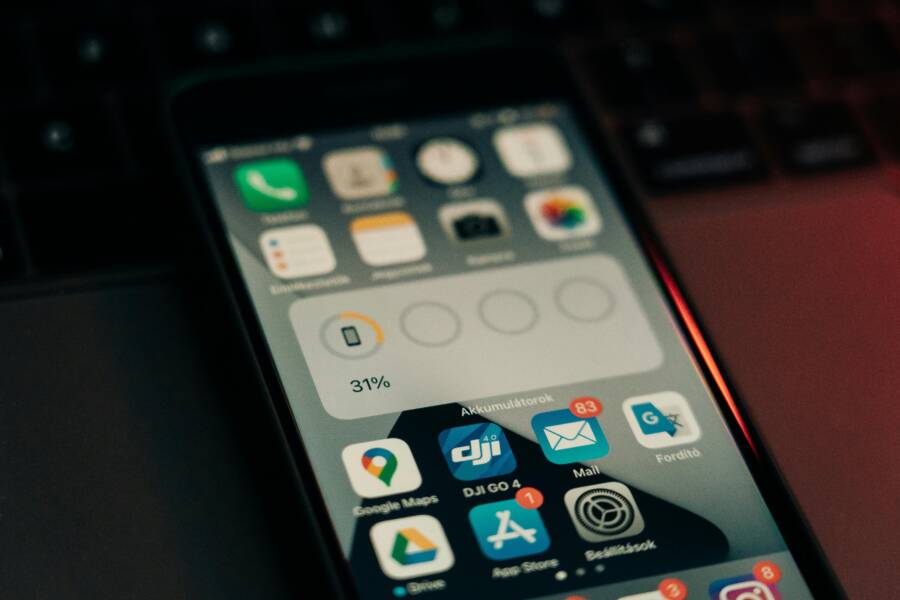
Photo by Szabó Viktor
Restrict Background Activity and Refresh
Background activity lets apps fetch data when you don’t need it. Put a stop to this on Android or iOS with built-in controls. Your phone enters deeper sleep modes right away.
On Android, target apps one by one:
- Open Settings > Apps.
- Pick the app from your battery stats.
- Tap App battery usage.
- Choose Restricted to limit background runs most. (Optimized works for balance; unrestricted allows full access.)
Samsung or Pixel users find extras in Settings > Battery > Background usage limits. Turn on Battery Saver too for automatic curbs.
On iOS, handle it globally first:
- Go to Settings > General > Background App Refresh.
- Set to Off or Wi-Fi only.
For stronger control, enable Low Power Mode in Settings > Battery. It blocks most refreshes across the board.
Test the change: Charge to 100%, leave idle overnight, then check stats. Apps like email or social media drop from high background use. One tweak often halves their wake-ups.
Cut Back on Notifications
Notifications light up your screen for every ping, stealing power each time. Turn off non-essentials to slash these interruptions. Keep only alerts you act on fast, like texts or calls.
He Was Drowning in Bills and Burnout Until a Simple Daily Ritual Rewired His Brain for Wealth in Less Than a Week
>>> Start Your Shift Today <<<
Android steps stay simple:
- Open Settings > Apps.
- Select the app.
- Tap Notifications.
- Toggle off the main switch or specific categories.
Repeat for Facebook, email, or games from your stats. Your phone skips the wake for junk alerts.
iOS makes it per-app:
- Go to Settings > Notifications.
- Choose the app.
- Turn off Allow Notifications, or customize sounds and badges.
Prioritize must-haves: Keep messaging and work apps on. Mute shopping or news pushes.
After changes, watch your stats for fewer wakes. Users report 10-20% battery gains from notification cuts alone. Your smartphone stays quiet and charged longer.
Fix Display, Sensors, and Network Wake-Ups
Display settings and sensors often wake your smartphone without reason. Features like constant screen glows or motion checks pull it from sleep. Network hunts add to the drain. Target these next to cut idle power use by another 15-20%. You’ll apply quick toggles that work on both Android and iOS.
Disable Sneaky Screen Wake Features
Screen wake tricks light up your display at the wrong times. Always On Display keeps a faint glow active. Motion sensors react to lifts or taps. Turn them off, then enable adaptive brightness to adjust light smartly and save power.
Start with Always On Display. On Samsung phones, open Settings > Lock screen and AOD > Always On Display and switch it off. Pixel users go to Settings > Lock screen and disable Always show time and info. For iPhones, head to Settings > Display & Brightness > Always On Display and toggle it off.
Next, kill motion wakes. Samsung devices hide them in Settings > Advanced features > Motions and gestures; turn off Raise to wake and Tap to wake. Pixels offer similar options in Settings > Display > Lock screen. iPhones have Raise to Wake in Settings > Display & Brightness; switch it off. Note that screen taps work by default on iOS, but this cuts most accidental wakes.
Finish by turning on adaptive brightness. It dims your screen in low light to ease battery load. Samsung and Pixel paths match: Settings > Display > Adaptive brightness. iPhone users select Settings > Accessibility > Display & Text Size > Auto-Brightness.
These steps stop needless checks. Your phone rests deeper, especially overnight.
Optimize Location and Connections
Apps grab location nonstop, which wakes your device for GPS pings. Loose network settings force 5G scans that burn power. Set precise controls per app and lock to 4G for steady savings.
Control location app by app first. On Android, go to Settings > Apps & permissions > Permissions > Location. For each suspect from battery stats, pick Allow only while using the app. iPhones store it in Settings > Privacy & Security > Location Services; tap apps and choose While Using over Always.
Switch networks to 4G only next. Android users open Settings > Mobile networks > Preferred network type and select 4G/LTE only. This skips 5G searches. On iPhones, navigate to Settings > Cellular > Cellular Data Options > Voice & Data and pick LTE.
Key tip: Review location for maps, fitness trackers, or delivery apps last. They need it less in the background.
Apply these, then check battery stats after a full day idle. Fewer wakes mean your smartphone holds charge through busy shifts. Users see quick drops in sensor and radio use.
Extra Steps to Keep Your Battery Lasting Longer
You’ve tamed wake-ups from apps, notifications, sensors, and networks. Now build on those wins with habits that protect your battery’s health over time. These steps slow chemical wear in lithium-ion cells. Your smartphone holds charge better for years. Apply them daily for 20-30% less overall drain.

Photo by Andrey Matveev
Stick to the 20-80% Charging Rule
Full charges and deep drains stress battery cells. Keep levels between 20% and 80% most days. This simple habit extends life by reducing heat and cycles.
Charge in short bursts, like from 45% to 75%. Avoid plugging in at 0% or pushing past 100%. For long-term storage, aim for 40-50%.
Your phone’s built-in tools help. On Android, enable optimized charging in Settings > Battery > Charging optimization. It pauses at 80% until you need full power. iOS offers Optimized Battery Charging in Settings > Battery > Battery Health & Charging. Turn it on to learn your routine and hold at safe levels.
There Is a Frequency That the Wealthiest Families Have Used for Generations and Most People Will Never Know It Exists
>>> Open the Door <<<

Users see batteries retain 90% capacity after two years this way. Check your stats weekly to stay on track.
Prevent Heat from Shortening Battery Life
Heat speeds up battery aging faster than anything. Cool phones last longer during heavy use or charging.
Skip gaming or video calls while plugged in. Charge in a breezy spot, away from sunlight or blankets. Use a small fan for intense sessions.
Choose slow wired chargers at 15-30W for daily top-ups. Reserve fast 65W+ or wireless pads for emergencies, and only when the phone feels cool. Wireless often runs hotter, so limit it.
Track temperature in battery stats. Android shows it in the diagnostic menu (##4636##). High readings over 40°C signal risks. These habits cut heat wakes and preserve capacity.
Perform Occasional Battery Calibration
Batteries drift out of sync over months. Calibrate them yearly to reset accurate readings.
Charge to 100% uninterrupted. Use the phone until it shuts off from low power. Then recharge fully to 100% without breaks. Do this once every few months.
After calibration, optimized charging works better. Restart your device post-process to clear caches. Battery stats reflect true health right away.
Quick wins list:
- Use official cables to avoid faulty ones that overheat.
- Update OS promptly; new versions fix power bugs.
- Enable dark mode on OLED screens for pixel-level savings.
Your smartphone charges less often with these extras. Test over a week: note standby drain before and after. Gains stack up fast.
Conclusion
You’ve now got the tools to stop constant wake-ups and reclaim your battery life. Quick checks in battery stats reveal the culprits. Simple toggles on apps, notifications, displays, and sensors deliver fast results. Habits like smart charging seal the gains.
Here are 7 key actions to apply right away:
- Review battery stats to spot top drainers.
- Turn off background app refresh or restrict activity.
- Disable non-essential notifications.
- Switch off raise-to-wake and always-on display.
- Limit location access to “while using” for apps.
- Lock networks to 4G and enable adaptive battery modes.
- Charge between 20-80% and keep your smartphone cool.
Pick one tweak today. Charge fully, leave it idle overnight, then check stats again. You’ll see 20-30% less drain in most cases.
These steps make your phone last through the day and beyond. Your device stays powered for what matters. Share in the comments what fixed it for you.
She Pressed Play on a Strange Audio Track and Within Days Her Financial Reality Started Shifting in Ways She Could Not Explain
>>> See How It Works <<<
