What If the Only Thing Between You and the Life You Deserve Is a Hidden Wealth Code Waiting to Be Activated
>>> Open the Door <<<

Have you ever pulled your phone from your pocket only to see a missed call log filled with strangers’ numbers? That’s pocket dialing in action, a mishap that happens when a screen wakes or a button is pressed by chance. Modern smartphones are sensitive, and small movements can trigger calls without you realizing it. The good news is you can fix it with a few simple steps.
This guide explains why pocket dialing happens and how tiny habits add up to big calls. We’ll cover practical, easy-to-follow fixes that work whether you use an iPhone or an Android phone. You’ll learn how to set reliable locks, adjust wake settings, and use optional guards that reduce accidental touches. By the end, your smartphone will be less prone to dialing people you didn’t intend to call.
You’ll also get quick checks you can perform now to restore peace of mind. We’ll walk through turning off voice wake words, tweaking screen sensitivity, and using features that keep the display off when it should be. With these tweaks, you’ll stay in control of when your phone rings, not the other way around.
Why a phone wakes up and dials someone from your pocket
Pocket dialing happens more often than you think. Your phone sits in a pocket, a bag, or a chair cushion, and a tiny movement can wake the screen or trigger a touch. The result is a call you didn’t mean to place. Understanding the basics helps you stop it at the source. Think of your smartphone as having a few sensitive sensors and wake features that work in the background, ready to react to everyday motion. When you know what can wake the display, you can adjust settings to keep the screen quiet until you want it awake.
He Was Drowning in Bills and Burnout Until a Simple Daily Ritual Rewired His Brain for Wealth in Less Than a Week
>>> Start Your Shift Today <<<

What actually triggers the screen to wake
Your phone uses a trio of components to decide when to wake up:
- The accelerometer: This sensor detects motion and orientation. A gentle lift or shake can signal the device to wake so you can use it without pressing buttons. Think about grabbing the phone from a pocket or pulling it from a bag; a quick lift can wake the screen and show you what’s there.
- The proximity sensor: This little sensor looks for nearby objects, usually your body. If your finger or cloth comes close, it might stop the screen from reacting or, in some cases, misread the situation and wake up. It’s the same sensor that helps your phone know when to turn off the screen during a call.
- Screen wake features: Many phones include “Raise to Wake” or “Tap to Wake.” These features are convenient, but they can misfire when the phone brushes against keys, fabric, or coins in your pocket. When any of these triggers occur, the display can brighten and you may see a call screen appear.
If you want to see how these ideas play out in real devices, you’ll find explanations and tips in guides from manufacturers and tech sites. For example, Samsung explains how to manage on-body detection and wake behavior on its Galaxy devices, which can help reduce accidental wakes in pockets and bags. And Android-focused guides show how proximity and pocket-detection features interact with screen behavior, giving practical steps you can apply today. Samsung: How to prevent pocket dialing on Samsung Mobile Device?
Guides and quick tips from tech resources also cover how proximity sensing and pocket awareness influence everyday use, including how to avoid accidental taps while the phone is in your pocket. Pocket Screen Off Uses the Proximity Sensor to Stop Pocket Dialing
Why calls happen even when you did not tap
Pocket dialing is rarely a deliberate action. It’s a mix of accidental touches and background activity that clashes with wake features. Here’s how it plays out in simple terms:
- Accidental touches: Your phone might scan for a finger movement or display unlock with a light touch. If the screen is already on from a prior moment, a tiny press can place a call.
- Background activity: Some apps run in the background and can briefly create a touch event, especially if the screen is waking from a pocket or bag. In practice, this can feel like the phone acted on its own.
- Proximity misreads: The proximity sensor can misinterpret the closeness of your body as a signal to wake or to start a call screen. When the device expects a simple glance but the screen is ready to go, a call can slip through.
Relatable scenarios are common. You pull your phone out and see a call log with a number you don’t recognize. It wasn’t planned; it was a moment of the screen waking at the wrong time. You can reduce these moments by adjusting how and when the device wakes and by sharpening how the lock and screen controls behave when you aren’t actively using the phone. For those who want an Android-focused view, several guides discuss how to keep the screen off and avoid accidental pocket dials by tweaking wake and lock settings. GuidingTech: 6 Ways to Prevent Your Android Device From Butt Dialing
Key features that can cause pocket dials on iPhone and Android
Several built-in features can wake the display or trigger a dial, especially when the phone sits in a pocket or bag. Here are the major culprits and how to handle them without losing the convenience you expect.
- Tap to Wake / Raise to Wake: These features wake the screen with a light touch or a lift. They are handy in daily use but can wake the phone in a pocket. If you notice repeated pocket wakes, consider turning these off or limiting wake actions to specific contexts.
- On-body detection: This smart lock feature keeps the device unlocked when it’s detected on your hand or body. It can also keep the screen responsive in ways that result in unintended taps. Disabling on-body detection is a straightforward way to gain more control over when the screen turns on.
- Lock screen behavior for voice assistants: If your device is set to listen for wake words or accept quick commands on the lock screen, it can trigger actions with little or no finger input. Tightening lock screen protections reduces accidental calls.
- Always On Display or screen timeout settings: A long screen timeout means the display stays active longer, increasing the chance of a stray touch waking the device. Shorten the timeout and require authentication to re-engage.
In practice, turning off Raise to Wake on iPhone or Android, and adjusting on-body detection and screen timeout, delivers immediate benefits. For Android users, you may also find value in pocket-aware modes that some manufacturers provide. Samsung’s guides show how to manage on-body detection and related settings on Galaxy devices, which helps keep the phone quiet when it isn’t in use. Samsung: How to prevent pocket dialing on Samsung Mobile Device?
If you want a broader Android perspective on screen-off intelligence, the Android Open Source Project explains sensor types and how they interact with the user experience, which helps explain why these features behave as they do. Sensor types | Android Open Source Project
By simplifying wake behavior and tightening lock screen controls, you can dramatically reduce pocket dialing. A quick check now and then keeps your calls intentional and your phone less distracting. And simple habits, like locking your phone before stashing it away, go a long way toward keeping pocket dialing in the past. For more practical steps, you can explore targeted guides that detail iPhone specific or Android specific tweaks and how to tailor them to your daily routine. GuidingTech: 5 Ways to Stop iPhone From Pocket Dialing
Fix it now: quick wins you can try today
Pocket dialing can be frustrating, but you can reduce it with a few practical tweaks. Below are concise, step-by-step fixes that fit into a busy daily routine. The goal is simple: keep your calls intentional while preserving easy access to your device. Think of this as tuning your smartphone so it stays quiet when you stash it away, and only wakes up when you want it to.
iPhone quick fixes
Keep the phone locked until you’re ready to use it, and tighten the ways the screen can wake up. Start with a reliable passcode or Face ID, so a pocket bump won’t unlock the device and start a call.
- Set Auto-Lock to a short interval: Go to Settings > Display & Brightness > Auto-Lock and choose 30 seconds or 1 minute. This ensures the screen isn’t sitting on and ready to react.
- Turn off Tap to Wake / Raise to Wake: Open Settings > Accessibility > Touch and disable Tap to Wake (or Raise to Wake on models that offer it). A quick lift or brush won’t wake the screen.
- Disable Siri on Lock Screen: In Settings > Siri & Search, switch off Allow Siri When Locked so voice commands can’t trigger calls from the lock screen.
- Close the Phone app when not in use: Double-press the Home/Home gesture bar and swipe the Phone app away to keep it from running in the background.
- Strengthen lock screen security: Ensure your Passcode is enabled and consider setting Require Face ID or Require Passcode immediately after screen locks. This helps prevent accidental taps from turning into calls.
Tip: If you still see pocket wakes, review the iPhone community guidance for additional context and tweaks. For example, a discussion thread explores how to prevent butt dialing on iPhone through specific setting changes. https://discussions.apple.com/thread/256075792
Android quick fixes
Android devices vary by brand, but the core ideas are the same. The aim is to stop accidental touches and reduce wake events while you’re pocketed or in a bag.
- Ease off wake gestures: Open Settings > Display > Gesture wake (or Wake screen) and disable Raise to wake or other wake gestures. This reduces accidental screen lighting.
- Check on-body detection: In Settings > Security > Smart Lock (or your device’s Lock screen settings), turn off On-body detection. This keeps the device locked more reliably when you’re not actively using it.
- Lock screen security: Use a strong PIN, password, or pattern. Add extra protection so a bump won’t unlock the device immediately.
- Shorten screen timeout: Set a shorter Screen timeout so the display turns off sooner after interactions stop.
- Review background behavior: Close apps that may briefly wake the screen in the pocket. If your device supports pocket mode or pocket protection, enable it for quiet operation.
If you want a quick, brand-agnostic playbook, see the practical guide on Android pocket dialing. It covers turning off wake features and tightening lock screen controls in straightforward steps. https://www.guidingtech.com/prevent-android-device-from-butt-dialing/
Long term settings to prevent pocket dials
Even after you fix the immediate pocket dial annoyances, the risk pops back up over time. A few long term settings keep your device quiet by default and ready only when you are. Think of these changes as a smart guardrail for your everyday carry. They reduce accidental wakes, limit quick actions on the lock screen, and make background activity less likely to trigger a dial. With consistent habits and careful tweaks, your smartphone becomes less prone to pocket calls without sacrificing convenience.
Strengthen lock screen security
A tight lock screen is the first line of defense against pocket dials. Start with a strong unlock method, then add a short auto-lock window so the screen isn’t exposed for long.
- Use a reliable PIN or biometric like Face ID or fingerprint. This ensures that even if the device is bumped or brushed, it won’t unlock easily.
- Enable auto-lock after a brief period, such as 30 seconds or 1 minute. Short auto-lock times keep the display dark when you aren’t actively using the device.
- Require authentication immediately after the screen turns off or when waking from sleep. This prevents accidental taps from turning into calls.
On iPhone and Android, this approach pays off. A locked phone with a quick auto-lock reduces the chance a stray touch will place a call. For deeper guidance on strengthening lock screens, you can review manufacturer insights and user guides that cover passcodes, biometrics, and how to react quickly when needed. If you want more context, check resources like Apple’s safety guides and Android security basics, which explain lock screen behavior and best practices. https://support.apple.com/guide/personal-safety/harden-your-devices-with-lockdown-mode-ipsd5baf79d0/web https://source.android.com/docs/core/interaction/sensors/sensor-types
Turn off wake gestures and on body detection
Disabling wake gestures and on body detection can dramatically cut pocket wake events. When the phone stays asleep until you actively unlock it, you avoid those accidental lights that feel like a pocket dial in disguise.
- iPhone: Disable features such as Raise to Wake and Tap to Wake. Go to Settings > Accessibility > Touch and switch off wake options. Also consider tightening lock screen access for voice assistants.
- Android: Turn off wake gestures like Raise to Wake or Lift to Wake in Settings > Display > Gesture wake (names vary by brand). In the security or smart lock area, disable On-body detection so the device stays locked when you aren’t actively using it.
These steps reduce the times the screen flickers to life from a casual brush or fabric contact. The result is fewer moments where a quick touch or glance turns into an unintended call. For a broader look at how sensor behavior affects wake decisions, you can explore Android sensor guidance and device-specific tutorials from major manufacturers. https://source.android.com/docs/core/interaction/sensors/sensor-types https://www.samsung.com/us/support/answer/ANS10003305/
There Is a Frequency That the Wealthiest Families Have Used for Generations and Most People Will Never Know It Exists
>>> Open the Door <<<

Manage apps and permissions
Background activity and certain app permissions can open doors to accidental actions, including calls, when your phone is pocketed. A careful review of apps and their access helps you stay in control.
There Is a Frequency That the Wealthiest Families Have Used for Generations and Most People Will Never Know It Exists
>>> Open the Door <<<
- Review apps that can place calls or access the dialer. Revoke permission for any app that doesn’t need it, and limit background activity where possible.
- Check background permissions. Some apps may wake the screen briefly or trigger actions from the lock screen; restrict those behaviors to keep the device quiet.
- Revoke risky access. If an app can draw over the screen or read sensitive data while idle, tighten or remove those privileges.
A disciplined permissions audit keeps your phone from acting on hidden triggers. If you’re unsure where to start, look for brand-agnostic guidelines that walk through app permission reviews and background restrictions. For practical steps, you can consult Android and iPhone security checklists from reputable tech sites. https://www.fixmymobile.com.au/blog/essential-smartphone-security-settings https://www.guidingtech.com/prevent-android-device-from-butt-dialing/
Extra tips and common pitfalls
You have the basics down, but a few extra steps seal the deal against pocket dials. Watch for these common slips and smart tweaks to keep your smartphone reliable. Simple oversights like loose cases or unchecked notifications can undo your progress.
Use Do Not Disturb and notification controls
Do Not Disturb (DND) cuts pocket dialing mishaps by silencing sounds and vibrations during a call. If your phone dials someone by accident, it won’t blare alerts in your pocket and draw attention. You stay unaware until you check.
Set it up for always-on protection with key exceptions. On iPhone, go to Settings > Focus > Do Not Disturb, pick People to allow calls from favorites only, and enable Silence Notifications. Android users: Settings > Sound & vibration > Do Not Disturb, allow repeats from starred contacts, and schedule for pocket-prone times like commutes.
Customize like this:
- Allow repeated calls: Important callers get through on the second try in 3 minutes.
- Starred contacts: Limit breakthroughs to family or work.
- Scheduled mode: Activate during walks or drives.
This setup blocks distractions without missing urgents. Test it; your phone stays quiet even if it dials out. For more on silencing butt dials, check PCMag’s prevention guide.
Check for hardware and screen protection
Faulty gear often hides behind pocket dials. A screen protector with air bubbles or an oversized case can press buttons or cause ghost touches, where the display registers fake taps. Your smartphone acts like it has a mind of its own, opening apps or dialing numbers.
Inspect these spots first:
- Screen protector fit: Bubbles or edges lift and fool sensors into phantom inputs. Peel it off and test; clean residue with a microfiber cloth.
- Case alignment: Bulky or loose cases hit the side button or power switch. Remove the case, pocket the phone bare for a day, and note changes.
- Ghost touch signs: Apps launch solo or scrolls happen untouched. Restart in safe mode to rule out software.
If issues persist, a repair shop can check for digitizer faults. Replace tempered glass with flat, high-quality ones. Tight cases with cutouts prevent button presses. Users report big wins after ditching bad protectors. See NextPit for ghost touch fixes on Android and iOS. These checks take minutes but stop endless dials.
When to seek help and what to expect
You’ve tried the basic fixes, updates, and settings tweaks, but pocket dialing keeps happening. Your smartphone might need deeper intervention. At this point, reset options or hardware checks come into play. These steps restore normal function, but they carry risks like data loss. Know your next moves to avoid surprises.
If problems persist after updates
Software glitches can linger even after updates. Start with a settings reset before going further. It clears custom preferences without deleting files.
First, back up your data. On iPhone, use iCloud or a computer via Finder. Android users can rely on Google Drive or a PC with USB. This saves photos, apps, and contacts.
Next, reset all settings. For iPhone, go to Settings > General > Transfer or Reset iPhone > Reset > Reset All Settings. Android: Settings > System > Reset options > Reset app preferences or Reset Wi-Fi, mobile & Bluetooth. Test for pocket dials after.
As a last resort, factory reset erases everything. Apple’s guide covers the process, and Google explains Android steps. You’ll set up like new and restore from backup. Data loss happens if backups fail, so double-check first. Many users fix stubborn issues this way, but it takes 30-60 minutes.
Hardware checks and professional help
Pocket dials might stem from physical faults. Check for battery swelling, which pushes components and causes erratic touches. Look for a bulging back or phone that won’t sit flat. Screen cracks or loose ports can trigger ghost inputs too.
Inspect your device: Power off, remove case, and scan for damage. Feel for heat or odd bulges. Run a safe mode test on Android (hold power, select Safe Mode) to rule out apps.
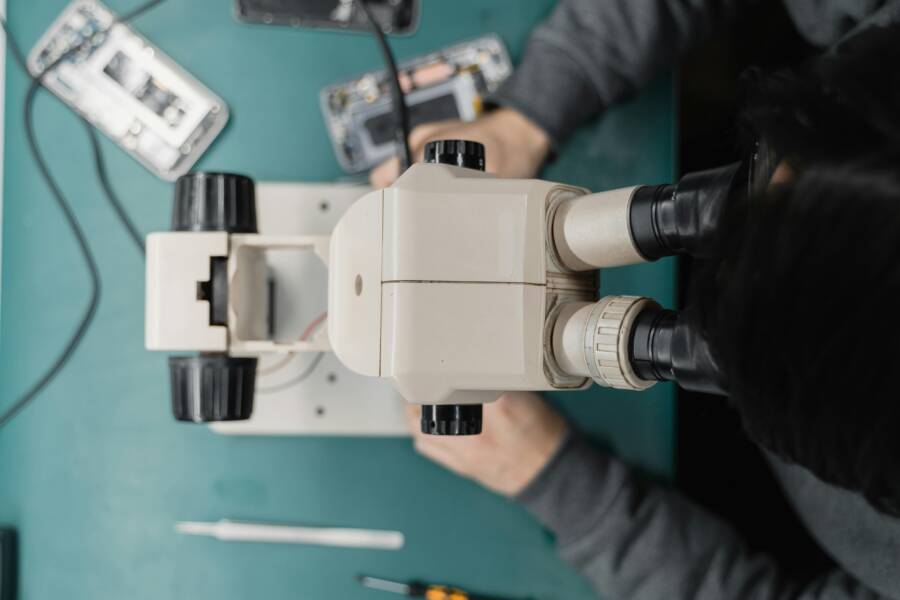
If under warranty, contact support. Apple offers repair options; book via app or site. Samsung and Google have centers too (Samsung service). Out-of-warranty fixes cost $100-400, depending on the issue. Expect diagnostics in 1-3 days, with loaners sometimes available. Pros spot digitizer failures you miss.

Photo by Tima Miroshnichenko
Conclusion
You now hold the tools to stop your smartphone from waking up and dialing in your pocket. Start with a tight lock screen: set auto-lock to 30 seconds, disable Raise to Wake or Tap to Wake, and turn off Siri or Google Assistant on lock. Add Do Not Disturb for silent mishaps, check your case and screen protector for ghost touches, and review app permissions regularly.
Follow this simple action plan today:
- Lock your phone before pocketing it.
- Test wake gestures by simulating pocket movement.
- Adjust timeouts and security in settings.
- Monitor for a week and tweak as needed.
These steps keep calls intentional and your smartphone reliable. Share your results in the comments; did one fix end your pocket dials? Your feedback helps others stay in control. Pocket dialing ends here.
What If the Only Thing Between You and the Life You Deserve Is a Hidden Wealth Code Waiting to Be Activated
>>> Open the Door <<<