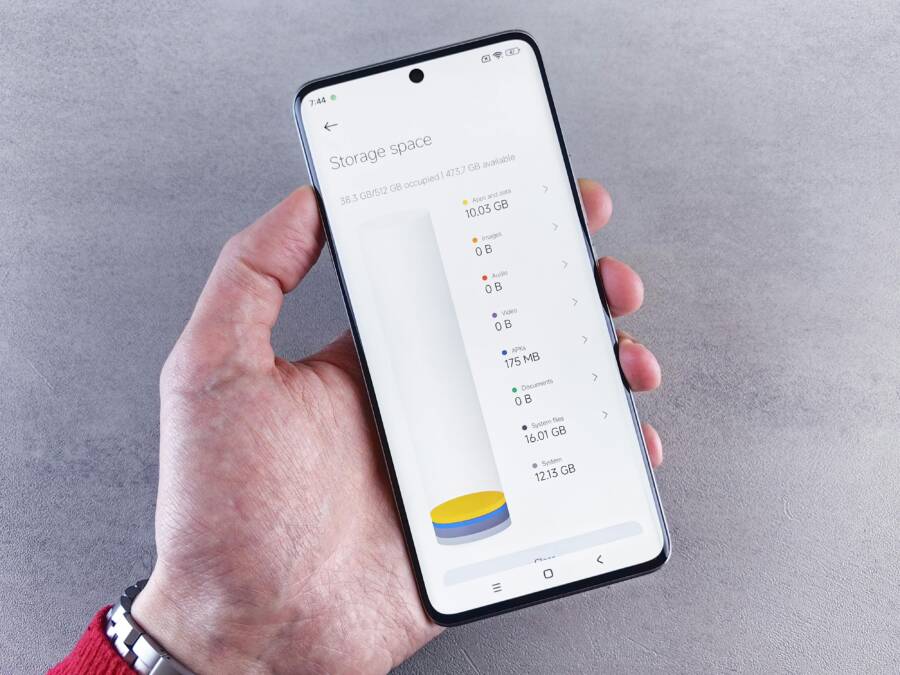
Ever notice the storage full alert just after a busy chat day? WhatsApp, Messages, and Telegram flood your phone with photos, videos, and GIFs, quickly eating into your storage space and slowing everything down. This quick masterclass shows easy steps for both iPhone and Android to stop media from piling up, including adjusting auto downloads, managing backups, and clearing caches so your smartphone stays responsive.
Check Your Storage to Spot Chat and Media Hogs
Your phone can look clean on the outside while lurking clutter sits in apps like Messages and WhatsApp. This section shows practical steps to identify which chats and media are hogging space, so you can reclaim storage without losing important conversations. We’ll cover both iPhone and Android approaches, with quick checks you can do in under 10 minutes. Keeping an eye on what’s piling up helps your smartphone stay responsive and ready for photos, videos, and important chats.
 Photo by Andrey Matveev
iPhone Storage Check Steps
(iOS) Start with a quick glance at your storage usage and then drill into Messages and media in apps. Open Settings > General > iPhone Storage. You’ll see a color-coded bar that shows how much space is used by Apps, Photos, Messages, and other data. Tap Messages to review conversations with large attachments. Focus on media from the last 30 days first; you’ll often find recent videos and big image slides that aren’t essential. For WhatsApp or similar apps, tap the app name to inspect where media is stored and how much space it takes. If you notice a pile of videos or voice messages, consider deleting or offloading those items to free space. Use the “Review Large Attachments” option if available to identify big files quickly. If storage is tight, enable offload apps you don’t frequently use and set up your chats to avoid auto-download of media over cellular networks. For guidance, Apple’s official storage check and management guides offer concrete steps to optimize space without losing access to your chats.
- Plan a 30 day cleanup: review the biggest offenders first and keep only what you really need.
For reference, Apple provides clear steps to check and manage storage on iPhone:
- How to check the storage on your iPhone and iPad: https://support.apple.com/en-us/108429
- Manage storage on iPhone: https://support.apple.com/guide/iphone/manage-storage-on-iphone-iph47c931112/ios
Android Storage Scan Guide
(Android) Storage habits vary by brand, but the core idea stays the same: identify chat media that bloats space and decide what to keep. Start with Google Files or your device’s built-in file manager. In Google Files, use the “Clean” or “Large files” sections to find heavy media from chats. Then check WhatsApp, Messages, and other chat apps for large downloads such as videos, voice notes, or forwarded media. On devices from Samsung, OnePlus, or Xiaomi, you can often find a dedicated “Media, Docs, and Downloads” breakdown within each chat app’s settings. If you don’t want to dive into every app, review the photos and videos in your gallery that came from chats and consider deleting duplicates. Finally, configure auto-downloads to limit media by network type and set a clear retention period for media within chats. For quick reference, keep an eye on the last 30 days of media to spot fresh hogs and remove what isn’t needed.
If you’d like a reliable, step-by-step Android path, consider using Google Files as a starting point to identify large files and then narrow down to chat app media for deletion or offload.
Delete Old Chat Media Without Losing Favorites
Keeping memories safe while freeing up space can feel tricky. The goal here is to trim the excess without touching the chats you actually want to keep. You’ll focus on large media files from chats that aren’t essential, swap to more selective auto-download settings, and use built-in tools to review attachments. By approaching storage with discipline, you protect your favorites and still enjoy smooth, responsive performance on your smartphone.
Clear WhatsApp and Messenger Clutter
If WhatsApp and Messenger keep piling up with videos, voice notes, and forwarded media, a targeted cleanup helps more than a broad purge. Start by identifying large items you rarely revisit. In WhatsApp, use the Media, Links, and Docs section to delete bulk files you don’t need, while leaving conversations and key messages intact. On iPhone, you can review attachments in Settings > General > iPhone Storage, then tap Messages to sort by size and remove older media first. On Android, Google Files or your device’s Files app can help you spot big media from chats and offload or delete them. Remember to preserve your favorites by avoiding deletions from chats you actively use. For quick guidance on freeing WhatsApp space, see WhatsApp’s official help center on deleting media and managing storage. https://faq.whatsapp.com/372400548572711
Find and Trash Hidden Chat Files
Many apps save media in hidden folders that you won’t see in the chat UI. To reclaim space without losing favorites, hunt these hidden files using the built-in Files app on both platforms. On iPhone, open the Files app and search for WhatsApp or Messenger folders; you may discover media tucked away in subdirectories that aren’t visible in the chat itself. On Android, the Files app or a third-party file manager can reveal the WhatsApp/Media subfolders under Internal Storage. Once you locate large, nonessential items, delete them directly from the Files view, then re-scan to ensure you haven’t left behind leftovers. This approach helps you trim bulk while keeping important chats intact. For additional methods to review attachments on iPhone, see guidance on reviewing large attachments in Messages. https://clean.email/blog/email-providers/how-to-review-large-attachments-on-iphone
Shrink Photos and Videos to Save Megabytes
Small tweaks in how you handle chat media can add up to real space savings over time. This section focuses on quick, built-in options you can use right away to reduce the size of photos and videos before they’re saved to your device. Think of it as a fast trim pass that keeps your memories intact while freeing up precious megabytes for new shots and messages. You’ll find simple steps you can apply on both iPhone and Android, so your smartphone stays responsive and ready for the next chat or download.
Quick Edits for Chat Media
Built-in tools let you resize or compress media before you save. On iPhone, you can edit and trim clips, or use the share sheet to save a lower resolution version when sending. For larger files, consider exporting a smaller copy from the Photos app or Messages when you don’t need the original. Android users can rely on the Gallery or Photos app to resize images or compress video before saving or sharing. These built-in options avoid extra apps and keep your workflow smooth. For a quick reference on iPhone compression and editing, see Apple’s guidance on taking and editing media in Messages. https://support.apple.com/en-am/guide/iphone/iph3d039f23/ios
Backup to Cloud and Enable Auto Space Savers
To keep your phone responsive and reclaim space, you’ll want smart backups to the cloud and automatic space-saving features that run in the background. This section covers two practical subsections: setting up iCloud and Google Photos for automatic backups, and enabling auto-clean tools on busy devices. Think of it as building a safe external library for your memories while your device quietly trims the excess. We’ll keep things simple, actionable, and focused on real-world results for both iPhone and Android users.
iCloud and Google Photos Setup
Setting up reliable backups is the first step toward freeing space without losing access to memories. Start with iCloud Photos on iPhone to store images and videos in the cloud while keeping a reference copy on your device. Turn on iCloud Photos and choose “Optimize iPhone Storage” to keep smaller versions locally and full-resolution copies in iCloud. On the Android side, Google Photos offers similar options. In Google Photos, enable backup and sync, then select “Choose backup quality” to balance storage and quality. For most users, “Storage saver” or “High quality” provides substantial savings while keeping access across devices. If you need to fine tune, review the storage controls on each platform and adjust auto-downloads to save data and space.
For iCloud setup, refer to Apple’s guidance: Set up and use iCloud Photos. https://support.apple.com/en-us/108782
For Google Photos backup settings on Android, see Google Photos Help: Choose the backup quality of your photos & videos. https://support.google.com/photos/answer/6220791?hl=en&co=GENIE.Platform%3DAndroid
Auto-Clean Features for Busy Users
Busy days demand automatic space management that doesn’t require a dozen taps. On Samsung devices, Device Care monitors battery, storage, memory, and more, offering regular cleanups to reclaim space without slowing down your day. You can enable auto optimization so the phone periodically frees up cache and temporary files, freeing room for fresh photos, messages, and apps. This keeps your device responsive even when you’re juggling work, family, and media. If you notice prompts to optimize, you can adjust the settings to suit your rhythm, so the phone cleans itself without nagging reminders.
See how Device Care works on Samsung devices: How to automatically optimize your Galaxy device. https://www.samsung.com/latin_en/support/mobile-devices/how-to-automatically-optimize-your-galaxy-device/
Learn more about the Device Care feature and its purpose: What is the Device care feature in Galaxy smartphones? https://www.samsung.com/latin_en/support/mobile-devices/what-is-the-device-care-feature-in-galaxy-smartphones/
Conclusion
Freeing space from chats and media takes small, repeatable habits rather than a one off purge. Start by reviewing large attachments in key apps, then back up memories to cloud and enable selective auto downloads so fresh media stays lean. Regularly offload unused apps and clean caches to keep your smartphone responsive and ready for new photos, messages, and moments.
A simple weekly routine makes a lasting difference. Check storage views, delete the heaviest items from the past month, and confirm cloud backups are complete before removing local copies. Use built in tools to review attachments by size, then keep only what you truly value. This steady approach protects treasured chats while preventing clutter buildup.
One clear benefit shows up fast: you gain peace of mind. With more space, your device breathes, app updates feel snappier, and you can capture new memories without worry. Make cloud backups part of your normal rhythm so you never risk losing important chats or media again. The result is a smarter workflow that fits around busy days and long trips.
Try one tip today to start the momentum. Pick a chat with large attachments and delete or offload those files after confirming a backup. Then set up automatic space savers on your device so the routine runs in the background. Your future self will thank you for the extra breathing room on your smartphone.