There Is a Frequency That the Wealthiest Families Have Used for Generations and Most People Will Never Know It Exists
>>> Open the Door <<<

Your smartphone suddenly ignores the SD card you’ve relied on for photos, videos, and extra storage. It happens often, and the reasons range from dirty contacts or a loose fit to corrupted files, software glitches, or even a worn-out card. Don’t worry; most fixes take just minutes.
This guide walks you through common causes and simple steps to get your SD card detected again. You’ll start with quick checks like cleaning and restarting, then move to testing the card elsewhere and safe formatting if needed. It covers most Android phones and iPhones using microSD adapters.
You’ll save time and avoid buying a new card or phone repair. Always back up data first when possible, especially before formatting. Follow these steps in order, and your smartphone storage will work like new.
Common causes your phone won’t detect an SD card
When your phone suddenly stops recognizing an SD card, it can feel like a brick wall. The fix is usually quick and straightforward. Below are the most common culprits, with simple checks and actions you can take right away. Think of your phone as a gateway to extra storage — small problems, big impact.
He Was Drowning in Bills and Burnout Until a Simple Daily Ritual Rewired His Brain for Wealth in Less Than a Week
>>> Start Your Shift Today <<<

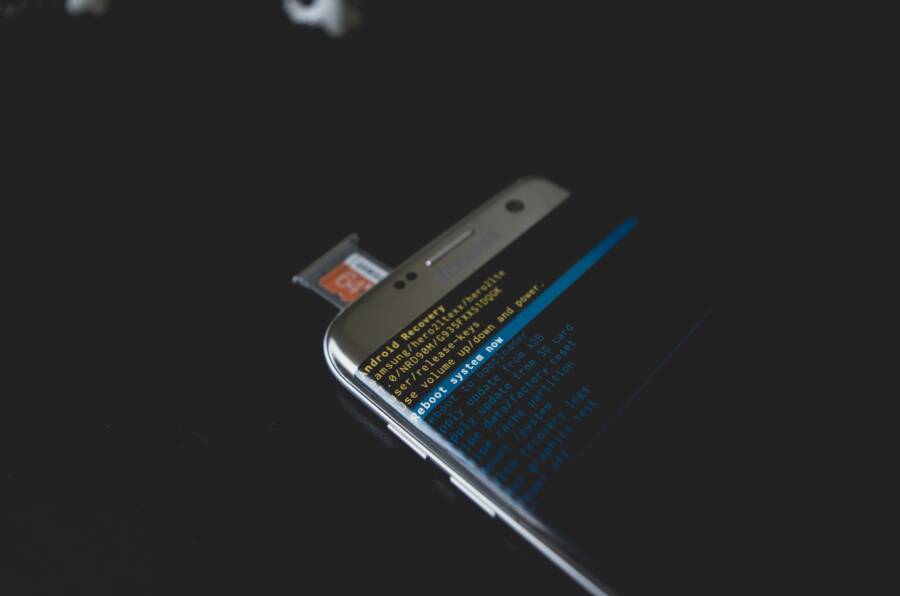
 Photo by Kelvin Valerio
Dirt, dust, or damage on the SD card
A dirty or bent contact area on the card is a common reason for non-detection. Even a tiny smear or a slight bend in the metal pads can prevent a phone from reading the card. Start with a quick inspection and safe cleaning.
- Check the card edge and the metal contacts for visible grime or scratches.
- Clean gently with a soft, lint-free brush or a microfiber cloth. If needed, you can lightly dampen the cloth with isopropyl alcohol (70% or higher) and wipe the contacts. Let the card dry completely before re-inserting.
- Look for bent or misaligned contacts. If you see bending, replace the card. A damaged SD card is unreliable and can risk data loss.
What to avoid:
- Don’t use sharp tools to pry or sand the contacts.
- Don’t apply excess liquid or soak the card.
- Don’t force the card into the slot if it doesn’t align naturally.
Visually inspect the card for scratches, cracks, or any irregular bending. If you notice damage, replace the card and back up data from any accessible files on another device first. For safe cleaning guidance, see resources on safe memory card care, which cover best practices and common pitfalls.
Wrong format or corrupted file system
Your phone can fail to detect a card if it’s formatted in a way the device doesn’t handle well. The two most common formats are FAT32 and exFAT. Some phones handle one format better than the other, and certain file system errors can prevent recognition.
- FAT32 is widely supported for smaller cards, but it has a 4 GB file size limit per file.
- exFAT supports larger files and bigger cards, but not all devices handle it smoothly.
- If a card shows up on a computer but not on your phone, the issue could be the format or a minor corruption.
Practical checks you can perform quickly:
- Use a computer to verify the format: format the card to a compatible file system (FAT32 for cards up to 32 GB, exFAT for larger cards) and re-copy your files.
- Run a disk check on a computer to repair minor filesystem errors.
- If you’re unsure about the best format for your device, consult your phone’s support page or try formatting the card in smaller, test-sized steps.
If you’re unsure which format your phone supports, review format compatibility guides like those from reputable tool guides. These explain how Android devices typically handle FAT32, exFAT, and other formats, with practical steps to verify and adjust formats. For a quick reference, you can compare formats and their limitations on a trusted guide.
Slot hardware issues and loose connections
A damaged SD card slot, a dusty tray, or a card that sits loosely can prevent the device from detecting the card reliably.
- A loose card usually means you’ll hear a faint click when you insert it. If it feels wobbly, the slot may be damaged or misaligned.
- A dusty tray can block the card from seating properly. Clean the tray area gently with a dry brush or compressed air.
- If the slot feels loose or visibly damaged, professional service may be required. Sudden looseness often means a hardware issue that needs replacement or repair.
Quick diagnostic tip:
- Power off the phone, remove the SIM and SD if possible, re-seat the SD firmly, and power the device back on. If it still doesn’t detect, try the card in another device to confirm whether the problem lies with the card or the phone’s slot.
For hardware concerns, it’s best to seek professional help if reseating and cleaning don’t resolve the issue. If you want to explore more on common slot problems and fixes, reputable troubleshooting resources cover similar scenarios and offer device-specific guidance. You can also explore user discussions for practical, hands-on tips.
Card quality, counterfeit, or failure
Not all SD cards are built equal. Low quality or counterfeit cards can fail early, and even new cards can underperform or fail without warning. Always test with a known good card to isolate faults.
- Start by using a trusted, known-good card to verify that the phone’s reader works.
- If the phone detects the known-good card but not the suspect card, the issue is likely the card itself.
- If the known-good card also fails, the problem might be the phone’s SD reader or settings.
Testing tips:
- Try the suspect card in another device. If it works there, the problem is likely the phone or its software.
- Use a reliable card brand or a card from a reputable retailer to minimize the chance of counterfeit cards slipping into your setup.
- If you suspect a counterfeit, refer to guides that explain how to spot fake cards and how to test them before use. Links to credible guides can help you verify authenticity and test performance.
If you want a quick primer on spotting fake cards, see credible resources that explain how to identify counterfeit storage and how to test a card before you rely on it for important data. Always back up your data first when possible, especially before formatting or testing.
External resources and practical checks:
- For guidance on SD card formats and Android compatibility, see: SD Card File System for Android.
- A comparison of FAT32, exFAT, and NTFS formats can help you choose the right format for your device.
- Learn how to spot fake SD cards and verify authenticity to avoid data losses.
Additional notes for readers
Thousands of People Were Struggling With Money Until They Discovered This One Ancient Secret Hidden in Sound
>>> Unlock It Now <<<

- If you’re dealing with a smartphone that keeps losing connection even after cleaning and reformatting, you may need a fresh card. However, first confirm that the slot and the card are both functioning. Testing across devices helps you pinpoint the root cause, whether it’s the card, the slot, or the phone itself.
- When you experience persistent issues, it’s worth checking if there are any pending software updates for your phone. A small update can fix recognition problems and improve compatibility with external storage.
Images and further reading
- A visual guide to safe SD card cleaning can be useful for quick reassurance.
- If you want to dive deeper into file system formats and device compatibility, the linked resources provide practical comparisons and step-by-step checks.
Photo credits
- Photo by Kelvin Valerio
- Image URL: https://images.pexels.com/photos/544900/pexels-photo-544900.jpeg?auto=compress&cs=tinysrgb&dpr=2&h=650&w=940
External links
- SD Card File System for Android | What Is the Best Format for Android Detailed Guide
- FAT32 vs. exFAT vs. NTFS: Which File Format Is Best for Your Drive? Auslogics Blog
- Best file system for an external SD card Android Stack Exchange
Note: The article sections above are designed to align with the broader step-by-step guide on how to fix phone not detecting an SD card, keeping language approachable and actionable for a wide audience.
Quick checks you can do right away
When your SD card isn’t detected, a few fast checks can clear up the most common issues. These quick wins don’t require tools or professional help and can save you time and frustration. Think of them as the first aid for external storage problems you can perform in minutes.
 Photo by Eyüpcan Timur
Restart your phone and reseat the card
A quick reset often clears minor glitches that block recognition. It reinitializes the hardware interface and resets the card reader pathway.
- Power off the device completely. If you can, remove the SIM tray for extra space and reduce heat during the process.
- Remove the SD card, inspect for debris, and reinsert it fully until you hear a subtle click.
- Power the phone back on and verify in Storage settings that the card appears with its available space.
Why this helps: software hiccups, caching issues, or a momentary misalignment can hide the card from the system. A fresh boot reestablishes the connection and often makes the card detectable again. After reboot, check Storage (or equivalent) to confirm the card is listed and that space shows correctly.
Tip: If you’re unsure where to find Storage settings, search for “Storage” in the settings app or consult your device’s support page for exact navigation.
Check SD card status in Settings
Most phones show the external card status in the Storage area. A detected card usually appears with a label like “SD Card” and displays the amount of free space.
- Go to Settings > Storage (or Settings > Device maintenance > Storage on some models).
- Look for the SD Card entry. Confirm it’s listed and note the available space.
- If the card is shown as unavailable or not listed, there may be a formatting issue, a slot problem, or the card may be failing.
What you should see when detected:
- SD Card with available space or a similar status indicating usable storage.
- If you see “Card unavailable” or no card listed, proceed with the next checks in this guide.
For quick reference, you can review guides on SD card formats and compatibility to make sure your card is in a supported format for your device. See resources that detail compatible formats and how to verify them on Android devices. SD Card File System for Android
Try a different SD card
If you have access to another card, perform a swap test. This helps isolate whether the issue is the card itself or the phone.
- Insert a known-good card (one you know works in other devices).
- Check if the phone detects it and shows available space.
- If the new card is detected, the original card is likely faulty or corrupted.
- If the new card is not detected either, the problem is more likely with the phone’s card reader or software.
What to watch for:
- If the second card works, copy important data from the old card if possible, then consider replacing the faulty card.
- If neither card is recognized, there may be a deeper hardware or firmware issue worth professional diagnosis.
If you want extra guidance on card reliability, look for reputable comparisons or guides that explain how to spot counterfeit or failing cards. For a practical primer on testing reliability, you can explore resources that show how to confirm card integrity across devices. 7 Fixes For SD Card Not Recognized Or Detected By Android
Test the card in another device
The easiest way to pinpoint the cause is to test the card in another device or a computer with a card reader.
- Use a different smartphone or a laptop with an SD slot to try the card.
- If the card works in another device, the issue likely lies with your phone’s SD reader, software, or a setting.
- If it fails in every device, the card is probably dead or corrupted.
What this check accomplishes:
- Isolates the problem to the card or the device.
- Reduces needless troubleshooting on the phone itself.
If the card works in some devices but not in others, consider backing up data from the functioning devices and replacing the problematic card. For more on how formats affect cross-device compatibility, review guides that compare file formats and device support. SD Card Not Detected in Android or Windows | 7 Fixes
Extra quick wins to keep in mind
- Clean the card gently if you see visible dirt on the contacts. Wipe with a lint-free cloth and let it dry before reinserting.
- Inspect the card for obvious damage like bends or cracks. If damaged, replace it to prevent data loss.
- Ensure the card is not stuck or jammed in the tray. If the tray is damaged or stuck, professional service may be needed.
If you’re still stuck after these quick checks, the next steps involve more thorough testing, formatting considerations, and hardware diagnostics. For deeper guidance on formatting and compatibility, legitimate guides explain the best formats for different card sizes and devices. FAT32 vs. exFAT vs. NTFS: Which File Format Is Best for Your Drive?
Key takeaways from these quick checks
- A simple restart and reseating the card fixes many recognition problems.
- Check the Storage settings to confirm the card is detected and has space.
- Use a different card to determine if the issue is with the card or the phone.
- Test the card in another device to pinpoint where the fault lies.
Step-by-step fixes from simple to advanced
When your phone isn’t detecting an SD card, you want fixes that are easy to follow and effective. This section breaks down practical steps from quick, low-effort tweaks to more thorough checks. Each fix builds on the last, so you can stop when the card is recognized or move forward with more advanced options. Think of it as a real-world toolbox for your smartphone, designed to save time and protect data.
Unmount and remount the SD card
A simple reset often resolves detection glitches. Unmounting the card safely removes it from the system, then remounting reinitializes the connection. Here’s a straightforward sequence you can follow:
- Go to Settings > Storage > SD Card.
- Tap Unmount. Wait a moment for the system to release the card.
- Reinsert or reselect the SD card in the same menu and tap Mount.
- After mounting, open a file manager to confirm the card appears and you can see its folders and files.
Why this helps: unmounting clears the card’s active state without formatting, which fixes minor read hiccups or caching issues. It’s especially useful after a phone restart or when the card was briefly misread.
If you still don’t see the card after mounting, try a quick test with another app or file manager to rule out an app-specific display issue. You can also verify the card’s visibility by connecting the device to a computer later in this guide.
Tip: If your device shows the card but the contents don’t load, restart the file manager app or reboot the phone and check again.
Clear file manager cache and data
Sometimes the file management app loses track of the card’s state. Clearing its cache and data forces the app to reload the card’s information from the system. Here are the steps you need:
- Open Settings > Apps and locate the file manager you use.
- Tap Storage.
- Choose Clear Cache and then Clear Data (or Clear Storage on some devices).
- Reopen the file manager and navigate to the SD Card to confirm visibility.
- It’s a good idea to restart your device after these steps to ensure all background processes refresh.
Why this matters: misreads often come from the app not syncing with a recent change in the card’s state. A clean slate for the file manager reduces false positives and helps the OS present accurate information.
After clearing data, if the card still doesn’t appear, consider trying a different file manager to determine whether the issue is app-specific or system-wide. If you’re curious about what affects file managers on Android devices, see reputable guides that compare common file managers and their handling of external storage.
Update software and apps
Compatibility gaps between the OS and SD card hardware can surface after long gaps between updates. Software updates often include fixes for storage compatibility, driver updates, and improved card reader support. Do these updates in two parts: the system and your apps.
There Is a Frequency That the Wealthiest Families Have Used for Generations and Most People Will Never Know It Exists
>>> Open the Door <<<
- Check for a system update: Settings > Software Update > Download and Install.
- Then check for app updates in the store and install any available updates for your file manager and media apps.
- Reboot after updating to ensure all components load correctly.
Why this matters: even small improvements in the OS can stabilize how external storage is detected and managed. If you’ve noticed this issue after a recent update, a quick reboot can help solidify the fix.
If you want extra context on how updates can impact SD card compatibility, see guides that discuss file systems alongside OS updates and device support. These resources offer practical steps for verifying compatibility after a software refresh.
Check the card on a computer and repair file system errors
If the card behaves differently on a computer, you’ll often pinpoint the problem quickly. Connect the SD card to a PC or Mac and run a quick check or repair. Always back up data first if possible.
- On Windows: run a disk check (chkdsk) or use the built-in error-checking tool to scan for corrupted sectors and fix filesystem errors.
- On macOS: use First Aid in Disk Utility to verify and repair the card.
- After the check completes, safely eject the card, reinsert it into your phone, and test detection again.
Why this matters: file system errors can masquerade as a non-detection issue in phones. A repair on a computer often resolves underlying corruption or bad sectors that the phone cannot cope with.
Backup reminder: if you can, copy essential data to another device before running any repair or format. Data safety is worth the extra step.
If you’re looking for reputable guides on filesystem repair and SD card health, you’ll find reliable sources that walk through Windows and macOS procedures in clear terms. It’s worth seeing how these checks translate to your phone’s behavior once the card is reinserted.
Format the card as a last resort
Formatting should be your last option because it erases all data on the card. Use this step only after you’ve backed up everything you need. Choose a format that suits your card size and device compatibility.
- For cards up to 32 GB, format to FAT32.
- For larger cards, exFAT is typically the best choice, but confirm your device supports it.
- After formatting, reinsert the card into your phone and test detection and access speed.
What to expect after formatting: the card will appear as a clean, empty drive. You’ll need to copy your data back from your backup. If the card still isn’t detected after formatting, the problem may be with the phone’s reader or a hardware fault.
Formatting tips and cautions:
- Double-check that you’ve picked the correct drive before erasing.
- If you must format on a computer, use a trusted utility rather than basic OS tools if you’re unsure about options.
- After formatting, reinsert and test in the phone without loading many apps that might reintroduce issues.
If you want a quick reference on which formats are best for different devices, there are practical guides that compare FAT32, exFAT and NTFS. They help you decide the right format for your card size and usage. You can review those resources to make an informed choice.
Quick note on safety: formatting wipes all data. Always back up first.
Additional considerations for this section
- If the phone keeps losing connection to the card even after these steps, you may need a fresh SD card or a hardware diagnosis. Testing across multiple devices helps verify what’s at fault.
- When possible, keep a small, reliable format on hand for quick testing. This makes it easier to determine if a problem is card-based or device-based.
Useful resources you can consult for deeper clarity
- A practical guide on SD card formats and Android compatibility explains the common formats and how to verify them on Android devices.
- You can also compare different file formats to understand their limitations and uses for media, apps, and large files.
Remember, the goal is to get your card working again with minimal risk to your data. If one fix doesn’t resolve the issue, move on to the next step in this sequence. With patience, most SD card not detected problems have a straightforward answer.
References and further reading
- SD Card File System for Android | What Is the Best Format for Android
- FAT32 vs exFAT vs NTFS: Which File Format Is Best for Your Drive?
- Best file system for an external SD card
Note: The guidance above is designed to align with practical steps you can take on most Android devices, while also applying useful checks for iPhone users using microSD adapters when applicable.
If you want to explore broader troubleshooting for external storage, you can review additional guides that address common SD card issues and device-specific quirks. These resources complement the steps here and help you confirm best practices for your setup.
Test the fix and validate results
After you’ve worked through the fixes, it’s time to verify that the SD card is detected reliably and that your data remains accessible. This section guides you through concrete checks, measurable tests, and clear decision points so you know when you’re done or when to move to the next step. Think of it like a quick audit to confirm the solution stuck and the card is behaving as it should in real-world use.
Confirm the card shows up in Settings and File Manager
The first sign that things are back to normal is seeing the card listed in your phone’s storage menu and being able to access it with a file manager. Here’s how to validate quickly and clearly:
- Open Settings and navigate to Storage (on some devices this might be under Device Care or a similar label). Look for an entry labeled “SD Card” or the external card name and verify it shows available space.
- Open your preferred file manager and check for the SD Card in the sidebar or drives list. Browse a few folders to confirm you can see existing files and folders.
- In both places, watch for error messages or warnings. Common prompts to watch include “Card unavailable,” “Filesystem error,” or a prompt asking you to format the card. If you see these messages, don’t assume the fix is complete; revisit earlier steps like re-seating, trying a different card, or testing on another device.
Practical tip: if you’re unsure where to find Storage settings, use the search function in your Settings app and type “Storage.” Reaching the exact path can vary by model, but the general flow remains Storage > SD Card. You can also test with a simple file manager, such as a preinstalled app or a well-regarded alternative, to rule out an app-specific display issue.
If you want extra confidence, test the card in another device later in this section. This helps confirm whether the issue is the card itself or the phone’s reader or software.
For further reading on supported formats and how to verify compatibility, you can review guides like Android’s official SD card help. This resource explains how to get started with an SD card on Android devices and what to expect in the Storage view. Get started with an SD card – Android Help
Copy files and test read/write performance
Once the card appears in Settings and a file manager, run a quick data transfer to validate read and write speeds and ensure data integrity. Use a mix of small and large files to get a representative sense of performance.
- Copy a few representative files to the card, such as photos, a short video, and a handful of document files. Note the time it takes for each transfer and the overall feel when you browse the card after the copy.
- Test a larger file, like a 1 GB video or a sizeable archive, to gauge sustained write rates. If a single large file completes unusually slowly or fails mid-transfer, it can indicate a hidden problem such as a slow card or a flaky connection.
- After the copy, read the files back. Open a few to confirm the data is intact. If you notice corruption, stop and back up immediately before trying again to avoid data loss.
Why this matters: read and write speeds give you a practical sense of card health and device compatibility. A card that passes quick checks but stumbles under heavier load often needs replacement or a deeper check of the card’s quality.
Best practices for testing:
- Use a dedicated SD card testing app if you want a precise speed readout. It will show sequential and random read/write speeds and help you compare to the card’s rated performance.
- For cross-device confidence, test the same card in another phone or a computer. Persistent slowdowns across devices point to the card itself rather than the phone.
- Keep an eye on data integrity. If you copy 100 MB of mixed files and later compare checksums, mismatches signal corruption.
If you’d like a quick, practical reference on testing speeds, trusted guides cover the steps to measure SD card performance and interpret results. For example, a popular tool-based approach explains how to interpret write and read speeds and what speeds you should expect for different card classes. How to Test the Speed and Performance of Your Memory Card
Optional tip: a lightweight testing app from the Google Play Store can help you visualize read/write numbers without complicated setup. This is especially useful if you want a simple benchmark during a quick check. SD Card Test – Apps on Google Play
What to do if speeds are acceptable but the card still acts flaky:
- Try a different card from a reputable brand to see if the issue recurs with multiple cards.
- Ensure the card is properly seated and free of dust in the tray.
- Consider backing up data and reformatting the card only if you consistently observe problems across devices.
External sources on performance testing can provide deeper insight into speed classes and how to pick a card that keeps up with your smartphone usage. A credible comparison can help you choose the right balance of capacity and speed. FAT32 vs exFAT vs NTFS: Which File Format Is Best for Your Drive?
What to do if the card still does not show up
If the card remains invisible in Settings and a file manager after you’ve repeated the checks, you’ll want a clear, actionable path forward. The goal is to determine whether the root cause is the card, the slot, or the software, and decide on the next steps with minimal data risk.
- Use a new SD card: substitute a known-good card to see if the phone recognizes it. If the new card works, the problem is almost certainly with the original card.
- Consider hardware service: if the new card fails too, the issue might be the card reader or the SD slot. In that case, hardware service or a professional diagnosis is warranted.
- Seek professional help if the slot seems damaged: a visibly bent tray, loose slot, or unusual warmth can signal hardware problems beyond simple fixes. A technician can confirm the hardware status and advise on replacement options.
Clear decision path:
- Card works in another device: card is faulty or corrupted; replace and back up data.
- Card does not work in another device: the card slot or phone software is likely at fault; proceed with service or professional diagnosis.
- Card works in some devices but not your phone: focus on the phone’s software, drivers, or Settings. A factory reset is a rare last resort after data backup, but professional guidance is recommended before taking that step.
If you want additional guidance on when to replace or repair, you can review guides that address SD card reliability and how to spot counterfeit or failing cards. For practical steps on testing across devices, credible resources outline how to verify card integrity and performance. SD Card Not Detected in Android or Windows | 7 Fixes
When to consider data-first approaches:
- If you have important files on the original card, back up using a computer or another device before attempting a reformat or repair.
- If you must use the card in a pinch, copy what you can access to another drive and then replace the card to avoid ongoing data risk.
If you’re unsure about the next move, the safest course is to move toward a replacement card or device with a known-good card. You’ll protect your data and minimize downtime.
External resources you can consult for deeper clarity
- SD card formats and Android compatibility; a practical guide you can follow to verify formats. SD Card File System for Android
- General guidance on choosing the right file format for larger drives and cross-device use. FAT32 vs exFAT vs NTFS: Which File Format Is Best for Your Drive?
- A reliable overview of how to spot fake SD cards and verify authenticity. Best file system for an external SD card
Next steps you can take if you still need help:
- Revisit earlier sections for a methodical workflow that isolates the problem.
- Consider a hardware diagnosis if the card reader or slot shows physical signs of wear.
- Reach out to manufacturer support with your device model, current OS version, and a summary of what you’ve tried.
By following these steps and keeping data safety in mind, you’ll finish with a clear verdict on the SD card issue. If the card is replaceable, you’ll have your decision ready and can move forward with confidence.
Prevention tips and when to replace
Preventing SD card issues starts with smart habits and careful handling. This section runs through reliable card choices, safe usage practices, and signs that it’s time to replace. By building a small, repeatable routine, you’ll cut data risks and keep your phone’s storage working smoothly.
Choose reliable SD cards and handle them properly
When you buy a card, aim for well-known brands with solid reputations for quality and authenticity. Look for SanDisk, Samsung, Kingston, Lexar, and ProGrade cards from reputable retailers. Steer away from unknown brands or ultra-cheap options that often come from questionable sources. Counterfeit or low-quality cards can fail without warning, leading to data loss or slow performance. For guidance on spotting fakes and choosing a trustworthy card, see resources that outline common counterfeit risks and testing methods.
- Always buy from reputable retailers and official brand stores to reduce counterfeit risk.
- Inspect cards for packaging integrity and tamper indicators before use.
- If you’re unsure about a card’s authenticity, test it in a known-good device first and compare performance.
Safe handling and ejection matter just as much as the card itself. Keep the card clean and free of dust on the contacts. Don’t bend the metal pads or force the card into the slot. When ejecting, use the device’s eject option if available, then remove the card gently. If the slot feels loose or the card sits oddly, it’s better to pause and recheck than to push harder. To help you choose wisely, see guides on reliable SD cards and how to avoid fake products from trusted tech outlets. For a quick read, check The best microSD cards of 2025 and how to spot fake cards.
- Quick reference: reputable brands and official retailers
- Safe handling: clean contacts, no bending, gentle ejection
External resources for further reading:
- https://www.zdnet.com/article/best-microsd-card/
- https://www.flashcarts.net/microsd-fakes.html
- https://androidpolice.com/how-to-spot-and-test-for-fake-memory-cards
Back up data and test new cards
Before you rely on a new card, back up everything you value. A quick backup to a computer or cloud storage can save you from annoying data losses if the card fails later. When you get a new card, test it on multiple devices if possible. A card that works well in one device but fails in another is often a sign of compatibility limits or a phasing issue with a particular reader.
- Create a backup copy of all essential files first.
- Test the new card in at least two devices, including a computer with a card reader, to confirm reliability.
- After initial testing, copy representative files and large data chunks to verify write stability.
This habit reduces risk and gives you a baseline for performance. If you suspect a fake or low-quality card, use credible guides to verify authenticity and performance before placing important data on it. For practical tips on detecting counterfeit cards and testing reliability, see guides that compare brands and provide testing steps.
External resources for deeper checks:
- https://www.easeus.com/computer-instruction/sd-card-file-system-for-android.html
- https://androiddata-recovery.com/blog/solve-sd-card-not-recognized-by-android-phone
- https://www.auslogics.com/en/articles/fat32-vs-exfat-vs-ntfs-which-file-format-is-best-for-your-drive/
Protect the SD card slot and phone hardware
Prevention is cheaper than repairs. Keeping dust out of the slot helps your phone read cards reliably. Use a case or a pocket that shields ports from dirt and moisture. Extreme temperatures or exposure to moisture can degrade both the card and the reader over time. Regularly inspecting the slot and tray for damage can catch problems early.
- Use a case with port protection when you carry your phone in dirty or dusty environments.
- Avoid moisture exposure around the slot area; moisture can corrode contacts.
- Store spare cards in a clean, dry place to reduce the chance of contamination.
A few simple checks go a long way. If you notice dust or debris around the slot, clean it gently with a dry brush or compressed air before reinserting the card. If the slot feels loose or damaged, seek professional service rather than forcing parts together. For additional context on slot problems and preventive care, see articles covering common SD card problems and how to solve them.
External resources for hardware care:
- https://www.kingspec.com/news/common-sd-card-problems-and-how-to-solve-them.html
- https://www.minitool.com/news/how-to-prevent-sd-card-corruption.html
This section keeps your SD card strategy practical and solution-driven. If you keep these tips in mind, you’ll minimize wasted time and data risk while you troubleshoot any detection issues in the future. Remember to back up regularly, test new cards before relying on them, and protect the hardware you rely on every day. If you want deeper dives into format compatibility or hardware fault signs, you can explore the linked guides and keep a small, reliable test card on hand for quick checks.
Conclusion
Most SD card detection issues boil down to a few practical checks and small hardware or software tweaks. Start by cleaning contacts, reseating the card, and trying a known good card to isolate the problem. If the card is recognized on another device, the issue is likely the card or its formatting; if not, the phone’s reader or software may need a deeper fix, such as a software update or hardware service. Keep your smartphone refreshed with the latest OS and app updates, and test across devices when in doubt. Remember to back up your data and practice good card care to prevent future headaches.
He Was Drowning in Bills and Burnout Until a Simple Daily Ritual Rewired His Brain for Wealth in Less Than a Week
>>> Start Your Shift Today <<<