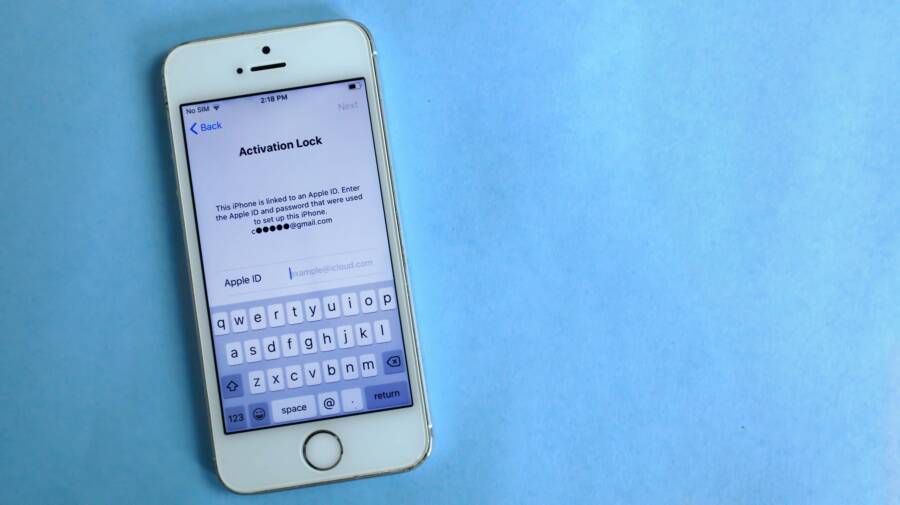
Opening a phone and seeing a request to enter your Apple ID password can feel urgent, but most prompts are solvable without a reset. If you’ve started seeing this repeatedly, you’re not alone. This guide walks you through practical steps to stop the interruptions and get back to normal use.
First, we’ll identify why these prompts pop up. They usually happen when Apple services think your account needs reauthentication, when a device sign in is out of date, or after a password change. A quick check of your Apple ID status on another device or on the web can confirm if the issue is widespread or isolated to one phone.
The plan is straightforward. We’ll cover the simplest fixes first, like updating your iOS version and rebooting the phone, then move to account level checks such as re signing in and reviewing trusted devices. You’ll learn how to manage app permissions that trigger password checks and how to disable unnecessary prompts without compromising security.
By the end you’ll have a clear, repeatable process you can follow whenever this happens on your smartphone. You’ll know what to adjust in Settings, what to verify in your Apple ID, and what to do if the problem sticks. This approach keeps your device running smoothly and your accounts safe.
Why your iPhone keeps asking for your Apple ID password
If your iPhone keeps prompting you to enter your Apple ID password, you’re not alone. These prompts can pop up for a variety of legitimate reasons, from password changes to security checks. The good news is most issues have straightforward fixes. Below you’ll find practical explanations and step by step actions you can take to stop the interruptions and regain smooth usage. This section is designed to be a quick reference you can return to whenever you see a password prompt again.

Photo by Safwan C K
Expired or changed Apple ID password
A password that has recently changed or expired can trigger prompts on all devices that use the same Apple ID. When you update your password on the web or switch to a new one for security reasons, every device and every service that relies on that Apple ID needs to sign in again with the new credentials. This prevents unauthorized access and ensures your devices stay in sync with your account.
What to do now
- Verify your current password. On your iPhone, go to Settings, tap your name, then choose Password & Security. If you see a password alert or a request to update, follow the prompts to update your password or sign in with the new one.
- Sign in again on the iPhone. In many cases you’ll be prompted to reauthenticate within Settings. Enter the current Apple ID password, and, if needed, follow any on-screen instructions to complete the sign-in.
- Check other devices. If you have a Mac, iPad, or Apple TV, repeat the sign in process there. After updating everywhere, the prompts should stop appearing on the iPhone.
- Look for password changes on the web. If you recently changed your Apple ID password on a browser, make sure the new password is used across all devices and services that rely on your Apple ID. For reference, see guidance on how to reset or recover your Apple ID password on Apple’s official support pages.
Helpful tip: If prompts persist after updating, sign out of iCloud on the iPhone and sign back in. This can reset the authorization state across services like iCloud Drive, Photos, and iCloud Mail. If you need extra context, see discussions about password resets and reauthentication across devices.
Links you may find useful:
- How to fix iPhone, iPad, Mac repeatedly asking for Apple ID password
- Continuous Apple Account verification pop-ups after iOS upgrade
- What to do if your iPhone keeps asking for the Apple ID password
Reauthentication after iOS updates or device changes
iOS updates or adding a new device can trigger a reauthentication request. Apple expects you to verify your identity again after a major update or when a new device joins your account. This protects your data and keeps your services in sync.
What to do now
- Reenter your credentials in Settings. Open Settings > Your name > Password & Security and sign in with your Apple ID password. If prompted, approve any two factor verification codes on trusted devices.
- Check the App Store and iCloud services. Open the App Store app and sign in if you see a prompt. Do the same in Settings for iCloud related prompts. Completing sign in for these apps often resolves the issue across other services as well.
- Respond to prompts from apps that require sign in. Apps like Messages (iMessage), FaceTime, and any third party apps that rely on your Apple ID may ask for sign in after an update. Enter your credentials when asked and allow any required permissions or verifications so the app can operate normally.
- Keep an eye on two factor prompts. If you have two-factor authentication enabled, your trusted devices will display a six digit code. Enter it on the iPhone when requested or approve the sign in from a trusted device.
For more context on how updates influence authentication, you can check Apple’s guidance on two factor authentication and trusted devices. Examples of typical prompts after a major iOS release often involve reauthenticating for the App Store, Messages, and FaceTime.
Links you may find useful:
- Two-factor authentication for Apple Account
- Use two-factor authentication for your Apple Account on iPhone
Two-factor authentication and trusted devices
Two-factor authentication (2FA) and trusted devices play a central role in when and how these prompts appear. 2FA adds a second verification step to confirm it’s you signing in, which can mean you see a code on your trusted devices or a prompt to approve the sign in from another device.
What to do now
- Verify your trusted devices. On your iPhone, go to Settings > Your name > Password & Security > Devices. Ensure the list shows devices you recognize. If a device you don’t recognize appears, remove it from your account.
- Ensure you have a trusted phone number. In the same section, confirm at least one trusted phone number is on file. This is where verification codes are sent if you don’t have a trusted device nearby.
- Approve sign in requests. When a 2FA prompt appears on your iPhone, you’ll see a request to approve the sign in on a trusted device or to enter a verification code. Use the code or approve promptly to keep the process moving.
- Keep your contact details up to date. If you change your number or switch devices, update your trusted devices and numbers. Outdated information can cause extra prompts or failed sign-ins.
If you want to deepen your understanding of 2FA on Apple IDs, Apple’s official support articles explain how it works and how to turn it on or manage trusted devices.
Links you may find useful:
- Two-factor authentication for Apple Account
- About trusted phone numbers and trusted devices for Apple Account
Images after sections help illustrate the points and keep readers engaged. If you’d like more visuals, you can add images showing Settings navigation or the sign-in screens.
What this means for you
- If you recently changed your password, completed a new sign-in on all devices, and still see prompts, you may have a device or app that still holds an old credential. Update those apps or sign out and back in where applicable.
- If you added a new device, verify it shows up in the trusted devices list. Remove anything you don’t recognize.
- If prompts persist after a major update, reauthenticate in Settings and the App Store. It’s often enough to restore normal behavior.
External references and examples can provide practical steps or user experiences to guide you through the process and narrow down the root cause. For example, discussions about recurring prompts and continuous verification can help you compare your situation to common patterns.
- Recurring Apple ID password reset issue
- Constant “Sign in with Apple ID” Prompt
- Continuous Apple Account verification pop-ups after iOS upgrade
If you want more hands on guidance for specific prompts, be sure to check the linked articles and Apple’s official support pages for the most accurate, device specific instructions.
Fast, user friendly fixes you can try now
If you’re being repeatedly prompted for your Apple ID password, there are quick checks you can run to restore normal use. These fixes focus on practical, low-effort steps you can complete in minutes. Start with the simplest ideas and move to account specific steps only if the prompts continue. Think of this as a short toolkit you can pull out before you escalate to more drastic measures.
Sign out and sign back in to Apple ID
A fresh sign in can reset the authentication state across iCloud and related services. On your iPhone, go to Settings > your name > Sign Out. After you sign out, sign back in with your Apple ID password. This process may cause prompts to reappear briefly as the device reauthorizes.
What you’ll likely see:
- A warning about turning off iCloud data on the device. You can choose to keep data on the iPhone and reenable iCloud features after signing back in.
- Prompts to enter your Apple ID password for various services like iCloud Drive, Photos, and Mail during the sign-in flow.
- A verification step if you have two-factor authentication enabled. Enter the code from a trusted device if prompted.
Tips to keep data safe:
- Back up important data before signing out, especially photos and documents stored in iCloud.
- After signing back in, reenable iCloud features you use regularly to restore normal synchronization.
If you want extra context on reauthentication across devices, Apple’s guidance and community discussions provide helpful scenarios. See how other readers handle repeated password prompts here: https://support.apple.com/en-us/104958?displayMode=headless
Check your network and date time settings
A weak network or incorrect date time can trigger sign-in prompts, especially when devices try to verify credentials with Apple’s servers. A stable connection makes reauthentication smooth and reduces timeouts.
Why this matters:
- Poor network can cause sign-in requests to fail or time out.
- Wrong date and time can lead to certificate validity errors, triggering repeated prompts.
What to do now:
- Connect to a reliable WiFi network. If your current network is unstable, switch to a trusted router or use cellular data briefly to test if prompts subside.
- Set Date & Time to Set Automatically. Open Settings > General > Date & Time, and enable Set Automatically. This keeps your device in sync with Apple’s servers.
If you’re curious about broader troubleshooting conversations, you can review discussions on continuous prompts after iOS updates here: https://discussions.apple.com/thread/256146277
Reset Apple ID password if needed
Resetting your password is sometimes the simplest path when you suspect a compromised account or you’ve updated the password for security reasons. After a password change, you’ll want to sign back in on your iPhone and on any other devices using the same Apple ID.
When to reset:
- Suspected compromise or if you’ve received security alerts.
- You’ve changed your password and want to ensure all devices have the new credentials.
Steps to reset:
- Start at appleid.apple.com and use the Forgot Apple ID or password option, then follow the prompts to reset.
- After the reset, sign back in on your device. Go to Settings > your name > Sign in to your [Apple ID], and enter the new password. If two-factor authentication is enabled, approve the sign-in on a trusted device.
- Check other devices and services. Update the new password on Mac, iPad, Apple TV, and any apps that rely on your Apple ID.
Precautions:
- Do not reuse passwords from other sites. Use a strong, unique password for Apple ID.
- Keep your trusted devices list up to date so you can receive verification codes without delays.
- If you can’t remember your password, Apple’s account recovery process helps you regain access, but it can take days or longer depending on the verification steps involved. Learn more here: https://support.apple.com/en-us/118574
Update iOS and apps
Keeping iOS and apps up to date is a practical, ongoing habit. Updates fix bugs that can cause random prompts and strengthen security to protect your account.
What to check and how to act:
- Check for iOS updates. Open Settings > General > Software Update. If an update is available, download and install it. Updates often include fixes for authentication quirks.
- Update apps through the App Store. Open App Store > your profile icon > Available Updates. Install any that apply. App updates can resolve issues where apps repeatedly request sign-in or password verification.
- After updating, monitor if prompts decrease. If prompts persist, try signing out of iCloud and signing back in after updating, as this can correct authentication states across services.
For broader reading on how updates influence authentication and trusted devices, you can review official guidance and related discussions here: https://support.apple.com/en-us/119859
External references and practical guidance:
- If you want a quick recovery path when you cannot reset a password, Apple Support explains account recovery options and timelines: https://support.apple.com/en-us/118574
- For ongoing prompts and user experiences, community discussions about constant sign-in prompts after updates can provide useful context: https://discussions.apple.com/thread/254939591
Key takeaways:
- A quick sign out and sign back in often clears the authentication state across iCloud.
- A reliable network and correct device time prevent certificate and server validation errors.
- Password resets should be done carefully, with signing back in on all devices to restore sync.
- Regular updates keep the system stable and reduce the chance of prompts reappearing. If needed, use account recovery as a last resort, following Apple’s official process.
Deeper fixes if prompts persist
If you’ve tried the quick wins and the prompts keep showing up, it’s time to drill down deeper. These fixes target the root causes that often trigger repeated reauthentication, such as outdated device lists, lingering credentials, and account security settings. Take these steps in order, and test after each one to see if the prompts subside. A calm, methodical approach usually restores normal use without a full reset.
Reset all settings vs factory reset
Understanding the difference between resetting all settings and a full factory reset helps you choose a safer, less drastic path first. Resetting all settings returns system settings to their defaults while keeping your data intact, whereas a factory reset erases all content and settings, essentially restoring the device to how it was out of the box.
What’s preserved and what changes:
- Reset all settings: WiFi passwords, wallpaper, notifications preferences, display brightness, network settings, and system preferences are reset. Your apps, data, photos, and media stay on the device.
- Factory reset: All content is erased, including contacts, photos, apps, and data. The device is restored to a clean state with no personal information.
How to reset all settings:
- Open Settings > General > Reset, then choose Reset All Settings.
- You’ll be prompted to confirm. Enter your passcode if required.
- After the reset, the device restarts with defaults for system settings. Recheck prompts after reconfiguring essential preferences.
When to choose each option:
- If prompts are tied to misconfigured preferences or corrupted system settings, Reset All Settings often resolves the issue without data loss.
- If a broader problem or suspected device compromise exists, a factory reset is worth considering after backing up. For guidance, see Apple’s official steps for erasing and restoring your device.
Useful reference: How to factory reset your iPhone, iPad, or iPod touch.
- https://support.apple.com/en-us/108931
Review devices linked to your Apple ID
Unrecognized or outdated devices can trigger continuous reauthentication. Cleaning up the devices that are allowed to sign in reduces the chance of extraneous prompts.
What to do:
- View devices: Settings > your name > Devices. You’ll see every machine linked to your Apple ID.
- Remove unfamiliar or old devices: Tap a device you don’t recognize and choose Remove from account. If you don’t see a remove option, sign out on that device and try again.
- Verify device status: Ensure each listed device is yours and currently in use. If a device is lost or no longer in use, removing it prevents it from triggering sign-in requests.
Why this helps:
- Fewer trusted devices means fewer routes for verification requests.
- It reduces the chance that a stale credential on an old device prompts you on the iPhone.
If you want a broader view, Apple explains how to check your Apple ID device list and manage associated devices.
- Check your Apple Account device list to find where you’re signed in: https://support.apple.com/en-us/102649
Contact Apple Support and prepare details
When deeper issues persist, reaching out to Apple Support with the right information speeds up the resolution. Have the essentials ready so a specialist can assist without back-and-forth.
Checklist to have on hand:
- Device model and current iOS version
- Apple ID email address used on the device
- Recent password changes and any related security alerts
- Exact error messages or prompts you’re seeing
- Screenshots or screen recordings of the prompts if possible
How to contact:
- Start at the official Apple Support page to access options like chat, call, or scheduling a visit: https://support.apple.com/contact
- If needed, you can use the iPhone support channel for device-specific guidance: https://support.apple.com/iphone
Tip for faster help:
- Share a concise summary of the pattern of prompts (when they occur, which apps or services are involved) along with the steps you’ve already tried. This helps avoid repetitive suggestions and speeds up the path to a resolution.
Additional context:
- Apple Support and community discussions offer practical scenarios for persistent prompts after OS updates or password changes. If you want to explore more user experiences, you can view related discussions and guidance through Apple’s support resources.
- Example reference: Apple’s password reset and support articles provide paths if you’re locked out or stuck on sign-in loops.
- Official contact hub: https://support.apple.com/contact
What to expect after reaching out:
- A tailored plan that may include reauthenticating across devices, updating trusted devices, or performing account recovery steps if needed.
- If a credential issue is identified, you may be asked to verify your identity and re-sign in on your iPhone and other devices.
Including a quick note:
- If you’re unsure about the exact cause, Apple Support can guide you through a structured troubleshooting flow and help you avoid unnecessary resets.
External references and related reads
- View and remove your devices that are associated with your Apple Account for purchases: https://support.apple.com/en-us/118412
- Remove a device from Find My on iCloud.com: https://support.apple.com/guide/icloud/remove-a-device-mmfc0eeddd/icloud
- Check your Apple Account device list to find where you’re signed in: https://support.apple.com/en-us/102649
Key takeaways:
- Clean device lists and reduced settings changes often quell repeated prompts.
- Thoroughly documented symptoms speed support and reduce back-and-forth.
- If in doubt, start with safer resets and device list cleanups before deeper actions.
Tips to prevent future prompts
To keep Apple ID password prompts from interrupting your day, adopt proactive steps that strengthen account security and reduce unnecessary reauthentication. These practices help you stay productive on your smartphone while preserving a smooth user experience across devices. Below are practical guidelines you can apply now, with quick actions you can take in minutes.
Enable two factor authentication and manage trusted devices
Two-factor authentication (2FA) adds a second layer of security and makes password prompts less invasive by requiring an approval on a trusted device or a verification code. It’s the foundation for safer sign-ins and fewer recurring prompts.
What to do now
- Turn on 2FA on your Apple ID. This creates a secure flow where Apple sends a six-digit code to trusted devices or numbers when you sign in on a new device or browser. See Apple’s step by step guidance to enable 2FA: Two-factor authentication for Apple Account.
- Review trusted devices. On your iPhone or iPad, navigate to Settings > Your name > Password & Security > Devices. Remove any devices you no longer own or recognize. Keeping the list current reduces the number of places Apple can attempt a verification from.
- Confirm trusted numbers. In the same area, ensure you have at least one trusted phone number on file for code delivery. If a number is outdated, update it so you can receive codes without delay.
- Manage recovery contacts. Setting up an account recovery contact can provide a safety net if you’re ever locked out. This helper can verify your identity and assist with regaining access, keeping you from wild password resets. Learn more about recovery contacts and how to set them up: Set up an account recovery contact.
- Familiarize yourself with official guidance. Apple’s resources cover how 2FA works, how to review trusted devices, and how to use recovery options across devices. For iPad users, the guide Use two-factor authentication for your Apple Account on iPad explains device-specific steps.
Enacting these steps creates a robust security posture and minimizes friction during sign-ins. If you want a deeper dive into trusted devices and recovery options, Apple’s official documents are a reliable starting point: About trusted phone numbers and trusted devices for Apple Account.
External links for quick reference:
- Two-factor authentication for Apple Account
- Use two-factor authentication for your Apple Account on iPad
- Set up an account recovery contact
Keep Apple ID secure and passwords organized
Strong, unique passwords paired with smart management reduce the chances of prompts caused by compromised credentials. A well organized approach also helps you recognize phishing and avoid credential leakage.
What to do now
- Use a password manager. Rely on a password manager to generate and store unique passwords for Apple ID and related services. This minimizes reuse and makes it easier to sign in securely across devices.
- Don’t reuse passwords. Each account should have its own strong password. Reuse is a common weak link that triggers unexpected prompts if one service is breached.
- Update passwords regularly. Periodically refresh your Apple ID password, especially after security alerts or a suspected breach. After changing a password, sign back in on all devices to restore sync.
- Recognize phishing attempts. Be cautious of messages or prompts that request your Apple ID credentials outside of Apple’s official sign-in paths. When in doubt, navigate directly to settings or use the Apple official app to sign in rather than following a link in a message.
- Consider passkeys and built‑in tools. Apple’s password manager features, including iCloud Keychain, can reduce the need to enter passwords repeatedly. If you’re curious about passkeys as a phishing resistant option, Apple provides clear information on their security benefits.
Additional context and resources can help you improve security habits and keep prompts at bay: How to secure Apple Account from Hacking, Apple Password Manager: Top Features Explained, and About trusted phone numbers and trusted devices for Apple Account.
External links for quick reference:
- Set up an account recovery contact
- Help a friend or family member as their account recovery contact
- About trusted phone numbers and trusted devices for Apple Account
- Apple Password Manager: Top Features Explained
- About the security of passkeys
Conclusion
These fixes cover the common causes of Apple ID password prompts and show you how to regain smooth use of your iPhone. Start with quick steps like signing out and back in, checking network settings, and updating iOS and apps. If prompts persist, move to deeper checks such as reviewing trusted devices and your Apple ID security settings on your smartphone.
Use these methods in order and test after each one. A tidy device list, current passwords, and stable network will cut down on reauth prompts over time. Give it a try and share your results in the comments so others can learn from your experience.