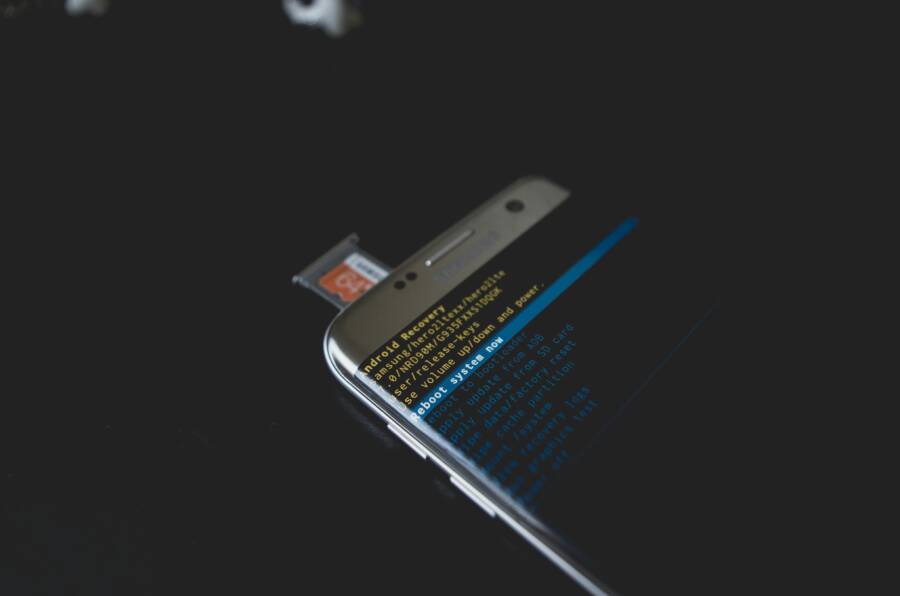
Are you stuck with a phone that says the same Google account already exists on your device? It can happen after a reset, a transfer from another phone, or when two copies of the same account collide in the system. The error isn’t a sign of a bigger problem, but it does need a quick, careful fix.
This guide walks you through simple steps you can try right away, from quick checks to more advanced options. You’ll learn why the message pops up and how to safely move past it without losing data. Think of it as a practical roadmap for your smartphone and your peace of mind.
By the end, you’ll know exactly what to do to regain access, whether you’re setting up a new device or cleaning up an old one. The steps are straightforward, and you’ll have a clear path to get back to apps, photos, and all the things you rely on every day.
Understand the error meaning and why it appears on your Android phone
When you see the message “This Google account already exists on your device,” you’re not seeing a sign of a broken phone. It’s a status note that the system has found a Google account that is already linked to the device. This can happen in several common situations, and knowing the cause helps you pick the right fix. Below you’ll find a clear explanation of what the error means, how it affects your access, and the typical scenarios that trigger it. If you’re troubleshooting a stuck setup, this section will give you a solid foundation before you try concrete steps.
Why the message pops up on Android devices
Several straightforward circumstances can trigger this warning. Here are the most common, explained in steps so you can spot exactly where things went off track:
- You’ve reset the device and are attempting to sign in with the same Google account you used before. The system recognizes the account as already present from a previous setup and blocks a duplicate entry to keep data safe and organized. This is usually a quick sign-in fix, not a deeper problem. See how Google has described related scenarios in their support threads for reference.
Helpful link: https://support.google.com/android/thread/181785964/this-device-was-reset-to-continue-sign-in-with-a-google-account-that-was-previously-synced?hl=en - You bought a secondhand phone or switched to someone else’s device and the previous owner’s Google account remains linked. The device will warn you that the account already exists on the hardware, even if you’re adding a different account. In this case, removing the old account or fully resetting the device is often the right move. For related discussions, you can check experiences from other users facing the same situation.
Helpful link: https://support.google.com/android/thread/231362828/sign-in-with-an-account-previously-linked-to-device-error?hl=en - You attempt to add an account that looks identical to another one already logged into the device. Sometimes the system merges accounts or flags duplicates when it suspects the same email address is used in multiple places. The safest path is to verify which accounts are on the device and remove duplicates if appropriate. For additional context, see user reports about how duplicate accounts are handled on devices.
Helpful link: https://support.google.com/googleplay/thread/271272556/this-account-already-exists-on-your-device?hl=en - You recently migrated data from another phone and the setup flow reuses a previously linked account. This is common when restoring from a backup, especially on older devices or when moves happen quickly. The system can interpret the restore as an existing association and prompt you to proceed with the recognized account. You’re not alone in this; many users describe this scenario during setup.
Helpful link: https://support.google.com/android/thread/181785964/this-device-was-reset-to-continue-sign-in-with-a-google-account-that-was-previously-synced?hl=en
In short, this message is about account management on the device, not about a harmful error. It’s a guardrail that prevents confusing account states and helps keep your apps, data, and settings aligned with a single identity on that device.
What this means for access to apps and data
The warning has practical consequences that affect how you sign in and what you can access on your phone. Here’s what to expect and how to interpret it:
- New sign-ins can be blocked until you verify ownership. If the system flags an existing account, you might be temporarily prevented from adding another Google account to avoid duplicates. This does not mean your data is lost; it means you need to confirm the correct account and complete the sign-in flow.
- App downloads and updates may stall if your device insists on using a specific account. Google Play checks the linked account before granting access to apps or updates. If the device sees a conflicting account state, you may see delays or prompts to switch accounts.
- Data access is tied to the active account on the device. Gmail, Google Photos, Drive, and other services rely on the primary account configured on the handset. If the wrong account is active or the system prevents a new one, accessing data in those apps can feel limited until the issue is resolved.
- Play Protect and security checks stay in place. The warning can intersect with security prompts that ensure you’re signing in with a legitimate, verified account. You won’t bypass these checks; you’ll complete them as part of a safe setup.
- The relationship between Google accounts and device setup is straightforward: one device, one or more accounts, and a clear path to data and apps. When a duplicate or prelinked state appears, follow the guided steps to disambiguate which account should remain active.
If you’ve ever dealt with a stuck sign‑in or a blocked app download, you’ve likely run into this kind of careful account management. The goal is to restore a clean, single identity on the device so you can access everything you rely on, from contacts to calendar events and paid apps. For additional guidance, see help center threads that discuss signing in with an account previously linked to a device.
- https://support.google.com/android/thread/231362828/sign-in-with-an-account-previously-linked-to-device-error?hl=en
- https://support.google.com/googleplay/thread/271272556/this-account-already-exists-on-your-device?hl=en
Common scenarios that trigger the warning
Understanding typical triggers helps you pick the right remedy quickly. Here are the most common situations and what each implies for your next steps:
- Using a secondhand device: The previous owner’s account may still be attached. The fix usually involves a full device reset and a clean setup with your own Google account.
- Performing a factory reset: If you sign in with the same account you used before, Android might report that the account already exists on the device. You’ll typically go through the normal sign-in prompts to reattach the account after the reset.
- Removing an account incorrectly: If you remove the wrong account or remove accounts in a way that leaves a partial link, the system might flag an existing account on the device. The fix is often to re-add the correct account and remove the duplicate.
- Attempting to add a duplicate account: This happens when the same email address is registered under multiple profiles or apps on the device. The straightforward fix is to consolidate to a single account on the device and ensure all apps use that one.
- Restoring from a backup that contains the account: The restore process can reintroduce a previously linked account, triggering the duplicate warning. A careful recheck of the accounts on the device helps fix this.
In each scenario, the practical path is the same: identify which account should stay, remove any duplicates if needed, and complete the sign-in flow with the correct credentials. For more context on device resets and sign-in flows, you can review related discussions from Google’s support pages.
- https://support.google.com/android/thread/181785964/this-device-was-reset-to-continue-sign-in-with-a-google-account-that-was-previously-synced?hl=en
- https://support.google.com/googleplay/thread/271272556/this-account-already-exists-on-your-device?hl=en
If you want a quick sanity check, run through these steps in order: confirm the intended account, review the accounts currently linked on the device, remove any obvious duplicates, then re-run the sign-in flow with the correct Google account. This approach will usually clear the message and restore normal access to apps and data on your smartphone. For more practical tips and real‑world tips from other users, see the Google support discussions linked above.
Quick, safe fixes you can try today
When you see the message that a Google account already exists on your Android device, the fix doesn’t have to be complicated. Start with a small, safe checklist and move up only if needed. These quick wins are designed to clear minor glitches, refresh connections, and get you back to apps, photos, and messages fast. Think of it as a lightweight tune-up for your smartphone.
Restart, update, and check sync
A simple three-step routine can resolve many everyday hiccups without touching your data.
- Restart the phone. A quick reboot clears temporary glitches and resets background processes that may cause a stale account state.
- Check for updates. Go to your device settings and install any available system and Google app updates. Updates often fix bugs that affect sign-in and syncing.
- Verify Google services are syncing. Open Settings > Accounts > Google and confirm that sync is on for the services you rely on, such as Gmail, Contacts, and Drive. If you see a sync error, trigger a manual sync for each service.
Why this helps: many issues stem from minor cache or connection hiccups. A restart clears the slate, updates plug known gaps, and a fresh sync ensures your device is talking to Google in a clean, current way. If you want more guidance on syncing problems, Google’s help pages walk through common steps and troubleshooting tips. For quick reference on sync issues, see the official guide on fixing account sync problems. https://support.google.com/android/answer/9455149?hl=en
What to watch for: if a sync issue persists after these steps, you may have a more specific account state problem. In that case, proceed to the next fixes while keeping your data in mind.
Quick tip: keep your device plugged in during updates if possible. A stable power source reduces the chance of incomplete installs that can create new glitches.
Sign out or remove the existing Google account safely
If the duplicate state seems stubborn or you’re troubleshooting a secondhand device, signing out or removing the existing account can help reset the association. Follow these careful steps to minimize data loss and preserve what you need.
- Steps to sign out and remove:
- Go to Settings > Accounts > Google.
- Tap the account you want to sign out or remove.
- Choose Sign out (if available) or Remove account. Confirm when prompted.
- Backup considerations:
- Before removal, review what data is tied to the account and back up anything you don’t want to lose, such as emails, contacts, Drive files, and photos.
- If you’re using a Google app with local data tied to the account, ensure it’s saved where you need it.
Why this matters: removing the old account clears the path for a clean reattachment of your own Google account. It removes mixed signals in the account state and reduces the risk of data gaps when you sign back in. If you need official language on removing an account and backing up data, these Google Support resources are helpful references. https://support.google.com/accounts/answer/4533068?hl=en
What to consider before removing:
- Some apps will remove data tied to the account when you remove it from the device. This can include emails, contacts, and app settings. If you rely on local copies, back them up first.
- If the device is owned by someone else or you’re using a shared phone, make sure you have permission to remove the account and reset the device if necessary.
If you’re unsure about the best account to keep, a quick sanity check can help. List the accounts currently on the device and identify which one is the primary identity for most apps. You can then remove the duplicates and proceed with signing in again using your preferred Google account. For more steps on removing accounts safely, see the Google Account Help page for removing products or data from a device. https://support.google.com/accounts/answer/81987?hl=en
Add your Google account or test with another account
After you’ve cleared duplicates or removed the old state, it’s time to add your own Google account back. If you want to confirm whether the issue is account specific, you can temporarily test with a different Google account as well.
- How to add your Google account after removal:
- Open the device Settings app.
- Tap Passwords & accounts (or Users & accounts on some devices).
- Under Accounts, select Add account.
- Choose Google and sign in with your Google credentials.
- Follow the on-screen prompts to complete setup, including any security checks.
- Testing with another account:
- Add a second Google account to verify if the sign-in issue is tied to a specific email. If the second account signs in without a problem, the original account may have a data or security flag that needs addressing.
- If the second account experiences issues as well, the problem is likely device-level or OS-related rather than account-specific.
What this achieves: reattaching your own account gives you full access to Gmail, Photos, Drive, and Play services, while testing with another account helps pinpoint the root cause without guessing. For adding or removing accounts, the official instructions cover the general flow and potential prompts. https://support.google.com/android/answer/7664951
Extra tip: if you’re on a Pixel phone or a device with tight Google integration, you may see device-specific prompts during the sign-in flow. In those cases, follow the on-screen instructions to grant the necessary permissions and complete setup. For Pixel users, you can also learn about adding or removing accounts on Pixel devices. https://support.google.com/pixelphone/answer/2840815
Remember, the goal is a straightforward, single identity on the device. If your test account works but your primary account does not, you may need to revisit backups, data, or security settings tied to that particular account. If you want a broader guide on adding your Google account to Android, review common steps in the official add account article. https://support.google.com/android/answer/7664951
If you’ve reached this point with no luck, consider a full device reset as a last resort. This ensures a clean slate and prevents lingering old associations. Be sure to back up data first, especially important files, photos, and contacts. Helpful backup resources can guide you through safeguarding your data before a reset. https://support.google.com/android/answer/2819582
By following these steps, you’ll usually resolve the duplicate account message and restore smooth access to your apps and data. If you want to compare steps across devices, official Google guidance covers variations across Android versions and manufacturer skins. https://support.google.com/android/answer/9455149?hl=en
What to do in tricky cases
When you’re dealing with a stubborn Google account message on Android, a few well‑structured steps usually clear the path. The goal is to verify ownership, remove conflicting links, and reattach your account without losing data. Treat this like a quick, careful puzzle on your smartphone rather than a battle with the device. Below are three common tricky scenarios and how to handle them with confidence.
If the device belongs to someone else or is secondhand
Inherit or borrow a device with a prelinked Google account requires careful handling. Start by asking the owner to sign out or remove their account before you proceed. A clean slate prevents lingering connections that can cause future sign‑in issues.
Key steps:
- Ask the owner to sign out from Settings > Accounts > Google, then remove the account if possible.
- Back up any data you need before you reset the device. A factory reset will wipe personal data, so confirm what you’ll lose.
- After the reset, set up the device with your own Google account and re‑install apps as needed.
If the owner is not available or the device is owned by a family plan or business, you’ll likely need explicit permission to reset and reuse the device. For additional context on factory resets and sign‑in behavior, see Google’s support discussions on signing in with an account previously linked to a device. https://support.google.com/android/thread/181785964/this-device-was-reset-to-continue-sign-in-with-a-google-account-that-was-previously-synced?hl=en
A practical reminder: never bypass security prompts or use workarounds. These steps protect your data and respect the device owner’s privacy.
If you forgot the other account credentials
Forgetting the password or access to an old account is common. Start with official recovery options and then move to safer alternatives if recovery fails. The objective is to reestablish a secure, usable path to your data.
What to try first:
- Use Google account recovery to verify your identity and reset the password. Follow the guided prompts to recover access.
- Check backup emails or phone numbers linked to the account for recovery codes or reset links.
- If recovery isn’t possible, determine whether you can sign in with a different Google account or remove the old account from the device and proceed with a new one.
If you’re unsure whether the issue is account‑level or device‑level, Google’s recovery guides offer clear, step‑by‑step directions. For a comprehensive walkthrough, see the official Google recovery resources. https://support.google.com/accounts/answer/7682439?hl=en
If you still can’t regain access, you may need to create a new account and migrate essential data where possible. In the meantime, you can explore account management options in your device settings to keep your digital life organized.
If the device is managed by work or school
A work or school management profile can restrict which accounts you can use. IT admins often enforce policies that block adding new Google accounts or force use of a specific account for work data. The right approach is to involve the admin and follow approved procedures.
What to do:
- Contact your IT administrator and explain the access issue. They can remove the device from the work profile or reassign it to you if policy allows.
- If allowed, request removal from the management profile so you can use a personal account for personal apps and data.
- In some cases, you may be advised to use a personal device for personal apps while keeping your work device separate.
If the device belongs to your organization, you’ll benefit from guidance specific to your setup. Google’s workspace help pages cover how to remove a work account or profile from an Android device. https://support.google.com/a/users/answer/7579983?hl=en
If removing the work profile is necessary, you’ll typically lose access to work apps and data tied to that profile. Always back up anything you need before making changes. If you’re exploring options for a smooth transition, third‑party device management resources can also help explain the process. https://www.hexnode.com/mobile-device-management/help/how-can-you-remove-the-work-profile-from-a-managed-android-device/
External considerations:
- If you’re using a personal device that’s been enrolled in a work profile, you may be able to remove the profile without affecting personal apps in some setups. Always confirm with your admin before taking action.
- For mixed environments where work and personal data share the same device, ensure you understand what data lives in which profile to avoid accidental data loss.
If you’re stuck, you can turn to community guidance for practical tips on removing work profiles from a personal device or handling a work account on Android. https://android.stackexchange.com/questions/239466/remove-work-profile-from-personal-device
Additional notes:
- After removing the work profile, re‑sign in with your personal Google account to restore personal apps and data.
- If you’re unsure about the steps, seek official guidance from your organization’s IT team or Google Workspace support.
This section helps you navigate tricky cases with sensible, documented actions. The aim is to restore a clean, single identity on your device so you can access contacts, photos, and apps without friction. If you need more context, Google’s support pages offer variations across device types and Android versions. https://support.google.com/android/answer/9455149?hl=en
External links cited here provide practical reference points and examples from real‑world user scenarios. Use them to verify steps and tailor the process to your device and situation.
Advanced options when basics fail
If the quick fixes don’t resolve the “This Google account already exists on your device” message, it’s time to explore advanced options. These steps are more involved but they’re practical and data mindful. You’ll learn when to seek help, how to regain control of your account, and what to expect from recovery processes. Think of this as the next-level toolkit you can rely on when the basics don’t do the trick.
 Photo by Kelvin Valerio
Factory reset as a last resort
A factory reset wipes everything and starts from a clean slate. It can remove a conflicting Google account that’s stuck in the system, but it also erases your apps, data, and settings. Before you proceed, back up essential items so you can restore them after the reset.
Steps to back up before a reset:
- Photos and videos: back up to Google Photos or an alternative cloud service.
- Messages: enable Google Messages backup or export chats if the app supports it.
- Contacts: sync to Google Contacts or export as a VCF file.
- Apps and app data: ensure you have a record of your essential apps and any local data you need.
Simple post reset setup plan:
- Turn on the device and connect to Wi‑Fi.
- Sign in with your Google account and verify ownership.
- Restore data selectively from backups (photos, contacts, apps).
- Reinstall essential apps and reconfigure important settings.
Important caveat: a factory reset is a drastic step. It clears all personal data from the device. Only use it if other fixes fail and you’re prepared to restore data from backups. For guidance from Google on factory resets and data restoration, see their official support article. https://support.google.com/android/answer/6088915?hl=en
Contact Google support or device maker
If you’ve tried everything and the issue persists, reached out to Google Support or your device manufacturer for hands-on help. This is especially useful when the problem seems tied to your device model or a specific software build.
When to contact support:
- You’ve exhausted self-help steps and the message remains stubborn.
- You suspect a device-specific bug or firmware issue.
- You’re dealing with a secondhand device where the original account state isn’t clear.
What to have ready before you reach out:
- Device model and serial number.
- A description of steps you’ve already tried.
- Any error messages or screenshots that show the problem.
- Your Google account email and the time the issue began.
Where to get help:
- Google Support for account and Android issues.
- Your device maker’s support site or official help center.
- Pixel users can access Pixel-specific help channels for faster responses.
For reference, Google’s official help pages provide the primary channels and the typical information you’ll need. https://support.google.com/android/?hl=en
Use account recovery to regain control
If you can still access the recovery paths, Google account recovery is a clear route to regain control. The recovery flow is designed to verify ownership and rebuild access to your account.
What to expect:
- You’ll answer questions that confirm you are the account owner.
- You may receive verification prompts via backup email or phone.
- If you can’t verify with standard options, you’ll see alternative recovery routes.
Concise recovery guide:
- Start at the Google account recovery page and follow the prompts.
- Use the recovery options you have set up, such as a backup email or phone number.
- If recovery fails, try signing in with a different Google account to access personal services while you sort out the primary account.
Official recovery guidance can help you. Google’s recovery resources outline step-by-step actions for regaining access. https://support.google.com/accounts/answer/7682439?hl=en
Additional tip: set up robust recovery options now to prevent future lockouts. For setup steps, see Google’s guidance on account recovery setup. https://support.google.com/android/answer/12761391?hl=en
If you’re working with a work or school account, be mindful that recovery options may differ under managed accounts. Always follow your organization’s policy and if needed, involve your IT admin. Google also provides workspace recovery guidance to help navigate these scenarios. https://support.google.com/a/users/answer/7579983?hl=en
Examples of working through ownership verification often appear in support threads and guides. If one route doesn’t work, move to the next allowed option without rushing the process. For general Android help and recovery topics, Google’s Android Help hub is a reliable resource. https://support.google.com/android/?hl=en
Quick-check for tricky cases you might still face
- If a device is managed by work or school, removing the work profile is sometimes required to use a personal account. This can involve IT-admin steps and policy limitations. See official guidance for removing a work profile and managing device policies. https://support.google.com/a/users/answer/7579983?hl=en
- If you forgot credentials for another account linked to the device, account recovery is your best bet. Start there and only move to device resets if necessary. You can find detailed recovery steps in Google’s support resources. https://support.google.com/accounts/answer/7682439?hl=en
Images and practical contexts can illustrate the recovery process. For Pixel devices or other manufacturer variants, you’ll find device-specific recovery paths in official support articles. https://support.google.com/pixelphone/answer/15398206?hl=en
In all cases, aim to reestablish a single, clear identity on the device. After you regain access, review your account and backup settings to prevent a repeat in the future. If needed, consult Google’s Android help pages for variations across devices and Android versions. https://support.google.com/android/answer/9455149?hl=en
Photo by Kelvin Valerio
Prevention and best practices for future devices
When you’re dealing with Google account management on Android, planning ahead saves time and avoids headaches. This section covers practical habits that prevent future sign-in hiccups on any device you own or manage. Think of it as a preventative playbook you can pull out before you run into a roadblock.
Manage accounts on your Android devices effectively
Keeping track of accounts is easier when you adopt routine, repeatable steps. Use separate profiles for family devices or shared tablets to prevent cross device issues. This keeps each person’s apps, data, and preferences isolated and reduces the chance of mixups when someone signs in with a different account.
- Add accounts in a deliberate sequence: primary personal account first, then add work or other secondary accounts as needed.
- Switch accounts without signing out: on many apps you can switch between Google accounts within the app, avoiding constant re-authentication.
- Remove duplicates smartly: review which accounts are truly needed on the device and remove any that are no longer in use.
- Use user profiles for shared devices: create a dedicated space for each family member so apps and data stay separate.
For readers who want a guided approach, these resources explain how to add, remove, and switch Google accounts on Android devices. Quick reference:
- How to add, remove and switch Google accounts on Android: https://www.maketecheasier.com/add-remove-switch-google-account-android/
- How to switch Google accounts on Android devices (including Samsung Galaxy): https://www.digitalcitizen.life/switch-google-accounts-android/
- Sign in to multiple accounts at once: https://support.google.com/accounts/answer/1721977?hl=en
Photo by Zulfugar Karimov on Pexels illustrates the concept of managing accounts across apps and screens, a common daily task for any smartphone user.
Photo by Zulfugar Karimov
Prepare before selling or handing over a device
A clean handoff protects you and the new owner. Use this practical checklist to ensure no personal data leaks and no lingering connections remain.
- Sign out of all accounts on the device.
- Factory reset the device to remove settings and apps linked to your accounts.
- Back up data you want to keep, then wipe local data and sign out from all services.
- Remove the device from old accounts and remove the device from any device management or family shared lists.
A thorough pre-sale checklist helps prevent post-sale disputes and protects privacy. For deeper guidance, see resources on preparing Android devices for sale or transfer:
- How to wipe your Android phone completely before selling it: https://www.comparitech.com/blog/vpn-privacy/wipe-android-phone-before-selling/
- I am selling my Android phone, what do I need to do to protect my data and Google accounts: https://support.google.com/android/thread/265622464/i-m-selling-my-android-phone-what-do-i-need-to-do-to-protect-my-data-and-google-a-c?hl=en
If you’re selling or giving away a device managed by an organization, involve the admin. Deleting the work profile or transferring ownership might require specific steps. For work‑related scenarios, see:
- Remove the work profile from a managed Android device: https://www.hexnode.com/mobile-device-management/help/how-can-you-remove-the-work-profile-from-a-managed-android-device/
- Removing a work profile on Android: https://support.google.com/a/users/answer/7579983?hl=en
This approach keeps your data safe and leaves the new owner with a clean, ready-to-use device.
Keep recovery options up to date
Recovery options are your safety net if you lose access to your account. Keeping them current reduces the risk of being locked out when you need to recover quickly.
- Update recovery email and phone numbers regularly.
- Add trusted contacts who can help you recover access if needed.
- Maintain up to date backup methods for critical services such as email, photos, and documents.
Why it matters: current recovery details speed up identity verification and reduce downtime if you forget a password or lose access to a backup method. For official guidance on recovery options, review:
- Set up recovery options: https://support.google.com/accounts/answer/183723
- Set up recovery options in Google One Help: https://support.google.com/googleone/answer/15165466?hl=en
A well-maintained recovery plan gives you confidence when the unexpected happens. If you’re using a Pixel or another device with tight Google integration, follow the device-specific prompts during recovery to ensure seamless access.
Image credit: Close-up smartphone screen with a security alert can visually reinforce the theme of safeguarding recovery options.
Photo by Kelvin Valerio
By adopting these practices, you reduce the chances of running into the “This Google account already exists on your device” message in the future. You’ll keep devices clean, data safe, and your sign-in flow smooth across family handovers, new purchases, and upgrades. If you want more details on scenario-based steps or device-specific tips, the linked resources offer practical, real-world guidance.
Conclusion
Most cases of the error “This Google account already exists on your device” have a straightforward fix. Start with the quick checks, confirm which account stays on the device, and remove any duplicates, then sign in again on your smartphone. Use the outlined checklist to stay organized and prevent future repetitions.
If you’re still stuck, remember the steps scale from simple to advanced, and you can always reach out to support for help. Keep your recovery options fresh and back up key data before big moves. Ready to regain control on your device, and keep your smartphone setup clean for the long term? Try the checklist now and share your experience so others can benefit.