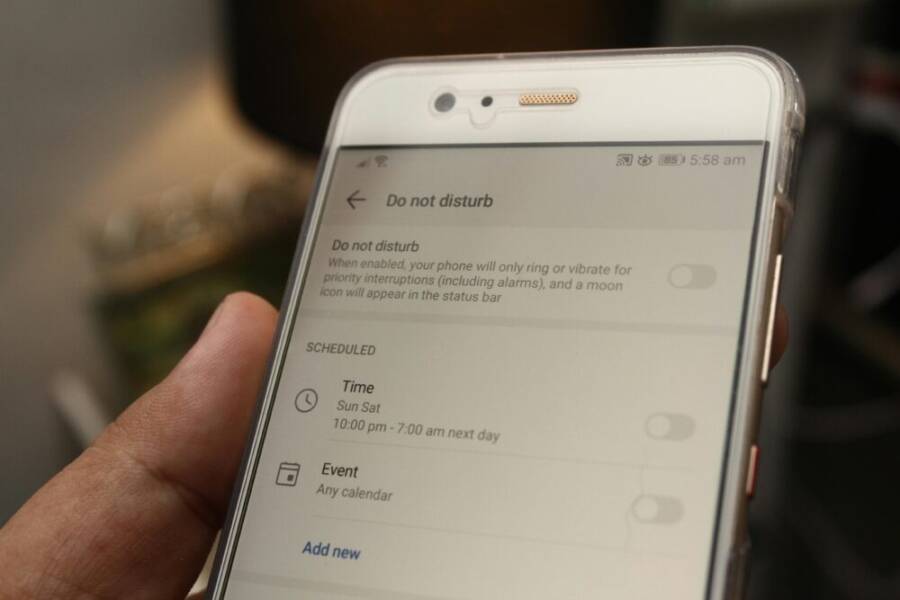
Struggling to wind down at night because your phone keeps humming with notifications? A quick switch to bedtime mode can help you reclaim calm evenings and better sleep. This intro walks you through what it does and how to set it up on Android and iPhone.
Bedtime mode reduces blue light, silences distractions, and nudges you toward a steadier sleep routine. It pairs well with Do Not Disturb settings, so you still get essential alerts without the late night ping pong. Ready to tune your device for a smoother night, start by locating the feature in your phone’s display or focus settings.
Here’s what you’ll learn: where to enable bedtime mode, how to customize its schedule, and common fixes if it won’t engage. By the end, you’ll know how to tailor it to your evenings, so your screen time supports rest rather than robs it.
Why bedtime mode matters for better sleep and calmer evenings
A calmer evening starts with a phone that respects your wind-down time. Bedtime mode reduces distractions, lowers blue light exposure, and helps you end the day with a predictable routine. It’s not a miracle cure, but a simple tool that supports better sleep habits and more peaceful evenings. Below are practical insights on what it does, how it benefits you, and quick ways to start using it tonight.
What bedtime mode does for your phone use
When bedtime mode is on, alerts are silenced and notifications are muted for nonessential apps. Your screen may dim or shift to warmer colors, making it easier for your eyes to wind down. It also prioritizes emergencies by letting important calls through, so you’re reachable if someone important needs you. This combination reduces late night pinging and creates space for a true rest period. For context, see how experts describe these features in everyday use and why they matter for sleep routines. Don’t Let Your Smartphone Keep You Up at Night
Sleep quality and screen time
Bedtime mode helps curb evening screen time and blue light exposure, which can interfere with winding down. With fewer disruptive alerts and a calmer display, you’re more likely to settle into a relaxed state before bed. That smoother wind down can translate into waking up with a clearer head and better focus the next day. Real world guidance from readers and experts alike reinforces that these settings support a steadier evening routine. How Your Smartphone Can Help You Sleep
Getting started quick wins
Try these three actions tonight to experience instant benefits:
- Turn on bedtime mode so your night is protected from casual interruptions.
- Set a reasonable start time, like an hour before your usual sleep time, to cue the mode automatically.
- Choose essential contacts so you’re still reachable for emergencies.
These steps are simple, practical, and aimed at making tonight calmer. For more practical insights on what bedtime mode does, see the guide from Asurion. What is Bedtime mode and how do I turn it off?
Set bedtime mode on Android devices
Bedtime mode helps you unwind by limiting interruptions and adjusting the screen toward a softer, eye-friendly look. Below you’ll find quick, practical guidance for stock Android and popular brand variations. Use it to create a reliable nightly routine and minimize late night disturbances.
Stock Android basics
Start in your device’s Settings, then follow these steps to enable Bedtime mode or a Do Not Disturb schedule:
- Open Settings and tap Digital Wellbeing & parental controls.
- Tap Bedtime mode and choose when it should turn on and off.
- Customize options like screen dimming, grayscale, and alarm behavior.
- Save your schedule and test a quick toggle to confirm it triggers correctly.
If you prefer not to wait for the auto-start, you can turn Bedtime mode on manually from Quick Settings. For more official steps, see Google’s Bedtime mode guide. Manage how you spend time on your Android phone
Image: Close-up of a phone showing Bedtime mode settings.
Photo by Daniel Moises Magulado
Samsung Galaxy tips
Samsung uses Focus or Bedtime in One UI, which can live slightly differently from stock Android. Here’s a quick path and some tips:
- Path: Settings > Focus (or Focus Modes) > Bedtime or Sleep, then set your schedule.
- Notifications: Allow calls from favorites or favorites-only contacts during Bedtime to stay reachable.
- Wake time: Pair Bedtime with an auto-wake alarm to ensure mornings start smoothly.
Tip: If you don’t see Bedtime right away, try Settings > Notifications > Do Not Disturb and customize the schedule. For additional guidance, explore Samsung’s sleep-focused focus options.
Image: Phone displaying Focus settings on Samsung One UI.
Photo by Daniel Moises Magulado
Google Pixel tips
Pixel devices offer Quiet Time and Focus modes that are easy to toggle and reliable. Here’s how to set them up:
- Quick toggles: Access Quick Settings and tap Focus or Quiet Time to enable a sleep-friendly profile.
- Schedule: Create a daily bed routine with a start and end time, then customize which apps can break through.
- Reliability: The feature activates automatically at your chosen times, with a simple revert if plans change.
Tip: Pair Bedtime with Do Not Disturb for essential alerts only, preserving peace while staying reachable. For official Pixel guidance, check Google’s Set a bedtime schedule resources. Set a bedtime schedule – Android Help
Image: Pixel phone showing Focus and Quiet Time controls.
Photo by Daniel Moises Magulado
iPhone bedtime mode: a quick, calm night routine
Bedtime mode on iPhone helps you wind down by dimming the display, silencing nonessential alerts, and guiding you toward a consistent sleep schedule. The feature lives in Focus settings and ties into the Health app’s Sleep Schedule. By setting automatic rules, you can ensure your evenings stay peaceful without thinking about it. This section covers how to access the controls, set up a Bedtime or Wind Down routine, and enable automatic switching so your phone respects your night.
iPhone basics
Accessing and configuring Bedtime (Sleep Focus) on iPhone is straightforward. Start by opening the Settings app, then tap Focus. From there, choose Sleep (or Bedtime) and set a start time and end time for your wind-down. You can customize options like dimming the display, reducing motion, and allowing essential calls. Automatic rules are available so the mode turns on at your chosen time each night and turns off in the morning. For a detailed setup and troubleshooting, see Apple’s guide on setting a sleep schedule in Health and Focus. Set up a sleep schedule in Health on iPhone
If you want to see Sleep Focus in action across devices, you can enable “Share Across Devices” so your iPhone, iPad, and Apple Watch stay in sync. This helps keep your wind-down routine consistent no matter which device you’re using. For quick tips on turning Sleep Focus on or off, Apple’s support article is a reliable reference. Turn your Sleep Focus on or off on iPhone
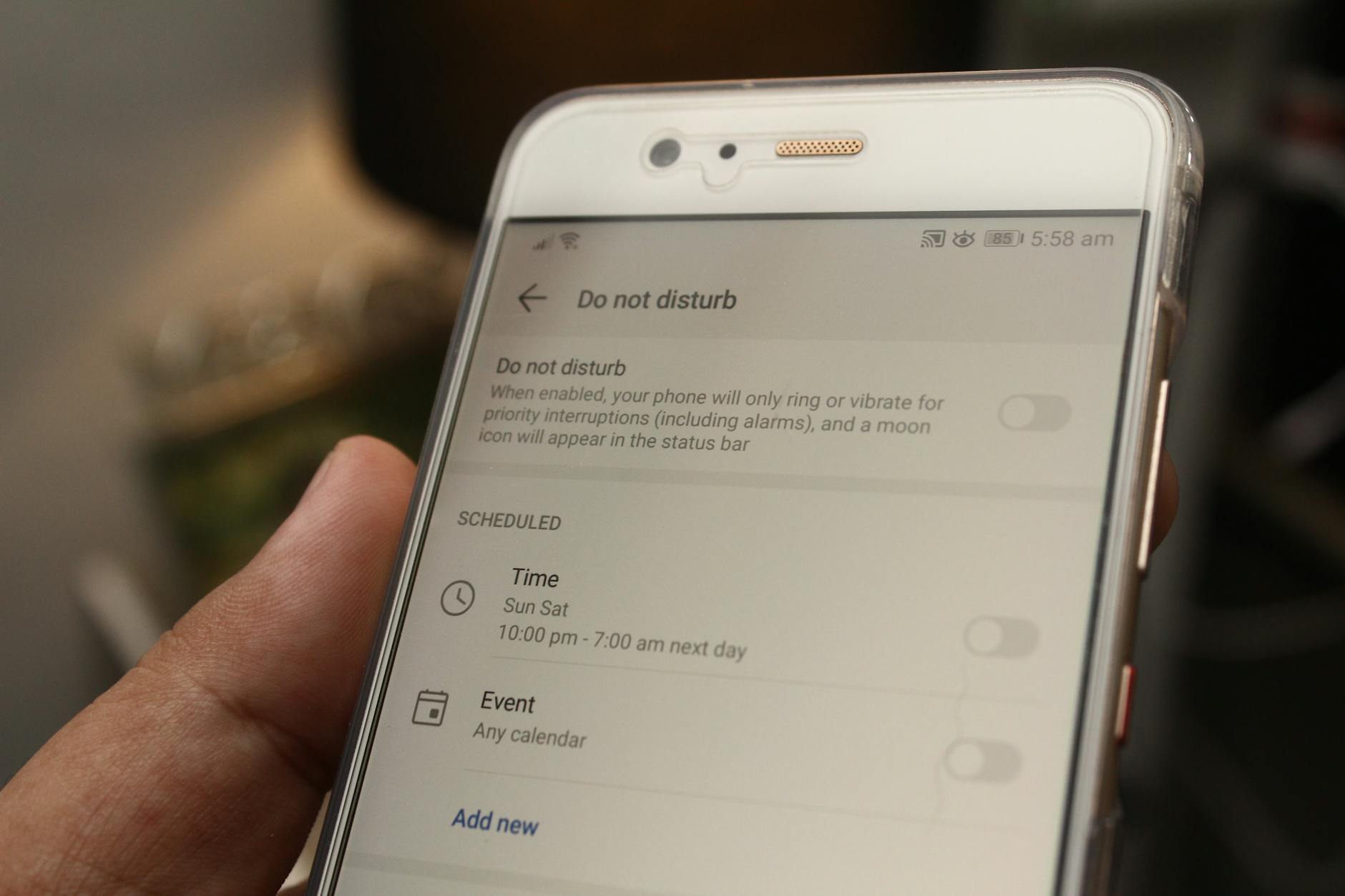 Photo by Daniel Moises Magulado
Using Focus modes creatively
Bedtime Focus is more than a mute switch. Create a dedicated Bedtime Focus to block distracting apps while letting through calls from trusted contacts. Choose which apps can interrupt, set a gentle auto-darkening wallpaper, and align it with your sleep window. This approach keeps your nights peaceful and your mornings predictable. When configured well, Bedtime Focus acts like a gentle guardrail that supports your nightly routine and reduces late night scrolling.
To maximize effectiveness, tailor the allowed people to those you genuinely need to hear from at night. You can also pair Bedtime with automation that activates at a specific time, so the mode starts even if you forget. For a broader look at how Sleep Focus works and how to enable it across devices, explore Apple’s guidance. Set up a Sleep Schedule in Health on iPhone
Photo by Daniel Moises Magulado
Automation and shortcuts
You can extend bedtime discipline with Shortcuts. Create a simple automation that toggles Bedtime Focus at a specific time or when you arrive home. For example, a shortcut could switch to Bedtime Focus at 11 PM every night and revert at 7 AM, or trigger when you reach a set location where you usually wind down. After creating the automation, test it by running the shortcut or simulating the trigger to confirm the mode engages and respects your exceptions.
If you’re new to Shortcuts, start with a basic action: “Set Focus to Sleep” at a designated time, then add a conditional to ensure notifications from certain apps still get through if needed. Apple’s official guidance on Focus and Sleep is a solid starting point for building reliable automations. Turn Sleep Focus on or off on iPhone
Fine tuning bedtime mode for real world use
Fine tuning bedtime mode means more than flipping a switch. It’s about creating a practical routine that fits real life—weekday hustle, weekend downtime, and those holiday juggling moments. The goal is a calmer evening and a smoother wake up, without missing important moments with family or emergencies. Below are concrete adjustments you can apply now to make bedtime mode work for you across Android and iPhone.
Scheduling bedtime and wake times
Set a consistent wind-down and wake window that reflects your actual week. Start with a reliable weekday schedule and then tailor weekend or shift days to keep your body clock aligned.
- Weekdays: aim for a regular bed time and a wake time that provide enough sleep. For example, a 10:30 pm wind-down with a 6:30 am wake works for most adults.
- Weekends: if you shift later, keep the door open for a small delay (e.g., wind down 15 minutes later, wake 30 minutes later). This helps prevent a jarring Monday reset.
- Holidays: note the differences in your calendar. Use a temporary schedule override for events that push bed time later, and return to your normal routine afterward.
Practical tips to implement today:
- Use the built-in scheduling options in both platforms. On Android, this lives in Digital Wellbeing or Bedtime mode, where you can set a daily start and end time. On iPhone, Health and Focus offer Sleep Schedule automation that turns on automatically.
- For a quick test, set a bedtime to trigger at a time you’re already winding down and see how it feels after a few nights. If you notice you’re still waking groggy, adjust by 15 minutes earlier or later.
- Consider holidays as a temporary adjustment rather than a full reset. A simple note in your calendar can remind you to tweak the schedule back after the break.
If you want official step by step guidance, Android users can check Google’s help page on bedtimes and schedules, while iPhone users can follow Apple’s Sleep Schedule setup. These resources provide concrete steps to ensure your settings align with your daily rhythm. Set a bedtime schedule – Android Help
Smart exceptions and quiet apps
Bedtime mode should still let you handle emergencies and keep critical family communications open. Create a few exceptions that feel natural and don’t defeat the purpose of the mode.
- Essential calls and messages: allow calls from favorites or specific contacts who may need to reach you at night.
- Emergency alerts: keep system alerts functioning in case of urgent situations.
- App exceptions: permit a small number of critical apps to notify you, such as a hospital app, a caregiving app, or a family chat, while everything else stays quiet.
How to implement effectively:
- On Android, place exceptions in Do Not Disturb or Bedtime routine so that only chosen people and apps can break through during the wind-down period.
- On iPhone, use Focus modes to create a Bedtime Focus that filters notifications but still allows calls from trusted contacts.
- Review your list quarterly. If a contact or app becomes more important, adjust accordingly.
For further reading on practical behavior around notifications and sleep routines, see how experts describe balancing alerts with rest. Understanding these nuances helps you keep peace at night without missing something important.
-Android and iPhone guidance on Focus and exceptions can be found in official support articles and reputable guides that cover best practices for sleep-focused modes. For example, Android’s sleep and Do Not Disturb resources, and Apple’s Sleep Focus guidance offer reliable, actionable advice.*
-When you want more context on how quiet modes affect real life, trusted consumer tech sources discuss practical expectations and tweaks that make bedtime mode more effective in daily life.
Blue light and screen brightness tricks
Blue light and brightness are central to wind down. A few simple tweaks can make a big difference in how quickly your eyes relax and how ready you are for sleep.
Key concepts to know:
- Night Shift (iPhone) and Night Light (Android) reduce blue light by shifting the display to warmer tones.
- Auto brightness can help keep the screen comfortable as lighting changes in the evening.
- True Tone or adaptive color (where available) adjusts colors based on ambient light to avoid harsh contrasts.
Practical setup tips:
- Enable Night Shift or Night Light with a schedule that starts about an hour before your typical bedtime. This creates a softer, warmer screen as you wind down.
- If your device supports True Tone or similar adaptive color features, consider turning them on for a natural, eye-friendly look during the evening.
- Use automatic brightness as a baseline, but consider reducing overall brightness further in Bedtime mode so the screen isn’t stimulating.
For quick reads on blue light reduction and practical steps, see trusted guides that describe how to adjust color temperature and brightness in common devices. These tips help you implement a calmer display that supports your sleep goals.
- For instance, guidance on reducing blue light through display settings is widely covered in consumer tech articles and official support pages.
- A concise overview of how to adjust color temperature and brightness can be found through reputable sources explaining Night Shift or Night Light setup.
Using alarms and reminders
A gentle push to wake up helps you start the day without a jolt. Pair this with a quiet evening to keep the routine intact.
- Gentle alarms: choose soft tones or nature sounds that wake you gradually.
- Sunrise simulations: some devices offer screen or alarm-based sunrise effects that brighten slowly to mimic dawn.
- Evening quiet: keep the bedroom routine calm by avoiding heavy reminders late at night, and schedule wake-up alarms to go off only after your wind-down window ends.
Implementation notes:
- On Android, pair Bedtime with a gentle alarm option so mornings start smoothly without a harsh restart.
- On iPhone, you can use Sleep or Wind Down alarms to create a progressive wake experience that aligns with your Sleep Schedule.
- Test your alarm setup during a normal week to confirm it aligns with your wake time and mood.
If you want extra inspiration, explore official help guides for both platforms that walk you through setting up a sleep-friendly alarm and testing the routine. The goal is a reliable cue to wake up that doesn’t disrupt your rest.
Images and practical visuals help readers picture the setup, and brief notes about where to find these controls on each device can boost confidence. For readers who want deeper dives, linking to platform-specific guides provides a pathway to more details without overwhelming the main article.
Troubleshooting common issues and tips to stay consistent
Keeping bedtime mode reliable is about quick checks and small tweaks that reinforce your nightly routine. If the feature isn’t behaving as expected, start with simple verifications and then apply targeted fixes. This section guides you through practical steps to get bedtime mode running smoothly on both Android and iPhone, plus tips to stay consistent over weeks and months.
If bedtime mode won’t turn on
Bedtime mode should start automatically, but sometimes a setting or a small glitch gets in the way. Start with the basics and move to more device-specific fixes.
- Check Do Not Disturb or Focus settings: Make sure your bedtime schedule isn’t overridden by a separate mode. On Android, confirm the Bedtime or Do Not Disturb rules align with your desired times. On iPhone, verify that Sleep Focus or Bedtime Focus is enabled and scheduled correctly.
- Verify the schedule: Confirm the start and end times, and ensure they’re set for the days you want. If you rely on an automatic rule, double-check that it’s active and not paused.
- Review battery and charging behavior: Some devices pause bedtime features when charging or in low-power modes. On Pixel and Samsung devices, look for “Turn on while charging” or battery optimization settings and adjust as needed.
- Quick test: manually toggle Bedtime/Focus mode for a night to confirm the option triggers. If it doesn’t, a temporary restart of the device often clears a minor glitch.
If you’re still stuck, a few real-world examples from other users show where the hiccup tends to occur. For Pixel users, a common snag is the feature not turning on while charging; this can be resolved by revisiting the charging rule in the Android settings. If you use Samsung, grayscale or other visual tweaks sometimes don’t apply until you reselect the mode in Focus. See these discussions for context and practical fixes:
- https://support.google.com/pixelphone/thread/201251262/bedtime-mode-not-turning-on-while-charging?hl=en
- https://eu.community.samsung.com/t5/question/bedtime-mode-not-changing-to-grayscale/td-p/5925860
What to do if notifications still disturb you
If you still hear alerts during your wind-down, tighten the exception rules without losing necessary alerts.
- App permissions: Review which apps are allowed to send notifications during bedtime. Restrict nonessential apps and reserve exceptions for critical tools.
- Alarm and reminder exceptions: Ensure your alarm clock, health reminders, or caregiving apps are whitelisted so you’re not late to important events.
- Emergency alerts: Keep pivotal system alerts active, so you don’t miss urgent messages.
These adjustments keep your evenings calm while preserving essential communications. If you want deeper context on how quiet modes affect real-life routines, a few guides offer practical perspectives and tweaks from users and experts alike.
Conclusion
Bedtime mode helps your body wind down by quieting alerts and softening the screen, making it easier to fall asleep. The real benefit is a calmer evening and a more predictable wake time, which supports better daily focus. Tailor the schedule, exceptions, and color settings to fit your routine, and you’ll notice a smoother night and brighter morning. If you’re ready to try it, set a simple wind down, test it for a few nights, and adjust as needed; your smartphone will thank you with a steadier sleep pattern. Stay curious about how small tweaks can improve life, and share your results so others can learn from your routine.