Thousands of People Were Struggling With Money Until They Discovered This One Ancient Secret Hidden in Sound
>>> Unlock It Now <<<

What happens when you’re truly unavailable and your phone keeps buzzing anyway? The answer is simple: smart auto replies that keep people in the loop without burying you in messages.
If you often work remote, travel, or juggle family duties, you know how fast reachability becomes a pressure point. This guide shows you how to set up auto replies on your smartphone so friends, teammates, and clients know you’re not ignoring them. You’ll learn practical, step by step methods that work whether you use an iPhone or an Android device.
First, you’ll see what options exist today and what they can realistically do. Some phones let you auto reply while the device is awake, others only when you enable a specific mode or use a trusted app. We’ll call out what works best in common scenarios like driving, meetings, or after hours. You’ll also get quick tips to tailor messages for different groups so the right people get the right information.
By the end, you’ll have a clear plan to set up reliable auto replies that fit your routine. Expect smart, actionable steps you can implement this week. The goal is simple: reduce interruptions while keeping important contacts informed, with a setup that feels natural for your daily workflow.
He Was Drowning in Bills and Burnout Until a Simple Daily Ritual Rewired His Brain for Wealth in Less Than a Week
>>> Start Your Shift Today <<<

What auto replies are and why they help when you are off
Auto replies are prewritten messages that get sent automatically when someone reaches you while you’re unavailable. They can appear as text responses to messages, brief notes in your email, or quick alerts that you’re in a specific mode. Think of them as a polite traffic signal for your contacts — a clear, timely signal that you’ve seen the message and will respond later. When you’re off duty, traveling, or simply overwhelmed, auto replies keep conversations moving without putting you on the spot.
How auto replies work on iPhone and Android
Auto replies live in different places depending on your device. On iPhone, you’ll typically find options tied to Focus modes, such as Driving or Do Not Disturb, where you can craft a reply and decide who receives it. On many Android devices, auto replies are built into Do Not Disturb or Messages settings, with the ability to tailor who gets the message and what it says. Some phones even support location or time-based triggers for more precise control. If you want more advanced behavior, there are shortcuts and third‑party apps that expand what auto replies can do.
- iPhone example: Set Driving Focus to automatically reply to texts with a simple message and choose recipients. This is especially useful when you’re behind the wheel or in a meeting.
- Android example: Use Do Not Disturb with an auto reply to keep coworkers, clients, or family informed during focus time or sleep hours.
Benefits of using auto replies
Auto replies reduce stress and interruptions by providing a reliable, predictable response. They:
- Set clear expectations: People know you’re unavailable and when they can expect a real reply.
- Maintain professionalism: Clients and colleagues feel cared for, not ignored.
- Save time: You avoid replying to the same questions repeatedly during busy periods.
- Preserve focus: You keep your attention on the task at hand without guilt or constant checking.
Best practices for crafting your auto replies
To keep messages useful and nonintrusive, follow these guidelines:
- Be concise and friendly: A short message that explains availability is usually enough.
- Include a timeline: If possible, share when you’ll respond or who can help in your absence.
- Use group-specific messages: Different contacts may need different information. Have separate replies for family, coworkers, and clients.
- Offer an alternative contact: If appropriate, suggest a colleague or a timeframe where they can reach you.
- Keep it professional: Avoid casual language for work-related contacts unless your usual style supports it.
When to use auto replies
Auto replies shine in scenarios where you’re likely to miss messages or need to reduce interruptions. Consider these common cases:
- Driving or commuting: A driving auto reply signals you’re on the road and will respond soon.
- Meetings or deep work: A brief note lets people know you’re focused and unavailable for a set period.
- After hours or vacations: Clear guidance on when you’ll respond helps manage expectations.
- Travel or time zone changes: Auto replies can indicate your current time zone and scheduling constraints.
Quick setup guide for typical devices
Here are straightforward steps to get auto replies working, with quick prompts you can customize. If you use a mix of devices, set up the most critical contacts first and expand later.
- iPhone (Driving Focus auto-reply)
- Open Settings and go to Focus.
- Select Driving or create a new Focus.
- Tap Auto-Reply and choose No One, Recents, Favorites, or All Contacts.
- Enter your auto-reply message.
- Activate Driving Focus from Control Center when you’re in the car.
- Android (Do Not Disturb auto reply)
- Open Settings and find Do Not Disturb.
- Look for Auto Reply or Reply to Messages.
- Enable it and choose who should receive replies.
- Write your message and save.
- Turn on the mode when you need it.
- For both platforms, you can add time-based or location-based rules via shortcuts or automation apps for even more precision.
Real-world examples to inspire your messages
- For clients: “I’m currently in a client call and will respond within 2 hours. If this is urgent, please contact [colleague] at [email/phone].”
- For family: “I’m offline for dinner but will reply after 7 pm. If it’s urgent, call or text me directly.”
- For teammates: “I’m in a focused sprint until 3 pm. I’ll get back to you as soon as the block ends.”
Accessory tips to enhance reliability
- Test your setup: Send a test message to ensure the auto reply goes out as expected.
- Keep the default message updated: If your hours or contacts change, revise your auto replies accordingly.
- Use a consistent tone: Your auto replies should reflect your usual communication style so readers feel connected, not boxed in.
Where to learn more and stay updated
For deeper details on iPhone auto replies and Android variations, you can explore official support articles and trusted tech discussions. For example, you can review how Driving Focus works on iPhone and how Do Not Disturb works on Android to tailor your replies precisely to your routine. If you want broader context on automating responses, there are guides that show how to combine auto replies with shortcuts and smart assistants for more nuanced behavior.
- Apple support on Focus and auto replies: Learn how Driving Focus handles automated messages and how to customize recipients.
- Android Do Not Disturb and message replies: Understand the built-in options and how to adjust them for different situations.
[Further reading: Auto reply concepts on iPhone and Android](https://www.apple.com/support focusing)
Android auto reply options and DND features
By configuring clear, timely auto replies, you preserve the rhythm of your day while staying courteous to those who reach out. You’ll reduce ping anxiety and keep communication flowing, even when you’re off.
How to Set Auto Replies on Your Phone When You’re Off
When you’re unavailable, the last thing you want is a flood of messages to derail your focus. Auto replies let people know you’ve seen them, share when you’ll respond, and provide alternatives if something’s urgent. This section walks you through the iPhone path, plus tips to craft messages that stay helpful without being intrusive. You’ll learn how Focus and Driving Focus can handle auto replies, and you’ll get a clear checklist to set things up quickly.
Using Focus and Driving Focus for auto replies (iPhone)
Focus is a built-in iPhone feature that helps you tailor notifications based on what you’re doing. It filters who can reach you and what they see when you’re busy. Driving Focus is a specific mode that activates while you’re behind the wheel, but it can also be used in other high distraction situations if you prefer.
- What Focus does: It blocks or limits notifications and can push an auto reply to people who try to contact you. This keeps you in control while you stay reachable to the right people.
- How Driving Focus works for auto replies: You can enable a prewritten message that goes out to selected contacts when Driving is active. This helps anyone trying to reach you know you’re driving and will respond later.
- Who can receive messages: You pick one of four options for Auto-Reply recipients—No One, Recents, Favorites, or All Contacts. You can also tailor this by contact group if your device supports it.
A quick note on visibility: the auto reply appears as a standard response to incoming messages. It doesn’t reveal your exact status or location, and it only takes effect for messages sent while the Focus mode is on. If someone has your number and you haven’t blocked them, they’ll still see the auto reply. This keeps messages courteous and predictable without exposing sensitive details. For more on configuring Driving Focus, see Apple’s official guidance linked below.
- Example: In Driving Focus, you might say “I’m driving now and will respond within 15 minutes.” This keeps expectations reasonable without locking you into a long reply.
For deeper guidance, check Apple’s resources on Driving Focus and auto replies. You’ll find step-by-step instructions and nuances for different iPhone models.
- Apple support on Driving Focus and auto replies: Learn how Driving Focus handles automated messages and how to customize recipients.
- Apple guide on staying focused while driving: A practical walkthrough of setting Auto-Reply and other Focus options.
Use Driving Focus to stay focused while driving
Step by step to enable auto replies on iPhone
Follow this concise sequence to set up auto replies on your iPhone. The steps are designed to be quick to execute and easy to test.
- Open Settings and go to Focus.
- Tap Driving (or create a new Focus if you don’t see Driving).
- Tap Auto-Reply.
- Choose who should receive auto replies: No One, Recents, Favorites, or All Contacts.
- Enter your auto-reply message in the text field. Keep it short and clear.
- Activate Driving Focus from Control Center when you’re in the car. If you’re using a different scenario, you can use the same steps to create a dedicated Focus for that case.
- Test the setup: have a friend send a message while Driving Focus is on to confirm the reply goes out as expected.
Where to find each option:
- Settings > Focus > Driving: access to enable Driving Focus and related options.
- Auto-Reply: the toggle and recipient list within Driving Focus.
- Message field: the area to craft your auto reply text.
- Control Center: quick switch to enable Driving Focus when needed.
Pro tip: If you want more complex behavior, you can pair Focus with automation shortcuts to tailor auto replies by time of day or location. For more ideas, see the official Focus resources above.
Tips to craft a good iPhone auto reply
A well crafted auto reply is short, friendly, and informative. Here are practical guidelines to keep your messages effective.
- Keep it concise: A few lines max, with a direct statement of availability and the expected response time.
- State a time frame: Tell people when you’ll respond or when you’ll be back online.
- Provide an alternative contact: If someone needs urgent help, point them to a colleague or another channel.
- Personalize by context: Create specific replies for family, clients, and coworkers to avoid confusion.
- Consider privacy: Don’t reveal sensitive details like exact locations or personal information.
- Maintain a consistent tone: Match your usual communication style so messages feel natural.
A practical example:
“I’m offline for a meeting until 2:30 pm. I’ll reply as soon as I’m free. If this is urgent, please contact [Colleague] at [Email/Phone].”
Why this matters: a clear, brief auto reply builds trust and reduces ping anxiety for both you and the sender.
Real-world testing and best practices
- Test early: Send a test message from another device to confirm delivery and tone.
- Update as needed: If your schedule changes, revise the auto reply text and the recipient list.
- Keep it accessible: Use simple language and a friendly tone so readers understand you quickly.
For more context on how to refine auto replies, you can explore official support articles and community discussions that cover edge cases and tips for different iPhone models. The linked resources offer in depth explanations and user experiences that can help you fine tune your setup.
- Guidance on Driving Focus from Apple Support
- Community threads on auto replies in Focus mode
Learn about Driving Focus on iPhone
What to do next
With these steps, you’re ready to set auto replies that fit your routine. Whether you’re driving, in a meeting, or enjoying a well earned break, your contacts will know you’ve seen their message and when to expect a reply. If you want to expand beyond iPhone, you can apply similar concepts on Android devices using Do Not Disturb and related options. The key is to keep messages crisp, timely, and easy to act on.
Remember, your goal is to reduce interruptions while staying courteous. A well timed auto reply does exactly that.
She Pressed Play on a Strange Audio Track and Within Days Her Financial Reality Started Shifting in Ways She Could Not Explain
>>> See How It Works <<<

How to Set Auto Replies on Your Phone When You’re Off
When you’re off duty, auto replies can save you from constant ping anxiety while keeping friends, teammates, and clients in the loop. This section covers practical ways to manage interruptions on Android, from using Do Not Disturb with smart replies to alternative methods that still keep people informed. You’ll learn how these features work, what to expect, and quick steps to set them up. A few smart touches, and you’ll have reliable auto replies without sacrificing focus.
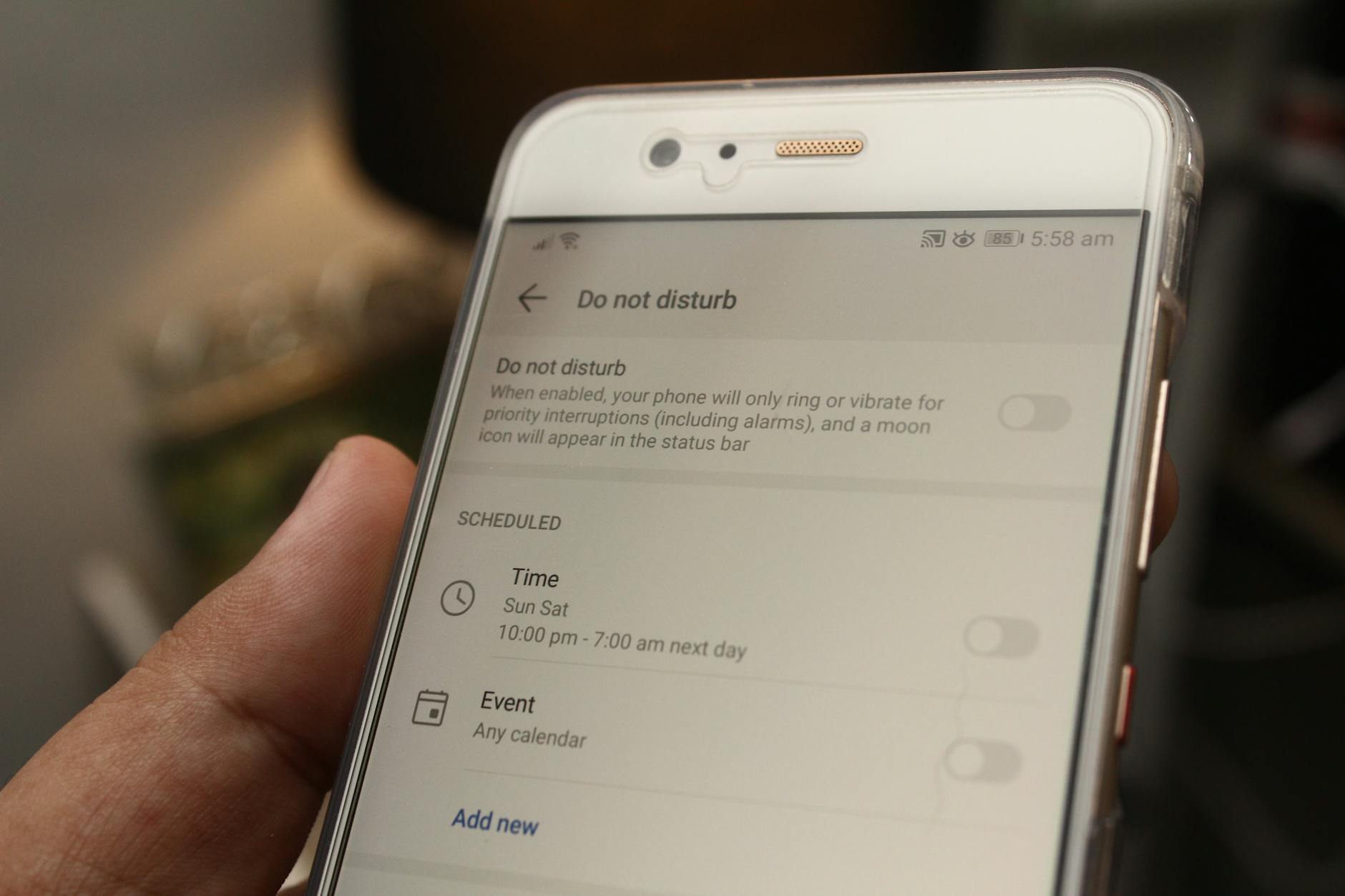 Photo by Daniel Moises Magulado
Using Do Not Disturb and automatic responses (Android)
Do Not Disturb (DND) helps constrain interruptions by filtering who can reach you and what notifications appear. Auto replies fit into this system by delivering a quick, canned message to specific contacts when DND is active. The key is to select recipients carefully and craft a reply that provides value without revealing sensitive information.
- What to expect with DND: You choose who can contact you and which notifications slip through. Auto replies are most effective when paired with a focused period, such as working hours or driving.
- Who gets the auto reply: You can limit it to favorites, recent contacts, all contacts, or a custom group if your device supports it. This keeps the message from going out to everyone while ensuring essential people stay informed.
- Quick replies in Messages: Your default Messages app on Android often includes a quick reply option that can be shown when you’re in a DND-like state. This makes it easy to send a courteous note without typing a full message every time.
To make this practical, set up one simple auto reply for driving and another for work focus. For example, “I’m focused on a task and will respond during breaks,” or “I’m driving. I’ll reply within 15 minutes.” This clarity saves time for both you and the sender.
If you want to explore deeper customization, third party apps can extend what you can do with DND. Always review permissions and privacy settings before installing any app. A reputable option will clearly separate contacts you allow from those you block, and will not access sensitive content beyond messaging automation.
- Quick tip: Test your setup by asking a friend to message you while DND is active. Confirm the auto reply goes out as expected and adjust the wording if needed.
- Practical caveat: Auto replies can still clutter your chat threads if misused. Keep messages purposeful and limit the number of contacts who receive automated replies.
Step by step to enable auto replies on Android
Specialized options vary by manufacturer, but the core steps stay consistent across most recent Android versions. Here are the fastest paths and reliable fallbacks you can use, with quick notes for Samsung and Google Messages users.
- Stock Android (plain Do Not Disturb with auto reply)
- Open Settings and find Do Not Disturb.
- Look for Auto Reply or Reply to Messages and enable it.
- Choose recipient groups (No One, Recents, Favorites, All Contacts) if available.
- Write your auto reply message. Keep it concise.
- Turn on the mode when you want it active, or schedule it for specific times.
- Samsung devices
- Open Settings, tap Notifications, then Do Not Disturb.
- Choose Auto Replies (some models call this “Auto reply” or “In Case of Emergency”).
- Select who should receive the reply and type your message.
- You can set a schedule or trigger (driving mode or work hours).
- Save and enable DND with the chosen rules.
- Google Messages and Messages app specifics
- Open the Messages app and go to Settings.
- Look for “Do Not Disturb” or “Hushed notifications” options if present.
- If the feature is missing, consider using Driving Mode or a Focus-based rule if your device supports it.
- Create a fallback auto reply that applies to people who text you during the set period.
- Test by sending a message while the mode is active.
- What to do if the built‑in feature is missing
- Use a third-party auto reply app with good reviews and transparent privacy controls.
- Create a recurring automation with a routine app if your phone supports it.
- Consider using standard messaging apps that offer away messages or auto replies as a workaround.
When you set up auto replies this way, you’ll want a few guardrails. Use a friendly tone, include a timeframe for when you’ll respond, and provide an alternative contact if something is urgent. This approach keeps communications smooth without forcing you to stay tethered to your device.
- Helpful tip: If you use multiple messaging apps, consider a dedicated auto reply for each one. A single generic message can feel impersonal when clients and coworkers use different channels.
Alternative methods for Android auto replies
If DND auto replies don’t fit your needs or you want more flexible options, several alternatives can help you stay responsive without constant interruptions. Each method has its strengths and privacy considerations, so pick what aligns with your routine and comfort level.
- WhatsApp away messages
- WhatsApp offers away messages for business accounts and, in some cases, for personal use with workarounds. Set a clear note like “I’m offline now, I’ll reply within a few hours.”
- Where to find it: WhatsApp Business settings (Away messages). If you’re on a personal account, you may need to use a separate business account to access this feature.
- Messenger auto replies
- Facebook Messenger supports auto replies for Page messages and can be used for customer communication. If you manage a business page, set a standard answer that informs people of your typical response time.
- Privacy note: This method is best for business inquiries; personal use may require third party tools or policy review.
- Third party auto reply apps
- Apps like SMS Auto Reply or other autoresponder tools can create rules for who receives replies and when.
- Reliability and privacy: Choose apps with clear permissions, good reviews, and transparent data handling. Prefer apps that store data locally or on your device rather than uploading sensitive content to the cloud.
- Scheduling and automation apps
- Shortcuts and routines can automate replies on Android when combined with messaging apps.
- Example: A routine that activates during work hours to send a short message to a preselected group.
- Reliability considerations
- Always test: Schedule a test message to ensure the trigger fires correctly.
- Privacy guardrails: Review what data apps access and how long it stores your messages.
- Consistency: Keep your auto replies aligned across apps to avoid confusion.
- Privacy-first approach
- Avoid including personal details in auto replies.
- Use neutral language that works across audiences, including clients and family.
- If you share contacts with a helper, be mindful about who can see your auto replies.
- Quick wins you can implement today
- Create one main auto reply for drivers or moments when you’re deeply focused.
- Add a separate message for urgent matters with an alternate contact.
- Schedule these replies for your common off times, such as evenings or weekends.
- Example messages you can borrow
- For clients: “I’m in a client call now and will reply within 2 hours. If urgent, contact [Colleague] at [Email/Phone].”
- For family: “Offline for a family dinner. I’ll respond after 7 pm.”
- For teammates: “In a sprint until 3 pm. I’ll reply as soon as the block ends.”
- When to switch methods
- If you notice delayed responses, refine your auto reply wording and consider a higher-priority contact list.
- If privacy is a concern, switch to in-app automation with fewer permissions and local storage where possible.
- Links to more guidance
- For WhatsApp away messages: official WhatsApp help pages and business support guides.
- For Messenger automation: Facebook Help Center and developer guides.
- For Android automation: trusted Android forums and app stores with reputable moderators.
If you’re balancing multiple channels, the best approach is consistency. Use a primary auto reply across core contacts and a secondary, more specific message for urgent scenarios. This keeps your communications clean and predictable while you focus on the task at hand.
References and further reading
- Stock Android caution and options: a set of practical notes on what Android can and cannot do with auto replies in DND mode.
- Third party apps: reviews and guidance on reliable auto reply tools with privacy controls.
- WhatsApp, Messenger, and business messaging: official help centers for away messages and auto replies.
- Android automation basics: guides on using routines and shortcuts to expand auto reply capabilities.
Get more context and up-to-date guidance on auto replies for Android and related apps. As mobile devices evolve, these tips stay adaptable and practical for real-world use.
- Is there a way to setup an auto reply message notification when you are in do not disturb mode? (Google Messages support)
- Auto reply in Do Not Disturb discussions and Galaxy Do Not Disturb options
- Auto-Replies for Android: driving mode, routines, and third party apps
By combining built-in controls with thoughtful third party options, you’ll keep essential contacts informed without surrendering your focus. Whether you’re behind the wheel, in a meeting, or on a break, the right auto reply system makes your smartphone work for you.
He Was Drowning in Bills and Burnout Until a Simple Daily Ritual Rewired His Brain for Wealth in Less Than a Week
>>> Start Your Shift Today <<<
How to Set Auto Replies on Your Phone When You’re Off (Section)
When you’re off duty, auto replies can save you from constant ping anxiety while keeping friends, teammates, and clients in the loop. This section focuses on practical ways to manage interruptions on Android, from using Do Not Disturb with smart replies to alternative methods that still keep people informed. You’ll learn how these features work, what to expect, and quick steps to set them up. A few smart touches, and you’ll have reliable auto replies without sacrificing focus.
Photo by Daniel Moises Magulado
Using Do Not Disturb and automatic responses (Android)
Do Not Disturb (DND) helps constrain interruptions by filtering who can reach you and what notifications appear. Auto replies fit into this system by delivering a quick, canned message to specific contacts when DND is active. The key is to select recipients carefully and craft a reply that provides value without revealing sensitive information.
- What to expect with DND: You choose who can contact you and which notifications slip through. Auto replies are most effective when paired with a focused period, such as working hours or driving.
- Who gets the auto reply: You can limit it to favorites, recent contacts, all contacts, or a custom group if your device supports it. This keeps the message from going out to everyone while ensuring essential people stay informed.
- Quick replies in Messages: Your default Messages app on Android often includes a quick reply option that can be shown when you’re in a DND-like state. This makes it easy to send a courteous note without typing a full message every time.
To make this practical, set up one simple auto reply for driving and another for work focus. For example, “I’m focused on a task and will respond during breaks,” or “I’m driving. I’ll reply within 15 minutes.” This clarity saves time for both you and the sender.
If you want to explore deeper customization, third party apps can extend what you can do with DND. Always review permissions and privacy settings before installing any app. A reputable option will clearly separate contacts you allow from those you block, and will not access sensitive content beyond messaging automation.
- Quick tip: Test your setup by asking a friend to message you while DND is active. Confirm the auto reply goes out as expected and adjust the wording if needed.
- Practical caveat: Auto replies can still clutter your chat threads if misused. Keep messages purposeful and limit the number of contacts who receive automated replies.
Step by step to enable auto replies on Android
Specialized options vary by manufacturer, but the core steps stay consistent across most recent Android versions. Here are the fastest paths and reliable fallbacks you can use, with quick notes for Samsung and Google Messages users.
- Stock Android (plain Do Not Disturb with auto reply)
- Open Settings and find Do Not Disturb.
- Look for Auto Reply or Reply to Messages and enable it.
- Choose recipient groups (No One, Recents, Favorites, All Contacts) if available.
- Write your auto reply message. Keep it concise.
- Turn on the mode when you want it active, or schedule it for specific times.
- Samsung devices
- Open Settings, tap Notifications, then Do Not Disturb.
- Choose Auto Replies (some models call this “Auto reply” or “In Case of Emergency”).
- Select who should receive the reply and type your message.
- You can set a schedule or trigger (driving mode or work hours).
- Save and enable DND with the chosen rules.
- Google Messages and Messages app specifics
- Open the Messages app and go to Settings.
- Look for “Do Not Disturb” or “Hushed notifications” options if present.
- If the feature is missing, consider using Driving Mode or a Focus-based rule if your device supports it.
- Create a fallback auto reply that applies to people who text you during the set period.
- Test by sending a message while the mode is active.
- What to do if the built‑in feature is missing
- Use a third-party auto reply app with good reviews and transparent privacy controls.
- Create a recurring automation with a routine app if your phone supports it.
- Consider using standard messaging apps that offer away messages or auto replies as a workaround.
When you set up auto replies this way, you’ll want a few guardrails. Use a friendly tone, include a timeframe for when you’ll respond, and provide an alternative contact if something is urgent. This approach keeps communications smooth without forcing you to stay tethered to your device.
- Helpful tip: If you use multiple messaging apps, consider a dedicated auto reply for each one. A single generic message can feel impersonal when clients and coworkers use different channels.
Alternative methods for Android auto replies
If DND auto replies don’t fit your needs or you want more flexible options, several alternatives can help you stay responsive without constant interruptions. Each method has its strengths and privacy considerations, so pick what aligns with your routine and comfort level.
- WhatsApp away messages
- WhatsApp offers away messages for business accounts and, in some cases, for personal use with workarounds. Set a clear note like “I’m offline now, I’ll reply within a few hours.”
- Where to find it: WhatsApp Business settings (Away messages). If you’re on a personal account, you may need to use a separate business account to access this feature.
- Messenger auto replies
- Facebook Messenger supports auto replies for Page messages and can be used for customer communication. If you manage a business page, set a standard answer that informs people of your typical response time.
- Privacy note: This method is best for business inquiries; personal use may require third party tools or policy review.
- Third party auto reply apps
- Apps like SMS Auto Reply or other autoresponder tools can create rules for who receives replies and when.
- Reliability and privacy: Choose apps with clear permissions, good reviews, and transparent data handling. Prefer apps that store data locally or on your device rather than uploading sensitive content to the cloud.
- Scheduling and automation apps
- Shortcuts and routines can automate replies on Android when combined with messaging apps.
- Example: A routine that activates during work hours to send a short message to a preselected group.
- Reliability considerations
- Always test: Schedule a test message to ensure the trigger fires correctly.
- Privacy guardrails: Review what data apps access and how long it stores your messages.
- Consistency: Keep your auto replies aligned across apps to avoid confusion.
- Privacy-first approach
- Avoid including personal details in auto replies.
- Use neutral language that works across audiences, including clients and family.
- If you share contacts with a helper, be mindful about who can see your auto replies.
- Quick wins you can implement today
- Create one main auto reply for drivers or moments when you’re deeply focused.
- Add a separate message for urgent matters with an alternate contact.
- Schedule these replies for your common off times, such as evenings or weekends.
- Example messages you can borrow
- For clients: “I’m in a client call now and will reply within 2 hours. If urgent, contact [Colleague] at [Email/Phone].”
- For family: “Offline for a family dinner. I’ll respond after 7 pm.”
- For teammates: “In a sprint until 3 pm. I’ll reply as soon as the block ends.”
- When to switch methods
- If you notice delayed responses, refine your auto reply wording and consider a higher-priority contact list.
- If privacy is a concern, switch to in-app automation with fewer permissions and local storage where possible.
- Links to more guidance
- For WhatsApp away messages: official WhatsApp help pages and business support guides.
- For Messenger automation: Facebook Help Center and developer guides.
- For Android automation: trusted Android forums and app stores with reputable moderators.
If you’re balancing multiple channels, the best approach is consistency. Use a primary auto reply across core contacts and a secondary, more specific message for urgent scenarios. This keeps your communications clean and predictable while you focus on the task at hand.
References and further reading
- Stock Android caution and options: a set of practical notes on what Android can and cannot do with auto replies in DND mode.
- Third party apps: reviews and guidance on reliable auto reply tools with privacy controls.
- WhatsApp, Messenger, and business messaging: official help centers for away messages and auto replies.
- Android automation basics: guides on using routines and shortcuts to expand auto reply capabilities.
Get more context and up-to-date guidance on auto replies for Android and related apps. As mobile devices evolve, these tips stay adaptable and practical for real-world use.
- Is there a way to setup an auto reply message notification when you are in do not disturb mode? (Google Messages support)
- Auto reply in Do Not Disturb discussions and Galaxy Do Not Disturb options
- Auto-Replies for Android: driving mode, routines, and third party apps
By combining built-in controls with thoughtful third party options, you’ll keep essential contacts informed without surrendering your focus. Whether you’re behind the wheel, in a meeting, or on a break, the right auto reply system makes your smartphone work for you.
Templates you can copy
Offer 6 ready to use templates for different situations: personal, work, urgent, travel, daily routine, and after hours. Mention placeholders like name and estimated response time.
Personal contact – general availability “Hi {name}, I’m taking a break right now and will get back to you within {estimated_response_time}. If it’s important, you can reach me at my alternate number or message again after {time_frame}.”
Work contact – client focus “Hello {name}, I’m currently in a meeting and will respond within {estimated_response_time}. For urgent matters, please contact {colleague} at {contact}.”
Urgent matter – high priority “{name}, I see your message. I’m handling a high-priority item and will reply within {estimated_response_time}. If this is urgent, call {alternative_contact} now.”
Travel – time zone aware “Hi {name}, I’m traveling and responding within {estimated_response_time}. I’m in {time_zone} time. For immediate needs, reach {colleague} at {contact}.”
Daily routine – steady blocks “Hey {name}, I’m in a focused block until {end_time}. I’ll reply by then or sooner if possible. If you need quicker help, contact {alternative}.”
After hours – non‑business hours “Thanks for your message, {name}. I’m offline until {start_time}. I’ll respond after that or the next business day. If it’s urgent, please reach {colleague} at {contact}.”
When to use each template: assign to contact groups (family, clients, coworkers) and update with real names, times, and backup contacts. Keep the tone aligned with your usual style so people feel you are present, even when you’re not.
When to turn auto replies on and off
Provide simple scheduling tips. Explain how to switch modes for meetings, travel, or personal time. Keep it short and actionable.
- Set predictable windows: choose blocks that match your day, such as “in a meeting 9–11 am” or “traveling 2–4 pm.”
- Use calendar-based automation: tie auto replies to calendar events so you don’t forget to switch modes.
- Create quick toggles: keep a short, one-button approach in Control Center (iPhone) or Quick Settings (Android).
- Plan for meetings: switch to a minimal reply when you enter a meeting and expand as the meeting ends.
- Personal time signals: stop auto replies for a few hours when you’re offline for a personal break, then reactivate.
Simple steps to switch modes
- On iPhone: open Focus, choose the appropriate mode, and toggle it on or off. You can schedule it to end when your event ends or at a set time.
- On Android: open Do Not Disturb, pick the auto reply group, and enable or disable as needed. You can also set a time-based rule for automatic activation.
Quick tip: keep one core auto reply active during busy periods and add a separate, shorter message for urgent contacts. This keeps your communications crisp and reliable.
Images
Photo: smartphone settings element to illustrate auto reply setup.
Photo credit: Watford London Media
Links for deeper practice and official guidance
- Apple support on Focus and auto replies
- Android Do Not Disturb and message replies
External resources provide broader context on how to tailor replies to fit your routine and ensure you stay reachable for the right people.
Troubleshooting and best practices
When you set up auto replies, a few hiccups can pop up. This section cuts through the confusion with practical fixes and proven habits. You’ll learn how to diagnose common problems, validate that your messages go out as intended, and keep your responses feeling natural rather than robotic. Think of it as tuning your smartphone’s response system so it serves you, not the other way around.
Common issues and solutions
Auto replies are a great time saver, but they don’t always behave perfectly. Here are the frequent pain points and quick fixes you can apply today.
- Messages not sending or being delivered
- Check the recipient group. Some modes only send to Favorites or Recents, not All Contacts. Verify you’ve selected the right audience in your Focus or Do Not Disturb settings.
- Confirm the mode is active. A subtle oversight like not turning on Driving Focus or Do Not Disturb can stop replies from going out.
- Review message length and content. Very long messages or special characters occasionally trigger delivery issues on some apps.
- Test with a trusted contact. Use a second phone to simulate a sender and confirm the reply appears as expected.
- Delays in replies
- Look at the timing rules. If you scheduled auto replies, ensure the schedule aligns with when you’re actually in the mode.
- Check network conditions. Unreliable data connections can slow down automatic responses, especially when the device switches between networks.
- Revisit recipient filters. If you’ve limited replies to Recents or Favorites, messages from other contacts won’t trigger auto replies.
- Wrong recipients receiving auto replies
- Reconfirm recipient groups. You may have an unintended setting that broadens or narrows the audience.
- Use separate replies for different groups. Create distinct messages for family, coworkers, and clients so the content matches the audience.
- Test scenarios. Have a colleague simulate messages from various contact groups to ensure each receives the right note.
- Auto replies appearing in the wrong vehicle or mode
- If you’re driving, ensure Driving Focus is the one active. Some devices trigger Do Not Disturb, not Driving Focus, which may alter who receives the message.
- Rebuild automation rules. If you use shortcuts or routines, a broken rule can cause replies to fire at the wrong times.
- Keep a simple baseline. Start with one clear auto reply for a primary scenario and expand only after it works reliably.
- Messages revealing sensitive info
- Review what you include. Avoid exact locations, schedules, or private details in auto replies.
- Use neutral language. Keep content transferable across audiences, from clients to family.
- Separate work and personal channels. If you share your contact list with a helper, confirm what they can see in the setup.
- Built-in feature not available
- Check for app updates. An operating system update can temporarily disable, then restore, auto reply behavior.
- Consider alternatives. If the native option isn’t reliable, test third-party apps or per-app auto replies that fit your workflow.
- Mind permissions. Some apps need access to messages, contacts, and notifications. If permissions are blocked, replies may not send.
- Consistency across devices and apps
- Align your tone. Keep the same voice across iPhone and Android to avoid jarring transitions for recipients.
- Use templates. Create a few stock messages for different groups and switch between them as needed.
If you want deeper context on how these features work on specific devices, see official guidance from Apple and trusted Android sources. For example, Apple’s Driving Focus guidance explains how auto replies are delivered and to whom, while Android help articles cover Do Not Disturb and message replies across devices. These resources help you fine tune behavior and avoid common misfires.
- Apple focus and auto replies: official guidance on configuring recipients and auto replies in Driving Focus
- Android Do Not Disturb and message replies: built-in options and how to adjust them for different situations
Useful reads:
- Use Driving Focus to stay focused while driving
- Android Do Not Disturb and message replies
Best practices for reliable auto replies
A reliable auto reply is clear, concise, and actionable. It should set expectations without overwhelming the recipient. Use these best practices to keep messages useful and respectful.
- Keep it brief and direct. A short note that states you’ve seen the message and when you’ll respond works best.
- Include a time frame. If possible, tell people when to expect your reply or who to contact in your absence.
- Personalize by audience. Have separate messages for family, clients, and colleagues to ensure relevance.
- Offer an alternative contact. If urgent, provide a teammate’s contact or a fallback channel.
- Maintain privacy. Avoid sensitive details and keep language professional.
- Stay consistent with your tone. Match your usual style so readers feel connected, not dismissed.
- Test and iterate. Periodically run a quick test and adjust wording based on feedback.
A practical example you can adapt: “I’m currently in a meeting and will respond within two hours. If urgent, contact [Colleague] at [Email/Phone].”
When to use auto replies and how to turn them on and off
Auto replies shine when you need fewer interruptions but still want to be polite. Use them during high-focus blocks, travel, or after hours. Create a simple schedule so you don’t forget to switch modes.
- Set predictable windows. Choose blocks that match your day, such as in a meeting from 9 to 11 am or driving from 3 to 4 pm.
- Tie to your calendar. If you use calendar events, link the auto reply switch to the event so it activates automatically.
- Quick toggles. Keep a one-tap control in Control Center (iPhone) or Quick Settings (Android) for fast changes.
- Plan for transitions. Turn auto replies off when you’re ready to re-engage fully, then reactivate as needed.
Simple steps to switch modes quickly:
- iPhone: Open Focus, pick the right mode, and toggle on or off. You can set an end time or rely on the event ending to revert.
- Android: Open Do Not Disturb, select the auto reply group, and enable or disable. Time-based rules are often available.
Pro tip: Maintain one core auto reply for busy periods and add a separate, shorter note for urgent contacts. This keeps messaging crisp and reliable.
Enhance reliability with practice:
- Regular testing with a trusted friend helps you verify delivery and tone.
- Update messages as schedules shift or contact lists change.
- Use consistent language across all channels to reduce confusion.
External resources can offer deeper guidance on device-specific quirks and edge cases. For example, expert threads and official support pages discuss how to optimize Driving Focus and Do Not Disturb for reliable auto replies.
- Driving Focus and auto replies on iPhone
- Do Not Disturb and message replies on Android
References and further reading:
- iPhone auto replies and focus mode basics
- Android DND options for message replies
- Third-party apps and automation for cross-platform consistency
When you keep these practices in mind, auto replies become a quiet productivity tool rather than another set of instructions to follow. They help you stay reachable, without sacrificing focus or privacy. For most users, a straightforward setup paired with regular testing delivers the best results on both iPhone and Android devices. And if you run multiple messaging apps, consider a dedicated auto reply for each one to maintain clarity and responsiveness across channels.
Conclusion
Auto replies on your smartphone let you stay courteous and focused when you’re off. By using Focus and Driving Focus on iPhone or Do Not Disturb on Android, you set clear expectations and reduce interruptions for the people who matter most. A well crafted message, plus a simple testing routine, keeps you in control and your contacts informed.
Give these steps a try this week: set a primary auto reply for busy blocks, add a quick urgent-contact option, and schedule the mode to switch off when you’re back. This approach fits real life, from driving to deep work, without disrupting your day. If you run into issues, adjust recipient groups and tighten the wording to stay natural and helpful.
I’d love to hear how your setup works in practice. Share your experience or ask a question in the comments and tell us what scenario you use auto replies for next.
He Was Drowning in Bills and Burnout Until a Simple Daily Ritual Rewired His Brain for Wealth in Less Than a Week
>>> Start Your Shift Today <<<