What If the Only Thing Between You and the Life You Deserve Is a Hidden Wealth Code Waiting to Be Activated
>>> Open the Door <<<

Imagine your phone pinging with work alerts while you try to unwind after a long day. The glow of the screen can pull you back into tasks you’ve promised to leave behind. The good news is that a few simple steps on your smartphone can restore boundaries and protect personal time.
This guide walks you through practical ways to turn off work messages after hours without missing what matters. You’ll learn how to use built-in features like Do Not Disturb and Focus modes, plus app specific settings to silence Slack, Teams, and email. The goal is clear, calm evenings and better mornings, not a missed ping you regret later. With these approaches, your smartphone becomes a boundary tool, not a constant interruption.
Section: Set up Do Not Disturb or Focus to Turn Off Work Messages After Hours
When the work day ends, your phone should honor that boundary. Setting up Do Not Disturb or Focus modes on iPhone, iPad, and Android helps silence work messages after hours while still letting through only what you choose. Below are practical, step-by-step guides tailored to each platform so you can reclaim your evenings without missing important alerts.
iPhone and iPad: Quick steps to enable Focus and silence work apps
Photo by Watford London Media
What If the Only Thing Between You and the Life You Deserve Is a Hidden Wealth Code Waiting to Be Activated
>>> Open the Door <<<
- Open the Settings app and tap Focus.
- Create a dedicated after-hours Focus, such as “After Hours” or “Off Duty.”
- Tap the new Focus and set a name that’s easy to recognize at a glance.
- Schedule the Focus to run automatically by tapping Add Schedule or Automation and choosing a time window (for example, 7 PM to 7 AM).
- Under Apps, select the work apps you want to silence during this Focus (Slack, Teams, Gmail, Outlook). You can choose to silence all except essential apps if you prefer.
- In People, restrict who can reach you during this time. Turn off notifications from coworkers unless you need urgent alerts.
- Enable Time Sensitive Notifications only for critical senders if you must stay somewhat reachable.
- Consider turning on Show Focus Status so colleagues know you’re in Do Not Disturb. This helps set expectations about response times.
- If you rely on notifications for urgency, set a daily reminder to check messages at a specific time, then pause the Focus temporarily if needed.
Tip: You can also allow calls from Favorites or a specific group while your regular work apps stay muted. This helps you catch truly urgent requests without drowning in messages.
External resources:
- Set up a Focus on iPhone: https://support.apple.com/guide/iphone/set-up-a-focus-iphd6288a67f/ios
- Allow or silence notifications from specific apps during a Focus: https://support.apple.com/guide/iphone/set-up-a-focus-iphd6288a67f/ios
Image credit: Photo by Watford London Media
Android: Use Do Not Disturb with a schedule
Photo by Watford London Media
- Open your Android device’s Settings.
- Tap Sound & vibration (or just Notifications on some skins) and select Do Not Disturb.
- Turn on Do Not Disturb and choose a schedule. Tap Duration or Automatic rules to set a daily window, such as 7 PM to 7 AM, or weekdays only.
- Choose who can interrupt you: allow calls from Favorites or specific contacts, and allow messages from starred contacts if needed.
- Under Apps, silence or block notifications from work apps (Slack, Teams, Gmail, Outlook). Remove their exceptions if you want complete silence.
- If your device offers Modes or Routines, create a dedicated “After Hours” mode and link it to the time window.
- Save the settings and test the schedule by turning DND on and off to verify it applies correctly.
- If you use multiple Android skins, the exact path may vary. For Pixel devices, you’ll use Settings > Notifications > Do Not Disturb; for Samsung, it’s Settings > Notifications > Do Not Disturb with additional options under Allow interruptions.
Helpful notes:
- You can tailor interruptions by event, messaging app, or contact group, ensuring you don’t miss critical alerts.
- Some devices support quick toggles in the Quick Settings panel for fast activation.
External resources:
- Limit interruptions with Modes & Do Not Disturb on Android: https://support.google.com/android/answer/9069335?hl=en
- How to set up Do Not Disturb modes on your Android phone: https://www.asurion.com/connect/tech-tips/set-up-do-not-disturb-android/
Image credit: Photo by Watford London Media
Links for deeper setup guidance
- Apple Support article on Focus and app control: https://support.apple.com/guide/iphone/set-up-a-focus-iphd6288a67f/ios
- Google Support on Android Do Not Disturb: https://support.google.com/android/answer/9069335?hl=en
Why this matters for your day-to-day life
- After-hours focus reduces burnout by preserving personal time.
- Clear boundaries improve morning productivity when you do re-engage with your device.
- Well-structured Focus or Do Not Disturb setups make work emergencies easier to recognize without constant pings.
Practical setup takeaway
- Start with a single after-hours Focus or DND schedule, then fine-tune app silences and allowed contacts over a 1–2 week period. You’ll learn which notifications actually matter and which don’t. The goal is a calmer evening routine and a clearer reset each morning.
Mute Work Apps One by One for Clear Control
After hours, your phone should serve as a boundary, not a never-ending ping machine. Muting work apps one by one gives you precise control over what disrupts you while preserving access to urgent alerts. In this section, you’ll learn practical, quick steps to silence Slack, Teams, WhatsApp, and your email apps without losing sight of important messages. Think of it as building a personalized do-not-disturb cookbook, where each app has its own quiet rules.
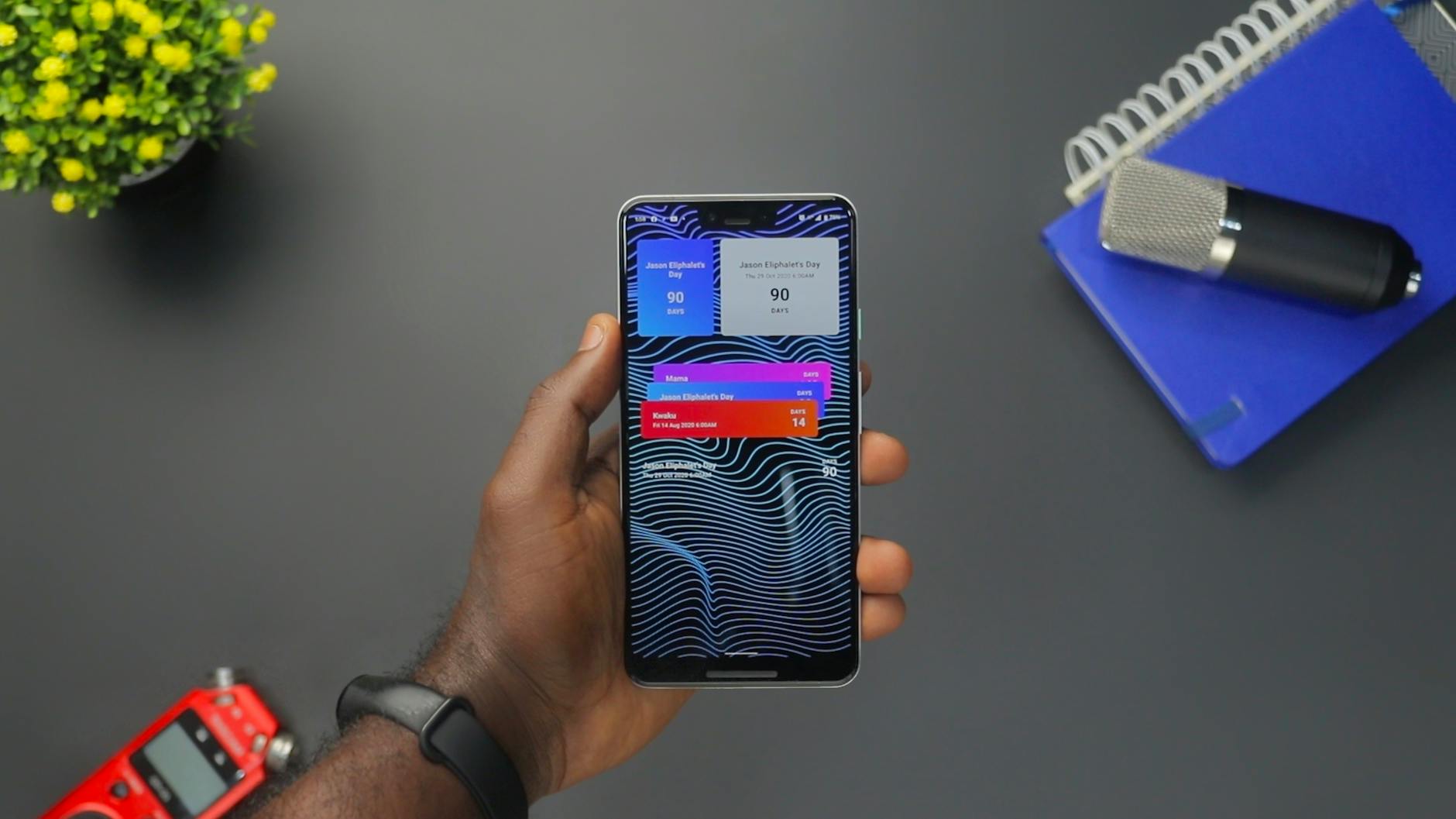 "How to Turn Off Work Messages After Hours on Your Phone") Photo credit: Photo by Emmanuel Jason Eliphalet
Photo credit: Photo by Emmanuel Jason Eliphalet
Slack: Silence messages during after hours
Slack users can pause interruptions with Do Not Disturb (DND) or by setting a dedicated after-hours schedule. This keeps channels quiet while still letting you see anything marked as urgent.
- Pause notifications with Do Not Disturb: hover over your profile, choose “Pause notifications,” and pick a duration. This is ideal for short breaks or evenings when you need a true wind-down.
- Set a recurring DND schedule: open Slack settings, find the Do Not Disturb options, and establish automatic hours (for example, 7 PM to 7 AM). Slack can apply this across all channels or allow exceptions for specific teammates if you must stay reachable for certain people.
- Silence all channels or keep essential alerts: in DND, you can mute all channels or selectively mute some. If you rely on a few channels for urgent matters, you can create a plan to receive banners only for those sources.
- Manage mentions and keywords: consider turning off @mentions for after-hours periods, or create a keyword filter to suppress non-critical messages.
If you want deeper control, Slack’s notification settings provide a broad canvas. Use the “Configure your Slack notifications” options to tailor desktop, mobile, and email alerts, including schedules and sounds. For a quick start, you can try pausing notifications and then gradually reintroducing channels you’re comfortable hearing from after hours.
External resources:
- Pause notifications with Do Not Disturb: https://slack.com/help/articles/214908388-Pause-notifications-with-Do-Not-Disturb
- Set default Do Not Disturb hours: https://slack.com/help/articles/214888418-Set-default-Do-Not-Disturb-hours
- Configure your Slack notifications: https://slack.com/help/articles/201355156-Configure-your-Slack-notifications
Microsoft Teams: Reduce interruptions without missing urgent alerts
Teams offers quiet hours and per-chat controls so you can cut the noise while still catching critical messages. This balance is perfect for evenings when you want to wind down without losing track of important updates.
- Turn on quiet time or set a schedule: in Teams mobile, you can activate Quiet Time and specify hours when notifications are muted. This prevents most alerts from popping up while you sleep or relax.
- Muting chats and channels: mute individual chats and channels that tend to generate late-night messages. Mutes apply across devices, so you won’t see banners or sounds unless you choose otherwise.
- Respect mentions with controlled alerts: disable mentions in after-hours windows if they’re not urgent, then quickly re-enable them when you return to work.
- Adjust banners and sounds: you can switch from banners to banners with only the app icon or turn sounds off completely during quiet hours. This reduces the chance of being pulled back into work with every ping.
To set up quiet time and per-chat controls, Start at Settings > Notifications and activity. From there, you can define your quiet hours and tailor what reaches you. If you work in a device-heavy environment, testing these settings for a week helps you refine which notifications actually matter.
External resources:
- Manage notifications in Microsoft Teams: https://support.microsoft.com/en-us/office/manage-notifications-in-microsoft-teams-1cc31834-5fe5-412b-8edb-43fecc78413d
- Quiet time in Microsoft Teams for mobile devices: https://support.microsoft.com/en-us/office/quiet-time-in-microsoft-teams-for-mobile-devices-174c4d2d-c7c1-4228-80a7-031c14f9bcf2
- Teams – Configure notifications per-chat: https://learn.microsoft.com/en-us/answers/questions/4435434/teams-configure-notifications-per-chat
WhatsApp: Turn off group and chat alerts
WhatsApp can be quieted on a case-by-case basis, which is especially effective for chats that routinely send late messages. Muting individual chats and groups gives you control without missing anything that matters.
- Mute individual chats: open the chat, tap the contact name, and select “Mute.” Choose 8 hours, 1 week, or Always. For after-hours silence, 8 hours is a clean solution, and you can re-evaluate the next day.
- Mute groups that flood you after hours: groups often pile up with late-night messages. Muting these groups helps you reclaim the evening while preserving access when you need it.
- Turn off notification previews if desired: in WhatsApp settings, you can disable previews in notifications. This hides message content from your lock screen and helps keep prying eyes at bay during unwinding time.
- Respect essential messages: keep important chats unmuted or set exceptions for specific people if needed, so urgent alerts still get through.
A practical approach is to mute a handful of high-traffic chats for a fixed window each evening, then review muted conversations in the morning. For longer-term relief, consider enabling notifications only for direct messages from saved contacts during after-hours.
External resources:
- Slack and WhatsApp are separate apps, but you can apply similar muting logic to keep work messages organized and quiet during downtime.
(Note: The Slack and Teams links above provide direct steps for muting and quiet hours, while WhatsApp muting is handled within the chat settings on the app.)
Gmail and Outlook: Stop email buzz after work
Email can be the hardest thing to switch off because it arrives through multiple channels. The trick is to reduce push notifications while keeping visibility for urgent items.
- Disable push notifications on mobile: in Gmail or Outlook, turn off push notifications so new mail doesn’t ping your phone. On iOS and Android, you’ll find this under the app’s notification settings.
- Use scheduled summaries when available: many email apps support digest or summary modes that push a single notification at a chosen time. This helps you decide when to check rather than reacting to every ping.
- Mute specific labels or folders: if certain categories of mail are noisy after hours, mute those labels or folders. This stops those messages from triggering notifications while allowing important mail to come through when you check.
- Create a post-work check routine: set a daily time to review mail in a single window. This creates a predictable rhythm that reduces the urge to respond immediately.
If you rely on multiple devices or work across Gmail and Outlook, consider centralizing alerts through your preferred calendar or task app. This helps you stay on top of urgent items without constant interruptions. For a smoother after-hours experience, keep a separate account or label for non-urgent messages and review them during your scheduled time.
External resources:
- Manage notifications in Gmail: https://support.google.com/mail/answer/138800
- Notification settings in Outlook mobile: https://support.microsoft.com/en-us/office/manage-notifications-in-outlook-mobile-4b8a7e87-6a8b-4e9f-9f88-9a3d4b7f6f8e
- Post-work mail routines: https://support.office.com/en-us/article/arrange-your-email-with-rules-and-focus-in-outlook
Images and visuals
- Consider using calming, minimal imagery that echoes boundaries, like a phone resting on a quiet desk with a visible clock. This reinforces the idea that after-hours time is protected.
Photo credit: Photo by Emmanuel Jason Eliphalet
Key takeaways
- Start with a single app and a clear quiet schedule. You can always add more rules as you refine what truly disrupts you.
- Use per-app controls rather than a blanket silent mode. This keeps the door open for urgent matters while preserving personal time.
- Test and iterate. A one-week trial for each app’s settings often yields the best balance between responsiveness and rest.
Practical setup takeaway
- Build a simple after-hours routine: enable Do Not Disturb on your phone, mute Slack and Teams channels that buzz late, mute groups in WhatsApp, and switch off push emails for Gmail and Outlook. Then adjust based on what you notice in the mornings. You’ll gain back evenings without losing the ability to respond when it truly matters.
Smart Scheduling and Quick Notifications Management
Managing after hours messages is not about losing touch with work. It’s about reclaiming personal time while keeping the right alerts available when they truly matter. In this section, you’ll learn precise, practical ways to use built-in scheduling and per-app controls on iOS and Android. These tools help you silence distractions, yet stay reachable for urgent cases. Think of it as setting boundaries with your smartphone, so your evenings and mornings feel calmer and more intentional.
iOS: Notification Summary and scheduled alerts
Scheduled Summary on iPhone bundles non-urgent notifications and delivers them at set times. This feature reduces constant pings while preserving visibility for important messages. It’s ideal if you want a predictable check-in window without missing critical updates.
What to know about Scheduled Summary:
- How it works: Notifications from multiple apps are grouped into a single summary and delivered at your chosen times. Urgent alerts can still come through if you allow time sensitive notifications.
- App selection: You pick which apps participate. Slack, Teams, email apps, and social tools are common candidates, but you can exclude any app that doesn’t need a mid-evening update.
- Delivery times: Summaries appear at scheduled intervals you configure. This means you won’t see every ping in real time, but you will get a digest at your planned times.
How to enable and configure:
There Is a Frequency That the Wealthiest Families Have Used for Generations and Most People Will Never Know It Exists
>>> Open the Door <<<

- Open Settings > Notifications > Scheduled Summary and toggle it on.
- Tap Schedule to set one or more times for delivery. Choose a morning digest if you want a quick recap when you wake up.
- Under Apps, add the work apps you want included in the summary. You can also turn off the feature for apps you don’t want in the digest.
- For critical communications, leave Time Sensitive Notifications enabled from select senders so urgent matters still reach you.
- If you’d like colleagues to know you’re in a focus period, enable Show Focus Status.
Actionable steps you can take now:
- Enable Scheduled Summary and set two delivery windows: one in the evening and one in the morning.
- Include essential work apps (for example, email and chat tools) and exclude non-urgent social apps.
- Review time sensitive settings for senders who must reach you in emergencies.
- Periodically adjust which apps are in the summary as your after-hours needs shift.
Helpful resources:
- View and respond to notifications on iPhone: https://support.apple.com/is-is/guide/iphone/iph6534c01bc/ios
- Change notification settings on iPhone: https://support.apple.com/guide/iphone/change-notification-settings-iph7c3d96bab/ios
- Summarize notifications and reduce interruptions: https://support.apple.com/guide/iphone/summarize-notifications-reduce-interruptions-iph1fbe7d2b9/ios
Why this matters for your after-hours routine
- You get a controlled, predictable window for reviewing work messages.
- Personal time stays protected while you still catch urgent items.
- It’s easy to test and adjust. A couple of weeks of real-world use will reveal the best times and apps to include.
Practical takeaway
- Start with one evening digest and one morning digest. Add apps gradually and adjust the times based on how often you end up checking your phone outside the scheduled windows.
External links for deeper setup guidance:
- Apple Support on Focus and app control: https://support.apple.com/guide/iphone/set-up-a-focus-iphd6288a67f/ios
- Apple Support on Focus configuration: https://support.apple.com/guide/iphone/set-up-a-focus-iphd6288a67f/ios
Android: Fine tune with notification channels
Android gives you granular control through per-app notification channels. This means you can silence or modify behavior for specific types of alerts within a single app. It’s especially useful for work apps where some notifications matter and others don’t.
Key concepts:
- Per-app channels: Each app can define multiple channels (for example, Slack channels like “General,” “Direct Messages,” or “Mentions”).
- Channel behavior: You can mute a channel, set importance to lower levels, or block sound and banners for that channel.
- Global vs. per-channel: You can keep important channels active while silencing others, rather than turning off notifications from the whole app.
How to configure channels:
- Open Settings on your Android device, go to Apps & notifications, then Notifications.
- Select the target app and you’ll see its notification channels listed. Tap a channel to adjust its behavior.
- Turn off a channel to stop all notifications from that category, or reduce its importance so it only appears in the notification shade without banners or sounds.
- For time-bound needs, schedule or mute channels during after hours by enabling Do Not Disturb rules or using tailored modes.
Simple examples with common work apps:
- Slack: mute the “General” channel after hours, but keep the “Direct Messages” channel active for urgent replies.
- Teams: silence non-critical channels while leaving “Mentions” or direct chats audible for emergencies.
- Gmail or Outlook: mute non-urgent labels or folders like newsletters; enable essentials such as urgent mail from your boss to still land as banners.
- LinkedIn or other professional networks: disable push alerts for after-hours unless a specific project requires a heads up.
Practical steps you can take now:
- Identify two to three channels in your top work apps that tend to cause noise after hours.
- Silence those channels while keeping a couple of high-priority channels active.
- If you use Do Not Disturb, pair it with per-channel rules to maintain a balance between rest and urgent alerts.
- Test for a week and adjust. Your goal is to reduce after-hours interruptions without missing truly important messages.
External resources:
- Control notifications on Android: https://support.google.com/android/answer/9079661?hl=en
- Manage YouTube notifications on Android: https://support.google.com/youtube/answer/3382248?hl=en&co=GENIE.Platform%3DAndroid
- Change Google notifications on Android: https://support.google.com/websearch/answer/9919653?hl=en&co=GENIE.Platform%3DAndroid
Why per-app channels matter
- They give you surgical control, allowing you to silence the noise without tearing down essential communications.
- You can tailor the experience to your workflow, so the people who rely on you after hours can still reach you when it counts.
Putting it into practice
- Start with one app and two channels. Once you’re comfortable, expand to other apps and channels.
- Pair channel management with a Do Not Disturb schedule for a clean and predictable after-hours routine.
- Revisit settings weekly to ensure they match your current work rhythm.
If you’d like more hands-on guidance, you can consult the official support pages for each app. For Android, the per-channel controls are usually found in the app’s notification settings, and for iOS, the Focus or Scheduled Summary options are central to curbing after-hours pings.
Best Practices for a Calm After Hours Routine
Building a calm after-hours routine starts with clear boundaries, smart communication, and a simple escalation plan. This section lays out practical steps you can implement today to reduce after-hours noise while staying reachable for real emergencies. Think of your smartphone as a boundary tool rather than a constant ping machine. Use this guidance to create predictable, low-friction habits that protect personal time without sacrificing professionalism.
Set clear boundaries with teammates
Plain language boundaries make expectations clean and easy to uphold. When teammates know exactly when you’re available, they feel respected and you avoid last-minute pressure. Start with a short, friendly script you can send when work requests creep into personal time.
- Script you can use: “Hey [Name], I’m wrapping up for the evening and will respond during our next business day. If this is time-sensitive, please mark it as urgent or reach out to [alternative contact]. Thanks for understanding.”
- Quick example message: “Hi Mia, I’m logging off now and will respond after hours only if it’s urgent. For urgent issues, please ping [backup contact] or tag me with ‘Urgent’ in the subject line.”
Why this matters:
- It sets expectations without sounding cold. A simple message reduces the back-and-forth and helps you reclaim evenings.
- It protects your personal time while keeping channels open for real emergencies.
- When teammates see a consistent pattern, they adapt and message more thoughtfully.
Tips to reinforce boundaries:
- Share your after-hours window with your team at the start of each project or quarter.
- Keep a recurring reminder or template ready for new teammates or contractors.
- Offer a quick alternative contact for time-sensitive matters to avoid missed emergencies.
External reference for scripting ideas and boundaries:
- How to set boundaries at work with examples: https://halopsychology.com/2024/11/12/how-to-set-boundaries-at-work-with-examples/
Use status updates and auto replies
Status indicators and auto replies are powerful tools that reduce guesswork. When you set a clear status plus an automatic response, colleagues know you’re unavailable and what to expect.
- Slack: Set an out of office status to signal you’re away, then add an automatic reply window. Use a concise message and an expiry so it self-resets.
- Quick start: Profile > Update your status > “Out of office until [time/date]” and set an automatic reply if available.
- More control: Configure default Do Not Disturb hours and choose which people or channels can reach you during those times.
- Source: Slack support guides for out of office and Do Not Disturb features.
- Microsoft Teams: Schedule an out-of-office status and enable automatic replies for after hours.
- Steps: Profile > Set status message > Turn on automatic replies and define the time window.
- Keep urgent alerts visible by allowing mentions or direct messages from key teammates during quiet hours.
- Source: Microsoft Teams support on quiet hours and status messages.
- General approach: Use a consistent, brief status message across tools. For example, “Out of office after 6 PM. I’ll respond next business day.”
Why use status updates:
- They create a shared expectation across your organization.
- They reduce pressure to respond instantly, which protects your downtime.
- They help you re-engage with a clear reset point each morning.
External resources for managing notifications and statuses:
- Slack: Set your out of office status and availability: https://slack.com/help/articles/20584016893843-Set-your-out-of-office-status
- Teams: Schedule an out of office status: https://support.microsoft.com/en-us/office/schedule-an-out-of-office-status-in-microsoft-teams-e3ce705a-cc43-4f7d-9418-0642ec5f6bd8
- Slack: Configure your Slack notifications: https://slack.com/help/articles/201355156-Configure-your-Slack-notifications
Note: Don’t overcomplicate. Start with one platform, test the workflow for a couple of weeks, and add others as needed. If you have a team-wide policy, document it and share a one-page summary to reduce repeated questions.
What If the Only Thing Between You and the Life You Deserve Is a Hidden Wealth Code Waiting to Be Activated
>>> Open the Door <<<
Prepare for emergencies without constant pinging
Emergencies happen, but they don’t have to derail your evenings. Create a simple escalation plan that helps people reach you when it truly matters, without flooding you with every message after hours.
Key components of a good plan:
- Identify the right contact: designate one person or a small group who can handle urgent matters after hours.
- Define what qualifies as urgent: e.g., system outages, security incidents, customer safety risks, or time-sensitive deadlines that cannot wait.
- Clear marking for urgent items: require a keyword or tag, such as “Urgent” or “P1,” in the subject line or a dedicated channel mention.
- Communication channel: decide where urgent issues should go after hours (text, email, a specific Slack channel, or a company-wide alert system).
Simple escalation example:
- After hours, send a message with the subject line or tag “Urgent” and contact [Backup Person] if the issue affects customers or security.
- If no response within 30 minutes, escalate to [Secondary Contact] with a brief note summarizing the problem and impact.
Practical steps you can take now:
- Create a documented after-hours escalation path.
- Share the plan with teammates and test with a live incident once a quarter.
- Train a backup contact so you don’t become the sole gatekeeper for urgent issues.
Why this approach works:
- It reduces guesswork for others and lowers the chance of you overreacting to minor pings.
- It preserves your time while keeping critical operations steady.
- It creates a predictable, repeatable process you can rely on during busy periods.
External resources for escalation planning and urgent communication:
- How to set boundaries at work with scripts that actually work: https://rachelpedersen.com/setting-boundaries-with-clients-scripts-that-actually-work/
- How to set boundaries at work with ready-to-use scripts: https://lisaibby.com/how-to-set-boundaries-at-work/
Putting it into practice
- Start by naming a single after-hours contact for emergencies and craft a short, respectful message that explains when you’re available.
- Create a simple keyword rule for urgency in your messaging apps (for example, require “Urgent” in the subject or a dedicated tag).
- Schedule a monthly check-in to review what truly needed attention after hours and adjust the plan accordingly.
External references for best practices
- Out of office etiquette and practical scripts: https://slack.com/help/articles/214908388-Pause-notifications-with-Do-Not-Disturb
- Schedule an out of office status in Teams: https://support.microsoft.com/en-us/office/schedule-an-out-of-office-status-in-microsoft-teams-e3ce705a-cc43-4f7d-9418-0642ec5f6bd8
By combining clear boundaries, smart status management, and a lean emergency plan, you turn your after-hours routine into a calm, reliable part of your day. Your smartphone becomes a ally that respects your personal time, not a constant source of pressure.
Conclusion
A simple, layered approach protects your focus after hours: enable a scheduled Do Not Disturb or Focus, mute or tailor notifications per app and per channel, and set a clear after-hours escalation for emergencies. This boundary keeps your smartphone from stealing personal time while ensuring urgent matters still get through. Start with one rule, test it for a week, then add or adjust as needed. Share your tips or questions in the comments so we can improve these boundaries together.
Thousands of People Were Struggling With Money Until They Discovered This One Ancient Secret Hidden in Sound
>>> Unlock It Now <<<
