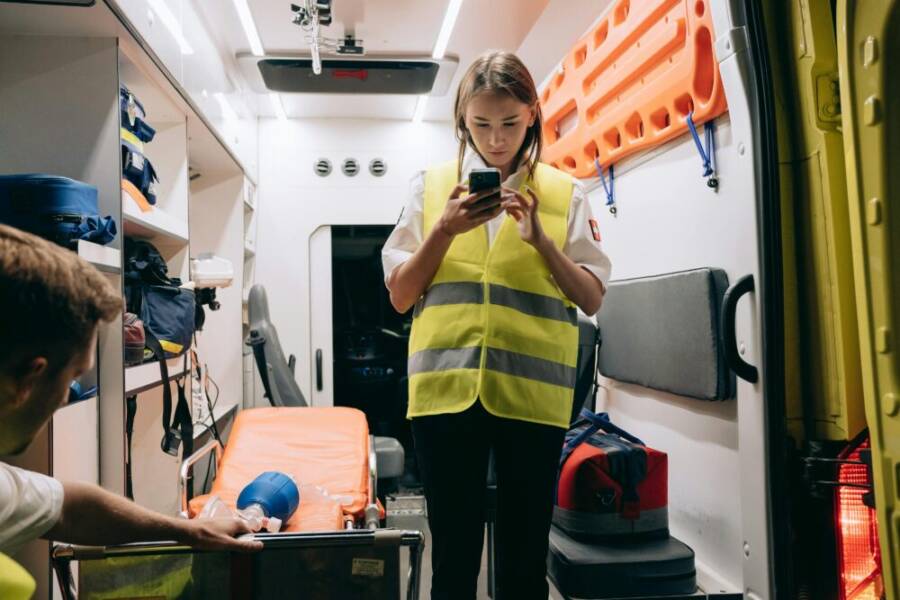
What if your phone could be a lifeline when seconds count? This guide shows you how to turn a routine device into a reliable emergency tool.
In simple terms, preparing your phone for emergencies means four things: safety features and tools, power and connectivity, data safety, and practice. You’ll learn practical steps to activate life saving options, keep signals strong, protect important information, and build muscle memory so you act quickly when it matters most.
By the end, you’ll know exactly what to set up and test, so your smartphone reduces stress and saves time during a crisis. You’ll gain confidence in every step you take, with clear actions that work in real life. This isn’t about hardware hype; it’s a practical plan you can follow now to protect your loved ones and yourself.
Why prepping your phone for emergencies matters
In emergencies, your phone can be a lifeline. It’s not just about making a call; it’s about staying informed, sharing your location, and coordinating with others when every second counts. A prepared phone reduces chaos, speeds up decisions, and gives you a reliable tool when infrastructure is stressed. Below you’ll learn what can go wrong for phones in disasters, how a ready device helps in real life, and the concrete benefits you gain from following this plan.
 Photo by Mikhail Nilov
Know the risks that affect phones during disasters
Disasters test our devices in several concrete ways. First, network service can drop when towers fail or become overloaded, so a phone might not reach emergency lines or loved ones. Power outages compound this problem, leaving devices dark just when you need them most. Water damage is another real threat; even a few drops can creep into charging ports or internals, silencing your device. Finally, theft or loss can occur in crowded evacuation sites or chaotic moments, removing your lifeline from your pocket.
- Loss of network: In a hurricane, wildfire, or quake, signals weaken. A phone that relies on a constant connection may struggle to reach help or relay updates. Preparing with offline options and alternative communication methods helps bridge the gap.
- Power failure: When the grid goes down, battery life becomes precious. If you can’t recharge, a single day could turn into a critical window where your phone can’t alert others or guide you.
- Water exposure: Wet environments or floodwaters can short out ports and sensors. Even small moisture can degrade performance, so protective cases and proper drainage paths matter.
- Theft or loss: Dense crowds and stressed travelers increase the chance a device goes missing. A phone that’s easy to locate or remotely protected reduces risk.
How a ready phone speeds up response
A prepared phone unlocks faster action when time is critical. Quick access to alerts ensures you know what’s happening as soon as it’s issued. Having your location ready means you can share it with a responder or family without fumbling through menus. Saving key contacts lets you call for help or coordinate meetups in seconds, not minutes.
- Speed up alerts and updates: When a警報 or advisory comes in, you shouldn’t hunt for apps. A streamlined notification setup brings essential alerts to the forefront, so you react promptly. In disasters, carriers and authorities strive to keep critical messages accessible, but device readiness makes that information actionable for you. For more on how carriers support connectivity during disasters, see this overview from a major industry source: The Wireless Industry Responds to 2024-2025 Disaster Season.
- Share your location instantly: In an emergency, letting others know where you are can save precious minutes. A preconfigured location sharing option lets you ping your coordinates to a trusted buddy or family group with a tap.
- Plan a safe route on the fly: Access to offline maps or cached routes can guide you when signals fade. If you’re evacuating a building or moving to a shelter, having a clear path saved in advance reduces confusion and speeds decisions.
For practical guidance on staying connected when networks falter, you can read about staying connected when the world falls apart and how carriers keep phones working, which highlights real world strategies used during emergencies.
What you gain by following this guide
Taking these steps yields tangible, everyday benefits that extend beyond crises. Expect greater peace of mind because you know your phone will work when you need it. Coordination becomes smoother with family and friends who can rely on quick location sharing and immediate alerts. Your travels and daily routines become safer, as you can navigate to help or adjust plans on the go without scrambling for information.
- Peace of mind: Clear, predictable steps reduce anxiety in uncertain moments.
- Better coordination: Trusted contacts and quick location sharing streamline help and meetups.
- Improved safety in daily life: Offline maps, saved routes, and robust alerting keep you prepared whether you’re at home, on the road, or abroad.
The practical steps in the upcoming sections will guide you to configure, test, and maintain a phone setup that truly serves you in an emergency. If you’re ready to put this plan into action, you’ll find the system simple to execute and easy to maintain over time. For deeper context on how extreme weather can affect communications and what that means for preparedness, you can explore official guidance and research linked here.
Set up essential safety features and tools on your phone
A well prepared smartphone becomes a dependable ally when emergencies strike. This section walks you through enabling emergency alerts, SOS features, and keeping health data accessible. It also offers practical, platform-specific steps so you can quickly implement these protections on both iPhone and Android devices. A few quick checks now save you time later.
Emergency alerts, SOS, and health data
Your phone should broadcast timely warnings and give you a swift way to call for help. Start by turning on wireless emergency alerts (WEA) and knowing how to trigger an SOS quickly. On iPhone, emergency alerts live under Settings and Notifications, where you can enable Government Alerts including Emergency Alerts. On Android, the path varies by manufacturer, but you typically find Wireless Emergency Alerts under Settings or Messages. If you want to test or verify these alerts, you can follow instructions from official sources that guide you through opt-in and test options for both platforms. Maintaining health data on hand is equally important. Store essential medical information, emergency contacts, and a brief health summary in a dedicated notes or health app so responders can access it with a tap.
A practical approach is to keep a short health summary on your home screen or within your health app. Include key details like allergies, medications, emergency contacts, and any chronic conditions. This ensures a responder can act quickly if you’re unable to communicate. For the most reliable guidance on enabling emergency alerts, see official support pages from Apple and FEMA. These sources explain how to activate and manage alerts on iPhone and Android devices, including test options and symptom-driven health data prompts.
Checklist to get started:
- Enable Wireless Emergency Alerts (WEA) on iPhone and Android.
- Ensure the SOS feature is active and easy to trigger.
- Add a concise health summary in your phone’s health or notes app.
- Verify that emergency contacts are up to date in your phone’s SOS or health app.
Useful reading and reference:
- Apple Support: About emergency and government alerts on iPhone
- FEMA guidance on receiving alert tests and how to test on iPhone and Android
Location sharing, Find My, and offline maps
In a crisis, your location can guide responders and help loved ones reach you faster. Start by turning on location sharing with trusted contacts so they can see your approximate location when you need it. On iPhone, Find My lets you share your location with family or friends, while Android users can use similar location sharing options through Google services. It’s wise to have offline maps ready as a fallback if service drops or you travel through areas with poor reception. Saving offline maps and routes in advance saves precious minutes during evacuations or shelter transitions.
For iPhone users, enable Find My and share your location with trusted people. Go to Settings > [your name] > Find My and adjust who can see your location. You can also set up Family Sharing to keep the whole household in sync. Android users should check Location settings in Settings > Location, then ensure you’re signed into a Google account with Location sharing turned on. To store offline maps, open your preferred mapping app, search for the area you want, and download the map for offline use. This ensures you have reliable navigation even when the signal is weak.
Special attention to offline data: keep a small cache of critical routes such as your usual evacuation path or shelter location. When you need to move quickly, you can open the app and follow the saved route without waiting for a live signal. For broader guidance on staying connected when networks falter, look into official resources that explain how carriers and devices handle emergency communications, including Android and iPhone specifics.
Links you may find helpful:
- Apple support on Find My and location sharing on iPhone
- Google support on Get help during an emergency with your Android phone
Organize emergency contacts and message presets
Speed matters in a crisis. Create a small, trusted group in your contacts and set up quick message templates so you can reach out without typing much. Enable status sharing or read receipts where available, so your circle knows you’re safe even if you’re unable to respond. A ready to send message template can reduce uncertainty and save time.
Here’s a practical setup you can follow:
- Create a dedicated emergency group in your contacts (e.g., “Emergency Circle”).
- Add 4–6 trusted people who should know your status in a crisis.
- Create two message templates in your messaging app or notes:
- Template 1: “I’m safe at [location]. Please confirm you received this.”
- Template 2 (if you’re in immediate danger): “Urgent: I’m at [location]. Call me or join this chat now.”
- Save a short status update in your phone’s status or notes app, such as “Location: [city], Situation: [brief description], ETA: [time].”
Example ready-to-send message:
- “Emergency update: I’m at the Mall of City, Level 2 near the food court. I’m with [companion]. I’ll call if I can. Please check in when you can.”
If you want to expand your reach, consider enabling status sharing in your health or safety apps so your circle gets automatic updates on your well-being. This can be useful when you’re in transit or moving between locations. For more on setting up emergency indicators and quick templates, search for device-specific steps to ensure you’re using the right menus and labels for your model.
Practical steps you can take now:
- Build a trusted contact group and assign each person a role (e.g., responder, updater).
- Save two universal templates for quick sending.
- Enable status sharing where supported, and test these features with a family member.
In addition to the steps above, you can refer to official guides that explain how to enable and test SOS features and emergency communications on iPhone and Android. These sources provide precise, step-by-step instructions to confirm your settings work when you need them most. If you’d like to see real-world guidance, you can review tips and tests from FEMA and major carriers.
Power up and stay connected when disaster hits
In an emergency, staying powered and connected can calm chaos and save time. This section explores practical habits for charging, keeping data accessible, and maintaining lines of communication when the power grid or networks falter. You’ll find straightforward routines you can adopt today, plus handy tools to carry in your bag or car. A little preparation goes a long way when every minute matters.
Power management and charging habits
A steady charging routine protects you from a dead device when you need it most. Start with a simple daily habit: top up to at least 50 percent before you head out, and charge overnight if you can. Use power saving modes during long days away from a outlet. On iPhone, enable Low Power Mode in Settings > Battery for shorter sessions between charges. On Android, look for Battery Saver or Adaptive Battery options in Settings and tailor them to your typical day.
When you’re out in the wild or dealing with a blackout, carry practical charging gear. A compact power bank with at least 10,000 mAh can top up a phone a few times without bulk. If you can, keep a second charger in your car or bag for quick boosts. For driving situations, a car charger is invaluable, but use it safely: avoid high draw while parking or in unfamiliar traffic, and unplug once the battery nears full to protect the car’s electrical system. If you’re unsure which charger to pick, trusted brands in offline reviews can help you narrow options quickly.
A few quick tips to extend life in a pinch:
- Let your battery drain only if necessary; frequent shallow charges are kinder to lithium batteries.
- Disable nonessential features like background app refresh when power is tight.
- Use airplane mode in areas with poor reception to save energy while you search for a signal.
- Keep a lightweight USB-C or Lightning cable in your emergency kit for universal compatibility.
Portable chargers and car charging play well together. A small, rugged power bank fits most backpacks, while a car charger keeps your device alive during long drives or evacuations. For reliable guidance on charging during outages, see practical tips from a home maintenance expert and a battery specialist. If you want a broader view on battery life and charging routines, this overview offers helpful context: How to Keep Cell Phones Charged During a Power Outage.
For more on sustaining power during emergencies, consider reading about how to select backup charging gear and using vehicle power sources, which can inform your kit choices and routines.
Backups and offline data
Disasters stress both memory and networks. Keeping photos, contacts, and documents safe means you won’t lose critical information when devices fail or networks go dark. The simplest approach is to back up frequently and store a copy offline on a safe device or SD card.
Set up cloud backups so your data sits in a separate, retrievable place. Turn on automatic backups for photos, contacts, and documents on your preferred cloud service. Then, keep a local copy on a rugged USB drive or an SD card for offline access. If you own multiple devices, ensure each has a synchronized plan so you can pick up where you left off regardless of which device you grab.
A practical backup checklist:
- Enable automatic photo backups to your cloud account.
- Sync contacts and critical documents across devices.
- Keep an offline copy of essential files on a dedicated SD card or secure drive.
- Test restoration at least twice a year to confirm you can recover files quickly.
In addition to your own devices, consider a lightweight data capsule that sits in your bag or car. This capsule can include a read-only copy of vital maps, a short health summary, and emergency contact lists. If you want a broader sense of offline data strategies, you can explore guides on staying connected when networks falter and how carriers keep phones working during emergencies. See official guidance and credible resources linked here for deeper context.
Useful reading and reference:
- Apple Support: About Find My and location sharing on iPhone
- Official FEMA guidance on emergency communications and alerts
Emergency communication plan
Clear, practiced routines keep you and your team aligned when chaos hits. Create a simple, repeatable plan for staying in touch with family or coworkers, with a go to contact, a common check in method, and a reliable fallback if networks are crowded.
First, designate a go to contact who will be your hub in a crisis. This person should be reachable by all household members and prepared to coordinate updates. Next, set a common check in method. Decide on a preferred channel, such as a quick text or a prewritten status update, and confirm its use among your group. Finally, plan a fallback option in case networks are jammed. For example, if text messages fail, switch to a brief voice call or share a location via an offline map you’ve saved beforehand.
A practical setup you can implement now:
- Create a small emergency group in your contacts (for example, “Emergency Circle”).
- Add 4–6 trusted people who will monitor your status.
- Prepare two ready to send message templates for quick updates.
- Save an offline map and a preplanned route to safety.
If you want more context on building robust SOS features and quick templates, search for device specific steps to ensure you’re using the right menus for your model. You can also review FEMA and carrier tips for practical guidance on emergency communications.
Practical steps you can take now:
- Assign roles within your emergency circle (responder, updater, liaison).
- Pre write two universal status messages and keep them handy.
- Test your plan with a family member to confirm clarity and speed.
- Practice sharing your location with trusted contacts so it feels natural during stress.
In addition to these steps, official guides explain how to enable and test emergency features on iPhone and Android. These sources provide precise, step by step instructions to confirm your settings work when you need them most. If you’d like real world guidance, review tips and tests from FEMA and major carriers.
External resources for further reading:
- How to charge during a power outage: familyhandyman guide
- Battery life strategies and backup gear overview: EcoFlow article
- General tips on charging phones when power is out: BattlBox guide
Notes on practical implementation
- Keep your smartphone within reach at all times, especially in the first 24 hours after a disaster.
- Review and refresh your backups every quarter to incorporate new data and contacts.
- Run a quick communication drill with your household every six months to build muscle memory.
This section equips you with a compact, actionable plan to power up and stay connected when disaster hits. The goal is to minimize downtime and maximize clarity, so you can act fast and stay safe. For broader travel and connectivity strategies, you can explore related guides on overseas data options and reliable emergency apps.
Keep data safe, accessible, and private
Your emergency plan hinges on data you can trust. When backups exist, encryption is enabled, and sensitive information is stored in a secure, accessible way, you gain speed and confidence in a crisis. This section explains how to build a simple, robust data safety routine that works across both major platforms and keeps critical information within reach when you need it most.
 Photo by Towfiqu barbhuiya
Backups, encryption, and device security
Regular backups protect you from data loss when devices fail or get compromised. Encryption keeps your information unreadable to anyone who grabs the device. A strong screen lock and biometric protection act as the first line of defense against unauthorized access. Here is a practical, straight-to-action setup for both iPhone and Android.
- Backups you can rely on
- Turn on automatic cloud backups for photos, contacts, and documents. Choose a backup schedule that fits your daily life—nightly works well for most people.
- Keep a local copy on a rugged drive or SD card if your device supports it. This offline layer helps when networks are down.
- If you share devices, ensure each device has its own synchronized backup plan so you can pick up where you left off.
- Encryption basics you should know
- Encryption protects data at rest on your device and in transit to cloud services. On both iOS and Android, encryption is enabled by default when you set a lock screen.
- Use a strong passcode or biometric unlock. Avoid simple codes like 1234; opt for a longer PIN or a biometric method you can reliably reproduce.
- Regularly review app permissions. Revoke access to sensitive data from apps you no longer trust or use.
- Device security made simple
- Enable a strong screen lock on your device and keep it active. Lock screens act as the last barrier between your data and trouble.
- Keep your device updated with the latest OS security patches. Updates close gaps that bad actors could exploit.
- Use reputable security practices like two-factor authentication for your accounts and enable find-ability features in case the device is lost or stolen.
Simple setup guides
- iPhone
- Enable Face ID or Touch ID and a strong passcode: Settings > Face ID & Passcode or Settings > Touch ID & Passcode.
- Turn on iCloud Backup: Settings > [your name] > iCloud > iCloud Backup, then toggle on Backup Now.
- Encrypt local backups by connecting to a trusted computer and using Finder (macOS) or iTunes (Windows) with the backup option encrypted.
- Enable Find My iPhone and Activation Lock: Settings > [your name] > Find My > Find My iPhone.
- Android
- Set up a secure screen lock: Settings > Security > Screen lock.
- Enable Google Backup and Sync: Settings > Google > Backup. Choose backup for apps, data, and photos.
- Turn on device encryption if not already automatic with your lock screen setup: Settings > Security > Encrypt device (if available).
- Activate Find My Device and set up location sharing: Settings > Security > Find My Device.
Trusted resources
- For encryption basics on mobile devices, see expert guidance from TechTarget: Mobile device encryption and how to enable it.
- If your device goes missing, a security-focused guide explains how to protect data before theft happens: How to protect data, privacy, and finances if your phone is lost or stolen.
Medical and ID information stored securely
Medical notes and ID data are essential in emergencies. Store them where responders can access them quickly, but keep privacy intact. Use built-in wallets or trusted apps to secure this information, and follow a simple rule set to decide what to include and what to omit.
- What to store
- A concise medical summary: allergies, medications, chronic conditions, blood type, and any device-related considerations (pacemakers, etc.).
- Key emergency contacts and their phone numbers.
- Insurance information and any critical identifiers your responders might need.
- A list of current medications and dosages, but avoid sharing sensitive notes that aren’t useful in an emergency.
- What to omit
- Excess personal data not needed for immediate care.
- Unnecessary identifiers that could be misused if the device falls into the wrong hands.
- Long medical histories that aren’t actionable in the moment.
- How to store securely
- Use the built-in health or wallet apps to keep important data in a dedicated, password-protected area. On iPhone, Health can house a health summary, while Wallet can store essential IDs or medical cards. On Android, you can use Google Wallet or a secure notes app with encryption.
- Create a short, clear health summary and place it in a readily accessible spot on your device, such as a pinned note or a dedicated health card within your wallet app.
- Keep emergency contacts up to date inside the SOS or health app so responders can reach them without digging through your phone.
- Quick guide to what to include
- Major allergies and reactions
- Current medications with doses
- Chronic conditions and recent hospital visits
- Primary emergency contact numbers
- Any medical devices and who to contact for care
- Quick guide to what to omit
- Comprehensive medical history
- Personal notes not needed for care
- Sensitive identifiers not used in emergency response
Helpful pointers
- Regularly review and update this data. A quarterly check keeps details accurate as meds and contacts change.
- Test access by asking a trusted family member to confirm they can locate the information quickly.
- Use a secure note or health app with a strong lock screen for sensitive data while keeping it easily retrievable when needed.
External resources
- Apple Support: About emergency and government alerts on iPhone
- FEMA guidance on emergency communications and alerts
Protect your phone from damage with cases and screen protectors
Disasters test your device from every angle. A sturdy case, a good screen protector, and smart maintenance can prevent a lot of damage. Here are practical steps to shield your phone from water, drops, and heat, along with routine care that helps it survive rough conditions.
- Water protection
- Use a water resistant case with a tight seal. Look for IP ratings that match your environment (IP68 is common for good protection).
- Keep charging ports dry; carry a small microfiber cloth for quick port cleanups after exposure to damp conditions.
- Consider a pouch or dry bag when you expect heavy rain, floods, or boating tasks.
- Drop protection
- Choose a durable case with shock-absorbent materials and raised edges to protect the screen.
- Screen protectors add an extra layer of defense. A tempered glass option is more robust than plastic films.
- Attach a lightweight lanyard or use a belt clip in high-risk areas to reduce accidental drops.
- Heat and general maintenance
- Avoid leaving your phone in direct sun or hot vehicles. Extreme heat can degrade battery health and performance.
- Regularly clean ports and vents to prevent dust buildup that can impair cooling.
- Keep software up to date; security patches often include fixes that help your device run cooler and longer.
- Practical maintenance habits
- Inspect the case and screen protector every few months. Replace worn parts before they fail.
- Carry a compact cleaning kit and spare screen protectors in your emergency kit.
- Run basic health checks: battery capacity, storage availability, and a quick camera test to ensure essential sensors work.
- Quick setup tips
- Choose a rugged, reputable case and a high-quality screen protector for your model.
- If you rely on the device for navigation or photo evidence in emergencies, ensure the screen remains readable in bright light and at various angles.
- Keep spare hardware in your car or bag when you travel, such as a backup charging cable and an extra protector.
Links you may find helpful
- How to protect data and privacy if your phone is lost or stolen
Conclusion of this section
- A reliable backup plan, encrypted data, and a secure storage method for medical and ID information create a strong foundation for emergency readiness.
- A sturdy protective setup and routine maintenance extend your phone’s life in tough conditions.
- Regular practice and quick access to critical data reduce friction when seconds count.
External resources for further reading
- Mobile device encryption and how it works and how to enable it: TechTarget
- How to protect your data if your phone is lost or stolen: Pentest Partners
- How to encrypt a cell phone or tablet on iOS and Android: University resources
- How to protect privacy while traveling with a smartphone: Protect Your Privacy guide
If you’d like additional context, I can tailor these sections to emphasize Taiwan or Asia-specific networks and carrier considerations, or adapt the setup guides for a broader audience.
Practice, test, and update your emergency phone plan
A solid emergency plan isn’t a set of one-off actions. It’s a repeating cycle: practice what you set up, test every critical feature, and update the plan as life changes. This section gives you a practical rhythm you can follow weekly, monthly, and quarterly. With consistent drills, you’ll move from theory to muscle memory, so your phone becomes a true lifeline when it counts.
Regular drills and quick refreshers
Set up a light but steady schedule that keeps battery health, contacts, and SOS features sharp. Keep it simple so you actually do it.
- Weekly checks (2–5 minutes)
- Quick battery health glance: confirm the phone holds a decent charge and that a 10–20% reserve is realistic for a trip.
- Confirm emergency contacts: make sure the SOS list and health notes are accessible and up to date.
- Test SOS launch: verify you can trigger the SOS feature with the expected gesture or button combo on your device.
- Monthly refresh (5–10 minutes)
- Update critical contacts and message templates: adjust for any new phones, numbers, or people in your circle.
- Verify location sharing and offline maps: confirm trusted contacts can see your location and that offline maps still load when networks drop.
- Review health data accessibility: ensure a concise health summary is current and easy to access.
- Quarterly deeper check (15–20 minutes)
- Battery health deep dive: look for signs of battery wear or reduced capacity and plan a replacement if needed.
- Backup verification: confirm automatic backups run correctly and test restoring a file or contact from backup.
- Data security sweep: review app permissions, update lock screen settings, and confirm encryption remains active.
A simple way to stay on track is to pair these checks with a recurring reminder in your calendar. If you prefer a printable workflow, keep a one-page checklist in your emergency kit. For extra reassurance, follow official guidance on testing emergency communications from reputable sources such as Apple and FEMA. They explain opt-in steps and test options for both iPhone and Android devices, ensuring you are testing what actually matters. You can also explore how carriers help keep essential alerts active during disasters.
Image suggestion:
 Photo by cottonbro studio
Caption: A quick drill keeps your emergency plan ready for action.
External reading:
- Apple Support: About emergency and government alerts on iPhone
- FEMA guidance on emergency communications and alerts
- Get help during an emergency with your Android phone
When to update your plan
Life changes can shift what you need from your emergency phone setup. Moving to a new city, adding family members, or upgrading devices all deserve a quick plan review. Use this brief trigger list to know when to update, and follow the checklist to make updates fast and painless.
Key life changes that warrant an update
- Relocation or changes in daily routine
- New devices or switching between iPhone and Android
- Added or removed trusted contacts
- Changes in health status or medications
- Travel plans that involve unfamiliar networks or regions
Fast update checklist
- Revisit emergency contact list: add new numbers, remove outdated ones, and ensure the go-to contact is reachable.
- Refresh SOS and alert settings: confirm triggers work and test options from the official support pages.
- Update location sharing permissions: verify who can see your location and adjust as needed.
- Refresh offline maps and routes: download new areas you’ll travel through and store routes to safety.
- Review health data: update allergies, medications, and conditions in your health or notes app.
- Run a short test: trigger SOS, share location with a trusted contact, and verify message templates send correctly.
If you want to deepen your understanding of how to test these features in real life, check out practical guides that walk through device-specific steps. For iPhone users, official guidance explains how to enable and test emergency features; for Android users, look at the manufacturer and Google support pages for testing options. These resources give precise steps so you’re not guessing when you need it.
Images and resources
- Optional image: A person reviewing phone settings at a desk to symbolize a plan update.
- Useful links:
- Apple support on Find My and location sharing on iPhone
- Google support on Get help during an emergency with your Android phone
This rhythm keeps your readiness fresh without being exhausting. It also gives you confidence that your plan will work when you need it most. If you’d like, I can tailor these drills to a specific device mix or to a family, school, or workplace scenario.
Conclusion
A prepared phone becomes a reliable lifeline in emergencies. You have a clear path to activate alerts, share location, back up data, and stay powered when networks fail. By practicing a simple cadence, you turn setup into quick action and reduce stress when time is scarce. Implement these steps with your smartphone this week and start building confident, repeatable habits.
Printable quick start checklist
- Enable wireless emergency alerts and SOS on your device
- Add a concise health summary and up to date emergency contacts
- Turn on location sharing with trusted contacts and save offline maps
- Establish two ready to send message templates for quick updates
- Pack a power plan: 50 percent charge, the right cable, and a 10,000 mAh power bank
- Back up data automatically and keep a local offline copy
- Secure your device with a strong lock, encryption, and updated software
- Run a quick SOS test and a location share test with a trusted person
Take action this week and start a short practice with your household. A few minutes now can make a big difference later. If you share your plan online, you might inspire others to build their own readiness routine.