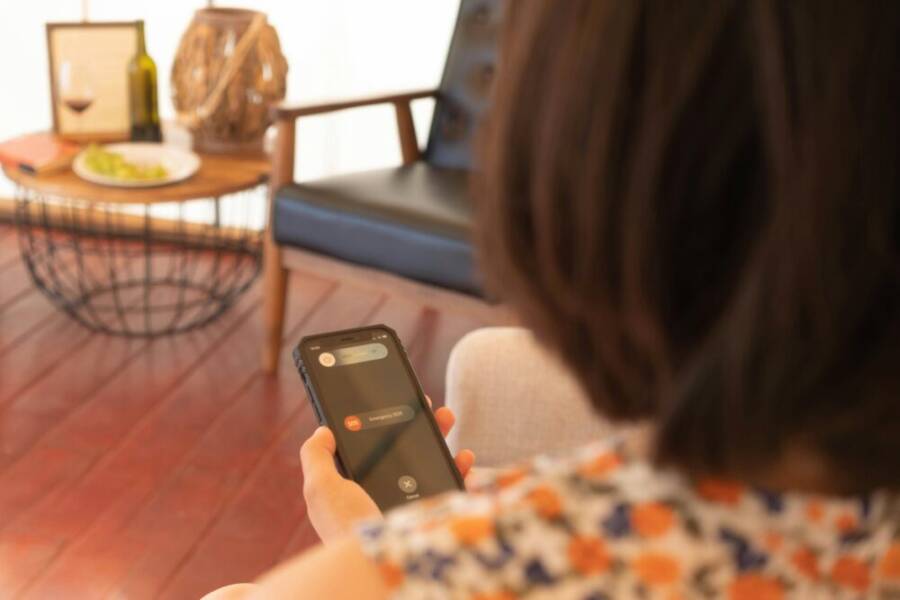
Adding emergency contacts to your phone is a small setup that can make a big difference when seconds count. This simple feature lets responders see who to call and what to do, even if you can’t speak for yourself. If you’re new to the process, you’ll be surprised how quickly it becomes part of your routine.
In this guide, you’ll learn how to add emergency contacts on both iPhone and Android devices. We’ll cover where to find the settings, what information to include, and how to test that everything works. You’ll also see practical tips to keep this list up to date as people change and numbers shift.
Why it matters goes beyond convenience. Quick access for responders can speed help, bring peace of mind to family, and reduce confusion during a medical or safety incident. Keeping this data accurate saves time when every moment counts.
Here’s what you’ll take away: a clear, actionable checklist for both major platforms, best practices for updating contacts, and simple reminders to review your list every few months. By the end, you’ll have a reliable emergency contact setup you can rely on in everyday life.
Choose the right emergency contact methods
When you set up emergency contacts, it’s not just about listing names. It’s about choosing the right methods that responders can access quickly and safely. This section breaks down practical ways to identify who to include, how to balance primary and backup contacts, and how to keep the list useful as life changes.
What counts as an emergency contact
Emergency contacts are the people who should be alerted if you’re unable to communicate. Think of those who know you well and can act on your behalf. Examples include close family members, trusted friends, and caregivers who understand your health needs and daily routines.
- Close family members like a spouse, parent, or adult child who understands your medical history.
- Trusted friends who know your location, routines, and any special circumstances.
- Caregivers or guardians who can coordinate care if you’re unable to respond.
Two concepts help keep this list practical: primary contacts and backup contacts. Primary contacts are the first people responders should reach if you’re unable to communicate. Backup contacts step in if the primary ones can’t be reached. Keeping a healthy mix of ages, locations, and availability is important. If your primary contact travels frequently, a backup who is always reachable can save time. For best results, limit the list to 4–6 core contacts and avoid duplicates across family and friends.
For context, a smart, well rounded set of emergency contacts reduces the time responders spend hunting for someone who can help. It also provides a clearer path for instructions about medical care or evacuation if needed. If you’re unsure where to start, begin with your closest family member, then layer in a trusted friend or caregiver who can act quickly.
For more on how Medical ID works on iPhone, Apple’s support articles walk through setting up emergency contacts and viewing them in a crisis. See the official guidance here: Set up and view your Medical ID and Make an emergency call or text on iPhone or Apple Watch. These resources outline exactly how emergency contacts appear to responders and what information is visible on the lock screen. https://support.apple.com/guide/iphone/set-up-and-view-your-medical-id-iph08022b192/ios and https://support.apple.com/guide/personal-safety/emergency-call-text-iphone-apple-watch-ips4f0cd709b/web
Medical ID, ICE, and lock screen info
Medical ID is a dedicated store of critical health data that can be accessed without unlocking your phone. On iPhone, Medical ID sits in the Health app. On Android devices, similar information can be stored in the device’s health or safety apps, depending on the manufacturer. The important distinction is clear: Medical ID holds medical information you want responders to know, while a separate emergency contact list is what they use to reach someone who can act.
- Medical information examples: allergies, chronic conditions, medications, blood type, and implants. This data should be accurate and kept up to date.
- Emergency contacts list: names and phone numbers of individuals who can be contacted immediately.
- Privacy note: decide what you want visible on the lock screen. Medical data can be sensitive. If you prefer higher privacy, limit visible data while still exposing enough to reach the right people.
A practical approach is to keep the medical data in the Health or Wellness app and maintain emergency contacts in the same place you update other critical settings. For instance, on iPhone you can view Medical ID under your profile in Health, and you can add emergency contacts there. On Android, explore the device’s health or safety app to set similar information. For reference, Apple provides step by step instructions to set up Medical ID and edit emergency contacts here: Set up your Medical ID in the Health app on your iPhone. https://support.apple.com/en-us/105072
When you’re using the lock screen to assist responders, ensure at least one contact can be reached without unlocking the device. If you want to allow first responders to see essential data without unlocking, enable the appropriate options in your Medical ID settings. Apple’s guidance also covers how to make emergency calls or texts from the lock screen on iPhone or Apple Watch, which can be a critical first step in an emergency. https://support.apple.com/guide/personal-safety/emergency-call-text-iphone-apple-watch-ips4f0cd709b/web
Choosing how many contacts and who to list
There isn’t a one size fits all. Start with a small, reliable set you can manage and grow it as needed. A practical baseline is three to five contacts: one primary, one or two backups, and another contact who knows your routine or location.
- Group by role: designate a family member as primary, a close friend as backup, and a caregiver as another backup.
- Location matters: if you travel often, include someone who can be reached quickly in different time zones.
- Special needs: add a contact who understands any medical conditions or medications that could affect treatment.
Update your list at least twice a year, or whenever there are major life changes—new phone numbers, new caregivers, or changes in living arrangements. A quick annual review can prevent outdated info from causing delays.
Quick decision checklist
- Do I have a clearly reachable primary contact?
- Are there at least one or two backups who can respond quickly?
- Do I know the contact’s preferred method of communication (phone, text, email)?
- Is at least one contact located where I spend most of my time (home, work, school)?
- Have I updated medical information in my Medical ID if relevant?
- Have I tested how the contact information appears on the lock screen?
If you want a step by step on updating on iPhone or Android, start by locating your Health or Safety app and adding emergency contacts there. Then verify on the lock screen what first responders can see and adjust privacy settings as needed. For more on emergency contact setup in iPhone, Apple’s official resources provide precise steps and tips. https://support.apple.com/guide/iphone/set-up-and-view-your-medical-id-iph08022b192/ios
As you finish this section, your emergency contact plan should feel practical and doable. The goal is to have a small, dependable circle that can act fast, while keeping sensitive data protected. With the right mix, you’ll cut down on hesitation and speed up the help you receive when it matters most. For additional context on how emergency setups look in real life, you can review a practical guide from Apple’s support articles here: https://support.apple.com/guide/personal-safety/emergency-call-text-iphone-apple-watch-ips4f0cd709b/web
Add emergency contacts on iPhone
Adding emergency contacts on your iPhone is a small setup with big payoff. When you can’t speak for yourself, responders can quickly reach someone who knows your medical history and can act on your behalf. This section walks you through using the Health app and Medical ID, adding multiple contacts, and testing to make sure everything shows up on the lock screen when needed.
Using the Health app and Medical ID
The Health app houses your Medical ID, a dedicated store of critical health data that is accessible without unlocking your iPhone. Here’s how to access it, create or edit entries, and keep the information accurate.
- Open the Health app and tap your profile picture in the top right. From there, select Medical ID. If you’re new, choose Get Started; if you’ve used it before, choose Edit.
- In Medical ID, fill in essential fields such as name, birth date, sex, height and weight, any allergies or conditions, medications, blood type, and organ donor status. Keep this information current so responders have a clear picture of your health needs.
- Add emergency contacts by tapping Edit next to Emergency Contacts. Tap the plus button to add a contact, then choose a person from your contacts and specify your relationship.
- When you add a contact, you can specify the relationship (for example, “Spouse,” “Parent,” or “Friend”). This helps responders understand who to contact and how to relay information.
- Decide what to show on the lock screen. You can allow responders to view essential medical details and the emergency contacts without unlocking the device. If privacy matters more, limit what appears on the lock screen while still ensuring help can reach someone quickly.
- Save changes by tapping Done. The Health app will reflect your updates, and the emergency contacts will be accessible to first responders as configured.
Apple provides detailed, step-by-step guidance on setting up and editing Medical ID and emergency contacts. For precise steps, see the official guides:
- Set up your Medical ID in the Health app on your iPhone
- Make an emergency call or text on iPhone or Apple Watch
These resources explain exactly how emergency contacts appear to responders and what information is visible on the lock screen. You can review them here: https://support.apple.com/en-us/105072 and https://support.apple.com/guide/personal-safety/emergency-call-text-iphone-apple-watch-ips4f0cd709b/web
A practical reminder: ensure at least one emergency contact can be reached without unlocking the phone. If you want to share more data with responders, adjust the lock screen visibility in Medical ID settings. Apple’s guides cover these options and how to access them quickly in a crisis. See the official instructions linked above for the most accurate steps.
Adding multiple emergency contacts on iPhone
You don’t have to limit yourself to a single contact. A well rounded set includes a primary contact and one or two backups, with at least one person who can respond quickly in different situations.
- Step-by-step to add more than one contact:
- Open the Health app and go to your Medical ID.
- Tap Edit next to Emergency Contacts.
- Tap the plus sign (+) to add a new contact.
- Choose the contact and set the relationship (for example, “Spouse,” “Parent,” “Friend”).
- Repeat to add more contacts as needed.
- Set their relationships clearly. Descriptive roles like Spouse, Sibling, Caregiver, or Friend who knows your medications help responders act quickly.
- Decide which contacts show on the lock screen. You may want your closest contact visible, with backups accessible after authentication if you prefer. This balance protects privacy while ensuring help can reach someone fast.
- Tips for naming and verifying relationships:
- Use common phrases for the relationship (e.g., “Husband,” “Mother,” “Best Friend”) to avoid confusion.
- Keep contact names consistent with what the person is listed as in your contacts to prevent misidentification.
- Periodically verify each relationship and contact method (phone numbers, emails) during your regular wellness checks.
If you want to see how Apple describes adding and managing emergency contacts on iPhone, check the official guidance linked earlier. It walks through tapping your profile picture, selecting Medical ID, and editing Emergency Contacts. The relevant support article is here: https://support.apple.com/guide/iphone/set-up-and-view-your-medical-id-iph08022b192/ios
A simple practice is to review your list after any major change, such as a move, a new caregiver, or a new phone number. With a clear, up to date set of contacts, you reduce the time responders spend hunting for the right person to call.
Refresh and test your Medical ID
Keeping Medical ID current is essential. It’s not enough to set it up once; life changes mean you should refresh emergency data and verify accessibility on the lock screen.
- How to test accessibility on the lock screen:
- Lock your iPhone and view the lock screen.
- Tap Emergency to see if the emergency contacts appear. If you’ve enabled lock screen access to Medical ID, you should be able to view the essential health data and the emergency contacts without unlocking.
- If something doesn’t appear as expected, open the Health app, go to Medical ID, and adjust what is shown on the lock screen.
- How to update after changes:
- When a family or contact changes phone numbers, open Health > Profile > Medical ID > Edit.
- Update the contact list and any medical details as needed.
- Save changes and perform the lock screen test again to confirm visibility.
- Simple test checklist:
- Is at least one emergency contact visible on the lock screen if allowed?
- Do emergency contacts display with correct names and relationships?
- Do medical details reflect current allergies, medications, and conditions?
- Are phone numbers and other contact methods up to date?
Apple’s support articles provide clear instructions on testing and updating Medical ID, including how to modify who is listed as an emergency contact. See the official guidance here: Set up your Medical ID in the Health app on your iPhone and Make an emergency call or text on iPhone or Apple Watch. https://support.apple.com/en-us/105072 and https://support.apple.com/guide/personal-safety/emergency-call-text-iphone-apple-watch-ips4f0cd709b/web
After you complete this section, you should feel confident that your Medical ID is both accurate and useful in an emergency. A well maintained list ensures responders can reach the right people quickly, and that vital health information is available when you cannot speak for yourself. For a quick, real world reference on how Apple’s guidance translates to practice, you can review Apple’s step by step resources linked above.
How to Add Emergency Contacts to Your Phone
Setting up emergency contacts on Android helps ensure help can reach your trusted people fast, even if you can’t speak. This section focuses on adding emergency information on the lock screen, tagging contacts properly, understanding what shows up, and verifying everything stays private and accessible. You’ll find practical steps, quick checks, and privacy tips to keep you in control.
Setting up emergency information on the lock screen
Customizing emergency info on Android varies by manufacturer, but the core idea is the same: give responders quick access to essential data without unlocking your phone. Here’s how to get started across common skins and what to watch for.
- On stock Android and many skins (like Google’s Pixel, Samsung One UI, and similar), open Settings and search for “Emergency” or “Lock screen.” Look for options such as “Emergency information,” “Medical ID,” or “Lock screen info.”
- Enable a visible set of data first. At minimum, include your name, any critical allergies or conditions, and a few emergency contacts. You can add more medical details if you trust the lock screen to display them.
- Add emergency contacts by choosing the plus or add option. Select a person from your contacts and label the relationship clearly, such as “Spouse,” “Parent,” or “Friend.”
- Decide what responders can see on the lock screen. Some devices allow basic health data to be shown without unlocking, while other data remains private. If privacy matters more, limit what appears but keep at least one contact visible without unlock.
- Quick safety tips: keep numbers up to date, verify the contact’s preferred contact method, and test the lock screen view to confirm what a responder would see.
Tip: check manufacturer guides for exact steps, as menus and labels shift with updates. For Pixel users, Google’s support pages outline how to manage emergency info in the Contacts and Settings flow, including how to make emergency information visible to responders. See official guidance here: Find or add emergency contacts on Pixel.
Image:
 Photo by Los Muertos Crew
Adding contacts in the Contacts app for emergencies
The Contacts app is where you build a reliable emergency network. Tagging each entry clearly and keeping data accurate helps responders act quickly. If you prefer not to unlock the device for data entry, you can still plan effectively by arranging what data lives on the lock screen first, then adding the rest in your contacts.
- Open the Contacts app and find the person you want to designate as an emergency contact.
- Add a clear label for the contact’s role, such as “Emergency contact” or “ICE” (in case of emergency). Include the relationship in the label as well, for example “Emergency contact — Spouse.”
- If your device supports it, set a specialized label that helps responders identify the contact at a glance.
- Keep important details consistent across contacts. Use the same naming convention for relationships to avoid confusion in a crisis.
- Quick note for data entry without unlocking: you can prepare and store emergency contacts inside the Contacts app first, then ensure the lock screen shows at least one contact as described in the previous section.
For reference, Google’s guidance on Pixel devices shows how to find and set emergency contacts in the Contacts app, including how to mark a contact as “Emergency contact.” You can explore this flow here: Find or add emergency contacts on Pixel.
What shows on the lock screen and privacy
Understanding what displays on the lock screen helps you balance accessibility with privacy. You want responders to reach you and see vital health information, but you don’t want every detail exposed.
- Visible data: basic medical details you choose to expose, plus emergency contacts you’ve designated to appear without unlocking.
- Hidden data: sensitive health information, extensive medical history, or any notes you don’t want accessible without authentication.
- Privacy best practices:
- Start with minimal essential data on the lock screen. Add more only if it speeds help.
- Review each contact’s privacy preferences and ensure those who see the data can still act quickly.
- Periodically test how the lock screen looks from a responder’s perspective to confirm it’s useful without being overly revealing.
If you want a broader look at how emergency information is displayed and managed on Android devices, you can check summaries from reputable guides like PCMag’s overview of lock screen emergency info. They cover practical steps for many Android skins and offer quick checks for visibility.
Link for reference: Putting Your Emergency Info on Your Phone’s Lock Screen
Verify access and keep info private
Testing ensures responders can reach you while keeping other data safe. Quick steps to verify access work across devices and scenarios.
- Lock screen test: enable emergency info visibility, then simulate a scenario where you cannot unlock the device. Confirm that emergency contacts appear and that critical medical data is accessible if you enable it.
- Privacy sanity check: review which fields are visible without unlock and remove anything nonessential if privacy feels compromised.
- Regular audits: set a biannual reminder to review emergency data for changes in health, contacts, or location.
Guides from Apple highlight similar testing practices for iPhone, showing how to verify lock screen visibility and adjust which data is shared with responders. While the steps are for iPhone, the principle applies: test, verify, adjust. See official guidance here: Set up your Medical ID in the Health app and Make an emergency call or text on iPhone or Apple Watch.
To explore general emergency information testing on Android, you can refer to broad how-to resources that explain labeling, visibility, and practical validation steps. A practical summary is available here: A Step-by-Step Guide to Emergency Contacts on Android
Small privacy takeaway: never store highly sensitive data in the visible portion of the lock screen. Rely on a trusted medical ID or health app to house sensitive details, while keeping the emergency contacts easy to reach.
Image: (Optional) A calm, organized home screen showing a health or safety app icon, ready for quick access.
By now you should have a clear path to keeping emergency data useful and private. The goal is to create a concise list of trusted contacts and a minimal set of visible health information that helps responders act fast without exposing unnecessary details.
Best practices for keeping emergency info up to date
Keeping emergency information current is not a one-and-done task. It’s a small, ongoing habit that ensures responders reach the right people and get the right health details fast. Below are practical, easy-to-follow best practices you can weave into your smartphone routine, so your emergency data stays reliable no matter what life brings.
Regular reviews and reminders
Set a simple, repeatable schedule to review contacts, health data, and lock screen visibility. A quick quarterly check fits most lives, with a more thorough annual refresh for big changes.
- Quick quarterly cadence: 15 minutes to verify contact links, update phone numbers, and confirm the right people are listed.
- Annual deep-dive: review medical information, confirm allergies and medications, and tighten privacy settings to balance accessibility with privacy.
A practical calendar prompt helps you stay on track. Create a recurring event titled “Emergency Contacts Review” every three months on a day you naturally remember (e.g., the first Saturday of the month). Include a reminder to:
- Confirm primary and backup contacts and their preferred contact method
- Update any health details in your Medical ID or Health app
- Check what data is visible on the lock screen and adjust if needed
If you travel often or undergo life changes, adjust the cadence to monthly during transitions. The goal is to keep the list short, accurate, and actionable for responders. For reference, Apple and Android guides provide clear steps for updating emergency data and testing visibility, so you can align your routine with platform specifics: Apple’s Medical ID setup and emergency contact editing, and Android’s lock screen emergency info guidance. See the official resources for precise steps and best practices:
- Set up your Medical ID in the Health app on your iPhone
- Make an emergency call or text on iPhone or Apple Watch
- Find or add emergency contacts on Pixel
In addition, consider a simple habit: when any contact or health detail changes, update it within 24 hours. A tiny delay is enough to prevent a week of uncertainty if something happens.
Privacy safeguards and sharing
Emergency data saves lives, but it should not expose every detail. Focus on protecting sensitive health information while keeping essential contacts easy to reach.
- Determine who can see what on the lock screen. Display only the data that speeds help, such as names, critical allergies, and a single emergency contact.
- Use the app privacy settings to limit exposure. Disable or minimize the amount of medical history shown without authentication.
- Review contacts’ privacy preferences. Ensure they consent to being listed and understand how their data may be used in an emergency.
A practical takeaway is to separate medical data from the emergency contact list. Medical ID holds health details responders need, while the emergency contact list is what responders use to reach someone who can act. If you want more guidance, reputable sources explain how Medical ID and lock screen visibility work on iPhone and Android, with concrete steps to limit exposure while keeping essential access. For example, you can read guidance on locking screen visibility and emergency calls here:
- Put emergency information on the lock screen for Android devices
- Set up and view your Medical ID on iPhone
As you refine privacy, test the balance. Try a lock screen view check to ensure first responders can reach the right person without exposing sensitive data. Remember, you control what’s visible and who sees it. The right balance reduces risk while speeding help.
Plan for travel or device changes
Traveling, device repairs, or switching to a new phone can disrupt your emergency data. Plan ahead with a few best practices to keep information current across devices and platforms.
- Before a trip: confirm at least one contact can be reached across time zones. Include a backup contact who can respond quickly if you’re away.
- When upgrading or changing phones: prepare a data handoff. Export or securely transfer emergency data from your old device to your new one, and verify the data appears correctly on the new lock screen.
- During repairs: if you’re without your main device, ensure a secondary device has up-to-date emergency data or that caregivers have access to the critical details needed in an urgent moment.
A smooth transfer often starts with the Health or Safety app on iPhone or the Contacts and emergency sections on Android. For iPhone, Apple’s guides walk through Medical ID transfer and editing on a fresh device. On Android, most manufacturers offer similar paths within the Health or Safety apps, or the Contacts app, to re-establish emergency data quickly. If you want quick references, these resources are helpful:
- Set up your Medical ID in the Health app on your iPhone
- Find or add emergency contacts on Pixel
When you land on a new device, perform a mini-check: are the primary and backup contacts still correct, is your medical data up to date, and do you know which data appears on the lock screen? A brief post-transfer audit saves you from last-minute scrambles.
Test your setup regularly
Regular testing keeps your emergency data trustworthy. A simple test checklist helps you verify accessibility and privacy, so you know responders will reach the right people in a real emergency.
- Lock screen visibility test: ensure at least one emergency contact appears on the lock screen if you allowed it.
- Medical data sanity check: confirm critical details such as allergies and medications are current and clearly labeled.
- Contact verification: call or text each primary and backup contact to verify they can be reached quickly and understand their role in your plan.
- Privacy validation: confirm you’re not exposing sensitive health information beyond what you’re comfortable sharing without authentication.
To keep the testing practical, perform a quick once-a-quarter check, and a deeper test annually. If you want a quick reference, many guides outline the steps to test lock screen visibility and emergency data on iPhone and Android, with practical tips for adjusting what first responders can see. See official guidance for iPhone testing and Android visibility checks:
- Make an emergency call or text on iPhone or Apple Watch
- A Step-by-Step guide to emergency info on Android devices
A reliable setup also means you know what to do if something changes. If a contact moves away or changes numbers, update immediately, then run through the test checklist again. Consistency beats complexity here, and it helps you stay confident that help will come quickly when you need it.
Links for further reading and practical references
- Apple support: Set up your Medical ID in the Health app on your iPhone
- Apple support: Make an emergency call or text on iPhone or Apple Watch
- Google support: Find or add emergency contacts on Pixel
In practice, a well maintained emergency info profile feels like a trusted safety net. It’s not just about adding names; it’s about ensuring responders can act fast with the right health context and the right people. Keep it simple, keep it accurate, and keep it updated. Your future self will thank you.
Conclusion
Adding emergency contacts to your phone is a small step that pays off in big moments. Summarize the steps quickly: open your Health or Safety app, add your Medical ID or Emergency Contacts, choose what shows on the lock screen, and test the visibility. This matters because it speeds help and gives responders the context they need when you can’t speak. Take action today by reviewing your contacts across iPhone and Android, then set a quick reminder to keep everything up to date. Your smartphone, and the people who rely on it, will thank you.