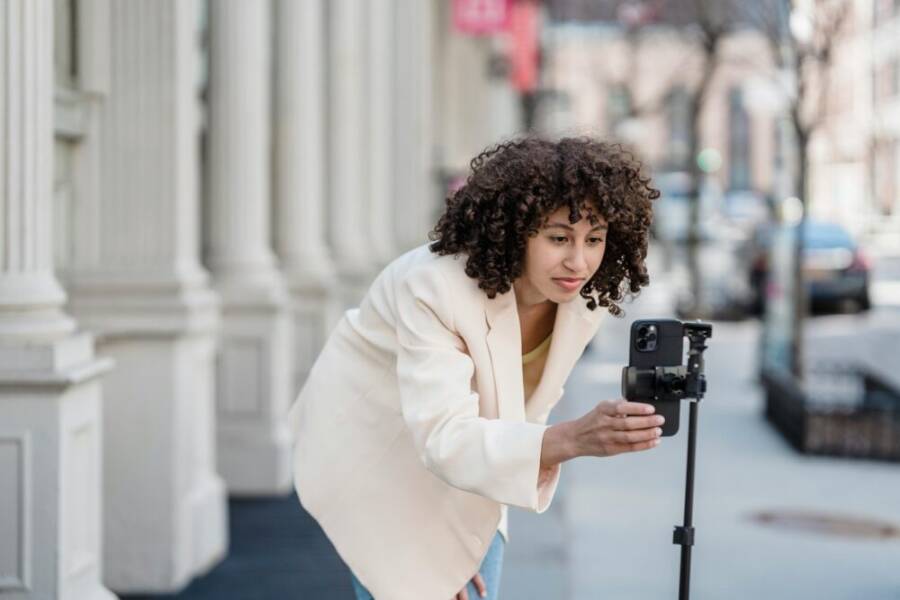
Are you ready to turn your phone into a full course creator studio? This guide shows how a best phone setup for online course creators can power recordings, hosting, and student engagement right from your pocket. A strong smartphone setup matters because clear video, clean audio, and smooth delivery keep learners focused.
You’ll learn the core pieces you need: hardware essentials, an efficient app stack, and practical tips for lighting and sound. We’ll also map out a simple mobile workflow and quick fixes for common hiccups. By the end, you’ll have affordable, ready-to-implement ideas you can use this week.
Think of this as a practical roadmap for turning a smartphone into a capable course tool. If you’re aiming for smartphone for course creation success, these steps will help you create professional videos, host courses smoothly, and stay connected with students. This approach keeps things straightforward, affordable, and repeatable.
Optimize hardware for course creation
Turning your phone into a capable course creation setup starts with the right hardware mindset. You don’t need the priciest gear to produce clear, engaging lessons. Focus on reliability, ease of use, and ways to improve audio and video without complicating your workflow. Below are practical guidelines and budget-friendly options to optimize your hardware for mobile education.
Camera and microphone quality
For clear lectures, the camera’s resolution and frame rate matter, but audio quality often steals the show. Most smartphones shoot in at least 1080p, and 30 fps is standard for smooth motion. If you record outdoors, wind can ruin your audio in seconds; invest in a simple windscreen or wind cover. When possible, use an external microphone to capture crisp voice with less background noise. A lavalier mic clipped to your shirt keeps your voice centered and reduces echo from room surfaces.
- External mics make a noticeable difference. A compact lapel mic is enough for most courses and fits in a pocket. If you need to stay flexible, a small wireless mic kit gives you room to move without pulling cords.
- Basic setup steps:
- Pair or plug in the external mic to your phone.
- Test levels in a quiet room; aim for steady peaks around -6 dB.
- Enable mono audio if your platform supports it to keep consistency across devices.
- Do a quick 30-second test video to check dynamics and wind when outdoors.
- Budget-friendly options:
- A compact lavalier mic plus clip-on windscreen is often under $50 and works with most phones.
- Look for mics with a simple 3.5mm or USB-C/Lightning connector, depending on your device.
For more budget picks, see practical mic options in this roundup: Best mobile microphones for recording with a phone.
If you want a ready-made setup that’s friendly to beginners, check out affordable wireless solutions that pair well with smartphones: Smartphone External Microphone.
For a deeper look at Android-compatible mics, this guide is helpful: Best Android Microphones For Recording in 2025.
Stabilization and framing
Steady footage makes your course feel polished and professional. Start with a sturdy tripod for tabletop or desk shots, then consider clamps or a small gimbal if you’ll move a lot during a lesson. Framing matters a lot in education videos; the rule of thirds helps keep the subject engaging without feeling staged. Keep the eyes around the top third of the frame so the viewer’s focus rests on your expressions and lips.
- Framing tips:
- Keep your eyes near the top third line for natural engagement.
- Shoot slightly above eye level to avoid looking down on learners.
- Use a clean background or a shallow depth of field to minimize distractions.
- Exposure and focus:
- Lock exposure and focus after framing. Tap and hold on your screen to lock them, then reframe if you adjust lighting.
- Periodically verify that lighting hasn’t shifted; re-lock if it has.
- Quick checklist before recording:
- Tripod or mount secured; phone in airplane mode to prevent interruptions.
- External mic connected and tested; levels set.
- Lighting balanced; avoid harsh shadows and backlight.
- Background clutter minimized; background noise reduced.
Battery life and storage management
Long shoots can drain a phone fast. The simplest way to stay productive is to optimize power use and manage storage ahead of time.
- Battery saving tips:
- Dim the screen to a comfortable brightness.
- Turn off nonessential apps and notifications.
- Use airplane mode during recording to avoid interruptions from calls or messages.
- Power solutions:
- A compact power bank can extend sessions significantly, especially when you’re traveling or teaching on location.
- Storage and backups:
- Enable cloud backups for automatic syncing after each session to prevent loss.
- If you record large files, consider an SD card adapter or a USB-C/Lightning external drive for quick on-site transfers.
- Simple file management tip:
- Create a dedicated folder for each course or module; save files with a consistent naming convention like CourseName_Session01_Date. This saves time when you upload and organize content later.
For a practical overview of portable charging and battery-saving strategies, see this hands-on guide: The Best Mobile Microphones For Recording in 2025.
Must-have accessories for audio and lighting
A few affordable add-ons can dramatically improve video quality without complicating your workflow. Here are practical options to consider and when to use them.
- Compact lavalier microphone: Great for talking-head lectures and screen-sharing demos. Clip it near your mouth for clear speech and minimal room echo.
- Small ring light: Adds key fill light for balanced skin tones and reduces shadows on your face. Ideal for indoor shoots with limited natural light.
- Portable diffuser: Softens harsh light from a lamp or window, creating a more flattering, even look.
- Phone mount: Keeps the phone steady and allows for easy re-framing during demonstrations or hands-on tutorials.
A low-cost starter kit idea for new creators:
- One lavalier mic, a small clip-on windscreen, a compact ring light, and a flexible tripod or phone mount. This setup covers audio clarity, lighting, and stability without breaking the bank.
If you’re selecting a starter kit, a quick look at budget-friendly mic options can help you compare prices and performance: Best mobile microphones for recording with a phone.
To see how a reliable Android mic choice stacks up, check this resource: Best Android Microphones For Recording in 2025.
For a broader view of portable mics and how they fit with phones, this roundup is useful: The best mobile microphones for 2025.
Additional notes on lighting and audio setup:
- Use a ring light at about a 45-degree angle from your face to avoid flat lighting.
- If you record in a small room, place the diffuser between you and the light source to soften reflections.
- For outdoor shoots, carry a small windscreen to reduce breeze noise on the mic.
Links referenced above offer practical buying guidance and real-world testing to help you pick options that fit your budget and device.
Build a powerful app stack on your phone
Your smartphone can be a complete course creation hub when you pick the right apps and arrange them into a simple workflow. The goal is to minimize taps and maximize reliability, so you can record, edit, store, and publish from one device without juggling multiple gadgets. Below you’ll find practical guidance for a lean, effective app stack that supports clear video, solid audio, and smooth distribution to learners.
Recording apps and microphone boosts
Built-in camera apps are fine for quick takes, but feature rich recording apps unlock serious quality with minimal fuss. Look for apps that support external microphones, manual controls, and long recordings without hiccups.
- Built-in camera apps vs dedicated recording apps:
- Built-in: Easy, fast, and stable; limited manual controls and processor-based processing can introduce compression that affects audio and tone.
- Recording apps: Offer manual exposure, focus, frame rate, and audio gain controls; some integrate directly with external mics for better sync.
- External mic support and practical tweaks:
- Most modern phones accept a lavalier or small shotgun mic; use a windscreen when recording in breezy spaces.
- Enable mono audio if available to keep sound consistent across devices.
- Do a 30 second test before you record a full lesson to check levels and wind.
- Simple gear ideas that pay off:
- A compact lavalier mic with a clip and windscreen, plus a USB-C or Lightning adapter, covers most setups.
- If you move around, a small wireless mic kit provides freedom without tangled cords.
- Quick setup checklist:
- Connect the mic to your phone and test in a quiet room.
- Lock audio gain and exposure after framing.
- Do a short test video to verify audio and wind handling.
- Handy references for affordable options:
- “Best mobile microphones for recording with a phone” offers budget picks and practical comparisons. https://www.engadget.com/computing/accessories/best-mobile-microphones-for-recording-with-a-phone-154536629.html
- A beginner friendly wireless system can simplify movement during demonstrations. https://www.amazon.com/smartphone-external-microphone/s?k=smartphone+external+microphone
- Android mic options and compatibility tips are covered in this guide. https://riverside.com/blog/best-android-microphones
If you want clear examples of how a specific app handles audio, consider RØDE Capture for its intuitive controls and dual camera modes. https://rode.com/en-us/apps/rode-capture?srsltid=AfmBOoqUUhkYa7IZsN8ykZ-rzRmcLzRdap-O_dAILvBQuY_TNf_fgLH6
Stabilization and framing
A steady shot keeps learners focused on your message. Start with a solid tripod, then add a small gimbal if you need dynamic movement.
- Framing basics:
- Place your eyes near the top third of the frame to feel natural and engaging.
- Shoot slightly above eye level to avoid looking down.
- Choose a clean background or use shallow depth to reduce distractions.
- How to keep focus sharp:
- Lock exposure and focus after you frame; recheck when lighting changes.
- Watch for shifts in lighting and adjust quickly.
- Quick pre-recording checks:
- Tripod secure, phone in airplane mode.
- External mic connected and levels tested.
- Lighting balanced, no harsh shadows or backlight.
- Background tidy to avoid distractions.
Battery life and storage management
Long sessions demand efficient power use and solid file management.
- Power and efficiency:
- Dim the screen to a comfortable level and close nonessential apps.
- Airplane mode during recording helps prevent interruptions.
- Power backups:
- A compact power bank is a reliable companion for on the go teaching.
- Storage and backups:
- Turn on automatic cloud backups to keep files safe.
- For heavy recording, use a USB-C or Lightning drive for on-site transfers.
- File organization tip:
- Use consistent naming like CourseName_Session01_Date and store in a dedicated folder per course.
For more on portable charging and practical tips, see this guide: https://riverside.com/blog/best-android-microphones
Must-have accessories for audio and lighting
Affordable add-ons can significantly lift video quality without complicating your workflow.
- Lavalier microphone: Ideal for talking head lectures and screen shares; keeps audio centered.
- Ring light: Improves skin tones and reduces shadows; great for indoor shoots with limited natural light.
- Portable diffuser: Softens harsh light from lamps or windows.
- Phone mount: Keeps your device steady and makes re-framing easy during demos.
Starter kit idea:
- One lavalier mic, windscreen, compact ring light, and a flexible tripod or phone mount. This setup covers audio, lighting, and stability without a big price tag.
Budget options to compare:
- “Best mobile microphones for recording with a phone” for budget picks. https://www.engadget.com/computing/accessories/best-mobile-microphones-for-recording-with-a-phone-154536629.html
- Android mic comparisons highlight reliable choices. https://riverside.com/blog/best-android-microphones
- A broader roundup of portable mics for phones can help with decision making. https://www.engadget.com/computing/accessories/best-mobile-microphones-for-recording-with-a-phone-154536629.html
Lighting and audio setup quick notes:
- Position the ring light about 45 degrees from your face for natural shading.
- If your room is small, place the diffuser between you and the light to soften reflections.
- For outdoor shoots, carry a windscreen to reduce breeze noise on the mic.
These resources provide practical buying guidance and real-world testing to fit your budget and device needs.
Lighting, sound, and background on mobile
When you teach from a smartphone, every detail counts. Good lighting, clean sound, and a tidy background transform a simple video into a credible learning experience. This section gives practical, budget-friendly ways to level up your mobile teaching setup without overhauling your space. You’ll find actionable steps, quick checks, and affordable gear ideas so you can create professional lessons today.
 Photo by Blue Bird
Lighting setups on a budget
Lighting shapes how viewers perceive you and your content. Start with the simplest, then add compact tools as needed.
- Natural light as your friend: Record near a large window or outdoors on overcast days for soft, even illumination. Position yourself so light hits from the front or slightly to the side, not from behind.
- Affordable ring lights: A small ring light at a 45-degree angle reduces shadows and adds subtle warmth. It’s ideal for indoor recordings with limited daylight.
- Basic three point lighting: If you want a more polished look, use three lights: key light to illuminate your face, fill light to soften shadows, and a back light to separate you from the background. A simple setup works well on camera and keeps you visually engaging.
- Color temperature matters: Aim for around 5500K for a neutral daylight look or 3200K–3600K for warmer, friendly tones. Consistency beats dramatic shifts that distract learners.
- Avoid harsh shadows: Keep lights at the same height as your camera when possible, and use a diffuser or bounce card to soften bright spots.
- Quick wins you can try today:
- Sit within a few feet of a window and add a small clip-on diffuser if you notice glare.
- Use a white poster board as a makeshift reflector to bounce light onto your face.
- If you must shoot with mixed light, set white balance manually in your camera app to keep skin tones natural.
Helpful resources:
- Lighting and audio ideas for online courses can be found in practical guides such as How to Get Great Lighting and Audio for Your Online Courses. Link: https://www.heightsplatform.com/blog/how-to-get-great-lighting-and-audio-for-your-video-courses-part-1
- A concise rundown of budget lighting options and setup tips is available at Film and Learning. Link: https://filmandlearning.com/video-lighting-setup-cheap/
Sound and room setup
Clear sound is often more important than high video resolution. A quiet space and a good mic dramatically improve learning outcomes.
- Room acoustics: Choose a small, soft-surfaced room when possible. Cushions, curtains, and a rug absorb echoes and reduce reverberation.
- Microphone choice by space:
- Quiet bedrooms or home offices: a lavalier mic or compact USB mic works well.
- Noisy or large rooms: consider a directional microphone to focus on your voice and cut background hum.
- Reducing echo: Use soft furnishings and position yourself away from hard walls. A plush chair or couch nearby can lower reflections.
- Mic placement tips:
- For a lavalier: clip the mic about collarbone height and keep it roughly 6–12 inches from your mouth.
- For desktop mics: place them slightly off-axis to avoid puffs of breath and plosives.
- Windscreen and pop filters:
- Windshields help outdoors to cut wind noise.
- A pop filter or foam cover reduces breathy sounds and harsh plosives in indoor spaces.
- Best position for voice pickup:
- Keep the mic near your mouth but not directly in front of it to avoid plosives.
- If using a shotgun mic, point it toward your mouth from a stable distance.
Where to place the mic for optimal results:
- A lavalier clipped at chest height captures steady voice with minimal room noise.
- A desk mic should sit 6–8 inches from your mouth, angled slightly upward.
Recommended reading and examples:
- For Android-friendly mics and practical setup tips, see Best Android Microphones For Recording in 2025. Link: https://riverside.com/blog/best-android-microphones
- A roundup of portable mics for phones is useful for comparing options. Link: https://www.engadget.com/computing/accessories/best-mobile-microphones-for-recording-with-a-phone-154536629.html
Background and framing
A clean background helps learners focus on you and your content. Keep framing simple yet intentional.
- Neat, uncluttered background: Choose a plain wall, a bookshelf with tidy items, or a purpose-built backdrop. If you have to show a busy area, blur the background slightly to keep attention on you.
- Framing basics: Center you in the frame with your eyes around the upper third line. Your head should be a bit above the center to feel natural.
- Centering the subject: Keep your shoulders square to the camera and maintain a stable pose. Avoid leaning toward or away from the lens.
- Dynamic backgrounds: Add subtle movement with a small plant or a rotating office accessory to keep the scene lively without stealing focus.
- Simple overlays: Use a clean lower third showing your name and module title. Keep typefaces simple and readable.
- Lighting consistency: Match the lighting on your face with the background so the scene feels cohesive.
Suggested framing check:
- Step in, posture upright, and align the camera at eye level.
- Ensure the entire upper torso and head fit within the frame without crowding the edges.
- Do a quick preview video to confirm nothing distracts from the main subject.
Images can reinforce the concept of a clean setup. If you want a reference image showing good framing and a neat background, you can search for smartphone recording setups in well-lit spaces.
On-screen text and visuals
On-screen text should support the narration, not overwhelm it. Captions, lower thirds, and graphics should be legible on small screens and accessible to all learners.
- Captions that are easy to read: Use a high-contrast font color and a large enough size. Aim for at least 22–28 px on most devices.
- Clean lower thirds: Place names and module titles in a bottom third with simple, sans-serif fonts. Keep them on screen for just long enough to read.
- Helpful graphics: Use simple diagrams, bullet highlights, or icons to reinforce key points. Avoid clutter and keep animation light.
- Accessible design: Pair captions with spoken content and add color contrast for readability. Consider font size options for learners who need them.
- Short on-screen points: Break ideas into concise lines that align with your narration. Use on-screen text to emphasize critical terms or dates.
- Readability first: Choose widely used fonts such as Arial, Helvetica, or a clean sans-serif that renders well on mobile devices.
Practical tip:
- When you add lower thirds, keep them on screen for a minimum of two lines of text so learners can read without rushing.
Supporting links for captions and visuals:
- For practical tips on video lighting and audio setup, see How to Get Great Lighting and Audio for Your Online Courses. Link: https://www.heightsplatform.com/blog/how-to-get-great-lighting-and-audio-for-your-video-courses-part-1
- For an accessible approach to captions and visual clarity, explore best practices in online course production: https://www.podia.com/articles/best-lighting-setup-for-online-courses-and-webinars
Images can be used to illustrate clean backgrounds or clear captions. If you include an image here, ensure it aligns with the lesson and does not distract from the text.
End of Lighting, sound, and background on mobile section
Efficient mobile workflow for planning, recording, editing and publishing
A smooth mobile workflow is the backbone of a fast, reliable course creation process. When planning, recording, editing, and publishing happen on a single device, you gain tempo, consistency, and the confidence to release content on schedule. This section breaks down practical, repeatable steps you can implement today to make mobile education more efficient.
Planning and scripting on the go
Keep planning simple and portable with modular outlines and short scripts. The goal is to capture structure quickly, then fill in details as you go. A modular approach helps you repurpose content across lessons and platforms.
- Planning method you can reuse:
- Module blocks: Intro, Core Concept, Example, Recap, Practice.
- Key talking points per block: main idea, supporting detail, simple analogy, one takeaway.
- Quick template you can copy into a notes app:
- Module Title: [Title]
- Duration Target: [e.g., 5–7 minutes]
- Talking Points:
- Point 1: [One sentence]
- Point 2: [One sentence]
- Point 3: [One sentence]
- Quick Example: [Short example or demo idea]
- Call to Action: [What you want students to do next]
- Readable scripts for on the go:
- Keep sentences short and natural, using plain language.
- Use bullet points to map the flow, not full paragraphs.
- Include a single hook at the start and a clear takeaway at the end.
- Example module breaks:
- Module 1: Welcome and context
- Module 2: Core concept with 2 supporting points
- Module 3: Demonstration or case study
- Module 4: Quick recap and assignment
- Quick tips:
- Read the outline aloud, aim for a conversational pace.
- Highlight keywords you want to emphasize with a pause or inflection.
- If you stumble, restart the sentence rather than forcing a line.
Useful resources for planning and scripting on a phone include practical guides on mobile planning and audio-visual planning templates. For reference, check out how performers optimize mobile workflows and the role of modular storytelling in short-form courses. See practical guides here: Best mobile microphones for recording with a phone and a beginner-friendly wireless option: Smartphone External Microphone. For Android mic considerations, explore this guide: Best Android Microphones For Recording in 2025.
Recording schedule and batching
Batching similar lessons saves setup time and keeps your storytelling consistent. Plan recording days with a simple calendar rhythm and a backup plan for common hiccups.
- How to schedule:
- Block a single day for each batch of related topics (e.g., fundamentals, demonstrations, Q&A).
- Timebox sessions in 60–90 minute blocks to maintain energy.
- Leave room for quick reshoots or micro-edits without derailing the plan.
- Batch when it makes sense:
- Record all introductions and overviews in one session.
- Batch demonstrations or screen-share segments together to minimize switching modes.
- Create a small buffer for edits, captions, and publishing tasks.
- Content calendar approach:
- Create a simple calendar with publish dates, recording days, and processing milestones.
- Tag lessons by format (talking head, screencast, interview) to balance variety.
- Backup plans for common issues:
- Camera issues: have a secondary device ready or use a fixed frame with workspace ambiance as a fallback.
- Lighting problems: keep a spare lighting kit or use natural light as a back-up.
- Audio hiccups: rely on a backup mic or a phone’s built-in mic as a last resort; adjust in post if needed.
- Quick routine to keep momentum:
- Finalize module order
- Lock scripts and talking points
- Do a 2-minute run-through to gauge pacing
- Record, then quickly review and mark any sections for re-shoot
If you want practical examples of planning and batching in action, look up how to structure short form content for courses and quick production checklists. Helpful references include practical app roundups and production workflows: The Best Mobile Microphones For Recording in 2025 and a concise options guide: Best mobile microphones for recording with a phone.
Editing workflow and file naming
A light editing routine keeps projects moving from raw shoot to publish-ready. Establish clear file naming so you and teammates can locate assets in seconds.
- Light editing workflow:
- Import from the phone’s storage to a dedicated project folder.
- Do a quick trim, align audio, and apply a basic color correction if needed.
- Add captions and lower thirds as the last step to keep it fast.
- File naming rules:
- CourseName_ModuleNumber_LessonTitle_Version.ext
- Examples: MobileEducation_01_IntroToMobileVideo_V1.mp4
- Keep names lowercase, use underscores, and avoid spaces.
- Non-destructive edits:
- Use a mobile-friendly editor that preserves an editable project file.
- Always keep a master file and export a final version for publishing.
- Create separate export presets for different hosting specs (bitrate, frame rate, resolution).
- Export presets to fit hosting specs:
- Common choice: H.264, 1080p, 30fps, 4–6 Mbps for standard courses.
- If hosting on a social platform, adapt to their recommended settings for best encoding.
- Repeatable steps you can rely on:
- Step 1: Import, organize files by module
- Step 2: Rough cut to remove dead air
- Step 3: Basic color and audio balance
- Step 4: Add captions and visual aids
- Step 5: Final export with platform-specific presets
For external resources on mobile editing workflows and Android-friendly editing tools, see expert roundups and tutorials such as portable mic and editing guides here: Best Android Microphones For Recording and the Engadget mic roundup: Best mobile microphones for recording with a phone.
Captions and transcripts
Captions matter for accessibility and search optimization. A simple, accurate transcript helps learners skim and catch key terms, while captions improve comprehension for non-native speakers and busy viewers.
- Why captions matter:
- Accessibility for all learners, including those with hearing differences.
- SEO benefits as search engines index transcript text.
- Better engagement on small screens where audio can be muted.
- Simple method to generate transcripts:
- Use auto-caption features in your editing app, then clean up the text in a text editor.
- Run a quick manual pass to fix names, terms, and numbers.
- Review for accuracy and readability:
- Check for typos, misheard phrases, and punctuation that affects meaning.
- Break long sentences into shorter lines for readability on mobile.
- Ensure captions stay in sync with narration; adjust timing if necessary.
- Quick tips for readability:
- Use high-contrast captions and a legible font size (22–28 px on most devices).
- Break ideas into separate lines and avoid crowding.
- Include speaker names in the lower thirds when presenting multiple voices.
Helpful references for captions and accessible design:
- Practical tips on lighting and audio for online courses: How to Get Great Lighting and Audio for Your Online Courses
- Best practices in captions and visual clarity: Best practices in online course production
Images can reinforce clean backgrounds and crisp captions. If you include an image here, ensure it supports the lesson without distracting readers.
End of Lighting, sound, and background on mobile
You’re building a dependable, mobile-first workflow. The sections above map to a practical daily routine: plan with concise scripts, batch-record with a reliable schedule, edit with consistent naming and light-touch tweaks, and publish with accessible captions that boost reach. As you implement, you’ll notice your production pace increase and your course quality stabilize.
Troubleshooting and maintenance for mobile course creation
Keeping your mobile setup reliable is as important as the content you create. This section arms you with practical troubleshooting and maintenance routines that help you avoid disruptions, stay organized, and deliver consistently. Think of your phone as a small studio; with the right habits, it stays ready, long after you press record.
Battery saving and charging plan
Power is the lifeblood of mobile course creation. A solid plan keeps you recording longer, reduces mid-shoot stress, and helps you meet deadlines without hunting for a wall outlet.
- Build a daily charging routine: start each session with a full charge when possible, and top up between shoots. If you’re traveling, a compact power bank becomes your best friend for on-site sessions.
- Smart power usage during shoots: dim the screen to a comfortable level, close nonessential apps, and enable airplane mode while recording to minimize interruptions. Consider enabling battery saver modes if your device offers them, but test that they don’t throttle your camera or audio.
- Use power banks strategically: bring a bank that can fully recharge your phone at least once during a long shoot day. If you record back-to-back modules, plan a quick recharge break every 60–90 minutes, depending on your battery drain.
- Backup plan if power runs out mid recording:
- Have a secondary device ready as a fallback camera and mic if possible.
- If you can, switch to a nearby quiet location with a power outlet for a quick swap.
- Capture a brief stand-in recording to preserve the lesson flow, then resume on a charged device and splice the clips later.
- Quick sanity checks:
- Check battery health periodically; older devices may need more frequent charging or limiting high-drain tasks.
- Test battery life after OS updates, since new features can shift power consumption.
For practical battery life tips, see guidelines from Android support and expert roundups that focus on extending device endurance in real-world use: https://support.google.com/android/answer/7664692?hl=en and http://www.zdnet.com/article/own-an-android-phone-12-settings-i-changed-to-greatly-extend-its-battery-life/. If you’re curious about additional battery optimization strategies, these sources offer actionable steps you can try this week.
Storage management and cleanup
A cluttered phone slows you down. Free space, clean folders, and an organized archive keep you productive and ready to shoot.
- Free up space quickly:
- Move large video files to the cloud after a session and remove local copies you won’t reuse.
- Clear app caches and remove unused apps that quietly consume storage.
- Regularly purge old project footage you’ve already uploaded or exported.
- Cloud-first workflow:
- Enable automatic cloud backups after each session so you never risk losing footage.
- Use a consistent folder structure in the cloud that mirrors your on-device organization.
- Keep projects tidy:
- Create a dedicated folder per course with subfolders for sessions, assets, and exports.
- Name files with a predictable pattern: CourseName_SessionXX_Date.ext
- Regular tidy up routine:
- End each recording day with a 15-minute cleanup: back up, delete what’s already uploaded, and rename new files for your archive.
- Schedule a monthly review to prune backups and refresh storage allocations.
- Quick wins:
- Use a lightweight external drive or USB-C/Lightning drive for on-site transfers when you’re away from Wi-Fi.
- Consider a cloud plan that offers scalable storage so you never hit a hard cap.
If you want a deeper look at portable workflows and storage health, you can explore practical hardware and cloud options in roundups like Best mobile microphones for recording with a phone, which often ties into clean file management and efficient transfers: https://www.engadget.com/computing/accessories/best-mobile-microphones-for-recording-with-a-phone-154536629.html and Best Android Microphones For Recording in 2025 for device-friendly tips: https://riverside.com/blog/best-android-microphones.
App updates and compatibility
Apps and the OS evolve. Staying current prevents surprises on shoot day and helps keep your workflow smooth.
- Embrace a predictable update cadence:
- Check for app and OS updates before you plan important shoots.
- Review update notes for changes to permissions, mic access, or background tasks that could impact recording.
- Compatibility checks before big shoots:
- Verify that your camera app, editing tools, and cloud apps work with the latest OS version.
- Test basic functions like audio capture, screen recording, and file transfers after updating.
- Quick post-update test routine:
- Open each essential app and run a short test video to verify audio, video, and captions.
- Confirm that cloud backups still trigger automatically after a sample export.
- Check network permissions and storage access to avoid surprises during live sessions.
- Rollback plan:
- If an update introduces issues, consider postponing non-critical updates until after a shoot. Maintain an alternative workflow using previously stable versions where feasible.
- Practical tips:
- Keep a small list of must-have apps with known compatibility histories so you can quickly switch if a new update causes trouble.
- Regularly back up app data and project files before updating.
For practical ideas on app performance and microphone compatibility, see the linked resources on Android mics and recording workflows: https://riverside.com/blog/best-android-microphones and https://www.engadget.com/computing/accessories/best-mobile-microphones-for-recording-with-a-phone-154536629.html. After updates, run a quick test video to ensure everything still plays nice with your audience.
Privacy and security on mobile
Protecting client data, maintaining trust, and keeping your devices secure should be part of your routine, not an afterthought.
- Strong screen locks and authentication:
- Use biometric or strong passcodes to prevent unauthorized access to your phone.
- Enable auto-lock after a short period to guard sensitive materials.
- Secure networks:
- When possible, use trusted Wi-Fi networks or a trusted mobile hotspot with a password.
- Avoid public networks for recording or handling client data unless you’re using a VPN.
- Permissions and data sharing:
- Regularly review app permissions, especially camera, microphone, and storage access.
- Limit data sharing, and only grant permissions needed for current tasks.
- Client data handling:
- Encrypt or securely store any client notes, assignments, or recordings.
- Use reputable cloud services with strong privacy policies and regional data controls.
- Quick security hygiene checks:
- Keep device encryption enabled and ensure OS security patches are up to date.
- Periodically audit installed apps for unusual permissions or unfamiliar access.
If you need a concise guide to mobile security basics, start with established sources on Android privacy and safe networking practices, and pair them with practical steps for mobile education workflows. For expanded context, you can refer to resources that discuss secure configurations and privacy-aware app usage in the broader mobile production space: https://support.google.com/android/answer/7664692?hl=en and https://www.podia.com/articles/best-lighting-setup-for-online-courses-and-webinars.
End of Troubleshooting and maintenance for mobile course creation
With these habits, your mobile course creation workflow stays reliable and efficient. You’ll spend more time delivering clear lessons and less time troubleshooting hiccups. Keep the plan simple, but don’t skip the routine checks that prevent bigger problems down the line. Your future self will thank you for the steady, well-maintained mobile studio.
Conclusion
A well set up smartphone creates a dependable, mobile first studio for online course creators. From solid audio and steady framing to a clean workflow and accessible captions, the right choices save time and boost learner trust. Start with one or two tweaks this week, such as a compact lavalier mic or a small lighting upgrade, and build from there. Your next step is to choose one improvement, plan a short recording, and publish a sample lesson to test the impact. If you share your experience, you might inspire others to try a simple, smartphone based approach.