Thousands of People Were Struggling With Money Until They Discovered This One Ancient Secret Hidden in Sound
>>> Unlock It Now <<<

WhatsApp media can creep up on your phone and eat precious space, but you don’t have to delete chats to free it. If you want to keep every conversation intact, there are practical, non destructive options that work on both Android and iOS. This intro will show you how media grows, what WhatsApp offers to reclaim space, and a simple routine you can follow every month.
You’ll learn how to use built in tools to spot and remove big files without touching messages. The latest updates include a per chat storage view that lets you trim only the media from a single conversation, making it easier to keep chats while reclaiming space. We’ll cover Android and iPhone tips, plus how backups play a role in protecting your important media.
By the end, you’ll have a straightforward, repeatable approach to manage media, protect backups, and keep free space for new chats and moments. The goal is clear: reduce clutter, keep conversations intact, and stay in control of your WhatsApp storage on both your smartphone and your computer when you back up.
Understand Why WhatsApp Media Grows on Your Phone
As you chat, media piles up quickly. Videos, long voice messages, and high resolution photos often take up more space than you expect. Knowing where this media lives and how it’s stored helps you reclaim space without losing your conversations. Below are two focused subsections that cut through the noise and give you actionable steps you can apply today.
There Is a Frequency That the Wealthiest Families Have Used for Generations and Most People Will Never Know It Exists
>>> Open the Door <<<

Media That Uses the Most Space
Video files, long audio messages, and high resolution images are the big space culprits on most smartphones. A short video can balloon from a few megabytes before sending to tens of megabytes after compression, especially if you share longer clips. High resolution photos are great to look at but consume more storage, and WhatsApp often compresses images to reduce network usage. Long audio messages stack up quickly as well, especially if you keep several voice notes from different chats.
Media saved from chats ends up in two main places on your device: the phone’s Gallery (or Photos app) and the WhatsApp Media folder. This means the files sit right next to your other photos and videos, even if you barely remember downloading them. To put it in perspective:
- A 1-minute video often lands around 2–10 MB after compression, though a longer or higher quality clip can push toward 20 MB or more.
- A high resolution image typically lands around 2–4 MB after WhatsApp compression, even if the original is much larger.
- A long voice message or audio clip can range from about 1–5 MB depending on length and quality.
Real-world impact is easy to see. If you’ve saved 20 videos, 50 photos, and 5 long audio notes from chats, you may be looking at several gigabytes of space used in just one month. Keeping an eye on these big files and removing or archiving them when you no longer need them can free up substantial space without touching your chats.
Photo by Andrey Matveev
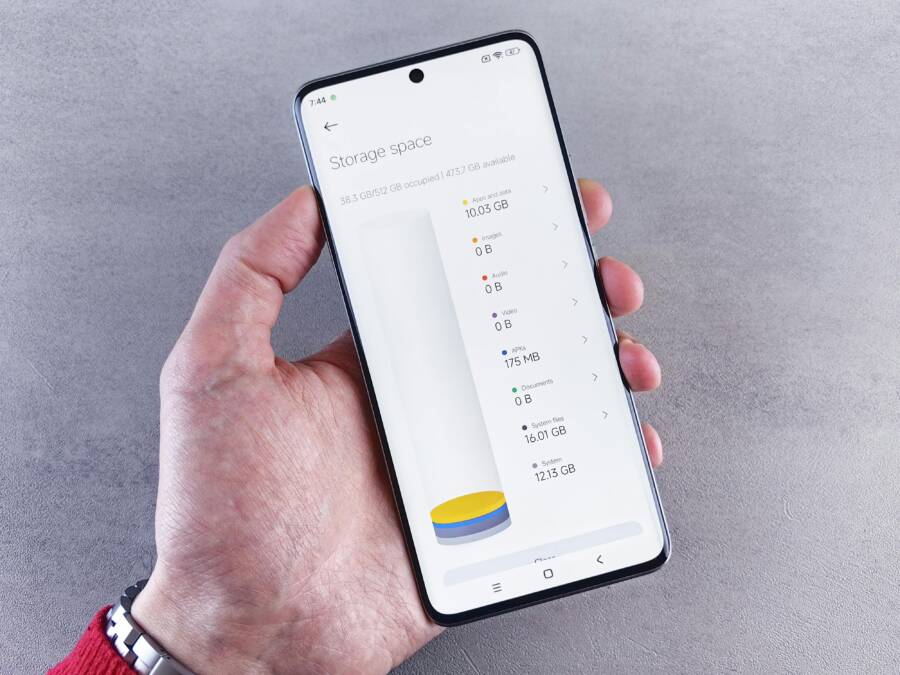
Photo: Hand holding smartphone displaying storage space usage with a clean interface
How WhatsApp Stores Data on Your Phone
WhatsApp distinguishes between chat text and media, and it uses specific storage locations to keep things organized. The chat text itself is lightweight, while media files like photos, videos, and audio are heavier and easier to manage separately. The WhatsApp Media folder acts as a centralized repository for all downloaded and saved media, which makes it easier to review what’s taking up space.
On Android, media typically ends up in the WhatsApp/Media directory inside your device storage. You’ll see subfolders such as WhatsApp Images, WhatsApp Video, WhatsApp Audio, WhatsApp Voice Notes, and WhatsApp Documents. You can access these through the Files app or a file manager, and you’ll often spot duplicates or items you forgot you saved.
On iOS, media linked to WhatsApp is stored within the Photos app (for images and videos) and in the Files app if you enable certain options. WhatsApp may save media to Photos automatically if you have that setting on, and direct access to the internal WhatsApp folder is more restricted for security reasons. This difference matters when you’re trying to clean up quickly. If you regularly back up, you’ll want to understand whether your backup includes media and how that affects your available space.
Backups add another layer to storage. Chats back up to Google Drive on Android or iCloud on iOS, but media is not always included by default. If you enable “Include Videos” in Android backups or similar options on iOS, you’ll create larger backups that capture more media. If you prefer to keep backups lean, limit what gets backed up or choose to back up media separately.
When it comes to staying organized, WhatsApp’s latest tools help you reclaim space without sacrificing conversations. The Storage Usage screen shows which chats and files consume the most space, and you can delete large items or entire chats from there. There are also options to adjust media quality when sending items, set auto-download preferences, and perform bulk cleanup of large media files. These features work on both Android and iOS, so you can standardize your cleanup routine across devices.
If you’re aiming for a straightforward routine, start with reviewing the Storage Usage section, trim large media from the biggest chats, and then reassess after a week. By combining careful management of media with selective backups, you protect your most important memories while keeping your device clear for new moments.
Smart WhatsApp Tools to Free Space Without Deleting Chats
Freeing up space on your device without losing chat history is possible with practical tools WhatsApp offers. This section covers fast, safe methods you can apply today across Android and iOS. You’ll learn how to see which files eat the most space, manage media by chat, remove duplicates, and back up before cleaning. Use these steps to keep conversations intact while reclaiming storage for new memories.
 Photo by Andrey Matveev
Global Manage Storage: See and Sort Large Files
Accessing WhatsApp’s global storage view helps you spot the big culprits quickly. Here’s how to do it:
- Open WhatsApp and go to Settings.
- Tap Storage and data, then select Manage storage.
- In the Manage storage screen, sort items by Largest to identify the biggest files first.
Preview what you’re about to delete to ensure you’re not removing something you need. WhatsApp shows the chat source for each item, so you can decide at a glance which chats to trim without touching the rest of your conversations. When you’re ready to free space, delete items individually or in bulk. If you’re unsure about a file, keep it and review again later. This approach keeps your chats intact while eliminating waste.
Key takeaways
- Use Largest sort to target heavy hitters first.
- Preview each item to confirm its chat origin.
- Delete with care to avoid removing essential media.
Per Chat Media Management: Focus on One Conversation
WhatsApp’s newer per chat option is a game changer for precise cleanup. When available, you’ll manage media inside a single conversation without touching the chat history.
- Open the desired chat.
- Look for the chat’s information or details page and select Manage Storage.
- Review large media within that chat and delete items you no longer need.
- Your messages and chat history remain intact while the media is cleaned up.
If you don’t see this feature yet, use the global storage view as a reliable interim method. The per chat view makes long conversations easier to maintain, especially when a single chat holds most of the bulky files. This targeted approach reduces guesswork and protects your important messages.
Tips for effective per chat cleanup
- Start with the largest files first to maximize free space quickly.
- Consider keeping essential media in the chat and removing extras from within the conversation.
- After cleaning, monitor the chat’s future media flow to avoid repeat buildup.
Delete Duplicates and Clear Cache
Duplicate media and cached data can quietly drain space. Here’s how to tackle both, with attention to what gets cleared.
- Duplicates: In either the global storage view or per chat view, look for items that appear multiple times or duplicates of the same file. Delete the extras, but keep one copy in case you still need it.
- Android cache: Go to Settings > Apps > WhatsApp > Storage > Clear Cache. This action frees space without removing chats or media in your chats. It clears temporary files that the app uses to speed up performance.
What you should know about clearing cache
- Clearing the cache does not delete your messages or media stored in WhatsApp.
- If you use the gallery to view media, the cached previews may reappear after you open WhatsApp again; you’ll free space again as needed.
- Clearing cache will not affect backed up data on Google Drive or iCloud.
Cautions
- Clearing cache may remove temporary thumbnails and recent media previews. They come back the next time you access the media, but they’ll be re-downloaded or re-generated.
- If you rely on WhatsApp’s built-in media download, you may see a short lag while new previews are generated.
Export or Back Up Before Cleaning
Backing up before cleaning is a prudent step. It protects both messages and media in case you realize you deleted something important.
- Android: Back up to Google Drive.
- iOS: Back up to iCloud.
Steps to back up
- Open WhatsApp Settings.
- Go to Chats > Chat backup.
- Tap Back Up Now and make sure you have enough storage in Google Drive or iCloud for the backup.
- Enable automatic backups if you want ongoing protection.
Why backing up matters
- Backups preserve the full chat history and media in case you need to restore later.
- If you delete media locally, a restore from the backup can bring it back exactly as it was at the time of the backup.
- Regular backups help you stay confident that your memories are safe while you reclaim space.
Practical tips
- Schedule monthly backups, especially after a cleanup, so you always have a recent restore point.
- If you frequently share large media, consider separate backups for media folders to keep the backup size manageable.
Conclusion of this section
- Use the global storage view to identify the biggest space users.
- Apply per chat cleanup when possible to protect chat history while trimming heavy items.
- Remove duplicates and clear cache to recover space without touching messages.
- Always back up before cleaning to safeguard memories.
(End of section)
Platform Specific Tips for Android and iOS
Managing WhatsApp storage effectively means tailoring your approach to how each platform handles apps, backups, and media. Below are practical, step-by-step tips for Android and iPhone users to reclaim space without deleting chats. These tips focus on cache, offloading decisions, and backups, all while keeping your conversations intact.
She Pressed Play on a Strange Audio Track and Within Days Her Financial Reality Started Shifting in Ways She Could Not Explain
>>> See How It Works <<<

Android Tips: Clear Cache, Offload, and Backups
Clear the WhatsApp cache to reclaim space without touching your chats. Cache holds temporary files that help the app run smoothly, but it can accumulate and inflate storage over time. Clearing it frees space and won’t affect your messages or media.
- How to clear cache on Android
- Open the Settings app.
- Go to Apps or Applications.
- Find WhatsApp and select Storage & Cache.
- Tap Clear Cache.
If you’re noticing performance issues or just want to squeeze out more space, you can clear cache without worry. If you ever see sluggish behavior again, clearing cache is a quick first step.
Offloading apps is another smart move when you need to reclaim space on a smartphone. Offloading removes the app itself but preserves its documents and data. Reinstalling the app later restores your data, so your chats remain safe.
- When to offload apps
- You’re planning a brief storage dip but still need the app for ongoing conversations.
- You frequently install and test other apps and want to reclaim space quickly.
- Your device storage is tight and you don’t want to lose custom settings.
- How to offload
- Open Settings.
- Tap Apps or Applications.
- Select WhatsApp.
- Choose Offload App (Android varies by manufacturer; if unavailable, consider Uninstall but keep data via chat backup).
Backups are essential for protecting your media and chats. On Android, WhatsApp backs up to Google Drive. You can control what gets backed up and how often, which helps keep backups lean or media-rich depending on your preference.
- Quick backup steps
- Open WhatsApp Settings.
- Go to Chats > Chat backup.
- Tap Back Up Now to create an immediate restore point.
- Enable Auto backup and choose a frequency that suits you (daily, weekly, or monthly).
- Manage backup size
- In Google Drive, you can review app backups to ensure you’re not storing unnecessary data.
- In WhatsApp, turn off “Include Videos” if you want smaller backups and release space gradually.
Best practices for Android
- Use the global storage view to identify the largest files across all chats.
- Clean up large media from the biggest chats first.
- Periodically offload apps you don’t use often to reclaim space without losing functionality.
Smartphone maintenance tip: Keep a monthly routine to clear cache and review backups. It’s a quick win that compounds over time.
iPhone Tips: iCloud Backups and Storage Settings
On iPhone, managing storage starts with iCloud backups and the built-in Storage settings. These controls help you keep WhatsApp lean while ensuring you never lose important chats or media.
Manage iCloud backups for WhatsApp
- How backups work
- WhatsApp can back up chats and media to iCloud. You can choose to include or exclude videos in these backups.
- A backup in iCloud serves as a restore point if you switch devices or reinstall WhatsApp.
- Quick steps to adjust backups
- Open WhatsApp Settings.
- Tap Chats > Chat Backup.
- Tap Back Up Now to create a fresh restore point.
- Turn on Auto Backup and select a frequency that fits your usage.
- If you want smaller backups, disable Include Videos.
Spot WhatsApp usage in iPhone Storage
- Use iPhone Storage to spot WhatsApp space usage and learn how much media is stored on the device versus in iCloud.
- Open Settings, then General > iPhone Storage.
- Tap WhatsApp to see its total storage footprint and breakdown by category (photos, videos, documents, and other media).
Best practices to keep WhatsApp lean on iOS
- Regularly review the Photos app’s WhatsApp media to decide what to keep locally.
- Use “Manage Storage” within WhatsApp when possible to remove large videos or duplicates without touching chat history.
- Consider turning off automatic media download for Wi-Fi or cellular data to avoid accumulating media you don’t immediately need.
Simple action steps for iPhone users
- Check Settings > General > iPhone Storage to identify WhatsApp’s space use.
- Open WhatsApp > Settings > Chats > Chat Backup and set a backup plan that includes or excludes videos.
- In WhatsApp, review Storage Usage and trim large items by chat, starting with the biggest files.
- If space is tight, offload unused apps via Settings > General > iPhone Storage > Offload Unused Apps, then reinstall when needed.
Key takeaways for Android and iOS
- Clearing cache (Android) and managing iCloud backups (iOS) are quick steps that don’t affect your chats.
- Offloading apps on Android helps reclaim space without losing data, while iPhone users should manage iCloud backups to balance space and safety.
- Regularly review storage by chat and use the per chat or global storage views to target the heaviest files.
This section helps you stay in control of WhatsApp storage across both platforms without the fear of losing important conversations. Stay focused on the files that actually matter, and keep your chats intact while your device stays lean.
Preserve the Media You Need While Keeping WhatsApp Lean
Keeping your chats intact while trimming clutter is all about smart triage. Start with the files you truly value, then build a lightweight backup and storage routine that works across both platforms. This section gives practical, quick actions you can take now to star, export, archive, and move media without losing context or conversation history. Think of your media like photos in a curated album rather than a raw dump of every clip you’ve ever shared.
Star and Save Important Media
Not every photo or video needs to stay on your device forever. Star items you want to keep easy to find, and export others to safer homes. Here’s how to do it fast on both Android and iOS:
- Star important media
- Long-press any media file (photo, video, or document) in WhatsApp.
- Tap the star icon to mark it as a keep item.
- Access starred media later via Settings > Starred messages (or the Starred section in Updates tab for channels).
- Export for long term storage
- Open the chat, tap More > Export chat.
- Choose “Include media” to save a ZIP file with texts and files, or “Without media” for a lean backup.
- Save to cloud storage, your PC, or a local drive for safekeeping.
Quick tips
- Use stars for memories you’ll reference, like receipts, milestones, or precious moments.
- Export conversations with media periodically to create separate, searchable backups.
- If you’re planning a cleanup, star first so you don’t lose important items by mistake.
Why this helps
- It lets you separate essence from excess. Your chats stay intact, while the media you value sits in an accessible, organized place outside WhatsApp.
Cloud Archiving and Local Backups
A solid workflow blends cloud archiving with local backups for quick access and recovery. Cloud backups protect conversations and media, while local copies give you fast retrieval without re-downloading. Here’s a simple, reliable routine you can adopt.
- Set up cloud backups
- Android: Back up to Google Drive. In WhatsApp Settings > Chats > Chat backup, choose frequency and whether to include videos.
- iOS: Back up to iCloud. In WhatsApp Settings > Chats > Chat Backup, set a schedule and decide about videos.
- Create local backups for quick access
- Regularly save a local export of media and chats to a computer or external drive. This keeps a fast, offline restore point.
- Simple workflow to follow
- At the end of each week, review the largest media items from the Storage Usage screen and decide what to keep.
- Star or export your keepers to a cloud folder or PC.
- Run a full chat/video backup to the cloud and a local copy to your external drive.
- Periodically verify backups by restoring a test chat in a safe environment to confirm everything you need is included.
Why this matters
- Cloud backups protect you if you lose or replace devices.
- Local backups speed up restores and reduce data transfer time when you need to recover media.
- A balanced approach keeps your device lean while preserving memories.
Workflow example
- End of month routine: identify the top 10 largest items, star the truly important media, export a copy of those chats with media, and back up everything to both Google Drive or iCloud and an external drive. This minimizes risk and keeps your media organized.
Use External Storage or a Media Hub
When you have a lot of media, moving older files to external storage or a media hub can free space without sacrificing access. This approach works well across platforms and keeps your essential items handy.
- External storage on Android
- Move large media folders from WhatsApp/Media to an SD card or USB-connected drive using a file manager.
- After moving, the app still indexes media in WhatsApp, and you maintain access through the gallery or file browser.
- Media hubs and network storage
- If you have a home NAS or a media hub, copy large WhatsApp media there. This keeps files organized and easy to share, while freeing device space.
- iOS considerations
- iPhone users don’t have SD cards. Move media to iCloud Drive or Files as available. You can still offload or delete local copies while keeping backups in the cloud.
- Cross-platform transfer steps
- Connect your external drive or NAS to your computer.
- Navigate to the device’s WhatsApp media folders (Android) or export media from chats (iOS).
- Copy or move the largest files to the external storage or media hub.
- Verify access from your main device or a connected computer.
Practical tips for moving media
- Regularly audit the WhatsApp Media folder and push older, large files to external storage.
- Label folders by year or event so you can locate memories quickly.
- If you rely on cloud storage, enable synchronization only for media you want to keep off your device.
Cross-platform compatibility note
- External storage works best on Android with standard file systems. iOS users should plan media transfers through iCloud Drive or Files, as direct external storage access is limited.
- A media hub or NAS provides a shared repository you can access from smartphones, tablets, and computers, making it easy to keep the entire family’s memories organized.
Final thought for this section
- Preserving the media you care about while keeping WhatsApp lean comes down to a simple rule: move the old and keep the meaningful. Use stars for true keepsakes, back up smartly, and store large files in a safe external location. This approach protects memories and preserves space, so you don’t have to choose between preserving chats and keeping a tidy device.
Make a Simple Routine to Keep WhatsApp Light
Managing WhatsApp storage without losing chats is all about a steady, repeatable routine. The goal is to reclaim space from media you don’t need while keeping your conversations intact. A quick, monthly cadence makes this easy. Think of it as a gentle, maintenance-focused ritual you perform while you sip your coffee and review what’s grown on your device.
Monthly Steps and Quick Wins
Plan for a concise 30 minute monthly check. Focus on the big space drains first, then tidy up leftovers. Here is a practical checklist to follow.
- Review storage by chat and identify the largest culprits. Open the Storage Usage or Manage Storage view and target the chats that consume the most space.
- Trim the top offenders. In the largest chats, delete the biggest media items you don’t need, such as long videos or duplicates. Avoid touching your core messages.
- Back up before cleanup. Run a fresh chat backup to Google Drive (Android) or iCloud (iOS) to create a restore point before you remove media.
- Adjust download and quality settings for future media. Turn off automatic HD media sending when possible and disable auto-download for files you don’t need right away.
- Quick gallery tidy. After cleanup, check your phone’s gallery or Photos app for duplicates or unnecessary copies and remove where appropriate.
If you want an even faster sweep, use the global storage view to see everything in one place and then a per-chat cleanup for the chats that matter most. The per-chat option can be especially helpful for long conversations that accumulate heavy media without touching other chats. A monthly routine like this can free up gigabytes without ever deleting your chats.
A Practical Checklists You Can Use
Print this out or keep it on your phone as a simple, actionable checklist. Tick off each item as you complete it to keep the routine predictable and efficient.
- Open WhatsApp Settings and go to Storage and data > Manage storage. Note the top space-consuming chats.
- Sort by Largest and review the files in the biggest chat first.
- Delete the top 5–15 files over 5 MB that you no longer need (videos and duplicates top the list).
- Check the chat’s media grid (if available) and remove any items you don’t intend to keep.
- Confirm the backup status. Run Back Up Now if the last backup is older than your cleanup.
- Verify that you can still see all the messages you care about in the chat history.
- Check the phone’s Gallery or Photos app for duplicates or extra copies and remove them.
- Review auto-download and HD sending settings for future media to prevent new buildup.
- If you regularly share large media, consider moving old files to external storage or a cloud archive and keep only recent items on the device.
- Schedule next month’s cleanup reminder.
Tips for best results
- Start with the biggest files first to maximize space savings quickly.
- Keep at least one local copy of important media if you rely on offline access.
- If you see a lot of forwarded media, trim duplicates to reduce clutter.
This streamlined approach helps you stay on top of WhatsApp storage across devices. It keeps your chats intact while you reclaim space for new moments.
Thousands of People Were Struggling With Money Until They Discovered This One Ancient Secret Hidden in Sound
>>> Unlock It Now <<<
Conclusion
Managing WhatsApp media storage without deleting chats comes down to a simple, repeatable routine. Identify the largest files with the global storage view, clean up targeted items in per chat storage when available, and remove duplicates or cache to reclaim space. Backups matter most, so run regular cloud or local backups before cleaning and keep a lean plan for future media. A monthly check keeps your smartphone lean and your conversations intact, while still preserving the memories you value. Start today, and share your results to help others adopt this practical plan.
She Pressed Play on a Strange Audio Track and Within Days Her Financial Reality Started Shifting in Ways She Could Not Explain
>>> See How It Works <<<