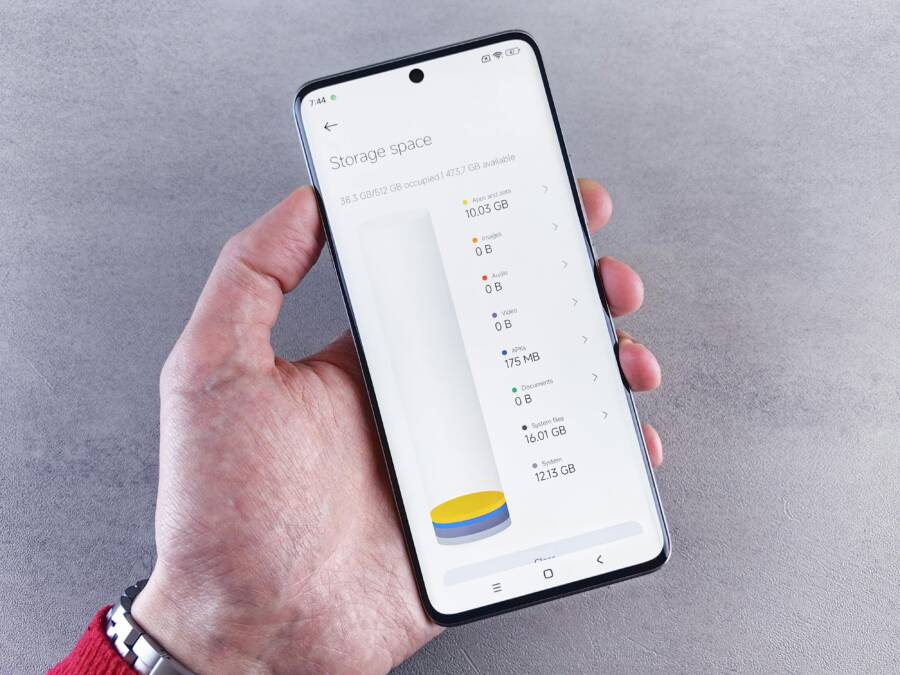
Telegram can fill up your phone storage fast if auto downloads and cache aren’t managed. This guide gives practical steps for both Android and iOS to keep chats accessible while reclaiming space. You’ll learn how to disable or limit automatic media, set size thresholds, and clear cache without losing important conversations.
First, we’ll show how to control auto downloads by network and chat type. With clear, simple toggles, you can decide what downloads automatically and when, so only the essentials save to your device. We’ll also cover how to set per chat rules so busy groups or channels don’t flood your storage.
Next, we’ll walk through clearing and managing cache. You’ll learn where to find storage usage and how to delete cached files selectively or limit cache size for ongoing space savings. By following these steps, your chats stay functional and your phone stays responsive.
Understand how Telegram uses storage
Telegram keeps a portion of data locally to make chatting smooth and responsive. By understanding what lives on your device, you can curb unnecessary bloat and reclaim space without losing access to messages or media. This section breaks down the main storage contributors and shows you where to manage them on both Android and iOS.
Cache
Cache is the temporary copy of media from your chats. It helps load photos, videos, voice messages, and other content quickly, so you don’t have to fetch it every time. The trade-off is space: heavy viewing of media can grow this store quickly.
- Where it sits: on both Android and iOS, in Telegram’s app folder rather than your main gallery.
- How to manage: you can dial down retention or set auto delete intervals. Options typically include deleting after 1 day, 1 week, 1 month, or keeping it forever; you can also cap cache by a size threshold such as 5GB, 16GB, or 32GB.
- Practical tip: if you’re a heavy media user, enable automatic cache clearance after a set period and pair it with selective downloads to keep the phone responsive.
Auto-Downloads
Auto-downloads grab media automatically as you use the app. That means photos, videos, voice notes, and documents can fill your storage before you even realize it.
- What it does: downloads are triggered by network type (mobile data, WiFi, roaming) and by chat type (private chats, groups, channels).
- How to control: turn off auto-downloads for mobile data, or restrict them to WiFi only. You can also set limits for large files like videos to avoid sudden storage spikes.
- Quick fix: a well-tuned setup prevents big files from landing on your device unless you ask for them.
Downloaded Files
When you tap to save something, Telegram stores it on the device for quick access.
- Android: files go to the app’s folder (for example, under Android/data/org.telegram.messenger). The location makes it easier to move content to an SD card or your gallery if desired.
- iOS: media stays inside Telegram’s sandbox (private/var/mobile/Containers/…/telegram-data/media). You can still share to iCloud or the Files app if needed.
- Important note: downloaded items aren’t permanent by default. If a file is important, consider saving it to Saved Messages or forwarding it to a cloud-backed chat for persistent access.
Database
Telegram keeps a small local database to speed up your experience. This includes chat lists, messages, and some account information.
- Size and impact: the database is relatively small and stays lean, thanks to the app’s cloud-centric design.
- Relationship to storage: media and cache determine what you see offline, while the database supports quick access and syncing.
Other Components
- The app itself remains lightweight, typically under a few hundred megabytes.
- If you use multiple accounts, Telegram creates separate folders per account, which helps isolate data but can add up if you store a lot locally.
- There are no ads within the app that would inflate local storage. Cloud storage helps keep the app nimble.
How to Check Storage Usage
- Android: open Telegram, access the menu (three lines top-left), go to Settings > Data and Storage > Storage Usage. You’ll see a breakdown of cache, downloaded files, and available space, with options to clear selectively.
- iOS: open Telegram, then Settings > Data and Storage > Storage Usage. You’ll see similar breakdowns and clear options. For a broader view, check iPhone Storage in the system Settings to see Telegram’s app size and documents.
Latest Features for Managing It
- Auto-clear cache: choose by time (day, week, month) or by space limit (for example 5GB to 32GB).
- Smart download controls: set downloads by network type and by chat category to avoid unwanted data usage.
- Cloud saves and offloading: use Saved Messages or private channels to store files in the cloud, reducing local space needs.
- Media quality options: compress or choose lower resolution versions before downloading to save space.
- Regular checks: clearing cache does not affect cloud copies; it only removes local copies, keeping your important messages accessible.
This understanding helps you tailor Telegram to your smartphone usage. By combining selective downloads, cache management, and mindful cloud storage, you keep chats accessible while maintaining breathing room on your device.
Stop auto downloads and cap file sizes
Auto downloads can quietly consume space on your phone, especially if you’re in busy chats or flood of media. By turning off automatic downloads, setting sensible size limits, and tailoring rules by network, you keep Telegram responsive without losing access to important messages. The steps below walk you through quick, practical adjustments for Android and iOS.
Turn off automatic media download
Follow these steps to disable automatic downloads on both platforms. The exact path is Telegram > Settings > Data and Storage > Automatic Media Download, but you’ll still be able to manually download any file you want.
- Android
- Open Telegram and tap the menu icon (three horizontal lines) in the top left, then choose Settings.
- Tap Data and Storage.
- Select Automatic Media Download.
- For each network type, toggle off the media types you don’t want downloading automatically: Photos, Videos, Files, and Stickers.
- Repeat for the other network types if needed (Mobile Data, Wi-Fi, Roaming).
- Quick note: manual downloads remain possible. When you tap a media item, you can choose to download or view later.
- iOS
- Open Telegram and go to Settings.
- Tap Data and Storage.
- Open Automatic Media Download.
- Turn off the toggles for each media type under the three networks: Photos, Videos, Files, and Stickers.
- Apply the same changes to Roaming if you travel frequently.
- Manual downloads stay available anytime you tap to view content.
- Quick roaming note If you travel through different regions or switch networks, check these toggles after a SIM change or roaming switch. You may want stricter rules on mobile data while keeping looser rules on Wi-Fi at your home or workplace.
- Practical takeaway With auto downloads off, you control when content lands on your device. You’ll still see messages and media in chats, but only the files you choose to download will take up space.
Set a practical download size limit
Limiting by file size prevents large items from saving automatically, which dramatically reduces cleanup time. Start with a small threshold and adjust as you need.
- Why start small Small limits keep your storage safe from big files like long videos or high-resolution screenshots. It also helps you focus on media that’s truly useful to keep locally.
- How to locate and adjust
- Go to Telegram > Settings > Data and Storage.
- Look for a setting called Download Size Limit (not always visible in every version; if present, set a cap like 5 MB, 10 MB, or 50 MB depending on your needs).
- Choose a conservative starting point, such as 5 MB, then test for a day or two. If you’re comfortable with more, raise the limit gradually.
- What this means in practice A 5 MB limit means most photos and small files will still download automatically, but larger videos and big attachments won’t. This streamlines ongoing storage management and keeps future cleanup quick.
- Final tip If you rely on certain large files for offline reference, you can still download them on demand. The goal is to avoid automatic landings that clog space before you realize what happened.
Fine tune per network conditions
Tailor auto-download behavior to how you use data connections. A sensible split keeps you productive on the go while preserving space when you’re on mobile data.
- Mobile Data
- Recommendation: restrict downloads to essential items only. Turn off auto-downloads for most media types or keep only small files active.
- Rationale: mobile data plans can fill up quickly; tightening rules saves data and space.
- Wi-Fi
- Recommendation: consider more permissive rules on a trusted Wi-Fi network. You can allow Photos and small files to auto-download.
- Rationale: Wi-Fi is typically faster and cheaper, so auto-saving can be convenient when you’re not moving.
- Roaming
- Recommendation: disable most auto-downloads when roaming. If needed, enable only very small items or turn off entirely.
- Rationale: roaming charges can be unpredictable; keeping downloads off avoids surprises.
- Practical example configuration
- Mobile Data: off for Videos and Files; on for Photos only if needed
- Wi-Fi: on for Photos and small Files; off for Videos
- Roaming: off for all media
- This setup keeps essential visuals accessible on stable networks while avoiding bulky downloads on expensive data connections.
- How to apply
- Open Telegram > Settings > Data and Storage.
- Tap Automatic Media Download and select a network type.
- For each network, toggle off or on the media types according to your preference.
- If you use roaming, repeat the steps for the Roaming section.
- Revisit these settings after major changes in plan or routine to keep them aligned with your usage.
- Practical takeaway A well-tuned per-network rule set reduces storage churn and data waste. It keeps chats usable and responsive while you stay in control of what lands on your device.
Let Telegram clean up automatically
When your Telegram storage starts to creep up, a few well-chosen automatic cleanup rules can keep chats accessible without turning your phone into a storage nightmare. This section walks you through turning on automatic cleanup, choosing between time and space based rules, and applying different settings to private chats, groups, and channels. You’ll get practical, platform-specific steps so you can act quickly on Android and iOS, with a focus on keeping important media handy while reclaiming space.
Enable automatic media cleanup
Automatic cleanup helps you keep a healthy balance between access to media and available storage. Turn it on, tune the retention window, and decide how aggressive you want Telegram to be with outdated files. The goal is to prevent a flood of downloads while still preserving useful history in your conversations.
- How it works
- Telegram can delete cached media after a set period, or when total storage hits a defined threshold. This keeps the app responsive and less prone to sudden slowdowns.
- It works across all chat types, but you can customize rules so private chats, groups, and channels behave differently based on how you use them.
- Steps to enable on Android
- Open Telegram and tap the menu icon (three horizontal lines) in the top left corner.
- Go to Settings.
- Tap Data and Storage.
- Select Storage Usage (or Storage & Cache depending on your version) and look for automatic cleanup options.
- Choose automatic cleanup and set your preferred retention period (for example, delete media after 1 week or 1 month) or set a space threshold (for example, clean up when cache exceeds 5 GB).
- If you see per-chat options, apply the desired rule to Private chats, Groups, and Channels as needed.
- Steps to enable on iOS
- Open Telegram and go to Settings.
- Tap Data and Storage.
- Open Storage Usage and locate automatic cleanup settings.
- Pick a retention period or a storage space limit, just like on Android.
- Apply the rules to Private chats, Groups, and Channels if your version supports per-chat controls.
- Practical tips
- Start with a modest retention window, such as 2–4 weeks, and observe how it impacts access to media you actually rely on.
- Pair automatic cleanup with selective downloads to ensure essential files stay put until you decide to remove them.
- If you frequently save important files, consider enabling cleanup only for media you don’t actively need or move to cloud-backed chats for long-term storage.
- Real-world analogy Think of it like a smart recycling bin: it keeps the things you rarely need, but clears out the old trash to free up space, so your phone runs smoothly while your conversations stay intact.
Choose time or space based rules
Telegram offers two practical approaches to automatic cleanup: time based cleanup and space based cleanup. Each has its place, depending on how you use the app and how much storage you want to free up without sacrificing access to important media.
- Time based cleanup
- What it does: deletes older media after a defined period, such as 1 week, 1 month, or 3 months.
- When to use: ideal if you routinely chat with many people but only need recent media locally. It keeps your library fresh while preserving a recent history for quick reference.
- How it helps: you avoid long-term clutter and reduce the need to manually purge. This is especially useful for conversations that are constantly active but not critical for long-term offline access.
- Space based cleanup
- What it does: cleans up when Telegram’s local storage crosses a chosen threshold (for example 5 GB, 10 GB, or 32 GB).
- When to use: best for heavy media users who want steady space management. It prevents the app from ballooning and helps avoid bulk downloads that slow down the device.
- How it helps: you maintain a predictable storage footprint, which is handy if you juggle multiple chats, media folders, and offline backups.
- Practical examples
- Example 1: You’re active in several groups but only need the latest week’s media locally. Use time based cleanup set to 1 week. You still have access to older items in the cloud if needed.
- Example 2: You keep a large personal media library on Telegram for reference, but your device has limited space. Use space based cleanup with a 5 GB limit to keep the app lean while preserving recent items.
- How to configure
- Android and iOS: navigate to Settings > Data and Storage > Automatic Cleanup. Choose between Time Based Cleanup or Storage Space Based Cleanup, then set the precise parameters (duration or size). Apply the same approach to Private chats, Groups, and Channels if your version supports per-chat rules.
- Quick considerations
- Time based cleanup favors recency. It’s great for conversations where older media isn’t essential yet you still want quick access to newer items.
- Space based cleanup favors consistency. It helps you avoid sudden storage spikes, but you may need to re-download more media if you access older items later.
Control by chat type
Different chat types serve different purposes, so it makes sense to tailor cleanup rules to Private chats, Groups, and Channels. This approach gives you space savings where it matters most while keeping the media you rely on handy.
- Private chats
- Guidance: you can allow slightly looser rules here since private conversations are often personal and may contain important media you want to keep locally.
- Practical approach: set longer retention windows or smaller auto delete gaps for private chats, but still apply a reasonable cleanup cadence to prevent buildup.
- Groups
- Guidance: groups can flood your device with media from many participants. Cleanly separate cleanup rules here to avoid losing crucial files shared by friends or colleagues.
- Practical approach: enable stricter time based cleanup or a lower space threshold for groups with active media sharing. Consider excluding the most recent media from automatic deletion to keep discussions fluid.
- Channels
- Guidance: channels can push a steady stream of media from creators or communities. You might want to keep channel media longer if you rely on it for ongoing reference.
- Practical approach: apply a balanced rule set that prevents frequent deletions of recently posted media while still curbing older content. If channel files are critical, create a Saved Messages or cloud backed chat for long term storage.
- Practical workflow
- Start with a baseline rule for all chat types, then adjust per category after a week of observation.
- For busy channels and large groups, consider a shorter time window combined with a reasonable space limit to keep the most recent content accessible.
- Use per-chat exceptions for important conversations. In a pinch, mark a chat as “keep locally” and override the general cleanup rule.
- Quick tips
- Regularly review which chats benefit most from aggressive cleanup and which ones need more retention.
- Pair per-chat rules with a habit of saving critical files to Saved Messages or a cloud backed chat for easy future reference.
- If you’re unsure how a chat will evolve, start with conservative rules and tighten only when you’re comfortable with the impact.
By applying these targeted rules, you’ll maintain a comfortable balance between having ready access to the media you value and keeping your smartphone operation smooth. The right combination of time based cleanup, space based cleanup, and chat type rules lets Telegram do the hard work while you focus on the conversations that matter.
Manual cleanup and storage hygiene
Keeping Telegram from gobbling up your storage requires a practical plan that covers both cache management and selective downloads. This section breaks down straightforward steps you can take on Android and iOS to reclaim space, while keeping your most important media accessible. Think of it as a regular maintenance routine for your smartphone that protects your chats and your device’s responsiveness. You’ll learn how to view storage usage, clear cache, and target specific media types without losing access to cloud copies.

Photo by Andrey Matveev
Clear cache now
Viewing and clearing cache is the fastest way to reclaim space without touching your messages. This quick routine helps you decide what you actually want to keep offline and what can be re-downloaded when needed.
- How to view storage usage
- Android: Telegram > Settings > Data and Storage > Storage Usage. You’ll see a breakdown that includes cache, downloaded files, and total space available.
- iOS: Telegram > Settings > Data and Storage > Storage Usage. You get a similar breakdown, with clear options to free space.
- How to clear cache
- In Storage Usage, choose to Clear Cache or Clear Telegram Cache. You can opt for a full cache wipe or target specific types.
- If you want precision, pick types like Images, Videos, Files, or Voice Messages to delete. This keeps the cloud copies intact.
- Android vs iOS nuances
- Android often lets you delete cache per chat in some versions, useful for heavy groups or channels.
- iOS tends to emphasize per-chat cache clearing through the chat list, which helps when certain conversations dominate storage.
- Practical tip After clearing, do a quick check of your most-used chats to confirm the media you rely on is still accessible through the cloud. If you rely on certain items, a quick re-download is simple.
Delete specific media types
Targeting large media types is the fastest way to free space. By focusing on videos or large files, you can reclaim gigs without sacrificing access to essential content stored in the cloud.
- Why target large media
- Videos and high-resolution images consume the most space. Deleting them from local storage frees up a lot with minimal effort.
- How to delete by type
- Open Storage Usage (Settings > Data and Storage > Storage Usage).
- Tap Clear Cache and select the media types to remove, such as Videos or Large Files.
- Confirm the deletion. The cloud copies remain intact, so you can re-download if needed.
- Tips to avoid losing important media
- Save critical items to Saved Messages or a cloud-backed chat before deleting.
- Use cloud storage to keep a reference copy if you rely on a file for work or personal use.
- If you’re unsure about a video, leave it and rely on re-download when you need it.
- Quick shortcut Periodically review which chats contribute the most video or file clutter and apply a targeted cleanup only to those chats.
Android vs iOS caveats
Both platforms share the goal of reducing local storage, but their interfaces and options differ slightly. Knowing these nuances helps you act faster.
- Per-chat cache deletion
- iOS: You can often clear cache for a single chat from the chat list. This is handy for high-traffic conversations where only recent media is needed offline.
- Android: Some versions expose per-chat cache options in Storage Usage, especially for large groups or channels. It lets you prune without touching other chats.
- Global vs chat-specific controls
- Android users may find broader options to wipe large caches across multiple chats in one go.
- iOS users typically work more with per-chat controls and overall storage usage views within the app.
- Quick toggles to know
- Look for Clear Cache options labeled by media type to quickly pare down the largest categories.
- If you see an Auto-remove feature, enabling it can prevent future buildup by removing older local copies while keeping cloud access intact.
- Practical takeaway Your goal is a lean local library. Use per-chat or per-media-type cleanup to keep conversations intact and your phone responsive.
By applying these cache management practices, you control what lands on your device and how long it stays there. A regular routine of viewing storage usage, clearing cache, and selectively deleting large media types will keep your chats accessible without sacrificing device performance. The next steps focus on automating cleanup and balancing time versus space to fit your usage pattern.
Platform tips and best practices
To keep Telegram lean and responsive while still keeping what you need offline, use platform-aware tips that fit into a busy lifestyle. The goal is to balance quick access to chats with smart storage habits. The following subsections offer practical actions you can implement today, on both Android and iOS, with focus on Android where SD card movement is possible and iOS where cloud and offline access interplay matters.
Move downloads to an SD card on Android
Moving Telegram downloads to an SD card frees internal storage and can dramatically improve performance on devices with limited built-in space. Here’s a concise path to set this up and keep media accessible when offline.
- Access the storage path
- Open Telegram, tap the menu (three horizontal lines) in the top left, then go to Settings.
- Navigate to Data and Storage and look for Storage Path.
- Tap to view options.
- Choose the SD Card
- Select SD Card as the preferred storage location. This shifts new downloads and saved files away from internal storage.
- Confirm and test
- You may see a warning about slower performance from an SD Card. If you’re okay with that trade-off, confirm the change.
- After switching, try downloading a few files and verify they land on the SD Card. If needed, adjust where new media saves by revisiting the path setting.
- Quick reminder about offline access
- Even when offline, you can access media that’s saved locally on the SD Card through Telegram. If you need something not stored there, you can re-download when you reconnect.
- Practical tip
- If you use multiple accounts, consider moving storage for each account to keep data isolated and manageable.
[Photo: Smartphone with a clean app interface and SD card in view]
Photo by Leeloo The First • https://www.pexels.com/@leeloothefirst
Understand cloud vs offline storage on iOS
iOS devices lean more on cloud access to keep local storage light. This means you can keep chats available without filling up the device, as long as you maintain a healthy cloud-backed workflow. Here are practical ways to benefit from Telegram on iOS without overloading the device.
- Cloud-first mindset
- Telegram stores a lot of media in the cloud by default. You can view messages and media without keeping everything downloaded locally.
- When you need offline access, you can selectively download only the items you truly rely on.
- Practical tips for cloud-friendly usage
- Use Saved Messages to move important files to a cloud-backed chat for easy retrieval later.
- Rely on cloud copies for large media and keep local copies only for items you access regularly.
- Review storage usage in Telegram settings to see what’s taking up space and clear caches or delete local copies as needed.
- Practical tips for cloud benefits
- Schedule a quick weekly check to confirm which files you want available offline and which can stay in the cloud.
- Use the Files app or iCloud to back up essential media that you don’t want to re-download frequently.
- Quick note on offline access
- Even when offline, your chat history remains accessible if it’s cached or saved locally. For anything else, a quick connection will restore access from the cloud.
Create a simple weekly routine
A compact weekly routine helps keep Telegram storage tidy even on busy weeks. It should be repeatable, quick to perform, and effective at preventing space creep. Here’s a straightforward plan you can adopt.
- Weekly storage check
- Spend 5 minutes to review Storage Usage in Telegram (Android and iOS). Note which categories or chats are consuming the most space.
- Quick manual cleanup
- Clear cache selectively, focusing on large media types like videos and high resolution photos.
- Remove downloaded files you don’t need from local storage, keeping cloud copies intact.
- Review auto-download and cloud rules
- Revisit auto-download settings to confirm you still want certain media to download automatically.
- Ensure important files are saved to Saved Messages or a cloud-backed chat for long term access.
- Simple cadence
- Do the above on a single day each week. This keeps maintenance predictable and minimizes disruption.
- Gentle reminders
- If you rely on specific chats for reference, mark them as keep locally or add them to a cloud-backed chat to avoid accidental deletions.
- Quick win example
- A 5 minute Friday check could cap cache at a reasonable size, disable auto-download for large files on mobile data, and confirm SD Card usage if you’re on Android.
- Realistic mindset
- This routine fits a hectic schedule. The goal is a small investment that yields a smoother Telegram experience throughout the week. It’s a practical habit for any smartphone user, not just power users.
Conclusion
You now have a practical, step by step plan to stop Telegram from filling your smartphone storage. Turn off auto downloads, set sensible size limits, and use per chat rules to keep only the essentials offline. A smaller cache means quicker app performance and less background activity, while cloud based access keeps your conversations safe without cluttering your device.
By combining cache management with selective downloads and cloud storage, you create a lean, fast experience on your smartphone. Saving important files to Saved Messages or a cloud backed chat ensures you can access them later without local bloat. The result is a more responsive device and a calmer chat archive.
Implement these settings this week and notice the difference in available space and app responsiveness. If you have extra tips from your own experience, share them in the comments or your next post so others can benefit. Start with a quick weekly routine: review storage usage, clear cache selectively, and confirm auto download rules are aligned with your needs. Which chat tends to push your space the most, and what tweak helped you the most?