Picture this: you’re on a crucial work call when your phone overheating warning pops up. Or maybe you’re snapping photos during a family trip, and the alert flashes right as you save them. That heat feels scary, but it doesn’t mean disaster.
The warning shows up because your smartphone senses high temperatures. It protects the battery and internal parts from damage. Phones trigger it during heavy tasks like gaming or charging in hot spots.
Don’t worry. You can cool your phone safely without losing photos, apps, or contacts. Modern devices manage heat smartly and keep your data secure every step.
In this guide, we’ll cover the common causes. You’ll get quick fixes to drop the temperature fast. We’ll share software tweaks for better control, plus prevention tips to avoid future alerts. You’ll also learn mistakes to skip.
These steps work for both Android and iPhone smartphones. Follow them, and you’ll handle any warning with confidence. Your device stays cool, and nothing gets lost.
Common Causes of Phone Overheating Warnings
Phone overheating warnings appear when your device detects temperatures that could harm its parts. You see them during intense use or in tough conditions. Spotting these triggers helps you act fast and keep data safe. Here are the top reasons your smartphone might heat up.
Heavy Use Pushes the Processor Hard
Your phone’s processor works like a busy engine. It revs up during gaming, video streaming, or GPS navigation. These tasks demand constant power and generate heat quickly.
Apps with live feeds, such as social media or video calls, add to the load. Run several at once, and the warmth builds fast. For example, a long gaming session can raise surface heat in minutes.
Hot Environments Trap Extra Warmth
Direct sunlight or a stuffy car turns your pocket into a sauna for your phone. Ambient heat above 95°F makes cooling tough. Your smartphone struggles to shed warmth in these spots.
Leave it on a dashboard or beach towel, and the warning soon follows. Even indoor spots near heaters count as risky zones.
Battery and Charging Issues Build Heat
Worn batteries lose efficiency and produce more warmth over time. Third-party chargers or fast charging amplify this effect. They push current in ways official ones avoid.
Keep charging past 100%, and heat lingers. A mismatched cable sparks uneven power flow, too. Stick to the maker’s gear to cut this risk.
Poor Ventilation Blocks Heat Escape
Tight pockets, thick cases, or soft surfaces like beds trap warmth inside. Your phone needs air flow to stay cool. Cases without vents worsen the problem during use.
Charge on a flat table, not fabric. Remove the case if heat rises. Simple changes let heat dissipate naturally.
Background Apps and Software Glitches Drain Power
Apps running unseen chew through resources and create steady heat. Outdated software forces extra effort from the processor. Bugs or malware make it worse by hijacking cycles.
Check for rogue processes in settings. Update your OS and apps regularly. This keeps background drain low and temperatures stable.
Other Sneaky Factors Add Up
Weak cell signals force your phone to search harder, warming it up. Unused Bluetooth or high-res video playback does the same. Demanding 3D games can hit 122°F in just 10 minutes.
Layer these on top of main causes, and warnings hit faster. Turn off extras when not needed. Your device runs smoother as a result.
Quick Steps to Cool Your Overheating Phone Safely
Your phone heats up fast during heavy use or in warm spots. Act right away with these simple moves to drop the temperature. They keep your data safe and let your smartphone cool without harm. Start with basic changes that work on any device.
Remove the Case and Improve Airflow
Phone cases often trap heat like a blanket on a warm day. Thick rubber or silicone ones block air from flowing around the device. Thin cases with open sides or vents let heat escape better. They give your phone room to breathe during tough tasks.
Take off the case safely with these steps:
- Power down if the warning persists, or keep it on for quick access.
- Grip the phone steady with one hand.
- Pry the case loose from one corner using your fingers or a soft tool. Slide it off slowly to avoid scratches.
- Set the phone and case aside separately.
Place your bare phone on a hard table or flat surface. Keep it away from beds, couches, or any soft fabrics. These trap warmth and slow cooling. A cool room works best; aim for shade if outdoors.
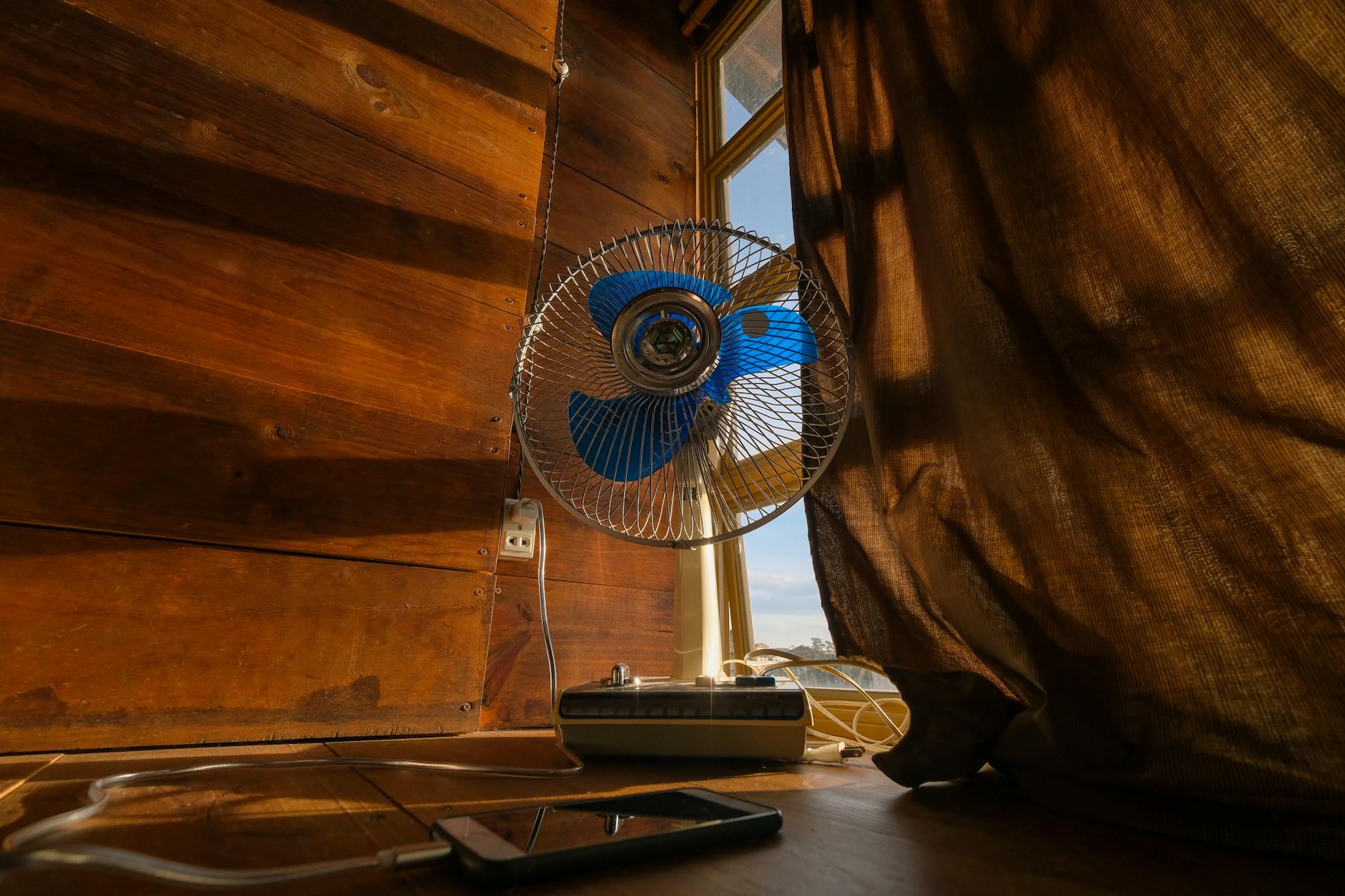
Photo by Dương Nhân
Point a gentle fan at it for extra help, but skip direct blasts from hair dryers. This setup drops heat in minutes. For photos in your post, snap a before-and-after: one with case on a bed, another bare on a table near a fan.
Switch to Airplane Mode or Shut Down
Airplane mode stops wireless signals like cell, Wi-Fi, and Bluetooth. It cuts power drain without closing your apps or deleting files. Background tasks slow, so heat falls quick. You stay connected to your screen and data.
On iPhone, swipe down from the top right for Control Center. Tap the airplane icon. Android users swipe down from the top (or twice on some models) and tap the same icon. Both keep everything intact for later use.
Shut down offers the fastest cool. It halts all processes at once. Your phone restarts just like before, with photos, apps, and settings safe. No data vanishes on modern devices.
To power off: Hold the side button (and volume down on some Androids or iPhones). Slide to shut down. Wait 10 to 20 minutes in a cool spot. Turn back on when touch feels normal.
iPhones show a slider after hold; Androids vary by brand, like Samsung’s power menu. Both protect your info fully. Pick airplane mode if you need quick checks, or shut down for full rest. Your smartphone bounces back ready to go.
Easy Software Fixes to Stop Overheating
Once your phone cools down from basic steps like removing the case or using airplane mode, turn to software tweaks. These changes cut power use and stop heat buildup at the source. They work fast on both iPhone and Android devices. Your data stays safe as you adjust settings.
Update Software and Close Unused Apps
Outdated software makes your smartphone work harder and run hotter. Updates fix bugs that drain battery and processor. Wait until your phone feels cool to the touch before starting. This avoids extra strain during the process.
Follow these steps on iPhone:
- Open Settings and tap General.
- Select Software Update.
- If ready, tap Download and Install. Connect to Wi-Fi and power first.
- Let it finish; your phone restarts safely with all files intact.
For Android:
- Go to Settings > About phone or System.
- Tap System update or Software update.
- Hit Download and install if available. Use Wi-Fi and charge as needed.
- Restart when done to apply changes.
After updates, close unused apps to free resources. On iPhone, swipe up from the bottom and pause. Flick apps away to close. Android users swipe up (or from the side on some models) and swipe apps off screen.
Quick tip: Check app updates too. Open App Store on iPhone or Google Play on Android, then tap Update all. Old apps clash with new software and spike heat.
Adjust Screen and Connection Settings
Screen brightness and active connections suck power like an open window in winter. Dial them back for instant relief. These toggles take seconds and preserve your data fully.
Start with brightness. High levels burn energy fast. On both platforms, swipe down for quick settings. Drag the brightness slider low or tap auto-brightness. Your eyes adjust quick, and heat drops right away.
Switch to power-saving mode next. iPhone calls it Low Power Mode: go to Settings > Battery and toggle it on. Android uses Battery Saver: find it in Settings > Battery. It limits background tasks without closing apps.
Disable extras you don’t need:
- Turn off Bluetooth and Wi-Fi in quick settings if idle.
- Toggle Location Services off via Settings > Privacy (iPhone) or Location (Android).
- Skip 5G if signal hunts waste power; switch to 4G in mobile data options.
These moves cut heat by 20% or more during tests. Your smartphone runs smooth longer. Test one change at a time to see what helps most.
Smart Prevention Tips to Avoid Overheating
You handled the heat this time, but smart habits stop warnings before they appear. Build these routines into your day. Your smartphone stays cool, and you skip the stress. Focus on placement, use patterns, and device smarts for long-term control.
Store Your Phone in Cool, Shaded Spots
Heat from outside builds up fast and triggers alerts. Keep your device away from direct sun, hot cars, or warm pockets. Dark surfaces like dashboards soak up rays and bake your phone inside.
Opt for shade during outdoor time. Slip it into a light bag instead of tight jeans. Indoor spots near windows or vents work best too. Aim for rooms below 80°F. This simple shift cuts risk by half on hot days.
Test it yourself: track temperatures with a free app over a week. You’ll see big drops in shaded storage.
Pick Cases and Surfaces That Let Heat Escape
Thick cases trap warmth like a sealed thermos. Switch to slim ones with open backs or mesh sides during busy days. Remove any cover for gaming or video calls.
Place your phone on hard, flat spots like wood tables. Skip beds, laps, or cushions that block air. Charge on cool tiles, not rugs. These choices help your smartphone shed heat naturally.
Pro choice: Vented cases from brands like Spigen let air flow while protecting edges.
Limit Heavy Tasks and Multitasking
Your phone warms under constant load. Close apps after use to stop background drain. Avoid running games, streams, and downloads at once.
Turn off Bluetooth, Wi-Fi, or location when idle. Skip 5G in weak signal areas; it forces extra work. Charge first, then unplug for tough jobs. No combos like fast charge plus video edits.
Take 5-minute breaks every 20 during long sessions. Your device cools quick and lasts longer.
Activate Power-Saving and Cooling Modes
Modern phones pack tools to fight heat. Enable battery saver daily for light use. It curbs background tasks without killing speed.
Hunt for gaming modes or thermal settings in apps. Samsung’s Game Launcher or iPhone’s Low Power Mode tame processor speed. Update software often; patches boost heat control.
| Mode | iPhone Path | Android Path | Benefit |
|---|---|---|---|
| Battery Saver | Settings > Battery | Settings > Battery | Cuts background heat |
| Gaming Mode | N/A (use Low Power) | Game Launcher or Settings > Game | Lowers graphics load |
| Performance | Settings > Battery | Settings > Battery > Performance | Balances speed and cool |
Toggle these before heavy use. They keep temperatures steady and data safe.
Stick to these tips, and overheating fades. Your phone runs smooth through busy days.
Mistakes That Risk Your Phone or Data
You cool your phone with the right steps, but bad choices can harm it or wipe data. These errors turn a simple warning into real damage. Skip them to keep your smartphone safe. Common slips include quick fixes that backfire and habits that trap heat longer.
Putting Your Phone in the Fridge or Freezer
People grab the fridge door when heat spikes. Cold shocks the device fast. It cracks screens or internals from sudden changes.
Moisture forms inside too. Tiny water drops hit circuits and cause shorts. Your photos and files stay safe at first, but fried parts mean data loss later. Let it cool in room air instead.
Charging While Your Phone Stays Hot
Plug in a warm smartphone right away, and heat climbs higher. Fast or wireless chargers add fuel to the fire. Battery swells or degrades fast under stress.
Data risks grow if the device shuts down mid-charge. Backups save you, but avoid this trap. Wait until touch feels normal before power cords connect.
Keeping the Thick Case On During Heat
Cases insulate like a winter coat in summer. Thick ones block air and hold warmth close. Your phone fights to shed heat but fails.
Remove it quick, as steps earlier show. Bare skin cools twice as fast on hard spots. Skip this mistake, and warnings fade sooner.
Ignoring Warnings and Pushing Heavy Use
The alert flashes, but you keep gaming or streaming. Processors throttle, yet force wears them down. Permanent slowdowns or battery death follow.
Key risk: Forced shutdowns close apps without saving. Contacts or drafts vanish. Pause tasks now; data holds steady.
Running Background Apps Without Check
Apps hum in the background and build steady heat. They drain power even on idle screens. Old software makes it worse with bugs.
Close them after tweaks from software fixes. Your device runs cool and keeps files intact. Test one close at a time for best results.
Using Cheap Chargers or Soft Charging Spots
Off-brand cables push uneven power and spark extra warmth. Soft beds trap it all underneath. Both lead to battery strain or fire risks.
Stick to maker gear on flat tables. Official parts regulate flow safe. Prevention tips cover this; follow them close.
Leaving It in Sun or Hot Cars
Sun bakes your pocket device fast. Cars turn into ovens above safe temps. Parts warp, and data corrupts from stress.
Shade works best, as habits show. Grab it quick from warm zones. Smartphones last longer away from rays.
Spot these slips in your routine. Fix them, and heat stays under control. Your data rides safe through alerts.
Conclusion
You now know how to spot phone overheating warning causes and cool your device fast. Remove the case, use airplane mode, or shut down briefly to drop heat without risk. Tweak software next with updates and power-saving modes for steady control. Build prevention habits like shaded storage and light multitasking to skip future alerts.
Bookmark this guide for the next time your smartphone flashes that warning. These steps keep your photos, apps, and contacts safe every time.
Follow them, and your smartphone stays reliable through heavy use. Share your overheating story in the comments below. What fixed it for you?