She Pressed Play on a Strange Audio Track and Within Days Her Financial Reality Started Shifting in Ways She Could Not Explain
>>> See How It Works <<<

If your workout reminders keep slipping through the cracks, you’re not alone. This guide breaks down the common reasons reminders fail, with quick checks you can perform right away and platform specific tips for iPhone and Android. You’ll learn a reliable workflow that blends reminders across apps and notifications so your fitness routine stays on track.
Diagnose why workout reminders stop working
When reminders fail to trigger, it’s usually not the fault of the app itself but an interaction with your device settings. The good news is most problems are quick to fix with a few targeted checks. In this section, you’ll learn how to systematically diagnose and address the most common culprits that mute or delay workout reminders.
Notification permissions and app access
Reminders can only fire if the app is allowed to send notifications. Start with a quick audit of permissions on both iPhone and Android.
- iPhone
- Open Settings > Notifications and ensure the fitness or reminder app is enabled for Allow Notifications.
- Within the app’s individual settings, verify that alerts are allowed, and that banners or other alert styles aren’t disabled.
- If you don’t see the app listed, reinstalling or granting notification access from the app’s own settings can help. For a detailed walkthrough, see Apple’s guidance on turning notifications on or off for a specific app: Turn notifications on or off for a specific app on your iPhone.
- You should also confirm that the app has permission to run in the background if your iPhone requires that setting. See how to view and respond to notifications on iPhone for context: View and respond to notifications on iPhone.
- Android
- Open Settings > Apps > [Your App] > Notifications and ensure notifications are enabled.
- Some devices require you to allow the app to show over other apps or to run in the background. Make sure background activity is allowed so reminders can fire even when the screen is off.
- For a comprehensive Android guide, see Google’s Android Help on changing app permissions and controlling notifications: Change app permissions on your Android phone and Control notifications on Android.
Why this matters: without notifications enabled, reminders simply won’t fire. If you miss a reminder because notifications are blocked, you’ll never get that nudge to work out.
There Is a Frequency That the Wealthiest Families Have Used for Generations and Most People Will Never Know It Exists
>>> Open the Door <<<

Do Not Disturb and Focus modes
Focus modes and Do Not Disturb (DND) can silence alerts, even if everything else is set up correctly. It’s common for workouts to clash with Focus settings if they aren’t explicitly configured.
- iOS Focus
- Focus can silence alerts from all apps or only certain ones. Add your fitness app to the allowed list during the workout window, or temporarily disable Focus during training.
- Quick checks: Open Settings > Focus, review any active Focus modes (like Sleep or Personal), and ensure the fitness app is allowed or that Focus is off during workout times. For a quick reference, see Apple’s article on Allow or silence notifications for a Focus on iPhone: Allow or silence notifications for a Focus on iPhone.
- Android DND and Modes
- Do Not Disturb can mute reminders unless you allow exceptions for the fitness app. Check Settings > Sound & notifications > Do Not Disturb and review exceptions for alarms, messages, or apps.
- If you use custom modes (Bedtime, Driving, etc.), ensure your workout app is exempt or turn off DND during workouts. A quick reference is Google’s guide: Limit interruptions with Modes & Do Not Disturb on Android.
Why this matters: workouts are a frequent time for Focus mode blocks if not configured. Ensuring the app has exceptions keeps your routine on track.
Time zone and clock settings
Reminders depend on the device clock. A wrong time zone or a misconfigured clock can push reminders to the wrong moment or skip them altogether.
- Automatic date and time
- Enable automatic date and time to align with your current location. On iPhone, this is found under Settings > General > Date & Time > Set Automatically. On Android, look for System > Date & time > Use network-provided time.
- Local time checks when traveling
- If you travel across time zones or cross borders, manually confirm your local time for a day or two after the move. A small shift can throw off ongoing schedules.
- Quick verification
- Compare your device clock with a trusted source and adjust as needed. If you rely on calendar reminders synced from the cloud, ensure the server time matches your local time as well.
Why this matters: even a one-hour drift can cause reminders to fire when you’re not awake or at the wrong moment, undermining your training cadence.
Battery optimization and background activity
Battery saving features can quietly kill background tasks, including reminders. Android devices are particularly prone to this, though iPhones can also throttle background activity in certain modes.
- Android battery optimization
- Some manufacturers aggressively optimize battery. If the reminder app is restricted, it may not run in the background when needed.
- Steps vary by device, but a typical path is Settings > Apps > [Your App] > Battery > Put apps to Sleep or Battery optimization. Set your reminder app to Don’t optimize or Unrestricted to keep it running. Also verify Background data is enabled and the app isn’t restricted from starting in the background.
- If you want a practical, device-specific guide, see discussions on turning off battery optimization for apps: How to Turn Off Battery Optimization for Specific Apps on Android (Android 12–15) and related tutorials.
- iPhone background activity
- iOS manages background tasks differently, but ensuring that the app is permitted to refresh in the background helps. Check Settings > General > Background App Refresh and enable it for your workout app.
- If an alert is time-sensitive, you may also want to ensure Low Power Mode isn’t restricting background tasks during a workout window.
Why this matters: when the device aggressively saves power, reminders may not wake the app in time. Whitelisting the app for background activity ensures timely alerts.
What to do next: a quick triage checklist
- Confirm notification permissions are on for both iPhone and Android.
- Review Focus and DND settings and add exceptions for the fitness app during workout times.
- Verify time zone and automatic date/time are correct.
- Check battery optimization and background refresh settings, whitelisting the reminder app.
If you’re ready to apply these steps in one go, start with the permissions and Focus/DND checks, then verify time and battery settings. This sequence resolves the vast majority of missed reminders and keeps your workout routine consistent.
Helpful resources (quick references)
- iPhone notification settings: Change notification settings on iPhone
- iPhone app notifications: Turn notifications on or off for a specific app on your iPhone
- iPhone notification management: View and respond to notifications on iPhone
- Android notifications control: Control notifications on Android
- Android Do Not Disturb and modes: Limit interruptions with Modes & Do Not Disturb on Android
- Android app permissions: Change app permissions on your Android phone
- Focus and interruptions on iPhone: Allow or silence notifications for a Focus on iPhone
- Do Not Disturb on iPhone: How to turn Do Not Disturb on or off on your iPhone
If you’d like, I can tailor the next section to address a specific device model or app you’re using, and weave in more concrete, step-by-step screenshots you can reference as you edit.
Fix core phone settings to restore reminders
When workout reminders stop firing, the issue is often not the app itself but core phone settings. A quick pass through permissions, background activity, and notification rules can bring reminders back to life. Think of it like tuning a small orchestra: if one musician is off, the whole cadence suffers. Below you’ll find a practical, step by step guide to get reminders singing again on both iPhone and Android. A well-tuned device means your workouts start on time, every time.
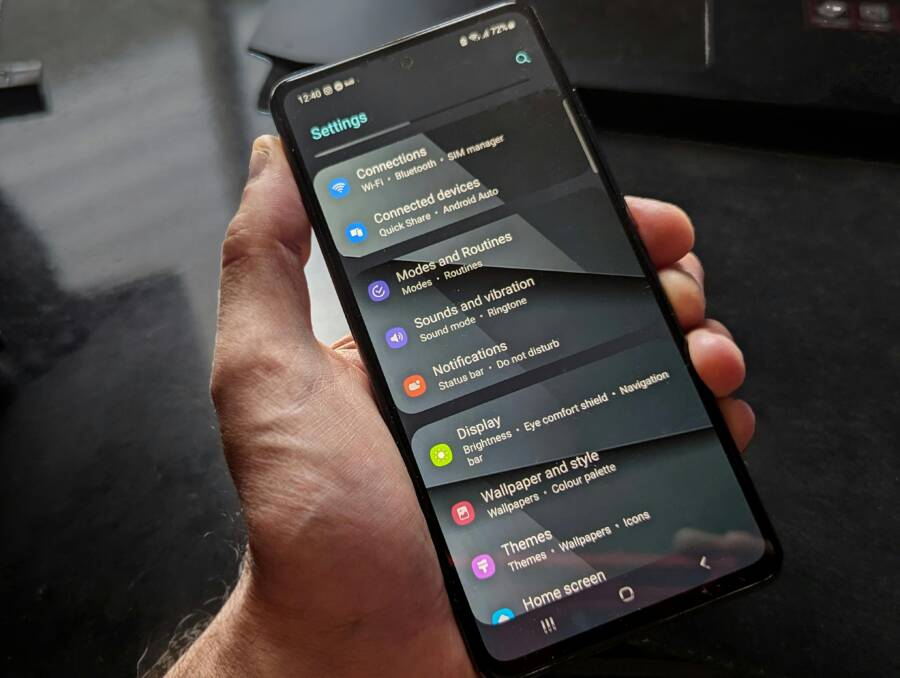
 Photo by Watford London Media
Update the app and your phone OS
Keeping both the app and the phone’s operating system current is the simplest and most effective fix for reminder issues. Updates fix bugs, improve reliability, and can restore notification behavior that has gone off track.
- iPhone
- Update apps: Open the App Store and update the fitness or reminder app to the latest version. If automatic updates are on, you still might want to check manually now. See how to manually update apps from the App Store for a quick reference. https://support.apple.com/en-us/guide/iphone/iphone-iph98709f167/ios
- Update iOS: Go to Settings > General > Software Update and install any available iOS update. Apple provides clear steps for updating iPhone hardware and software. Update instructions: https://support.apple.com/en-us/118575
- Quick tip: After updating, reboot the device to ensure new code runs cleanly.
- Android
- Update OS: Open Settings > System > System Update to check for a fresh Android version. If your device prompts you to install, proceed. Official guidance on checking and updating Android versions can be found here: https://support.google.com/android/answer/7680439?hl=en
- Update apps: Open Google Play, tap your profile, and choose Manage apps & device to update the fitness app if needed. Instructions: https://support.google.com/googleplay/answer/113412?hl=en
- Quick tip: After updates, test a reminder to confirm the fix.
Why this matters: updates can repair notification timing, crash fixes, and background task handling that remind you about workouts.
Allow background activity and ensure notifications are on
Reminders rely on the app running in the background and having permission to push notifications. If background activity is blocked or notifications are disabled, reminders will never fire.
- iPhone
- Notifications: Settings > Notifications, select your fitness app, ensure Allow Notifications is on and alert styles are enabled.
- Background access: Settings > General > Background App Refresh, enable it for the fitness app. If you need a quick reference, Apple’s guidance on notifications and background refresh is useful. https://support.apple.com/guide/iphone/change-notification-settings-iph7c3d96bab/ios
- Pro tip: If Focus is on during workouts, allow the app in Focus settings so reminders aren’t silenced.
- Android
- Notifications: Settings > Apps > [Your App] > Notifications, confirm notifications are enabled.
- Background activity: Settings > Apps > [Your App] > Battery > Background activity or Battery optimization. Allow the app to run in the background so reminders aren’t paused.
- Pro tip: If you use a device with a custom skin, look for battery optimization or background restrictions specific to your model. Google’s guidance on controlling notifications and background activity is a good reference. https://support.google.com/android/answer/9079661?hl=en
Why this matters: without background execution and notifications, the app can’t wake up and alert you during workout time.
Review Do Not Disturb and Focus settings for workouts
Do Not Disturb and Focus modes are powerful but easy to misconfigure. They can mute reminders when you most need them.
- iOS Focus
- Open Settings > Focus. Check any active Focus modes and see if the fitness app is allowed to notify during workout windows. You can add the app to the allowed list or temporarily disable Focus during training.
- Quick resource: Allow or silence notifications for a Focus on iPhone. https://support.apple.com/guide/iphone/allow-or-silence-notifications-for-a-focus-iph21d43af5b/ios
- Android Do Not Disturb
- Settings > Sound & notification > Do Not Disturb. Review the allowed exceptions for alarms, messages, and apps. If you have a dedicated workout profile, ensure the fitness app is exempt.
- If you use custom modes, ensure the workout window is not silenced or create a dedicated exception set for workouts.
- Quick reference: Google’s guide on Modes & Do Not Disturb. https://support.google.com/android/answer/9069335
Why this matters: you want reminders to come through even if you’re in a focus block or resting with Do Not Disturb enabled.
Verify time zone and clock settings
Reminders run on the device clock, so incorrect time settings can shift or skip alerts.
- Automatic date and time
- iPhone: Settings > General > Date & Time > Set Automatically.
- Android: Settings > System > Date & time > Use network-provided time.
- If you’re traveling, recheck the local time when you land and after long trips to avoid drift.
- Manual checks
- Compare your device clock with a trusted source and adjust if needed.
- If you rely on calendar reminders synced from the cloud, ensure the server time matches your local time.
Why this matters: even a small time mismatch can push your workout reminders to an odd moment or miss them entirely.
Battery optimization and background activity
Power saving can quietly curb the app’s ability to run in the background.
- Android
- Some devices tightly control battery usage. Check Settings > Apps > [Your App] > Battery > Battery optimization. Set the app to Don’t optimize or Unrestricted if appropriate. Also verify Background data is enabled.
- Quick tip: Some manufacturers require extra steps for background services; a quick search for “battery optimization for [your device]” often yields model-specific steps. Example references: Keep Adaptive Battery & battery optimization on. https://support.google.com/pixelphone/answer/7015477?hl=en
- iPhone
- iOS handles background tasks differently, but ensure Background App Refresh is enabled for your workout app. If you’re in Low Power Mode, background tasks may be limited, so consider temporarily disabling it during training. Apple’s background refresh guidance can help here. https://support.apple.com/guide/iphone/change-notification-settings-iph7c3d96bab/ios
Why this matters: when the system aggressively saves power, reminders may not wake the app in time. Whitelisting the reminder app for background activity helps.
What to do next: a quick triage checklist
She Pressed Play on a Strange Audio Track and Within Days Her Financial Reality Started Shifting in Ways She Could Not Explain
>>> See How It Works <<<
- Confirm notification permissions are on for both iPhone and Android.
- Review Focus and Do Not Disturb settings and add exceptions for the fitness app during workout times.
- Verify time zone and automatic date/time are correct.
- Check battery optimization and background refresh settings, whitelisting the reminder app where needed.
If you’re ready to apply these steps in one go, start with the permissions and Focus/DND checks, then verify time and battery settings. This sequence fixes the vast majority of missed reminders and keeps your workout routine on track.
Helpful resources (quick references)
- Update apps from the App Store on iPhone
- Update your iPhone or iPad
- Check & update your Android version
- How to update apps on Android – Google Play Help
- Update your device – Android Help
- iPhone background refresh and notifications
- Allow or silence notifications for a Focus on iPhone
- How to turn Do Not Disturb on or off on your iPhone
If you’d like, I can tailor the next section to address a specific device model or app you’re using, and weave in more concrete, step-by-step screenshots you can reference as you edit.
Fix the reminder app and workflow
If reminders still misfire after the initial checks, it’s time to tighten up the workflow. This section focuses on practical, proven steps to ensure your workout prompts arrive reliably. Think of it as a mini boot camp for notifications: test, verify, and confirm across the apps and settings you rely on every day. You’ll learn how to back up data, reinstall when needed, and set up a robust reminder system that uses multiple channels for redundancy. A well-tuned smartphone routine means fewer missed sessions and more consistency in your training.
Update or reinstall the reminder app
Keeping the reminder app up to date is the fastest path back to reliable alerts. If reminders still fail after an update, a clean reinstall can clear stubborn issues tied to corrupted data or misconfigured settings. Here’s how to approach it without losing your workout history or goals.
- Check for updates
- On your smartphone, open the app store, search for your reminder or fitness app, and choose Update if available.
- If automatic updates are enabled, run a quick manual check to confirm you’re on the latest version.
- After updating, open the app and run a test reminder to verify timing is correct.
- Reinstall if reminders still fail
- Back up data first. If the app supports cloud sync, sign in to ensure your reminders, history, and settings are saved. If local backups are available, create a copy to your computer or cloud storage.
- Uninstall the app, then reinstall from the official store. Reinstalling often resolves stubborn notification issues that updates alone can’t fix.
- Restore data after reinstall. Sign back in and verify that your reminders and history reappear. If a cloud backup exists, syncing should bring your reminders back with minimal fuss.
- When to reinstall
- Reminders fail to fire after updates.
- The app shows strange behavior, like duplicate alerts or missing snooze options.
- You recently changed device settings that correlate with notification behavior.
- Quick references
- For iPhone users, Apple guides cover notification behavior and app permissions, which help when you reinstall and reauthorize the app: Turn notifications on or off for a specific app on your iPhone and View and respond to notifications on iPhone.
- On Android, Google’s help articles walk through app permissions and notification controls you might need after reinstall: Change app permissions on your Android phone and Control notifications on Android.
- Backup note
- If your reminders live in a cloud service (iCloud, Google, or the app’s own cloud), ensure you’re signed in and that sync is enabled before you uninstall. This minimizes data loss and preserves your workout history.
Why this matters: a clean reinstall can fix underlying conflicts or corrupted data that updates alone can’t fix. A quick backup protection ensures you don’t lose progress or settings during the reset.
Recreate reminders and test snooze options
After you’ve updated or reinstalled, rebuild a simple, predictable reminder and run a focused test. The goal is to confirm reliable firing and snooze functionality before ramping up to a full training schedule.
- Create a basic reminder
- Set a short, easy-to-test time for today, such as 15 minutes from now. Use a clear label like “15-min workout test.”
- Choose a consistent alert style (banner, alert, or sound) that you know you won’t miss.
- Test snooze and repeat behavior
- Snooze once, then again after a few minutes. Note how the alert behaves when the screen is off and the phone is in your pocket.
- Try different snooze durations if the app allows it. Confirm that the reminders reappear and fire at the expected times.
- Run multiple test cycles
- Schedule several reminders across the day, including a few with calendar integration if available.
- Ensure snooze keeps the reminder flow intact rather than creating duplicates or missed triggers.
- Document results
- Keep a simple log of which tests passed and which didn’t, noting date, time, device model, and OS version. This helps you spot patterns and share a crisp report with support if problems persist.
- Why it matters: a reliable reminder workflow combines clarity with redundancy. When snooze works as intended, you’re less likely to miss a session due to a temporary distraction or a quick device lull.
- Practical tip
- If you’re using a dedicated workout app, look for a built-in test mode or a practice run feature. If you’re using a separate reminders app, ensure it can trigger if your phone is locked or in sleep mode.
- Helpful resources
- If you want ideas on choosing reminder apps with strong snooze and notification options, explore this curated guide on habit tracker apps with reminders: Best Habit Tracker Apps with Reminders (Smart Notifications 2025) and the popular habit and reminder app roundups: The 12 Best Reminder Apps for iPhone and Android Users. These can help you pick tools that fit your routine and devices.
- Quick example
- A simple 3 reminder sequence: “Wake warmup,” “Midday workout check-in,” and “Evening cooldown.” Test snooze for each to ensure you’ll still get the alert if you miss the first one. A steady rhythm reduces the chance you skip workouts.
Use multiple reminder methods for redundancy
Relying on one notification channel is risky. A multi-channel approach gives you built-in backup if one alert fails. By combining push notifications with calendar events and a home screen widget, you create a safety net that keeps you on track.
- Push notifications
- Your primary alert that appears on the lock screen or as a banner. Ensure the reminder app has notification access and is allowed to wake the device in the background.
- Calendar events
- Create a calendar entry for your workout with a clear title and location. Syncing with your calendar means you’ll see alerts even if the reminder app fails momentarily.
- Home screen widget
- A widget can show your next workout or a quick “start workout” button. Widgets reduce the friction of opening an app and provide a visible cue at a glance.
- How redundancy reduces missed workouts
- If a push notification is blocked or silenced, a calendar alert or widget reminder can still prompt you.
- Multiple alerts at slightly staggered times increase the odds you’ll notice the cue, especially during a busy day.
- Practical setup tips
- On iPhone, add a calendar event and place a widget on your home screen that shows today’s workout. On Android, you can place calendar or task widgets on the home screen for immediate visibility.
- Use a consistent naming convention for reminders and calendar events, so you recognize them at a glance.
- Quick reference
- For ideas on organizing home screen widgets to support reminders, see guidance on widgets and productivity: How to Organize Phone Home Screen Widgets in 2025.
- If you’re exploring widget options specifically for workouts, consider widget guides and example apps like Stronglifts and Rotate for hands-on ideas, such as How to add a Stronglifts Workout Widget and Rotate: Schedule Widgets App.
- When to combine methods
- If you rely on a single reminder channel, you risk gaps during device updates, app crashes, or OS changes. Redundancy helps protect your routine when one method falters.
- Quick check
- Ensure calendar and widget permissions align with your privacy and notification preferences so these tools can alert you without friction.
Check for conflicts with other alarms or events
Conflicts are easy to miss but can derail even the best reminder setup. Overlapping alarms, busy calendars, and other apps that mute or delay alerts are common culprits. A simple conflict-check checklist helps you spot and fix issues quickly.
- Conflicts to look for
- Overlapping alarms: two alarms set for the same time or one shortly before another that causes a cascade of alerts to cancel.
- Calendar overlaps: multiple reminders or events at the same time that push notifications out of the queue.
- Audio muting apps: third-party apps that mute sounds or block notifications temporarily during certain activities.
- System optimizations: battery saver modes or performance boosts that suppress background tasks during key times.
- Simple conflict-check checklist
- Review all alarms and reminders for the workout window and note any overlaps.
- Check calendar entries for the same time and adjust priorities or alert codes.
- Inspect Do Not Disturb, Focus, and notification settings to ensure the workout window is allowed.
- Disable or adjust any battery optimization that could suppress reminders during workouts.
- Quick sanity tests
- Create a new test reminder at a unique time far from your usual workouts. Confirm it fires cleanly, with no silencing or suppression.
- Temporarily turn off other alarms or calendar alerts during the test period to isolate the issue.
- Why it matters: a clean slate test proves your system works, making it easier to trust your routine again.
- Practical tip
- If you notice repeated conflicts, consider consolidating reminders into a dedicated workout profile or calendar, which reduces cross-talk with other alarms and events.
- External reference
- If you want to see how others handle conflicting alerts and overlapping events, check discussions on alert consistency and overlap resolution: Inconsistent alarms and Overlapping events.
What to do next: a compact action plan
- Update or reinstall the reminder app as needed and back up data.
- Recreate a few simple reminders and test snooze until reliable.
- Add a calendar entry and a home screen widget for redundancy.
- Check for overlapping alarms and adjust Focus, DND, and battery settings.
- Run a quick end-to-end test with all three reminder channels active.
Helpful resources (quick references)
- Apple notification and background refresh guidance: Change notification settings on iPhone and Allow or silence notifications for a Focus on iPhone
- Android notification and background activity guidance: Control notifications on Android and Change app permissions on your Android phone
- iCloud and Reminders basics for recovery: Restore your reminders on iCloud.com
If you’d like, I can tailor the next section to address a specific device model or app you’re using, and weave in more concrete, step-by-step screenshots you can reference as you edit.
Section: Platform tips and best practices
A reliable workout reminder system works like a well organized workflow. To keep you on track, this section blends platform-specific tips with cross device strategies readers can apply now. You’ll learn practical steps for iPhone and Android, plus how to keep reminders in sync across devices. Think of it as a practical playbook for smartphone reminders that actually wake you up for a workout.
iPhone specific steps to ensure reminders work consistently
To make reminders feel like clockwork, review these iPhone settings and app options. The goal is to ensure notifications arrive on time, even if you switch between apps or focus modes.
- Review notifications in one place
- Go to Settings > Notifications and verify the reminders or fitness app is allowed to send alerts. Make sure banners or alerts aren’t disabled. If the app isn’t showing, reinstalling or granting access from the app’s own settings can help. Apple provides guidance on turning notifications on or off for a specific app.
- See how to view and respond to notifications on iPhone for context.
- Configure Focus to avoid silencing workouts
- Open Settings > Focus and check which modes are active. Add the fitness app to the allowed list during your workout window, or disable Focus during training.
- Apple’s guide on allowing or silencing notifications for a Focus is a reliable reference.
- Check iCloud and reminders synchronization
- Ensure the reminders app is syncing via iCloud if you rely on cloud reminders. If iCloud sync has issues, reminders may appear late or not at all on other devices.
- Background refresh and power settings
- Verify that the app is allowed to refresh in the background. Go to Settings > General > Background App Refresh and enable it for the reminders app. If you use Low Power Mode, note it can limit background tasks during workouts.
- Quick sanity check
- After any change, run a test reminder to confirm the alert arrives as expected.
Helpful links:
- Change notification settings on iPhone
- Allow or silence notifications for a Focus on iPhone
- View and respond to notifications on iPhone
Android specific steps to ensure reminders work consistently
Android users often run into background restrictions and battery optimization that mute reminders. Use these steps to keep alerts timely across devices and skins.
- Permissions and notification controls
- Open Settings > Apps > [Your App] > Notifications and ensure notifications are enabled. If the device uses a custom skin, look for additional notification controls there.
- Keep the app running in the background
- Allow background activity so reminders can fire even when the screen is off. Some devices require you to whitelist the app from battery optimization.
- Battery optimization and background restrictions
- Check Settings > Apps > [Your App] > Battery > Battery optimization. Set the app to Don’t optimize or Unrestricted if possible. Also verify Background data is enabled.
- Notification channels and timing
- If your app uses Android’s notification channels, ensure the channel is active and set to alert you during workout times.
- Quick model specific tips
- On devices with One UI or similar skins, you may find extra steps to whitelist apps for background activity or to disable aggressive background restrictions. A general reference is how to disable battery optimization for specific apps.
Helpful links:
- Don’t kill my app! | Hey Android vendors, don’t kill my app
- How to turn off battery optimization for specific apps
- How to disable specific app notifications in OneUI 6
Cross device syncing and cloud account tips
Keeping reminders in sync across iPhone and Android requires careful account setup and awareness of how calendars and reminders interact.
- Use the right cloud account
- If you stay mostly within one ecosystem, iCloud for Apple devices or Google accounts for Android helps keep reminders aligned. For cross platform setups, consider services that bridge calendars and reminders.
- Sync calendars to align reminders
- If you use calendar alerts, ensure your calendar is syncing across devices. Apps like Google Calendar or iCloud Calendar can provide consistent alerts even when the reminder app momentarily falters.
- Tools and workarounds for cross platform syncing
- Some readers connect Google Calendar with iOS Reminders through automation tools to keep tasks visible on both sides. This can help if you use both ecosystems.
- Practical setup tips
- Create a consistent naming convention for workouts in both reminders and calendar events. Place a widget on the home screen to show today’s workout as a quick cue.
- Quick references
- Sync Google Calendar between devices
- Connect Google Calendar and iOS Reminders integrations
- The secret way to sync Apple Reminders on your Android
- When cross device syncing matters most
- If you switch between devices often, rely on both a native reminders app and a calendar based alert to minimize missed prompts.
Integrate a simple daily check: confirm that today’s workout is visible in both your reminders app and calendar on every device you use.
External guidance:
- The secret way to sync Apple Reminders on your Android
- Connect Google Calendar and iOS Reminders integrations
- Sync Google Calendar Between Devices | SyncGene
By aligning these tools, you create a safety net across platforms. This is especially helpful when you rely on a versatile smartphone to manage a busy routine.
There Is a Frequency That the Wealthiest Families Have Used for Generations and Most People Will Never Know It Exists
>>> Open the Door <<<
This section gives you a compact, practical playbook you can implement today. If you want, I can tailor these steps to your exact devices or the reminder app you prefer, and add screenshots to guide you visually.
References and additional reading
- Apple Focus and notification management
- Android notification and background activity guidance
- Cross platform syncing options and integrations
Would you like this section adjusted for a specific device model, or expanded with step by step screenshots for quick reference?
Conclusion
Fixing workout reminders is about tightening one system at a time. When notifications wake up reliably, a friendly rhythm forms between your smartphone and your training plan. A well tuned workflow reduces missed sessions and builds steady momentum across devices.
Five minute quick check
- Verify notification permissions are on for the reminder app on both iPhone and Android.
- Temporarily disable Focus or Do Not Disturb during workout windows.
- Confirm automatic date and time are on and the time zone is correct.
- Ensure the app can refresh in the background and isn’t blocked by battery optimization.
- Test a simple reminder and snooze to confirm timing and repetition work as expected.
If you tried these steps and still have trouble, share what happened or ask a quick question in the comments. Your results help others solve the same issue, and I’m happy to tailor the guidance to your exact device or app.
Thousands of People Were Struggling With Money Until They Discovered This One Ancient Secret Hidden in Sound
>>> Unlock It Now <<<
