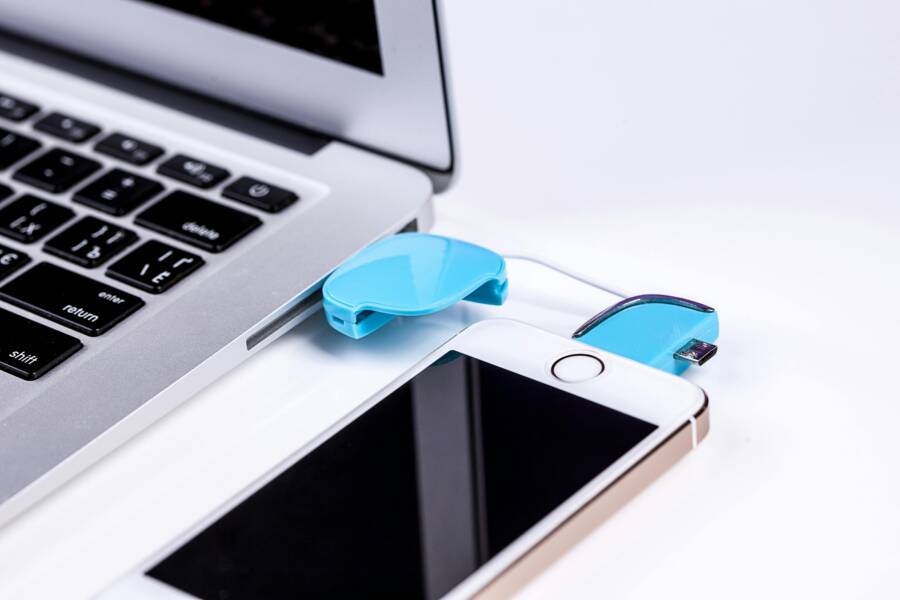
Frustration grows when your phone charges but won’t transfer files to your laptop. Whether you’re on Windows or Mac, the pain is the same for both Android and iPhone users. In this post, you’ll learn quick, reliable fixes that address the most common culprits.
Common causes include bad cables, dirty ports, wrong settings, or driver problems. A simple cable swap, a quick port clean, or a setting adjustment can save hours of hassle. You’ll get a straightforward, step by step approach that covers both major smartphone ecosystems and both operating systems.
This guide promises practical, proven fixes you can start using today. You’ll learn basic checks that resolve most issues, then dive into phone tweaks and laptop updates. We’ll also cover how to handle specific device combos and what to do if you need to back up files before you troubleshoot. By the end, you’ll know exactly what to try first and what to skip, so you can get back to syncing your data with confidence.
Perform Quick Hardware Checks First
Before diving into deeper troubleshooting, start with the simplest checks you can perform in minutes. Loose or faulty hardware is the most common cause of USB connection issues between your phone and laptop. By confirming cables, ports, and power delivery basics, you often restore reliable data transfer without touching drivers or system settings. This section covers two practical checks you can do right away.
Spot and Avoid Faulty Cables
Cables come in different flavors. Some are designed for charging only, while others support data transfer, and not all USB-C cables handle both tasks well. Look for cables that explicitly support data transfer and have USB-IF certification or equivalent verification. If you’re unsure, test the same cable with a different device to see if the issue follows the cable or the device. A well-made, data-capable cable reduces the chance of intermittent connections, slow transfers, or complete drops.
When selecting cables, prioritize hardware that is widely used and trusted. For USB-C to USB-C setups, verify the cable supports 480 Mbps or higher data rates if your devices require quick file moves. If you’re using USB-A adapters or dongles, ensure the adapter itself is designed for data transfer, not only charging. If you suspect a cable is the culprit, swap to a certified alternative and re-test. This simple swap can save you hours of debugging.
Tip: keep a small “ USB data” kit in your bag with a couple of certified cables. It makes it easy to diagnose on the go. For additional guidance, check how USB-C data cables differ from charging cables in this explainer.

Photo by Pixabay
Clean Ports to Restore Contact
Dust, lint, and oxidation can turn a perfect port into a data black hole. Start with a visual check of both the phone and laptop ports. Look for any visible debris, bent pins, or discoloration around the USB-C or USB-A receptacles. A tiny amount of debris can block data pins and prevent recognition by the device.
If you spot grime, power off both devices before you touch the ports. Use a gentle, non-metal tool such as a soft-bristled brush or compressed air to remove debris. Do not insert pointed objects that could damage the contacts. A safe, careful wipe with a lint-free cloth can also help, but avoid liquids that could seep into the port.
Poor contact is a common reason for data transfer failures. Even if charging seems fine, dirty contacts can hinder data lines. After cleaning, reconnect the devices and test the transfer again. If the problem persists, try a different port or a different cable to determine whether the issue is with the port, the cable, or the phone itself.
Photo by Pixabay
Set Up Your Phone for File Transfer
When you need to move files between your phone and laptop, the setup matters just as much as the fix. This section covers two essential steps you can follow quickly to make file transfer smooth again. First, we’ll show how to switch Android phones into a data transfer mode when needed. Then we’ll walk through handling iPhone trust prompts so your computer can access photos, documents, and backups without friction.
Change Android USB Mode Easily
If your Android device is charging but not transferring files, the culprit is often the USB connection mode. Start by pulling down the notification shade after you connect the phone. Look for a “USB for charging” or similar option and tap it to reveal the available modes. Choose File Transfer (MTP) or a comparable option that explicitly supports data transfer. If you don’t see the option, you may need to unlock the phone first. In some devices, you’ll find the setting under the Developer options as well. To enable USB debugging, go to Settings > About phone, tap Build number seven times to unlock Developer options, then open Settings > System > Developer options and enable USB debugging. Use debugging only when you’re troubleshooting and you know what you’re doing. If the problem persists, try a different USB cable or port. For a deeper dive, see how to set MTP mode on Android for transferring files.

Photo by Karola G
A quick note on cables and hubs helps prevent repeat issues. Use a data-capable USB-C cable, not a charging-only cord, and avoid USB hubs that don’t support data transfer. If you still can’t move files, check whether the phone shows up in the file explorer at all. If it does, try transferring a small file to confirm the connection is stable. For more details, see the MTP mode guide linked above.
Takeaway
Switching to a data transfer mode unlocks your device’s file system. It’s often the fastest fix when USB transfer stalls or remains at charging only.
Handle iPhone Trust Prompts
When you first connect an iPhone to a computer, macOS or Windows may show a “Trust This Computer” prompt. If you don’t trust the computer, the device will block access to photos, backups, and other data. Trust prompts are essential for initial access, and they reappear with certain iOS updates or after privacy resets.
First, unlock your iPhone and reconnect the device. If the alert appears, tap Trust and enter your passcode if prompted. If you’ve accidentally tapped “Don’t Trust” and the prompt won’t appear again, you can reset the trust settings. On the iPhone, go to Settings > General > Transfer or Reset iPhone > Reset and choose Reset Location & Privacy. After the reset, reconnect the iPhone to the computer, and you should see the trust prompt again. Accept it, and your computer will be able to access files, photos, and backups. For more context, review Apple’s guidance on trusted computers and access permissions.

Photo by Pixabay
If you still encounter issues after resetting privacy settings, check the driver status on your computer. On Windows, open Device Manager and look for your iPhone under Portable Devices or Universal Serial Bus controllers. Reinstall the driver if needed. On a Mac, confirm that the Finder or Photos app recognizes the device and that you have allowed access to photos and files in the device’s settings. For broader guidance on trusting your iPhone, see Apple’s support article on trusting this computer.
Photo by Pixabay
External resources
- How to Set MTP Mode on Android for Transferring Files: https://www.macdroid.app/mtp-mode-android/
- About the ‘Trust This Computer’ alert message on your iPhone: https://support.apple.com/en-us/109054
If you want to learn more about resolving trust prompts, you can also explore common questions and discussions from Apple’s support forums.
- I accidentally hit “Don’t Trust” and now my iPhone won’t sync to my computer: https://discussions.apple.com/thread/6024295
- Connecting in MTP mode: https://support.mobiledit.com/portal/en/kb/articles/connecting-in-mtp-mode
Images
- Photo: Flat lay of mobile devices with chargers and cables on a neutral background. Credit: Karola G
Update Laptop Drivers and Settings
Keeping your laptop’s drivers and power settings up to date is a quietly powerful step. When USB connections between your phone and laptop misbehave, the root cause often sits in the software stack rather than the hardware. In this section, you’ll find practical steps to refresh Windows drivers and fine-tune Mac settings so data flows smoothly again. Follow these actions in order, and test the connection after each change.
Windows Driver Refresh Steps
Start with the built-in tools Windows provides. Open Device Manager and locate the category that holds your phone or USB controllers. Right-click the device and choose Update driver, then select Search automatically for updated driver software. If Windows doesn’t find a new driver, you can visit the manufacturer’s site or use Windows Update to fetch the latest baseline drivers. If the device still won’t appear, uninstall the driver and reboot to allow Windows to reinstall it automatically. This simple refresh fixes many recognition and transfer issues caused by stale or corrupted driver data. After updating, restart both the phone and the laptop and re-test the USB connection.
If you suspect power delivery is playing a role, adjust your Windows power settings. Go to Settings > System > Power & sleep and set the power plan to Balanced or High performance. Disable USB selective suspend to ensure the USB port stays actively powered during transfers. A quick reboot after these changes helps ensure the new drivers and settings take effect. For a deeper dive, Microsoft’s guide on updating drivers through Device Manager is a reliable reference. Update drivers through Device Manager in Windows
Mac App and Permission Fixes
On a Mac, a smooth file transfer often hinges on the right software and proper permissions. Start by ensuring you have the correct companion app installed for your Android device. If you’re transferring between Android and macOS, Android File Transfer is the standard option for direct access to your device’s files. Install it, then quit and relaunch the app to reset its state. If you’re moving files between an iPhone and a Mac, Finder handles most transfers; ensure that your Mac recognizes the iPhone in Finder and that you’ve granted access to photos and files when prompted.
If the connection still falters after launching the appropriate app, another quick move is to check macOS privacy settings. Navigate to System Settings > Privacy & Security and ensure that the relevant apps have access to files and folders. Sometimes you’ll need to revoke and re-grant permission to re-establish trust. For Android users, you can also try a different transfer approach such as using a USB-C cable that supports data transfer, not just charging.
If you run into persistent issues, verify the cable and the port behavior with Finder. On macOS, your iPhone should appear in Finder under the Devices list; if it doesn’t, use Apple’s troubleshooting guide for devices not recognized by a Mac. If you need a quick setup reference, check the official Apple support article on recognizing an iPhone or iPad when connected to a Mac. If your computer doesn’t recognize your iPhone or iPad
For Android transfers on a Mac, Android File Transfer is widely used. It’s a straightforward solution that minimizes setup friction. If you prefer another option, MacDroid is another path worth evaluating. Always ensure your Mac is running a supported macOS version for the apps you choose. External sources offer detailed steps on getting Android File Transfer up and running on Mac. Android File Transfer | Download Android File Transfer for Mac | MacUpdate | Android File Transfer on Mac – official download
If the device shows up but transfers are slow or incomplete, review the Finder’s behavior and the iPhone’s trust prompts. For iPhone users, Apple’s guidance on trusted devices and access permissions is a reliable resource. Support: If your computer doesn’t recognize your iPhone or iPad
Key takeaways
- Regularly refresh both drivers and power settings on Windows.
- On Mac, ensure the correct transfer app is installed and permissions are granted.
- Use official guides as your reference to avoid missteps and keep data transfers predictable.
Tackle Platform-Specific Problems
When you’re syncing files between a phone and a laptop, the fix often depends on the device you’re using. Android and iPhone have their own quirks, drivers, and trusted-device prompts that can stall a connection. This section walks you through practical, platform-specific approaches that restore reliable transfers without drowning you in tech speak. You’ll move from simple checks to targeted fixes that address the root cause for each ecosystem.
Android Phone to Windows Laptop
Start with the basics and work your way to more precise fixes. A lot of USB transfer issues boil down to the right mode and a solid driver on Windows. First, confirm the cable supports data transfer. Some chargers only carry power, which means you’ll see charging without file access. If the cable is suspect, try a known data-capable cable from a reputable brand. Next, make sure the phone is set to File Transfer (MTP) mode. Pull down the notification shade after you connect and select the option that activates data transfer. If you don’t see it, unlock the device and recheck. On Windows, keep an eye on the Device Manager. If the phone isn’t listed under Portable Devices, install or update the appropriate USB driver from the OEM. When problems persist, reinstalling the driver and rebooting both devices can clear conflicts that block data paths.
If you’re debugging a stubborn case, install OEM USB drivers so Windows can recognize the phone as a data device. This is especially helpful for newer models that rely on newer vendor drivers. You can find the official driver sources from the device maker, then install and retry the connection. After updating drivers, re-test with a small file to confirm the data path is reliable. For additional steps, consider a separate USB port or a different computer to rule out hardware faults. If you’re starting from scratch, a well-supported data cable and correctly chosen USB mode are often enough to fix the issue quickly. For reference on driver installation and related steps, see the OEM USB driver guidance.
- Relevant driver and mode resources: OEM USB drivers for Windows, and guidance on enabling MTP mode on Android.
https://developer.android.com/studio/run/oem-usb
iPhone to Windows Laptop
The iPhone path mainly hinges on two things: a trustworthy cable and the Apple Mobile Device driver stack on Windows. Start with a high-quality cable, ideally the original Apple cable, and test a different USB port to rule out a port issue. If the iPhone shows up but doesn’t grant access, the Apple Mobile Device USB Driver is the likely culprit. On Windows, open Device Manager, locate the Apple drivers under Portable Devices or USB controllers, and reinstall or update the Apple driver. If the prompt “Trust This Computer” doesn’t appear, reset the iPhone’s privacy settings and reconnect. This reset often resolves stubborn trust issues that block access to photos and backups.
If Windows still doesn’t recognize the iPhone, Apple’s official troubleshooting guides provide step-by-step checks for recognizing an iPhone on a PC. In some cases, you may need to reinstall iTunes or the Apple Services to restore the driver stack. On a Mac, Finder and Photos handle transfers, but ensure you’ve granted Finder access when prompted. For deep-dix, Apple’s support articles cover trusting a computer and managing access permissions, which can save hours when iPhone transfers stall. If you need a quick reference on driver issues, you can consult practical guides that focus on the Apple Mobile Device USB Driver and related components.
- Useful reference: If your computer doesn’t recognize your iPhone or iPad.
https://support.apple.com/en-us/108643 - Additional Windows-focused guidance on iPhone tethering and drivers.
https://learn.microsoft.com/en-us/answers/questions/5626227/iphone-usb-tethering-to-pc-not-working - Troubleshooting driver missing issues for Apple devices.
https://www.isunshare.com/computer/solved-apple-mobile-device-usb-driver-missing.html
By aligning cable quality, USB mode, and the Apple driver stack, you’ll reduce the chance of driver conflicts and reach a stable data path more quickly. If you face persistent prompts or recognition problems, rely on the official Apple and Microsoft resources for definitive steps.
Try Wireless Options and Know When to Repair
Wireless transfers can save time and reduce cable clutter, especially when you’re transferring between a phone and a laptop on the go. This section helps you weigh wireless methods, choose reliable options, and recognize when a repair or upgrade is the better choice. You’ll find practical comparisons, quick setup tips, and red flags that signal hardware should be serviced.
Evaluate Wireless File Transfer Methods
Wireless transfer comes in several flavors, each with its own strengths. If you want speed and privacy, a direct, device-to-device solution often wins. If you value cross-platform compatibility, cloud or cross-platform apps can keep you moving across Windows, macOS, Android, and iPhone.
- Direct transfer apps: These create a close, fast link between devices. They’re ideal for large files like 4K videos or photo libraries. Look for apps that use secure, encrypted transfers and don’t require an internet connection.
- Cloud-based syncing: For backup and access across devices, cloud services simplify sharing without cables. They work well for smaller teams or households but depend on internet speed and storage limits.
- Many-to-many options: Shared folders or local network methods can handle multiple devices at once, handy for teams or families.
When choosing a method, consider these questions:
- Do you need offline transfer or is internet access acceptable?
- How large are your typical files and how fast do you need them moved?
- Do you want to keep a copy in the cloud or keep files strictly on devices?
A solid starting point for quick wireless transfers is a trusted app that supports both Android and iPhone, along with Mac and Windows. This keeps your workflow friction-free and reduces the need to switch tools mid-project. For a practical overview of wireless options, you can explore quick share features from major ecosystems and reputable guides that explain setup steps clearly.
- Share files between Android and Windows with Quick Share.
https://support.google.com/android/answer/13801258?hl=en
Try a Quick Wireless Setup and Measure Results
If you’re curious about a fast, no-fuss approach, start with a cross-platform wireless transfer app that doesn’t rely on the cloud for every move. Install the app on both devices, ensure they’re on the same network or that the app creates a local connection, and perform a small test transfer. If the transfer completes reliably, you’ve confirmed the workflow works for your typical file sizes.
A short test saves you from committing to a full migration plan. If you hit latency or occasional drops, switch to a different method or tweak settings within the app. Some apps offer compression and batch transfer options that can improve speed without sacrificing reliability. For users who often switch between Android and iPhone, a universal solution can streamline your process and reduce the learning curve.
If you’re coordinating with colleagues, sharing a file or two at a time can avoid bandwidth bottlenecks. Always monitor for any security prompts or permission requests during setup and respond promptly to protect your data. For Android users, enabling a quick share feature on Windows can simplify sending files between devices.
- Quick Share on Android paired with Windows.
https://support.google.com/android/answer/13801258?hl=en
When Wireless Fails, Know When to Repair
Wireless transfer failures are not always a hardware issue, but persistent problems after tried software fixes often point to aging ports, worn connectors, or faulty antennas. Here’s how to distinguish between a fixable software hiccup and a hardware limitation that needs repair.
- Consistent, repeatable failures after updates: If a problem appears right after a software update or driver change, the culprit is often the software stack. Reinstalling drivers, updating to the latest firmware, or rolling back a version can resolve it.
- Intermittent drops and slow speeds: Random disconnects or unusually slow transfers may indicate a worn port or loose internal connection. If other devices or cables work fine, the issue is likely in the port or its housing.
- Physical port look and feel: Visible signs of damage such as bent pins, wobble, or debris lodged in the port are red flags. Even if data transfers work sometimes, a deteriorating port is a sign to repair or replace the hardware.
If you notice signs of port wear or repeated connection issues, you have a few options:
- Repair: A professional technician can replace or realign internal components. This is sensible if the device is otherwise in good shape and the repair cost is reasonable.
- Port replacement parts: Some laptops allow port replacements with modular boards. If yours does, this can be a cost-effective fix compared to a full motherboard replacement.
- Consider a targeted upgrade: If the device is older, a replacement may offer better long-term value than a repair. A newer device often brings faster ports and more reliable wireless capabilities.
When you weigh repair versus replacement, consider total cost, device age, and how central USB or wireless transfers are to your daily life. If you’re leaning toward a repair, gather a few quotes from reputable service providers to compare against the price of a new machine with equivalent performance.
Practical Alternatives to Carried Cables
If you want to minimize hardware hassles, consider these practical alternatives that keep data flowing without a direct USB link:
- Local network transfers: A shared folder on a home network can be accessed by both devices. This method works well for frequent large transfers and keeps your data in one secure place.
- Cross-platform apps with offline mode: Some apps allow offline transfers that later sync when an internet connection is available. This can be handy for travel or remote work.
- Wireless memory drives: A small, wireless-enabled USB drive can act as a portable bridge between devices, letting you move files quickly without plugging in every time.
Each option has trade-offs between speed, convenience, and security. Try a couple to see which setup best fits your workflow and comfort level. For more on wireless file transfers across devices, explore trusted sources that compare methods and provide setup tips.
- Share files between Android and Windows with Quick Share.
https://support.google.com/android/answer/13801258?hl=en
Image: A modern setup showing a phone and laptop connected through wireless transfer
 Photo by cottonbro studio
Takeaways
- Wireless transfers offer flexibility and speed when configured correctly.
- Start with a cross-platform solution that supports both ecosystems to minimize switching tools.
- If issues persist after software fixes, evaluate hardware health and consider repair or device upgrade.
External links and further reading
- How to set up quick share on Windows and Android for fast wireless transfers.
https://support.google.com/android/answer/13801258?hl=en - General guidance on data transfers across devices for troubleshooting purposes.
https://www.pcmag.com/how-to/what-to-do-if-your-usb-port-stops-working
Images
- Photo: Hands operating a smartphone above a laptop with a smartwatch nearby, showcasing modern technology.
Credit: cottonbro studio
Conclusion
Most USB connection issues between your phone and laptop come down to simple, fixable causes. Start with hardware checks: swap in a data capable cable, test multiple ports, and clean dusty ports. These quick steps solve many charging but no transfer cases without touching software.
If the hardware checks don’t help, move to phone and laptop settings. On Android, switch the USB mode to File Transfer (MTP) and confirm the correct option is active. On iPhone, trust prompts and permissions unlock access to files and photos. After changing settings, re-test with a small file to confirm the path stays stable.
Next, refresh drivers and adjust power or privacy settings on your computer. Updating or reinstalling USB drivers often clears recognition problems, and disabling USB selective suspend can keep the data path active during transfers. On a Mac, ensure the right transfer app is installed for your device and grant the needed permissions so Finder or Photos can access the files.
If issues persist, consider wireless options or a repair path. Wireless transfers can save time when you need portability, but hardware wear or port aging may require a port replacement or a device upgrade. Share your experience in the comments so others can learn from your setup, and tell us which fix worked best for your smartphone and laptop combo. With these steps, smooth transfers are well within reach.