How to Fix Phone Not Mirroring to Smart TV (Android & iPhone)
Ever tried to share vacation photos on a big screen only to see nothing happen, leaving you staring at a frozen slideshow you swore you could cast in seconds? Screen mirroring simply means casting your phone’s screen to the TV wirelessly, so you can watch videos, slide shows, or a quick presentation on a bigger canvas. It should feel effortless, but a few stubborn settings can block the signal.
This guide covers the common culprits and fast fixes that work across popular brands like Samsung, LG, and other smart TVs in 2025. You’ll learn the quick checks you can run first, then step by step paths for Android and iPhone users. We’ll also cover backup options in case wireless mirroring just won’t cooperate.
In most cases, the problem comes down to a mismatch or a minor glitch. Make sure both devices are on the same Wi Fi network and that the TV is set to the correct mirroring or cast input. A firmware update on the TV and the latest OS on your phone can close gaps that blocks the connection. If you still can’t get a mirror, a quick restart often clears a stubborn hiccup and reestablishes the link.
If you want to keep things simple, you’ll also find practical backups. A wired HDMI connection with an adapter can replace wireless mirroring, and streaming devices like Chromecast or Apple TV provide a reliable alternative. With the steps here, you’ll quickly diagnose the issue and get back to sharing your smartphone moments on the big screen.
Common Reasons Your Phone Won’t Mirror to a Smart TV
When you tap the screen mirror icon and nothing happens, it can feel like a roadblock to sharing memories or streaming content. The fix is usually straightforward and can be done in a few quick steps. Below you’ll find two of the most common culprits and clear paths to resolve them. This section is designed to help you diagnose quickly and get back to enjoying content on a bigger screen.
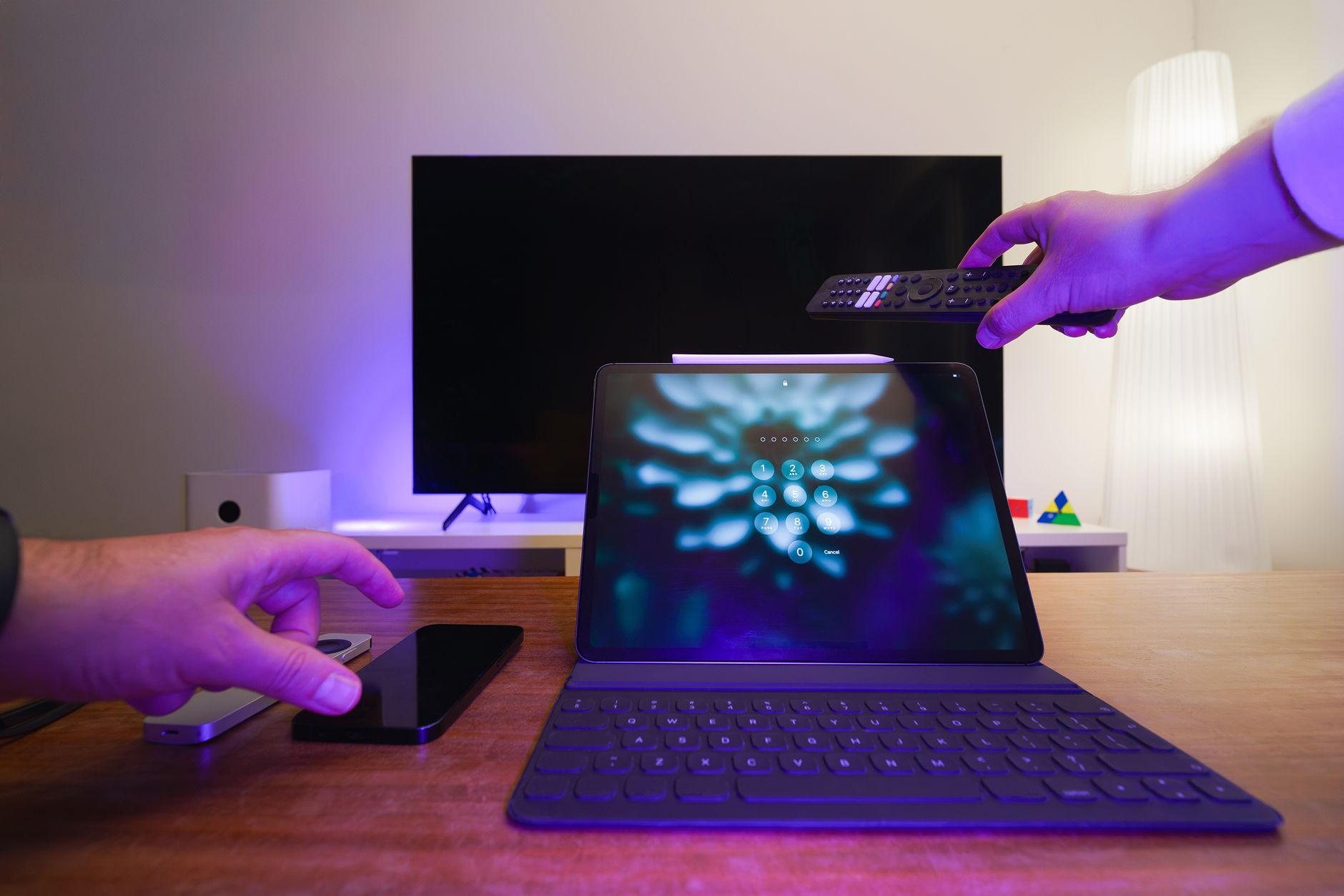 Photo by Jakub Zerdzicki
Wi-Fi Network Mismatch
A stable wireless connection is the backbone of any screen mirroring attempt. If your phone and TV aren’t on the same network, or if one device is on a guest network with strict isolation, the connection can fail before you start.
- Check that both devices are connected to the same Wi-Fi network. On your phone, open Settings > Wi-Fi and note the network name. On the TV, navigate to the network or connectivity settings and confirm the same SSID. If you’re not sure, restart both devices and rejoin the network to be certain.
- Verify band and router settings. Some networks use 2.4 GHz for broader compatibility and 5 GHz for speed. If your TV or phone has trouble on one band, temporarily switch both devices to the same band for testing.
- Consider guest networks. Guest or public networks often impose restrictions that block device-to-device discovery or LAN access. If either device is on a guest network, move to a home network or create a dedicated guest network with access to local devices enabled.
- Confirm IP addressing consistency. If your router assigns different subnets or uses strict client isolation, screen mirroring can fail. A quick reboot of the router and re-connecting both devices usually clears this up.
To support these steps, you can review guidance from trusted sources on ensuring devices share the same network and settings. For example, Google’s Chromecast help article walks through confirming the same Wi‑Fi network on iPhone and Google devices, which is a common sticking point for many users. You can read it here: https://support.google.com/chromecast/answer/7360025?hl=en-CA&co=GENIE.Platform%3DiOS
Why this matters: even a minor difference in network name or a guest network flag can block discovery protocols. Once both devices sit on the same network, you remove a major hurdle and open the door to successful casting or mirroring.
Mirroring Feature Disabled on TV
Sometimes the issue isn’t the network at all. The TV itself may have the mirroring or casting features turned off, or the wrong input selected.
- Locate the correct input on the TV. Most TVs label this as Screen Mirroring, Cast, Smart View, AirPlay, or simply Mirroring. Use the TV remote to cycle through inputs until you see a prompt that looks like a connection request from your phone.
- Turn on the feature in the TV’s menu. Depending on the brand, this could live under Settings > Connections > Screen Mirroring, or under a dedicated Cast or AirPlay submenu. Some TVs require you to enable discovery or allow connections from new devices.
- Check for brand-specific apps or modes. LG TVs often use AirPlay or Screen Share, while Samsung TVs may use Smart View or AirPlay 2 on newer models. If your TV menu references any of these terms, follow the on-screen prompts to enable them.
- Update the TV firmware if needed. If the TV is on an older firmware, the mirroring function may not work reliably with newer phone OS versions. A quick firmware update can restore compatibility.
If you’re using an LG or Samsung TV, you can consult official support guides for enabling AirPlay or screen sharing. For LG, see guidance on enabling AirPlay on LG TVs: https://www.lg.com/us/support/help-library/lg-tv-screen-sharing-oled-how-can-i-enable-airplay–20154726882746. For broader AirPlay setup on Samsung devices, TechRadar offers practical steps on AirPlay to a Samsung TV: https://www.techradar.com/how-to/airplay-on-samsung-tv. These resources can help you confirm you’re enabling the right feature on your specific model.
Want a quick sanity check? Ensure you’ve selected the correct input on the TV and that the feature is visibly active in the TV’s menu. If mirroring still won’t engage, a quick reboot of both devices often resolves a stubborn glitch and reestablishes the link.
Images and screenshots can also help you verify what you should see in the TV menu. The key is to recognize the feature by its name on your TV and then follow the prompts on the phone to complete the pairing.
Additional resources you might find handy include a general guide to screen sharing on LG TVs, which covers multiple devices and steps to enable casting: https://www.techuseful.com/how-to-screen-share-on-lg-smart-tv-from-android-iphone-pc/. This can be a useful cross-check if your model uses a nonstandard label for mirroring.
If you’re integrating a streaming device, remember that devices like Chromecast or Apple TV bring their own casting ecosystems. A quick look at Google’s Chromecast support article can help you confirm you’re on the same network and using the correct casting method for your setup: https://support.google.com/chromecast/answer/7360025?hl=en-CA&co=GENIE.Platform%3DiOS
Key takeaway: the TV must have mirroring or cast enabled and ready to discover devices. A quick review of input labels and a settings check can save you a lot of troubleshooting time. If the feature looks enabled but still won’t connect, the issue is often a mismatch elsewhere in the chain, most commonly the network or the device compatibility.
Images credits:
Photo by Jakub Zerdzicki on Pexels.
Quick Fixes to Try on Any Phone First
When the mirror doesn’t click, there are a few high-impact checks you can run in minutes. These quick fixes cover the most common blockers and work across Android and iPhone setups, plus popular TV brands. Think of them as the first-aid kit for a stubborn wireless cast. You’ll often clear the issue with a simple reset, a quick update, or a switch of the right input on the TV.
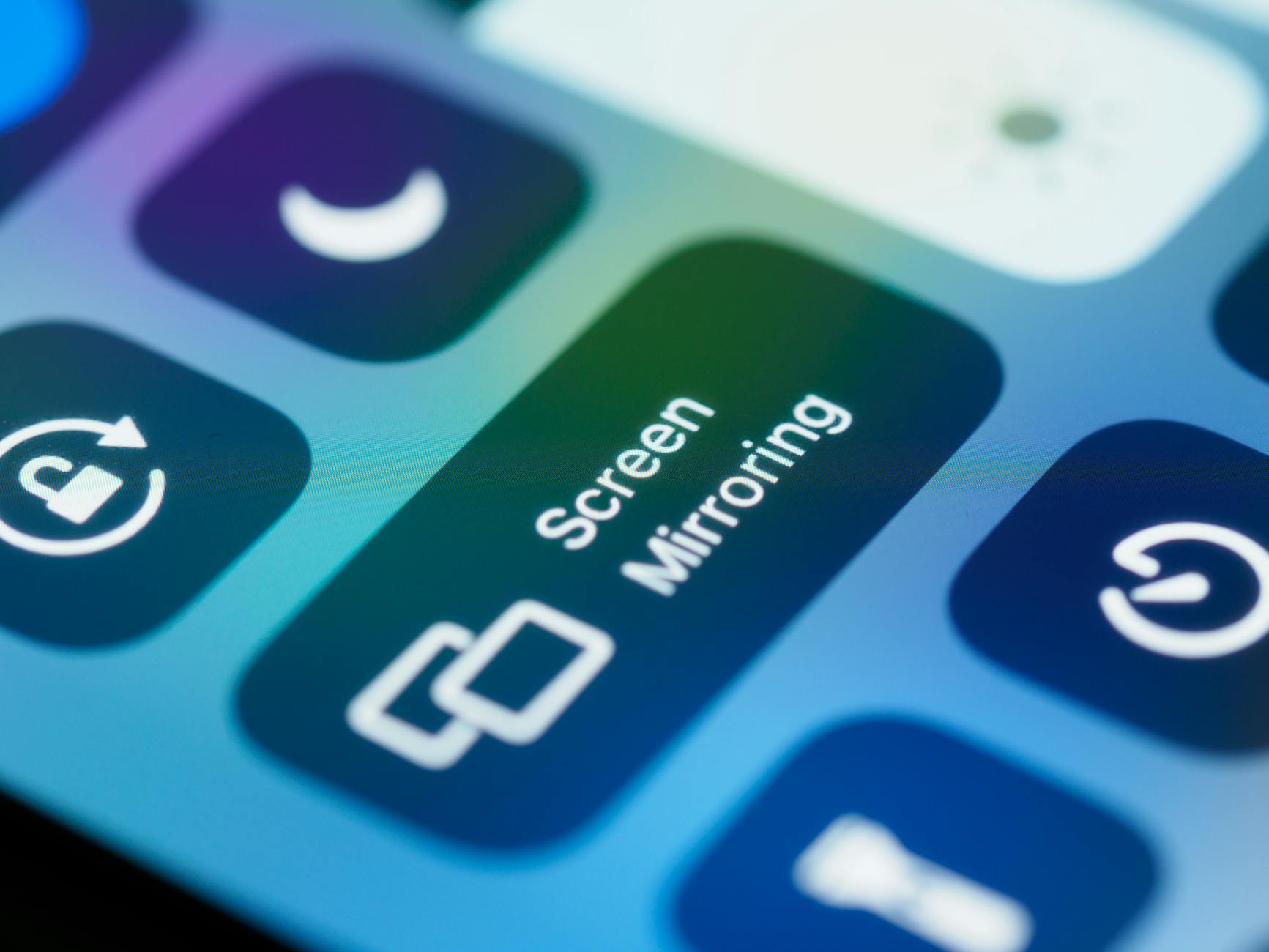 Photo by Brett Jordan
Restart and Update Everything
A clean restart can dissolve many pairing glitches. Treat this like a quick reboot when a device feels sluggish. Here are exact steps you can follow for both phones and TVs, plus where to check for updates.
- On Android phones: hold the power button, then choose Restart. If your device seems unresponsive, you can power it off, wait 10–15 seconds, and turn it back on.
- On iPhone: for iPhone X and later, press and hold a side button with a volume button until the slider appears, then slide to power off. After 30 seconds, turn the device back on. For older iPhones, press and hold the top or side button until the slider appears.
- On the TV: use the remote to navigate to the power option, then choose Restart or Reboot. If your TV lacks a restart option, unplug the TV from power for 30 seconds and plug it back in.
Check for updates right after a restart. Keeping software current closes known gaps that can stop mirroring.
- Android updates: Settings > System > Software Update (or About phone > System update). If an update is available, install it and restart the phone.
- iPhone updates: Settings > General > Software Update. If an update is available, install it, then reboot.
- TV updates: TV menu > Settings > Support > Software Update. If an update is available, install it and restart the TV.
If you’re unsure whether a device is fully updated, a quick recheck after the restart helps confirm the update completed successfully. For LG and Samsung users, quick restart tips and update paths are widely documented and reliable:
- How to update an LG Smart TV | LG USA Support
- Update the software on your Samsung smart TV or monitor
Tip: If any device is stuck in a minor glitch, repeat the restart after updating. A fresh start often reestablishes a clean network handshake and a reliable discovery process.
Enable Screen Mirroring on Your TV
The TV must be ready to receive a cast or mirror signal. If the feature is disabled or not visible in the right place, mirroring will not start, even if the phone is ready.
- Start by identifying the correct input label on your TV. Look for terms like Screen Mirroring, Cast, Smart View, AirPlay, or Mirroring. Use the remote to cycle inputs until you see a pairing prompt on the screen.
- Turn on the feature in the TV’s menu. Depending on the brand, you’ll usually find this under Settings > Connections > Screen Mirroring, or under a dedicated Cast or AirPlay submenu. Some TVs require you to allow connections from new devices or to enable discovery.
- Confirm the right feature is active for your model. LG TVs often use AirPlay or Screen Share, while Samsung models may use Smart View or AirPlay 2 on newer firmware. Follow the on-screen prompts to enable the appropriate option.
- If needed, update the TV firmware. New OS versions improve compatibility with newer phones. A quick firmware update can fix stubborn issues.
For reference, you can check brand-specific guides to ensure you’re enabling the correct feature:
- Enable AirPlay on LG TVs
- AirPlay setup on Samsung TVs
A quick sanity check helps: ensure the input is active and the feature shows as enabled in the TV menu. If mirroring still won’t engage, re-run the restart on both devices and try again. Sometimes the simplest sequence—activate the right input, confirm discovery, then pair—wins the day.
If you want a broader how-to on screen sharing across TV brands, see guides like How to screen share on LG Smart TV from Android and iPhone. And if you’re using a streaming device like Chromecast or Apple TV, confirm both devices are on the same network and using the correct casting method:
- Check for updates on LG TV
- How to screen share on LG TV from Android and iPhone
- Chromecast support: ensuring the devices are on the same network
Key takeaway: the TV must be set to a discoverable mirroring or cast mode, and the input must be actively listening for a new device. A quick sequence of enabling the feature, confirming the input, and restarting if needed resolves most connection hiccups.
Images and visuals can help confirm what to look for in the TV menu. If your model uses nonstandard labels, consult the quick-brand guides above for precise terminology.
Links for quick reference and extra validation:
- LG TV update guides
- Samsung TV software update guide
If you’re exploring alternatives beyond wireless mirroring, wired connections and streaming devices offer reliable backups. For a quick path to a stable setup, consider testing a wired HDMI connection with an appropriate adapter or using a streaming device that supports your ecosystem.
What this section gives you: a focused, practical playbook you can follow in minutes. You’ll rarely need to dive deeper than these two fixes, and many times you’ll be back to sharing content on the big screen in no time. For additional context on getting back on track fast, refer to practical walkthroughs for common Android setups and TV brands.
- How to restart LG OLED TV
- How to restart or update Samsung TV or LG TV
https://www.pexels.com/photo/5703424/ is the neat visual reference for the quick-fix mindset.
Step-by-Step Fixes for Android Phones
When your Android phone won’t mirror to the TV, it can feel frustrating. The fix often comes down to a few reliable steps you can perform in minutes. This section lays out a practical, step-by-step path that covers the most common culprits, from the way you pull up the mirroring option to the way your network plays along. Follow these focused fixes to restore a smooth, near-instant connection and start sharing your screen again.
 Photo by Jakub Zerdzicki
Use Smart View or Cast Feature
Smart View and Cast are the built-in methods most Android devices use to mirror to TVs. If the option is hard to find or not functioning, make sure you’re using the right path and the right interface on your TV.
- Pull down the Quick Settings panel on your Android device and look for Smart View, Cast, or a similarly labeled option. Tap it to scan for nearby devices.
- On the TV, ensure the correct input is ready to receive a cast. You may need to switch to a label like Screen Mirroring, Cast, Smart View, AirPlay, or Mirroring.
- Select your TV from the list. If you don’t see it, ensure both devices are on the same network and not separated by a guest network with device isolation.
- If you still don’t connect, try restarting both devices, then try again. Sometimes the simplest reset fixes a stubborn handshake.
If you want brand-specific guidance, official and reputable tutorials can help you confirm the exact wording on your model. For an in-depth Android perspective, you can explore guidance on mirroring from Android’s own materials and trusted how-to sources. For example, you can read about mirroring and related features on Android’s official pages and related tutorials here: https://www.android.com/intl/en_uk/articles/rotate-split-screen-mirror-android/
Key tip: ensure your TV is awake and listening for a connection, and your phone’s screen is unlocked during the pairing flow. A quick retry usually clears the barrier and gets you back to the big screen.
Clear Cache and Reset Network Settings
Sometimes the issue isn’t the video or the app at all. Cached data or misconfigured network settings can block discovery and casting negotiations. Clearing cache for relevant apps and resetting network settings on your Android device can reset the chase and reestablish a clean link with the TV.
- Clear app data and cache for the screen mirroring app if your device uses a dedicated casting app. Steps vary by device, but you’ll typically find this under Settings > Apps > [App Name] > Storage > Clear Cache and Clear Data.
- Clear the cache for the TV companion apps if you use a streaming device or TV brand app. On many Android TVs, you’ll follow a similar path in Settings > Apps.
- Reset network settings on your phone. This wipes saved Wi-Fi networks and Bluetooth connections, then you reconnect to your home network. After the reset, rejoin the network with the same password and try mirroring again.
- Reboot both devices after clearing data. A fresh handshake often resolves stubborn issues.
To dive deeper, see trusted guidance about clearing cache on Android TV and related devices, which mirrors the steps you’d take on a TV or Google TV to fix app glitches and improve performance: https://www.guidingtech.com/how-to-clear-cache-on-android-tv-google-tv/
Additional context from reputable support resources covers similar steps for maintaining a clean network and app state, helping you avoid recurring hiccups. For a quick reference on clearing data and cache on Android TV or Google TV, you can check a Sony support primer here: https://www.sony.com/electronics/support/articles/00202472
Key takeaway: a clean slate can restore mirroring quickly. After you clear caches and reset networks, re-establish the connection by reselecting the TV in the cast menu and trying again.
Photo by Jakub Zerdzicki
Recheck Network Alignment and Input Labels
A great many mirroring problems vanish when both devices share the same network and the TV is in the correct input mode. It sounds simple, but it’s the step many readers skip in a rush to the high-tech fixes.
- Confirm both devices are on the same Wi-Fi network. On the phone, check Settings > Network & Internet > Wi-Fi. On the TV, open its network settings and verify the SSID matches.
- If your router supports dual bands, test the 2.4 GHz band for compatibility. Some TVs and phones have better stability on 2.4 GHz; switch both devices to that band temporarily for testing.
- Check for guest network restrictions. Guest networks can block device discovery and local network access. Move to your home network for testing or enable a guest network with local access permission.
- Verify IP configuration and subnets. If the router uses client isolation or separates devices onto different subnets, mirroring can fail. A router reboot often resolves this.
If the TV shows a label like Screen Mirroring, Cast, Smart View, AirPlay, or Mirroring in its input menu, ensure that input is active and listening. If you don’t see these labels, the feature may be hidden behind a firmware option or a brand-specific control setting. A quick firmware update on the TV can smooth out these inconsistencies. For broader guidance on input labeling and mirroring across brands, you can consult brand-specific help resources as needed.
For more on network-aware mirroring and troubleshooting, explore general Android casting guidance and related troubleshooting steps here: https://www.android.com/intl/en_uk/articles/rotate-split-screen-mirror-android/
Key takeaway: the simplest path is often the right one. When both devices sit on the same network and the TV input is ready, the mirroring handshake becomes straightforward.
Suggested media to help you verify steps in real life includes practical visuals and brand guides. For example, you can reference LG and Samsung setup guides to ensure you’re enabling the correct feature for your model:
- Enable AirPlay on LG TVs
- AirPlay setup on Samsung TVs
If you want further reading on Android mirroring from reputable sources, a comprehensive guide on Android Screen Mirroring can provide deeper context. You can find it here: https://tomsguide.com/phones/you-can-mirror-your-android-device-to-your-tv-heres-how
Image credits: Photo by Jakub Zerdzicki on Pexels.
What this section gives you: a concise, practical playbook to get Android-to-TV mirroring working again. If the two core fixes above don’t resolve it, the next step is often a hardware or OS-level compatibility check, which we cover in the next sections. For quick checks and step-by-step actions, the resources above offer reliable, human-friendly guidance.
How to Fix iPhone Screen Mirroring to TV
When your iPhone won’t mirror to the TV, it can feel like a roadblock to sharing photos, videos, or a quick presentation on the big screen. The good news is that most issues are easy to fix with a couple of targeted checks. This section focuses on two simple, high-impact steps you can try first. They work across iPhone models and a wide range of smart TVs and streaming devices.
Open Control Center and Select AirPlay
AirPlay is the doorway to wireless mirroring on iPhone. If you don’t see your TV pop up in Control Center, you’re likely dealing with a quick misstep rather than a hardware failure. Here’s how to get the handshake going:
- Open Control Center on your iPhone. On iPhone X and later, swipe down from the top-right corner of the screen. On older models, swipe up from the bottom edge.
- Tap the Screen Mirroring or AirPlay tile. You should see a list of available devices, including your TV or streaming device.
- Choose your TV or AirPlay receiver from the list. If prompted, enter or approve a code shown on the TV.
- Once connected, your iPhone screen should appear on the TV. If it fails to appear, retry the steps with both devices awake and on the same network.
If the TV still doesn’t appear, verify that AirPlay is enabled on the receiving device. Some TVs label the feature as AirPlay, Screen Mirroring, or Smart View. A quick firmware or app update on the TV can also clear stubborn connection issues. For brand-specific guidance, LG and Samsung provide clear paths to enable AirPlay on their models, which helps when labels differ on older firmware. If you want a quick reference, Apple’s official AirPlay troubleshooting guide is a solid starting point: https://support.apple.com/en-us/102587
Pro tip: keep your iPhone and TV close to each other during pairing to minimize interference. For many families, this step alone fixes the issue and lets you start streaming in minutes.
Turn Off Low Power Mode and Restart
Low Power Mode can throttle background tasks and streaming performance. If mirroring behaves oddly, turning it off and rebooting both devices can clear the path for a clean connection. Here’s a straightforward way to approach it:
- Disable Low Power Mode on iPhone. Go to Settings > Battery and toggle off Low Power Mode. If you’re not sure whether it’s active, a quick glance at the battery icon can confirm.
- Restart the iPhone. Use a quick press-and-hold along with a slide to power off, then turn the device back on after about 30 seconds. This reset helps the iPhone re-establish a fresh network handoff.
- Restart the TV or streaming device. Use the remote to select Restart or Power cycle from the power menu. If a restart option isn’t present, you can unplug the TV for about 30 seconds and plug it back in.
- Reconnect and test AirPlay. Open Control Center, reselect AirPlay, and choose the TV again. If a code is requested, enter it on the TV.
If the issue persists after a restart, check for updates on all devices. iPhone software updates can fix AirPlay quirks, and TV firmware updates improve compatibility with newer iOS versions. After updating, perform another quick restart and test the connection again.
Helpful context from trusted sources confirms this approach. Apple’s support article outlines a step-by-step path for AirPlay troubleshooting, including ensuring devices are on the same network and updating software. For broader guidelines on AirPlay on iPhone and Apple TV or compatible smart TVs, you can read more here: https://support.apple.com/en-us/102587
In practice, this two-step approach—reloading the control path and refreshing the devices—solves the majority of iPhone-to-TV mirroring hiccups. If you still see no signal, it’s time to test other layers in the chain, such as network settings or input labels, which we cover in the other sections of this guide. For more on network basics and AirPlay compatibility, you can explore additional vendor resources and troubleshooting guides as needed.
Notes for quick reference:
- Keep devices near each other during setup to minimize interference.
- Verify both devices are awake and ready to receive or share content.
- If prompted, accept any on-screen permissions or codes on either device.
If you found this section helpful and want to dig deeper into AirPlay nuance, consider reviewing brand-specific setup pages and reputable tech guides. They often provide model-by-model instructions that align with your TV’s menu language and firmware.
Advanced Tips and Backup Options When Wireless Fails
Wireless mirroring can be unpredictable, but you don’t have to stall the party. This section offers practical, advanced tips and solid backups you can rely on when wireless fails. Think of it as your emergency kit for sharing to a big screen. You’ll learn wired alternatives, smart device options, and quick workarounds that save time and frustration. Throughout, you’ll spot real-world tweaks you can apply with minimal setup, keeping your focus on the moment rather than the tech.
Move from wireless to wired quickly
When wireless hiccups stop the show, a wired connection often wins. A direct HDMI link from your phone to the TV eliminates many network variables and keeps your content flowing smoothly.
- USB-C to HDMI for Android and newer iPhones: If your device supports video output, a USB-C to HDMI adapter can mirror your screen with charging support. Brands like Anker have dedicated guides showing how to connect a USB-C port to an HDMI input on the TV. A wired setup is especially handy when the network is congested or when your TV sits in a room far from the Wi‑Fi router. See a practical walkthrough here: https://www.anker.com/blogs/hubs-and-docks/how-to-use-usb-c-to-hdmi-android
- Lightning to HDMI for iPhone: For older iPhone models or when you want a simple, Apple-supported path, the Lightning Digital AV Adapter mirrors your display to HDMI. It’s a reliable option if you frequently share high‑resolution content or apps that don’t play well over wireless. Check the official adapters here: https://screenmirroring.app/
Why it helps: wired connections provide a stable handoff, no interference from other devices, and consistent frame rates for video. It’s not flashy, but it’s dependable when timing matters — think movie night or a last‑minute presentation.
Consider a dedicated casting device as a backup
If your TV or phone doesn’t cooperate, a dedicated casting device can be a neutral intermediary. These devices often handle network quirks better than a direct phone-to-TV link.
- Chromecast or similar dongles: A Chromecast can simplify the casting process when built into the TV proves stubborn. Ensure both the phone and the dongle are on the same network and follow the device prompts to cast. You’ll find solid guidance on setting up casting with Chromecast here: https://support.google.com/chromecast/answer/7360025?hl=en-CA&co=GENIE.Platform%3DiOS
- Roku or Fire TV options: Roku and Fire TV devices offer screen mirroring features that can work even when the TV’s native options are finicky. For hands-on steps, Roku provides official guidance on how to screen mirror from phones and tablets: https://support.roku.com/article/208754928
Why it helps: these devices manage a lot of compatibility quirks between phone OS versions and TV firmware. They also provide a consistent input path when the TV label for mirroring is unclear.
Test across networks and ports
A surprising number of failures come from a subtle network or port mismatch, not from the devices themselves. A methodical test can save you hours.
- Try a guest network with local access enabled: Some guest networks block device discovery. If you’re on a guest network, switch to your home network for testing.
- Switch bands for testing: Move both devices to 2.4 GHz temporarily if 5 GHz is unstable in your environment. Some devices still perform better on the older band.
- Confirm IP and subnets: A quick router reboot and re‑pair can clear strict client isolation that blocks the discovery handshake.
These checks are often fast enough to do while you’re in the room with the TV. The goal is to confirm the most basic blockers are gone before diving into deeper fixes.
Use non Wi‑Fi options when you’re on the road or in a pinch
If you’re traveling or the network is unavailable, you can cast or mirror without a traditional Wi‑Fi setup, using direct connections or offline methods.
- Local casting apps with offline support: Some apps can mirror content over a direct link or via a local ad hoc connection. While these aren’t universal, a few third party apps promise offline casting capabilities that can help in a pinch. See options here: https://deskin.io/resource/blog/best-free-screen-mirroring-app
- Direct device-to-TV using cables: A physical cable eliminates wireless dependency entirely. If you’re limited to a single HDMI port on the TV, a trusted HDMI cable with the appropriate adapter is all you need.
Backup options give you resilience when the usual route fails. They also reduce the friction of getting everyone back to the screen quickly.
Verify brand-specific quirks and firmware gaps
Sometimes the problem is simply a mismatch in terminology or a firmware quirk that crops up after an OS update. A quick review of brand resources can save you a lot of time.
- LG and Samsung guidance: If you’re using LG or Samsung devices, official setup guides help you align the feature labels with your TV menu. For example, LG’s AirPlay setup and Samsung AirPlay guidance cover common label differences that confuse users: https://www.lg.com/us/support/help-library/lg-tv-screen-sharing-oled-how-can-i-enable-airplay–20154726882746 and https://www.techradar.com/how-to/airplay-on-samsung-tv
- Android and iPhone cross-check: A broad Android casting guide can help you verify your setup across devices, while Apple’s AirPlay troubleshooting guide covers iPhone-to-TV quirks: https://www.android.com/intl/en_uk/articles/rotate-split-screen-mirror-android and https://support.apple.com/en-us/102587
Why it matters: firmware and app updates can widen or close compatibility gaps. A quick check ensures you aren’t chasing a problem that a simple update fixes.
Quick takeaways you can use today
- If wireless fails, have a wired HDMI option ready. A USB-C to HDMI or Lightning to HDMI adapter is a fast fallback.
- Consider a dedicated casting device for a stable path to the TV.
- Keep a quick test plan for network and input labels handy so you can rule out the basics first.
- When away from a reliable network, test with offline methods or a direct cable connection.
Images and visual references throughout this section can help you recognize what to expect on the TV screen and in the phone’s menus. For example, a simple HDMI adapter setup is often easier to spot in real life than you’d expect.
External resources at a glance
- USB-C to HDMI Android guidance: https://www.anker.com/blogs/hubs-and-docks/how-to-use-usb-c-to-hdmi-android
- Lightning Digital AV Adapter from Apple or retailers: https://screenmirroring.app/
- Chromecast setup and troubleshooting: https://support.google.com/chromecast/answer/7360025?hl=en-CA&co=GENIE.Platform%3DiOS
- Roku official screen mirroring help: https://support.roku.com/article/208754928
What this section delivers: a practical playbook you can apply in minutes. If wireless still acts up, you have reliable wired and device-backed alternatives ready to keep your content moving.
Conclusion
Fixing a phone that won’t mirror to a smart TV comes down to a few practical checks you can do in minutes. Start with the basics: make sure the phone and TV share the same network and band, update all firmware and apps, then restart every device to refresh the handshake. If wireless still stalls, switch to a wired HDMI adapter or try a dedicated casting box, then recheck the input label on the TV so the device can discover you. A quick pass through these steps usually clears the issue and gets you back to watching on the big screen with your smartphone in hand, not left staring at a frozen scene.
If you find this guide helpful, drop a quick note in the comments with your setup and what finally worked. You can also explore related posts like best mirroring apps and how to choose a Chromecast or Apple TV for your living room. Sharing your success helps others skip the guesswork and solve problems faster. Enjoy big screen fun and the smooth, reliable casting flow you deserve.