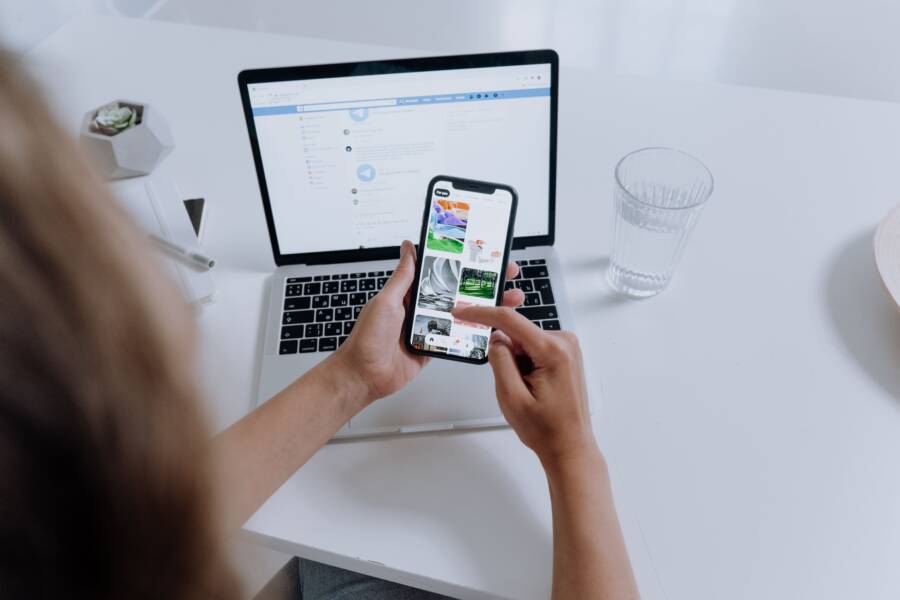
Your smartphone fails to sync with your computer because of a faulty cable, a dirty charging port, or a minor software glitch. These connection problems are common, but you can usually fix them in just a few minutes without professional help.
Most users resolve this frustration by checking their physical hardware and adjusting basic phone settings. You do not need technical skills to troubleshoot your device today.
Follow these simple steps to restore your connection and get your files moving again.
Quick Checks to Rule Out Hardware Problems
Hardware issues often prevent a reliable connection between your smartphone and computer. Before you adjust software settings, you should verify that your physical connections are functional. Simple components like cords and ports often collect debris or sustain hidden damage, which disrupts data flow. By checking these items first, you save time and quickly identify the source of the communication failure.
Inspect Your USB Cable for Damage
The cable you use to connect your device matters more than its appearance. Many inexpensive or generic cables are designed solely for charging and lack the necessary internal wiring for data transfer. If you use a cable meant only for power, your computer will never recognize the device regardless of your software configuration.
You should always try to use the original cable provided by the manufacturer. If that is unavailable, look for a high-quality replacement cable labeled specifically for data synchronization. You can test your current setup by trying a different, known-working cable from another device. If the connection suddenly stabilizes, you know the original cord was the culprit. Physical wear like frayed ends or bent connectors also signals that a cable is faulty and requires replacement.
Clear Dust from Your Device Charging Port
Your charging port is an open gateway that frequently collects pocket lint, dust, and debris. Over time, this buildup compacts inside the bottom of the port. This blockage prevents the metal pins on your cable from making a solid, consistent contact with the internal receptors of your smartphone.
To resolve this, inspect the port under a bright light. If you see debris, avoid using metal tools like paperclips or needles, as these can cause a short circuit or scratch the delicate charging pins. Instead, use a non-conductive tool such as a thin wooden toothpick or a plastic dental pick. Gently sweep the inside of the port to loosen and extract any trapped particles. After cleaning the area, try connecting your device to the computer again. Often, this simple removal of debris restores a stable connection immediately.
Software Solutions to Get Your Smartphone Recognized
Your computer often requires specific instructions from your device to establish a stable data connection. Even when the hardware works perfectly, the operating system might default to a charging-only state for security reasons. You must manually prompt the software to enable file transfers between your smartphone and the computer.
Mastering Connection Modes on Android
When you connect an Android device to a computer via USB, it defaults to charging mode to protect your data. You will see a notification in the shade, which is the menu you pull down from the top of your screen, indicating the charging status. To access your files, you need to change this setting to a data-transfer protocol.
Follow these steps to update your connection mode:
- Connect your smartphone to the computer using a high-quality data cable.
- Swipe down from the top of your screen to open the notification shade.
- Locate the notification that says “Charging this device via USB” or “USB for charging.”
- Tap that notification to open the USB settings menu.
- Select “File Transfer” or “MTP” from the list of available options.
Once you tap this mode, your computer should detect the device as a connected storage drive. If the folder window does not pop up automatically, open your file explorer on the computer to locate the device. If the option for file transfer appears greyed out or inactive, try disconnecting and reconnecting the cable. Some devices also require you to unlock your screen before the computer can access internal storage.
Trusting the Computer on iPhone
Apple includes a security feature that prevents unauthorized computers from accessing data on your iPhone. When you connect your device for the first time, a “Trust This Computer” alert appears on your phone screen. You must select “Trust” and enter your device passcode to create a permanent pairing between the two machines.
If the prompt does not appear, your iPhone may not realize it is connected to a new host. You can force the device to reset its security handshake by adjusting your privacy settings. Navigate to your iPhone settings menu, select “General,” and tap “Transfer or Reset iPhone.” Choosing the “Reset” option followed by “Reset Location & Privacy” clears all previous trust certificates.
After performing this reset, unplug your iPhone and connect it again. The “Trust This Computer” prompt should appear immediately upon reconnection. If it still fails to show up, verify that your computer has the latest version of iTunes or the Apple Devices app installed. Keeping your software updated ensures your computer recognizes the security protocols of newer smartphone models.
Troubleshooting Drivers and Computer Settings
Sometimes, your computer struggles to talk to your smartphone because of outdated software instructions or temporary system hiccups. Even if your cable is clean and functional, the operating system might fail to identify the device correctly. You can often fix these communication problems by managing your computer drivers or simply forcing a system refresh.
Updating Drivers for Better Compatibility
Drivers act as translators between your smartphone and the computer. When these files are old or corrupted, the computer does not know how to handle the incoming data. Updating these drivers usually forces the system to recognize the connected hardware again.
- Connect your device to the computer using a reliable USB cable.
- Right-click the Start button and select Device Manager from the menu.
- Look for a section labeled Portable Devices or Universal Serial Bus devices.
- Locate your phone in the list, right-click its name, and choose Update driver.
- Select the option to search automatically for updated driver software.
- Follow the prompts to finish the installation, then restart your computer to apply the changes.
If your computer still does not see the device, try uninstalling the driver instead. Right-click your phone in the Device Manager list and select Uninstall device. Unplug the cable, wait a few seconds, and plug it back in. Windows will attempt to reinstall the necessary drivers from scratch, which often clears out any persistent errors preventing a successful connection.
Rebooting Both Devices for a Fresh Start
A simple restart is often the most effective way to clear out software bugs. When you leave a phone or computer running for days, temporary files and background processes can pile up. These processes sometimes conflict with USB communication protocols, leading to connection failures.
Rebooting stops all active tasks and clears the temporary memory on both devices. Once the systems reload, they establish fresh connections to hardware peripherals like your smartphone. This step solves issues where the phone charges but refuses to show up as a drive. It also helps if the computer previously failed to finish a driver installation or experienced a minor system hang.
You should restart the computer and your smartphone simultaneously to see if the problem disappears. After both devices reach their home screens, plug the cable back in and check for a connection. This quick reset fixes a large percentage of software-related sync issues without requiring any complex configuration changes. If you still have trouble after a restart, you can move on to deeper system settings or check for OS updates.
When to Consider Advanced Repair Options
Most connection problems resolve through simple cable swaps or settings adjustments. However, persistent failures indicate deeper hardware or software faults that require professional attention. You should consider advanced repair options when your smartphone continues to struggle after you have ruled out common software glitches and damaged cords.
Identifying Internal Hardware Failure
Your smartphone contains a delicate USB port soldered directly to the main circuit board. Internal pins may break or lose their connection to the board if you frequently apply pressure or twist the cable. Signs of internal failure often include a port that feels physically loose or a device that only charges at specific, awkward angles.
If you notice these physical symptoms, avoid attempting to repair the internal soldering yourself. Smartphone hardware is compact and requires specialized tools to prevent further damage to sensitive components. A local repair shop can assess whether the port simply needs a replacement or if the board itself needs board-level intervention.
Persistent Software Corruption
Some software issues go beyond simple driver updates or system restarts. Your operating system may experience file corruption in the communication stack, which prevents the computer from recognizing the smartphone entirely. If you have already reset your network settings and reinstalled all relevant drivers without success, the problem might reside in the core operating system files.
Factory resetting your device often acts as the final attempt to resolve internal software corruption. Before you proceed with this step, ensure that you have a complete backup of your data. A factory reset wipes the device completely, potentially clearing out the deep-seated errors that hinder your connection. If your phone still fails to sync after a clean system reset, you likely face a hardware issue that requires professional diagnostic equipment.
Comparing Professional Service Options
Choosing where to take your smartphone for repair depends on your warranty status and the complexity of the damage. You have several options available for getting your device back in working order.
The manufacturer is your best contact if your device remains under a standard warranty. They can perform certified repairs that do not void your coverage. If you need a quick fix for a daily driver, a local shop often provides faster service. You should reserve professional data recovery services only for situations where the device is beyond repair but your stored photos and files remain vital to recover.
Conclusion
Most connection failures between a smartphone and a computer stem from simple hardware obstructions or basic software settings. A systematic approach, starting with a clean cable and verified port, resolves the vast majority of these issues.
Patience remains your best tool when you troubleshoot these technical hiccups. By systematically isolating the cable, the device, and the computer settings, you gain full control over your data. You now have the knowledge to fix these errors yourself and move your files whenever you need.