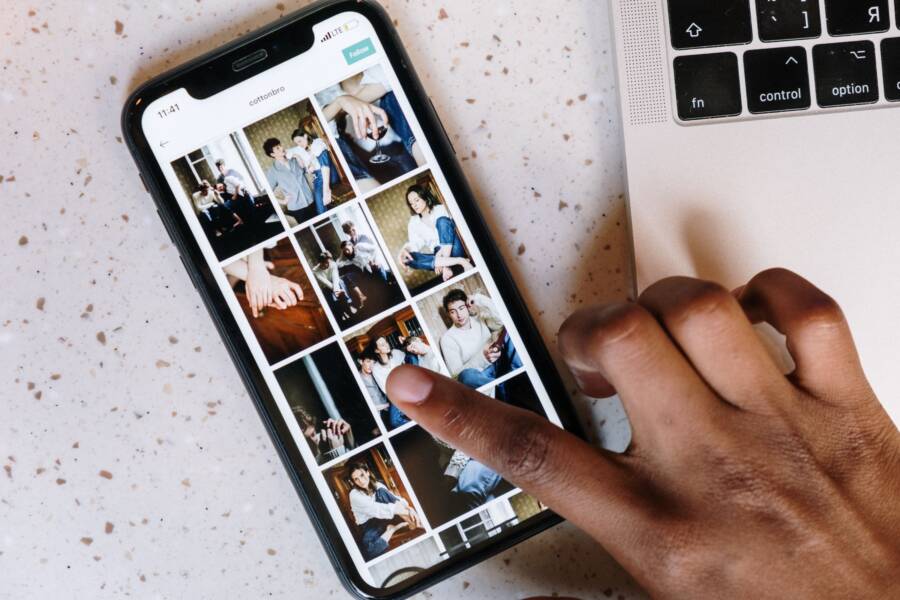
When your smartphone fails to move photos to your computer, a loose cable or a restrictive security setting is often the culprit. Check your physical connection first, then verify that your device has permission to share data with your workstation.
Most transfer issues stem from outdated drivers or locked screens that prevent computer access. If your hardware is functional, a simple software toggle usually restores the connection immediately.
Follow these steps to diagnose and resolve your file transfer problems so you can back up your media without further delay.
First Steps to Troubleshoot Connection Issues
Connection problems often prevent your computer from seeing the files on your smartphone. Before you adjust software settings, you must rule out basic hardware failures. A quick check of your cables and ports saves significant time when you try to import photos.
Why Your USB Cable Might Be the Problem
Many users assume all USB cables transmit data, but that is false. Some cables function only as charging cords. These power-only cables lack the internal wires required to send data signals between your smartphone and a computer. If your phone charges when plugged in but the computer does not show any file folder, the cable is likely the issue.
Check for these signs to see if your cable is faulty or limited:
- You bought the cable from a third-party source at a bargain price.
- The cable came with a basic device like a Bluetooth speaker or a power bank.
- You have already tried multiple USB ports on the computer without success.
Try using the original cable that came with your phone. If you do not have it, ensure the replacement cable supports both power and data transfer. High-quality cables usually carry a thicker, more durable build than cheap charging-only cords. When you find a cable known to work for data, the computer will typically register the device within a few seconds.
Ensuring Your Computer Recognizes the Device
If you are certain the cable is capable of data transfer, your computer might still fail to acknowledge the connection. You can confirm if the workstation detects the phone by checking the system hardware list.
On a Windows computer, open the Device Manager. You can access this by right-clicking the Start button and selecting it from the menu. Look under the section labeled Portable Devices or Universal Serial Bus controllers. If you see a yellow exclamation mark next to an entry, the driver is likely missing or corrupted. You can right-click the entry and choose Update driver to fix the communication gap.
On a Mac, use the Disk Utility tool or the System Information panel. Open System Information by holding the Option key and clicking the Apple menu, then select System Information. Look at the USB section in the sidebar. If your smartphone appears in the list, the hardware connection is active. If the computer does not show the phone, switch to a different USB port or clean the charging port on your phone to remove lint. Dust buildup in the port often prevents a secure connection between the pins.
Software Solutions for iPhone File Transfer Errors
Software conflicts often create invisible barriers between your smartphone and your computer. Even when cables and ports function correctly, internal settings can prevent the operating system from recognizing your media files. Most transfer issues resolve once you verify permissions and storage management settings.
Adjusting iCloud Settings for Easier Transfers
Your smartphone manages storage space automatically to keep your device responsive. The Optimize iPhone Storage feature is a common cause of transfer errors. When this setting is active, your phone keeps full-resolution photos in iCloud while storing smaller, low-quality versions on your device.
If you attempt to import images to your computer, the transfer might fail because the high-resolution file does not exist on your local storage. The computer requests a file that remains in the cloud, which causes the import process to time out or freeze.
- Open the Settings app on your device.
- Tap on your name at the top of the menu.
- Select Photos from the list of services.
- Locate the section labeled Optimize iPhone Storage.
- Switch the selection to Download and Keep Originals if you need to move these files to a computer frequently.
Changing this setting forces your phone to download the original, high-resolution versions of your media. Your device needs enough free space to accommodate these files before the transfer begins. Once the download completes, your computer will recognize the full files and import them without interruption.
Trusting Your Computer for Secure Access
Security is a primary concern for Apple, so your phone requires an explicit handshake with any new computer before sharing data. When you connect your smartphone to a workstation, the system displays a Trust This Computer prompt on your screen. If you ignore this message or accidentally select Don’t Trust, the phone blocks all data access to protect your privacy.
This security measure prevents unauthorized devices from scraping your photos or personal files. Without your explicit permission, the connection remains restricted to charging purposes only.
If you missed the prompt, you can force the device to ask again:
- Disconnect the cable from both the phone and the computer.
- Wait five seconds before reconnecting the cable.
- Watch the screen of your smartphone closely for the notification.
- Select Trust when the prompt appears and enter your device passcode to confirm.
If the prompt still does not appear, your privacy settings might be interfering with the connection. Navigate to Settings, select General, and then choose Transfer or Reset. Tap Reset and select Reset Location and Privacy. This action clears all previously trusted computers and location settings. The next time you plug in your phone, the trust prompt will reappear, allowing you to establish a secure link for file transfers.
Fixing Android File Transfer When It Keeps Failing
If your computer fails to recognize your smartphone, a software configuration mismatch is often the primary reason. Android devices default to charging mode when you connect them to a workstation, which blocks data access by design. You must manually grant the device permission to share files every time you plug it in.
Switching USB Modes on Android
When you connect your phone to a computer, you may not see an immediate file window. Your smartphone requires a specific signal to switch from power-only mode to data-transfer mode. Follow these steps to authorize the connection through your device settings:
- Unlock your smartphone and plug it into your computer via a data-capable USB cable.
- Swipe down from the top of the screen to open the notification shade.
- Look for a notification labeled Android System or Charging this device via USB.
- Tap that notification to open the USB preferences menu.
- Select File Transfer or MTP (Media Transfer Protocol) from the list of options.
- Check your computer screen, as a folder window should now appear automatically.
If the notification does not appear, disconnect the cable and try a different USB port on your computer. Sometimes the phone does not trigger the notification because of a faulty connection, so verify that the cable is pushed firmly into both the smartphone and the port. Once you select the file transfer mode, the computer sees your internal storage as a removable drive.
Using Official Manufacturer Tools
While Windows Explorer works for most basic tasks, proprietary software from phone manufacturers can provide a more stable experience. Brands like Samsung offer specific tools that manage media syncing, updates, and backups more effectively than native system explorers. If you own a Samsung smartphone, for example, the Smart Switch application handles high-volume photo transfers without the connection time-outs often associated with standard drag-and-drop moves.
These manufacturer applications often include specialized drivers that Windows might not install automatically. By using these tools, you bypass the common errors that occur when the operating system struggles to map your phone storage. Check your manufacturer website to see if they provide a companion app for your specific model. Installing their software ensures your computer correctly interprets the file system of your device, which helps you avoid broken transfers and corrupted images during the import process.
Alternative Ways to Move Photos Wirelessly
Cloud storage and local network transfers offer reliable ways to move photos when physical cables fail. These methods bypass port issues and cable compatibility errors entirely. If your smartphone refuses to sync through a USB connection, try these wireless paths to extract your media.
Cloud Storage Syncing Services
Most modern smartphones integrate with cloud services that synchronize your gallery automatically. When you have a stable internet connection, these services pull images from your device and upload them to a remote server. You can then access these files from any computer browser.
Google Photos is a popular choice for both Android and iOS users because it provides cross-platform compatibility. Once you enable the backup feature, your images appear on the web interface. You can select individual photos or entire albums, then download them directly to your desktop.
iCloud is the standard for iPhone owners. You can sign in at iCloud.com to view your media library. This method is effective because it avoids hardware bottlenecks. If you use this service, ensure your phone has a strong Wi-Fi signal to prevent interrupted uploads.
Peer-to-Peer File Transfer Apps
If you want to avoid cloud uploads or high data usage, peer-to-peer apps provide a direct wireless link. These tools transfer files over your local Wi-Fi network. Because the data does not travel to a remote server, the process is often faster than cloud syncing.
Apps like AirDroid or Send Anywhere allow you to create a temporary link between your smartphone and a computer. You typically scan a QR code on your computer screen using the phone camera to pair the two devices. Once linked, you can select files and send them over the air.
These apps work best when both devices connect to the same router. If you have a slow connection, move the devices closer to the router to maintain a steady transfer speed. This method is a great workaround if your computer ports are damaged or unrecognized.
Email and Messaging Workarounds
For a small number of photos, email remains a simple way to move files. You can select your desired images and attach them to an email addressed to your own account. Open your inbox on the computer and download the attachments to your local drive.
Messaging apps like Telegram or Signal also support document-style transfers. Sending a photo as a file keeps the original quality intact, whereas some email providers compress images to save space. While this is not ideal for bulk backups, it works well when you need to move one or two important shots quickly.
Always check your file size limits before choosing this path. Most services have a cap on how much data you can attach to a single message. If you have hundreds of photos, stick to dedicated cloud services or local transfer apps to save time.
Final Tips to Prevent Future Transfer Glitches
Frequent connection errors often stem from neglect rather than hardware failure. You can avoid repetitive troubleshooting by keeping your equipment clean and your software environments organized. Minor adjustments to your daily habits will make moving photos from your smartphone a standard, frustration-free task.
Keep Your Connection Ports Clean
Accumulated dust, lint, and debris inside your charging port are the silent enemies of data transfer. A smartphone spends significant time in pockets or bags, where small fibers easily migrate into the port opening. These particles create a physical barrier that prevents the metal pins in your cable from making a solid, consistent contact.
Use a wooden or plastic toothpick to gently remove debris from the port. Avoid using metal needles, as these can scratch or damage the sensitive pins inside. Once the port is clear, you will find that cables fit more snugly and the computer detects your device on the first attempt.
Manage Device Software Updates
Outdated firmware on your smartphone or desktop can cause communication protocols to break. Developers release regular patches to fix bugs that specifically affect how your device talks to other hardware. If you frequently experience connection dropouts, verify that your computer operating system and your phone software are both up to date.
Check for these updates before starting large photo transfers:
- Open your phone settings to search for the latest system software update.
- Visit the manufacturer website or app store to check for driver updates on your desktop.
- Restart both the phone and the computer to clear out temporary background processes.
Updating these components fixes common handshake errors that occur between modern operating systems. A fresh software environment provides a stable foundation for the high-speed data transfer required for large image libraries.
Maintain a Consistent Folder Structure
Photo imports often fail because of file naming conflicts or disorganized directory structures on your hard drive. If you frequently transfer thousands of images, your computer might struggle to index the files or handle duplicate names. Regularly moving images into organized folders on your computer helps your system manage the data more efficiently.
Consider using dedicated photo management software that automatically sorts images by date or location upon import. This practice prevents the computer from becoming overwhelmed by a single, massive folder. When the file system is organized, the transfer process runs faster, and you remain less likely to encounter permission errors or system hangs during the move.
Conclusion
Most file transfer failures occur due to simple settings or minor hardware faults. Checking your cable for data capability and verifying system permissions usually resolves the issue. If you still cannot move files, restart both your smartphone and your computer to clear temporary software conflicts.
This simple step often corrects hidden communication errors between your devices. Once you establish a stable connection, you can manage your media library without further technical delays.