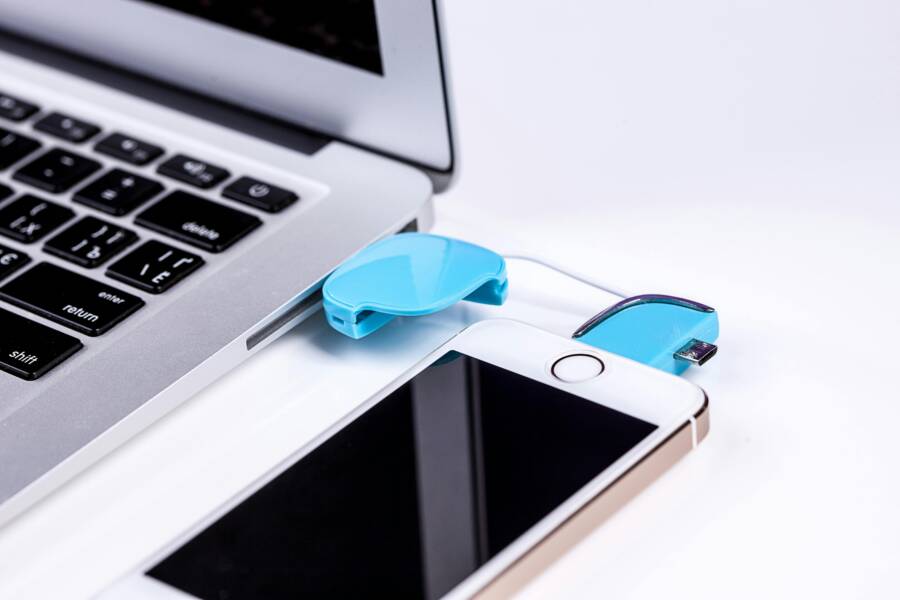
Tired of plugging in your phone and watching it only charge while you can’t move photos or documents? This problem shows up for Android and iPhone users alike, and it can stall everyday tasks from sharing vacation snaps to backing up files. In this guide, you’ll learn practical, step by step fixes that work for most smartphones.
A lot of the issue comes down to simple settings or faulty cables. Sometimes a phone defaults to charging only mode, other times a data cable or USB port won’t cooperate with your computer. We’ll cover quick checks you can do first, like selecting the right USB mode and trying a different cable or port.
If the basics fail, you’ll find clear actions to take next. We’ll walk you through adjusting cable type, updating drivers, and enabling the proper transfer mode on Android devices. For iPhone users, we’ll explain why direct file transfer isn’t always possible with a PC and what reliable alternatives exist, including wireless transfers and official syncing options.
This guide aims to save you time and frustration. You’ll learn how to diagnose the root cause, apply fixes that last, and keep your smartphone ready for fast file sharing. Most problems fix in minutes, with steps you can follow without special tools. By the end, you’ll know what to try first and what to skip, so you can get back to organizing your files quickly.
Common Causes Behind the Charging-Only Problem
If your phone only charges when plugged in and refuses to transfer files, you’re not alone. This section outlines the two most frequent culprits and how to spot them quickly. Start with the simple checks, then move deeper if needed. A lot of the fix comes down to the right USB mode, a healthy cable, and clean ports. Think of your smartphone as a relay point between power and data; when one link fails, data stops flowing. The good news is most problems are fixable with a few conservative steps.
Wrong USB Connection Mode
Most phones default to charging mode when you connect them to a computer. Data transfer needs a different setting, and if it stays in charging only, the computer can’t see the phone’s files. On Android, you’ll typically pull down the notification shade after you connect the cable and choose “File Transfer” or “MTP.” On iPhone, you may see prompts to trust the computer or enable photos and files access. This simple switch fixes a large share of cases. If you still don’t see file transfer options, try reconnecting or restarting the phone. For more context, see this guide on USB mode behavior. https://www.microsoft.com/en-us/answers/questions/4313225/cannot-transfer-phone-files-but-can-charge-with-us
Cable or Port Issues
The cable is often the quiet culprit. Some cables only charge and do not support data transfer. If you’ve got a mixed bag of cables, try a known data-capable one. Ports matter too; a dusty or bent port can block data pins. Clean the port gently with a soft brush, avoiding anything that could slip inside. Test the connection with a different port on the computer, or try a different computer altogether. If the problem persists, swap the cable again and inspect both ends for wear. For a deeper look at common cable and port failures, see this resource. https://www.techbloat.com/smartphone-charging-only-when-connected-via-usb-to-pc.html
Quick Fixes to Try Right Now
When your phone only charges but won’t transfer files, a few fast checks can save you a lot of head-scratching. These fixes target the most common culprits: USB mode, cables, and ports. The goal is to get a stable data path without jumping to more advanced troubleshooting. Use these steps as a first line of defense before you dive into deeper settings or driver updates. They work for most Android devices and iPhones, often in minutes.
Restart and Reconnect Everything
If the connection acts flaky, a simple restart can clear hidden glitches. Here’s a quick workflow you can follow:
- Power off the phone and the PC or Mac.
- Wait about 30 seconds, then turn both devices back on.
- Reconnect the USB cable while the phone is unlocked. If prompted, allow data access on the phone.
- Test a file transfer again to see if the device shows up in File Explorer or Finder.
This process resets the USB subsystem on both devices and can fix stubborn miscommunications. If you still see charging-only behavior, a deeper look at USB mode may be necessary. For a detailed, step-by-step explanation of USB mode behavior and how to fix it, see this guide. https://www.microsoft.com/en-us/answers/questions/4313225/cannot-transfer-phone-files-but-can-charge-with-us
Switch to File Transfer Mode
Many times the issue is simply that the device is still in charging mode. Switching to a dedicated file transfer mode lets the computer access the device’s storage properly. Try this streamlined approach:
- On Android, swipe down the notification shade after connecting, then tap the USB notification and select File Transfer or MTP.
- On iPhone, you may see prompts to trust the computer or to enable access to photos and files. Accept what appears to enable transfer.
- If you don’t see transfer options, unplug and reconnect, then restart the phone and computer, and try again.
If the problem persists, a quick check of the USB settings can help. An in-depth overview of Android USB settings and how to configure them for reliable file transfers is available here. https://www.macdroid.app/article/fix-android-file-transfer/
Android-Specific Solutions That Work
When your Android phone charges but won’t transfer files, a few targeted tweaks can restore data transfer without a full reset. This section focuses on practical, device-friendly steps that address common culprits like USB mode misconfigurations, driver hiccups, and settings that lock data access. Think of it as quick calibration for your smartphone and computer setup. Follow these steps in order, and you’ll usually get back to moving photos, documents, and apps in minutes.
Turn On USB Debugging
USB debugging unlocks deeper communication between your phone and a computer. It’s a trusted bridge that data transfer relies on, especially when automatic prompts get overlooked.
- Open Settings on your Android device.
- Tap About phone and locate the Build number. Tap it seven times to enable Developer options.
- Go back to Settings, open Developer options, and enable USB debugging.
- Connect your phone to your computer. If a prompt appears on the phone, choose Allow to authorize the device for debugging.
- On the computer, confirm any trust prompts if asked. Keep the phone unlocked during the initial connection so the system can establish the data path.
- After you complete the transfer test, you can disable USB debugging to restore normal security later.
If you run into persistent prompts or the computer still recognizes only charging, ensure the USB mode is set to a file transfer option. Some devices default to charging, even after enabling debugging. For deeper background on USB modes and troubleshooting steps, see the Microsoft guide on the common charging-only behavior when a device is plugged in. https://www.microsoft.com/en-us/answers/questions/4313225/cannot-transfer-phone-files-but-can-charge-with-us
In many cases, a quick retry with USB debugging enabled resolves the issue. If the problem continues, a second look at the USB configuration can help. A practical explainer on Android USB defaults and how to switch to MTP is available from Stack Overflow. https://stackoverflow.com/questions/32343380/how-to-set-android-m-default-usb-config-to-mtp-rather-than-charging-only
Update Software and Drivers
Outdated software on your phone or computer is a frequent source of transfer issues. A fresh round of updates can fix bugs that block the data path and improve compatibility with USB devices.
- On your Android device, check for a system update. Go to Settings > System > Software update (wording may vary by model). Install any available updates.
- Update USB drivers on your PC or Mac. On Windows, open Device Manager, locate your phone under Portable devices, right-click and choose Update driver. On a Mac, ensure you’re running the latest macOS version, and install any required updates for USB support.
- If you use a Mac, consider updating the Android File Transfer app or any vendor-specific tools that your phone requires. Some phones rely on companion software to expose internal storage correctly.
- After updating, restart both devices and reconnect. Test by moving a small file to confirm the data path is active.
If you’re still seeing charging-only behavior after updates, revisit the USB mode as described in the prior subsection. For a practical guide to fixing Android USB transfer on Mac, check a dedicated resource that explains common pitfalls and workarounds. https://www.avica.com/blog/android-file-transfer-on-mac-not-working/
For Android USB behavior and default configurations, another helpful reference details how to set the default USB config to MTP rather than charging only. This can save you time when reconnecting with a computer. https://stackoverflow.com/questions/32343380/how-to-set-android-m-default-usb-config-to-mtp-rather-than-charging-only
Pulling all of this together, regular software maintenance is a simple way to prevent future file transfer roadblocks. Schedule a quarterly check for updates on both devices, and keep a small list of go-to cables that consistently support data transfer. Your smartphone will thank you with smoother syncing and fewer headaches.
iPhone Transfer Tips and Alternatives
When you need to move files quickly between devices, wireless options often beat USB in both speed and convenience. This section covers practical, beginner-friendly methods that work for most users. You’ll learn how to transfer data with the Move to iOS app and how cloud backups can keep your photos, videos, and documents accessible across devices. If you’re dealing with frequent switches between Android and iPhone, these approaches minimize downtime and data loss. A modern smartphone should feel like a bridge, not a bottleneck, and wireless transfers help you keep momentum.
Use Move to iOS or Cloud Backups
Setting up a clean transfer is easiest when you start with the right tools. For Android to iPhone moves, the Move to iOS app guides you through a straightforward transfer, and you can run the process either over Wi Fi or via a USB cable for a faster handoff when needed. Start by installing Move to iOS on your Android device, then follow the on-screen prompts on your new iPhone to complete the switch. For more details, see Apple’s guide to moving from Android to iPhone. https://support.apple.com/en-us/118670
If you prefer wireless backups, Google Photos offers a simple path to preserve media on your terms. Enable back up on your Android or iPhone, and you’ll have access to your photos and videos from any device signed in to your Google account. It’s a solid alternative when iCloud storage feels tight or you want cross platform access. Learn how Google Photos backs up your media here. https://support.google.com/photos/answer/6193313?hl=en&co=GENIE.Platform%3DiOS
Using cloud backups also helps you set up new devices quickly. Apple users can rely on iCloud backups to restore apps and settings, while Google One and Google Photos streamline cross platform access. If you want to explore more about backup methods, Apple’s and Google’s official guides provide a solid foundation. https://support.apple.com/en-us/108344
Advanced Troubleshooting and Prevention
Even when basic fixes restore charging, stubborn file transfer problems can creep back. This section dives into deeper, practical techniques to diagnose and prevent USB connection issues for both Android and iPhone. Think of it as fine tuning your smartphone’s data path so photos, documents, and media move smoothly every time.

Photo by Pixabay
Understand USB Mode Behavior and When to Force a Change
Data transfer relies on the device being in a compatible mode. If your smartphone only charges, the computer won’t list it as a drive. For Android, the fix is often as simple as switching to File Transfer (MTP) after connecting. iPhones generally prompt you to Trust the computer or grant access to photos and files.
- Check the notification shade or Finder/Explorer view for a USB status prompt and select File Transfer or MTP.
- If no prompt appears, unplug, replug, and restart both devices before trying again.
- On Windows, you can confirm or change the USB mode via Device Manager under Portable Devices.
Why this matters: a lingering charging-only state blocks the data path, and any delay here stops file movement in its tracks.
For a deeper dive into USB mode behavior and troubleshooting, see Microsoft’s guide on charging-only behavior and data transfer issues. https://www.microsoft.com/en-us/answers/questions/4313225/cannot-transfer-phone-files-but-can-charge-with-us
Tackle Cable and Port Reliability Like a Pro
Cables and ports wear out quietly. A data-capable cable can fail or be mixed in with charge-only cords. Dust, lint, or a bent pin can also disrupt data transfer.
- Test with at least two different data cables known to support data transfer.
- Try multiple USB ports on your computer, preferably both front and back on desktops, or switch between USB-A and USB-C if your devices support it.
- Inspect both ends of the cable for wear. Replace any frayed or loose connectors.
If you want a safer, more guided look at common cable and port failures, this resource offers practical fixes and considerations. https://www.techbloat.com/smartphone-charging-only-when-connected-via-usb-to-pc.html
Refresh Drivers, Firmwares, and Companion Software
Outdated drivers and firmware can prevent your device from being recognized, even when hardware looks fine. A quick refresh often does the job.
- On Windows, open Device Manager, update the phone under Portable Devices, and reboot after the update.
- On Mac, keep macOS current and install any USB-related updates. If your phone relies on companion software (like Android File Transfer), ensure that app is updated.
- Reinstall USB drivers if problems persist. A full reinstall can clear corrupt settings that block data transfer.
For Android users on Mac, a common friction point is drivers and helper apps. A concise guide on Android USB transfer on Mac that covers these pitfalls is helpful. https://www.avica.com/blog/android-file-transfer-on-mac-not-working/
Reset USB Settings to Default (If Your Device Has Them)
Some phones keep a preferred USB mode even after you reconnect. Resetting the USB configuration can clear stubborn misconfigurations.
- Android: Developer options > USB configuration > set to MTP or File Transfer, then reconnect.
- iPhone: Trust prompts can occasionally default back to a blocked state after updates. Reconnect and re-authorize when prompted.
A practical resource explains how to set Android’s default USB config to MTP rather than charging only. https://stackoverflow.com/questions/32343380/how-to-set-android-m-default-usb-config-to-mtp-rather-than-charging-only
Validate Across Platforms: Cross-Device Consistency
If you have access to another computer, test your device there. A mismatch between the original PC and the phone can reveal whether the problem is device, cable, or computer-specific.
- If the other computer recognizes the device, focus on drivers and USB settings on the first machine.
- If the issue persists across computers, the problem more likely lies with the cable, port, or phone settings.
- If neither PC nor Mac accepts file transfer, consider a factory reset as a last resort after backing up data.
For Android-specific considerations on Mac and alternative methods, check this guide and related tips. https://www.mobikin.com/android-backup/fix-android-file-transfer-not-working-mac.html
Proactive Prevention: Create a Reliable Transfer Routine
Preventive steps save time later. Establish a simple routine that keeps your transfer path clean and predictable.
- Keep a small set of reliable data cables that you’ve tested with your devices.
- Schedule quarterly checks for system and app updates on both devices.
- Maintain a short list of trusted transfer methods you use most, whether USB, wireless, or cloud-based.
Heeding these practices reduces the chance of sudden charging-only behavior returning.
iPhone-Specific: Reliable Wireless Alternatives
When USB transfer is unreliable for iPhone, wireless options often offer a smoother workflow. Using official tools and trusted cloud services can keep you moving without hunting for a cable.
- Use Move to iOS for Android to iPhone transfers when you set up a new device. It walks you through a straightforward handoff and works over WiFi or a direct USB link for speed. Apple’s guide to moving from Android to iPhone provides clear steps. https://support.apple.com/en-us/118670
- Cloud backups keep media accessible across devices. Google Photos backs up media from both Android and iPhone, offering cross-platform access. https://support.google.com/photos/answer/6193313?hl=en&co=GENIE.Platform%3DiOS
- iCloud backups simplify restoring apps and settings on new iPhones. Learn more from Apple’s official guidance. https://support.apple.com/en-us/108344
For more on cloud and cross-platform backup options, Apple and Google provide solid, user-friendly guides you can rely on.
Quick Troubleshooting Checklist
- Check USB mode and switch to File Transfer or MTP.
- Try a different data cable and USB port.
- Restart both devices and reconnect with the phone unlocked.
- Update OS, drivers, and any companion transfer apps.
- If needed, enable USB debugging on Android devices.
- Test data transfer with another computer to isolate the issue.
- Consider wireless or cloud-based transfer as a fallback.
If you want a deeper primer on Android USB defaults and how to set them for reliable transfer, the Stack Overflow guide is a useful reference. https://stackoverflow.com/questions/32343380/how-to-set-android-m-default-usb-config-to-mtp-rather-than-charging-only
By following these advanced checks, you can prevent future roadblocks and keep file transfers moving quickly. A little preventive care today means fewer headaches tomorrow for your smartphone workflow.
Conclusion
Start with the mode switch and the cable checks. When a phone only charges, flipping to File Transfer or MTP often restores the data path, and a data capable cable is essential. These two steps fix the majority of charging-only cases right away.
If the problem persists, swap cables and ports, then restart both devices. A quick reboot clears hidden glitches and reestablishes the connection. This approach saves time and reduces confusion when moving files between your smartphone and computer.
Keeping software up to date is a close second. Updates fix bugs that block data transfer and improve compatibility with USB devices. After updating, test a small transfer to confirm the path is open again.
Beyond USB basics, consider alternative transfers for reliability. Wireless options and cloud backups offer dependable ways to move and access files across devices. A stable transfer routine makes daily tasks smoother and reduce frustration.
If you’ve found a fix that works, share your result in the comments. Real-world tips help others skip dead ends and reach a stress free workflow faster. Reliable file transfer matters because it keeps your smartphone workflow moving, whether you’re backing up photos, sharing documents, or swapping media on the go.
A little routine today yields fewer headaches tomorrow. Your smartphone becomes a trusted tool rather than a bottleneck, supporting a calmer, more productive tech life.