
You’re scrolling through your contacts, ready to share that perfect moment on Snapchat, but your snaps just won’t send. It’s frustrating when Snapchat not sending snaps hits right in the middle of a streak or a fun chat. This issue pops up on many smartphones and can ruin your day.
Don’t worry; it’s often a quick fix. Common culprits include weak internet connections that block uploads, app settings that glitch out, or device restrictions like low storage or background limits. Your smartphone might also have temporary software hiccups that pause Snapchat’s sending process.
The good news? You can fix Snapchat sending issues with simple smartphone troubleshooting steps. This post walks you through a straightforward checklist, starting with easy checks and moving to app resets if needed. No tech skills required; just follow along.
We’ll cover basics like verifying your Wi-Fi or data signal, clearing Snapchat’s cache, and tweaking phone permissions. You’ll learn why cannot send snaps happens and how to stop it from recurring. By the end, your snaps will fly out without a hitch.
Stick with these proven steps, and get back to snapping in minutes. Let’s dive into the fixes now.
Check Snap Settings and Account Status
When Snapchat won’t send snaps, the issue isn’t always the network. Sometimes the problem lives in the app or your account settings. This section walks you through checking your Snap settings and verifying account status so you can rule out these potential blockers quickly. Follow the steps, then test by sending a quick snap to confirm the issue is resolved.
Verify Internet Connection and Data Usage
A stable connection is essential for sending snaps. If your signal wobbles, uploads can stall or fail. Start with a quick test of your connection and switch networks if needed.
- Test your connection by loading a webpage and streaming a short video. If pages load slowly or the video buffers, your network might be flaky.
- Switch between WiFi and mobile data to see if snaps start sending reliably on one network but not the other. If one network consistently underperforms, you’ve found a potential culprit.
- Check for VPN usage. A VPN can reroute traffic in ways that interfere with Snapchat sending. Temporarily disable the VPN to see if snaps go through.
- If you’re on a congested hotspot or a shared network, consider turning off background apps that may be hogging bandwidth.
Tip: If you suspect a broader network issue, a quick speed check can help. Use a reputable speed test to confirm you’re getting stable upload speeds before retrying.
Images can help illustrate this step.

Photo by Thought Catalog
External resources:
- Be sure to gauge if a wider Snapchat outage is possible. For example, this guide covers common reasons snaps fail to send and practical fixes. https://beebom.com/snapchat-not-sending-snaps-fix-troubleshoot/
- If you’re testing on iPhone or Android and still see issues, a trusted how-to on WiFi and data usage can help. https://guidingtech.com/top-9-ways-to-fix-snapchat-not-working-on-wi-fi/
Review Data Saver and Battery Optimizations
Data saver modes and aggressive battery optimization can quietly block apps from sending snaps in the background. The fix is simple but important: whitelist Snapchat or disable these features temporarily while you troubleshoot.
- Android: Open Settings > Network & Internet > Data usage. Ensure Snapchat isn’t restricted by Data Saver. If it is, disable Data Saver or add Snapchat to the whitelist/Apps that are Unrestricted Data Access.
- iPhone: Go to Settings > Battery > Low Power Mode. If on, test Snapchat sending with Low Power Mode off. Also check Settings > Snapchat to ensure Background App Refresh is enabled and not restricted by system settings.
- After applying changes, perform a quick test: send a snap to a known contact, then retry after a few minutes to confirm snaps are delivering reliably.
If you need a quick reference, this guide explains how to reduce data usage and still keep snaps moving when you’re on limited data. https://www.downloadsource.net/how-to-reduce-snapchat-mobile-data-usage/n/10152/
Images can help illustrate this step as well.
(If an image is used here, credit as appropriate.)
External resources:
- For Android users, a concise walkthrough on turning off or whitelisting Data Saver can help. https://help.snapchat.com/hc/en-us/articles/7012423418132-How-to-Turn-On-Data-Saver-Mode-on-Snapchat
- If you’re on iPhone and want to ensure background activity stays active, this data-saving guide is useful. https://pixelprivacy.com/vpn/unblock-snapchat/
Inspect Recipient Status and Privacy Rules
Even with your app in good shape, a recipient’s settings or blocks can stop snaps from delivering. It’s important to confirm that the issue isn’t on the receiving end.
- Check the recipient’s privacy status. If you’ve been blocked or if their account has privacy restrictions, snaps may not reach them. In Snapchat, only friends you’ve added can contact you based on default settings; this can vary if recipients have adjusted privacy controls.
- Confirm you aren’t restricted by any privacy rules. If you’ve recently changed your own account privacy, double-check that you’re not inadvertently limiting who can receive or view your snaps.
- Test with a known good contact. If snaps send correctly to one person but not another, the issue likely lies with that recipient’s settings, not your device.
- If needed, review Snapchat’s official privacy guidance to ensure your settings align with how you want your account to function. https://help.snapchat.com/hc/en-us/articles/7012343074580-How-do-I-change-my-privacy-settings-on-Snapchat
Images can help illustrate this step too.
(Photo recommendations can be added here if a relevant image is available.)
External resources:
- A comprehensive guide on fixing Snapchat not sending snaps, including privacy considerations, can be helpful. https://www.imyfone.com/data-recovery/how-to-fix-snapchat-not-sending-snaps/
- Official Snapchat privacy settings overview to review who can contact you. https://help.snapchat.com/hc/en-us/articles/7012345590548-How-to-Turn-On-Data-Saver-Mode-on-Snapchat
Troubleshoot Snapchat App on Your Phone
When Snapchat won’t send snaps from your phone, it can feel like a roadblock to staying connected. This section walks you through practical, step-by-step checks that cover updates, cache and reinstall, and app permissions. Each sub-section is designed to be quick to follow while staying thorough enough to resolve the issue. As you work through these steps, test by sending a quick snap to confirm progress.
Update Snapchat to the Latest Version
Keeping Snapchat updated matters for stability and bug fixes. App updates fix known sending issues and improve compatibility with your phone’s system. Here’s how to check for updates and turn on automatic updates on both major platforms.
- iPhone
- Open the App Store.
- Tap your profile image in the upper right corner.
- Scroll to see pending updates and pull to refresh. If Snapchat appears, tap Update.
- To enable automatic updates, go to Settings > App Store > App Updates and toggle on “My Apps” (Automatic Updates). This ensures you get the newest version without manual checks.
- Android
- Open Google Play Store.
- Tap the three-line menu (≡) and go to My apps & games.
- Under Updates, find Snapchat and tap Update if available.
- To enable automatic updates, go to the Play Store > Settings > Network preferences > Auto-update apps and choose “Over any network” or “Over Wi-Fi only” for a smoother update process.
Why this helps: updates fix bugs that can block sending, improve reliability, and sometimes add protocol tweaks that speed up the upload process. If you’ve been avoiding updates, this is often the simplest path to a quick fix.
External resources:
- If you’re on Android and hit installation or update hurdles, this Snapchat Help article walks through common issues. https://help.snapchat.com/hc/en-us/articles/7012313396244-I-m-having-issues-installing-or-updating-Snapchat-on-my-device
- General Snapchat app updates hub for quick reference. https://www.snapchat.com/topic/app-updates
Images can help illustrate this step.
(Consider including an image showing the App Store or Play Store update screen.)
Clear Cache and Reinstall the App
A clogged cache and a fresh install can revive Snapchat performance. Clear the cache on Android, then replicate the same idea on iOS when possible. If needed, a clean reinstall ensures you’re starting from a clean slate. Before reinstalling, back up or save essential data such as Memories or saved Chats.
- Android
- Open Settings > Apps > Snapchat > Storage & cache.
- Tap Clear Cache (and Clear Storage if you’re okay with re-downloading assets; this will remove locally saved data).
- Reopen Snapchat and log back in if prompted. Test by sending a snap.
- iOS
- Clearing cache on iOS can be limited. Instead, offload the app or delete and reinstall:
- Offload: Settings > General > iPhone Storage > Snapchat > Offload App.
- Reinstall: Go to the App Store and reinstall Snapchat.
- After reinstalling, sign back in and perform a test snap.
- Clearing cache on iOS can be limited. Instead, offload the app or delete and reinstall:
Notes on data backups: Back up Memories to Snapchat’s cloud or export important Snap messages if needed before reinstalling. A reinstall can resolve stubborn sending issues by clearing temporary data that may be stuck in the app.
Test after reinstall: Try sending a snap to a contact you know is reachable. If sending works after reinstall, the problem was likely tied to cached data or a broken app state.
External resources:
- A step-by-step guide to clearing Snapchat cache on Android and iOS. https://slashgear.com/1273368/how-to-clear-cache-snapchat
- A user-focused Snapchat cache clearing guide for quick reference. https://www.guidingtech.com/top-ways-to-fix-snapchat-stuck-on-sending-snaps/
Images can help illustrate this step as well.
(If you add an image, credit appropriately.)
Review App Permissions
Snapchat needs several permissions to function correctly. If any are missing or blocked, sending snaps can fail. The essential permissions include Camera, Microphone, Storage, Contacts, and Background App Refresh. Here’s how to grant or adjust these on iOS and Android.
- Camera and Microphone
- iOS: Settings > Snapchat > enable Camera and Microphone.
- Android: Settings > Apps > Snapchat > Permissions > toggle Camera and Microphone on.
- Storage
- iOS: Snapchat generally uses Photos Authority; ensure Snapchat has access to Photos (Settings > Snapchat > Photos > Read and Write).
- Android: Settings > Apps > Snapchat > Permissions > Storage (or Files and Media) enabled.
- Contacts
- iOS: Settings > Snapchat > Contacts > enable Access.
- Android: Settings > Apps > Snapchat > Permissions > Contacts enabled.
- Background App Refresh (iOS) and Background data (Android)
- iOS: Settings > Snapchat > enable Background App Refresh.
- Android: Settings > Apps > Snapchat > Data usage > allow background data usage.
- How to verify permissions
- On iOS, open Settings and locate Snapchat to review each permission.
- On Android, use Settings > Apps > Snapchat > Permissions to verify each toggle.
Why permissions matter: Without access to the camera or storage, Snapchat can stall on sending, since the app cannot capture or save the media you want to share. Ensuring these settings are enabled clears a common stumbling block.
External resources:
- How to change Snapchat permissions on iOS. https://help.snapchat.com/hc/en-us/articles/7012349781652-How-do-I-change-my-Snapchat-permissions-on-iOS
- How to change Snapchat permissions on Android. https://help.snapchat.com/hc/en-us/articles/7012335163924-How-do-I-change-my-Snapchat-permissions-on-Android
- A quick guide on granting camera access for Snapchat. https://medium.com/@microteche.com/how-to-allow-camera-access-on-snapchat-585afc8cde05
Images can help illustrate permission steps.
(Include an image showing the permissions screen if available.)
External resources:
- Troubleshooting tips from Snapchat Help Center covering cache, updates, and permissions. https://help.snapchat.com/hc/en-us/articles/7012423418132-My-Snaps-wont-send-or-load
Notes on platform differences: iOS tends to centralize permissions in Settings, while Android often presents per-app toggles in the Apps menu. If you run into permission gaps, re-check these areas after making changes.
What to expect next: After you complete these steps, perform a quick snap to verify sending is functioning again. If issues persist, the next section covers broader checks, including network behavior and account status, to ensure you’ve covered all angles.
Phone and OS Readiness for Snaps
Your snaps can only send as fast as your phone and its operating system allow. If the device or OS blocks background activity, drains memory, or misreads time, Snapchat can stall at the upload stage. This section covers four practical areas to ensure your smartphone is primed for smooth snapping: freeing storage, managing battery and data, setting the correct date and time, and a quick restart test. Implement these steps and you’ll reduce the chance of failed sends.
Free Up Storage Space
Low storage is a common culprit behind “cannot send snaps.” When memory is tight, the app may struggle to process new media or finish uploads. Start with a quick storage check and then prune as needed.
- Check total storage: On iPhone, go to Settings > General > iPhone Storage to see used vs. available space. On Android, Settings > Storage shows you what’s taking up space.
- Delete old snaps and cache: In Snapchat, Clear Cache frees up space without removing Memories or chats. If you’re on Android, you can also delete app data selectively in Settings > Apps > Snapchat > Storage.
- Remove unused apps: Uninstall apps you rarely use. These apps can run background tasks that steal memory and CPU cycles.
- Move media to the cloud: Transfer photos and videos to iCloud, Google Photos, or another cloud service. This not only frees space but also guards memories if something happens to your device.
- Recheck after cleanup: Open Snapchat and attempt a test snap. If sending resumes normally, you’ve likely cleared the bottleneck.
Tip: If you’re unsure how much space you have left, try sending a small snap first and then a larger one. When the first succeeds, you know space was the blocker.
Image suggestion:
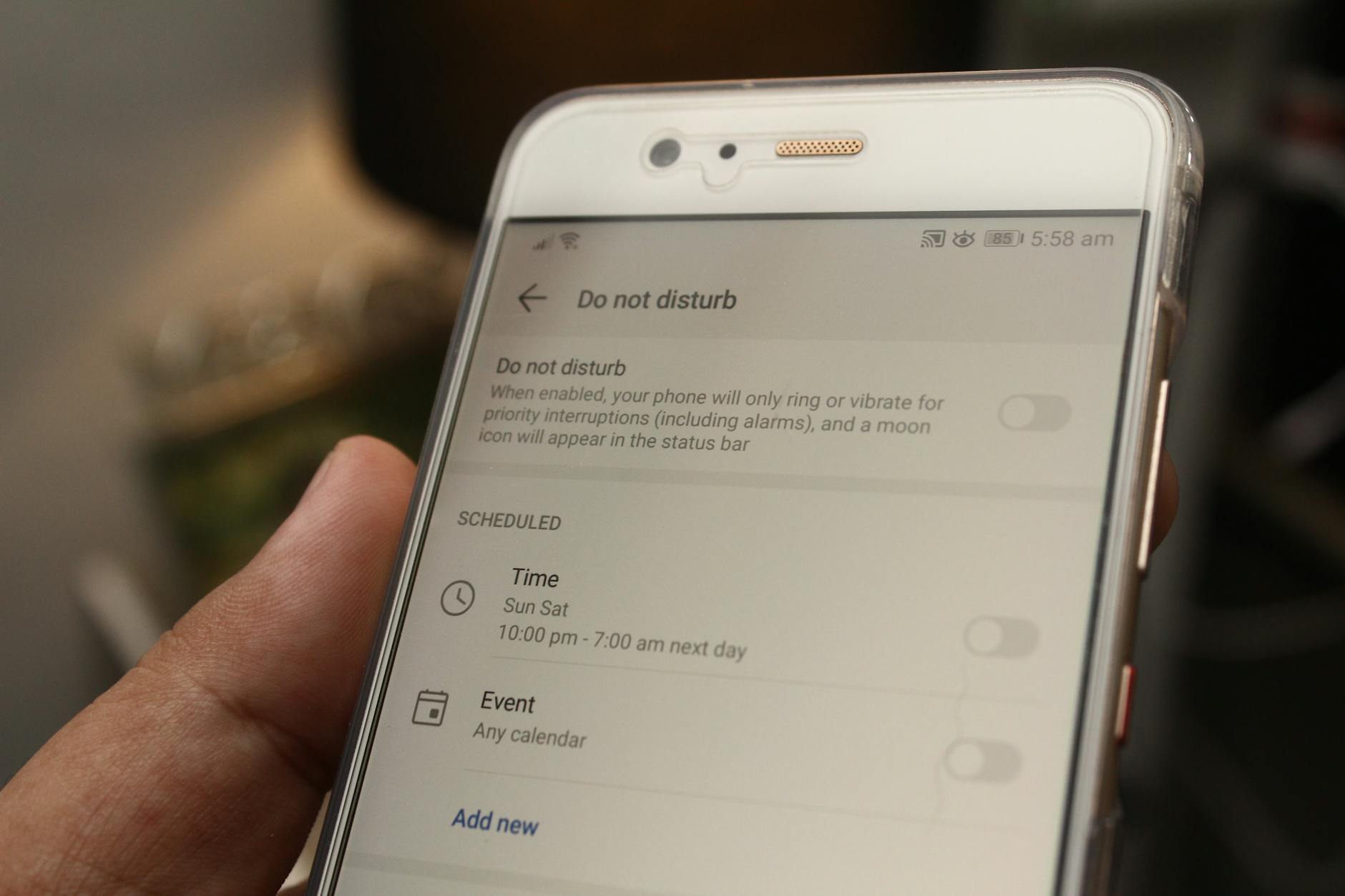 Photo by Daniel Moises Magulado
External resources:
- How to free up storage on iPhone and Android without losing memories. https://help.snapchat.com/hc/en-us/articles/7012423418132-My-Snaps-wont-send-or-load
- General guidance on reducing storage use while keeping snaps moving. https://www.downloadsource.net/how-to-reduce-snapchat-mobile-data-usage/n/10152/
Check Battery Saver and Background Data
Battery saver modes and aggressive background restrictions can quietly stop Snapchat from sending snaps. It pays to confirm these settings are not throttling your app.
- Android:
- Data Saver: Settings > Network & Internet > Data usage. Make sure Snapchat isn’t restricted. If needed, add Snapchat to the whitelist.
- Battery optimization: Settings > Apps > Snapchat > Battery > Optimize or Not Optimize. Turn off optimization while troubleshooting.
- iPhone:
- Low Power Mode: Settings > Battery > Low Power Mode. Turn it off while testing.
- Background App Refresh: Settings > Snapchat > Background App Refresh. Ensure it’s enabled.
- Test after changes: Send a snap to a known contact, wait a moment, then try again. If it goes through, you’re good. If not, continue with the next steps.
External resources:
- How to turn off Data Saver mode on Snapchat for Android. https://help.snapchat.com/hc/en-us/articles/7012423418132-How-to-Turn-On-Data-Saver-Mode-on-Snapchat
- iPhone background activity and data access guidance. https://pixelprivacy.com/vpn/unblock-snapchat/
Correct Date and Time Settings
Wrong date or time can interfere with how Snapchat talks to its servers. A mismatch can block sign-ins, syncing, and sending.
- Set time automatically:
- iPhone: Settings > General > Date & Time > Set Automatically.
- Android: Settings > System > Date & Time > Automatic date & time.
- Verify time zone: Ensure the time zone matches your current location. If you travel, enable automatic time zone updates where available.
- Quick verification test: After adjusting, open a new snap and observe if it sends promptly. If there’s still a delay, move to the final check.
Why this matters: Snapchat relies on synchronized time stamps to manage uploads and delivery. A mismatch can stall the process or cause failures in server syncing.
External resources:
- How to set date and time automatically on iPhone. https://support.apple.com/guide/iphone-settings/iph6a1a0b3a/ios
- How to adjust date and time on Android. https://support.google.com/android/answer/9238181
Restart Your Phone and Test
A quick restart clears temporary glitches and resets background services that might have momentarily stalled Snapchat.
- Restart steps:
- iPhone: Hold the side button and volume button, then slide to power off. Wait 15 seconds, then turn it back on.
- Android: Hold the power button, select Restart. If needed, pick Power off and boot again after a minute.
- Quick test:
- After the device boots up, reopen Snapchat.
- Try sending a snap to a trusted contact. If it goes through, you’ve resolved the issue.
- What to do if it doesn’t help: If a restart doesn’t fix sending, revisit the previous sections to ensure storage, data usage, and permissions aren’t the bottleneck.
External resources:
- Basic smartphone restart guidance for iOS and Android. (General device restart instructions)
- Snapchat help center for broader troubleshooting steps. https://help.snapchat.com/hc/en-us/articles/7012423418132-My-Snaps-wont-send-or-load
Images can help readers visualize these steps:
- A photo of a smartphone on storage settings for quick reference. Photo credit as appropriate if used.
Advanced Fixes and Verification
If you’ve worked through the basics and Snapchat still won’t send snaps, it’s time to verify active sessions, server status, and network behavior that can stall uploads. This section covers four practical checks that often resolve stubborn sending problems. Follow the steps, then test by sending a quick snap to confirm progress. A calm, methodical approach usually gets you back to snapping fast.
Sign Out and Re-Login
Signing out of Snapchat on all devices and signing back in refreshes session tokens. If a session got stuck or token authentication hiccups occurred, this simple refresh can unblock sending.
- On the Snapchat app, go to your profile, open Settings, and find the option to sign out. Then sign back in with your account credentials.
- If you’re logged in on other devices, sign out there as well. This includes any web sessions or alternate apps that use your Snapchat account.
- After re-login, send a test snap to a trusted contact to confirm the issue is resolved.
Why this helps: tokens expire or become momentarily invalid. A fresh sign-in re-establishes the connection to Snapchat servers and clears any stale session data that might block uploads. If you want to manage devices remotely, Snapchat provides a session management center to view and sign out of devices you don’t recognize. Learn more about managing connected devices on Snapchat here: https://help.snapchat.com/hc/en-us/articles/23515601788948-How-do-I-manage-the-devices-where-I-m-currently-signed-into-my-Snapchat-account
Tip: If you use Snapchat on multiple devices, repeat the sign-out procedure on each one. A clean slate across all apps prevents one lingering session from blocking your snaps.
External perspective: if you’re curious about additional methods, you can explore how others sign out of Snapchat on multiple devices at once here: https://www.gadgetbridge.com/how-to/2-ways-to-sign-out-of-your-snapchat-account-on-multiple-devices-at-once/
Check Snapchat Server Status
Sometimes the problem isn’t on your end at all. Snapchat may be experiencing an outage or degraded service that affects sending. Start by checking official and reputable status updates.
- Official status: check Snapchat’s Help Center updates and the company’s social channels for outages.
- Independent status pages: use reliable outage trackers to see if Snapchat is reporting widespread issues.
- Quick test: if a known outage is active, waiting for a fix is often the only option, but you can still confirm you’re not facing a local network issue.
Where to look for status updates:
- Downdetector: Snapchat status page and user reports https://downdetector.com/status/snapchat/
- IsDown: current Snapchat status and problems https://isdown.app/status/snapchat
- Down for Everyone or Just Me: live Snapchat status checker https://downforeveryoneorjustme.com/snapchat
- StatusGator: Snapchat status feed https://statusgator.com/services/snapchat
If the status shows an outage, you’ll want to monitor updates and retry when the service reports stable operation. If the status looks normal but you still have issues, move to the next checks to rule out local causes.
Try on a Different Network
Network routing paths can influence how quickly and reliably Snapchat uploads your snaps. Switching networks helps identify whether the issue is network related.
- If you’re on WiFi, test with cellular data. Snaps may upload more reliably on one network than the other.
- If you’re on cellular, try a strong WiFi connection. Some networks in crowded areas throttle or block certain traffic during peak times.
- Consider temporary changes that can improve routes, such as turning off VPNs, disconnecting other heavy users on the same network, or moving closer to the router.
Pro tip: in crowded places like events or campuses, network congestion can cause uploads to stall. A quick network switch often resolves the bottleneck without touching the app itself.
If you’d like a quick reference about network related fixes, a practical guide on Snapchat not sending snaps across networks can be helpful: https://help.snapchat.com/hc/en-us/articles/7012423418132-My-Snaps-wont-send-or-load
Contact Snapchat Support
If the problem persists after trying the above advanced checks, reaching out to Snapchat Support is the right next step. Provide specific information so the team can help faster.
What to gather before you contact support:
- Device model and OS version (for example iPhone 13 with iOS 18 or Galaxy S23 with Android 14)
- Snapchat app version you’re using
- A concise description of the steps to reproduce the issue, including what you were doing when the problem appeared
- Screenshots or screen recordings showing the failure, if possible
- Any recent changes to your account or device that could be related (new apps, settings changes, etc.)
How to reach support:
- Use the Snapchat Help Center to submit a support request. Start here: https://help.snapchat.com/hc/en-us/articles/38905681894676-How-do-I-contact-Snapchat-Support
- If you prefer to start with a direct support form, you can access their request portal here: https://help.snapchat.com/hc/en-us/requests/new
What to expect after you submit:
- Acknowledge receipt from the support team and an estimated response time
- They may ask for logs or additional data, so be prepared to share the information you collected
- If the issue is device- or account-specific, they’ll guide you through targeted steps
Speeding up the process:
- Include a few recent sample screenshots showing the error
- Attach a short video or screen recording if you can reproduce the issue
- Keep your description concise and focused on what’s happening and what you’ve tried
By following these steps, you give Snapchat Support a clear picture of the problem and a faster path to a solution. If you’re unsure what to include, use the checklist above as a template to prepare your report.
External resources:
- Snapchat Help Center overview for contacting support and filing a bug report: https://help.snapchat.com/hc/en-us/articles/38905681894676-How-do-I-contact-Snapchat-Support
- Direct support request portal: https://help.snapchat.com/hc/en-us/requests/new
Images and visuals can help readers visualize the process of signing out, checking status, and contacting support. If you add visuals, credit the photographer or source as appropriate.
Preventive Tips to Avoid Future Snap Issues
Keep your Snapchat sending smoothly by building habits that prevent problems before they start. This section covers practical, proactive steps you can take to reduce hiccups, improve reliability, and keep your snaps moving quickly. Think of these as guardrails you can check monthly to stay ahead of issues.
Keep Snapchat Updated and Review Permissions
Regular updates fix bugs that can block sending and improve compatibility with your device. A quick monthly check helps catch issues early, before they derail your snapping.
- Check for updates on your platform and enable automatic updates if you trust the process. On iPhone, open the App Store and look for pending Snapchat updates; on Android, open Google Play Store and review the My Apps & Games tab. If updates appear, install them right away.
- Do a quick permissions audit. Confirm Snapchat has access to Camera, Microphone, Storage, Contacts, and Background App Refresh where applicable. Without these, the app cannot capture media or save it as needed.
- Keep a simple routine: once a month, go through the Update section of your app store and verify essential permissions are enabled.
How to make this easier: set a monthly reminder and combine it with a quick data cleanup or a cache check so you keep both app health and device health in sync. For ongoing guidance on permissions and updates, see Snapchat’s Help Center and trusted how-to resources. Helpful references:
- How to change Snapchat permissions on iOS
- How to change Snapchat permissions on Android
- How to turn on or manage Data Saver mode for Snapchat
Tip: if you want a quick visual guide, a short video walkthrough can simplify the update process on both iPhone and Android.
Manage Storage and Cache Proactively
Storage and cache are common culprits behind stalled uploads. When space is tight, Snapchat may pause or fail to send snaps. A small routine to manage storage can keep snapping fast.
- Clear Snapchat cache periodically. On Android, you can clear cache from Settings > Apps > Snapchat > Storage. On iOS, you can offload or reinstall to reclaim space without losing Memories.
- Back up important media. Move photos and videos to iCloud or Google Photos, then delete local copies to free space. This keeps your device responsive and reduces the risk of slow apps.
- Prune unused apps and large files. Uninstall apps you don’t use and remove large videos or downloads that sit in the background.
- Use cloud storage for memories. Keeping Memories backed up online protects your content if something goes wrong with your device.
- Recheck after cleanup. Open Snapchat and try sending a small snap, then a larger one to confirm the bottleneck is gone.
If you want a deeper dive, check guides on reducing Snapchat storage usage and ensuring fast performance without sacrificing photos. See sections on cache management and storage optimization:
- How to clear Snapchat cache on Android and iOS
- Quick strategies to reduce Snapchat storage use
Tip: after clearing cache, give Snapchat a moment to re-index media. A brief pause can help the app adjust to the freed space and improve performance.
Use Local Save and Drafts for Snaps
Saving locally and using drafts acts as a safety net when sending fails. This practice protects content and gives you flexibility across devices.
- Save locally before sending. When you capture a snap, use the Save option to store a copy on your device. This ensures you have a backup if the upload stalls.
- Use drafts to hold snaps. If you’re not ready to send, drafts let you queue content for later. This is especially useful when you’re on a flaky network or need to edit before sharing.
- Manage drafts across devices. If you use Snapchat on multiple devices, keep your drafts synced by saving to Memories or exporting critical snaps as needed. This minimizes content loss and keeps your workflow steady.
- Backups of important media. Before making major changes to your device or reinstall processes, back up drafts and saved media to a secure location so you don’t lose anything.
Practical note: Snapchat’s design emphasizes user control over Snaps and Chats, including saving preferences. For guidance on saving Snaps and using Memories, visit Snapchat’s official help center and privacy features pages. You can learn how to save a Snap to Memories and Camera Roll, and how to store chats safely:
- How to save a Snap to Memories and Camera Roll
- When I save a Snap in Chat, where is it stored?
External resources also cover best practices for privacy and saving behavior, which can help you tailor your approach to your needs. For example, you’ll find information on privacy settings and how saving interacts with Snap and Chat storage.
Takeaway: keeping a local save and drafts habit reduces content loss risk and helps you stay in control even if a sending issue pops up.
How to implement this across devices: set up a simple routine to review saved media weekly, confirm drafts are organized, and ensure Memories are synchronized if you use multiple devices.
Incorporate a few straightforward checks:
- Confirm you know where Snaps are stored on each device
- Verify drafts are accessible on all devices if you rely on multi-device workflows
- Periodically export important Snaps to a local or cloud backup
External links provide step-by-step paths for saving Snaps and managing Memories and Camera Roll across devices.
This section helps you prevent future content loss and gives you confidence that your media is safe even when sending faces temporary glitches.
Conclusion
Fixing Snapchat not sending snaps is usually a matter of running through a simple, repeatable checklist on your smartphone. Start with the basics like your internet connection, app updates, and permissions, then move to storage, date and time, and a quick restart if needed. After every step, test by sending a snap to a known contact to confirm progress. If this guide helped, please share it with others, and drop a comment with your results or any questions you still have.