You press the power and volume down buttons on your phone. The screen flashes. But when you check the gallery, nothing appears. Frustration builds fast. This screenshot storage issue affects many users, especially on Android devices after system updates or new app installs. It stems from blocked permissions that stop images from saving to your device.
Don’t worry. You can fix it with simple steps that take just minutes. No data loss required. This guide covers the main causes first. Then it walks through fixes for Android phones. You’ll get iPhone solutions too. Prevention tips keep it from happening again. By the end, your screenshots will save without a hitch.
Picture this: you’re capturing a funny meme or important info during a call. The phone ignores your command. Common after OS updates tighten security. Android demands explicit storage access for apps like Gallery. iOS deals more with sync glitches. Both have quick resolutions. Follow along, and you’ll regain control.
Why Your Phone Blocks Screenshot Storage
Screenshots fail to save when the phone lacks permission to write to storage. This blocks the image from landing in your gallery or files folder. Several factors trigger it. Low space plays a role. Cache buildup slows things down. OS bugs pop up after updates.
Here are the top causes:
- Denied app permissions: System apps like Gallery or Files lose storage access. Updates reset these settings.
- Full storage: No room means no save. Phones reject new files when space runs low.
- Cache problems: Built-up temporary files corrupt the save process.
- OS glitches: Recent updates or app conflicts cause temporary blocks.
On Android, the system requires apps to request storage rights. Without them, screenshots vanish. A smartphone example: after installing a new photo editor, Gallery permissions change. Users see errors like “Can’t save screenshot” pop-ups.
iOS handles it differently. Sync issues with iCloud Photos halt saves. Restrictions from parental controls add blocks.
Permission Denials on Android Devices
Android updates often revoke storage access for safety. Gallery or Files apps need it to store screenshots. Signs include error messages right after capture. Or the notification shade shows a brief “storage full” note, even with space free.
After app installs or battery optimizations, permissions drop. Check your recent changes. This sets up the fix perfectly.
iOS Storage and Sync Roadblocks
iPhones rarely block screenshot permissions outright. Instead, full iCloud storage stops Photos from accepting new images. Screen Time limits can restrict saves too. Bugs in iOS updates cause sync fails.
Users notice screenshots missing from the Photos app. They appear in the recent captures album but won’t stick. Less common than Android cases, but easy to spot.

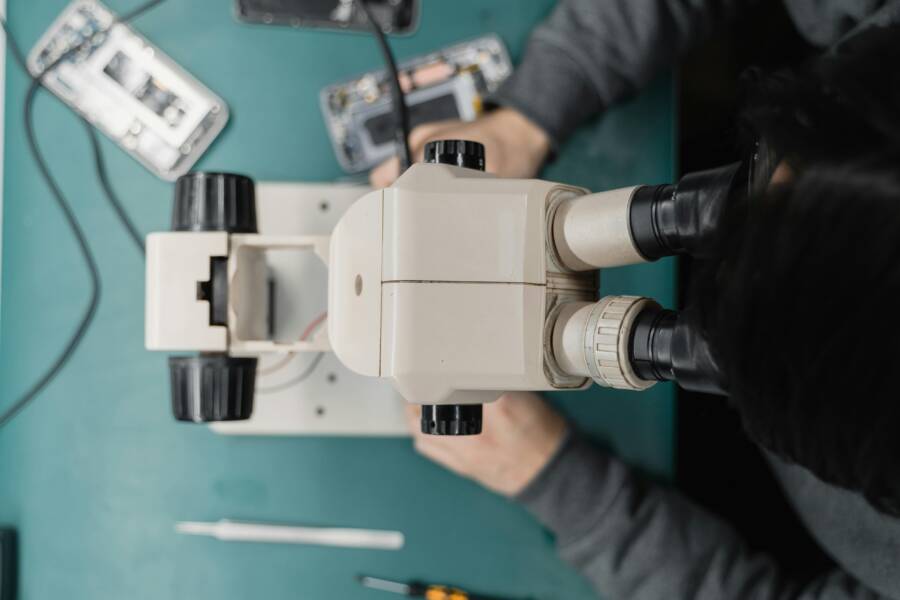
Photo by Polina Zimmerman
Fix Android Phones: Grant Storage Permissions Step by Step
Android fixes start with permissions. Back up your data first, just in case. These steps work on most devices like Samsung, Pixel, or OnePlus. Test screenshots after each one.
- Open Settings from your home screen or notification shade.
- Tap Apps (or Apps & notifications on some models).
- Select See all apps to view the full list.
- Find Gallery, Photos, or Files app. Tap it.
- Go to Permissions or App permissions.
- Toggle Storage or Files and media to Allow.
If no change, clear cache next. 2. Still in the app info screen, tap Storage & cache. 3. Hit Clear cache. Skip clear data unless needed. 4. Return to home. Force stop the app: tap Force stop.
Restart your phone now. Hold power button, select Restart. 3. Check storage space. Go to Settings > Storage. 4. Delete old files, apps, or photos if under 1GB free. 4. Update Android. Head to Settings > System > System update. Install any available.
If steps fail, boot into safe mode. Hold power, long-press “Restart,” choose safe mode. Test screenshots. If they work, a third-party app causes it. Uninstall recent ones.
Success feels great. Screenshots now fill your gallery.
Check and Enable Permissions Quickly
Samsung users: Settings > Apps > Gallery > Permissions > Allow all files access.
Pixel phones: Settings > Apps > See all apps > Photos > Permissions > Storage > Allow.
Other brands like Xiaomi: Settings > Apps > Manage apps > Files > Other permissions > Storage.
Search “permissions” in Settings for fast access. Toggle on. Recent Android versions group media permissions together. Enable both Photos and Media. Retake a screenshot to confirm.
Clear Cache and Restart for Instant Results
Cache clogs the save path. Clearing it refreshes app functions.
From app info: Storage > Clear cache. Do this for Gallery and Screenshot tools.
Force stop: Tap Force stop, then restart phone.
Why it works: Cache holds old temp files. They block new writes. Fresh start lets storage flow.
Test right away. Open camera roll. Capture screen. It saves.
Solve It on iPhone: Simple Storage Checks
iPhones handle screenshots through the Photos app. Blocks come from space or sync issues, not direct permissions. Start here.
- Check iCloud Photos: Settings > [Your Name] > iCloud > Photos. Turn off if syncing stalls, then on.
- Review Screen Time: Settings > Screen Time > Content & Privacy Restrictions. Disable if active.
- Restart: Hold volume up and side button. Slide to power off. Wait 30 seconds.
- Update iOS: Settings > General > Software Update.
- Last resort: Settings > General > Transfer or Reset iPhone > Reset > Reset All Settings.
These restore flow without data wipe. iPhones save screenshots to the Screenshots album instantly after.
Free up space first for best results.
Free Up iCloud and Photos Space
Go to Settings > General > iPhone Storage. See what’s taking space.
Review recommendations: Offload unused apps. Delete large videos.
For iCloud: Settings > [Your Name] > iCloud > Manage Storage. Delete old backups or documents.
Photos app: Open Photos > Albums > Videos. Trash big files.
Aim for 2GB free. Sync resumes. Screenshots appear in Photos right away.
Conclusion
You now know why screenshots won’t save: permissions on Android, storage sync on iPhone. Grant access via Settings > Apps for Android. Clear cache and restart seals it. iPhone users, free iCloud space and check restrictions.
Try these steps today. Your phone will save every capture. Check permissions monthly to stay ahead.
Share your results in the comments. Did Android fixes work for you? Subscribe for more smartphone tips. Screenshots flow smooth again. You’ve got this.
(Word count: 1487)