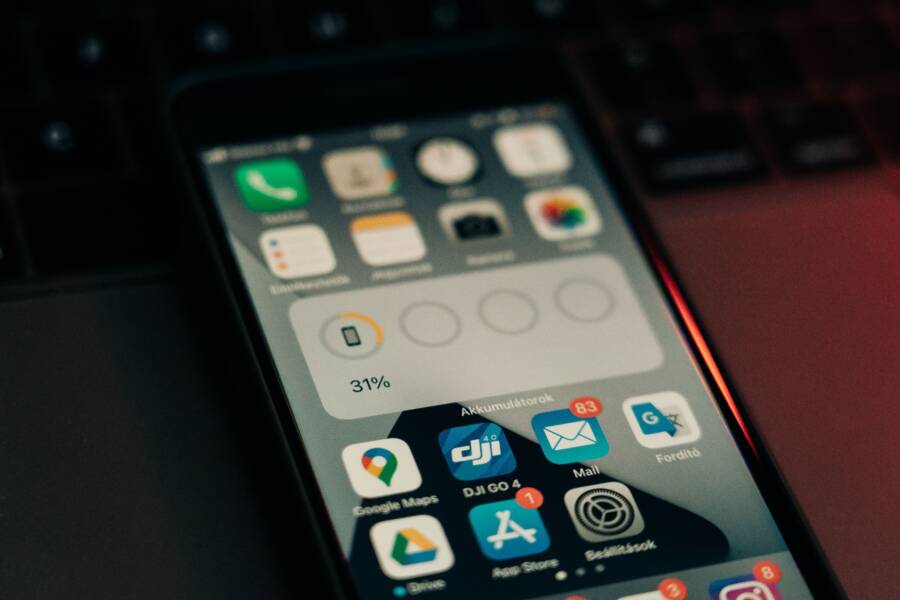
If your smartphone keeps resetting your icon layout, you likely have a software conflict or a misconfigured home screen setting. These glitches often occur after a system update or when a third-party launcher fails to sync properly with your OS.
You can stabilize your home screen by clearing the launcher cache, checking for system updates, or locking the layout settings. Follow the steps below to stop the constant rearrangement of your apps once and for all.
Check Your Default Launcher Settings
Incorrect default app settings often cause a smartphone to discard your custom icon arrangements. When your device fails to recognize your preferred home screen app as the primary interface, it may revert to the system default during a reboot or update. Checking these settings confirms that your chosen software remains in control of your display.
Verifying Your Current Home App
You must first identify where your phone manages its primary interface settings. Most Android devices group these options under the Apps section of the main settings menu. Open your system settings and look for a menu labeled Apps or Application Manager. Within this list, locate a section called Default Apps or Default Home App.
If you use a third-party launcher, verify that it appears as the selected default in this window. If the system default launcher displays instead, your phone will likely ignore your custom settings whenever it needs to refresh the interface. Select your preferred app from the provided list and tap the option to set it as the permanent default. This ensures the operating system knows which software controls the home screen icon grid, preventing the phone from switching back to the manufacturer version unexpectedly.
Preventing Accidental Resetting of Layouts
Many modern launchers include a built-in safety feature designed to stop icons from moving when you do not intend to rearrange them. This setting acts as a digital padlock for your home screen. When you enable the Lock Home Screen feature, the system ignores long presses or accidental drags that would otherwise shift your apps.
To activate this protection, follow these steps:
Long-press on an empty area of your home screen to bring up the launcher menu.
Select the settings icon or the Home Screen Settings option.
Look for a toggle labeled Lock Home Screen or Lock Layout.
Turn this feature on to secure your current icon placement.
Once you toggle this setting, your smartphone will stop shifting icons even if you brush against them by accident. If you decide to reorganize your layout later, you simply need to return to these settings to unlock the screen. Using this tool provides a simple layer of security that keeps your icons exactly where you want them, regardless of how often you handle your device throughout the day.
Solving Storage and Permissions Glitches
System instabilities often stem from underlying conflicts in how your smartphone manages data. If your home screen persists in resetting despite setting changes, the root cause is frequently a corrupt cache or a blocked permission. These errors prevent the launcher from saving your layout preferences correctly during routine operations. You can resolve these issues by focusing on how the system communicates with your interface app.
Clearing the Launcher Cache
The system launcher stores temporary data to speed up transitions and icon loading. When this cache becomes bloated or corrupted, the process gets stuck. This prevents the launcher from writing new data, such as your icon arrangement, to the permanent storage. You can clear this cache to force a fresh start without wiping your personal files, contacts, or photos.
Open your device settings menu and select the Apps or Applications option.
Tap the menu icon, usually represented by three dots, and choose Show system apps to reveal hidden processes.
Find your default home screen app or the system launcher in the list.
Select Storage from the app info menu.
Tap the Clear Cache button to remove the temporary files causing the conflict.
Restart your smartphone after clearing the cache. This forces the launcher to rebuild its index from your current saved state. Your icons should now remain in their intended spots because the launcher process is no longer fighting against outdated, corrupt instructions.
Updating System Permissions
Some home screen launchers need specific administrative access to modify system files and your app layout. If the operating system restricts these permissions, your phone will struggle to update its visual interface during a restart. You should verify that your launcher maintains the necessary access to function correctly.
Navigate to your privacy or permissions manager within the settings menu. Look for options labeled Display over other apps or Modify system settings. Ensure your primary home screen launcher is on the list of apps with these permissions granted. If the launcher lacks these rights, the OS will block it from saving changes to your desktop grid.
Some devices require an extra step for third-party launchers to act as an administrator. If you notice the permission settings are toggled off, switch them on manually. This allows the launcher to communicate directly with the memory modules responsible for icon placement. Once these settings are updated, the operating system stops interfering with your layout, and your smartphone will respect your custom configuration during every boot cycle.
Troubleshooting Third-Party Icon Packs
Icon packs customize the appearance of your smartphone, but they rely on your launcher to map those custom images to your apps. If your layout resets or reverts to default icons, the issue often stems from a compatibility mismatch between the icon pack and the launcher software. Resolving these conflicts requires you to verify technical support for your specific version and ensure your software environment is stable.
Identifying Launcher Compatibility Issues
Your smartphone may struggle to apply custom icons if the launcher does not support the specific icon pack format. Most icon packs include an apply button, but this function occasionally fails if the launcher version is outdated. You should start by confirming that your launcher appears in the supported list provided by the icon pack developer.
Check these items to verify compatibility:
Open the icon pack app and look for an Apply section. If your launcher does not appear on the list, the pack might lack native support for your specific interface.
Visit the app store page for your icon pack. Developers often list compatible launchers in the description area.
Ensure your launcher is updated to the latest version. Older launcher builds sometimes lack the code necessary to interpret the icon masking techniques used in modern packs.
Test a different launcher temporarily to see if the icons load correctly. If the icons work on a different launcher, your primary home screen app is likely the source of the conflict.
Sometimes, a specific icon pack update contains a bug that disrupts the icon mapping process. If you notice your icons disappearing after a recent update, check the user reviews on the app store to see if others report similar issues. Reverting to a previous version of the icon pack or choosing a more stable alternative often resolves the reset problem.
Reinstalling Icon Packs and Launchers
When troubleshooting persistent layout failures, a clean slate often provides the best results. Configuration files and app preferences sometimes become corrupted during system updates, leading the smartphone to abandon custom settings. A full reinstallation clears these broken files and forces the software to create new, healthy configuration data.
Follow these steps for a clean reinstallation:
Navigate to your system settings and uninstall both the third-party icon pack and your home screen launcher.
Restart your smartphone to clear any remaining temporary files from the system memory.
Reinstall the launcher from the official store first. Set it as your default home screen app before making any custom adjustments.
Download and install the icon pack again.
Apply the icon pack through the settings menu inside your launcher.
This process ensures that no leftover fragments from old configurations interfere with your current setup. After reinstalling, avoid importing a backup file from a previous configuration, as this might reintroduce the same corrupted settings that caused the reset. Manually setting up your home screen once more guarantees a clean environment for your icon pack to function as intended.
Managing System Updates and Memory
Your smartphone relies on available memory to keep your home screen stable. If you open too many resource-heavy apps, your device may struggle to maintain the interface. This situation forces the system to kill the launcher process to save memory, which often triggers an automatic reset of your icons to the default grid.
Addressing Low Memory Situations
Heavy applications require significant RAM to run. If your smartphone runs out of memory, the operating system aggressively closes background tasks to prevent a crash. Because the home screen is a background process, it is often the first item the system targets when resources are scarce.
You can manage these background processes to prevent your home screen from crashing:
Check your running apps in the settings menu to identify high-memory consumers.
Close resource-heavy apps, such as complex games or high-definition video editors, before returning to the home screen.
Avoid using excessive home screen widgets, as these require constant memory and can trigger stability issues.
Enable battery optimization for your launcher, which helps the system prioritize keeping the process active.
If your device continues to reset the layout, consider reducing the number of active widgets or live wallpapers. These items consume memory continuously. Scaling back these visual elements provides the system with the overhead it needs to keep your launcher active during daily use.
The Impact of Software Updates
System updates modify core configuration files, and these changes occasionally reset your launcher settings. Developers often introduce new security patches or interface tweaks that override existing icon arrangements. Since updates modify the system environment, the phone sometimes struggles to migrate your old preferences to the new version.
You can safeguard your layout by creating a backup before installing any system update. Many modern launchers include an internal export function that saves your configuration to local storage or a cloud account.
Follow these steps to secure your layout:
Open your launcher settings and locate the Backup or Restore option.
Create a fresh backup file and save it in a safe location, such as your cloud drive.
Perform the system update once the backup is secure.
If your icon layout resets after the update, return to the launcher settings and select the Restore option.
Updating your smartphone firmware usually improves security, but it may occasionally force a reset of your default home screen settings. If you keep a backup, you recover your custom arrangement in seconds. This precaution turns a potential headache into a simple two-tap fix.
Conclusion
A stable home screen depends on your launcher settings, sufficient system memory, and updated permissions. Once you verify your default home app and clear out any cached data, your smartphone should keep your icons exactly where you placed them.
You can prevent future layout resets by locking your home screen and performing regular backups of your configuration. These simple habits keep your device organized and save you from the hassle of manual rearrangement after system updates.