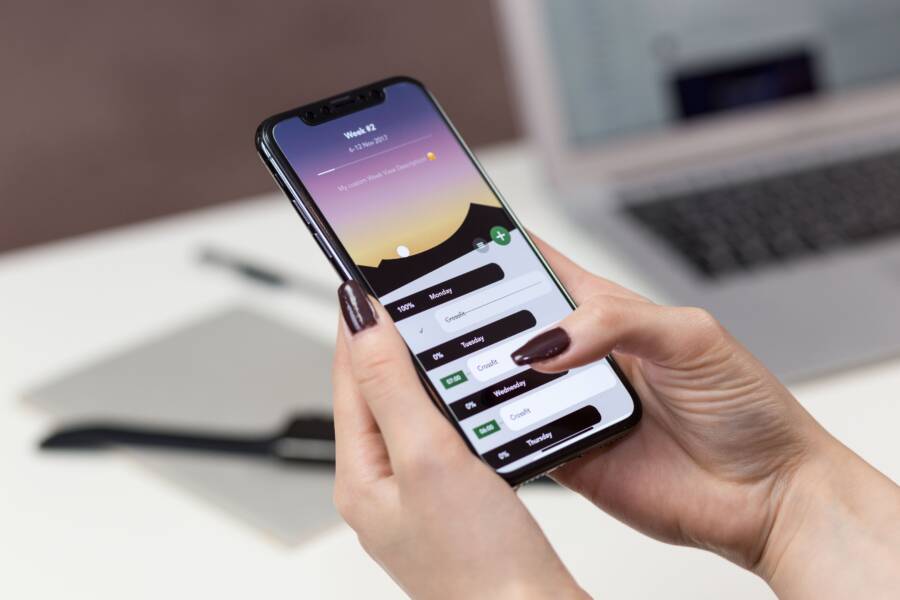
Frozen widgets on your smartphone usually occur because your device restricts background activity to save battery life. These OS power-saving modes often pause app updates to reduce energy consumption, which stops your home screen information from refreshing in real time.
You can typically fix this by adjusting your battery optimization settings. Granting specific apps permission to run in the background allows them to fetch new data for your widgets without interruption.
Check the following steps to regain control over your home screen data updates.
Understanding Why Home Screen Widgets Freeze
Widgets on your smartphone keep you updated with news, weather, and calendar events at a glance. When they stop refreshing, the primary cause is often your device settings rather than a software failure. Modern smartphone operating systems manage system resources aggressively to extend battery life and memory performance. When these systems decide an app is consuming too much power in the background, they pause its activity. Consequently, your widget stops receiving new data.
The Role of Battery Optimization
Your smartphone includes battery management tools designed to restrict apps that run while the screen is off. These features detect apps that drain energy and limit their ability to connect to the network or update content. If your widget app is on the restricted list, the system prevents it from waking up to fetch new information.
Many users find their widgets freeze because the operating system defaults to an aggressive battery saver mode. You can check these settings in your phone menu. Look for options labeled battery optimization or background activity control. When you remove a specific app from this restricted list, you allow it to run in the background. This change gives your widget the necessary permission to refresh automatically throughout the day. It is a simple adjustment that restores constant updates to your home screen.
App Permission and Data Restrictions
Data usage policies act as another common barrier to live widget updates. Many smartphones allow you to set strict limits on background data to save on your monthly mobile plan. When a widget attempts to reach a server to pull a weather report or a news headline, the operating system blocks the connection if background data is disabled for that specific app.
Widgets rely on consistent access to the internet to remain relevant. If your phone enters a low data mode or has specific restrictions applied to the application, the widget will show stale information. To resolve this, navigate to your app settings and ensure background data usage is active for the relevant service. Most modern devices provide a toggle switch within the application info page to enable this access. Once you permit the app to use mobile or Wi-Fi data in the background, the widget should resume updating its content regularly.
Essential Steps to Restore Widget Performance
Restoring frozen widgets on your smartphone often requires adjusting how the operating system manages power and data. When a widget stops updating, the issue usually stems from internal restrictions designed to save energy. You can regain functionality by tweaking these specific settings.
Check Your Battery Saver Settings
Smartphone manufacturers include battery management features to prolong the time between charges. These tools limit app activity when you are not using them. If a widget stops refreshing, your device may have put the associated app into a deep sleep mode.
To fix this, open your device settings and locate the battery or power management menu. Look for options labeled “Battery Optimization,” “App Power Management,” or “Battery Usage.” Inside this menu, find the app tied to your frozen widget. Select the app and switch its setting from “Optimized” or “Restricted” to “Unrestricted” or “Don’t Optimize.” This change forces the system to allow the app to fetch data in the background even when you have not opened the app for a while.
Review Background App Refresh Settings
Background App Refresh is a permission that lets apps update their content without requiring you to open them. If this setting is off, your widgets will show static data from the last time you manually used the app.
Check the overall status of this feature by opening your main settings menu. On an iPhone, navigate to “General” and then “Background App Refresh.” On most Android smartphones, look for “Apps” or “Data Usage” settings to find the background data control. Ensure that the master switch is set to “On.” If the master switch is enabled, scan the list of apps below it to verify that the toggle for your specific widget app is also active. Turning this feature on provides your smartphone the green light to maintain live feeds for those home screen elements.
Re-adding or Updating the Widget
Sometimes the link between the app and the home screen interface glitches. A simple refresh often clears out corrupted temporary files or communication errors.
If your settings are already correct but the widget still shows stale information, try these steps:
Press and hold the frozen widget on your home screen.
Select the option to remove or delete the widget.
Return to your home screen, press an empty space to open the widget menu, and add the widget back.
If a prompt appears, grant the necessary permissions for location or data access.
Deleting and re-adding the widget resets the connection between the software service and the home screen. This process forces the smartphone to initiate a fresh data pull, which usually brings the widget back to life. You should also check your app store to verify that the app itself is updated to the latest version. Developers often release patches that resolve conflicts between their widgets and newer operating system updates.
Comparing Widget Behavior Across Operating Systems
Widgets behave differently depending on whether you use an iOS or Android device. While both platforms aim to provide quick information, their underlying management of system resources varies. Understanding these differences helps you troubleshoot frozen widgets on your specific smartphone.
How iOS Manages Widget Updates
Apple prioritizes power efficiency and privacy within the iOS ecosystem. Widgets on an iPhone do not run constantly in the background. Instead, the system uses a mechanism called Timeline to predict when a widget needs a refresh.
The operating system gathers information on how you use your phone throughout the day. It then schedules updates during moments when you are likely to look at your screen. Because of this, iOS widgets might feel slow to update if your usage patterns change. If a widget remains frozen, the system might have stopped prioritizing its updates to save battery. You can often fix this by simply opening the parent app, which signals to the system that the information is currently relevant to you.
Android System Resource Allocation
Android offers more flexibility for app developers, allowing widgets to trigger background updates more frequently. However, this openness can lead to issues with battery drain. Many manufacturers add custom power management layers on top of the stock Android interface to prevent apps from using too much energy.
These custom layers often kill background processes aggressively. If your Android smartphone stops a widget from updating, it is usually because the battery optimization tool has restricted the app’s ability to wake up. You may need to manually whitelist specific apps in your battery settings to stop the system from interfering with your widgets.
Comparison of Widget Refresh Logic
The core takeaway is that Apple centralizes control to preserve battery, while Android provides tools to override restrictions. If you use a smartphone with a heavily customized skin, check your power management settings first, as these often override standard Android behavior. Adjusting these settings usually clears the frozen status on your home screen elements.
Common Questions About Phone Widgets
Users often encounter issues when their smartphone home screen displays fail to update. Understanding how your device handles these small applications helps you maintain a functional interface. You might wonder if these problems indicate permanent software damage or just temporary configuration errors.
Why do some widgets update slower than others?
Widgets do not receive data at the same speed because developers design them differently. Some apps request information every few minutes, while others wait for a specific trigger to save your battery. If a weather widget updates less frequently than a news feed, the developer likely prioritized power efficiency to prevent your battery from draining. Your smartphone operating system also manages these update windows based on your daily usage patterns.
Does a frozen widget affect my phone performance?
A single unresponsive widget rarely slows down your entire device. The system usually isolates the app activity to prevent it from impacting your main tasks. However, if multiple widgets remain frozen and try to reconnect to the network repeatedly, you might notice slightly higher battery usage. You should remove any widget that consistently fails to load to free up system resources.
Will restarting my phone fix widget issues?
A simple restart often clears minor glitches in the background processes of your smartphone. This action forces the operating system to reload all home screen elements and re-establish their data connections. If you notice a widget is stuck, try turning your phone off and on before you adjust complex settings. This step resolves many temporary communication errors between the app and the home screen.
Do third-party launchers cause widget freezing?
Installing a custom launcher changes how your phone displays the home screen, which sometimes creates conflicts with standard widgets. These launchers may have their own battery optimization rules that differ from the stock system settings. If you use a third-party interface, check its specific settings menu for background permission controls. You can also switch back to your default home screen temporarily to see if the widget behavior improves.
Can I force a widget to refresh manually?
Most widgets offer a hidden refresh command that triggers an immediate data pull. You can usually tap the top corner or the icon inside the widget frame to prompt a new update. If the widget lacks a specific refresh button, tapping the actual content often opens the parent app. Once the app opens and syncs its new information, the widget should update automatically when you return to the home screen.
Conclusion
Fixing frozen widgets comes down to how your smartphone manages power and background data. Start by checking your battery optimization settings to ensure your apps have permission to fetch new data while the screen is off. If those settings are already correct, verify that background app refresh is active and consider removing and re-adding the widget to reset the connection.
Test these changes by monitoring your home screen throughout the day. You should see live updates return once you clear these system restrictions. Keeping your apps updated also helps prevent conflicts with your operating system. A quick check of these basic settings usually solves the problem without extra effort.