There Is a Frequency That the Wealthiest Families Have Used for Generations and Most People Will Never Know It Exists
>>> Open the Door <<<

Imagine this. You grab your phone to make an important call or check your data. Suddenly, a message pops up: SIM busy or SIM failure. Your heart sinks because you can’t connect.
These errors block calls, texts, and internet on most smartphones. They show when your phone loses contact with the mobile network. It’s common and fixes fast with the right steps.
Several things cause a SIM busy error or SIM failure on phone. A dirty or damaged SIM card tops the list. Network congestion or weak signal plays a role too. Software glitches, wrong APN settings, or a locked SIM add to the trouble.
Don’t worry. You can fix SIM busy error or SIM failure in under 10 minutes. These steps work on both Android and iPhone. Most users solve it on the first try.
She Pressed Play on a Strange Audio Track and Within Days Her Financial Reality Started Shifting in Ways She Could Not Explain
>>> See How It Works <<<

In this guide, you’ll find simple checks first. Then, clean and reseat your SIM. Restart your device and toggle airplane mode. Update carrier settings if needed. Test with another SIM to confirm.
Follow along, and you’ll get back online quick. No tech skills required. Let’s start with the basics.
Common Causes of SIM Busy and SIM Failure Errors
SIM busy and SIM failure errors pop up for clear reasons. Your phone relies on the SIM card to link to the network. When that link breaks, you see these messages. Common triggers split into hardware issues, network problems, and phone software faults. Spot the cause first to fix it right.

Photo by Polina Zimmerman
Physical Problems with Your SIM Card
SIM cards take a beating in daily use. They slide in and out of your smartphone, picking up dirt from pockets or bags. Over time, scratches form from rough handling. Bent gold contacts happen if you force the card into the tray.
Wear shows after two to three years of constant swaps between phones. The plastic edges chip. Contacts dull or corrode. If the SIM doesn’t seat flat, it loses connection.
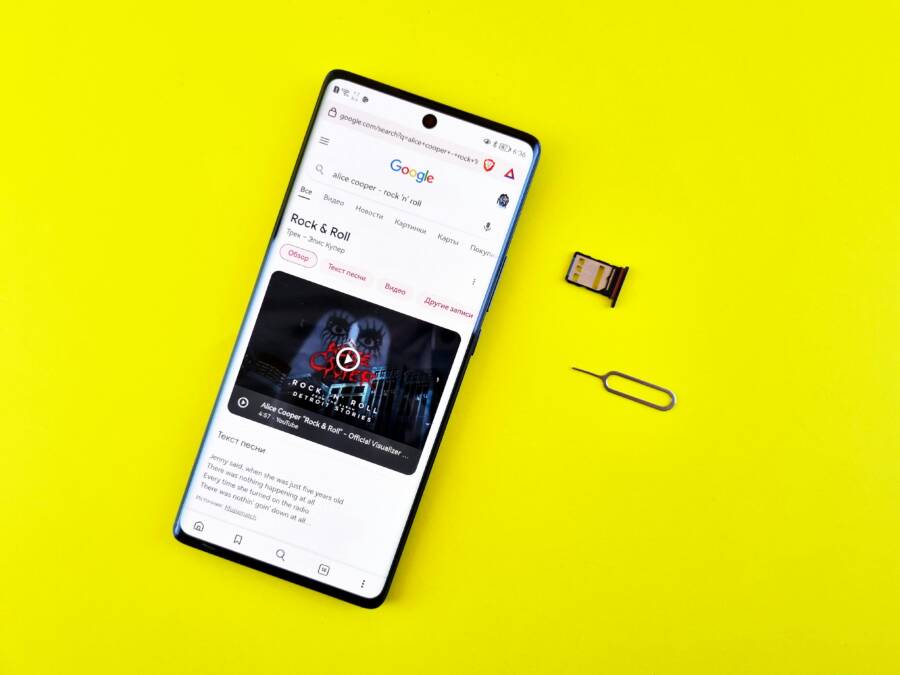
Inspect it yourself. Power off your phone. Eject the tray with the pin tool. Hold the SIM under bright light. Look for scratches, dents, or smudges on the chip side. Tilt it to check flatness. Wipe edges with a dry microfiber cloth for a quick clean. Use a tiny bit of isopropyl alcohol on a swab if grime sticks, but dry it fully before reinserting. Full cleaning steps come later.
These flaws block signal reads. Your phone thinks the SIM is busy or dead.
Network and Carrier Side Issues
Networks fail too. Weak signals in basements or rural spots drop your connection. Buildings block towers. Your smartphone shows full bars, but the SIM can’t lock on.
Tower overloads strike during concerts or rush hour. Too many users swamp the cell site. Calls queue up, triggering SIM busy alerts.
Carrier account snags hurt most. Unpaid bills suspend service. Outdated plans or fraud flags lock the SIM. Roaming glitches abroad add trouble.
Check status fast. Open your carrier’s app like Verizon or AT&T. Look for outage maps or service alerts. Visit their site on another device. Enter your number to see account health. Call support if bars drop but Wi-Fi works.
Fixes start here. Move to an open area. Wait out peaks. Pay bills online.
Software Glitches on Your Phone
Your phone’s software often trips up the SIM. Outdated operating systems miss carrier patches. Bugs ignore the SIM signal.
Apps clash next. VPN tools reroute traffic wrong. Battery savers kill network checks. Security apps block SIM authentication.
Corrupted cache builds from app data. It confuses network settings. Recent updates trigger this most. A system tweak resets APN or carrier profiles.
Restart clears minor glitches. But check for OS updates in settings. Force stop suspect apps. Clear cache via developer options on Android or offload apps on iPhone.
Thousands of People Were Struggling With Money Until They Discovered This One Ancient Secret Hidden in Sound
>>> Unlock It Now <<<

These issues mimic hardware fails. Test after each tweak. Your smartphone should reconnect smooth.
Quick Fixes to Try Right Now for SIM Errors
You face a SIM busy or SIM failure message. Try these simple steps first. They target common glitches and take less than five minutes total. Most people see their smartphone reconnect after one or two tries. No tools needed.
Restart Your Phone Completely
A full restart refreshes your phone’s connection to the SIM card. It clears temporary software hitches that block network signals. Think of it as a quick reset button for your device’s brain.
Follow these steps for a standard restart:
- Press and hold the power button until the shutdown menu appears.
- Tap Power off or Restart. Wait for the screen to go black.
- Leave it off for 30 seconds. This drains residual power and stops glitches.
- Press the power button to turn it back on. Wait two minutes for full boot.
Your smartphone should detect the SIM fresh after this.
If the screen freezes and won’t respond, use a force restart. On iPhone, quickly press and release volume up, then volume down, then hold the side button until the Apple logo shows. For Android, hold power plus volume down for 10-20 seconds. Models vary, so check your manual if needed. This method skips the menu and forces a reboot without harm.
Test a call or data right after. Problems often vanish here.
Clean and Reinsert the SIM Card
Dirt or poor contact causes many SIM failure alerts. A quick clean fixes loose connections fast. Your SIM picks up pocket lint or oils that block the chip.
Power off your phone first to avoid damage. Here’s how to do it safely:
- Locate the SIM tray. Use the ejector pin or paperclip to pop it out.
- Remove the SIM gently. Hold it by the edges.
- Wipe the gold contacts with a soft microfiber cloth. For stubborn smudges, add a drop of isopropyl alcohol to the cloth. Let it air dry for one minute.
- Check for damage. Look for scratches, bends, or cracks. If bent, skip to a replacement.
- Align the SIM in the tray notch. Push it in firm but even. No force.
Never bend the card or use metal tools. They scratch contacts worse. Slide the tray back until it clicks.
Turn on your phone. The fresh contact often ends the error. If not, the SIM might need service from your carrier.
Toggle Airplane Mode On and Off
Airplane mode cuts all wireless signals in one tap. Toggle it to force a network refresh. It resets the SIM link without losing apps or data.
Access it two ways. Swipe down from the top screen for the control center on most phones. Or go to Settings > Network and Internet (Android) or Settings > Airplane Mode (iPhone).
Quick steps:
He Was Drowning in Bills and Burnout Until a Simple Daily Ritual Rewired His Brain for Wealth in Less Than a Week
>>> Start Your Shift Today <<<

- Tap the airplane icon to turn it on. Wait 10 seconds.
- Tap again to turn it off. Give it 30 seconds to reconnect.
Watch the bars return. Your smartphone scans towers anew, clearing busy signals from weak locks.
This trick shines during spotty coverage. Repeat if needed, but pair it with a move to better signal. You’ll stay connected smooth.
Advanced Steps to Resolve Stubborn SIM Busy or Failure
Quick fixes like restarts and SIM cleans often solve SIM busy or SIM failure errors. But stubborn cases need deeper action. These steps target network configs, software bugs, and hardware faults. They reset connections without data loss. Your smartphone will reconnect strong after you follow through.
Reset Network Settings on Android or iPhone
Network settings store Wi-Fi passwords, Bluetooth pairs, and mobile data prefs. A reset clears glitches that block your SIM. It forgets saved networks and devices but keeps apps, photos, and files safe.
Warning: You’ll re-enter Wi-Fi passwords later. Back up if you rely on Bluetooth.
On Android:
- Open Settings > System > Reset options (or search “reset network”).
- Tap Reset Wi-Fi, mobile & Bluetooth.
- Confirm and wait 1-2 minutes for reboot.
On iPhone:
- Go to Settings > General > Transfer or Reset iPhone > Reset.
- Select Reset Network Settings.
- Enter your passcode and tap Reset.
Test calls and data right after. Your phone scans networks fresh, fixing SIM failure locks from bad configs.
Update Your Phone Software and Carrier Settings
Outdated software misses SIM fixes from your carrier. Updates patch bugs and refresh network profiles. Check both OS and carrier versions for full coverage.
Start with OS updates. They fix core glitches.
For Android:
- Go to Settings > System > System update.
- Tap Check for update. Download if ready (use Wi-Fi).
- Install and restart.
For iPhone:
- Settings > General > Software Update.
- Tap Download and Install if available.
Carrier settings update separately. They tweak SIM auth and bands.
On iPhone, connect to Wi-Fi. Go to Settings > General > About. A popup shows if updates wait; tap Update.
On Android, carriers push via apps like My Verizon. Or check Settings > System > About phone > Carrier update.
Install over Wi-Fi to save data. Restart after. Your smartphone grabs the latest SIM support, ending busy errors.
Test with a Different SIM Card
Doubt if your SIM or phone causes the issue? Swap in a working card to check. This isolates the problem fast.
Borrow a friend’s active SIM from the same carrier. Power off both phones first.
Steps to test:
- Eject your SIM tray. Note the position.
- Insert the borrowed SIM. Secure the tray.
- Power on. Wait for signal bars.
- Dial a test call. Try data like browsing.
If it works, your SIM is faulty. Contact your carrier for a free replacement. Visit a store or use their app.
If the error stays, your phone’s hardware or slot has the issue. Head to a repair shop for diagnostics.
This swap confirms next moves. You’ll save time and avoid wrong fixes. Most users spot the culprit here.
When to Get Help and How to Prevent SIM Issues
Quick fixes and advanced steps often end SIM busy or SIM failure errors. But some cases need outside help. Your smartphone might have deeper hardware faults or carrier blocks. Watch for signs like failed troubleshooting or constant call drops. Learn to spot them, contact pros right, and build habits that stop repeats.
Spot trouble early. If restarts, cleans, resets, and tests change nothing, pros step in. Frequent drops even in strong signal areas point to SIM wear or phone slots. Act fast to avoid downtime.
Contact Your Carrier or Visit a Store
All fixes flop? Your SIM or account likely needs pro eyes. Call drops every few minutes scream for help too. Don’t guess longer; carriers fix these daily.
Gather details first. Note your phone model, error message, steps tried, and signal bars. This speeds things up.
Reach out smart:
- Use the app or website. Log in with your number. Chat support or check outages. Most carriers like AT&T or Verizon offer live agents 24/7.
- Call customer service. Dial *611 from another phone or their main line. Speak clear: “My SIM shows busy or failure after restarts and resets.”
- Visit a store. Book online to skip lines. Bring your phone, ID, and SIM. Staff test on the spot and swap cards free if faulty.
Expect a new SIM in minutes at stores. They run diagnostics too. Most issues resolve same day. Your smartphone reconnects smooth after.
Daily Habits to Avoid Future SIM Errors
Prevention beats fixes every time. Simple routines keep your SIM happy and errors away. Start these today for reliable service.
Build good care into your day. Here are key habits:
- Handle the SIM with care. Grip edges only. Avoid bending or pocket drops. Eject trays gentle with the pin tool.
- Keep software updated. Check monthly in settings. Patches fix SIM bugs before they hit. Your smartphone runs best this way.
- Monitor signal strength. Note weak spots like elevators. Move to windows for calls. Apps show bars and tower distance.
- Backup contacts often. Sync to Google or iCloud weekly. SIM fails won’t wipe your list.
Stick to these, and you’ll dodge most glitches. Clean the SIM tray quarterly too. Your phone stays connected without drama.
Conclusion
You now hold the tools to end SIM busy or SIM failure errors fast. Most fixes work at home with simple steps like these:
- Restart your phone fully.
- Clean and reinsert the SIM card.
- Toggle airplane mode.
- Reset network settings.
- Update software and carrier profiles.
- Test with another SIM.
These actions solve nine out of ten cases. Your smartphone reconnects in minutes, no shop visit needed. Start with the quick ones today; skip to advanced if they fail.
Trouble persists? Contact your carrier with details on steps tried. Build prevention habits like careful handling and regular updates to stay error-free.
Share your fix in the comments below. It helps others. Check our guides on battery drain or slow charging next. Thanks for reading; get back online now.
There Is a Frequency That the Wealthiest Families Have Used for Generations and Most People Will Never Know It Exists
>>> Open the Door <<<