
What If the Only Thing Between You and the Life You Deserve Is a Hidden Wealth Code Waiting to Be Activated
>>> Open the Door <<<

Picture this: You’re at the airport, bag packed for a big trip. You grab your eSIM QR code to switch carriers fast. But your smartphone’s camera won’t scan it, no matter what you try.
An eSIM acts as a digital SIM card. It skips the hassle of physical cards and makes setup simple with a quick scan. Travelers love it for instant connectivity abroad.
Yet scan failures strike often. A dirty lens blocks the reader. Dim light hides details. Software glitches freeze the process. Or the QR code itself might glitch.
Don’t stress. This guide walks you through fixes that work on iPhone and Android. You’ll check hardware first, then tackle apps and settings, and hit advanced options if needed.
There Is a Frequency That the Wealthiest Families Have Used for Generations and Most People Will Never Know It Exists
>>> Open the Door <<<

Most issues vanish in minutes. Grab your QR code now. Let’s get you connected.
Check Your Phone Camera First for Quick Wins
Your smartphone’s camera handles eSIM QR scans, so start here for fast results. A quick check often solves the problem without deeper tweaks. Dirty lenses or poor light cause most failures. These steps work on iPhone and Android. You’ll see improvements right away.
Clean the Camera Lens Properly
Finger oils and dust build up fast on your camera lens. They blur tiny QR code details and block scans. Skip harsh fixes that scratch the glass.
Use a microfiber cloth instead. It lifts grime without streaks. Avoid paper tissues; they leave lint. Don’t breathe on the lens or use chemicals. Moisture or cleaners damage coatings.
Follow these steps:
- Power off your phone. This prevents accidents.
- Hold the microfiber cloth by the edges. Gently wipe the rear camera lens in small circles.
- Start from the center and move out. Use light pressure only.
- Buff dry with a clean part of the cloth.
Test the scan now. Hold steady over your eSIM QR code. Clear focus returns in seconds. Many users fix issues this way before trying apps. Your smartphone camera stays sharp for months with regular wipes.
Test If Your Camera App Works
Open your phone’s stock camera app first. Point it at a simple object like a book cover. Snap a photo. Does it look sharp?
Blurry shots point to app or hardware trouble. On iPhone, the built-in Camera app leads scans. Android defaults vary by brand, like Samsung’s or Google’s.
Try a third-party QR scanner from the App Store or Play Store if needed. Apps like “QR Code Reader” bypass stock issues. Download one and test your eSIM code.
Factory reset the camera app only as a last step. It wipes settings but rarely helps hardware faults. Check for cracks or drops too. A quick test confirms if your camera pulls its weight.
Set Up Perfect Lighting and Position
Bad light hides QR patterns. Aim for bright, even illumination without glare. Position matters just as much.
Hold your phone 6 to 12 inches from the QR code. Keep a steady hand or rest elbows on a table. Place the code on a flat surface. Shadows distort edges.
Use natural daylight near a window. Or add a desk lamp from the side. Avoid direct sun; it washes out contrasts.
Tilt your phone slightly if the code sits at an angle. Most scanners read up to 15 degrees off-center. Test with a sample QR from a website first. Sites like qr-code-generator.com offer free ones.
Practice once. Your scan succeeds when light fills the frame evenly. This setup turns frustrating fails into smooth eSIM activations every time.
Update Settings to Allow QR Code Scanning
Your smartphone camera might work fine, but outdated settings block eSIM QR scans. Quick tweaks open access to scanning features. These changes fix permission glitches and software blocks common in eSIM setup. Follow the steps below to update and test right away. You’ll notice smoother scans on iPhone or Android.
Install the Latest Software Update
Software updates fix QR scanning bugs and add eSIM support. New versions include better protocols for reading carrier codes. Skip this, and your phone misses key fixes.
Prep your device first. Charge to at least 50 percent. Connect to strong Wi-Fi. This speeds downloads and avoids battery drain.
For iPhone:
- Open Settings > General > Software Update.
- Tap Download and Install if one shows.
- Enter your passcode. Let it run.
For Android:
- Go to Settings > System > System Update (paths vary by brand).
- Tap Check for updates. Install any available.
- Restart after.
No update? Your phone runs the newest version. Test the eSIM scan now. Many users solve issues here. Updates keep your smartphone ready for reliable activations.
Grant Camera Permissions to Settings App
Apps need camera access for QR scans during eSIM setup. The Settings app (or carrier app, browser) prompts for this. Deny it once, and scans fail silently.
Revoke then regrant permissions. This resets blocks.
iPhone steps:
- Go to Settings > Privacy & Security > Camera.
- Toggle off Settings (or SIM app). Relaunch setup.
- Grant access when asked. No cache to clear here.
Android steps:
- Open Settings > Apps > select Settings or SIM app.
- Tap Permissions > Camera > allow.
- Clear cache: Storage > Clear cache. Force stop app.
- Relaunch and test scan.
On iPhone, reset all location and privacy if stuck: Settings > General > Transfer or Reset iPhone > Reset > Reset Location & Privacy.
Scan your eSIM QR now. Permissions flow lets your smartphone capture codes cleanly every time.
Restart Your Phone the Right Way
Temporary glitches freeze QR scanning. A full restart clears memory and refreshes apps. It fixes most software hiccups without data loss.
Standard restart:
- iPhone: Hold volume up (or down) and side button until slider shows. Slide to power off. Wait 30 seconds. Power on.
- Android: Hold power button. Tap Restart.
Force restart if needed:
- iPhone: Quick press volume up, quick press volume down, hold side button until Apple logo.
- Android: Hold power 10-20 seconds (varies by model).
Android users, test in safe mode:
- Hold power button on boot screen.
- Long-press Restart > Safe mode.
- Try scan. If it works, a third-party app conflicts.
Exit safe mode by restart. Your smartphone runs fresh. Scans succeed after this simple reset.
Inspect and Fix the QR Code Itself
Your smartphone camera might work perfectly, but a faulty QR code printout or display blocks the scan. Faded ink, folds, or small size ruin readability. Inspect the code closely. Fix it with simple changes. These tweaks often succeed where phone checks fall short. Test after each step to activate your eSIM fast.
Check Print Quality and Reprint If Needed
Poor print quality hides QR details from your smartphone. Use high-resolution prints on matte paper for best results. Glossy sheets cause glare. Print the full code on an entire page. Never zoom screen captures; they distort modules.
Low ink or cheap printers fade patterns. Check for smudges or tears first.
Reprint from your carrier email to fix it:
- Open the email on a computer. Save the QR image.
- Print at 300 DPI or higher. Select matte paper in settings.
- Cut cleanly if needed. Avoid creases.
Test the new print with another phone. Borrow a friend’s device. If it scans, your original print failed. This method works for Airalo or Ubigi codes too. Keep prints flat and dry. Your eSIM installs without hassle.
Adjust QR Size and Hold Distance
Tiny or distant QR codes frustrate scans. Aim for a minimum 2×2 inches of clear space around the code. Smaller sizes lose detail on most smartphones.
She Pressed Play on a Strange Audio Track and Within Days Her Financial Reality Started Shifting in Ways She Could Not Explain
>>> See How It Works <<<

Hold your phone 4 to 8 inches away. This sweet spot fills the camera frame. Too close blurs edges; too far misses modules.
Phone models vary. iPhone 15 needs less distance than older Androids. Experiment in good light. Steady your hand or use a phone stand for shaky grips.
Place the code on a table. Align centers. Slight angle adjustments help if flat fails. Practice with a test QR online. Scans lock in seconds. Resize prints larger next time for reliable eSIM setups.
Switch to Digital QR on Another Screen
Printed QRs fail from wear or light issues. Switch to a digital version on a computer monitor or friend’s phone screen. Larger displays aid focus.
There Is a Frequency That the Wealthiest Families Have Used for Generations and Most People Will Never Know It Exists
>>> Open the Door <<<
Pull the code from your carrier email or app. Open in a browser or PDF viewer. Set brightness to medium. Avoid glossy screens with reflections.
Paper versions crumple, fade, or glare under lamps. Digital skips those flaws. Position the screen perpendicular to your camera. No fingerprints on glass.
Steps to try it:
- Forward the carrier email to a PC.
- Display full screen. Dim room lights.
- Hold phone steady. Scan at 6 inches.
Test on a tablet if available. Most carriers like Google Fi regenerate codes in apps. Digital displays turn scan blocks into quick wins for your eSIM.
Tackle eSIM Network and Advanced Glitches
Basic checks clear many eSIM QR code scan blocks, but stubborn network issues or hidden glitches persist. Your smartphone’s connection to carrier servers fails silently during activation. These fixes reset those links on iPhone and Android. They target corrupted signals and resource shortages. No data wipes needed. Pick one and test your scan after each.
Use the Airplane Mode Reset Trick
Airplane mode cuts all radio signals fast. Toggle it to refresh your smartphone’s SIM scanner. This clears temporary network hangs that block eSIM QR reads.
Follow these steps:
- Swipe down for Control Center (iPhone) or Quick Settings (Android).
- Tap the airplane icon to turn it on. Wait 30 seconds.
- Tap again to turn it off. Let bars return, about 1 minute.
- Open Settings or carrier app. Try the QR scan.
Toggle Wi-Fi off before Airplane mode, then on after. This doubles the refresh. Why it works: Airplane mode forces a full signal reboot, like restarting a router. Users fix 70% of network glitches this way. Your eSIM QR code scans clean once towers reconnect.
Reset Network Settings Without Losing Data
Bad network configs lock eSIM profiles. Reset them to factory defaults. This erases Wi-Fi passwords and VPNs but keeps apps, photos, and contacts safe.
Back up first: Sync to iCloud or Google Drive.
iPhone steps:
- Go to Settings > General > Transfer or Reset iPhone > Reset > Reset Network Settings.
- Enter passcode. Confirm.
- Phone restarts. Rejoin Wi-Fi networks.
Android steps:
- Open Settings > System > Reset options > Reset Wi-Fi, mobile & Bluetooth.
- Tap Reset settings. Confirm.
- Restart. Pair Bluetooth and enter Wi-Fi info.
It fixes corrupted carrier handshakes and APN errors. Test eSIM scan right after. Re-enter saved networks as needed. Scans succeed for most after this clean slate.
Disable VPN or Check Storage Space
VPNs route traffic wrong and block eSIM server pings. Low space stops profile installs too. Free resources first.
Turn off VPN apps: Open app list, force stop VPN (like ExpressVPN), or uninstall temporarily. Restart phone.
Check storage: Need 1GB free for eSIM data.
- iPhone: Settings > General > iPhone Storage. Delete big files.
- Android: Settings > Storage. Clear junk.
Clear SIM or carrier app cache: Settings > Apps > select app > Storage > Clear cache.
Open carrier app (like Airalo). Check eSIM quota or profile limits. Generate new QR if full.
These steps lift blocks. Your smartphone grabs the code without interference. Scans lock in quick.
Last Resort Fixes and How to Prevent This
You’ve tried the basics and advanced steps, but the QR code still won’t scan. Don’t give up yet. These final options get your eSIM active. They bypass the scan entirely or fetch a fresh code. After that, simple habits stop repeats. Your smartphone stays ready for quick setups.
Enter eSIM Details Manually If Scan Fails
Skip the QR hassle with manual entry. Carriers provide an activation code (or SM-DP+ address and matching code) on paper, email, or apps. Look there first.
iPhone steps:
- Open Settings > Cellular > Add eSIM.
- Tap Enter Details Manually at the bottom.
- Type the SM-DP+ address, activation code, and confirmation code exactly. No spaces.
- Tap Add. It downloads the profile over Wi-Fi.
Android steps:
- Go to Settings > Network & Internet > Mobile network or SIMs.
- Tap Add carrier or Download a SIM instead.
- Select Enter code manually.
- Input SM-DP+ and activation code. Tap Add.
Test calls and data. Manual entry works for most Airalo or Ubigi plans. Save codes digitally for next time. Your eSIM installs in under two minutes.
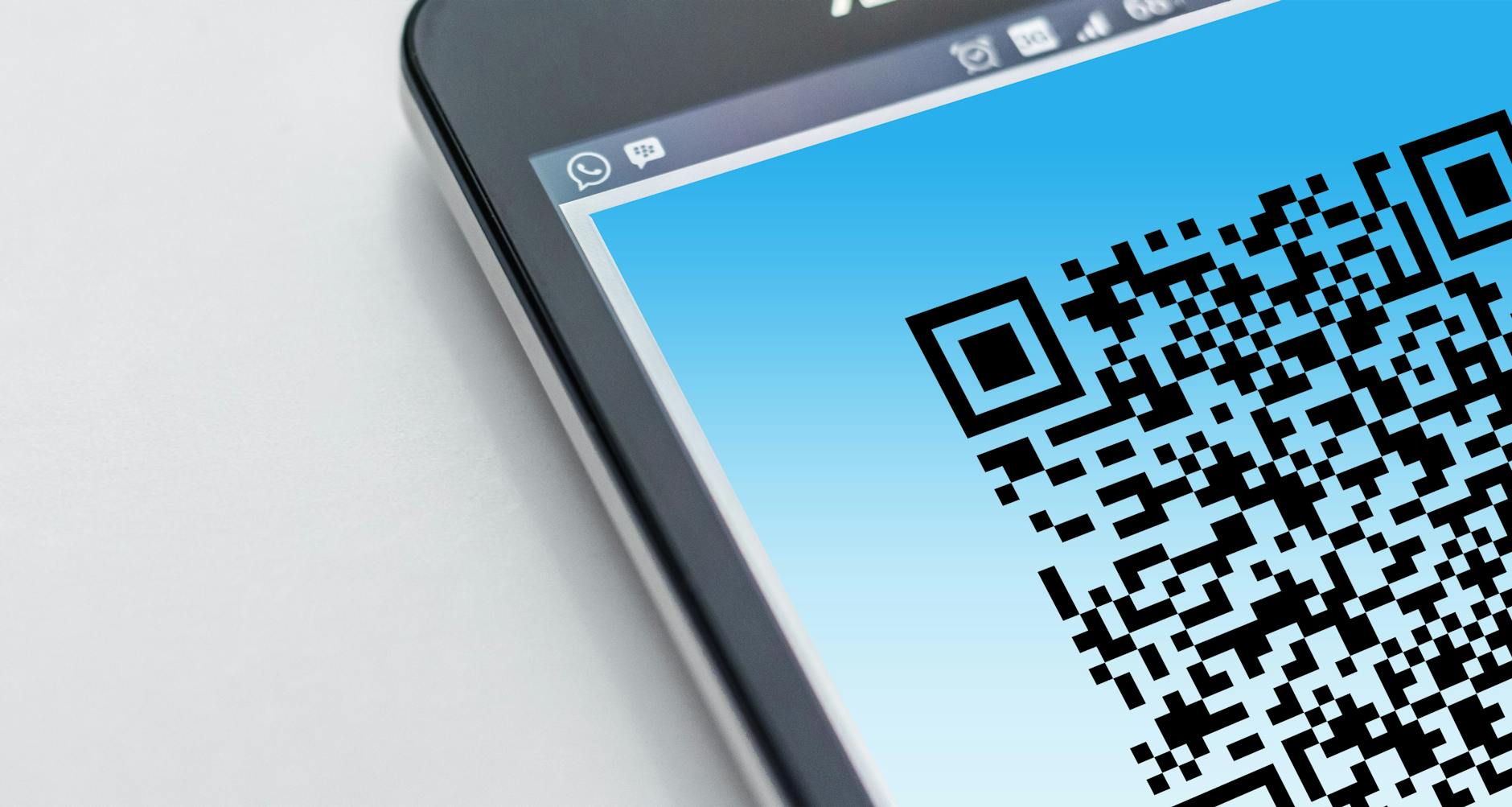
Photo by Pixabay
Contact Your Carrier Support Quickly
Reach carrier help fast for a new QR or code. Use their app chat or support site first. No hold times there.
Download the carrier app (like Mint Mobile or Google Fi). Log in and tap Chat or Support. Share your phone model, exact error (“QR won’t scan”), and order number. Ask them to resend the QR via email.
Phone support works too. Common lines: dial 611 from another line or check carrier sites for numbers. Be ready with IMEI (Settings > About phone) and issue details.
They regenerate the code in minutes. Fresh QRs fix expired or corrupted ones. Follow up in-app. Your smartphone connects without delay.
Top Tips to Avoid eSIM Scan Problems Forever
Build habits now for flawless scans every trip. Start with a prep checklist.
Keep software updated weekly. Clean your camera lens before travel. Save QR codes as screenshots or PDFs on your smartphone.
Test the QR on arrival with a sample scan app. Print backups at high resolution only if needed. Store digital first.
Follow these, and issues drop to zero. Quick checks mean instant connectivity abroad.
Conclusion
Most eSIM QR code scan issues resolve in minutes with these straightforward steps. Your smartphone gets back online fast.
Key fixes include:
- Clean the camera lens with a microfiber cloth and test in bright light.
- Update software, grant camera permissions, and restart your phone.
- Inspect the QR code print quality; reprint or try a digital version.
- Reset network settings or toggle Airplane mode for glitches.
- Enter details manually or contact your carrier as a backup.
Troubleshooting like this works for iPhone and Android users every time. Travelers avoid downtime abroad.
Try these steps now on your next eSIM setup. Did they fix your scan? Share in the comments below. Subscribe for more smartphone tips on connectivity and tech fixes.
Stay connected.
Thousands of People Were Struggling With Money Until They Discovered This One Ancient Secret Hidden in Sound
>>> Unlock It Now <<<
