You grab your phone to answer a text. A thin green line or purple streak runs straight down the screen. It blocks apps, videos, and notifications, turning a quick check into frustration.
These lines plague countless phones. Drops, hard presses, or even heat from software updates often loosen the display cable inside. Water damage or factory flaws play a role too, hitting models from Samsung to OnePlus and beyond.
Don’t panic yet. Most fixes start simple and cost nothing. You’ll rule out software glitches first, then move to hardware checks if needed.
Purple or green lines signal hardware trouble nine times out of ten. A loose connector or damaged flex cable causes them. Software tweaks like restarts help sometimes, but screen replacement fixes the rest.
This guide walks Android and iPhone users through every step. We cover common causes, quick tests like safe mode and color checks, factory resets as a last resort, and pro repair tips. Samsung owners get bonus news on free fixes too.
Stick with us. You’ll spot the issue fast and get your smartphone screen clear again. Let’s fix it now.
What Causes Purple or Green Lines on Phone Screens
Purple or green lines on your phone screen point to trouble with the display hardware in most cases. Drops jar the flex cable that connects the screen to the motherboard. Heat from long sessions or updates can warp parts too. Manufacturing defects show up right away or after time. Water seeps in and corrodes connections. Software bugs rarely cause lines, but bad apps or updates might trigger them. Your smartphone acts fine otherwise, which makes it tricky.
Spot the root cause early to skip wasted time. Quick tests separate hardware faults from software hitches. Lines that stick around after these checks mean you need pro help.
Spotting Hardware vs Software Issues Early
Start with a restart. Hold the power button and select restart. Wait for your phone to boot up fresh. Lines gone? A temporary software snag fixed it.
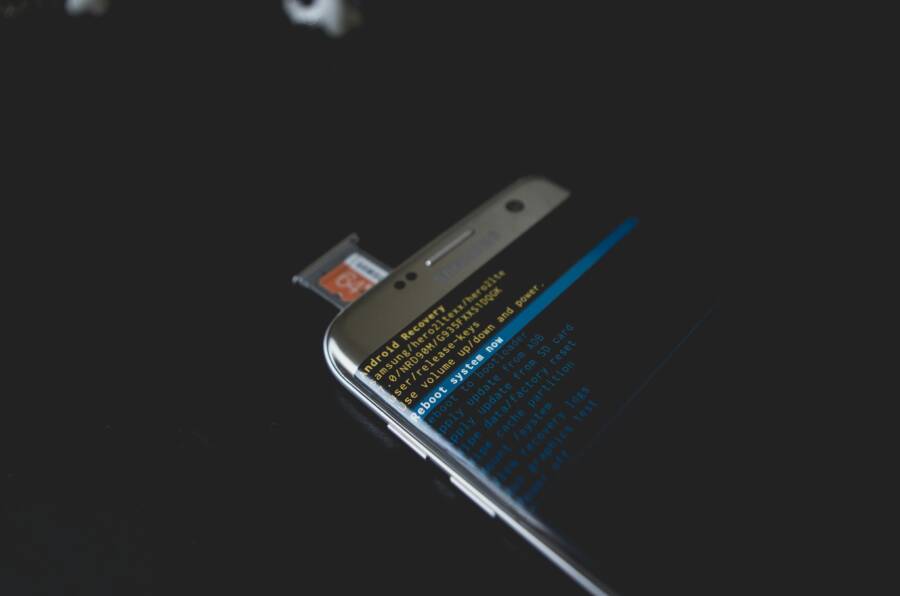
Next, boot into safe mode on Android phones. Press and hold the power button until the power menu pops up. Long-press “Reboot” and pick safe mode. Third-party apps load off here. If lines vanish, uninstall recent apps one by one. They persist? Hardware takes the blame. Check this guide on safe mode for Android screens for visuals.
Samsung users run the color test. Open the phone app and dial #0#. Tap red, green, or blue screens. Lines stay? The display panel or cable failed. Touch the screen test too for full checks. Lines in all tests scream hardware. See Samsung’s secret code tests for steps.
These checks take under five minutes. Hardware issues hit nine out of ten phones with lines. Act fast before it spreads.
Easy Home Fixes to Try First for Any Phone
Before you grab tools or call a repair shop, test these basic steps on your smartphone. They clear temporary glitches that mimic screen damage. A force restart refreshes the system, much like rebooting a frozen computer. Pair it with a software update to patch rare bugs. Android users can dig deeper with safe mode. These tricks work across brands and often solve the issue in minutes.
Force Restart and Update Your Software
Lines on your screen might stem from a software hiccup. A force restart wipes active processes without deleting data. It resets the display driver and clears memory overloads.
Follow these exact combos based on your phone:
- Samsung Galaxy (S series and similar): Press and hold the Volume Down button and Side (Power) button together. Keep holding for 7-10 seconds until the screen goes black and the logo appears. Release when it vibrates. See Samsung’s guide for visuals.
- Google Pixel (like Pixel 9): Press and hold the Power button and Volume Up button for 10-30 seconds. The phone reboots automatically.
- iPhone (including 16 series): Quickly press and release Volume Up, then Volume Down, then hold the Side button until the Apple logo shows (about 10 seconds). Check Apple’s steps.
After restart, check for updates. Go to Settings > Software Update (Android) or Settings > General > Software Update (iPhone). Install any available. Updates fix rare glitches by patching display bugs or driver flaws that trigger lines. Bad code from prior versions stresses the screen rendering, causing streaks. Developers release fixes fast. Your smartphone runs smoother post-update. If lines persist, move on. (152 words)
Boot into Safe Mode on Android Phones
Safe mode loads only core Android software. It blocks third-party apps that might cause display issues.
Here’s how for most Android phones:
- Press and hold the Power button until the power menu appears.
- Long-press Reboot (or Power Off on some models).
- Tap OK or Safe Mode when prompted. The phone restarts with “Safe Mode” in the corner.
Use your smartphone for 10-15 minutes. Swipe, open apps, watch videos. Lines gone? A recent app conflicts with the display. Exit safe mode by restarting normally. Uninstall suspects one by one: Settings > Apps > See all > Select app > Uninstall. Test after each. Lines return in safe mode? Hardware fault likely. Follow this Android Authority guide for model tweaks. (102 words)

Photo by Kelvin Valerio
Android Fixes for Samsung and Google Pixel Users
Samsung and Google Pixel phones offer strong built-in tools to check screen lines on your smartphone. These diagnostics pinpoint if purple or green streaks come from hardware or software. Samsung leads with a quick code-based test that most users overlook. Pixel owners can use similar recovery options, but let’s start with Samsung’s method. It takes seconds and gives clear results.
Samsung’s Built-in Screen Test Tool
Grab your Samsung smartphone and open the Phone app. Dial * # 0 * # without spaces or hitting call. A diagnostic menu pops up right away.
Tap these key tests:
- Red, Green, Blue: Solid color fills the screen. Lines show here? Your display panel or cable has damage.
- Black: Check for backlight bleed or stuck pixels. Uniform black means no issue.
- Touch: Swipe across a grid. Gaps or misses point to digitizer faults.
- Receiver or Dimming: Lines in these confirm hardware trouble.
Clean results across all mean software at fault; retry safe mode. Faulty tests scream repair time. Lines persist in colors? Skip software fixes. See detailed steps from Beebom. This tool spots 90% of display problems fast. (98 words)
iPhone-Specific Steps and Apple Repair Options
iPhone users face the same purple or green lines from loose cables or display damage. Software restarts and updates help first, as covered earlier. iPhones lack Android’s safe mode, so boot into recovery mode next. Connect to a computer, force restart while holding Volume Down until recovery appears. Restore from backup if lines vanish there. They stick around? Hardware rules out software. Your smartphone needs Apple’s eyes now. Skip third-party apps; they risk more harm on sealed iPhones.
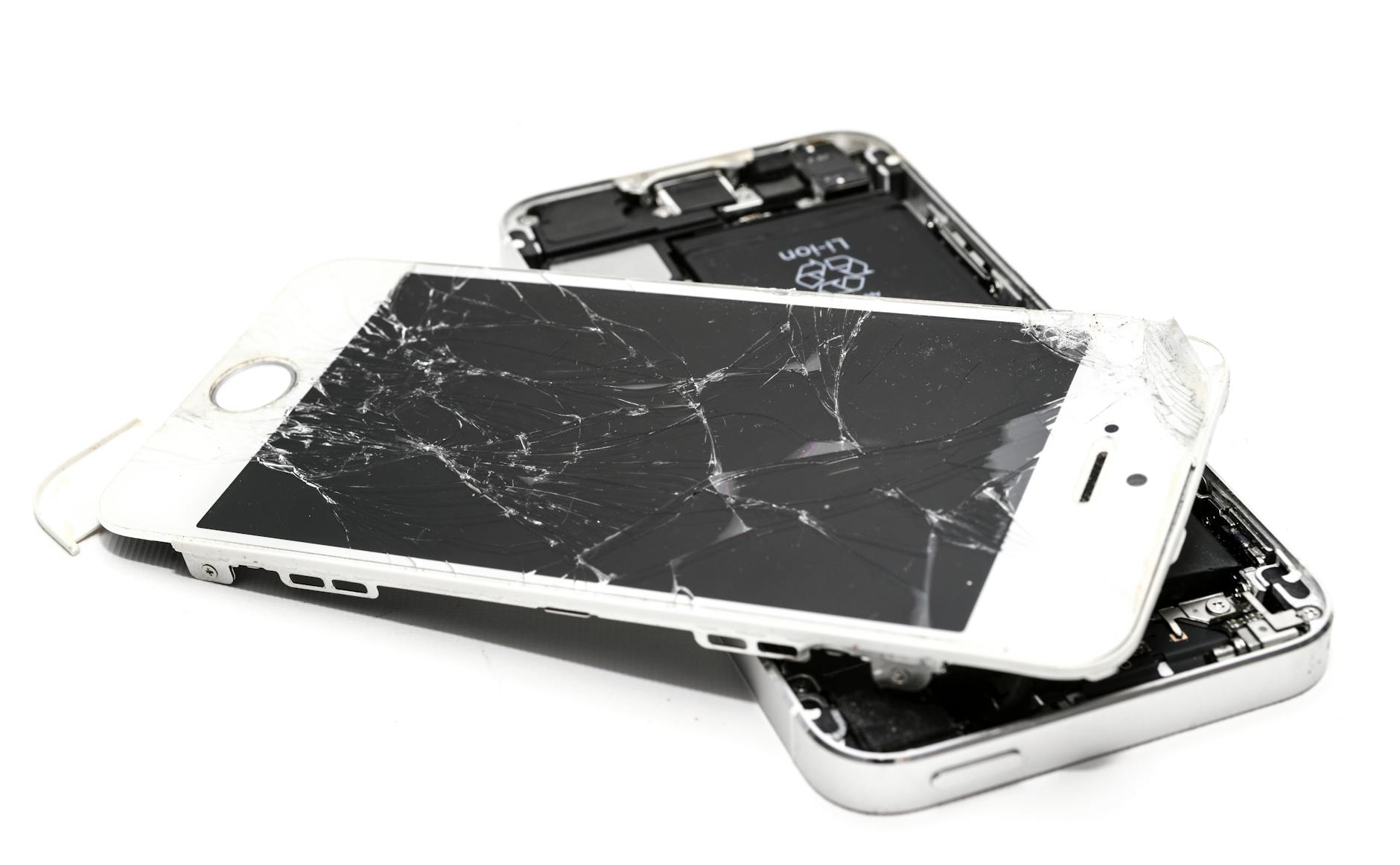
Photo by ClickerHappy
When Software Won’t Cut It – Get Pro Help
Lines that spread across the screen or flicker with touches signal a failing display panel. One streak turns into a web fast, blocking taps and views. Heat worsens it; your smartphone runs hot from use.
Replace the screen through pros only. DIY tears glued parts and voids warranty. Apple’s techs use genuine displays for safety and color match. Book at an Apple Store or authorized spot. Mail-in works too for quick turnaround. Costs run $200-$400 out of warranty, less with coverage. Lines worsen daily; act before blackouts hit. Pros diagnose cables or panels in minutes. (98 words)
Prevent Screen Lines and Know When to Replace Your Display
You fixed the lines for now, but prevention keeps your phone screen clear long-term. Simple habits cut the risk of loose cables or panel damage. Heat, drops, and pressure cause most issues. Follow these steps to protect your display. If lines return or worsen, replacement becomes the only fix.
Habits That Stop Lines from Forming
Protect your smartphone from everyday threats that jar the display cable. A sturdy case absorbs shocks from drops. Screen protectors add a buffer against scratches and impacts.
Here are key steps to follow:
- Use a rugged case and tempered glass protector. They cushion falls that loosen connections inside.
- Avoid extreme heat. Keep your phone out of direct sun or hot cars. High temps warp flex cables over time.
- Handle with care. Skip bending or pressing hard on the screen. Pockets work best; don’t sit on it.
- Update software regularly. Patches fix bugs that stress display drivers.
Samsung users share solid tips on their community forum. They stress gentle use and cooling down after heavy tasks. These changes add years to your screen’s life.
Clear Signs It’s Time for a New Display
Software tests failed, and lines stick around. Watch for these red flags that point to hardware failure.
Your display needs replacement if:
- Lines appear in safe mode, color tests, or after updates.
- Streaks spread or flicker with touches.
- Colors wash out, or touch skips spots near lines.
- The phone overheats near the display edge.
One line often grows into more. Delaying risks full blackouts. Check Android Authority’s guide on green line issues for details on AMOLED failures. Pros confirm damage in minutes. Costs run $100 to $300 for most models, depending on brand and size.
Book a repair soon. A fresh screen restores full clarity and touch response. Your phone feels new again.
Conclusion
You now know how to tackle purple or green lines on your phone screen. Start with a force restart and software update to clear glitches. Boot into safe mode on Android or run Samsung’s color test next. Lines stick around? Hardware like a loose cable needs pro attention.
Act fast on your smartphone. Delays let one line spread into more, blocking your view. Samsung users check Care+ for free screen repairs on eligible models. Book Apple service or authorized shops for quick fixes. Costs run $200 to $400 out of warranty, but coverage drops that low.
Share your fix in the comments below. Did safe mode save your screen? Subscribe for more troubleshooting tips on smartphone issues.
A clear display waits. Your phone runs smooth again soon.