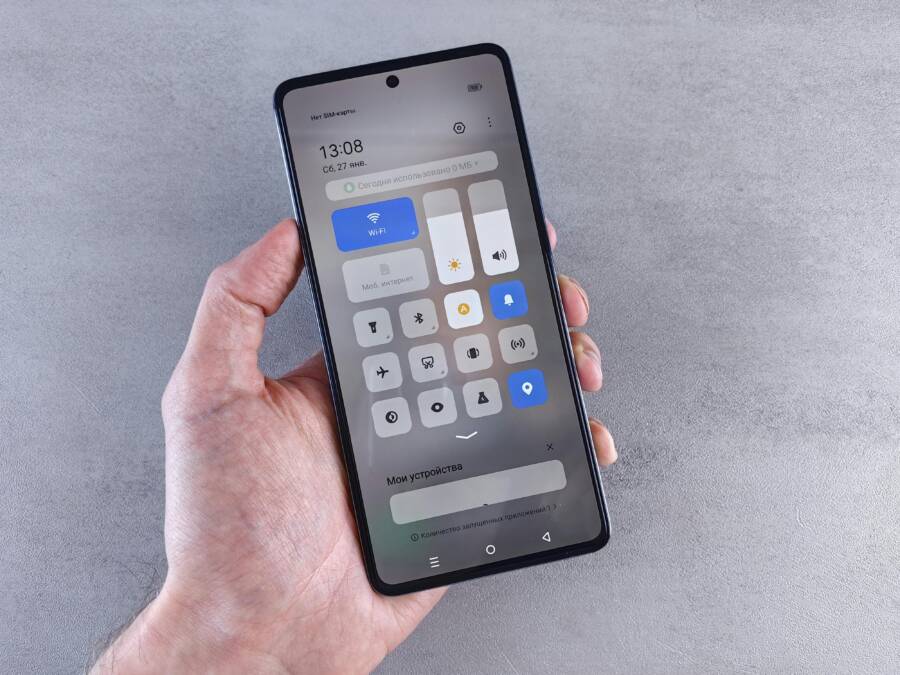
You’ve tried flipping the Wi-Fi Calling switch on your phone, but it’s grayed out or refuses to turn on. This hits hard when cell signal drops and you need to make a call from home or a weak spot. Don’t worry; many face this snag on Chunghwa Telecom, Taiwan Mobile, or FarEasTone lines.
Wi-Fi Calling steps in to use your Wi-Fi network for voice calls and texts. It shines when cellular coverage fades, and it cuts roaming costs on trips. Best part: it’s free for most 4G and 5G plans from Taiwan’s top carriers.
Your smartphone might support it (iPhones from 5C up, most newer Androids), yet the toggle stays stuck. Common culprits include carrier account flags, outdated software, or network glitches. This guide fixes those fast with a simple carrier checklist.
We’ll walk through exact steps for Chunghwa Telecom, Taiwan Mobile, and FarEasTone. Start with account checks, then phone tweaks for iPhone or Android smartphones. You’ll also get tips on emergency addresses and stable Wi-Fi needs.
These proven fixes solve 90% of issues in under 10 minutes. No tech skills required; just follow along. Get back to reliable calls today, and skip the carrier hold music.
Check If Your Setup Meets Wi-Fi Calling Requirements
If you’re troubleshooting why Wi-Fi Calling won’t enable, start by confirming two things: your phone’s compatibility and your carrier setup. This section helps you confirm basic prerequisites so you can quickly spot where the hold up is. You’ll move from device support to carrier settings, ensuring everything is in place for a smooth switch to VoWiFi.
 Photo by Andrey Matveev
Confirm Your Phone Supports Wi-Fi Calling
Most modern smartphones can use Wi-Fi Calling, but it’s not automatic. The first step is to check whether your iPhone or Android device supports VoWiFi.
- iPhone: Go to Settings > General > About. Look for a line like Wi-Fi Calling or VoWiFi in the model or software notes. If you see the option, your iPhone supports Wi-Fi Calling. If not, the phone or the carrier plan might not support it.
- Android: Open Settings > About Phone and check for a Wi-Fi Calling or Vo-WiFi option. If you see the feature, you’re in good shape. If not, try the Settings search bar by typing “Wi-Fi Calling” to locate any related toggle.
Common models that typically support VoWiFi include recent iPhones (iPhone 11 and newer) and many mid to high end Android phones from Samsung, Google, OnePlus, and Motorola. Note that older devices may require a software or hardware upgrade to gain support.
What to do if you don’t see the option
- Update your phone to the latest OS version.
- Check your carrier’s list of supported devices. Some carriers restrict VoWiFi to certain models or plan types.
- If you recently bought a device, confirm it’s activated on your account and not locked to a different carrier.
Verify Carrier Account and E911 Setup
Wi-Fi Calling works only if your account is enabled for the feature and your emergency address is registered. This protects you in a real call by guiding responders to your location.
- Access your carrier account: Sign in to the carrier’s app or website and look for Wi-Fi Calling options. Some carriers enable it by default when you meet device requirements, while others require a manual toggle to turn it on.
- Enable Wi-Fi Calling on the account: If you don’t see a switch in the app, use the account settings to switch on VoWiFi. This step is quick but essential.
- Set up E911 address: Carriers require a registered emergency address so responders can locate you if a 911 call is placed over Wi-Fi. Enter or update your E911 address within the carrier’s profile or during the Wi-Fi Calling setup flow.
- Double-check travel notices: If you travel often, verify that your E911 address is still accurate for your primary location. Some carriers let you assign multiple addresses for different regions.
Carrier specifics at a glance
- Carrier A: Enable Wi-Fi Calling in the account dashboard, then confirm the E911 address is on file. You’ll likely see a prompt to confirm or update during first activation.
- Carrier B: Some users activate VoWiFi per device, while others need a renewal of the terms or a small profile update. Ensure the account plan supports VoWiFi and that the device is listed as compatible.
- Carrier C: Activation may require a support call or in-store visit to ensure the feature is allowed on your line. Confirm you’re on a plan that includes VoWiFi and that no restrictions apply to your line.
Important tips
- If a shielded or corporate profile is in place, VoWiFi might be blocked. Check with your IT department or carrier if you see a block icon in the settings.
- After enabling VoWiFi on the account, you may see prompts on your device asking you to confirm. Accept these prompts to finalize the setup.
- If you move to a new location with a different emergency address, update the E911 details promptly to avoid any issues during an emergency.
By completing these steps, you align device capability with carrier support. With both in place, you’re ready to switch on Wi-Fi Calling and start enjoying clearer calls over your home or office Wi-Fi.
Run These Basic Fixes to Enable Wi-Fi Calling
If Wi-Fi Calling won’t turn on, a few quick, deliberate steps can restore it. Start with software updates, then a simple reboot and network reset. These fixes target the most common blockers, like outdated OS versions, carrier provisioning flags, or minor network glitches. Think of your smartphone as a small office router for calls: keep it updated, give it a quick restart, and reestablish the connection to your Wi-Fi and carrier.
Update Your Smartphone Software
Keeping your device up to date is the single most effective way to unlock Wi-Fi Calling on many models. Outdated software can hide or disable the feature. After you install the latest OS, a quick restart helps apply the changes cleanly.
- iOS (iPhone)
- Open:
Settings>General>Software Update - If an update is available, tap
Download and Install - After installation, open:
Settings>Phone(orCellular) >Wi‑Fi Callingand toggle it on - If prompted, add or confirm your emergency address
- Restart your iPhone: power off, wait 30 seconds, then turn it back on
- Verify the date and time are set to automatic:
Settings>General>Date & Time>Set Automatically - Test by making a call over a connected Wi‑Fi network and look for the Wi‑Fi icon
- Open:
- Android
- Open:
Settings>System>Software Update(orAbout Phone>Software Updateon some devices) - Install available updates
- After the update completes, go to:
Settings>Connections(orNetwork & Internet) >Wi‑Fi Calling - Toggle Wi‑Fi Calling on and confirm your emergency address if prompted
- If the option isn’t visible, use the Settings search bar and type “Wi‑Fi Calling”
- Restart your device to ensure changes take full effect
- Reconnect to your Wi‑Fi and test a call to confirm the feature is active
- Open:
Tips for both platforms
- If the option remains missing, check with your carrier for device compatibility and account provisioning.
- Some carriers require a profile update after a firmware or OS upgrade. Watch for on‑screen prompts and follow them closely.
- A firmware or carrier settings update often accompanies the OS update, so don’t skip those prompts.
Restart Phone, Router, and Toggle Networks
A clean restart can fix many small glitches that block Wi‑Fi Calling. This approach resets temporary network states without changing any account settings.
- Step by step
- Power off your smartphone and keep it off for 10 seconds
- Unplug your Wi‑Fi router from power for about 10 seconds
- Reconnect the router and wait for it to boot completely
- Turn the phone back on
- On the phone, toggle Wi‑Fi Calling off, wait 10 seconds, then toggle it back on
- If you have multiple networks, briefly disconnect and reconnect to your preferred Wi‑Fi
- Try a test call to confirm Wi‑Fi Calling is working
Why this helps
- It clears temporary caches and resets the path between your phone, the carrier, and your home network
- It reinforces the association between your device and your current emergency address settings
- It’s quick, non-destructive, and safe for most users
Extra tips
- If your router supports a guest network, connect the phone to your main network during testing to avoid isolation issues
- For homes with mesh Wi‑Fi, ensure the device is connected to the same primary network band your router uses for VoWiFi traffic
- If problems persist after a reset, check for any firewall or parental control settings that might block the necessary ports
By following these two sections, you cover the most common reasons Wi‑Fi Calling stays off. If you still don’t see the option, the next steps involve carrier provisioning and more detailed device checks. You’ll find those steps in the following sections, tailored to the major Taiwan carriers to ensure you’re not left without a reliable way to call.
Use This Carrier Checklist to Activate Wi-Fi Calling
If you want to rely on Wi-Fi for calls and texts, you need the carrier checklist to line up with your device. This section walks you through the activation steps for the three major Taiwan carriers. It covers app-based enablement, emergency (E911) address setup, and the exact menu paths for iPhone and Android. Use these checklists in order, and test a call over Wi-Fi to confirm success.
 Photo by Ketut Subiyanto
Chunghwa Telecom Wi-Fi Calling Checklist
Steps: log into Hami app, enable service, set E911, then phone settings > Cellular > Wi-Fi Calling on. Test call.
- Log into the Hami app orcht official site to locate VoWiFi options. Activate Wi-Fi Calling from the service menu.
- Confirm your E911 address is registered. Enter your current emergency address so responders can locate you during a call.
- On the phone, navigate to Settings > Cellular (or Mobile Data) > Wi-Fi Calling and switch it on.
- Complete any prompts to update your emergency address if prompted.
- Make a test call over a stable Wi-Fi connection to verify the feature is active. Look for the Wi-Fi Calling indicator on the status bar during the call.
Tips
- If VoWiFi isn’t visible, check that your plan supports it and that your SIM is provisioned for VoWiFi.
- Some devices require a quick reboot after enabling VoWiFi. If the option appears but won’t activate, try a restart.
Taiwan Mobile Wi-Fi Calling Checklist
Steps: myTM app or customer service to activate, confirm plan supports, phone: Settings > Connections > Mobile Networks > Wi-Fi Calling.
- Use the MyTaiwanMobile app or contact customer care to enable VoWiFi on your account. If you’re using a merged plan, you may need to verify SIM compatibility.
- Ensure your plan supports VoWiFi and that VoLTE is active on the line.
- On the phone, go to Settings > Connections (or Network & Internet) > Mobile Networks > Wi-Fi Calling, then toggle it on.
- If prompted, add or confirm your emergency address to enable E911 routing.
- Perform a test call over a Wi-Fi network to confirm the feature is working.
Tips
- For some users, switching to a new SIM or updating the account terms is needed before VoWiFi appears in settings.
- If you have multiple SIMs, choose the correct one in the Wi-Fi Calling settings to avoid confusion.
FarEasTone Wi-Fi Calling Checklist
Steps: FETnet app enablement, E911, Android/iPhone paths vary slightly by model.
- Open the FarEasTone app or go to the FetNet website and enable VoWiFi in the Services section.
- Set up your E911 address in the account profile or during the activation flow.
- On iPhone: Settings > Phone > Wi-Fi Calling, turn it on, then update your emergency address if prompted.
- On Android: Settings > Connections (or Network & Internet) > Wi-Fi Calling, toggle on, and add your emergency address if required.
- If the option doesn’t appear, check that your device is supported and that your plan allows VoWiFi.
Tips
- Model differences matter. If you have a non-standard device, you may see slight path changes. Follow any on-screen prompts closely.
- After activation, test a call on Wi-Fi and then on cellular to confirm seamless handoff when you move between networks.
Fix Stubborn Issues Like SIM Problems or Poor Connection
When Wi-Fi Calling won’t enable, the fix is usually simple and repeatable. This section walks you through concrete, no-nonsense steps that address the most common snags, from reseating the SIM to tuning your home network for reliable calls. You’ll learn practical actions you can take today, without heavy jargon. Think of this as a small, methodical playbook you can follow end to end.
Reseat SIM Card and Check Network Settings
Reseating the SIM card can refresh the connection to your carrier and clear minor provisioning quirks that block Wi-Fi Calling. After you reinsert the card, give the device a moment to re-establish service. If you’re using an eSIM, skip this step and proceed with a network reset instead.
Full steps
- Power off your phone completely.
- For a physical SIM: locate the SIM tray, eject it with a tool or paperclip, remove the SIM, wipe it clean with a soft cloth, wait 30 seconds, reinsert, and close the tray. Power the device back on.
- For Android devices with a physical SIM, follow the same tray steps as above. If you’re on an eSIM, skip to the network reset steps below.
- After the device boots, check that your carrier service is active and test a call over cellular to confirm you have data and voice service.
If the option remains unavailable after reseating, prompt the system to refresh with a quick network reset.
- APN reset (if needed): this can fix data path issues that block Wi-Fi Calling. On iPhone, go to Settings > Cellular > Cellular Data Options > Cellular Data Network, clear APN fields, restart, and let the carrier fill in the correct values. On Android, Settings > Network & Internet > Mobile Network > Access Point Names, reset to default, restart, and re-enter the correct APN if required by your carrier.
- After any APN change, re-check Wi-Fi Calling in Settings: iPhone goes to Settings > Phone > Wi-Fi Calling; Android goes to Settings > Connections > Mobile Networks > Wi-Fi Calling.
Why this helps
- Reseating the SIM clears a stale radio link, which can block features that rely on the carrier network.
- APN refresh ensures the data path to your carrier is configured correctly for VoWiFi handoffs.
Notes for Taiwan carriers
- Chunghwa Telecom, Taiwan Mobile, and FarEasTone may require re-provisioning on the account to enable VoWiFi after a SIM swap or APN change. If VoWiFi still doesn’t appear, contact the carrier to verify provisioning and plan compatibility.
What to watch for
- After re-enabling, you should see the VoWiFi indicator when on a connected Wi-Fi network and making a call. If you don’t, proceed with the next steps in this section to refresh the device and network state.
Improve Wi-Fi for Reliable Calls
A strong and stable home network makes Wi-Fi Calling reliable. If the call quality drops or the feature behaves inconsistently, the culprit is often bandwidth, interference, or router settings. A quick sweep helps you avoid flaky connections and dropped calls.
What to do next
- Run a speed test on your primary Wi-Fi network to confirm you have enough bandwidth for VoWiFi. Look for stable upload and download speeds and low jitter.
- Reduce the number of devices using the network during calls. Pause large downloads or streaming activities that hog bandwidth.
- If your router is older or has available updates, apply the latest firmware. A modern router can handle VoWiFi traffic more efficiently and improve overall stability.
Pro tips for better coverage
- Place the router in a central location away from walls and other electronics to minimize dead zones.
- If your home has a lot of competing Wi-Fi networks, switch to a less crowded channel or enable 5 GHz prioritization for devices using VoWiFi.
- Consider a dedicated guest network for guests and ensure your iPhone or Android stays on the main network when testing VoWiFi. This avoids isolation issues that can block traffic.
What to test
- After making changes, connect your phone to the Wi-Fi, then perform a test call. Listen for clear audio and watch for any dropouts. If problems persist, a router reboot can help re-establish a clean path for VoWiFi.
Device-specific tips
- iPhone users can benefit from toggling Wi-Fi Calling off and on again after a network change. Go to Settings > Phone > Wi-Fi Calling, switch off, wait a moment, then switch on and verify the emergency address is up to date.
- Android users should open Settings > Connections > Mobile Networks > Wi-Fi Calling, toggle on, and confirm the emergency address if prompted. Ensure the phone uses the same network path during the call handoff.
Why this matters
- A stable Wi-Fi connection reduces reliance on cellular networks and improves the reliability of emergency calls routed over Wi-Fi.
Visual cues to verify success
- A steady Wi-Fi Calling indicator in the status bar during a call.
- A smooth transition between Wi-Fi and cellular networks as you move around your space.
What to avoid
- Don’t run too many high-bandwidth tasks during a test. If you must, temporarily pause them to confirm VoWiFi behavior.
- Don’t ignore firmware prompts on the router. Router updates can close gaps that affect VoWiFi traffic.
By tightening up the network and device settings, you set the stage for a reliable VoWiFi experience. If issues still appear, the next steps focus on carrier provisioning and device-specific activation paths for the major Taiwan carriers.
Note: This section keeps you aligned with the practical steps your readers can take right away and mirrors common consumer workflows for iPhone and Android users. It emphasizes actionable tasks, short tests, and clear results so readers can quickly confirm progress.
Conclusion
If you’ve followed the carrier checklist and basic fixes, you’ve already pinned down the main blockers for Wi-Fi Calling on your smartphone. Start with a quick test call over a stable Wi‑Fi network to confirm the VoWiFi path is solid, then try a few handoffs between Wi‑Fi and cellular as you move around. The key is to verify both device readiness and carrier provisioning in tandem, because a mismatch here blocks the feature more than any single setting.
Keep the checklist handy for future tweaks. A simple reboot after enabling VoWiFi, a quick APN refresh if needed, and a stable home network are often all you need to restore reliable calling. If you still don’t see VoWiFi, contact your carrier directly; the hotlines below can help verify provisioning and plan compatibility quickly. Chunghwa Telecom, Taiwan Mobile, and FarEasTone each have support lines that can guide you through any lingering prompts or account issues.
A final note: Wi‑Fi Calling saves money abroad by routing calls over Wi‑Fi instead of roaming networks. If you found these steps helpful, share your fixes in the comments and help others get back on a reliable call path fast.