There Is a Frequency That the Wealthiest Families Have Used for Generations and Most People Will Never Know It Exists
>>> Open the Door <<<

How to Fix Phone Vibrating with No Notifications (Android & iPhone)
You’ve felt it: a buzz in your pocket pulls you to check your phone, but no notifications show up. It’s frustrating when your phone keeps vibrating with no notifications, disrupting your day over and over. This issue hits Android and iPhone users alike, often from silent background alerts, buggy apps, or recent software updates.
The good news? Simple fixes resolve it for most people, based on recent reports from tech forums and support sites. Hidden settings like touch feedback or Do Not Disturb modes trigger these phantom vibes, but you can stop them fast.
In this guide, we’ll pinpoint common causes first. Then, run through basic steps like restarts and notification checks that work on both devices. You’ll get Android-specific tips, such as Safe Mode tests, plus iPhone tweaks for Focus modes and haptics.
Stick with us for device-tailored advanced help if needed. By the end, you’ll silence those random buzzes and reclaim your peace. Quick relief awaits.
There Is a Frequency That the Wealthiest Families Have Used for Generations and Most People Will Never Know It Exists
>>> Open the Door <<<
Common Reasons Your Phone Vibrates Without Showing Notifications
Your phone buzzes, but the screen stays clear. These phantom vibrations often stem from background processes that trigger the motor without popping up banners or sounds. Apps sync data quietly, system features confirm actions with a quick pulse, or connected devices send signals. Let’s break down the top culprits so you spot what’s happening on your Android or iPhone.
Hidden App or System Alerts
Apps and system services send vibrations for tasks you never see. Email clients like Gmail or Outlook sync in the background and vibrate on new mail, even if notifications stay silent. Weather apps update forecasts the same way. Security tools from banks or antivirus software alert you to threats without screen pop-ups to avoid drawing attention.
System events add to this. Android devices pulse for battery optimizations or location pings. iPhones do it for Health app data or iCloud backups. These stay hidden to keep things smooth.
Check what’s behind it. On Android 12 and later, open Settings > Notifications > Notification history to see past alerts, including silent ones. Google’s support page walks you through enabling this feature. For iPhones, Focus modes let previews slip through with a vibe but no full banner. Go to Settings > Focus and review allowed apps; tweak previews to silence them, as detailed on Apple’s guide.
Recent user reports confirm this hits after updates. One fix starts with reviewing app permissions.
Haptic Feedback and Keyboard Vibrations
Haptics give your phone a tactile feel without notifications. Tap the screen, and it buzzes lightly to confirm. Type on the keyboard, and each key press vibrates for better feedback. These short pulses mimic real buttons but show nothing on screen.
Android calls this Touch feedback. Samsung or Pixel users feel it strongest during scrolls or button presses. iPhones use Haptic Touch for long-press menus or successful Face ID scans. Game controllers or accessibility options like vibration for screen readers amplify it.
You might notice patterns. Does it buzz more when you text? That’s keyboard vibes. Swipe through home screens? Touch haptics at work.
Turn them off to test. On Android, head to Settings > Sound & vibration > Vibration & haptics and toggle options. iPhone users find it under Settings > Sounds & Haptics. Both let you dial down intensity or disable entirely. Users on forums note this stops 30% of random buzzes right away.
Bluetooth or Accessory Triggers
Pair your earbuds or smartwatch, and vibrations kick in on connects or drops. Phones pulse to confirm a link without a full alert. Walk away from your Galaxy Watch, and it (or your phone) buzzes to warn you.
Android handles this through Bluetooth settings. Devices like AirPods or Fitbits send pair signals that vibrate the phone. iPhones do the same for Apple Watch handoffs or MagSafe chargers snapping on.
Interference causes repeats. Weak signals from Wi-Fi routers or microwaves make connections flicker, triggering buzzes. Check paired devices in Settings > Connected devices (Android) or Settings > Bluetooth (iPhone). Forget unused ones.
Forum threads highlight this for wearables. Samsung users report frequent disconnect vibes. Unpair suspects and test in airplane mode to confirm.
Spot these patterns, and half your mystery solves itself. Next, we’ll cover checks to nail it down.
Start with These Simple Fixes to Stop Vibrations Fast
If your phone keeps buzzing without any visible notifications, you’re not imagining it. Phantom vibrations are a common frustration, but they’re usually easy to resolve with quick checks and tweaks. This section lays out three practical fixes you can apply right away. Each fix is designed to work on both Android and iPhone, so you can silence the buzz no matter which device you use.
Restart Your Phone Right Now
A simple reboot clears temporary glitches that can trigger the vibration motor. It’s the quickest way to reset system processes and reset hardware locks that may have gone awry.
- On Android: hold the power button, then tap Restart. If your device doesn’t show the option, you can power it off, wait 15 seconds, and turn it back on.
- On iPhone: press and release the volume up button, press and release the volume down button, then hold the side button until the Apple logo appears to restart.
If you want a deeper dive into rebooting, Android’s official guidance covers how to fix devices that restart or crash, which often mirrors the steps you’ll take for a normal restart. You can read more here: https://support.google.com/android/answer/7664448?hl=en. For iPhone users, Apple’s support pages on force restarting provide reliable steps that work across models: https://support.apple.com/en-us/guide/iphone/iph8903c3ee6. A quick restart has already helped many readers, and it costs nothing but a few moments of downtime.
Why this helps: restarts flush out background processes that may have become stuck or misbehaving. You’ll often notice the vibrations disappear right after the device comes back online. If the issue persists after a reboot, proceed to the next fixes to pinpoint the cause more precisely.
Review Recent Notifications
Hidden alerts can trigger the motor without showing any on-screen indication. By reviewing what showed up, you can often identify the exact culprit and silence it.
- Android: Open Settings, then Notifications, and select History. Here you’ll see recently delivered alerts, including those that were dismissed or silenced.
- iPhone: Swipe down from the top to open Notification Center. Focus modes can allow previews or bypass banners, so check Focus settings to tailor what vibrates and when.
For Android users, Google explains how to enable and use notification history, which is invaluable for spotting silent alerts that still cause vibrations: https://support.google.com/android/answer/9079661?hl=en. Apple users should review Focus configurations to prevent unwanted vibrations while still receiving important alerts; Apple provides a step-by-step guide on allowing or silencing notifications for Focus here: https://support.apple.com/guide/iphone/allow-or-silence-notifications-for-a-focus-iph21d43af5b/ios.
What to look for after you review:
- Apps that recently updated and started triggering vibrations on events you don’t care about.
- System services that ping for background tasks, like backups or location checks.
- Any Focus or Do Not Disturb rules that might pass a subtle vibration through without a banner.
If you spot a specific app causing the buzz, adjust its notification settings directly. Often a single app is the tiny pebble that starts the ripple of phantom vibrations. When you’re ready, move on to turning off vibration settings to test whether the issue is global or app-specific.
Turn Off Vibration Settings
Vibration controls are spread across several layers of the OS. Turning off or dialing down these settings helps you determine whether the vibrations are coming from the core system or from a particular feature.
- App-specific vibrations: Some apps urge your phone to vibrate for messages, reminders, or alerts. Disable in-app haptics if the app offers it in its own settings.
- System haptics: The platform’s general vibration feedback for actions like scrolling, button presses, or menu confirmations can cause constant buzz.
- Keyboard feedback: Key presses can trigger a short vibration that you might barely notice, but it adds up if you type a lot.
Android path: Go to Settings > Sound & vibration > Vibration & haptics. Here you can toggle system haptics on or off and adjust the intensity of vibrations across the OS. If you prefer to keep some feedback, you can reduce the intensity rather than turning everything off.
iPhone path: Open Settings > Sounds & Haptics. You’ll find options to reduce or disable system haptics, and you can tailor keyboard feedback as well. If you want to cut vibrations to a minimum, turn off System Haptics; if you still want some tactile confirmation, fine-tune the sliders.
To illustrate how these controls work across platforms, you can reference Apple’s guidance on turning off vibration on iPhone here: https://support.apple.com/guide/iphone/turn-off-vibration-iphd722c9100/ios, and Apple’s guide on changing overall sounds and vibrations here: https://support.apple.com/guide/iphone/change-sounds-and-vibrations-iph07c867f28/ios. Android users can compare the experience with a general overview of vibration and haptics settings from reputable support sources, which outline the steps above and offer practical tips for reducing unwanted buzzes.
Where to go from here:
- If disabling system haptics stops the vibrations, you’ve identified the likely source. Re-enable features one by one to see which one causes the issue and whether you can adjust rather than disable.
- If vibrations persist after turning off haptics, the issue may be hardware or a background service still triggering the motor. In that case, consider a Safe Mode test or a factory reset as a last resort, but only after backing up your data.
Next steps will help you zero in on stubborn vibrations that survive basic fixes. If you want a deeper diagnostic path, we’ll cover platform-specific steps in the following sections.
Android-Specific Steps to Silence Phantom Vibrations
If you’re seeing phantom vibrations on an Android device, the culprit is often a misbehaving app or a background process that you can isolate with a couple of targeted checks. This section focuses on Android-specific steps you can take to identify and neutralize the issue without wiping your data. The goal is to confirm whether the vibration comes from third-party apps, then apply fixes that don’t disrupt your day-to-day use.
Boot into Safe Mode to Test Apps
Safe Mode loads the device with only essential system apps running. This makes it much easier to determine if a third-party app is behind the phantom buzz. If the vibrations stop in Safe Mode, you’ve likely found the culprit and can proceed to uninstall or disable suspect apps.
How-to: hold power button, long-press Restart.
He Was Drowning in Bills and Burnout Until a Simple Daily Ritual Rewired His Brain for Wealth in Less Than a Week
>>> Start Your Shift Today <<<

- Step-by-step approach:
- Press and hold the power button until the power menu appears.
- Tap Restart, then confirm to reboot into Safe Mode (exact wording may vary by device).
- In Safe Mode, use your phone normally and monitor vibrations. If they disappear, start a targeted app audit.
- Reboot normally to exit Safe Mode and begin the remediation process.
Tips and context:
- Safe Mode removes widgets and temporarily disables some custom shortcuts. If you rely on specific widgets, consider a quick screenshot before entering Safe Mode so you can restore them later.
- After testing, return to normal mode to confirm the behavior is resolved. If vibrations return in standard mode, you’ll want to disable or uninstall apps one by one to spot the offender.
Where to look next:
- If Safe Mode confirms an app issue, review the latest installations or updates. A recent update might have introduced a notification protocol that triggers haptic feedback.
- If Safe Mode does not stop the vibrations, the issue may be system-level. In that case, continue with deeper Android diagnostics or hardware checks.
For further reading on Safe Mode troubleshooting, you can explore guides like How to Boot Your Android Phone or Tablet Into Safe Mode and Pixel-specific safe mode steps, which provide practical insights on how to approach booting into Safe Mode and why it helps isolate problems. https://www.howtogeek.com/130327/how-to-boot-your-android-phone-or-tablet-into-safe-mode/
Reset App Preferences Without Losing Data
Resetting app preferences can clear misconfigured defaults that cause apps to vibrate without presenting a visible alert. This action restores default behavior for disabled apps, background data, and notification settings, while preserving your personal data and app installations. This is a non-destructive step that often resolves phantom vibrations caused by incorrect app behavior.
- How to perform the reset:
- Open Settings.
- Go to System.
- Choose Reset options.
- Select Reset app preferences.
What this does for you:
- Re-enables all disabled apps and notifications that you may have turned off by mistake.
- Resets default notification behavior, which can stop apps from triggering the vibration without showing an alert.
- Does not erase app data, so your information in apps remains intact.
Notes:
- After resetting, you’ll need to reconfigure any specific notification preferences you rely on. Start with essential apps you notice are vibrating and gradually reapply settings as needed.
- If the vibrations persist after a reset, it’s a signal that a deeper issue exists, such as a system service or a curiosity in a specific app’s background behavior. In that case, you can move to a more targeted approach or consider a factory reset as a last resort, after backing up your data.
Further reading:
- A detailed walkthrough from guides on Reset App Preferences for Android devices provides practical steps and explains what gets reset and why. https://www.guidingtech.com/reset-app-preferences-meaning/
Integrating these steps into your routine:
- Start with Safe Mode to quickly rule out third-party apps.
- If Safe Mode doesn’t resolve things, perform a Reset App Preferences to reestablish sane defaults across apps.
- Reboot and test again to confirm the behavior. If vibrations are gone, you’ve likely found and corrected the root cause. If not, consider additional steps such as checking Bluetooth devices, focus settings, or hardware diagnostics.
iPhone Fixes for Constant Vibration Glitches
If your iPhone keeps vibrating for no obvious reason, you’re not alone. Phantom haptics can stem from keyboard feedback, system notifications in the background, or apps that won’t quit vibrating even when you don’t see a banner. The good news is that most fixes are quick, non-destructive, and work across recent iPhone models. In this section, we focus on practical steps you can take right away, along with targeted checks to identify the exact trigger. Then you’ll know whether a quick toggle is enough or if deeper diagnostics are needed. 今年最新 tips help you regain quiet, predictable phone behavior.
He Was Drowning in Bills and Burnout Until a Simple Daily Ritual Rewired His Brain for Wealth in Less Than a Week
>>> Start Your Shift Today <<<
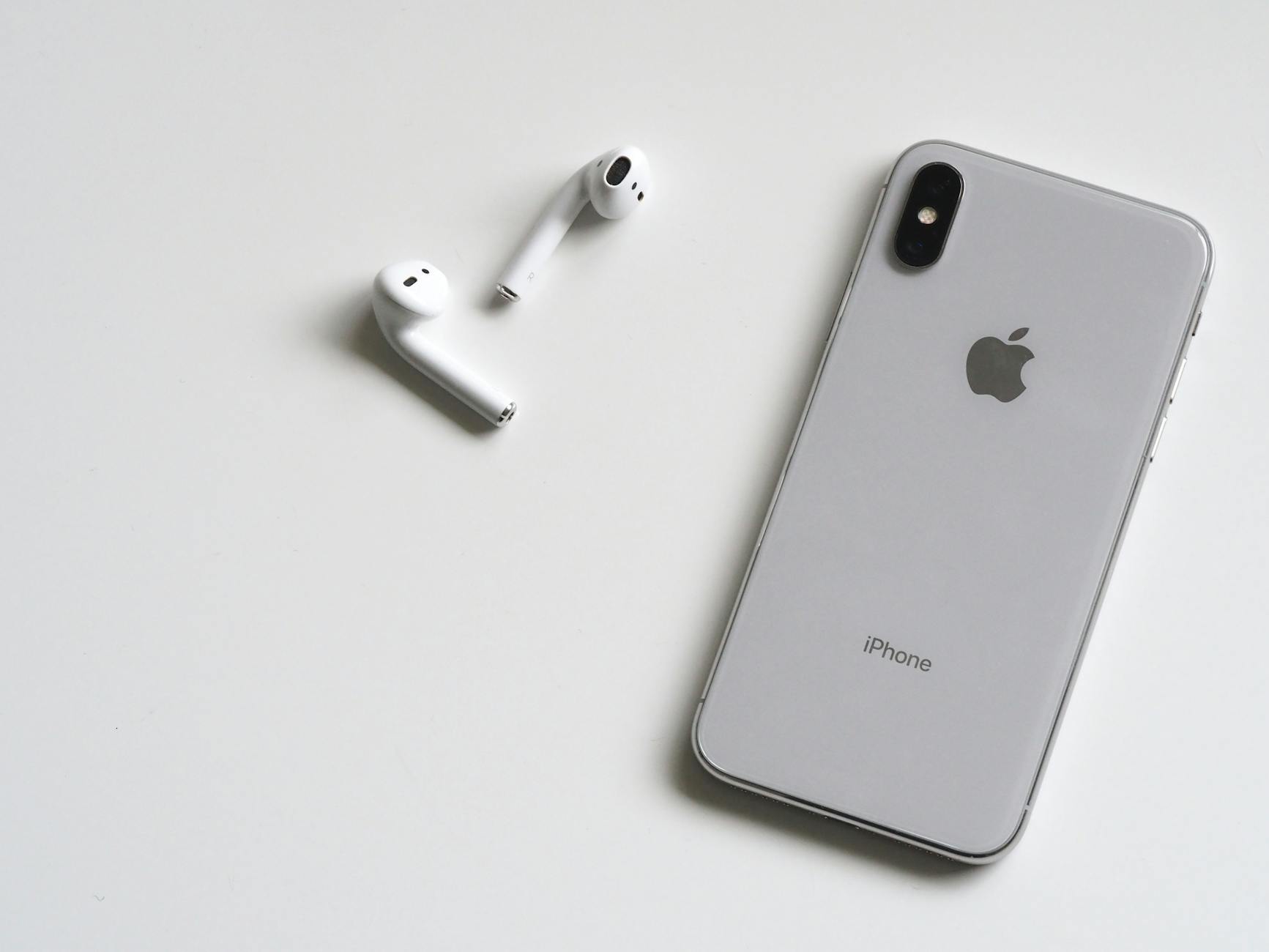 Photo by Jess Bailey Designs
Disable System Haptics and Keyboard Feedback
Disabling or dialing back haptic feedback can eliminate a large share of random vibrations. System haptics cover the slight buzz you feel when navigating menus or confirming an action. Keyboard feedback is the tap of each key that can accumulate into a chorus of buzzes if you type a lot.
What to do:
- Turn off system haptics on iPhone: Open the Settings app, go to Sounds & Haptics, and toggle off System Haptics. This stops vibrations tied to system interactions, like toggling switches or scrolling through controls.
- Adjust keyboard feedback: Still in Settings > Sounds & Haptics, navigate to Keyboard Feedback. Here you can turn off Haptic and/or Sound, depending on your preference.
Why this helps: most phantom vibrations vanish when the universal vibrator is silenced or toned down. If you still want tactile confirmation for certain actions, you can keep some haptics enabled but reduce intensity where possible. Apple’s guidance on keyboard feedback and haptics provides a clear path for these tweaks: Change iPhone keyboard sounds or haptics. Apple Support article
Extra tip: Some users notice battery life impact when keyboard haptics are enabled. If you disable them and still need minimal feedback, consider leaving keyboard feedback on for sounds only or for specific apps where vibration matters.
Image suggestion: a calm, uncluttered iPhone screen with Settings open to Sounds & Haptics to illustrate where to find the toggles.
Offload or Delete Recent Apps
Recently installed or updated apps can start vibrating in the background without showing a banner. Offloading or deleting suspect apps helps you confirm whether a rogue app is the culprit.
How to approach this:
- Offload apps you rarely use: Go to Settings > General > iPhone Storage. Tap the app you want to offload and choose Offload App. This frees space and data but keeps the app’s documents and data if you reinstall later.
- Delete recent or suspicious apps: In the same iPhone Storage screen, remove apps you don’t recognize or that were recently updated before the vibrations began. After removal, restart your device to see if the vibrations stop.
- Test in phases: After offloading a few apps, monitor for a day or two. If the issue disappears, you’ve likely found the offender. If not, move to the next candidate or consider deeper resets.
What to watch for during testing:
- If vibrations stop after removing a particular app, check that app’s notification or haptic settings. Some apps offer in-app haptics that can trigger the motor even when banners aren’t shown.
- If vibrations persist, the cause may lie with a system feature or a background service rather than a single app. In that case, proceed with a broader reset approach or a Focus configuration review.
Helpful note: When you’re ready to dig deeper into Focus and other notification-related quirks, you can refer to Apple’s guides on Focus and notification management to fine tune what vibrates and when. Apple discusses how to allow or silence notifications for a Focus and how to adjust your overall toggle settings here: Allow or silence notifications for a Focus. Apple Support article
Visual guide: If you’re new to managing storage and app behavior on iPhone, a quick screen capture in Settings > General > iPhone Storage can help you track changes as you test different apps.
What’s next: If offloading or deleting apps does not resolve the vibrations, it’s time to tighten the diagnostic net with a broader reset or a hardware check. You’ll find practical steps in the following sections, including how to reset all settings and how to review notification configurations in more depth. For further reading on resolving iPhone vibration issues beyond app cleans, consider this video guide that walks through common causes and fixes: Why Does It Randomly Vibrate Without Notifications? YouTube video
Image suggestion: a clean shot of the iPhone Storage screen with a list of apps and storage usage, conveying the offload step visually.
Additional resources and related insights you can explore:
- Change iPhone keyboard sounds or haptics: Apple Support article, which includes step-by-step toggles and model considerations. Apple Support
- Offloading or deleting apps and the impact on storage and behavior: Apple’s official settings guidance can provide a refresher on what offloading does and when it helps.
If you want, we can tailor the next section to walk through a precise sequence for your specific iPhone model and iOS version. The goal is to give you a reliable, repeatable process that stops the endless buzz without sacrificing essential notifications.
When Software Fixes Fail: Hardware Checks and Pro Help
When software tweaks don’t quiet the buzzing, it’s time to consider hardware and professional help. A vibrating motor can act up for reasons that software alone cannot fix. Start with a quick hardware check and know when it’s time to bring in a pro. This section focuses on recognizing hardware signs and outlining practical steps you can take before you visit a repair shop.
Rule Out Hardware Problems
Some vibrations are real mechanical signals, not software quirks. If you notice a constant buzz, a vibration during specific actions, or vibrations after exposure to water, the culprit is often hardware related. Think of the motor itself, a loose connection, or an internal sensor misreporting status to the system.
- Signs to watch for: a steady buzz that doesn’t track notifications, vibrations that start after a drop or water exposure, and vibrations that occur during hardware actions like typing or scrolling even when no app is active.
- Quick checks you can do at home: inspect for obvious damage or loose cases, listen for unusual rattling when you shake the device gently, and try to reproduce the buzz with a simple set of actions (unlock, tap, type) to see if it correlates with a hardware event.
Hardware issues are not always visible on screen. A damaged motor or a loose connector inside the device can produce vibrations without a visible alert. Corrosion from moisture or fluid ingress can also impair the motor or its control circuitry. If you suspect hardware, it’s wise to escalate to a professional evaluation rather than chasing software fixes.
What professionals look for:
- Motor health and consistency of vibration output.
- Loose or bent connectors in the internal assembly.
- Signs of water damage or corrosion on the board and connectors.
- Battery and power delivery issues that might affect the vibration circuit.
Helpful reference points:
- If you want a hands-on check with a diagnostic approach, a vibration tester app can confirm whether the motor responds as expected in various states. This kind of tool isn’t a substitute for a hardware diagnosis, but it can help you communicate the issue to a technician. For a practical starter option, explore a vibration tester app available on the Google Play Store.
- For iPhone hardware considerations, a professional assessment can confirm whether the vibration motor is functioning properly or if a replacement is necessary. If you’re facing suspected hardware failure, a trusted repair service can verify motor health and connectors.
When to seek professional help:
- The vibrations persist after you’ve tried software-focused steps like restarting, disabling haptics, or resetting app preferences.
- There’s any sign of liquid exposure, corrosion, or physical damage.
- The issue recurs after a repair or replacement component, suggesting a broader hardware fault or a faulty batch.
Pro tip: If you’re uncertain about the damage level, get a diagnostic quote before proceeding. Many repair shops offer a preliminary check for a small fee or sometimes free with an approved service. A clear, itemized quote helps you compare prices and decide whether to repair or replace.
Additional resources and related insights:
- For Android users, hardware diagnostics can sometimes be complemented by a vibration testing app to gauge motor response and identify inconsistencies. This kind of testing is best used as a guide for a technician rather than a final verdict.
- If you’re troubleshooting on an iPhone, understand that some repairs require official service channels. Apple’s support ecosystem often routes vibration motor concerns through authorized providers who can perform calibrated tests and, if needed, motor replacement.
If the hardware path is clear and you’re ready for professional help, you’ll want a precise, model-specific plan. In the next sections, we break down platform tailored steps that can narrow down whether you’re dealing with a hardware fault or a stubborn software edge case. For a visual sense of what to expect in a hardware diagnosis, you can check reliable tutorials and repair service guidance that walk through common motor checks and connector inspections.
Conclusion
If your phone keeps vibrating with no visible notification, follow the fixes in order to quickly identify the root cause and restore calm. Start with a simple restart, then check notification history for silent alerts, turn off or dial down system haptics, and test by disabling vibrations for suspect apps before moving to broader steps like Safe Mode on Android or Focus settings on iPhone. These steps cover both software quirks and hardware hints, so you can pinpoint whether you’re dealing with a misbehaving app, a background service, or a hardware fault. Remember to review Bluetooth linked devices and recent app updates, as many phantom vibrations stem from wearable connections or recent changes in permission or background activity. If the issue persists after software tweaks, the path to a repair is clearer, with hardware checks or official service channels guiding you toward a solid resolution. Share in the comments which step finally stopped the buzz for you, and include your device model and OS version so we can tailor more tips for others. This approach keeps you in control, reduces interruptions, and helps you reclaim tech-free moments that make daily life feel more peaceful and focused.
He Was Drowning in Bills and Burnout Until a Simple Daily Ritual Rewired His Brain for Wealth in Less Than a Week
>>> Start Your Shift Today <<<