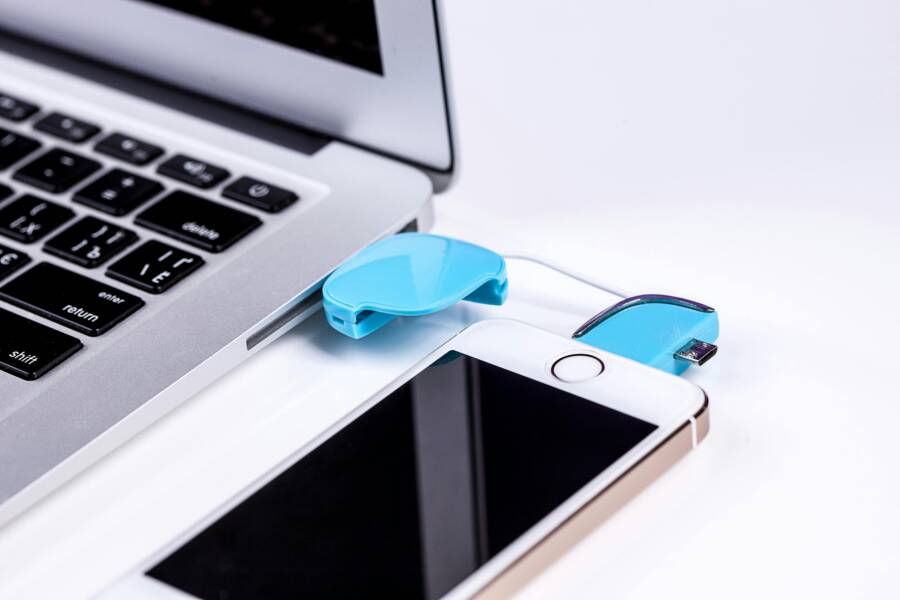
You’ve tried everything. You plug your phone into the computer, but nothing happens. No recognition, no file transfer, just a blank screen staring back. It’s a huge hassle when you need to back up photos or move files fast.
This issue hits Android and iPhone users on Windows or Mac alike. Common culprits include bad USB cables that only charge, wrong USB mode set to “charge only” instead of file transfer, outdated drivers, or even antivirus software blocking the connection. A quick settings tweak or cable swap solves half these problems right away.
Don’t sweat it. This guide walks you through simple steps to fix your phone not showing up on your computer. You’ll start with basic checks like swapping cables and ports or restarting both devices.
Next, handle phone-side fixes. For Android smartphones, switch to MTP mode in notifications or settings. iPhone users, tap “trust” on the prompt and check iTunes drivers.
Then, tackle computer steps. On Windows, update drivers in Device Manager and show hidden devices. Mac users, restart Finder or use Image Capture.
We cover advanced tips too, like clearing USB cache or testing on another PC. Plus, explore wireless options such as AirDroid if cables keep failing.
Most people fix this in under 10 minutes with these steps. Follow along, and you’ll get your phone connected reliably. Let’s dive in and sort it out.
Start with These Quick Basic Checks
When your phone doesn’t show up on the computer, quick checks can save you a lot of time. Begin with the basics and build confidence before diving into deeper troubleshooting. These early steps help you rule out the most common culprits like cables, ports, and simple software hiccups. Think of it as a quick health check for both your smartphone and your computer. If you follow these in order, you’ll likely get a solid connection fast, or at least you’ll know what isn’t the problem.
 Photo by Pixabay
Pick the Right USB Cable and Port
One of the most common reasons a phone won’t appear on a computer is using the wrong kind of USB cable. Many cables are designed to charge only and do not support data transfer. A charge-only cable looks like a regular cable but doesn’t have the data lines wired through to the device. When you plug in, your computer may power the phone but fail to recognize it as a connected device for file transfer.
- For iPhone users, choose an MFi certified data cable. These cables are tested for Apple devices and ensure reliable communication with your computer. If you’re shopping, look for cables explicitly labeled as data transfer capable and MFi certified. Examples include Lightning to USB data cables from reputable brands.
- For Android devices, pick a USB data cable that supports Media Transfer Protocol (MTP). Most modern Android phones use this standard to allow file transfer between the phone and the PC or Mac.
How to test and swap cables
- Try a different cable that you know supports data transfer. If possible, use the same type that came with your device.
- Swap USB ports on your computer. Front ports can sometimes be finicky, especially on older machines.
- Check the cable connections at both ends. Make sure the USB connectors are fully seated and not loose.
- If you’re using a hub, connect directly to the computer instead. Hubs can sometimes block proper device enumeration.
- Verify the cable is not worn or frayed. A damaged cable can cause intermittent communication.
If you’re unsure which cables will work, search for data-capable cables and check for certifications. For iPhone accessories, you’ll often see “MFi Certified” in the product description, which is a good indicator of compatibility. For Android, look for cables that explicitly state data transfer support and high-quality connectors. Here are a few reliable resources to guide your shopping and testing approach:
- Lightning to USB Data Cable (MFi Certified) guidance
- Monoprice MFi certified data transfer cables
- Apple support guidance on recognizing trusted USB connections
- Understanding data cables versus charging cables
Tips to avoid repeat issues
- Label cables for easy identification if you own multiple USB cords.
- Keep spare cables in your bag or desk drawer so you can swap quickly.
- When testing, use fresh or known-good USB ports on the computer to rule out port faults.
If you want a quick visual reference, this guide explains how to tell a USB data cable from a charge-only cable. It’s a helpful reminder when you’re shopping or sorting through a box of mixed cords. https://www.geek-aid.com/resources/articles/data-cable-vs-charging-cable.html
Restart Everything and Test Another PC
If the cable is fine, a simple restart can clear a lot of the mystery. Restart both the phone and the computer to reset drivers, services, and any background processes that may be blocking recognition. It sounds basic, but it’s often surprisingly effective.
- Restart your phone first. A quick power off, wait a few seconds, and power back on is enough.
- Then restart your computer. Save any open work, close applications, and reboot completely.
- After both devices come back up, re-connect the phone with a fresh USB connection.
If the problem persists, a brief boot into Safe Mode on Windows can help you diagnose driver conflicts or third-party software interference. Safe Mode loads a minimal set of drivers, which can reveal whether a background program is blocking the connection. Here’s how to access Safe Mode briefly:
- Open the Start menu and select Settings.
- Navigate to Update & Security > Recovery.
- Under Advanced startup, choose Restart now.
- After the menu appears, select Troubleshoot > Advanced options > Startup Settings, then Restart.
- When Windows starts again, press 4 to enter Safe Mode with Networking.
On a Mac, you can perform a similar check by restarting Finder or using a different user profile to see if the issue is user- or system-specific. If you’re testing on another PC, you’ll quickly learn whether the fault lies with the original computer or the phone itself.
Mini checklist to keep you moving
- Confirm the USB mode on the phone is set for file transfer. Android devices usually show a notification that lets you switch to File Transfer (MTP) or USB Mass Storage.
- On iPhone, ensure you tap Trust when prompted on the device screen and check that the computer’s trusted status remains active.
- Update or reinstall drivers only if you’re comfortable doing so. On Windows, you can update drivers via Device Manager. On Mac, ensure the OS is current since macOS updates can include driver changes for iPhone connectivity.
If you want to explore more on safe mode and troubleshooting USB issues, you can check these resources: how to boot to safe mode and how to fix USB device recognition problems. https://www.dell.com/support/kbdoc/en-us/000124344/how-to-boot-to-safe-mode-in-windows-10
Additionally, if your iPhone is not recognized by your computer, Apple’s official guidance covers steps to take with Windows and Mac. https://support.apple.com/en-us/108643#:~:text=Check%20your%20USB%20cable%20and,Try%20another%20USB%20cable.
If you hit a snag while restarting or testing on another PC, you’re not alone. A quick pause to reconfigure can clear the path for your device to appear again.
Image to illustrate a safe, quick reset approach
Photo by Pixabay
Fix Settings on Your Phone
When you’re trying to connect your device to a computer, the easiest fixes often live in the phone’s own settings. This section focuses on quick, practical adjustments you can make on Android and iPhone to ensure the connection is recognized for file transfers and syncing. Think of these steps as fine tuning a smartphone to speak the computer’s language again. After you adjust these, you’ll be ready to tackle the computer side if needed.
Android Phones: Switch USB Mode and Enable Debugging
Android devices sometimes stay in a charging-only mode, which keeps the computer from seeing the phone as a storage or media device. Switching the USB mode to File Transfer and confirming debugging options makes a big difference. Here’s how to do it, step by step:
- Quick access: pull down the notification shade and look for a USB charging notification. Tap it to open the USB preferences.
- Set the mode to File Transfer: choose File Transfer (MTP) so the phone appears as a drive on your computer.
- Enable Developer options if needed: if you haven’t unlocked them yet, tap Build number seven times in Settings > About phone to unlock Developer options. Open Developer options and verify that USB debugging is on if you’re troubleshooting driver issues.
- Confirm default behavior: once File Transfer is selected, you should see a notification that confirms the current USB mode. If you don’t, disconnect and reconnect the cable and recheck the prompt.
- Cable and port sanity check: use a data-capable cable and try different USB ports on the computer to rule out port faults.
If you run into continued trouble, you can explore additional guidance on enabling and testing USB debugging from reputable sources, including documentation and how-to guides that walk you through the process in detail. For more on Android USB settings and debugging, see resources like those that explain enabling USB debugging on an Android device and configuring data transfer modes.
- Helpful reference: Enabling USB Debugging on an Android Device
- Additional guidance: Configure Developer Options & USB File Transfer
- Practical read: How to Set MTP Mode on Android for Transferring Files
For a quick visual refresher, a quick cable check can save you time. A data-capable cable is essential; a charge-only cable can leave you staring at a blank device. If you want a reliable test path, swapping cables and ports is the simplest first step. If you’d like a deeper dive into safe mode and USB testing, you can consult reputable guides on booting to safe mode and USB device recognition.
iPhones: Trust Your Computer and Check Cable
iPhone users often run into one simple prompt that unlocks access: trusting the computer. If the device hasn’t trusted the computer yet, or if the cable isn’t up to Apple’s standards, the computer may not show the iPhone at all. Here’s how to handle it cleanly:
- Unlock the iPhone: wake the device and enter your passcode.
- Trust the computer: when the “Trust This Computer?” prompt appears, tap Trust and confirm with your passcode if asked.
- Check the cable quality: use a certified Lightning or USB-C cable. Apple emphasizes using genuine or certified accessories to ensure a stable connection.
- Reconnect and test: unplug and plug the cable back in, then open a file-transfer app on the computer to verify visibility.
- Confirm driver readiness on the computer: on Windows, ensure iPhone drivers are installed; on Mac, a current macOS version keeps the iPhone drivers updated automatically.
Apple’s official guidance highlights how to connect iPhone and your computer with a cable and the importance of trusted connections. If you’re troubleshooting, verify that your cable is not counterfeit and that the connector ends fit snugly. A certified cable reduces the risk of communication issues that can keep your iPhone from appearing on the computer.
- Apple Support guidance on connecting iPhone with a cable
- Guidance about identifying certified Lightning accessories
- Tips for selecting reliable Lightning cables for iPhone
If the connection still isn’t recognized, verify that you’re using a compatible cable for your iPhone model and that the computer has the appropriate drivers. In a few cases, switching to another USB port or another computer helps reveal where the fault lies. For more precise steps, see Apple’s official setup instructions for connecting iPhone and computer with a cable.
Image reference: A quick cable check and connection setup for iPhone users.
Troubleshoot on Windows or Mac Computer
When your phone won’t show up on your computer, you’re left scrambling for quick fixes. This section focuses on practical, device-facing steps you can take on both Windows and Mac. You’ll learn how to verify drivers on Windows and how Finder and permissions play a role on Mac. By following these targeted actions, you’ll cut through the guesswork and get back to syncing, transferring, and backing up in minutes.
Windows Fixes: Update Drivers in Device Manager
Windows users often see the device not recognized due to missing or corrupted drivers. The quickest path is to check the Device Manager, reveal hidden devices, and update or reinstall the USB drivers related to your phone. Start with the basics and move to deeper checks if needed.
- Open Device Manager quickly with: Win+X, then select Device Manager.
- Locate your phone under “Universal Serial Bus controllers” or “Other devices.” If you see a yellow warning icon, that’s your cue to update.
- Right-click the device and choose “Update driver.” Opt for “Search automatically for updated driver software.”
- If Windows can’t find a driver, try uninstalling the device and then reconnecting the phone to trigger a fresh install. Check “Show hidden devices” to reveal devices that aren’t visible by default.
- For Android devices, ensure the cable supports data transfer (not just charging) and consider updating the Android USB drivers if needed. If you’re unsure about the right driver, dedicated guides offer step-by-step installs for Windows machines.
- For iPhone connections, verify that Apple’s iPhone drivers are present and up to date. If you’re troubleshooting, installing the iTunes component can help Windows recognize the device correctly.
Helpful context and extra resources:
- If Windows still won’t recognize the phone after updating drivers, explore Safe Mode testing and USB troubleshooting. These steps can reveal conflicts from third-party software.
- Apple’s official guidance covers Windows connectivity for iPhone users, including trusted connections and driver checks.
- For advanced troubleshooting, consider testing on a different PC to confirm whether the issue is with the phone or the original computer.
Visual reference to help you spot the right USB setup:
- A quick cable check can save you time. A data-capable cable is essential; a charge-only cable can leave you staring at a blank device.
- Test with a different USB port or directly on the computer, avoiding hubs that can interfere with device enumeration.
Image
- Photo: Flat lay of mobile devices with chargers and cables on a neutral background. Photo by Karola G. Credit: Photo by Karola G
Windows-specific resources you can consult:
- How to install Android USB drivers on a PC, which helps ensure Android devices are recognized in Windows.
- Microsoft’s support pages on troubleshooting mobile devices not showing up in Windows.
Apple and Windows compatibility notes:
- Apple’s official steps for connecting iPhone and Windows include prompts about trusted devices and driver readiness.
If you prefer a quick hands-on path, try these in order: swap cables, switch USB ports, reconnect the device, update the driver, and then reboot both devices. If the problem endures, move to the Mac side for a different troubleshooting angle.
Mac Fixes: Use Finder and Reset Permissions
On a Mac, Finder should display connected iPhones or Android devices in a few straightforward scenarios. If things aren’t appearing, a mix of Finder tweaks, privacy permission resets, and software updates can resolve the issue. Think of this as refreshing the handshake between your smartphone and your Mac.
- Restart Finder: Sometimes Finder itself blocks proper recognition. You can force Quit Finder from the Apple menu, then relaunch Finder to reset its state.
- Check privacy and security settings: macOS can limit accessory access. Open System Settings (or System Preferences) > Privacy & Security, and inspect any permissions related to USB accessories or connected devices.
- Run a software update: Keeping macOS current ensures you have the latest drivers and compatibility fixes for iPhone and other devices.
- If you’re using an iPhone, confirm that you’ve trusted the computer on the device when prompted. For Android devices, ensure the Mac has the right tools to read device storage or media.
Practical steps to verify the connection on a Mac:
- Use Finder to look for the device under Locations or Devices. If it isn’t listed, try a different USB cable or port.
- If the device still doesn’t appear, try Image Capture or Photos to see if the Mac recognizes the connection for media transfer.
- For iPhone users, Apple’s guidance emphasizes trusting the computer and keeping iPhone drivers up to date on Windows or macOS. On Mac, a current macOS version handles iPhone connectivity without extra installs in most cases.
Apple’s official setup guidance is a reliable reference if you’re troubleshooting iPhone connectivity on a Mac. If you run into permission issues, resetting the privacy settings can clear misconfigurations that block device access.
Images for Mac troubleshooting:
- A clean setup where Finder displays an iPhone when connected helps readers visualize success.
Photo by Karola G
Mac resources to consult:
- Apple’s official article on recognizing iPhone when connected to Mac or Windows.
- Guidance on resetting privacy permissions in macOS and iOS to fix access problems.
- Community discussions and official Apple support threads for device recognition issues.
If Finder or Image Capture still can’t see your phone, try a clean macOS refresh: restart the Mac, reset the relevant privacy permissions, and ensure the cable is genuine or certified. In many cases, a quick update or permission reset gets your iPhone or Android device back on the radar of your Mac.
In both Windows and Mac paths, the goal is clear: confirm the device shows up in the file system or media apps, swap out potential weak links like cables and ports, and keep drivers or OS components up to date. Once you see the device listed, transfer and back up with confidence.
Images and references you may find helpful:
- If your computer doesn’t recognize your iPhone or iPad, Apple’s support has a concise set of steps to follow. Link: Apple Support article on recognizing iPhone or iPad.
- For Mac users facing Android connection issues, practical fixes are covered in guides focused on Android file transfer on macOS.
Photo: A quick cable check and connection setup for iPhone users.
- Credit: Photo by Pixabay
Additional reading and official guidance:
- Apple Support: If your computer doesn’t recognize your iPhone or iPad
- Android file transfer guidance for Mac users
- Mac privacy permissions reset guide from a reputable tech publication
By following these steps, you can quickly identify whether the problem lies with the cable, the phone, or the computer. The goal is a reliable, repeatable connection for both iPhone and Android devices, across Windows and macOS.
Advanced Steps for Stubborn Issues
When the basics don’t do the trick, you need a deeper, methodical approach. This section covers advanced fixes that address stubborn problems, from low-level driver quirks to permission nuts and bolts. Treat these steps as a last-mile path to get your smartphone visible again on Windows, Mac, or both. You’ll learn how to isolate software conflicts, verify system components, and test with alternative setups.
Narrow down driver conflicts on Windows
Driver issues are a common bottleneck. If your phone still won’t appear after updating basic drivers, take a more targeted path. Show hidden devices in Device Manager, then uninstall any entries you no longer recognize. Reconnect the smartphone to trigger a clean reinstallation of the required USB stack.
- Open Device Manager (Win+X, then Device Manager).
- In the View menu, select “Show hidden devices.”
- Under “Universal Serial Bus controllers” or “Portable devices,” right-click and uninstall stale entries.
- Reconnect the phone and let Windows fetch fresh drivers automatically.
If Windows still misbehaves, try Safe Mode with Networking. This boots the system with a minimal driver set, which helps reveal conflicts from third-party software. Safe Mode can clarify whether a utility or security tool blocks device enumeration.
- For quick reference, see guidance on Safe Mode testing and USB troubleshooting.
Apple devices can also need a refreshed driver layer on Windows. Installing the iTunes component or the Apple Mobile Device driver can restore recognition when Windows can’t see the iPhone or iPad.
- Apple’s guidance for Windows connectivity provides concrete steps for trusted devices and driver readiness.
Refresh USB subsystems and power delivery
Sometimes the problem lies in the USB subsystem itself rather than the cable or the phone. A fatigued USB port or a power-limited hub can prevent proper enumeration. You can refresh the USB stack and rule out power issues with a few deliberate moves.
- Plug directly into the computer, avoiding hubs or docking stations.
- Try ports that are known to be high-powered, such as rear USB 2.0/3.0 ports on desktops.
- If you’re on a laptop, plug in the charger to boost overall USB power delivery during testing.
On Windows, you can also reset the USB controller by removing all USB devices in Device Manager and then rebooting. This forces Windows to reinitialize the USB stack on startup.
- If you suspect power constraints, a powered USB hub is a reliable test path.
- For iPhone users, ensure Apple Mobile Device Driver remains current, especially after system updates.
Check and refresh trusted access on iPhone and iPad
Trust prompts are a simple barrier that trips many users. If you’re reconnecting a smartphone and the computer still isn’t shown, reestablish trust carefully.
- On the iPhone, unlock the device and tap Trust when the prompt appears. If you previously denied trust, reset location and privacy settings to restore the prompt.
- On the computer, ensure the device is listed under trusted devices. For Windows users, verify that the Apple drivers are installed; on Mac, keep macOS up to date so the built-in support remains current.
Apple’s official support guide covers trust prompts and driver readiness for iPhone connections on both Windows and Mac. It’s a reliable reference when you’re deep into troubleshooting.
- If you’re troubleshooting, review Apple’s steps for recognizing iPhone when connected to Mac or Windows.
Test with a clean user profile or different computer
A user profile with unusual settings or a machine-specific conflict can mask the real problem. Testing on a clean user profile or a completely different PC helps you decide where the fault lies.
- Create a new user account on Windows and log in there to test the connection.
- On Mac, try a different user account or a safe boot session to rule out permission issues.
- If another PC works with the same phone and cable, the fault likely sits in the original computer’s environment.
Document which combinations work and which don’t. This pattern makes it easier to present to support teams if you need to escalate.
Explore wireless transfer alternatives
When cables fail repeatedly, wireless options become appealing. Wireless transfer tools let you move files without wires, and many options have strong security controls and easy setup.
- Airdroid and other remote access solutions provide PC-to-smartphone transfer capabilities over Wi-Fi. They’re useful for photos, documents, and backups when USB isn’t reliable.
- Cloud-based pathways can serve as a fallback. If you’re short on time, uploading to a trusted cloud service from the phone and then pulling the files from the computer is a practical workaround.
Wireless transfers aren’t a full substitute for everything you might do with a direct USB connection, but they’re a solid backup when stubborn issues block the traditional path. If you want to explore this route further, look for guides that compare wireless transfer apps and discuss security considerations.
- For iPhone-specific workflows, see Apple’s guidance on connecting iPhone with a computer, and consider official troubleshooting steps when USB fails.
Deep dives: verify system components and compatibility
A few deeper checks ensure your system components align with your device. This reduces the chance of recurring issues after an update or a new app installation.
- macOS: Keep your OS up to date. Newer macOS versions include improved drivers for iPhone connectivity, and Image Capture or Finder should recognize the device once a cable and permissions are in place.
- Windows: Regularly install the latest Windows updates. They include fixes to USB controllers and device drivers that affect external devices.
- Cross-check device model compatibility: Some older Android models or iPhone generations have specific quirks with certain OS versions. When in doubt, consult vendor guides for model-specific guidance.
If you want detailed, model-specific steps, reputable guides and official support pages offer step-by-step instructions for both Windows and Mac environments. For example, Apple’s and Microsoft’s official resources walk you through how to recognize and use iPhone hardware with your computer.
- Apple Support guidance on recognizing iPhone when connected
- Microsoft’s guidance on devices not showing up in Windows
Quick checklists to wrap up
When you reach stubborn territory, a disciplined checklist helps prevent missed steps. Use these as a final sweep to confirm you didn’t skip a known pitfall.
- Confirm the phone is unlocked and set to the correct connection mode (File Transfer for Android, trusted for iPhone).
- Swap cables and ports one by one if the device remains invisible.
- Update or reinstall the relevant drivers on Windows or refresh the OS on Mac.
- Test on an alternate computer to isolate the fault.
- If possible, try wireless transfer or cloud backup as a temporary workaround.
If you’re curious about the exact steps from reliable sources, you can review Apple’s guidance on iPhone connectivity and Windows support articles for iPhone. These references provide official context for the steps you take in this section.
- Apple Support: If your computer doesn’t recognize your iPhone or iPad
- Apple guidance on recognizing iPhone when connected to Mac or Windows
By sticking with these advanced steps, you’ll gain clarity and control over the connection. Whether you’re dealing with a stubborn Android phone, an iPhone, or a mismatched computer configuration, you can pinpoint the bottleneck and restore reliable access for syncing and backups. Keep notes as you test so you can reproduce the exact conditions that lead to success.
Switch to Wireless File Transfer Options
If you’re chasing a quick fix for “my phone not showing up on the computer” and you’ve tried cables without success, wireless transfer can be a practical alternative. Wireless options let you move photos, documents, and videos without plugging in. They’re especially handy when you’re in a pinch or dealing with a flaky USB port. Below are reliable approaches that work across Android and iPhone, on Windows and Mac.
 Photo by cottonbro studio
Local file transfer ecosystems you can rely on
Wireless transfer apps carve a path around USB issues. They create a direct link between devices on the same network, so you don’t need cables at all. Here are two widely used, cross-platform options that fit most setups:
- LocalSend: A popular open source tool that works across Android, iPhone, Windows, and Mac. It creates a direct, offline spell of file sharing that doesn’t rely on cloud storage. This makes it fast and private. You can try the basic flow with the free version and explore pro features if you need more capacity. Learn more at LocalSend official site and check the App Store listing for iPhone users for quick setup: LocalSend on App Store.
- AirDroid Personal: A robust cross-platform option that transfers files, mirrors devices, and manages notifications. It supports Windows and Mac as well as Android and iOS, which makes it a strong fallback when USB isn’t cooperating. Start here: AirDroid Personal.
Both tools prioritize security and simplicity. They’re ideal when you want to send a folder full of photos from a smartphone to a computer without wading through drivers and settings. If you want a quick hands-on option that requires nothing but a browser, you can consider browser-based solutions as well.
- For a browser-first approach, check out SnapDrop, a simple, web-based file transfer that runs in any modern browser. It uses your local network to connect devices and transfers files without uploading to the cloud: SnapDrop.
When to choose wireless over wired
- You’re on a flaky USB port or using a shared computer where driver installation is restricted.
- You need to move large batches of files in a hurry and don’t want to juggle cables.
- You’re sharing files with multiple devices around the same network, like during a photo shoot or a travel trip.
Wireless transfers shine when speed and convenience matter more than absolute control over the transfer path. They are not a perfect substitute for every scenario. For instance, editing metadata or maintaining precise transfer logs might still be easier with a direct USB connection. But for most everyday needs, wireless options keep your smartphone moving data to your computer with minimal friction.
Setting up a wireless transfer in minutes
- Install the chosen app on both devices and create a quick pairing. Most solutions auto-detect devices on the same network.
- Decide what to share first. Start with photos or a small folder to confirm the connection works.
- Use the app’s built-in features to organize transfers. Some tools let you choose a destination folder on the computer, while others simply save to a default downloads folder.
- If you run into a roadblock, verify both devices stay on the same Wi-Fi network and that any firewall or antivirus software isn’t blocking the transfer.
A practical tip: label your files before sending. It makes it easier to locate them once they land on the computer, especially if you’re moving lots of files from a busy trip.
Safety and privacy considerations
- Use apps from reputable sources and keep them up to date. Security updates patch potential vulnerabilities that could expose data during transfer.
- Prefer apps that offer end-to-end encryption for sensitive files.
- When using wireless transfers in public spaces, enable password protection or a quick share link expiry if the option is available.
Quick comparison: wireless vs wired in practice
- Speed: Wireless depends on your network. With a solid local network, transfers can be very fast, but a good USB cable usually beats Wi-Fi in raw speed.
- Convenience: Wireless wins on convenience. You can move files from your couch or on the go without swapping cables.
- Reliability: USB tends to be more stable and repeatable, especially for large libraries or backups.
- Compatibility: Wireless tools generally cover Android, iPhone, Windows, and Mac. This makes them a flexible choice for mixed-device households.
Real-world scenario: back up photos during travel
Imagine you’re on a short trip and your phone fills up with photos. Rather than hunting for a cable, you fire up LocalSend on your phone and computer. In seconds, a folder of vacation shots lands on your laptop for safe storage. If you’re sharing with a teammate back at the hotel, you can push the same folder over AirDroid or SnapDrop, all without leaving the bed.
Where to start right now
- If you want a robust cross-platform workflow with offline capability, try LocalSend. Its open source nature and cross-platform support make it a solid choice for many users. Access resources here: LocalSend official site.
- If you primarily need quick transfers between iPhone and Mac or Windows without a lot of tinkering, AirDroid Personal offers a straightforward setup and ongoing file management features: AirDroid Personal.
- For a lightweight, browser-based option, SnapDrop provides a no-install path that works well in a pinch: SnapDrop.
Images you can reference for this section:
Photo by cottonbro studio on Pexels Credit: Photo by cottonbro studio
By adding wireless transfer as a core option, you give readers a reliable fallback when the usual USB path stumbles. It also aligns with practical, everyday use cases where a quick, cable-free transfer matters most. If you’re preparing this section for iPro+ 知識酷, the emphasis on practical, human-friendly guidance should resonate with readers who want fast, repeatable results without digging into driver menus.
Conclusion
Start with the basics, then move through the steps in order. Most people fix the issue in a few tries by swapping cables, trying another port, and rebooting devices. A solid connection comes from data capable cables, the right USB mode, and up to date software on both ends.
If the phone still doesn’t show up, address phone side settings first. Android devices need the File Transfer (MTP) mode and sometimes USB debugging, while iPhone users should ensure trust prompts are accepted and drivers are current. A quick cable and port swap often resolves most connection hiccups without digging into deeper settings.
Next, tackle the computer side. On Windows, update or reinstall drivers and show hidden devices in Device Manager. On a Mac, Finder can usually pick up the device after a cable change or a quick reset of privacy permissions. These computer checks are usually enough to reestablish a reliable file transfer path.
For stubborn cases, advanced steps clear the last roadblocks. Refresh USB subsystems, test on a different computer, or refresh trusted access on iPhone and iPad. If needed, consider wireless transfers as a practical fallback for quick backups or transfers when USB isn’t cooperating.
If you found this guide helpful, share your experience in the comments and subscribe for more practical fixes. Do you have a favorite data cable or a go-to wireless method you rely on when USB fails? Your tips help others solve the same problem faster.