How to Fix Phone Not Connecting to PC (Android & iPhone)
Struggling to move files from your phone to your PC can feel like a cliffhanger. The moment you connect the cable, you expect a smooth transfer, but nothing happens. If you’ve ever seen your smartphone charge but won’t transfer files, you’re not alone.
This guide breaks down the common culprits in simple terms. You’ll learn why a cable, USB settings, or missing drivers can stop a connection in its tracks. We’ll cover basic checks, Android steps, iPhone steps, and practical PC fixes that work on Windows and Mac.
In minutes you can usually get back to work. The plan is practical, not complicated, and designed for readers at a basic tech level. You’ll see exactly what to try first, what to skip, and what to test if something still feels off.
By the end, you’ll know how to diagnose and fix a connection problem with calm, clear steps. The steps are organized to save time and minimize tech jargon. This approach helps you keep your workflow steady, whether you’re transferring photos, documents, or other files.
Basic Checks to Try First Before Anything Else
When your phone won’t connect to your PC, a calm, systematic approach saves time. These basic checks identify the most common causes and can get you moving again without digging into advanced settings. Start with the simplest fixes and only move to deeper steps if the problem persists. This section covers two practical tests you can perform right away.
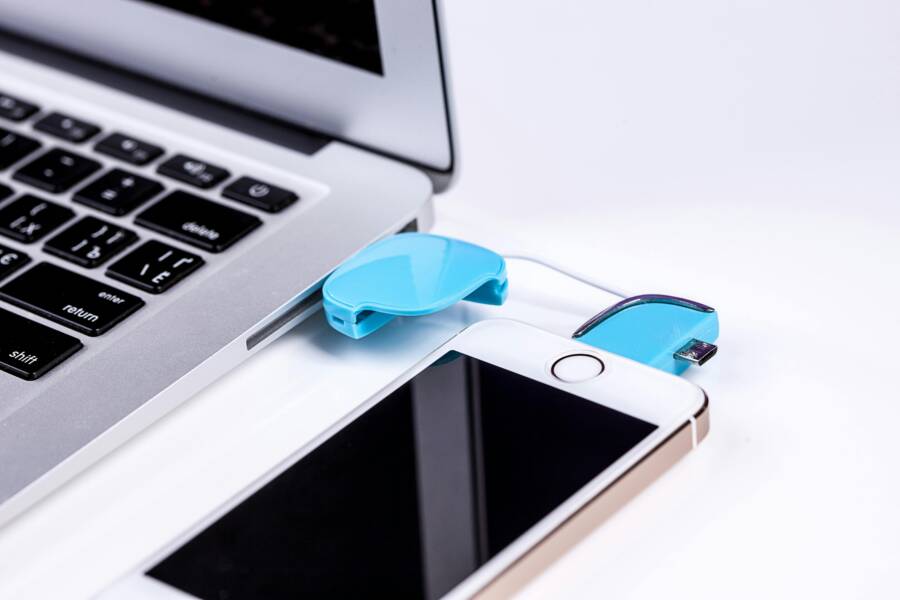
 Photo by https://www.pexels.com/@pixabay
Pick the Right USB Cable and Port
A cheap cable often causes more trouble than it helps. Cables that are designed only for charging may not carry data, so your PC sees power but not the device. Look for a cable that explicitly supports data transfer, preferably one that is either the original cable that came with your phone or a certified/official third-party option. If you’re unsure, try a different cable that you know works for data transfer, or test the same cable with another device to confirm its data capability.
Another frequent culprit is the USB port. Ports can be finicky, especially on older PCs or hubs. Try a direct connection to a computer port rather than through a USB hub, and switch to a different USB port on the PC if available. For Android devices, connect to a USB 2.0 port if your device supports it, or use a newer USB-C port for faster recognition. On Windows, you might see a notification that a device is connected; if not, open the File Explorer and look for your device under This PC. If it still doesn’t show up, try restarting the phone with a fresh cable to confirm the issue isn’t a port conflict. For more on data-capable cables, see this guide on USB data transfer fixes.
How to Fix USB Cable Only Charging Not Transferring Data
Restart and Unlock Your Phone
A quick restart can clear minor glitches that block data transfer. Make it a rule of thumb to restart both devices when you start troubleshooting. Before you reconnect the cable, unlock your phone and ensure it is ready to establish a data session. On Android, you may also want to check that USB options are set to File Transfer (MTP) after reconnecting. On iPhone, confirm that the device trusts the computer if prompted. A fresh boot often resolves driver hiccups and resets the connection handshake, allowing the PC to recognize the device again. If you still don’t see the device, try unplugging and replugging after the restart, then recheck the file transfer prompt on your phone.
Restart guidance and further tips:
Fix USB Cable Only Charging Not Transferring Data
Quick tip: keep your phone unlocked during connection attempts. It’s easy to forget that the lock screen can block the data session, which is a surprising but common snag. If you’ve previously allowed USB debugging or file transfer in developer options, revisit those settings after a restart to ensure they’re still enabled.
USB defaults to charge only mode when I plug into my computer
Fix Android Phones That Won’t Connect to PC
When your Android phone refuses to show up on your computer, it can stall a lot of work. The fix is usually simpler than it seems. Start with quick, safe steps and move to more involved checks only if needed. This section breaks down practical actions that specifically address Android USB connection issues, helping you get back to transferring photos, music, or documents without frustration.
Switch USB Mode to File Transfer
Getting the phone to talk to your PC often comes down to the USB mode. If you don’t see a prompt, unlock the device first and reconnect the USB cable. On most Android models, swipe down the notification shade, look for the USB option, and select “File Transfer” or “MTP.” If you still don’t see the prompt, try a different cable or port and reconnect after a moment. Ensuring the mode is set to file transfer lets the PC access the phone’s storage, making file moves straightforward. For quick guidance on MTP mode and data transfer, see Google’s Android support article.
Transfer files between your computer and Android device
Image: 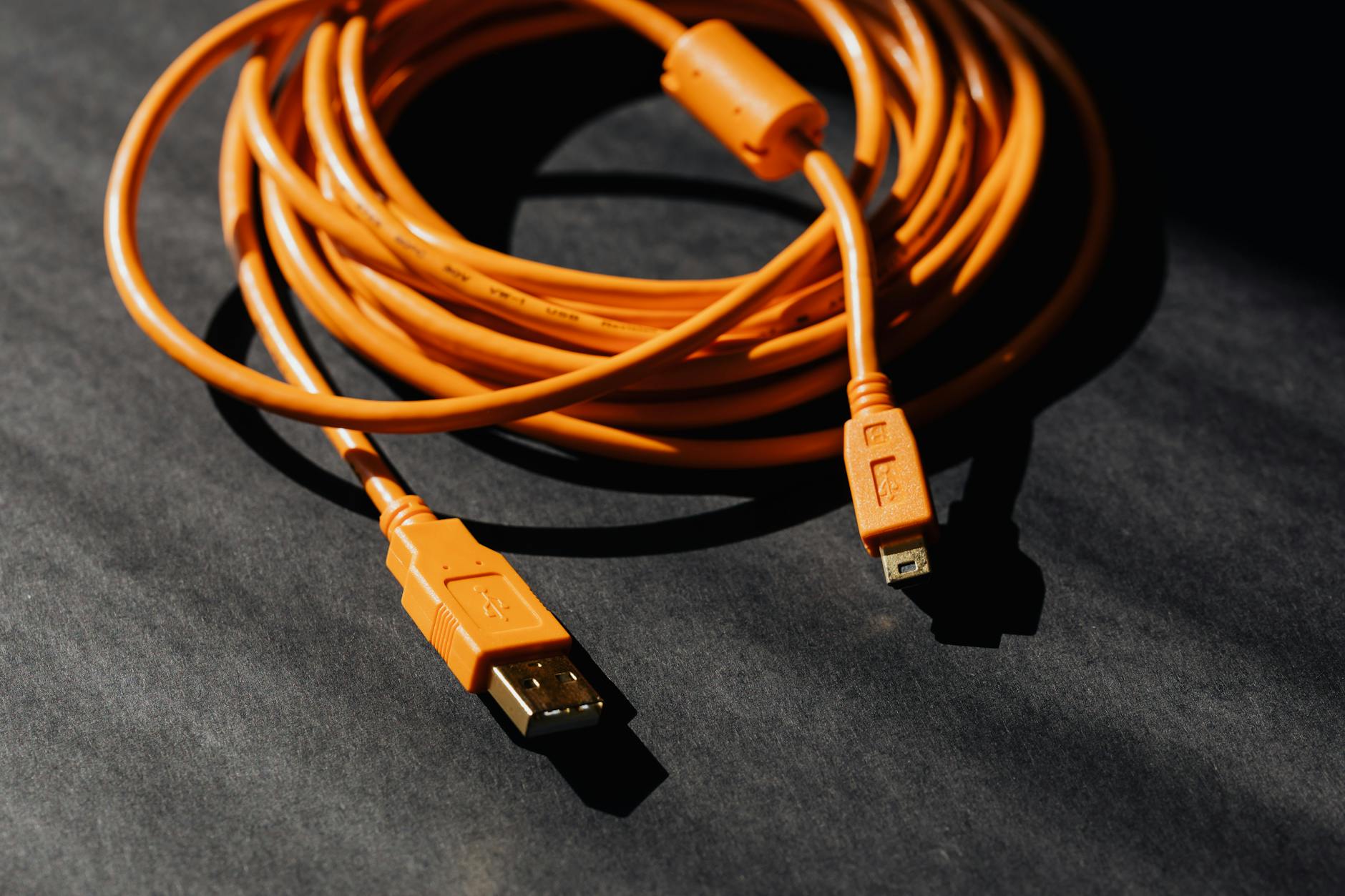 Photo by Karola G
Restart and Unlock Your Phone
A simple restart can clear hiccups that block data transfer. After rebooting, unlock your phone and reconnect the cable. On Android, ensure the USB preference sticks to File Transfer (MTP) after reconnecting. If the PC still doesn’t recognize the device, try plugging into a different USB port on the computer or a different cable known to support data transfer. A fresh boot often resolves driver hiccups and resets the connection handshake, which is enough to reestablish the session. For another quick refresher on similar fixes, check this guide on USB data transfer issues.
How to Set MTP Mode on Android for Transferring Files
Quick tip: keep the phone unlocked during the connection attempt. A locked screen can block the data session, even if the device is technically connected.
Turn On Developer Options and USB Debugging
Enabling Developer Options opens access to USB debugging, which can help Windows or Mac detect the device more reliably. Start by enabling Developer Options on your Android device, then turn on USB debugging. When you reconnect, you may be prompted to allow USB debugging on the computer; approve it to establish trust. If you’re asked to set a default USB configuration, choose “USB debugging” or the standard debugging option for consistent detection. This setup often resolves miscommunication between the PC and the phone, especially on newer Android versions. For a step-by-step guide, see Android’s official developer settings article.
How to Enable Developer Mode Settings on Your Device | Android
Image: Optional inline image can be added here if needed.
Clear Cache and Stop USB Apps
If the connection still acts up, clearing cache and stopping USB related processes can help. Go to the Settings > Apps > Show system apps, then locate USB-related services or “Media Transfer Protocol (MTP)” components. Force stop, then clear cache and data for those apps. Reboot the phone and try the connection again. This approach clears residual data that might block the handshaking between devices. After the reset, test with a fresh cable and port to confirm the fix. For a broad guide on enabling USB debugging and related steps, see Droid Insights.
How to Enable Developer Options and USB Debugging on Android (Android 12–15) – My Framer Site
iPhone Not Showing Up on PC? Easy Steps to Fix It
If your iPhone isn’t appearing on your PC, you’re not alone. A quick, calm, methodical approach usually gets you back to syncing in minutes. Think of the process like checking a gate before an event: you verify trust, confirm settings, and reattempt the connection until the device surfaces on the screen. This section covers two essential steps that address the most common culprits. You’ll learn how to handle the trust prompt and ensure both devices stay up to date. A few small tweaks can restore smooth file transfers and prevent future hiccups for your smartphone workflow.
Trust the Computer on Your iPhone
Unlock your iPhone and tap Trust when the prompt appears. If you don’t see this alert, it often means the trust settings were reset or interrupted previously. In that case, you may need to reset location and privacy settings and then reconnect. This step is critical because without trust, the PC cannot access your files. After you tap Trust, reopen the connection and check File Transfer or MTP options on the device if needed. If you’re still stuck, follow Apple’s guidance on reestablishing trust and reconnecting to the computer like a pro.
If your computer doesn’t recognize your iPhone or iPad
Update iPhone and Check Basics
A software update on the iPhone can resolve quirks that block recognition. Check for any available iOS updates, install them, and then restart both the iPhone and the PC. After rebooting, reconnect the cable and verify that the device shows up under This PC or Finder. If it still doesn’t appear, try a different USB port or cable and recheck the USB mode on the iPhone. Keeping your device current reduces the chance of compatibility glitches that slow file transfers. For more on Apple support steps, see the official guide.
If your computer doesn’t recognize your iPhone or iPad
Troubleshoot PC Drivers and Software Issues
When a phone won’t connect to a PC, it often comes down to drivers or official software missing or out of date. Getting this right means fewer glitches and smoother transfers, whether you’re moving photos, documents, or music. In this section, you’ll find two practical paths to fix most connection problems: updating Windows drivers via Device Manager and installing the official phone software package for your device. Think of these steps as the training wheels that keep your smartphone reliably connected to your computer.
Update Drivers in Device Manager (Windows)
Driver issues are a common roadblock. Right after you plug in your phone, Windows looks for the right driver to talk to it. If the conversation stalled, updating or reinstalling the driver often fixes it. Start by right-clicking the Start button and opening Device Manager. Locate your phone under “Portable Devices” or “Universal Serial Bus controllers,” then choose Update driver. If Windows reports it cannot find a driver, select Uninstall device and then reconnect the phone to trigger a fresh install. After the update, double check that the USB mode on the phone is set to File Transfer (MTP) if you’re moving files. If problems persist, you can let Windows automatically search for updated hardware drivers, a method that can save time and avoid broken manual installs. For a detailed official guide, see Microsoft’s step-by-step article on updating drivers through Device Manager.
- Official guidance to update drivers through Device Manager: https://support.microsoft.com/en-us/windows/update-drivers-through-device-manager-in-windows-ec62f46c-ff14-c91d-eead-d7126dc1f7b6
- Auto-driver updates option on Windows: https://support.microsoft.com/en-us/windows/automatically-get-recommended-and-updated-hardware-drivers-0549a8d9-4842-8acb-75fa-a6faadb62507
If you prefer a broader, vendor-agnostic approach, these steps help you verify that Windows recognizes the device at a low level, independent of your smartphone’s make. Keeping your PC’s chipset and USB host controllers up to date reduces odd handshake issues and improves compatibility with a wide range of devices. When in doubt, a clean reinstall of the driver is often faster than chasing specialized fixes.
Install Official Phone Software
Sometimes the easiest path to reliable connectivity is to install the manufacturer’s own software suite. These programs manage drivers, allow device management, and ensure you can access files without friction. For Android, you may not need a heavy program, but for iPhone and certain brands, official software is the best bet to guarantee recognition and smooth syncing. Always download from the company’s official site to avoid bundled bloatware or misconfigurations.
- iPhone and Apple devices: Apple provides dedicated software for Windows that includes iTunes and accompanying device support. These apps help manage music, backups, and device updates from a single hub. Official download page for Windows users: https://support.apple.com/en-us/118290
- Samsung devices: Samsung Smart Switch is the go-to tool when moving data between devices or computer platforms. It covers contacts, photos, messages and more, and provides a straightforward transfer workflow. Official page to download Smart Switch: https://www.samsung.com/us/smart-switch.html
- Additional official resources: If you’re on a system that benefits from the broader ecosystem, you can explore the Samsung Smart Switch app ecosystem and related downloads for Windows, Mac, and mobile platforms via the Samsung official pages.
Installing the correct official software reduces the chance of miscommunication between PC and phone. It ensures the proper drivers are present, sets the expected USB modes, and provides a trusted environment for file transfers. After installation, restart both devices and attempt a new connection. If the smartphone prompts you to trust the computer, confirm it and proceed with the transfer. For Apple users, ensure iTunes (or Apple Devices app on Windows) is updated to avoid subtle compatibility issues.
External resources for further reference
- Apple support article on downloading Apple Music, Apple TV, and iTunes for Windows: https://support.apple.com/en-us/118290
- Samsung Smart Switch official page: https://www.samsung.com/us/smart-switch.html
Remember to keep the smartphone within easy reach during setup and ensure it remains unlocked during the initial connection. A quick check of the USB cable and port can save a lot of time if the problem lies outside software. If you follow these steps, most people regain a stable link between their phone and PC within minutes, whether you’re on Android or iPhone.
Conclusion
When a phone won’t connect to a PC, start with the basics and build from there. A solid USB data cable, a direct port connection, and a quick reboot often fix most issues. Keep backups of your data so a hiccup in transfer won’t cost you files or time.
Apply the checks in two stages. First, confirm the basics are solid: use a data-capable cable, connect to a fresh USB port, and make sure both devices are unlocked. If the prompt for file transfer appears on Android or the trust prompt on iPhone, approve it and try again. Next, tackle the phone and PC specifics. For Android, set the USB mode to File Transfer, enable USB debugging if needed, and refresh drivers on Windows. For iPhone, trust the computer and confirm the right app or finder window is used to access files. If a problem persists, updating software on both devices and reinstalling official tools can clear stubborn glitches.
A quick tip to prevent repeat trouble is to keep your cable and ports clean and avoid hubs for initial connections. Regularly back up important data so you can recover quickly if a transfer fails. If this guide helped, share which smartphone model you used and drop a comment with any extra tips you have.