She Pressed Play on a Strange Audio Track and Within Days Her Financial Reality Started Shifting in Ways She Could Not Explain
>>> See How It Works <<<

A corrupted SD card can lock away your photos and app data in a smartphone, turning a simple storage card into a puzzle. This guide explains why corruption happens in plain terms and what you’ll learn to fix it, from quick on device steps to computer based methods. You’ll get practical, step by step tips to recover data or restore access, with a focus on keeping your smartphone safe and your files intact.
Quick checks on your phone to fix corrupted SD card
If your SD card is acting up, a few quick checks on your smartphone can save you time and headaches. These micro-tixes help you determine whether the problem is the card, the slot, or the phone itself. Use them as a fast triage before moving on to deeper recovery steps or computer tools.
Is the card detected by your phone and shows up in settings
First, confirm whether the phone recognizes the card. On most Android devices, you can find this in Settings under Storage or Device care. Look for two key indicators:
- Internal storage vs. external SD card views: Some phones list the card under “SD Card” or “External storage,” while others show it as part of the internal storage menu. If you see the card listed with its capacity and a storage breakdown, that’s a good sign it’s detected.
- Visual cues and messages: If the card is recognized, you’ll often see a separate entry labeled with the card’s name or a generic “SD card.” If the card isn’t detected, you may get prompts such as “No SD card found,” a grayed-out option, or a blank area where the card should appear.
Tips to help you interpret what you see:
He Was Drowning in Bills and Burnout Until a Simple Daily Ritual Rewired His Brain for Wealth in Less Than a Week
>>> Start Your Shift Today <<<

- If the card is detected but not accessible through a specific app (for example, a file manager), try another app or the system Files or Storage settings to verify accessibility.
- If the card is detected in Settings but not in file apps, the card may be formatted for internal storage. You may want to switch to portable storage for easier data access, but only after you’ve backed up what you can.
For an in-depth step-by-step from Google’s support materials, check this guide on SD card detection and formatting: https://support.google.com/files/answer/10857645?hl=en
If you still can’t see the card after trying the steps above, you’re not alone. Some users report that the card shows up in Settings but not in specific apps, which can indicate a format mismatch or a deeper issue with the card. You can explore further help threads here: https://support.google.com/files/thread/215610998/why-can-t-i-access-my-sd-card-in-my-phone?hl=en
Inspect the physical card and clean the contacts
A dirty or dusty card can prevent a clean connection to the phone. Here’s how to handle it safely:
- Power off the phone and remove the card tray if your model uses one. Handle the card by its edges to avoid touching the gold contacts.
- Inspect the gold contacts. Look for fingerprints, dirt, or scratches. Even a thin film of grime can cause read issues.
- Clean gently: use a soft microfiber cloth to wipe the contacts. If there’s stubborn residue, dampen the cloth slightly with isopropyl alcohol and wipe the contacts carefully. Let the card dry completely before reinserting.
- Reinsert the card firmly into the slot or tray. If your device requires a gentle push until it clicks, apply that pressure to seat the card properly.
Safety notes:
- Do not use harsh chemicals or rough abrasives.
- Don’t bend the card or force it into a slot. If it won’t seat properly, check the orientation and try again.
- Allow the card to dry fully before use. Moisture can cause corrosion or short circuits.
For a practical guide on cleaning memory cards, see this reputable how-to: https://progradedigital.com/how-to-clean-memory-cards/
Check the card lock switch and reseat the card
Some SD cards include a physical lock switch on the side. The lock prevents accidental data modification or deletion.
- Unlock the card: slide the tiny switch toward the unblocked position (usually toward the top of the card when the label is facing you). If the switch feels loose or won’t stay in place, the card may be damaged.
- Reseat carefully: reinsert the card into the phone’s slot or tray. In some phones, you’ll need to push the card until you hear a soft click, indicating it’s securely seated.
- Test access again: after reseating, power on the device if it was off and check whether the card appears in Settings or a file manager.
If the card is recognized after reseating but you still get errors, it may indicate a broader issue with the card or the phone’s reader. In that case, you’ll want to move to data recovery options on a computer or consider replacing the card.
What to do if the phone still cannot access the card
When on-device fixes don’t restore access, use a simple decision plan to decide your next steps.
- Step 1: Back up what you can. If any data is accessible, copy it to the phone’s internal storage or another memory source.
- Step 2: Try a computer-based approach. Connect the phone to a computer or use a card reader to read the card directly. This can help you recover files if the card is readable by a PC.
- Step 3: Consider formatting as portable storage. If the card is detected by the computer but not by the phone, reformatting to portable storage can restore functionality. Be aware this will erase data, so back up first if possible.
- Step 4: If the card is physically damaged or completely unreadable, you may need professional data recovery services.
A quick reference checklist:
- Is the card visible in Settings or Files apps? If yes, try copying data.
- Can the computer read the card? If yes, recover files before formatting.
- Is the card physically damaged or corroded? If yes, consider replacement.
If you’re looking for extra troubleshooting guidance, the Google Files Help forum offers practical steps when access fails, including how to handle undetected or unreadable cards: https://support.google.com/files/thread/215610998/why-can-t-i-access-my-sd-card-in-my-phone?hl=en
By following these quick checks, you can determine whether you’re dealing with a simple connection issue, a dirty contact, or a card that’s ready for replacement. If you stay systematic and careful, you preserve the data you care about and keep your smartphone operating smoothly.
Thousands of People Were Struggling With Money Until They Discovered This One Ancient Secret Hidden in Sound
>>> Unlock It Now <<<

Fixes you can try on a computer
When a phone’s SD card seems to misbehave, a quick check on a computer can reveal issues that the device itself can’t show. Using a PC or Mac to scan, repair, and manage the card helps you preserve data and recover access without risking more damage. Below are practical, step-by-step approaches that many users find effective first. Keep in mind that you should back up what you can before making major changes.
Use CHKDSK on Windows to repair errors
CHKDSK is a built-in Windows tool that can fix file system errors on removable drives, including SD cards used in a phone. It checks the integrity of the card and repairs logical issues that prevent read or write operations. Here’s a simple, non-technical sequence to try:
- Identify the drive letter assigned to the SD card. Open File Explorer and look for a removable drive with a familiar size or label.
- Run CHKDSK with the /f option to fix errors. You can do this by opening Command Prompt as administrator and entering:
chkdsk [drive letter]: /f - If you suspect bad sectors or want to locate and recover readable information, add the /r option:
chkdsk [drive letter]: /f /r - Reboot your PC and reinsert the card to verify if access has returned. If the card still shows issues, consider trying a different computer or a dedicated data recovery tool.
Safety and context: this approach is a common first step for Windows users because it’s quick, free, and non-destructive when used with care. It can repair logical corruption that blocks access without erasing data. If you’d like a deeper dive, see guidance on CHKDSK and SD cards from reputable sources such as MiniTool and Wondershare Recoverit.
- External reference: https://www.minitool.com/data-recovery/chkdsk-sd-card.html
- External reference: https://recoverit.wondershare.com/memorycard-recovery/chkdsk-sd-card.html
Use Disk Utility on Mac or fsck on Linux to check the card
Mac users can rely on Disk Utility to verify and repair SD cards, while Linux users can run fsck to diagnose and repair file system issues. Both paths target logical corruption and can often restore access to files when possible.
- Mac: Open Disk Utility, select the SD card, then choose “First Aid” to verify and repair. This checks the directory structure and formatting without destroying data in most cases. If Disk Utility reports it cannot repair the drive, you may need to back up what you can and consider more advanced recovery methods.
- Linux: Open a terminal and run a non-destructive check with fsck. For example, if the card is mounted as /dev/sdb1, you might use:
sudo fsck /dev/sdb1You’ll be prompted with repair options; accept the default recommendations to proceed.
Notes for readers: these tools focus on the logical side of corruption. They can re-establish access to files or confirm that data is unrecoverable on the card. For official guidance, refer to Apple’s Disk Utility instructions and general Linux fsck usage.
- Mac reference: https://support.apple.com/en-us/102611
- Additional Mac recovery tips: https://macsecurity.net/view/650-quick-tips-to-recover-corrupted-sd-cards-on-mac
Update drivers and manage the card in Disk Management
Sometimes the problem lies in drivers or drive assignments rather than the card itself. A quick refresh can fix recognition issues and restore normal operation.
- Update SD card drivers in Device Manager (Windows):
- Open Device Manager, find “Disk drives” or “USB devices” if you’re using a card reader, right-click the SD card entry, and choose “Update driver.” Opt for the automatic search to let Windows fetch the latest driver.
- After updating, unplug the card and plug it back in to reinitialize the connection.
- Use Disk Management to mount, reassign drive letters, or format if needed:
- Open Disk Management and look for the SD card. If it shows as offline or uninitialized, right-click to initialize it.
- If the card is accessible but not showing in File Explorer, you can reassign a drive letter to restore visibility.
- Formatting is a last resort and should follow a backup. If you must format, choose a compatible file system (FAT32 for cards up to 32 GB, exFAT for larger cards) to maximize compatibility with both phones and computers.
- Important note: formatting wipes the data on the card. Only format after backing up present files or if you’re sure you’ll rebuild data from other sources.
Helpful context: keeping the card drivers current helps ensure stable communication with the card reader and the host OS. It’s a small step that can save you from more involved fixes later. If you want more detailed steps, check the Disk Management guidance and driver update instructions from reliable sources.
- Disk Management and driver update overview: https://support.microsoft.com/en-us/windows/manage-disk-drives-using-disk-management-5c7b4e83-7f3e-4b9f-8a2e-2b6b8b8f9c0a
When to format as a last resort
If you can’t recover data and the SD card remains unreadable, formatting becomes a last resort. This step resets the card’s file system and can restore basic functionality, but it erases all data.
A careful, safe sequence you can follow:
- Back up what you can. Copy any accessible files to the phone, computer, or cloud storage. Even partial backups beat losing everything.
- Format the card to a compatible file system. For small cards (32 GB or less), FAT32 is commonly used. For larger cards, exFAT is the default choice because it supports bigger files and is widely compatible with modern devices.
- After formatting, reinsert the card into your phone and check if it mounts and shows available space.
- If the card still won’t format or won’t stay mounted, consider professional data recovery services or replacing the card.
Warning: formatting eliminates all data on the card. If the data is valuable, seek professional help before proceeding. If you’d like, you can review reputable guides on data recovery and SD card formatting for additional context.
- General formatting guidance: https://www.cleverfiles.com/howto/fix-corrupted-sd-card.html
What to watch for if you go down the formatting route: even formatted cards can fail again if they’re physically damaged or severely worn. If you see repeated failures after formatting, the card likely needs replacement, and you should back up any future data as soon as possible. For practical advice on deciding between repair and replacement, you can explore community discussions and expert tips linked above.
- Additional recovery insights: https://recoverit.wondershare.com/memorycard-recovery.html
A quick reminder: handling SD cards with care and keeping a routine backup habit reduces the risk of permanent loss. If you stay methodical and calm, you increase your chances of getting back access to your files without losing precious memories or work. For smartphone users who rely on SD storage daily, these computer-based checks offer a reliable safety net before you consider more invasive steps.
Data recovery options and best practices
When a phone’s SD card starts acting up, you have several paths to try. This section breaks down practical choices, from free options you can use at home to professional services for the tough cases. You’ll learn what each option recovers, typical costs, and how to avoid common scams. The goal is to keep your data safe while you regain access quickly and with minimal risk to the card itself.
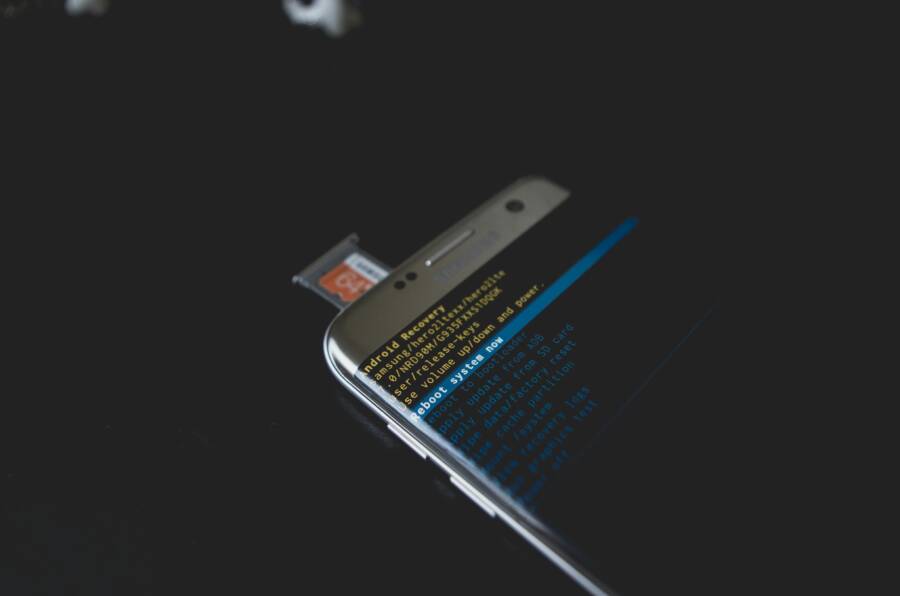
 Photo by Kelvin Valerio
Choosing the right data recovery tool: free vs paid
Deciding between free and paid recovery tools comes down to your data needs, budget, and risk tolerance. Here’s a quick, practical comparison to help you choose without the guesswork.
- What they recover
- Free tools: These often handle common scenarios like deleted photos, documents, and some file types. They work best when the card isn’t severely corrupted and is readable by a computer. Examples include well-known free options that offer basic recovery capabilities.
- Paid tools: Freemium or full versions tend to support a broader range of file formats and deeper scans. They can salvage data from severely corrupted cards or ones that the free tools can’t access. They also usually include better customer support and guided recovery wizards.
- Typical costs
- Free tools: $0 up front, with some limits on how much you can recover or how many file types you can restore.
- Paid tools: One-time licenses often range from around $30 to $100 or more, depending on features and platform. Some providers offer annual subscriptions or device-based licensing.
- Cautions about fake tools and scams
- Fake tools promise miracles and demand payment before you can see results. If something feels too good to be true, it probably is.
- Read reviews from credible tech sites and look for independent tests. Avoid tools that push questionable download sites or bundle extra malware.
- Stick to reputable brands with clear refund policies and current user feedback. When in doubt, start with a free option to gauge whether a deeper scan is needed.
- Practical tips
- Start with a free, read-only scan to gauge whether data is recoverable.
- If the free scan shows some files but not everything, move to a trusted paid tool or a professional service for a deeper pass.
- Always download recovery software from the official site, not third-party download portals.
For guidance on popular recovery choices, consider reputable overviews that compare free and paid SD card recovery options (choose sources that emphasize safety and real-world results). You can explore resources such as CleverFiles for free SD card recovery recommendations and reviews, and HaveCameraWillTravel for user-tested free options.
Safe recovery steps to avoid overwriting files
The most important rule is to recover data without writing new information to the SD card. A simple misstep can overwrite the very files you want to save. Follow these practical steps to protect your data.
- Use a different destination drive
- Connect the SD card to a computer using a card reader. Do not save recovered files back to the same card. Instead, choose a separate drive or an external SSD as the recovery destination.
- Enable read-only modes when possible
- Some recovery software offers a read-only mode. If your tool has this option, enable it to prevent accidental writes to the card.
- Stop using the card as soon as corruption is detected
- If you see read errors or the card disappears from the system, power down the device and remove the card. Continuing to attempt access can worsen damage.
- Create a cloned image when feasible
- If you can, create a sector-by-sector image of the card first. Work from the image rather than the original card to minimize further risk.
- Prioritize essential data
- If time is short, recover the most precious files first. You can return for a deeper scan later if more data becomes accessible.
If you’re unsure about settings, opt for a guided recovery tool that walks you through the process. When you’re ready, run a non-destructive scan to determine what’s feasible before attempting more invasive fixes.
What to do after you recover files
Once you manage to retrieve your data, the next steps are crucial for long-term safety and access.
What If the Only Thing Between You and the Life You Deserve Is a Hidden Wealth Code Waiting to Be Activated
>>> Open the Door <<<

- Copy recovered files to at least two safe locations
- Store copies on your computer and in cloud storage. A local backup plus a remote backup protects you from device failure and theft.
- Organize and verify integrity
- Create a simple folder structure: by date, event, or project. Check file integrity by opening a sample of photos and documents to ensure they’re not corrupted.
- Rename and tag important items
- Adding clear names helps prevent accidental overwrites in the future and makes recovery easier if needed again.
- Plan a replacement if the card is failing
- If you notice frequent read errors, consider replacing the card. Even if you recover data, a failing card can degrade again.
For additional confidence, consult trusted guides on SD card formatting and data integrity checks. For example, recovery-focused resources often highlight best practices around file verification and backups.
When to seek professional help
Some situations are worth turning over to professionals. Here are clear indicators that a pro service is the right move.
- Priceless or irreplaceable data
- Photos of a once-in-a-lifetime trip, documents for work, or archival memories may justify the cost of a pro recovery.
- Physical damage to the card or reader
- If the card is cracked, bent, water-damaged, or shows visible corrosion, professional services often have specialized tools and cleanrooms to recover data without further harm.
- Repeated failures after attempted recoveries
- If multiple DIY methods fail and the card still won’t mount or shows inconsistent results, a pro may be able to salvage what others cannot.
How to choose a reputable service
- Look for established firms with a long track record and clear certifications.
- Check customer reviews and case studies related to SD card recovery.
- Request a no-data, no-fee evaluation. A reputable company will not charge you for a diagnosis if they cannot recover data.
- Ask about data handling and confidentiality policies. You want a service that protects your privacy.
- Compare quotes and turnaround times. A transparent provider will explain what steps they take and why.
If you need next-level help, reputable providers like DriveSavers Data Recovery and Secure Data Recovery offer dedicated SD card recovery services, backed by decades of experience. They typically provide a evaluation before any work begins and outline the likelihood of success based on the card’s condition.
In all cases, approach data recovery with patience. Rushing can lead to additional damage. A calm, methodical plan helps you maximize the chance of a clean recovery.
Images and resource references
- For a visual walk-through of professional recovery considerations and service options, see DriveSavers SD Card Data Recovery Services. https://drivesaversdatarecovery.com/data-recovery-services/devices-supported/sd-card-data-recovery-services/
- If you want to explore recognized data recovery firms, Secure Data Recovery offers broad coverage for memory cards and more. https://www.securedatarecovery.com/services
- For general safety practices and protection guidance, a reputable overview of safe recovery steps is available. https://www.cleverfiles.com/howto/fix-corrupted-sd-card.html
If you’d like, I can tailor this section further to emphasize smartphone-specific recovery workflows, add more localized US examples, or weave in additional links from the latest guides.
Preventing corruption and keeping SD cards healthy
SD cards stay healthy when you treat them like fragile storage devices. A little care goes a long way in preventing corruption, reducing data loss, and extending the card’s life. This section covers practical routines you can adopt every day, plus smart habits that fit real-world smartphone use. You’ll find simple backup workflows, protective usage tips, and clear guidance on formatting so you can keep access to photos, apps, and files without the fear of sudden failure.
Backups and cloud storage for photos and files
A solid backup plan is your first line of defense against corruption and loss. Relying on a single card leaves you exposed to physical damage, wear, or accidental deletion. Instead, combine automatic cloud backups with periodic local copies. Here are straightforward workflows that fit busy lives.
- Automatic cloud backups for photos and documents
- Enable auto backup within your camera or gallery app. Services like Google Photos or your preferred cloud provider can upload new shots as soon as you take them. This keeps a fresh copy off the phone and away from the card’s wear patterns.
- Use app-specific backups for important files. If you edit documents on the go, set them to sync to cloud storage automatically. That way, even if the SD card fails, your work remains accessible.
- Review backup settings quarterly. Ensure that new folders and media are included and that you’re not exhausting data limits with large backups.
- Periodic local copies
- Schedule a monthly transfer to a computer or external drive. A straightforward approach is to copy the SD card contents to a dedicated folder on your PC or Mac.
- Keep a simple, consistent folder structure. For example: Photos/Year/Event, Documents/Projects, Media/Music.
- Use two locations for redundancy. One local copy on a computer and one on a portable SSD or external hard drive reduces the risk of data loss from a single device failure.
- Smartphone usage patterns to consider
- Many of us capture more on weekends or during trips. A quick rule of thumb is to back up after each major trip or event, then do a secondary backup at the end of the month.
- If you share files with family or coworkers, consider a cloud folder with read/write permissions so everyone stays aligned without juggling physical cards.
Useful resources for reliable backups include step-by-step guides on configuring cloud sync and local copy routines. For guidance on setting up SD card backups and best practices, you can review industry discussions and how-to articles from trusted sources like Google Files Help and other reputable tech sites. Get started with cloud backups and SD card safety and similar tutorials. If you want a broader read, explore general SD card backup strategies and practical tips from well-known guides.
- Practical tip: don’t rely on one backup method alone. Combining cloud storage with a local copy offers protection against internet outages, service changes, or cloud account issues.
Best practices for smartphone SD card use
Healthy SD cards come from habits that minimize wear and reduce the chance of damage. The following practical routines are easy to adopt and make a big difference over time.
- Eject before removal
- Always power down the phone or use the safe removal option if your device supports it. Pulling the card while data is transferring or the system is writing can cause corruption.
- Avoid filling the card to the brim
- Leave headroom for the file system to operate smoothly. A card that’s near capacity can slow down performance and increase the risk of errors during file writes.
- Use high-quality cards
- Stick to cards from reputable brands and verify that they meet the size and speed you need. Cheap, off-brand cards often fail sooner and can corrupt without warning.
- Keep cards away from extreme heat or moisture
- Heat and humidity accelerate wear and can damage the card’s internal layers. Store spares in a cool, dry place and avoid leaving cards in direct sunlight or hot car dashboards.
- Safe removal and handling
- When inserting or removing, handle cards by the edges. Finger oils on the contacts can cause read errors over time.
- Regular health checks
- Periodically run a quick check on the card’s ability to mount and read in a computer. If you notice frequent read errors, it may be time to replace the card.
For a quick reference on practical prevention strategies, many users find value in reputable how-to guides that summarize common causes of corruption and straightforward preventative steps. Look for sources that emphasize safe handling, proper formatting, and routine backups. One such overview is a well-known memory card care guide that highlights practical steps to reduce corruption risk and extend card life.
- Related reading: tips on avoiding memory card crashes and data loss from trusted tech writers.
How to format an SD card correctly
Formatting an SD card correctly is a key tool when you’re trying to restore compatibility or recover from corruption. Choosing the right file system for size and device compatibility helps your card work reliably in both phones and computers. Here’s a concise guide to formatting, focused on safety and practicality.
- Determine the correct file system by card size
- Cards up to 32 GB typically use FAT32. Larger cards usually use exFAT, which supports bigger files and modern devices.
- Formatting from phone or computer
- On a phone: Open Settings, find Storage, select the SD card, and choose Format or Erase. Confirm your choice and let the phone set up the file system. This method is quick and keeps you in the same device ecosystem.
- On a computer: Use Disk Management (Windows) or Disk Utility (Mac) for more control. If the card is unmounted or not visible, initialize or mount it first. Then choose the appropriate file system during the format step.
- Compatibility and data loss risks
- Formatting wipes all data on the card. Back up what you can before you proceed. If you’re unsure, start with a non-destructive scan to gauge what’s recoverable.
- Some devices may require exFAT for large cards or may not support exFAT on older hardware. Check your device’s compatibility notes before formatting.
- Quick formatting steps you can follow
- In Windows: Open Disk Management, locate the SD card, right-click, choose Format, select FAT32 or exFAT, and confirm.
- In macOS: Open Disk Utility, select the SD card, click Erase, pick the correct format, and proceed.
If you want to see concrete, device-specific instructions, look for official support articles from your device maker or trusted formatting guides. For example, Android help and widely used formatting tutorials provide clear steps and cautions. These resources emphasize selecting the right format for your card size and device compatibility to avoid future hassles.
When to format as a last resort
- You’ve backed up what you can and still cannot access files
- The card shows repeated read errors or won’t mount on multiple devices
- You’ve exhausted non-destructive recovery options
In these scenarios, formatting can restore basic functionality, but you should expect data loss. If the data is valuable, consider professional recovery services before making the wipe. After formatting, test the card thoroughly by transferring a few small files and ensuring they read back correctly. If problems recur, replace the card to avoid ongoing frustration.
- A quick reminder: formatting is permanent for the card’s current state. Treat it as a last resort, not a routine fix.
Additional, practical pointers
- Keep a simple log of formatting events. Note the card brand, size, and format type. This helps you track reliability over time.
- Consider dual cards for critical workflows. If you rely on SD storage for important tasks, having a spare card lets you swap and continue working while you format or recover data.
- Reach for trusted sources when you’re unsure. If you want extra guidance on your exact card model or device, official support pages and reputable recovery guides provide clear steps and caveats.
By applying these best practices, you minimize corruption risk and keep your SD cards ready when you need them most. The right habits plus a sensible backup plan give you confidence whether you’re snapping photos, saving documents, or downloading files on the go. If you want, I can tailor this section to mirror your preferred device types or add more localized examples from the US market.
Replacing the card and final steps
If you’ve determined that the SD card is physically failing or cannot be recovered, the practical path forward is to replace it and follow careful setup steps. This section walks you through choosing a new card, fitting it into your phone without risk, and confirming you’ve got solid backups in place. The goal is to restore reliable storage without repeating the same mistakes that led to corruption in the first place.
Signs of physical damage and when to replace
Physical damage can show up in several ways, and these signs often mean the card should be retired. Look for bent pins, cracks on the card surface, or chips near the edge. If the card shows visible damage, stop using it immediately to prevent data loss from getting worse. Persistent read errors after you’ve tried standard fixes are another red flag. If your card fails to mount across multiple devices, or you hear unusual clicks when inserting or removing it, that’s a strong signal it’s time to replace.
Even if data looks intact after a quick recovery, don’t push your luck. A card that has endured improper removal, frequent disconnects, or long runs at near capacity is more prone to future failures. Replacing a damaged card now saves you from bigger headaches later, especially if you rely on the card for photos, work files, or travel backups. For context on what to watch for, see practical guides that outline common physical warning signs and the decision to replace: 9 Signs Your SD Card is Damaged or Corrupt and general guidance on SD card health from reliable recovery sources.
If you want a quick technical checklist on when to retire a card, consider this practical approach: any time you notice repeated mounting failures, corruption after formatting, or if the card has visible physical flaws, treat it as a replacement candidate. A trusted overview from recovery experts reinforces the idea that physical wear often trumps software fixes. See additional context here: How to Check If An SD Card Is Corrupted.
Choosing a new SD card: size, speed, and brand
A smooth setup starts with the right card. In practice, you want a card that matches your phone’s needs and your typical usage. Focus on three key decisions: capacity, speed class, and the brand’s reliability.
- Capacity (容量): If you mainly store photos and apps, a 64 GB to 128 GB card is a solid balance for most smartphones. If you shoot 4K video or keep large libraries, consider 256 GB or larger. In smartphones, even larger cards can be used for portable storage, but confirm compatibility first.
- Speed class: Look for cards labeled with good performance marks. For most phones, a Class 10 or U1 card is adequate for standard photography and video needs. If you shoot high-resolution video or run apps that write a lot of data to storage, aim for U3 or higher and consider cards that advertise fast read/write speeds. In plain terms, faster cards reduce waiting times when saving files.
- Brand reliability: Reputable brands tend to offer better endurance and longer warranties. Well-known names with solid track records include SanDisk, Lexar, and ProGrade among others. While price can be tempting, the card is a long-term investment in your device’s data safety. For a recent, professional overview of top microSD cards, see industry-tested picks from sources like ZDNet and Engadget.
Compatibility matters most. Check your phone’s official support pages for any restrictions on card type or format. Some devices work best with exFAT for larger cards, while others have limits on card capacity. If you’re uncertain, start with a standard 128 GB or 256 GB card from a trusted brand and verify it works before expanding your kit.
- Quick guidance from credible reviews: The best microSD cards for general use are covered in detailed buyer guides from reputable outlets. For example, industry-tested recommendations and breakdowns of speeds and capacities provide practical insights you can apply when you shop: The Best microSD Cards, The best microSD cards you can buy: Expert tested, and The best microSD cards in 2025.
When you’re choosing a card, also consider the file system needs. For cards up to 32 GB, FAT32 is standard. For larger cards, exFAT is the typical default because it supports bigger files and is broadly compatible with modern devices. If you’re unsure about compatibility with your phone, a quick check of the device’s support articles can save you from formatting the card incorrectly.
- Brand and format quick tips: opt for a card that ships with a reputable warranty and robust customer support. The goal is a card you can rely on for years, not months. If you’re curious about speed comparisons, a practical set of tests from enthusiasts who measure real-world data rates can help you gauge what to expect in everyday use: see MicroSD speed comparisons for a practical view.
Warranty, data safety, and setup
Before you install the new card, understand what the warranty covers and how to claim service if needed. Most reputable brands offer limited warranties that cover manufacturing defects. Read the warranty terms so you know the exact duration and what actions might void coverage.
- How to claim a replacement: Keep your proof of purchase, the card, and the original packaging. If you encounter a defect, contact the brand’s support team through their official site or customer service channel. Many manufacturers walk you through troubleshooting steps and, if needed, authorize a replacement or repair.
- Initial setup steps:
- Power off your device and remove the old card safely.
- Insert the new card and power the device back on.
- Check for any prompts that the card needs to be formatted. If your phone asks, format the card to portable storage first unless you intend to treat it as internal storage.
- Verify access by saving a small test file, then check it on another device or computer to confirm reliability.
- Back up after setup: once you confirm the card works, back up important data right away. A simple rule of thumb is to keep at least two copies in different places. This habit reduces the risk of data loss from future card issues.
If you want more details on buying options and how to claim warranties, look to trusted sources that outline consumer protections and brand practices. For example, a professional recovery and storage guidance hub discusses data safety, recovery workflows, and practical backup strategies: Disk Utility and memory card guides and general recovery insights from data recovery firms.
- Practical reminder: even with a new card, back up regularly. A routine backup plan protects you from unexpected card problems and keeps your important files accessible across devices.
Setup and best practices after replacement
After you install the new card, follow a lightweight routine to keep it healthy. This helps you avoid the same problems you faced before.
- Format choices: format for portability first if you’re unsure how you’ll use the card. If you rely on the card for both phone storage and external backup, keep the card in a portable state and avoid turning on Adoptable Storage unless you’ve fully backed up and tested your workflow.
- Data hygiene: keep a simple but consistent file structure. For instance, Photos/Year/Event, Documents/Projects, Music/Albums. Clear labeling helps avoid accidental overwrites and makes future recovery easier if needed.
- Regular checks: every month, confirm the card mounts on your phone and at least one computer. If you notice slowdowns or mounting issues, it’s a sign to consider a replacement or a deeper check.
- Maintain backups: set up automatic cloud backups for photos and important files. Pair this with a periodic local copy to your computer or external drive. Relying on a single location is risky.
If you’d like to see a concise, device-specific setup walkthrough, reputable sources provide step-by-step formatting and mounting guidance. For example, Windows Disk Management and macOS Disk Utility offer clear paths to format and mount SD cards, with notes about file systems and compatibility.
- Related reading on safe formatting and recovery: CleverFiles How to fix corrupted SD card and practical recovery overviews from data recovery specialists.
External links used in this section are chosen to support practical decision making without overwhelming you with technical jargon. If you want, I can tailor recommendations to your exact phone model, preferred brands, or your typical use case in the US market.
Conclusion
Fixing a corrupted SD card in a phone comes down to a clear sequence: start with on device checks, clean and reseat the card, and move to computer based fixes if needed. Use CHKDSK on Windows or Disk Utility and fsck on Mac or Linux to repair logical issues, and treat formatting as a last resort only after you’ve backed up what you can.
Backups matter more than any single repair. Keep two or more copies of your important data, using cloud storage and a local drive, so a failing card won’t steal memories or work. Choose reliable cards from well known brands and replace a card that shows repeated errors or physical wear.
After you finish fixes, test the card thoroughly. Save a small batch of files, read them back on the phone and a PC, and confirm everything opens reliably. Keep a simple log of fixes and replacements so you can reference it for future smartphone storage needs.
There Is a Frequency That the Wealthiest Families Have Used for Generations and Most People Will Never Know It Exists
>>> Open the Door <<<
