He Was Drowning in Bills and Burnout Until a Simple Daily Ritual Rewired His Brain for Wealth in Less Than a Week
>>> Start Your Shift Today <<<

How to Fix Phone Backup Failing Due to Low Storage (iPhone & Android)
Picture this: You’re packing for a big trip or finally ready to upgrade your phone. You hit backup, and it fails. All those photos, contacts, and files sit at risk because of low storage.
Backups keep your data safe from loss, crashes, or theft. They let you restore everything fast on a new device. Without them, you face hours of rework or worse, permanent gaps in your memories.
This issue hits both iPhone and Android users hard. Full device storage blocks local backups. Cloud services like iCloud or Google Drive cap free space too.
Don’t worry. This guide walks you through simple fixes. You’ll free up room, tweak settings, and get backups running smooth again.
She Pressed Play on a Strange Audio Track and Within Days Her Financial Reality Started Shifting in Ways She Could Not Explain
>>> See How It Works <<<

First, check your storage on iPhone via Settings > General > iPhone Storage. On Android, head to Settings > Storage. Delete junk like old apps or duplicate photos right there.
Upgrade your cloud plan if needed. iCloud offers easy tiers; Google One does the same. These steps take minutes and solve most cases.
We’ll cover device cleanup, cloud tweaks, and backup alternatives. Follow along for iPhone and Android. Your smartphone data stays secure from here on out.
Diagnose Why Your Backup Fails Due to Low Space
When backups fail, the culprit is almost always storage. Your iPhone or Android may seem to have plenty of room, but even small miscalculations can block backups. Before jumping to sweeping fixes, take a moment to diagnose where space is going and how your backup process uses it. This helps you target the right files to clear or the right plan to upgrade. The goal is to create a predictable path to a successful backup, not a guesswork scramble.
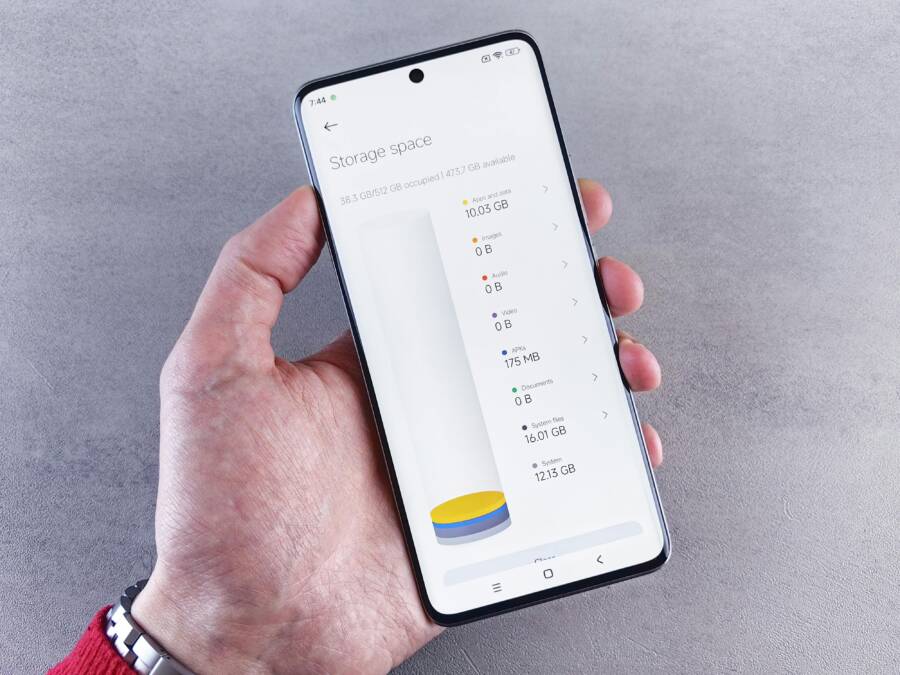
 Photo by Andrey Matveev
Check iPhone Backup Size in iCloud
Backups are size sensitive. If iCloud storage is full or nearly full, your next backup will fail even if you have some room left on the device. Start by verifying the size of your next iCloud backup and what’s included. This helps you decide what to delete safely and what to leave in place.
- Step-by-step:
- Open Settings on your iPhone.
- Tap your name, then choose iCloud.
- Select Manage Storage or iCloud Storage.
- Tap Backups and pick your device. You’ll see the backup size for the next run.
- What to delete safely (if needed):
- Old iCloud backups from devices you no longer use.
- Photos and videos already stored in iCloud Photos or another cloud service, if you don’t rely on them in iCloud Backup.
- App data you can reconfigure to re-sync later, such as large game data or streaming app caches.
- Typical sizes to guide your decisions:
- Core system data and app data usually account for a portion of the backup.
- Photo libraries can be a major chunk if you rely on iCloud Photos for originals.
- Messages and attachments can grow quickly in long conversations.
If you’re running low, Apple provides guidance on managing storage and upgrading to iCloud+. You can check how much space you’ve used and what’s taking up space from Settings or iCloud.com. If you need to free space, consider removing backups for devices you no longer own or turning off backup for apps you can reinstall later. For more details, see Apple’s official guidance on managing iCloud storage and backups:
- Manage your iCloud storage on your Apple device. https://support.apple.com/en-us/108922
- Check your iCloud storage on any device. https://support.apple.com/guide/icloud/check-your-icloud-storage-on-any-device-mm039c13d410
Understanding the backup size is essential before you delete anything. If you’re unsure what a safe deletion looks like, consider temporarily turning off unnecessary backups and freeing space in phases to avoid data loss.
View Android Backup Details in Google Drive
On Android, the backup story is similar but lives in Google Drive and Google One. The space you see there is storage for device data and app data backed up to your Google account. Start by checking what’s being backed up and how much space it will require.
- How to view backup details:
- Open the Google Drive app, tap the Menu (three horizontal lines), then go to Backups.
- Alternatively, in Settings, open Google > Backup and review your device backup details.
- What you’ll typically see:
- Device data includes system settings, Wi‑Fi networks, and some device preferences.
- App data covers data from apps that back up to your Google account, such as game progress, chat histories, and configuration data.
- What to do if space is tight:
- Reduce the scope of backups by turning off backup for apps you can reconfigure easily.
- Remove old device backups you no longer need.
- If needed, upgrade your Google One storage plan to gain more space for future backups.
Helpful resources from Google explain how Android data backup works and how to manage what gets backed up. See:
- Back up or restore data on your Android device. https://support.google.com/android/answer/2819582?hl=en
- Back up your device – Google One Help. https://support.google.com/googleone/answer/9149304?hl=en&co=GENIE.Platform%3DAndroid
- What exactly is this App Data that is being backed up to Google? https://android.stackexchange.com/questions/47586/what-exactly-is-this-app-data-that-is-being-backed-up-to-google
If you’re unsure which data is essential, start with a conservative approach: keep essential system and app data, and temporarily disable backups for large apps or media that you can re-create or re-download later. Then monitor how backup runs after each change.
What If the Only Thing Between You and the Life You Deserve Is a Hidden Wealth Code Waiting to Be Activated
>>> Open the Door <<<

Targeted steps to understand Android backups better can prevent guesswork. For example, you can review the list of apps contributing to the backup and confirm you’re capturing only what you truly need. For a deeper dive into what gets included, refer to Google’s backup documentation and developer guidance linked above.
Why this matters for both platforms: a clear view of backup size and content helps you decide where to prune. It also helps you choose whether to optimize local storage or to upgrade cloud storage. Both paths reduce the chance of a failed backup due to low space, and they keep your data safe without guesswork.
Optional steps to consider after you identify space hogs include evaluating media storage habits, using a dedicated photos cloud service for originals, and enabling selective backup for high‑value data only. This keeps your primary backups lean while still protecting your most important memories and files.
- For iCloud management insights: https://support.apple.com/guide/icloud/check-your-icloud-storage-on-any-device-mm039c13d410
- For Google backup management: https://support.google.com/android/answer/2819582?hl=en
A quick tip to stay ahead: set a monthly reminder to review backup sizes and storage quotas. A few minutes each month can prevent backups from stalling when you least expect it.
Images and diagrams often help clarify where space is going. If you have a chart showing storage usage by category (apps, media, messages), add it here to give readers a visual cue for quick decision making.
Key takeaways from this diagnosis step:
- Always verify the next backup size before deleting anything.
- Separate device data from app data when evaluating what to back up.
- Use official guides to confirm the impact of deletions on backups.
Now that you know how to assess backup size on both platforms, you’re ready to tackle cleanup with confidence. The next sections walk you through practical cleanup actions and backup alternatives. This will help you keep data safe without guesswork, no matter whether you’re on iPhone or Android.
Free Up Space on Your Phone in Minutes
When your backup fails, the quickest fix is usually a fast cleanup. You can reclaim dozens of megabytes to several gigabytes in just a few minutes by offloading large files, trimming apps you don’t use, and clearing out old messages and downloads. The goal is to create enough room for a successful backup without disrupting your everyday phone experience. Below are focused actions you can take right away.
Offload Photos, Videos, and Large Files
Photos and videos often eat up most of a device’s storage. Offloading or moving them to a cloud or alternate local storage creates immediate space for essential data and backups. Here’s how to approach this for both major platforms.
- iPhone: Optimize iCloud Photos. This keeps a lightweight version on your device while originals live in iCloud, freeing device space without losing access to your media. If needed, review how iCloud Photos works and how to pause or adjust uploads for faster relief. For detailed steps, see Apple’s guidance on iCloud Photos and storage management:
- https://support.apple.com/en-us/108782
- https://support.apple.com/en-us/105061
- https://support.apple.com/en-us/108922
- Android: Back up with Google Photos and then delete local copies. Google Photos offers a reliable way to keep your library safe in the cloud while clearing space on the device. After backing up, you can safely remove local files and still access them in the Google Photos app. Useful resources include how to back up and free up space with Google Photos:
- https://support.google.com/photos/answer/6128843?hl=en&co=GENIE.Platform%3DAndroid
- https://support.google.com/photos/answer/6128858?hl=en&co=GENIE.Platform%3DAndroid
- https://9to5google.com/2023/03/29/google-photos-free-space/
If you’re unsure what should stay on the device, start with the media you’ve already backed up and can re-download later. This keeps your most important memories safe while you clear room for the backup.
Beyond photos, scan for other large files you can relocate or remove. Streaming apps often cache videos and downloads that aren’t essential for offline viewing. Move those to cloud storage or delete them if you don’t need them immediately.
Tip: A quick space audit helps you stay ahead. After you offload, recheck your backup size to confirm you’ve created enough slack for the next run. Apple and Google both provide storage checks and upgrade options if you need a longer term boost. See the official storage management guides for each platform above for specifics.
Delete Unused Apps and Clear Cache
Unused apps can quietly siphon storage through app data, caches, and downloaded media. Freeing up space by removing apps you don’t use or by clearing caches is one of the fastest ways to recover storage.
- iOS: Offload unused apps. Offloading preserves app data so you can reinstall later without losing your settings. It’s a simple toggle in Settings that typically frees a meaningful amount of space without deleting content you care about. If you want an easy walkthrough, you can consult guides that show how to offload and manage apps on iPhone.
- Example reference: How to offload unused apps on iPhone and iPad
- https://www.macobserver.com/tips/how-to/offload-unused-apps-iphone-ipad/
- Android: Clear app cache individually. You’ll often see the biggest gains by targeting cache inside apps like social media, browsers, and streaming services. Using a storage manager or a dedicated tool helps you identify top space hogs quickly.
- How to clear cache on Android: https://www.android.com/articles/clear-cache-and-cookies/
- Another practical guide: https://www.zdnet.com/article/how-to-clear-your-android-phone-cache-and-say-goodbye-to-slow-performance/
If you prefer a streamlined approach, a storage manager app can simplify the process by listing apps in order of size and letting you clear cache with a single tap. After cleaning, re-check your backup status to confirm you’ve gained ground.
Remove Old Messages and Downloads
Message histories accumulate attachments that can take up a surprising amount of room over time. Focus on old messages and your downloads folder to reclaim space quickly.
- Target SMS attachments: Large images, videos, and voice messages in conversations add up. A quick sweep to delete or archive old media can free space fast.
- Clean your downloads: The Downloads folder often holds forgotten files, installers, and media that are no longer needed. Deleting old files here can recover significant space.
- Quick sweeps: In iMessage or Android Messages, set a date range to remove older attachments or enable auto-erase features if available. For apps that stay busy with chat attachments, a periodic purge keeps storage predictable.
If you want a practical starting point, consider deleting media from the most active chats that have been backed up elsewhere or are easy to re-download. The aim is a lean backup profile that focuses on essential data. You can revisit conversations later if needed.
For reference, several reputable guides outline how to delete large attachments and manage chat media on both iPhone and Android. For iPhone, MacRumors covers deleting large attachments, while Tapsmart explains how to remove media from Messages and other apps to regain storage:
- https://macrumors.com/how-to/delete-large-attachments-iphone-ipad
- https://tapsmart.com/tips-and-tricks/delete-chat-attachments
For Android, several guides detail clearing chat media and trashing downloaded files. These steps can help you tighten up space when backups are looming:
- https://www.buzzfeed.com/sydniellis/iphone-storage-free-up-space-large-attachments (for iPhone context)
- https://www.trio.so/blog/how-to-clear-cache-for-apps-on-android
By tackling old messages and downloads, you reduce the risk of backup failures due to bloated chat histories or miscellaneous files. It’s a straightforward win that you can complete in minutes.
External links are included to support practical steps and official guidance. If you want to explore a deeper dive into any topic, these resources provide verified, step-by-step instructions and official tips for each platform.
Clear and Manage Cloud Backup Storage
Managing cloud backup storage is a key step in keeping your phone backups reliable. When space runs out, no amount of clever tapping will save your latest backup from failing. This section walks you through targeted actions to reclaim space on iCloud and Google Drive, so you can finish backups without a hitch. You’ll learn what to delete, how to verify the impact, and where to find official guidance to stay safe.
Delete Old Backups in iCloud
Old device backups can quietly drain your available space without you noticing. The simplest solution is to remove backups for devices you no longer use while keeping the most recent backup intact. Start by checking which backups are stored in iCloud and then prune the oldest entries.
- How to locate backups: Open Settings on your iPhone, tap your name, choose iCloud, then Manage Storage or iCloud Storage. Tap Backups and select the device you want to review. You’ll see the size of the next backup and a breakdown of what is included.
- What to delete safely: Backups from devices you no longer own, duplicates or media you’ve already saved elsewhere, and app data you can reconfigure later. Keep the most recent backup to avoid losing your current setup.
- Guidance to confirm before you delete: Apple provides step-by-step guidance on managing iCloud storage and backups. See the official resources for details:
- Manage your iCloud storage on your Apple device. https://support.apple.com/en-us/108922
- Check your iCloud storage on any device. https://support.apple.com/guide/icloud/check-your-icloud-storage-on-any-device-mm039c13d410
Tip: If you’re unsure what to delete, prune in phases. Delete the oldest backups first and re-check your available space before removing more. Keeping one current backup plus essential data minimizes risk while freeing up space.
For a quick visual reference and added context, you can explore additional guidance from reputable sources that outline how to delete old iCloud backups and what to keep. Examples include tutorials and community threads that walk through the steps and safety considerations:
- How to delete old iCloud backups on iPhone. https://macpaw.com/how-to/delete-icloud-backups
- How to delete iCloud backups from your iPhone. https://www.asurion.com/connect/tech-tips/delete-icloud-backups-on-iphone/
- How to view and delete old iPhone backups in iCloud. https://readdle.com/view-delete-old-backups-icloud-tutorial
Keep in mind that removing backups reduces stored data in iCloud. You’ll still have access to recent backups when you need them, and you can always generate a fresh backup after you’ve cleared space.
Free Google Drive or One Space
Google Drive and Google One back up a sizeable slice of your Android data. When space is tight, you should first identify what’s backing up and then clear space strategically. Focus on large backups and media that you can safely offload or re-store elsewhere.
There Is a Frequency That the Wealthiest Families Have Used for Generations and Most People Will Never Know It Exists
>>> Open the Door <<<

- Review backup details: On Android, open Google Drive or Google Photos, or go to Settings > Google > Backup to see what is being backed up and how much space it uses.
- What to prune: Start with old device backups you no longer need, then trim app data that you can re-sync later. If you’re consistently short on space, consider upgrading your Google One plan to gain more storage for future backups.
- How to free up space quickly: Use the Drive and Photos storage manager to empty Trash, delete large files, and manage who can back up apps and data. Official guidance includes step‑by‑step cleanup tips and how to avoid future space issues:
- Clean up & fix issues with your Google storage – Android: https://support.google.com/googleone/answer/9776477?hl=en&co=GENIE.Platform%3DAndroid
- Manage your storage in Drive, Gmail & Photos: https://support.google.com/drive/answer/6374270?hl=en
- Clearing space on Google One storage manager: https://support.google.com/googleone/thread/340128247/cleaning-space-on-google-one-storage-manager?hl=en
If you’re unsure what data is essential, start with core device data and apps you can reconfigure. You can temporarily disable backups for large apps or media that you can re-download later. Then re-check backup progress after each change to confirm you’ve created enough slack.
Useful context from Google and Android support resources helps you decide what to keep and what to trim. For background reading, see:
- Back up and restore data on Android devices: https://support.google.com/android/answer/2819582?hl=en
- Back up your device with Google One Help: https://support.google.com/googleone/answer/9149304?hl=en&co=GENIE.Platform%3DAndroid
A practical approach is to use a tiered cleanup: first clear media and large files, then review app data backups, and finally assess whether a storage plan upgrade is worth it for ongoing backups.
Optimize What Syncs Automatically
Automatic backups are convenient, but not every data type needs a nightly blanket backup. Turning off non-essential syncing lightens the load on both local storage and the cloud, reducing the chance of future backup failures. This is about smart prioritization rather than simply turning everything off.
- Identify non-essentials: Podcasts, streaming app caches, and large media caches are common space hogs that do not require constant backups. You can re-download or re-create this data if needed.
- Fine-tune iCloud syncing: In iCloud settings, decide which apps sync data and store in iCloud. Disabling automatic backups for non-critical apps helps you keep the essential data protected while freeing up space. Official guidance covers selecting which apps use iCloud and how to turn off iCloud for specific apps:
- Change which apps sync and store data with iCloud: https://support.apple.com/en-us/118225
- Manage Android backups from Google: Turn off backup for apps that don’t need to be saved, and review third‑party app backups to ensure you’re not backing up more than you need. Practical steps and community discussions offer real-world tips for managing automatic backups:
- Turn Third-party App Backups on or off for users: https://support.google.com/a/answer/9555235?hl=en
- Turning off Automatic back up? Google Drive Community: https://support.google.com/drive/thread/279528587/turning-off-automatic-back-up?hl=en
By prioritizing essential data, you reduce the amount of information that must travel to the cloud each night. This keeps your backups lean, faster to complete, and more reliable over time.
Key practical takeaways for this section:
- Regularly audit what is included in backups and prune non-essential data.
- Use official guides to confirm how deletions impact restore options.
- Consider a scheduled, lightweight backup cadence that aligns with your storage plan and usage.
For readers who want deeper context, these resources offer concrete steps and troubleshooting tips. They’re especially helpful if you’re balancing multiple devices or testing backup settings across iPhone and Android:
- Apple iCloud storage management guides and app-specific backup controls: https://support.apple.com/guide/icloud/check-your-icloud-storage-on-any-device-mm039c13d410
- Google Drive and Google One storage management: https://support.google.com/drive/answer/6374270?hl=en
- Google One storage cleanup and tips: https://support.google.com/googleone/answer/9776477?hl=en&co=GENIE.Platform%3DAndroid
With these adjustments, you’ll build a cleaner, more predictable backup workflow. Your data stays protected, backups complete more reliably, and you gain peace of mind knowing you’re in control of what travels to the cloud.
Optimize Backup Settings for Long-Term Success
Backups are your safety net when a smartphone mishap happens. The key to long‑term success is making backup settings deliberate, not accidental. By choosing what to include and where to store, you reduce wasted space, speed up restores, and cut the chances of a failed backup due to storage. In this section, you’ll learn how to tailor backups so they cover what truly matters, while keeping room for growth over months and years. Think of it as building a lean, reliable relay race team for your data.
Choose What to Include in Backups
Smart backup habits start with selecting what actually needs to be saved. Both iPhone and Android offer smart controls that prevent nonessential data from gobbling up space during backups.
- iPhone: Use per‑app iCloud toggles. Not every app data needs to ride along in iCloud Backups. By turning off backup for apps you can reinstall or reconfigure later, you keep the core data intact while freeing space for the essentials. This approach helps you avoid carrying bulky caches and seldom‑used data. For official guidance on choosing which apps sync and store data with iCloud, see Apple’s instructions: Change which apps sync and store data with iCloud. https://support.apple.com/en-us/118225
- Android: Exclude nonessential apps from backup. Google and Android offer ways to limit what data travels to your Google Drive or Google One. Focus on core device data and app data you truly need, then disable backups for large apps or media you can re-download or reconfigure later. You can review how to manage which apps are backed up and how to turn off specific backups with official guidance here: Turn Third-party App Backups on or off for users. https://support.google.com/a/answer/9555235?hl=en
Why does this matter long term? Smaller backup sets mean faster backups, less cloud storage spent, and fewer conflicts during restore. It also makes it easier to migrate to a larger storage plan later without paying for data you never needed to back up in the first place.
Practical tips to implement today:
- Start with essential data only. Core system settings, contacts, calendar events, and important app data you can’t recreate easily should stay in the backup mix.
- Review regularly. Every few months, skim the list of backed up apps and trim anything you don’t rely on.
- Use official sources for specifics. Apple and Google publish step‑by‑step instructions that align with your device version and country. For iCloud, see Change which apps sync and store data with iCloud. https://support.apple.com/en-us/118225 For Android, see Turn Third-party App Backups on or off for users. https://support.google.com/a/answer/9555235?hl=en
If you want a quick starter checklist, use this:
- Core device data included
- Apps with reconfigurable data off the backup list
- Large media caches excluded or moved to the cloud
- Regular review cadence set
A clear understanding of what each platform backs up helps you prune safely. Apple’s and Google’s official guides are the best reference to ensure a safe deletion path if you ever need to trim space without losing critical restores.
External notes you may find helpful when planning: Apple’s iCloud backup controls provide consistent options across devices, and Google’s backup settings help you tune Android backups at the account level. For quick access to control panels, see Apple’s iCloud data sync page and Google’s backup management pages.
- Apple iCloud app data controls: https://support.apple.com/en-us/118225
- Google third‑party app backups: https://support.google.com/a/answer/9555235?hl=en
Key takeaway: tailoring backups to include only the essentials reduces risk and friction. It’s a small habit with big payoff over time.
Backup to a Computer Instead
If cloud space is tight or you want a backup path with less ongoing cost, backing up to a computer remains a solid option. Local backups give you a physical copy you control, without cloud limits. It’s straightforward, fast for large data sets, and easy to manage on a monthly schedule.
- iPhone to Mac or PC: Use Finder on macOS Catalina and later, or iTunes on Windows. Local backups don’t rely on a cloud quota, so you won’t worry about monthly limits. The setup is simple: connect your device with a USB cable, trust the computer if prompted, and choose where to back up. For detailed steps, see How to back up your iPhone, iPad, and iPod touch with Finder or iTunes. https://support.apple.com/en-us/108796
- Android to computer via USB: A USB connection lets you copy files directly or use manufacturer tools. You’ll often find the easiest path by transferring media like photos and videos manually, then creating a separate backup of app data if needed. Apple’s and Google’s official guides cover the general approach for USB backups and data transfer. See Back up or restore data on your Android device. https://support.google.com/android/answer/2819582?hl=en
Why choose a computer backup? It sidesteps cloud storage limits, avoids potential subscription renewals, and provides an offline copy you own. It’s also a predictable option if you frequently move between multiple devices or work with large media libraries.
Implementation tips:
- Keep a consistent backup routine. Schedule a weekly or monthly local backup to ensure you always have a recent copy.
- Encrypt backups when possible. If you back up health data, messages, or app data, encryption protects sensitive information in transit and at rest.
- Label and organize backups. Create a simple naming scheme that includes device model and date, so you can locate the right restore quickly.
If you want to explore official guidance, these resources offer step‑by‑step instructions and best practices:
- How to back up with Finder or iTunes: https://support.apple.com/en-us/108796
- Windows backup guidance for iPhone, iPad, or iPod touch: https://support.apple.com/guide/itunes/back-up-your-iphone-ipad-or-ipod-touch-itns3280/windows
For Android, Google’s support also covers transferring files between your computer and device, which is a handy complement to formal backups. https://support.google.com/android/answer/9064445?hl=en
Longer term, a dual approach works well: keep a regular local backup on a computer, and maintain a lean cloud backup for quick restores and device replacement. This hedges against cloud outages or subscription changes while providing a fast path to recovery when you need it most.
Tips to make this approach sustainable:
- Rotate backups. Keep the latest two local backups in separate external drives if possible.
- Verify restore capability. Periodically test recovering from a backup to ensure data integrity.
- Automate where feasible. Use built‑in scheduling on your computer to automate the backup process and avoid manual steps each week.
That gives you two solid paths to protect your data: lean cloud backups tailored to essentials, and reliable local backups on a computer. Each approach has its strengths, and many users find that combining them provides the best protection.
External references you may find useful:
- Back up or restore data on your Android device: https://support.google.com/android/answer/2819582?hl=en
- Transfer files between your computer and Android device: https://support.google.com/android/answer/9064445?hl=en
By preparing both a cloud and a local backup strategy, you gain resilience. In the next sections, you’ll learn how to optimize cloud storage further and how to set up a lightweight, dependable backup cadence that fits your daily smartphone use.
Prevent Backup Space Problems Forever
Backups should be a safety net, not a headache. When storage runs low, backups stall and your data sits at risk. This section shows how to prevent space problems from creeping in, so your iPhone or Android stays protected without constant tinkering. Think of it as setting up a reliable, long-term habit for your smartphone data.
Understand Your Space Budget
Every backup has a size, and cloud plans cap how much you can store. Start by knowing how much space you actually need and what consumes it. On iPhone, review iCloud storage and the next backup size to avoid surprises. On Android, check Google Drive or Google One to see which data is backing up and how much space it uses. Having a clear size picture helps you prune safely and plan upgrades without guesswork. For a quick view of how iCloud storage is managed, see the official guide: Manage your iCloud storage on your Apple device. https://support.apple.com/en-us/108922
- Key takeaway: know the backup footprint before you delete anything. If the next backup is large, cut nonessential data first.
Proactive Storage Hygiene
Treat storage like a regular health check. A few quick routines keep space in the green and backups flowing smoothly.
- Offload media regularly: move photos and videos to the cloud or an external drive when possible. For iPhone users, optimizing iCloud Photos helps you keep access to originals in the cloud while freeing device space. See guidance on iCloud Photos and storage management: https://support.apple.com/en-us/108782
- Clear caches and unused apps: removing caches and offloading unused apps can reclaim a lot of space quickly. For Android, learn how to clear app caches here: https://www.android.com/articles/clear-cache-and-cookies/
- Remove old messages and downloads: archiving or deleting old attachments and downloads reduces bulk that often sneaks into backups. Practical steps are covered in platform guides and tutorials.
External resources provide practical steps on trimming space and preventing future bottlenecks:
- Apple storage management tips: https://support.apple.com/en-us/105061
- Android cache clearing guidance: https://www.zdnet.com/article/how-to-clear-your-android-phone-cache-and-say-goodbye-to-slow-performance/
Smart Backup Settings
Avoid loading every file into every backup. Smart settings keep essential data protected while leaving room for growth.
- Choose what to include: limit backups to core device data and critical app data you can’t recreate easily. On iPhone, per‑app iCloud toggles help you decide what rides along in backups.Learn more at Change which apps sync and store data with iCloud: https://support.apple.com/en-us/118225
- Exclude nonessential items on Android: disable backups for large apps or media you can re-download or reconfigure later. See guidance on managing third‑party app backups: https://support.google.com/a/answer/9555235?hl=en
- Optimize automatic sync: turn off automatic backups for data that doesn’t need nightly syncing. This reduces the load on both local storage and the cloud and speeds up restores when needed.
Useful context from official sources is available in these guides:
- iCloud app data controls: https://support.apple.com/en-us/118225
- Google third‑party app backups: https://support.google.com/a/answer/9555235?hl=en
Use Hybrid Backups for Peace of Mind
Relying on a single path creates single points of failure. A hybrid approach gives you flexibility and resilience.
- Local backups to computer: keep a regular local copy to bypass cloud limits and control costs. For iPhone, Finder or iTunes backs up to your computer. https://support.apple.com/en-us/108796
- Cloud backups with lean data: maintain a lean cloud backup for quick restores while you keep major media separate. For Android, consider how Google Drive and Google One help manage space and backups: https://support.google.com/android/answer/2819582?hl=en
Two practical patterns you can implement:
- Maintain two small local backups on separate drives and rotate monthly.
- Keep essential data in the cloud and use a separate, lightweight local backup for quick recovery.
External references for setting up hybrid backups:
- How to back up with Finder or iTunes: https://support.apple.com/en-us/108796
- Android data backup overview: https://support.google.com/android/answer/2819582?hl=en
Key takeaways for this section
- Know your backup size and plan accordingly.
- Regularly prune nonessential data before it moves to the cloud.
- Use per‑app controls to keep backups lean and effective.
- Pair cloud backups with a reliable local backup for maximum protection.
For readers seeking deeper context, official guides on iCloud and Google backup controls provide concrete steps and safe deletion paths. See the linked resources for targeted actions and platform-specific tips.
Conclusion
If backups fail because of not enough space, you have practical fixes at hand. First, free up space by offloading media to the cloud or another device, then remove unused apps and clear caches. Second, keep cloud backups lean by pruning old device backups and disabling nonessential app data. Third, consider a hybrid approach with a reliable local backup on a computer for speed and security. Fourth, tailor what your smartphone backs up by turning off non essential data and focusing on core information you can’t recreate.
Try one fix now to regain momentum. Offload photos and videos or enable optimized media on your iPhone, then recheck your next backup size. If the issue persists, prune apps you rarely use or clear cache sections that chew space, and test the backup again. A simple change can restore a smooth, predictable cycle.
Your data safety is the goal, and these steps help you stay in control. If you want to stay ahead, subscribe for quick checklists and monthly space audits. Sharing your experience helps others avoid the same snag, and your tips may spark a better setup for the next reader’s smartphone. Remember, a lean backup plan protects memories and work files without slowing you down.
She Pressed Play on a Strange Audio Track and Within Days Her Financial Reality Started Shifting in Ways She Could Not Explain
>>> See How It Works <<<