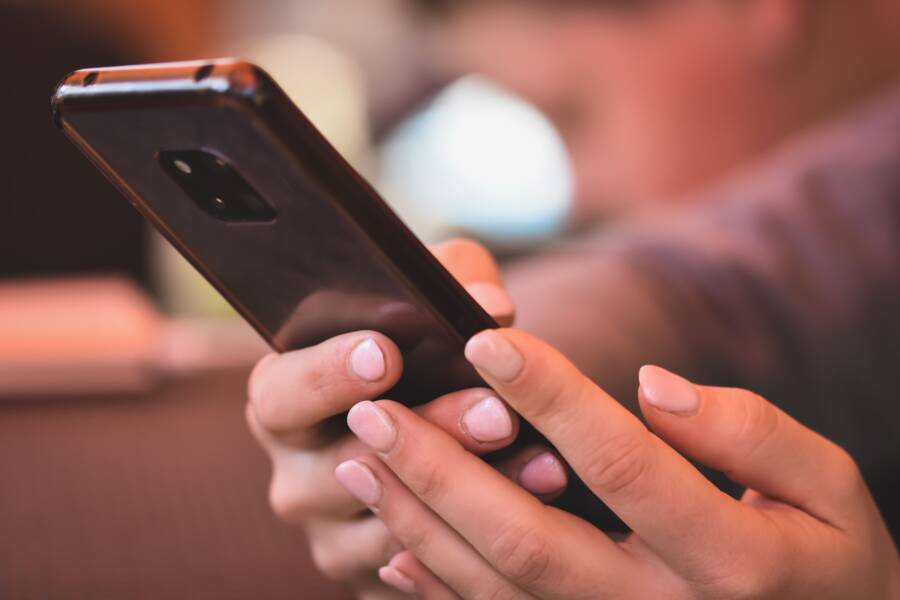
If one-handed mode keeps turning off on your smartphone, it is usually due to software glitches, conflicts with third-party launchers, or restrictive gesture navigation settings. This feature is essential for large devices because it shrinks the display interface to the bottom corner, which allows you to reach every icon and menu with just one thumb. Without it, using a modern smartphone while walking or carrying bags becomes physically taxing and prone to accidental drops.
Why One-Handed Mode Fails
Software bugs are the most common cause for this feature disabling itself. Occasionally, the system process responsible for the interface overlay crashes or terminates to save memory, especially if you have too many background apps running. When the system detects high memory pressure, it often closes non-essential accessibility services first.
Third-party launchers also trigger these conflicts regularly. While many users prefer custom home screen interfaces, these apps do not always communicate perfectly with the native display scaling features of your smartphone. If your launcher attempts to force its own grid system or gesture controls, it might override the one-handed mode settings triggered by your system software.
Troubleshooting Gesture Navigation
Gesture navigation settings frequently conflict with the swipe-down trigger used to activate one-handed mode. If you have “swipe from corner” gestures enabled, the phone often mistakes your attempt to activate the feature for a system-wide command, causing the interface to snap back to full size immediately.
Try these steps to stabilize your settings:
Check your system accessibility menu to ensure one-handed mode remains toggled on.
Disable third-party gesture navigation apps to see if the default behavior returns to normal.
Clear the cache of your phone’s system UI app through the settings menu.
Restart your device to reset the display controller.
Comparing Navigation Methods
The following table summarizes how different navigation styles affect the reliability of one-handed mode.
Most users find that switching to the standard three-button navigation layout resolves the issue entirely. If the problem persists, it indicates a deeper firmware issue that requires a system update or a factory reset.
Frequently Asked Questions
Does a screen protector affect this feature?
Usually, no. If your screen protector is too thick or has air bubbles near the bottom edges, your smartphone might register false touches that force the interface back to full size.
Can I force the mode to stay on?
Most operating systems allow the mode to stay active until you tap outside the shrunken window. If it closes instantly, check for any background tasks that draw over the screen, such as blue-light filters or screen recording tools.
Key Takeaways
One-handed mode is a vital accessibility tool for large screens. Most issues stem from software conflicts, third-party interface customizations, or sensitive gesture settings. You should start by testing your default system settings before exploring more complex solutions like clearing system caches or resetting your app preferences.
Quick Fixes for Common One Handed Mode Glitches
When your smartphone stops shrinking the screen as expected, the primary culprit is often a simple misconfiguration or a temporary software conflict. You don’t need to perform a factory reset to regain control of your interface. Most issues respond well to a quick refresh of your input settings or a clearing of system-level data. Follow these steps to restore functionality and keep your display size under control.
Resetting the One Handed Gesture Settings
Sometimes your phone loses the connection between your physical gesture and the software command. This happens after major system updates or if you accidentally change navigation settings. You can reconfigure these triggers through the system menu to ensure the device recognizes your input again.
Open the Settings app on your smartphone and navigate to the Accessibility or Display menu.
Locate the section labeled One-Handed Mode or Display Scaling.
Toggle the feature off completely and wait for a few seconds.
Turn the switch back on to force the system to re-initialize the background service.
Review the trigger options provided. If you use a gesture-based system, check if you have the correct edge swipe or button command enabled.
Toggle your navigation style to Three-Button mode temporarily, then switch back to your preferred gesture mode. This forces the system to re-map the swipe zones used for screen shrinking.
If these steps do not trigger the desired response, verify that your screen protector isn’t interfering with the touch sensitivity at the bottom of the screen. A protector that covers the gesture area can prevent the smartphone from registering your swipe correctly.
Clearing System Cache to Solve Persistent Issues
Accumulated temporary data often causes system UI elements to fail or behave erratically. Your smartphone stores cache files to load apps faster, but these files become corrupted over time. When the system UI process struggles to interpret these files, it may disable features like one-handed mode to protect system stability. Clearing this cache removes the corrupt data without affecting your photos, apps, or personal settings.
To clear the system cache, you generally need to access the application settings menu.
Open your Settings and select Apps or Application Manager.
Tap the menu icon, usually represented by three dots in the corner, and select Show System Apps.
Search for System UI in the list of applications.
Tap Storage or Storage and Cache.
Select Clear Cache.
Restart your smartphone to allow the system to rebuild the temporary files correctly.
This process forces the smartphone to discard old, buggy interface data and start fresh. Most users notice that interface glitches vanish immediately after a restart. If the problem returns frequently, consider checking for a pending system update, as manufacturers often release patches to fix known conflicts with the system UI.
Conflicts with Third Party Launchers and Navigation
Customization attracts many users to the Android ecosystem, but these aesthetic changes often introduce technical stability issues. A third-party launcher replaces your system home screen, app drawer, and sometimes the core gesture detection engine. When these custom interfaces attempt to intercept swipes or screen interactions, they frequently break the system-level command required for one-handed mode to function.
Testing Default Launchers Versus Custom Options
If your one-handed mode acts erratically, your custom launcher is the primary suspect. These apps often operate in a container that sits above the base system interface. This prevents the primary one-handed mode process from recognizing the trigger gesture or causes it to crash immediately after launching.
You should perform a diagnostic test to see if the stock interface solves the problem:
Open the Settings app on your smartphone.
Select the Apps or Default Apps menu.
Choose the Home app or Launcher settings.
Switch back to the system default launcher provided by your manufacturer.
Attempt to trigger one-handed mode using your established gesture or button shortcut.
If the feature works consistently after switching to the stock interface, the conflict lies within your custom launcher configuration. Check for updates for your launcher app, as developers often release patches to resolve compatibility issues with newer OS versions. If the issue persists, the custom interface likely forces its own gesture mapping, which permanently overrides the system-level shrinking command.
Navigating System Gesture Versus Button Conflicts
The way your smartphone handles navigation input heavily dictates the stability of accessibility features. Many users prefer modern gesture navigation because it hides the bottom navigation bar and creates a full-screen experience. However, these gestures rely on specific screen zones that often overlap with the activation zones for one-handed mode.
If you use full-screen swipe gestures, the system monitors every edge swipe to detect navigation commands. When you attempt to pull down for one-handed mode, the system might misinterpret your finger movement as a back swipe or a home navigation command. This input conflict causes the interface to ignore your request or snap back to the full-size view immediately.
Changing your navigation settings serves as a reliable way to verify these conflicts:
Switch to Three-Button Navigation: This mode removes the ambiguity of gesture zones. Each button acts as a distinct, dedicated input, which rarely causes interference with screen-shrinking features.
Adjust Gesture Sensitivity: If you choose to keep gesture navigation, check your settings to see if you can decrease the sensitivity of the back swipe. This reduces the chance of the phone incorrectly interpreting your one-handed mode trigger.
Observe the Trigger Response: Note whether the mode fails only when you are inside specific apps. If the failure happens everywhere, the system gesture engine is likely at fault.
Stabilizing your navigation input creates a consistent environment for your display settings. Most manufacturers optimize their accessibility features for the default navigation style, so reverting to buttons provides the most reliable way to confirm whether your hardware supports one-handed mode correctly. If the feature functions fine with buttons but fails with gestures, you have isolated the cause to your navigation preference.
Software Updates and Firmware Optimization
Your smartphone relies on a complex stack of software to manage inputs like one-handed mode. When the underlying operating system or system UI components contain bugs, these features often behave unpredictably or stop working entirely. Manufacturers frequently release updates to resolve these conflicts, which is why keeping your device current is a primary step in troubleshooting interface issues.
Checking for Pending System Software Updates
When one-handed mode consistently fails, your first move should be verifying that your smartphone runs the latest available software version. Developers often include patches for system stability and accessibility glitches in these releases. You can manually check for pending updates through the settings menu on your device.
Open the Settings app on your smartphone and scroll to the bottom of the list.
Select System or About Phone depending on your specific manufacturer.
Tap on System Updates or Software Update.
Choose the option to Check for Updates.
If an update appears, select Download and Install.
Wait for the installation to finish and allow the phone to reboot automatically.
The device may take a few minutes to optimize its background processes once it restarts. After the update finishes, test your one-handed mode to see if the interface responsiveness returns to normal. Using outdated firmware is a frequent cause for recurring UI errors, so keeping your system files current prevents these issues from resurfacing.
The Impact of Battery Saver Modes on UI Features
Battery saver modes prioritize power efficiency by restricting background activity for non-essential services. When these modes run, your smartphone identifies resource-heavy animations or background processes and puts them to sleep to conserve energy. This process occasionally affects accessibility features, including the touch-detection layers required for one-handed mode to trigger properly.
If you keep battery saver enabled, your device may terminate the UI process that monitors your swipe gestures. This happens because the system considers the listener for your one-handed mode trigger a secondary background task. You might notice the mode functions normally while charging but fails as soon as you disconnect the cable or enter a low-power state.
Test this by disabling any active battery saver or power optimization settings for the System UI app. Some manufacturers allow you to toggle this behavior in the Battery settings by switching from Optimized or Power Saving to High Performance mode. If the feature starts working after you make this change, you have confirmed that your power management settings were too aggressive for your accessibility preferences. Adjusting these restrictions helps maintain a balance between battery life and the responsiveness of your display interface.
Advanced Troubleshooting When Nothing Else Works
When standard fixes fail to restore one-handed mode on your smartphone, you might be facing deep software conflicts or corrupted system partition data. These instances require a shift from simple setting adjustments to more intensive diagnostic methods. If your display continues to ignore the trigger gesture, the issue likely resides within your device firmware or background task execution.
Checking for Resource Conflicts
One-handed mode is a high-priority UI service. If your smartphone runs low on available RAM, the operating system kills background processes to maintain performance. Overlay apps often trigger this behavior by competing for the same system resources. You can verify if a background app is causing the conflict by booting your device into safe mode. This state disables all third-party software, allowing only pre-installed system functions to run.
Press and hold the physical power button on your phone.
Long-press the power off icon on the screen until the prompt for safe mode appears.
Confirm the restart into safe mode.
Attempt to activate one-handed mode while in this state.
If the feature works in safe mode, a recently installed app is likely the source of your problem. You should uninstall third-party tools, especially those that provide custom navigation, screen recording, or color-filtering functions.
Investigating System Firmware Errors
Persistent failure often signals that the system partition contains outdated or corrupted files. If you recently performed a major OS update, the transition might not have completed correctly. You can address this by clearing the system cache partition through your recovery menu. This process is distinct from clearing app data, as it targets the temporary files used during system boot and UI operation.
Accessing this menu varies by manufacturer. Typically, you turn off the phone and hold the volume up and power buttons simultaneously until the recovery logo appears. Navigate the menu using the volume keys and select the option to wipe the cache partition. This action removes temporary system files that might block accessibility features. Your personal data remains untouched during this process.
Performing a Factory Data Reset
A factory reset is the final option when software troubleshooting yields no results. This action wipes the entire storage of your smartphone, returning the device to its original out-of-the-box configuration. You should perform a backup of all your photos, contacts, and personal files before proceeding, as this data will be erased.
Go to your settings menu and search for Reset.
Select the option to perform a factory data reset.
Confirm your choice and follow the on-screen prompts.
Allow the device to reboot and sign back into your accounts.
If the issue persists after a full system restore, the problem is likely a hardware-level failure in the touch digitizer. In this case, you should contact the manufacturer or a local service center to inspect the physical display panel. A malfunctioning digitizer may fail to register specific swipe zones even if the software is fully functional.
Summary of Steps to Restore One Handed Mode
When you find your display remains stuck at full size, restoring one-handed mode usually involves a few quick adjustments to your settings or system files. You can solve most problems by resetting the gesture input, clearing temporary data, or checking for software conflicts. Follow these steps to get your screen shrinking feature back on track.
Quick Actions to Refresh Settings
Sometimes the system simply forgets the command to shrink your screen. You should start by toggling the feature off and back on to force the smartphone to re-establish the connection between your input and the display controller.
Enter your settings menu and locate the accessibility or display options.
Disable one-handed mode, wait five seconds, and turn it back on.
Switch your navigation style to the three-button layout temporarily.
Verify if the trigger works with buttons before switching back to your preferred gesture settings.
This process clears the immediate logic holding the interface in a full-screen state. If the feature starts working after you switch to buttons, the conflict is within your gesture navigation settings rather than a broken system feature.
Clearing Temporary Data for System UI
System UI stores cache files that allow your interface to run smoothly. These files occasionally become corrupt, causing features like one-handed mode to stop responding. You can clear this data without losing any personal apps or photos.
Go to your applications list in settings.
Select the option to show system apps.
Find the System UI app and tap on storage.
Clear the cache and restart your smartphone.
Restarting completes the process by allowing the system to generate clean files upon startup. If you continue to face issues, check if your screen protector is too thick, as this often prevents the lower corners of the display from registering your touch.
Conclusion
A reliable one-handed mode is a necessity for comfortable interaction with a modern, large-screen smartphone. When this feature stops working, you should prioritize simple solutions like toggling the setting or reverting to a default launcher.
Most software conflicts resolve quickly by clearing the cache of the system UI or switching back to a standard three-button navigation layout. If you suspect an app is the culprit, booting into safe mode helps you identify the conflict without affecting your personal data.
Start with these basic software checks before moving to more intensive methods like system updates or a factory reset. A proactive approach to managing your interface settings keeps your device efficient and easy to use with a single hand.