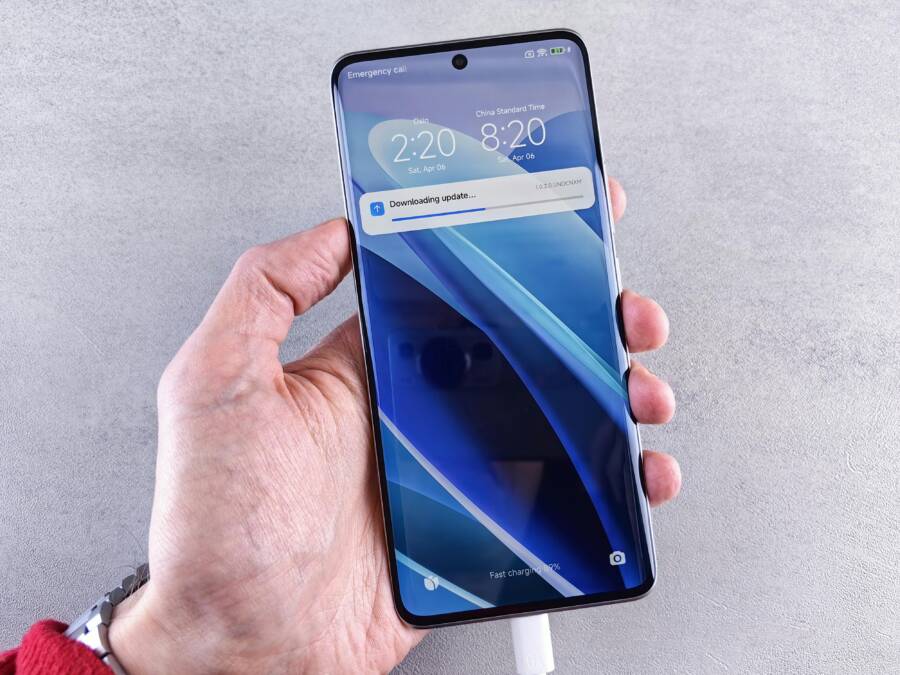
You open your camera app after a fresh phone update. Your go-to modes like Dual Recording or Single Take have disappeared from the More tab. It’s frustrating, especially when basic photo and video modes still work just fine.
This hits many Samsung Galaxy S25 users running One UI 8.5 beta right now. The update moved those advanced features elsewhere. But you can get them back with a few quick taps.
Don’t stress. This guide walks you through simple fixes. For Samsung owners, the Camera Assistant app brings modes back fast. You’ll also find general smartphone tips that work across brands.
We’ll start with the easiest steps. Update your beta software if needed. Then tweak settings to restore everything.
Stick around. You’ll snap pro-level shots again in minutes. No tech skills required.
Why Camera Modes Disappear After a Phone Update
Phone updates often tweak the camera app to add new features or fix bugs. Developers remove old modes during tests to integrate better tech. This leaves users like you wondering where Dual Recording or Single Take went. Samsung Galaxy phones on One UI 8.5 beta face this most right now. The changes aim to boost photo quality, but they hide modes until tweaks finish.

Photo by Andrey Matveev
Beta Software Changes on Samsung Phones
Samsung tests big updates in beta phases. The One UI 8.5 beta kicked off with a clean slate for the camera. In the first beta, Dual Recording and Single Take vanished from the More tab. Why? Teams pulled them to rebuild with the ProVisual Engine.
This engine sharpens images and videos. It handles colors better and adds smart tools. Dual Recording lets you capture front and back cameras at once. Single Take grabs photos, videos, and more from one press. Samsung plans to bring them back stronger in later betas.
Users noticed the shift fast. Basic modes stayed, but these advanced ones hid. Check your beta version. Early ones lack them; beta 2 restores access through settings. No need to panic. It’s a planned rework, not a glitch.
Here are key points on the beta tweaks:
- First beta: Modes removed for engine integration.
- ProVisual Engine: Powers sharper results and creative options.
- Later betas: Modes return to More tab, improved.
Your smartphone stays safe during tests. Just update to the newest beta for full features.
Modes Shifted to a New App
Samsung did not delete your modes. They moved pro controls to the Camera Assistant app. Download it free from the Galaxy Store. This app unlocks hidden settings without touching your photos or videos.
Open Camera Assistant after install. Toggle Dual Recording and Single Take on. They pop up in the camera’s More tab right away. Pro mode gets extras too, like manual white balance and ISO limits.
Think of Camera Assistant as a control center. It fine-tunes focus, exposure, and shutter speed. No data loss happens. Your gallery keeps everything intact.
Steps to access shifted modes:
- Search Galaxy Store for Camera Assistant.
- Install and open the app.
- Enable Dual Recording and Single Take.
- Switch to camera app; check More tab.
This setup gives pro users more power. Casual shooters access modes faster. Samsung ties it to One UI 8.5 for smooth pro shots on your Galaxy phone. Update the app too. It matches beta changes perfectly.
Quick Checks to Restore Missing Camera Modes
You might spot those missing modes right after the update hits your Samsung Galaxy phone. Quick checks often fix the issue without extra apps. Start here before deeper tweaks. These steps refresh your smartphone and pull in the latest fixes.
Update Your Phone Software
Outdated software causes mode glitches on Galaxy S25 devices. Samsung rolls out beta updates like beta 2 to patch problems. Check now to grab it.
Follow these steps to update:
- Open Settings on your phone.
- Tap Software update.
- Select Download and install.
- If available, install beta 2 (around 1GB size).
Your phone restarts after install. Open the camera app and check the More tab. Beta 2 targets bugs that hide modes. It keeps your data safe during the process.
Restart the Camera App and Phone
Updates sometimes leave apps in a stuck state. A restart clears temporary files and reloads features. This works well post-update because it resets the camera’s connection to new software.
Try these clear steps:
- Swipe up from the bottom of your screen to view recent apps.
- Find the Camera app and swipe it away to close.
- Press and hold the power button.
- Tap Restart.
Wait for your smartphone to reboot fully. Launch the camera and swipe to More. Modes like Dual Recording often reappear. If not, the fresh start rules out simple hangs from the update.
Get Camera Modes Back with Camera Assistant on Samsung
Quick checks like updates and restarts often bring back your modes. When they don’t, Camera Assistant steps in as the fix for Samsung Galaxy phones. This free app from the Galaxy Store unlocks advanced options right on your smartphone. It restores Dual Recording and Single Take without any hassle. Follow these steps to get started.
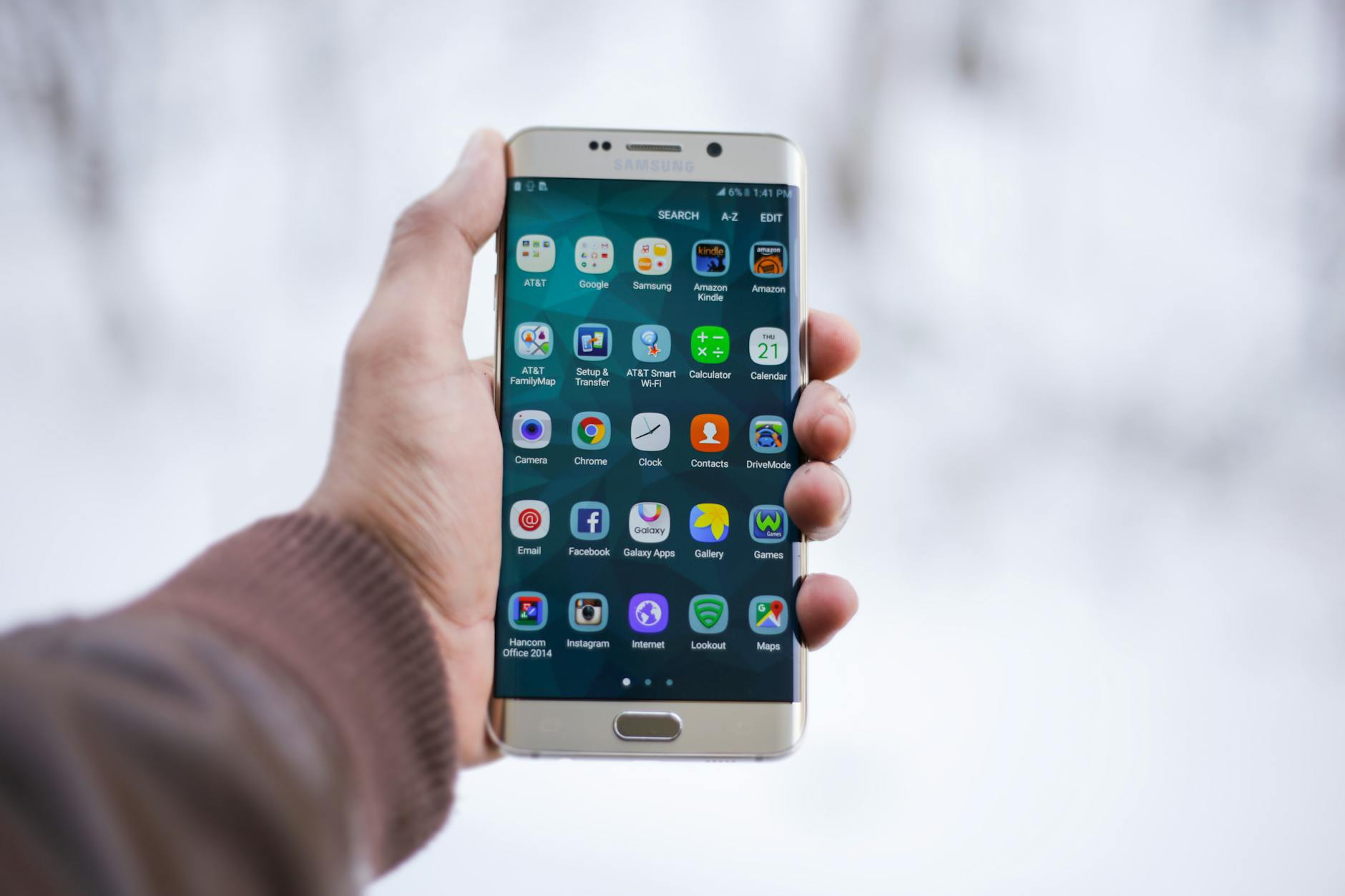
Photo by MOHI SYED
Install and Open Camera Assistant
Samsung keeps Camera Assistant simple to grab. Head to the Galaxy Store for the official version. It works on Galaxy S20 and later models, including Z Flip and Fold lines.
Take these exact steps:
- Open the Galaxy Store app on your phone.
- Tap the search icon at the top.
- Type Camera Assistant and hit search.
- Select the app from Samsung in the results.
- Tap Install and wait for it to finish.
Once done, you access it straight from your camera. Open the Camera app. Tap the settings icon in the corner. Scroll to Camera Assistant and tap it. The app loads with all toggles ready.
Find and Use Your Missing Modes
Camera Assistant lists extra features in clear toggles. Scroll through to spot Dual Recording and Single Take. These modes hide after updates, but flips them back to your More tab.
Here’s how to enable them:
- In Camera Assistant, scan the options list.
- Find Dual Recording and tap the toggle to turn it on. This mode records front and back cameras together.
- Locate Single Take next. Switch it on for burst shots, videos, and formats from one tap.
- Exit the app and open Camera. Swipe to More; your modes appear.
Test right away. Launch Dual Recording for split-screen action or Single Take at an event. Your smartphone now handles pro shots like before. Update the app if toggles don’t show; it syncs with One UI betas.
General Fixes for Other Phones and Last Resorts
Samsung users have solid tools like Camera Assistant. Owners of other brands, such as Google Pixel or OnePlus phones, need broader steps. These fixes target common update glitches across Android devices. Your smartphone might hide camera modes due to app conflicts or software hiccups. Try these next if quick checks fail. They work without advanced skills.
Reset App Settings Without Losing Data
App updates sometimes mess with camera permissions and defaults. Reset app preferences fixes this fast on Android. It restores original settings for all apps but keeps your photos, videos, and files safe. No data vanishes.
This method clears notification blocks, default app choices, and permission limits. Think of it as a gentle refresh that unsticks the camera app. Your smartphone runs smoother after.
Follow these steps:
- Swipe up from your home screen to open Settings.
- Scroll to System.
- Tap Reset options at the bottom.
- Select Reset app preferences.
- Confirm with Reset apps.
Restart your phone once done. Open the camera app and check for missing modes. They often return because the reset clears post-update bugs.
Photo by Castorly Stock
Revert to Stable Software
Beta software causes the most mode losses. If fixes fail, roll back to the stable version. This removes beta changes and restores your full camera app. Back up first, though. The process wipes your data if not done right.
Use Google Backup or your phone’s cloud service. Save photos, apps, and settings. Tools like Samsung Cloud work for mixed brands too.
Steps to downgrade:
- Back up everything to Google Drive or a PC.
- Enroll in the stable channel via your beta program app (like Samsung Members).
- Factory reset your phone from Settings > System > Reset options.
- During setup, avoid beta updates.
Your smartphone boots to the last stable build. Camera modes load as before. Test in safe mode first if issues linger. This last resort works when updates break core features. Stick to stable releases for daily use.
Conclusion
Most users regain missing camera modes quickly after a update by applying a few simple steps. Start with updating to the latest software, then try a quick restart of the camera app or the whole phone. If the modes still hide, turn to Camera Assistant on Samsung devices to bring back Dual Recording and Single Take, along with fresh AI driven controls.
A quick reset of app settings can clear stubborn glitches without touching your photos or files. If you’re on a beta build, these changes are common as the software stabilizes. AI enhancements are expected to improve these modes even more in upcoming updates, making advanced options easier to access.
Try these tips in order and you should see results. Update, restart, and, if needed, install Camera Assistant to unlock the missing modes. This approach keeps your workflow smooth and lets you capture pro style shots again with minimal fuss.
If you have a workaround that worked for you, share it in the comments so others can benefit. And keep an eye on Samsung Members for news about camera fixes and future beta improvements. Most readers find their modes return quickly, so you’re likely back to full functionality in short order.