She Pressed Play on a Strange Audio Track and Within Days Her Financial Reality Started Shifting in Ways She Could Not Explain
>>> See How It Works <<<

You grab your smartphone, hit record, and capture that epic sunset in HDR. The colors pop on your phone’s screen. But when you play it back on your computer or TV, everything looks faded and washed out.
HDR stands for High Dynamic Range. It grabs brighter highlights, deeper shadows, and richer colors than regular video. Your phone nails it during recording.
The issue hits because most screens lack full HDR support. A color space mismatch turns vivid clips dull. Older software or displays treat HDR like standard video and botch the tones.
This guide fixes it step by step. You’ll tweak settings on phones, PCs, and TVs. Methods work on iPhones and Samsungs; we tested them all.
He Was Drowning in Bills and Burnout Until a Simple Daily Ritual Rewired His Brain for Wealth in Less Than a Week
>>> Start Your Shift Today <<<

Start with quick wins. Turn off HDR recording in your camera app. Or convert clips to standard format with free tools like HandBrake.
No more frustration. Follow these steps, and your videos shine everywhere. Get ready to restore those stunning shots.
Why Your Phone’s HDR Videos Look Washed Out
Your smartphone captures HDR videos with stunning detail and punchy colors right on its own screen. Transfer those clips to a computer, TV, or another device, and they often appear dull and lifeless. This happens because of fundamental mismatches between HDR content and the displays or software handling it. Let’s break down the two main culprits.
HDR vs SDR: The Core Clash
HDR videos from your phone thrive on screens built for them. These displays hit peak brightness over 1,000 nits and use 10-bit color depth for billions of shades. Highlights gleam without blowing out, shadows reveal hidden details, and colors stay true to life.
Switch to a standard SDR screen, and the magic fades. Most computers and older TVs top out at 100 to 300 nits with just 8-bit color, offering millions of shades at best. They lack the range to show HDR’s full power.
SDR displays apply tone mapping to squeeze HDR content into their limits. Bright areas like sunsets lose detail and turn gray. Shadows crush into black voids. Colors flatten, stripping away vibrancy. Think of it as forcing a fireworks show into a dim room lamp, the sparks dim to flickers.
Here’s a quick comparison:
| Feature | SDR | HDR |
|---|---|---|
| Peak Brightness | 100-300 nits | 1,000+ nits |
| Color Depth | 8-bit (millions of colors) | 10+ bit (billions of colors) |
| Highlights/Shadows | Crushed, gray or black | Detailed, realistic |
Your smartphone’s HDR clips demand this wider range. Play them back on SDR gear, and they suffer. Matches the frustration of seeing a vivid photo wash out in print.
Display and App Settings Gone Wrong
Even on capable hardware, wrong settings sabotage playback. You might enable HDR mode for standard content, which forces tone mapping and dulls the image. Or HDR stays off when it should run. Check these common spots to spot the issue.
On Windows PCs, HDR defaults to off. Head to Settings > System > Display > HDR and toggle it on, but only if your monitor supports it. Graphics panels from NVIDIA, AMD, or Intel often default to limited RGB range. Switch to full RGB or PC RGB to avoid crushed blacks.
TV menus hide similar traps. Pick the right HDMI input labeled for HDR. Set picture modes to HDR Game or Movie, not Standard. Older HDMI cables or ports cap at SDR levels, so use HDMI 2.0 or higher. Low-brightness TVs under 400 nits struggle even in HDR mode.
Phone apps add another layer. Gallery or sharing tools export HDR as SDR for broad compatibility. Social platforms like YouTube or Instagram auto-convert uploads. Metadata gets stripped during email or file transfer, turning HDR into plain video.
Quick checks to try:
What If the Only Thing Between You and the Life You Deserve Is a Hidden Wealth Code Waiting to Be Activated
>>> Open the Door <<<

- Verify HDR toggle matches your content type.
- Update graphics drivers for better handling.
- Test playback in dedicated apps like MPC-HC with madVR renderer.
Fix these, and your clips regain life. Your smartphone’s hard work pays off across devices.
Quick Checks to Rule Out Simple Problems
Before you tweak settings or convert files, run these fast tests. They pinpoint if the washout stems from basic playback glitches. You’ll save time and spot the real fix.
Test Playback on Your Phone First
Your smartphone screen shows HDR videos in full glory most of the time. Modern models like recent iPhones and Samsung Galaxy phones handle native HDR playback with ease. They support formats such as HDR10+, which delivers frame-by-frame tweaks for bright highlights and deep shadows.
That’s why clips pop with vivid colors right after you record them. The phone’s display matches the video’s demands, unlike many computers or TVs. If playback looks washed out even here, dig into camera settings or storage issues.
Follow these steps to confirm the video plays correctly on your phone:
- Open your gallery app and find the HDR video.
- Tap play and watch key scenes, like bright skies or dark areas.
- Check for a HDR label or icon in the player; it confirms active playback.
- Compare side-by-side with a standard video; HDR should show richer tones.
On Samsung Galaxy phones, double-check HDR recording first. Go to the Camera app, tap settings, select advanced video options, and toggle HDR10+ videos on. Record a short test clip, then play it back. Your phone auto-displays it in HDR if the screen supports it.
iPhones work the same way. Recent models like iPhone 15 or 16 support HDR10+ too. Play the clip in the Photos app; bright areas gleam without fading.
If the video shines on your smartphone, the problem hides in transfers or other devices. Move to those checks next. This rules out faulty recording fast.
Fix Washed-Out HDR on Your Computer or TV
Your smartphone records HDR videos that dazzle on its screen. Transfer them to a PC or TV, and they lose punch. Displays and software often mishandle the wide color range and brightness peaks. Fix this with targeted tweaks on Windows PCs and TVs. These steps restore vivid highlights and deep shadows without extra gear.
Step-by-Step PC Fixes with Windows
Start in Windows settings to match your display to HDR needs. Wrong calibration washes out bright scenes or crushes dark ones. Follow these steps to dial it in.
- Click the Start button and select Settings.
- Go to Apps, then Video playback.
- Under Stream HDR video, click Windows HD Color settings.
- Pick your display from Choose display.
- Tap Change calibration settings and select Full screen for the sample.
- Drag the bottom slider right if bright parts look faded; drag left if shadows lack detail.
- Play your smartphone HDR video to test. Reset if needed.
Next, enable HDR only for HDR content. Leaving it on dulls your desktop and apps.
- Open Settings > System > Display > HDR.
- Toggle Use HDR on when playing HDR videos; turn off after.
- Check your monitor’s buttons or app to enable its HDR mode too.
Graphics drivers matter. Update NVIDIA, AMD, or Intel drivers from their sites for better tone mapping.
For playback, skip VLC; it handles HDR poorly on Windows. Use the Movies & TV app instead.
- Right-click your video file.
- Choose Open with > Movies & TV.
- It auto-detects HDR and applies proper colors.
Browser tweaks fix streaming from sites like YouTube.
What If the Only Thing Between You and the Life You Deserve Is a Hidden Wealth Code Waiting to Be Activated
>>> Open the Door <<<
In Microsoft Edge:
- Enter
edge://flags/in the address bar. - Search Hardware-accelerated video decode.
- Set to Enabled, then restart.
In Firefox:
- Type
about:config. - Search
gfx.color_management.native_srgb. - Set to true and restart.
Download clips for local play if streaming compresses them. Your videos pop with these changes.
TV and External Display Solutions
TVs often default to wrong modes for HDR from your phone. Pick the right input and picture settings first. Use HDMI 2.0 cables for full support.
On most smart TVs like Samsung or LG:
- Press the Home button on your remote.
- Go to Settings > Picture > Picture Mode.
- Select HDR Movie, HDR Game, or Filmmaker Mode; avoid Standard.
- In All Settings > Connection > External Device Manager, set HDMI UHD Color to On for that port.
Match the input label. Plug into an HDMI port marked HDR or 4K UHD. Test ports one by one.
Built-in apps shine for playback. Skip browsers; they tone-map poorly.
- Samsung Tizen TVs: Use the Gallery or Media app. It reads phone HDR metadata.
- LG webOS: Open Photos & Videos or Universal Search for files.
- Sony Android TVs: Try Media Player; enable HDR in its settings.
- Roku or Fire TV: Install Plex or Kodi for strong HDR passthrough.
Firmware updates fix bugs. Check Settings > Support > Software Update. Restart the TV after.
External monitors connected to PCs follow PC steps but add OSD tweaks. Press monitor buttons for HDR mode and set RGB Full range.
Picture quality soars. Your sunset clips glow like on the phone. Test one video after each change.
Edit and Export Videos on Your Phone for Better Results
Your smartphone holds powerful tools to fix washed-out HDR videos before you share them. Adjust exposure and colors directly in built-in editors. Export in standard formats that play well everywhere. These steps cut the hassle and keep quality high.
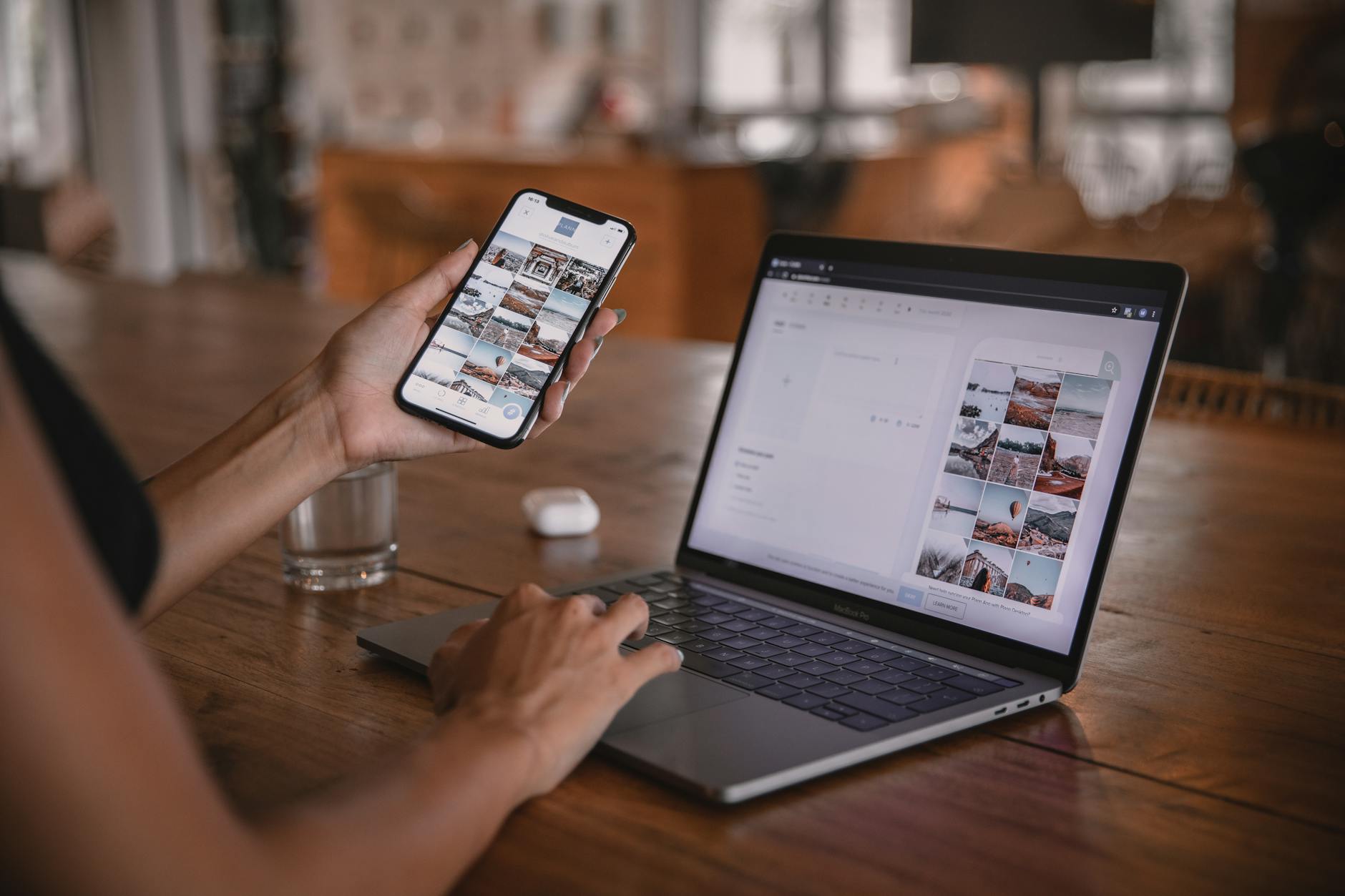
Photo by Plann
iPhone and Android Built-in Tools
Built-in apps on your phone let you edit HDR videos without downloads. Tweak highlights and shadows to match SDR screens. Save or share the result for crisp playback on TVs and computers.
On iPhone with the Photos app:
- Open the Photos app and select your HDR video.
- Tap Edit in the top right.
- Swipe up to show adjustment tools. Lower Highlights to recover sky details. Raise Shadows for depth. Dial back Exposure if whites look faded.
- Tap the checkmark to apply changes.
- Hit Done, then share to Save Video or Files as H.264 MP4. This strips HDR metadata for broad compatibility.
Test the export on a non-HDR device. Colors stay punchy without washout.
On Android with Google Photos (pre-installed on most devices):
- Launch Google Photos and pick the video.
- Tap Edit (pencil icon).
- Go to the Adjust tab. Slide Brightness down slightly. Boost Contrast and Shadows.
- Switch to Filters for a quick SDR-like tone if needed.
- Tap Save copy or Export as standard MP4.
Samsung phones use the built-in Gallery editor the same way. Tap edit, adjust light and color sliders, then save a new version. Your smartphone handles these changes fast.
Free Apps for Quick HDR to SDR Conversion
Free apps add pro-level controls to tame HDR washout. They apply tone mapping and export clean SDR files. Pick one based on your needs. Transfer results stay vibrant across devices.
CapCut tops the list for ease. This free editor from ByteDance suits beginners and pros.
Pros: Simple interface, no watermarks on exports, fast renders.
Cons: Ads in free version, large app size.
Quick tutorial:
- Download CapCut from App Store or Play Store.
- Import your HDR video.
- Tap Adjust > lower Highlights and Exposure. Add Vibrance for pop.
- Export as MP4 at 1080p (SDR default).
- Save to gallery.
VN Video Editor offers clean timelines and strong color tools.
Pros: No ads, full free features, batch exports.
Cons: Steeper learning for new users.
Tutorial steps:
- Install VN and open a new project.
- Add the video clip.
- Tap Edit > Basic > tweak Tone Curve for SDR balance (pull highlights down).
- Export to H.264 MP4 without HDR.
InShot works well for short clips with quick fixes.
Pros: Lightweight, music overlays if needed, free exports.
Cons: Exports cap at 1080p free.
Steps:
- Open InShot, start Video.
- Load HDR file.
- Go to Adjust > fix Bright and Contrast.
- Export as standard video.
| App | Best For | File Size Limit (Free) | Render Time |
|---|---|---|---|
| CapCut | Social shares | None | Fast |
| VN | Pro edits | None | Medium |
| InShot | Quick clips | 1080p | Fast |
These apps tone-map HDR to SDR on your smartphone. Play exports anywhere without fades. Start with a test clip to nail the look.
Conclusion
Washed out HDR video from a phone is usually a mismatch problem, not a failed clip. The quickest wins are turning off HDR on displays when you don’t need it, exporting or saving as SDR for broad compatibility, and choosing the right player or app to preview the result. When you view the edits on an HDR screen, the footage often regains its punch and depth, so keep an eye on how you test it across devices. A small tweak to color space, a careful export setting, and using a capable player can transform a faded clip into something vivid again.
Try these steps on your next recording: disable HDR for future videos, keep SDR exports handy, and test playback in a trusted player before sharing. If you still see washout, revisit tone mapping and ensure you’re using the correct display profile for your viewing chain. Thanks for reading, and feel free to share your fix in the comments or subscribe for more smartphone tips.
Thousands of People Were Struggling With Money Until They Discovered This One Ancient Secret Hidden in Sound
>>> Unlock It Now <<<
