He Was Drowning in Bills and Burnout Until a Simple Daily Ritual Rewired His Brain for Wealth in Less Than a Week
>>> Start Your Shift Today <<<

Having trouble with games not downloading on your phone? You’re not alone, and this guide has you covered. We’ll start with quick wins you can try right away and then move into deeper fixes if the problem sticks around.
This introduction breaks down the six core areas that commonly block downloads: storage and cache, network issues, account and permission problems, OS compatibility, platform specific steps, and more advanced fixes plus prevention tips. You’ll get clear steps you can follow for both Android and iPhone, with practical checks that don’t require tech wizardry.
By the end, you’ll know exactly what to do to get games moving again, plus simple habits to prevent future download hiccups. Think of this as a fast path to relief, built for busy smartphone users who want reliable access to their favorites without the guesswork.
Common reasons why games won’t download on a phone
Downloads can stall for several practical reasons. Understanding the most common culprits helps you fix the issue quickly without chasing invisible gremlins. Below are the four areas that most often cause download failures, followed by simple, beginner-friendly steps you can try right away. Each subsection focuses on a concrete, actionable approach you can apply on both Android and iPhone.
What If the Only Thing Between You and the Life You Deserve Is a Hidden Wealth Code Waiting to Be Activated
>>> Open the Door <<<

Insufficient storage or cache buildup
Low storage is a frequent bottleneck. When your device runs out of space, new downloads can’t start or finish. Even if you have a good amount of free space, cluttered cache can interfere with download processes and app installation.
What to check and do now:
- Check available space: On Android, go to Settings > Storage. On iPhone, open Settings > General > iPhone Storage to see how much space is left for apps and games.
- Clear cache for the game and the store apps:
- Android: Settings > Apps > [Your Game] > Storage > Clear Cache. Then do the same for the Google Play Store.
- iPhone: There’s no separate cache toggle, but offloading unused apps or deleting expired data (Settings > General > iPhone Storage) can free up space.
- Delete unused apps or media: Move large videos, photos, or apps you don’t use to cloud storage or a computer.
- Move to external storage if possible: Some Android devices support SD cards for app data. If your device supports it, relocate nonessential apps or media.
A quick sanity check is to ensure at least 10–20% free space remains after you download. If you’re near that threshold, clear space and retry the download. For persistent cache issues, restarting the device can also reset stuck processes and speed up downloads.
Weak or restricted network connection
A shaky network is another common roadblock. If the device can’t establish a solid link to the app store, downloads pause or fail.
What to check and do now:
- Compare WiFi versus mobile data: If you’re on cellular data, confirm you haven’t hit a data cap or a throttled plan. If you can use WiFi, switch networks to see if the download proceeds more smoothly.
- Test network speed: Run a quick speed test and aim for at least 5 Mbps for smooth downloads, higher for larger games.
- Look for network prompts or captive portals: Some public networks require login or terms acceptance before you can access the Internet. Complete any prompts to restore access.
- Pause other data-heavy apps: Streaming, cloud backups, or large file transfers can sap bandwidth and slow down downloads.
- Retry after a few minutes: Some networks recover from brief outages and will allow downloads again without intervention.
If you continue to see issues, try a different network or reset network settings as a precaution. For Android and iPhone users alike, switching to a reliable WiFi network often resolves download stalls quickly. If you want a deeper dive on common Play Store network issues, see Google’s troubleshooting guide.
App store account, payments, or permission issues
Account problems or permission blocks can halt a download even if you have space and a solid network. This can involve expired payment methods, region restrictions, or permission settings.
What to check and do now:
- Confirm payment method and region: Open Google Play or the App Store account page and verify that payment methods are valid and that your region matches the game’s availability.
- Check license and ownership status: In some cases, licenses must be valid for the download to proceed. Make sure your account shows a valid license for the game.
- Review app permissions: Ensure the store app has the necessary permissions to install apps, access storage, and manage downloads.
- On Android, go to Settings > Apps > Google Play Store (or your store app) > Permissions.
- On iPhone, check Settings > [Your Name] > iTunes & App Store to verify account status and payment information.
- Re-authenticate or sign out and back in: Sometimes a fresh sign-in resolves authorization hiccups.
- Look for regional restrictions: Some games are not available in every region. If needed, adjust your account region or use the appropriate store for your location.
If problems persist, visit the store’s help pages to verify the current status of your account and licenses. Quick checks like these prevent long download delays caused by account issues.
OS compatibility and device requirements
New games often assume a minimum hardware and software baseline. If your device is older or running an outdated OS, downloads may fail or the game may refuse to install.
What to check and do now:
- Check the store listing for system requirements: Look at the game page to confirm required OS version, RAM, and storage. If your device doesn’t meet the minimum, you may need to upgrade or choose a lighter title.
- Verify available RAM and background activity: In Android, limit heavy background tasks during install to avoid memory contention. On iPhone, ensure there’s no background app activity that could interfere with downloads.
- Update the OS or device firmware: Keeping your OS current helps with compatibility. If you can’t update, consider devices that can run the latest games more reliably.
- Consider performance settings: Some games require certain background settings to be enabled or disabled for installation to proceed. Adjust as needed on your device.
When compatibility is the root cause, you’ll typically see a clear message in the store about minimum requirements. If an update to the OS is feasible, it can unlock access to new games and smoother downloads.
Background data limits and battery optimization
Battery saver and data saver modes can pause or slow down downloads. If these modes kick in, you might see stalled progress or failed installations.
What to check and do now:
He Was Drowning in Bills and Burnout Until a Simple Daily Ritual Rewired His Brain for Wealth in Less Than a Week
>>> Start Your Shift Today <<<
- Turn off battery saver during downloads: On Android, swipe down and toggle Battery Saver off or add the store app to exceptions. On iPhone, ensure Low Power Mode is off in Settings > Battery.
- Adjust data saver settings for the store and game apps:
- Android: Settings > Network & Internet > Data Saver. If enabled, disable it for the store app and the game.
- iPhone: Settings > Cellular > Data Options > Low Data Mode. Turn it off for the relevant apps during downloads.
- Keep the screen active during large downloads: If the device goes to sleep, downloads can pause. Set the timeout to a longer period or keep the screen active while downloading.
- Pause background downloads in the store: Some app stores allow you to suspend other downloads to prioritize the game you want. Adjust this setting if available.
These steps prevent download interruptions caused by energy saving or data throttling. After turning off the blocking modes, retry the download. If you want extra tips on maintaining smooth downloads over time, check the store’s official troubleshooting pages.
Links and quick references
- For Android download issues and general troubleshooting, see Google Play help pages. They walk through connectivity, storage, and account checks that often resolve stalls.
- If you’re on iOS, Apple’s community discussions and support guides provide steps for account and compatibility issues that can affect downloads.
- When you face regional or license problems, store support pages offer status checks and steps to verify licenses.
External resources for deeper reading
- Fix problems downloading apps with basic troubleshooting steps
- Fix problems downloading apps from the Play Store
- I can’t play games or download on iPhone
- Mobile Troubleshooting for games and apps
- How to fix Android apps that keep crashing
If you’re still stuck after trying these steps, you can combine the fixes above. Start with storage, then network, and finally account and OS compatibility. Small, deliberate actions now can save you hours later. And if you want, I can tailor a quick, personalized checklist based on your device model and OS version.
Quick fixes you can try right now
When a game won’t download, a few simple steps can get things moving again without diving into deep system tweaks. These quick wins work on both Android and iPhone and take only a few minutes to test. After trying them, you’ll know whether you should push forward with deeper fixes or just retry the download with a fresh setup.
Check storage space and clear cache
Start by confirming you have enough free space for the new download. Low storage or a clogged cache can stall or block installations.
- Android: Settings > Storage to see available space. If you’re tight, delete or offload unused apps, videos, or photos. Then clear cache for the game and the store app: Settings > Apps > [Your Game] > Storage > Clear Cache, and do the same for Google Play Store.
- iPhone: Settings > General > iPhone Storage shows space left. Free up space by offloading unused apps or removing data you don’t need. Clear cache indirectly by offloading apps or deleting temporary data (Settings > General > iPhone Storage).
A quick sanity check: keep at least 10–20% free space after you download. If something still sticks, a simple device restart often resets stuck processes and speeds up downloads.
Why this works: cached data can become corrupted or overly large, making downloads feel sluggish or fail outright. Clearing cache frees up space and resets how the store and game communicate with the OS.
If you want a quick read on cache clearing, see how to clear app cache on your phone for practical steps you can follow now.
Restart the device and toggle connectivity
A quick restart can clear transient errors that block downloads. After the reboot, refresh your connection to the internet.
- Restart your device.
- Toggle connectivity: turn on Airplane mode for about 30 seconds, then turn it off. Alternatively, disable Wi Fi, wait a moment, and re-enable it.
If the download still stalls, try switching networks. A new Wi Fi network or a solid mobile data connection can make the difference.
Why this helps: many download stalls come from momentary network hiccups or background tasks that persist after a fault. A fresh connection often clears the problem quickly.
If you’d like a deeper guide on network troubleshooting, Google’s official Play Store support offers comprehensive steps to stabilize connections and fix download issues.
Update OS and the game
Keeping software up to date reduces compatibility problems and bug-induced stalls.
- Check for OS updates on your device and install any pending versions.
- Update the game app to the latest version in the store.
- In Android, you can also check for Google Play updates and patch notes.
- In iPhone, confirm you’re signed in and that automatic downloads are enabled if you prefer.
After updating, retry the download. If you still see trouble, verify store updates as well since store app updates can fix installation blockers.
Why this matters: developers frequently optimize installation flows and fix bugs that block new downloads. Running the latest OS and app versions minimizes the chance of an incompatible or misbehaving install.
For a reference on common download issues with official guidance, see Apple Support and Google Play Help pages on updating and troubleshooting apps.
Clear store cache and sign in again
Clearing the store’s cache and refreshing your sign-in can resolve authorization or stale data problems that prevent downloads.
- Google Play on Android: Sign out of your Google account in the Play Store, clear cache and data for the Google Play Store, then sign back in.
- App Store on iPhone: Sign out of your Apple ID, clear related app data, and sign back in. For iPhone, clearing cache is handled by offloading apps or clearing data in Settings rather than a separate cache toggle.
Note on saved data: clearing cache or signing out does not erase your game progress stored on cloud or local save files; your progress is typically preserved if it’s tied to your account. Backups are a safe precaution if you’re concerned about any potential data loss.
If you need step-by-step visuals, see how to clear Google Play Store cache on Android and the App Store signing in process for iPhone.
Check date and time settings, region, and disable VPN if used
Date, time, and location settings affect how stores verify purchases and downloads. A misconfigured clock or a VPN can block access to the store servers.
- Date and time: Enable automatic date and time. On Android, Settings > System > Date & time; on iPhone, Settings > General > Date & Time and switch on Set Automatically.
- Region: Confirm your device region matches the store you’re using and the game’s availability. If needed, adjust region settings in your store account.
- VPN: Disable any active VPN during the download. Some games and stores block traffic when a VPN is detected.
After adjusting these settings, try the download again. If you’re testing region and device compatibility, a quick switch back to your usual region can confirm whether the issue was region-related.
Why timing and region matter: incorrect or spoofed region data can cause licensing checks to fail, while VPNs can route traffic to servers that don’t recognize your device, both of which stall or block downloads.
Suggested next steps if the quick wins don’t resolve the issue If the problem persists after these quick wins, you’ll want to move into deeper fixes. Start with the store-specific steps for sign-in and data management, then review OS compatibility and background activity. If you’d like, I can tailor a one-page checklist based on your device model and OS version.
External resources for deeper reading
- If you’re troubleshooting Android download issues, see Google Play Help for connectivity, storage, and account checks.
- For iOS guidance on app downloads, Apple Support covers account, payment, and region considerations.
- When you face regional or license problems, store support pages offer status checks and steps to verify licenses.
Platform specific troubleshooting: Android and iPhone
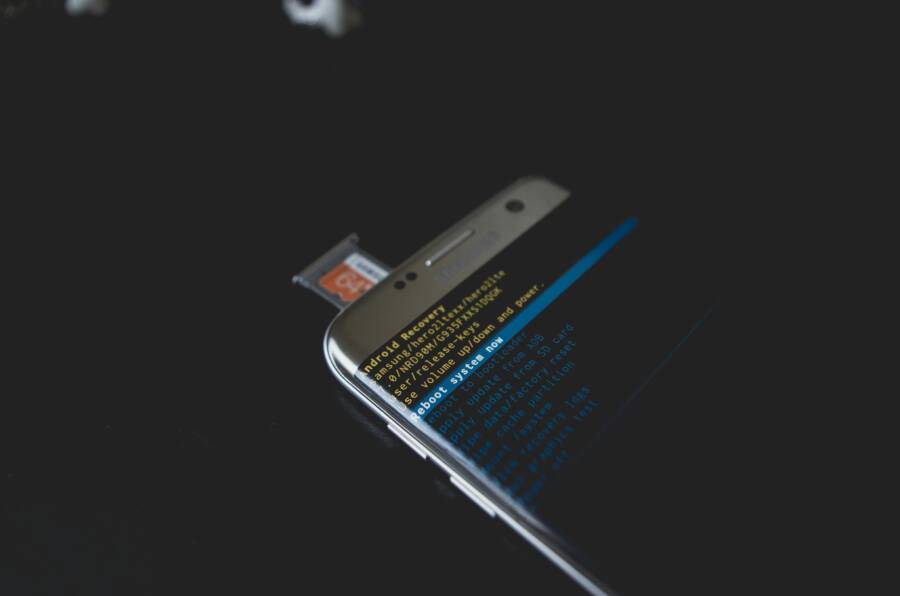
When a game won’t download, the fix often requires platform specific steps. This section provides targeted, practical actions for Android and iPhone users. You’ll learn where to check storage, services, permissions, and network settings, plus how to reset key preferences if necessary. Think of it as a concise, platform tuned checklist you can run through in under 15 minutes. If you’re reading this on your smartphone, you’ll appreciate how these steps map directly to what you see on screen.
 Photo by Kelvin Valerio
Android specific steps
On Android, download problems are often caused by storage limits, Google Play services issues, or app permissions. Start with quick checks and then move to deeper fixes if needed. This path keeps the process simple and avoids guesswork.
- Check storage and cache
- Open Settings > Storage to confirm free space. Aim to have a healthy buffer beyond the game’s size.
- Clear cache for the game and for the Google Play Store: Settings > Apps > [Your Game] > Storage > Clear Cache, then do the same for Google Play Store. Clearing cache can resolve corrupted download data and speed up installations.
- Free up space by deleting unused apps or moving media to cloud storage or a SD card if your device supports it.
- If you’re near capacity, try a quick cleanup before retrying the download.
- Verify Google Play services and account basics
- Ensure Google Play Services is up to date in the Play Store.
- Open Google Play > Menu > Settings to confirm a valid account is signed in.
- If you see any license or region prompts, sign in again or re-authenticate to restore access.
- Review background data and app permissions
- Go to Settings > Apps > Google Play Store > Data usage and allow background data.
- Check the game’s permissions as well; the store needs storage and install permissions to proceed.
- Reset app preferences if needed
- If nothing else works, reset app preferences: Settings > Apps >three-dot menu > Reset app preferences. This won’t delete your data but resets disabled apps, notifications, and permissions to their defaults.
- Quick network sanity
- If the store still stalls, switch between WiFi and mobile data. A fresh network can unlock stalled downloads.
- Consider a quick router restart or test a different network to isolate the issue.
- When to move deeper
- If you consistently hit the same error across multiple games, or you see persistent permission blocks, it’s time to consider deeper OS or store fixes.
- Related resources
- Google’s basic troubleshooting steps for Play Store downloads provide concrete checks for connectivity, storage, and accounts.
- For more steps on Google Play issues, see the official Play Help pages.
- Image note
- Use a smartphone-focused image if you want to illustrate Android checks, paired with a photo credit.
iPhone specific steps
iPhone users often run into App Store regional constraints, iCloud storage limits, or restrictions set by iOS. These steps help you verify and correct the most common blockers fast. Keep in mind that many fixes on iPhone are quick toggles in Settings, so you can complete these checks in about 10 minutes.
She Pressed Play on a Strange Audio Track and Within Days Her Financial Reality Started Shifting in Ways She Could Not Explain
>>> See How It Works <<<

- App Store region and payment status
- Open Settings > your Apple ID > Media & Purchases to confirm region and payment method are valid.
- If a game isn’t available in your current region, you may need to switch regions or use the appropriate store for your location.
- If you see a payment issue, update or add a valid method and retry the download.
- iCloud storage and device storage
- Check iCloud Drive and iPhone storage: Settings > General > iPhone Storage. Ensure there is enough local space for the app and its data.
- If iCloud is full, you may need to free up space or upgrade storage.
- Background app refresh and automatic downloads
- Settings > General > Background App Refresh should be on for the App Store and the game.
- Also confirm that Automatic Downloads is enabled so apps update smoothly in the background.
- iOS restrictions and profiles
- Settings > Screen Time > Content & Privacy Restrictions can block installations. If active, adjust settings to allow App Store purchases and installs.
- Check for any device management profiles that might restrict app installation and remove them if appropriate.
- Reset network settings if necessary
- If downloads remain problematic, you can reset network settings: Settings > General > Transfer or Reset iPhone > Reset > Reset Network Settings. This clears saved WiFi networks and passwords, which often resolves stubborn connection problems.
- When to move deeper
- If you see repeated errors across multiple apps or persistent store issues after region and payment checks, it’s time to escalate to support or look into device-level restrictions.
- Related resources
- Apple Support’s guidance on downloading and updating apps covers most region, payment, and storage issues.
- For additional tips, see reputable iOS troubleshooting guides.
- Image note
- If you want to illustrate iPhone steps, consider a clean screenshot of the App Store settings page.
When to contact support
Knowing when to call in the pros saves time and avoids frustration. If the basics fail across multiple games or you see specific error codes, it’s time to reach out for help. Below are clear signs that support is warranted, plus how to capture what you’re seeing and where to get help.
- Persistent failures across multiple games
- If more than one game won’t download after trying the same fixes, the issue is likely not the game alone. It could be a store, account, or device problem.
- Repeated error codes
- Specific codes from Google Play or the App Store point to permission, payment, region, or licensing problems. Note the exact code to speed up support.
- Account and payment anomalies
- Billing problems, expired payment methods, or region mismatches can block downloads even when you have space.
- Logs and screenshots help
- Take screenshots of error messages and time stamps. If possible, grab a screen recording of the steps you take and the exact moment the error appears.
- For Android, you can export logs through developer options or use the system log if you’re comfortable.
- For iPhone, capturing the App Store error message and the region/payment settings helps a lot.
- Where to reach help
- Google Play Help Center offers guided support for device, store, and account issues.
- Apple Support provides articles and direct assistance for App Store problems and account concerns.
- If you’re unsure where the problem lies, start with the store’s help center. They’ll route you to the right team.
- Quick decision guide
- If you can download other apps but not a specific game, focus on the game’s version, compatibility, and region.
- If you can download apps but not games, the issue is often license or store policy related.
- If you suspect a device issue, consider a factory reset only after backing up your data or consult support to avoid data loss.
- Helpful references
- Official guidance from Google Play and Apple Support provides step-by-step paths for common download problems.
- Community forums often reveal workarounds for unusual errors that aren’t covered in official docs.
Images and further reading
- An illustrative image can accompany this section if you want to show a device in the process of adjusting settings.
External links for deeper help
- Android download issues: Google Play Help Center
- iOS guidance: Apple Support on downloading apps
- Regional or license problems: Google Play and Apple Store support pages
Links are integrated to support your troubleshooting journey, not as a replacement for the core steps above. If you want, I can tailor a one-page, device-specific checklist based on your exact model and OS version.
Deeper fixes and long term solutions
If quick wins didn’t fully resolve the download hiccups, it’s time to go deeper. These fixes target underlying causes that often show up after the obvious checks. They are designed to be practical, repeatable, and safe for most users. Think of them as a longer, sturdier path to stable game downloads on your smartphone.
Reset app permissions and background data settings
Permissions and background data controls can quietly block installations if they’re misconfigured. Resetting these settings gives the store and the game a clean slate while keeping your privacy in mind.
- Reset permissions for the store and the game
- Android: Open Settings > Apps > [Google Play Store or your store app] > Permissions. Revoke and then re-grant storage, location (if required for the store), and network permissions. This forces the system to re-check what the apps can access.
- iPhone: Open Settings > [Your Name] > iTunes & App Store. Toggle off and back on relevant permissions like cellular data, background app refresh, and local storage access if available. This helps ensure the store can download and install without hindrance.
- Enable background data for the store and the game
- Android: Settings > Apps > Google Play Store > Mobile data & Wi-Fi > Allow background data, and repeat for the game if it has its own data toggle.
- iPhone: Settings > Cellular > enable data for the App Store and any game-related apps if you see options there.
- Privacy considerations
- Be selective about what you allow. Only enable permissions that are essential for installation and updates.
- If you’re using a device managed by a company or school, some settings may be controlled centrally. In that case, consult your IT admin before changing defaults.
Context and why it helps: sometimes the installation flow stalls when the system can’t access storage, network status, or necessary services in the background. Resetting permissions forces a fresh handshake between the OS and the apps, which clears up stale states.
Helpful reference for Android users: Google’s guide on changing app permissions
- https://support.google.com/android/answer/9431959?hl=en
For iPhone users, managing app permissions can be slightly different but equally effective. If you see repeated permission prompts or blocked installs, re-authenticating your account and revisiting settings often clears the obstacle.
Related reading on permissions and background activity
- How to turn off background apps on your iPhone and Android
Reinstall the game and clear data
A clean reinstall can remove corrupted payloads or partial downloads that linger after earlier attempts. This approach is simple and often fixes stubborn cases of failed downloads.
- Uninstall the game
- Android: Long-press the game icon > Uninstall, or go to Settings > Apps > [Your Game] > Uninstall.
- iPhone: Tap and hold the game icon > Remove App > Delete App if prompted.
- Clear in-app data (if the option exists)
- Some games offer an in-app data reset from the game’s settings. Running this before reinstall can prevent leftover files from triggering the same issue.
- Reinstall the game
- Android: Open Google Play Store, search for the game, and install.
- iPhone: Open the App Store, search for the game, and install.
- First launch checks
- After reinstall, launch the game and let it perform any initial updates. If the problem recurs, proceed to deeper OS or store checks.
Why this works: corrupted downloads or partial installs can leave behind fragments that confuse the installer. A fresh copy clears the slate, allowing the full download and install to proceed cleanly.
If you want step-by-step visuals, see Google’s guide on reinstalling and re-enabling apps
- https://support.google.com/googleplay/answer/113410?hl=en&co=GENIE.Platform%3DAndroid
Tips for a smoother reinstall process
- Ensure you’re signed into the correct account in the store.
- Avoid interrupting the download with other large transfers.
- If you use a data saver, temporarily allow large downloads to complete.
Check OS updates and storage health
Keeping the operating system and device storage healthy is essential for reliable downloads. OS updates bring fixes that improve compatibility, while storage health checks help you avoid hidden bottlenecks caused by aging storage or degraded sectors.
- Check for OS updates
- Android: Settings > System > System update. Install any available updates.
- iPhone: Settings > General > Software Update. Install any available updates.
- Assess storage health
- Android: If your device has built-in diagnostics, run a storage health check. Look for signs of failing blocks or fragmented storage.
- iPhone: Review storage usage in Settings > General > iPhone Storage. Clear unused apps and data, and offload rarely used apps to free space.
- Run a quick health check if your device offers tools
- Some devices include battery, memory, and storage health dashboards. Use them to spot issues that could affect large downloads.
Why these steps matter: new OS versions optimize installation processes and fix bugs that block downloads. Adequate, healthy storage ensures the system can write the game files without errors.
Suggested resources for device health checks
- How to Run Diagnostics on Your iPhone or Android Phone
- Check the health of your Android device
Contact support and share logs
If the issue persists after trying the deeper fixes, collating error messages and logs speeds up the help process. Clear, precise information helps support teams pinpoint the problem faster.
- Collect error messages
- Note the exact text of any error prompts you see during the failed download.
- Take screenshots of the error, including the time and date.
- Capture the context
- Record what you were doing when the failure occurred: network type, store, app version, OS version, and any recent changes.
- Gather logs and diagnostics
- Android: If you’re comfortable, export system logs or enable a developer-friendly error report from the device settings.
- iPhone: Screenshots of the App Store error and region or payment settings are highly helpful.
- Share with the right team
- Google Play Help and Apple Support pages can route you to the correct team. Provide the error codes, device model, OS version, and steps you took already.
- If you’re unsure where to start, begin with the store’s help center and attach the collected logs and screenshots.
Why it speeds up the process: precise errors and timelines reduce back-and-forth. Support teams can reproduce the issue and confirm whether it’s store, account, or device related.
Useful routes for support
- Google Play Help
- Apple Support
- Store-specific help pages for regional or licensing problems
When you should escalate
- The same error occurs across multiple games.
- You see persistent codes that you can’t decode.
- Your account shows unusual activity or payment flags.
If you’d like, I can tailor a one-page, device-specific checklist based on your exact model and OS version.
Links for deeper reading and direct support
- Google Play Help: https://support.google.com/googleplay/?hl=en
- Google Play Developer Support chat: https://support.google.com/googleplay/android-developer/contact/pre_chat_survey?cfnti=escalationflow.chat
- Apple Support for App Store issues: https://support.apple.com
- Apple Support on downloading apps: https://support.apple.com/en-us/HT204266
What to expect after applying these deeper fixes
- You’ll likely see faster, more reliable downloads.
- If the problem was OS or storage related, you may notice fewer stalls in general device activity as well.
- If support is involved, you’ll have a documented trail that helps them pinpoint the root cause faster.
Optional: quick one-page personalized checklist
- If you want, tell me your device model and OS version. I’ll assemble a concise, step-by-step checklist tailored to your setup so you can re-run the exact sequence and confirm you’ve covered every angle.
Preventive tips to avoid download problems in the future
Keeping your gaming downloads healthy starts with smart habits now. This section offers preventive measures you can apply every day to reduce hiccups later. By staying organized, tuning your network, and setting up automatic preferences, you’ll enjoy smoother installs and fewer interruptions on your smartphone.
Keep storage clean and manage cache
Regular cleanup keeps downloads flowing. A cluttered device patches can slow down installation or cause failures, especially when space is tight. Here’s how to stay on top of it without sacrificing data you actually need.
- Monitor free space routinely: aim to maintain a healthy buffer beyond the size of the games you install.
- Clear cache for apps and stores: cached data can become corrupted or oversized. On Android, clear cache for the game and the store app; on iPhone, offload unused apps or delete temporary data to reclaim space.
- Move nonessential items off the device: transfer large videos and seldom-used apps to cloud storage or a PC if possible.
- Use external storage when available: some Android devices support SD cards for app data; relocate nonessential apps or media to the card when practical.
A practical rule of thumb is to keep at least 10–20% free space after any download. If you notice repeated stalls, a quick cache purge and space clearance can prevent future issues. If you want a quick how-to, see guidance on clearing cache on Android and iPhone for practical steps.
External references for cache and storage hygiene:
- How to clear cache and cookies on your phone
- How to clear app cache on your phone
- How to clear cache on iPhone and free up space
Stay updated with OS and apps
Automatic updates streamline maintenance, but they should be configured with care. Keeping the OS and apps current reduces the chance of compatibility issues that block downloads. Here’s how to stay on top of updates without surprises.
- Enable automatic updates where safe: auto updates ensure you get the latest fixes and improvements without manual checks.
- Review update notes for compatibility: before enabling, skim the release notes to confirm new requirements won’t break your setup.
- Manage updates mindfully: on busy devices, you can schedule updates during off-peak times or after a backup.
- Keep essential apps updated: focus on the store app and the game launcher first, then broaden to other apps.
Automatic updates save time and reduce friction, but they work best when you understand what changes are coming. If you want a quick reference, you can explore resources that cover enabling or disabling auto updates and how to read update notes.
External resources for updates:
- How to disable Android auto updates and regain control
- Keep Your Phone Safe by Avoiding Red Flags Before Downloading Apps
Use reliable networks and safe download settings
A stable network is the bedrock of reliable downloads. Public networks often introduce interruptions, and aggressive data saver modes can interfere with large installs. Plan for dependable connectivity and sensible safeguards.
- Favor a stable Wi Fi connection for large downloads: if your network fluctuates, switch to a trusted home network.
- Avoid large transfers on public networks: public Wi Fi can be unpredictable and may trigger security checks.
- Use data saver settings wisely: while data savings help, they can throttle downloads. If you need a large game, temporarily disable data saver for the store and game apps.
- Manage background activity: minimize other data-heavy tasks during a download to keep bandwidth available.
- Test resilience with a quick network reset: toggling Airplane mode or resetting network settings can clear stubborn stalls.
If you frequently travel or switch networks, a quick pre-download check helps. For deeper network guidance, see Google Play troubleshooting and iOS network guidance.
External references for network stability:
- I keep finding random games downloaded onto my phone
- How to Disable Android Auto-Updates and Regain Control
Set up automatic updates and download preferences
This preemptive step makes downloads more predictable. By configuring auto updates and download preferences, you reduce the chance of manual missteps that lead to failed installs.
- Enable auto updates for games and apps: ensure the store app can download and install updates automatically when a network is available.
- Configure download preferences for large files: set preferences to prioritize essential apps first, then allow background activity for non-critical items.
- Allow background downloads and background data: keep background activity enabled for the store and game apps so updates don’t stall when you switch apps.
- Keep a backup routine: regular backups guard against potential data loss during updates and reinstalls.
With proper setup, your phone quietly keeps your games up to date without triggering download errors. If you want to verify settings, you can consult platform guides on automatic downloads and update management.
External resources for automatic updates:
- How to turn off automatic updates on Android
- Keep Your Phone Safe by Avoiding These Red Flags When Downloading Apps
Additional notes on prevention and reference material
- For Android users, store-related guidance often highlights cache, storage, and account checks as common preflight steps.
- For iPhone users, region and payment settings can quietly block installations if not aligned with your store.
If you’d like, I can tailor a one-page, device-specific prevention checklist based on your model and OS version. This can help you automate these checks so you don’t think about them again.
External links for deeper reading and direct support
- Android troubleshooting and cache guidance: Android official article
- iOS app downloads guidance: Apple Support
- Regional or license checks: store support pages for Google Play and Apple Store
What to expect from applying these preventive tips
- Fewer stalls and faster setup for new games
- Cleaner storage and smoother performance during downloads
- A more predictable download cadence across different networks
If you want, I can tailor a quick, personalized preventive routine for your device and your typical network environments.
Conclusion
Most download problems are simple to fix and there’s no need to panic when a game won’t install. Start with storage and network checks, then review permissions and OS compatibility. A quick reboot and a fresh sign in often clear the stumbling blocks. With these steps, most issues on a smartphone clear up fast, and you can get back to playing without delay.
Quick start checklist
- Check free space and clear cache for the game and store apps
- Restart the device and switch between WiFi and mobile data
- Update the OS and the game, then reattempt the download
- Sign out and back in to the store, then reattempt installation
- Temporarily disable data saver or battery saver modes during the download
If you still run into trouble, share your experience in the comments. Tell me your device model, OS version, and the exact error you see; I’ll tailor a rapid, one-page checklist for you. Your input helps others in the community fix their downloads faster, too.
What If the Only Thing Between You and the Life You Deserve Is a Hidden Wealth Code Waiting to Be Activated
>>> Open the Door <<<