Are you missing messages because Facebook Messenger notifications stop pinging on your phone? You’re not alone, and the fix is often simpler than you think. This guide walks you through quick checks and fixes that apply to most smartphones so you can stay in the loop with friends and family.
When notifications stop working, it’s easy to assume something is wrong with the app. In reality, a few common culprits can cause Messenger alerts to lapse, from notification settings to battery optimization. The goal here is to pinpoint the issue fast and get you back to reliable alerts without resetting your phone or the app.
You’ll learn practical steps that work on both Android and iOS devices. We’ll cover things you can do in just minutes, like confirming notification permissions, adjusting Do Not Disturb and focus modes, and ensuring Messenger is allowed to run in the background. Each step is explained clearly, with simple language and concrete actions.
By following this checklist, you’ll understand why Facebook Messenger notifications not working and how to fix Messenger notifications on phone. These fixes solve the issue for most users, so you can feel confident handling it yourself. If you’re still having trouble after trying these steps, you’ll have a solid baseline to troubleshoot further or reach out for help.
Check Your Phone’s Basic Notification Settings First
Before jumping into app-specific fixes, take a minute to review your phone’s core notification settings. A small misconfiguration can silence Messenger alerts across the board. Check that notifications are allowed for Messenger, that the Do Not Disturb or Focus modes aren’t blocking alerts, and that battery optimization isn’t quietly throttling background activity. This quick audit often resolves missed messages and saves you hours of debugging later.
Turn Off Do Not Disturb or Focus Modes
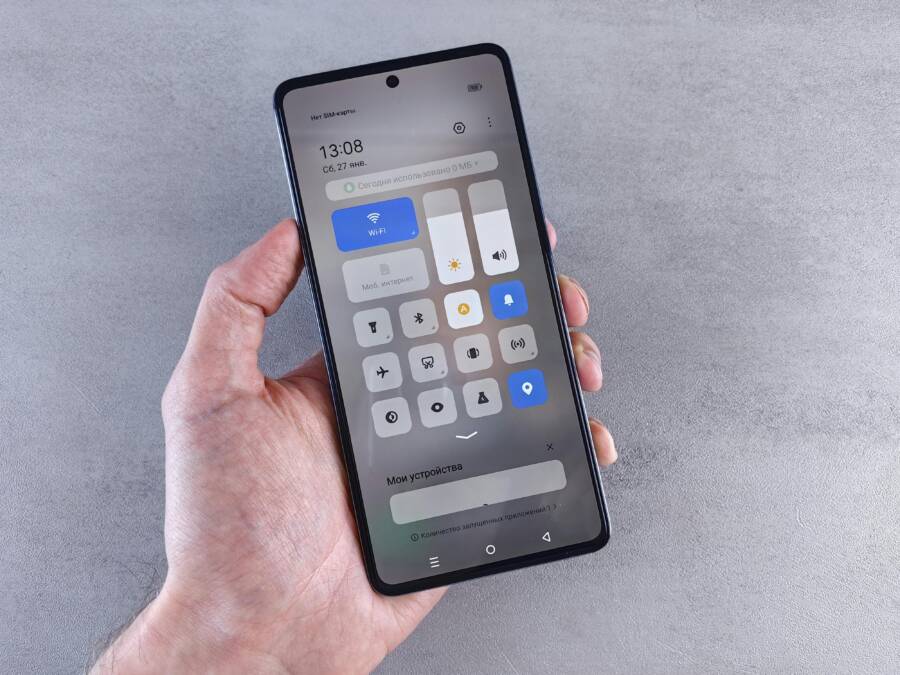
Do Not Disturb or Focus modes silence alerts by design. On most Android phones, pull down the Quick Settings panel and tap the Do Not Disturb icon, then verify that Messenger is allowed through as an exception. You can customize schedules so it never blocks messages during work or family time. On iPhone, access Control Center and check Focus settings. Ensure Messenger is allowed to send notifications during the Focus window. This simple check fixes many missed alerts caused by temporary silences.
- Android: Quick Settings > Do Not Disturb > Exceptions > Add Messenger
- iOS: Control Center > Focus > Messenger under Allowed Notifications
Images help you visualize the steps, so picture yourself swiping down from the top or swiping up to access Control Center as you read.
 Photo by Andrey Matveev
Disable Battery Optimization for Messenger
Battery optimization can throttle Messenger in the background, which delays or blocks push notifications. On Android, go to Settings > Battery > Battery optimization, then find Messenger and choose “Don’t optimize.” For some brands, this path is labeled as App power management or Background restrictions. On iOS, enable Low Power Mode only when needed; Messenger can still receive alerts if the device isn’t in Low Power Mode for long. Exempting Messenger from aggressive power-saving helps keep push alerts timely.
- Android: Settings > Battery > Battery optimization > Messenger > Don’t optimize
- iOS: Settings > Battery > Low Power Mode (use sparingly)
A quick exemption means Messenger runs with the priority it needs, so you don’t miss messages while the screen is off.
Grant Notification Permissions to the App
Sometimes the issue is as simple as permissions. On Android, open Settings > Apps > Messenger > Notifications and confirm all notification categories are enabled. On iOS, go to Settings > Notifications > Messenger and toggle on Allow Notifications along with Sounds, Badges, and Banners. When permissions are fully granted, Messenger can present alerts, play sounds, and show badges reliably.
- Android: Settings > Apps > Messenger > Notifications
- iOS: Settings > Notifications > Messenger
Links for reference on how to verify these settings and common pitfalls can be helpful if you want a deeper dive:
- How to fix Messenger notification not working on Android and iOS: https://drfone.wondershare.com/facebook/messenger-notification-not-working.html
- Community tips for Messenger notices when locked: https://forums.androidcentral.com/threads/fb-messenger-notifs-not-coming-through-when-locked-and-off-for-awhile-then-all-come-through-later.1032574/
Tweak Facebook Messenger App Settings
To get Messenger notifications just right, you’ll want to tailor the app’s alerts to your daily routines. This section covers two practical tweaks: turning on every notification type within Messenger so nothing slips through, and customizing alert sounds and vibrations so you can distinguish messages at a glance. Both tweaks are quick, self-serve, and work on both major mobile platforms. After making changes, test by sending yourself a couple of messages and asking a friend to ping you to confirm alerts appear as expected.
Enable All Notification Types in Messenger
Turning on every alert type ensures you don’t miss messages, calls, or group activity. In Messenger, you can fine tune which alerts you receive and how they come through. Enable message alerts so you see new chats instantly, turn on call alerts so you know when someone is calling, and keep group alerts active so you don’t miss conversations with multiple people. After you flip the switches, run a quick test by sending yourself a message and a group ping to verify everything works as intended.
- Open Messenger, then tap your profile picture
- Go to Notifications & Sounds
- Switch on: Message Alerts, Call Alerts, Group Alerts
- Test by sending a message and a group ping to confirm
A quick test helps confirm the changes. If you notice any alert gaps, revisit the settings to confirm each toggle is enabled. For a deeper dive into sounds and more advanced options, you can check resources like changing Messenger notification sounds across iPhone and Android.
How to Change Facebook Messenger Notification Sounds on iPhone and Android
Customize Alert Sounds and Vibrations
Custom sounds and vibration patterns help you identify Messenger notifications at a glance. You can set a global alert sound that applies to all chats or assign individual tones to specific conversations for priority contacts. If your device’s default is quiet, a custom sound can make a big difference. Start with a distinctive tone for important chats and a gentler alert for less urgent messages. Don’t forget to test the chosen sounds in a real notification scenario.
- Set a global sound: Messenger > profile > Notifications & Sounds > Notification Sound
- Customize per chat: open a chat > information > Notifications > Sound
- Add vibration patterns: ensure Vibrate is enabled under Notifications & Sounds
- Test by sending messages from different contacts and groups to hear each variation
If you’re curious about different options, several guides explore how to tailor Messenger sounds on both iPhone and Android, offering practical step by step paths to the perfect alert. For more details, you can read about changing Messenger notification sounds on mobile devices.
How to Change Facebook Messenger Notification Sounds on iPhone and Android
Android-Specific Fixes for Messenger Notifications
If you’re using Android, these targeted fixes help you restore reliable Messenger alerts without complex troubleshooting. Android users often see missed messages when background activity is throttled, or when app-specific permissions aren’t set correctly. The goal here is to fix the notification bottlenecks quickly, so you stay in the loop with friends and family. Try these steps in order and test after each one. You’ll often find one of these fixes resolves the issue in minutes.
Clear Messenger Cache and Force Stop
A clogged cache can cause delayed or missing notifications. Start by clearing Messenger’s cache and data, then force stop the app and open it again to refresh its state. On Android, this is a quick, low-risk reset that clears temporary files without touching your chats. Note that clearing data will log you out, so be ready to re-enter your credentials.
- Settings > Apps > Messenger > Storage > Clear Cache
- If prompted, consider Clear Data (this logs you out)
- Then: Force Stop Messenger and reopen it
- Test by sending a message to yourself or have a friend ping you
This approach removes stale push data and forces Messenger to reload its notification pipeline. It’s a common, effective first step when alerts lag or vanish.
For a deeper technical read on similar app cache issues, see this guide on resolving notification delays by clearing app cache and data: https://www.carlcare.com/global/tips-detail/how-to-fix-messenger-not-working/
Set Messenger as Unrestricted App
Background restrictions can silently pause Messenger, leading to missed alerts. Mark Messenger as unrestricted so it can run in the background and receive pushes promptly. In practice, you’ll set the app to ignore battery optimization and, on many devices, add it to a list that won’t be force-closed by memory management. If your device supports it, also lock Messenger in the recent apps view to prevent it from being discarded.
- Android: Battery > App optimization > Messenger > Don’t optimize
- Then in Recent Apps, swipe Messenger to Lock or Pin (varies by model)
- Return to testing by sending a message and asking someone to ping you
This tweak helps Messenger stay alert-ready, even when your phone is busy with other tasks. It’s especially useful on smartphones with aggressive memory management.
If you want more on turning off battery optimization for specific apps, this resource explains the general approach: https://droidinsights.dev/articles/turn-off-battery-optimization-android
Update Messenger and Google Play Services
Outdated apps or services can cause notification glitches. Make sure Messenger is updated, and that Google Play Services is current. After updating, restart your phone to ensure all components reload properly. This step fixes many issues caused by incompatible services or background APIs.
- Open Play Store, search Messenger, and update if available
- Check Google Play Services is up to date (Google Play Services > Update, if shown)
- Reboot the device
- Re-test by sending messages and confirming alerts appear promptly
Keeping both apps current reduces the chance of notification delays due to old code or compatibility gaps. If you run into a stalled update, a quick check with Google’s support pages can help navigate any ongoing issues: https://support.google.com/messages/answer/6080337?hl=en
iPhone-Specific Steps to Restore Notifications
If you rely on Messenger on an iPhone, a simple misstep in iOS settings can silence alerts. This section covers practical, iPhone-focused steps to restore reliable Messenger notifications. Start with quick verifications in iOS, then move to targeted app tweaks. Each step is designed to be done in minutes, with clear actions and quick testing to confirm results. You’ll learn how to ensure Messenger is allowed to notify you, stays responsive in the background, and remains up to date with iOS and apps.
Photo by Andrey Matveev
Verify Messenger in iOS Notification Center
Start by confirming Messenger has permission to push alerts on your iPhone. Navigate to Settings > Notifications > Messenger. Make sure Allow Notifications is on, and enable the options for Sounds, Badges, and Banners. Set Banners to persistent so alerts stay visible until you read them. This ensures every incoming message can wake your display and grab your attention. After adjusting, test by sending a message to yourself or asking a friend to ping you.
- Settings > Notifications > Messenger
- Enable: Allow Notifications, Sounds, Badges, Banners
- Banners: Persistent
If you still don’t see alerts, consider a quick reboot and re-test. For further guidance on notification behavior, you can explore iPhone-specific tips from reputable sources.
- How to fix Messenger notification not working on iPhone: https://moviemaker.minitool.com/news/facebook-messenger-notifications-not-working.html
Enable Background App Refresh
Background Activity keeps Messenger ready to receive pushes even when the app isn’t open. On iPhone, go to Settings > General > Background App Refresh and ensure it is enabled for Wi-Fi & Cellular. This matters because if the feature is off, Messenger may not fetch new messages promptly, leading to delayed or missed notifications. After enabling, open Messenger and send a test message to verify alerts arrive quickly.
- Settings > General > Background App Refresh > Wi-Fi & Cellular
Background activity helps Messenger stay responsive. If you want a deeper explainer, look up general background refresh guidance for iPhone users.
- How to Fix Facebook Messenger Notifications on iPhone: https://tunesgo.wondershare.com/iphone-problems/facebook-notifications-not-working.html
Restart or Reinstall the Messenger App
If notification issues persist, a fresh start can clear stubborn glitches. On iPhone, a soft restart is often enough: close Messenger from the app switcher, wait a moment, then reopen. If problems linger, delete Messenger and reinstall from the App Store. After reinstalling, sign back in and perform a quick test by sending yourself a message and asking a friend to ping you. This approach resolves many notification hiccups without data loss.
- Soft restart: remove from app switcher, re-open
- If needed: Delete and reinstall Messenger
- Sign back in and test
If you prefer additional context on app refresh strategies, you can compare similar guidance from trusted tech resources.
- How to Fix Messenger Notifications Not Working: https://moviemaker.minitool.com/news/facebook-messenger-notifications-not-working.html
Try These Advanced Troubleshooting Tips
If basic checks haven’t solved the issue, these advanced steps can help you get Messenger notifications firing again. They target the underlying causes that creep in over time, like background restrictions, permission glitches, or mismatched settings. Take them one by one and test after each to pinpoint what actually fixes the problem. Think of it as a road test for your phone’s alert system, with your smartphone acting as the conductor of every ping and buzz.
Update Your Phone’s Operating System
Keeping your OS current is a practical move. Updates fix bugs, improve background processes, and ensure apps like Messenger work smoothly. Android users should go to Settings > System > Update, while iOS users open Settings > General > Software Update. After updating, restart your device to reinitialize services. Even if nothing seems broken, a fresh system baseline can restore reliable notifications. If you’re short on time, a quick video walk-through can help you confirm the steps quickly.
Log Out and Back into Facebook Account
Sometimes the issue lies in a stale session. Log out from Messenger and from Facebook, then sign back in. Do this on both the Messenger app and the web if needed. If you notice any sync issues, clearing site data in your browser can help reset the connection. After signing back in, send yourself a test message and have a friend ping you to confirm alerts appear promptly.
A practical guide that walks through signing out of Messenger across devices can be useful: https://www.guidingtech.com/log-out-of-facebook-and-messenger-on-all-devices/
Reset All App Permissions or Network Settings
As a last resort sanity check, reset relevant preferences and networks. On Android, you can reset app permissions to default, then re-grant Messenger access. On iOS, offload unused apps to clear hidden settings without data loss. If you’re facing Wi-Fi or cellular issues, perform a network reset. This approach can reset stale push configurations while avoiding a full device reset. Remember, proceed with caution because some data may be affected.
A community discussion on how Android users handle app permissions and network resets can provide practical context: https://eu.community.samsung.com/t5/mobile-apps-services/facebook-messanger-issue/td-p/11506642
Conclusion
This guide shows you can fix Facebook Messenger notifications quickly and reliably. Most problems come from simple settings, not a broken app.
Checklist of steps to try, in order
- Verify basic phone notifications for Messenger are allowed and not blocked by Do Not Disturb
- Ensure Messenger has permission to send alerts in Android and iOS
- Turn on all Messenger notification types and customize alerts if needed
- Disable battery optimization for Messenger on Android
- Update Messenger and Google Play Services, then restart
- For iPhone users, enable Background App Refresh and confirm notification center settings
- If needed, clear cache or data on Android, then reopen Messenger
- If issues persist, sign out and back in, or reinstall Messenger
Most fixes take under 5 minutes. If you follow the list, you’ll likely hear the ping again and see new message badges promptly. The key is to confirm permissions, keep the app from being throttled, and test with a quick message or group ping.
Keyword recap
- Messenger notifications not working
- notification permissions
- Do Not Disturb and Focus
- background activity
- app updates
If you try these steps and still struggle, share your experience in the comments, and consider subscribing for more practical connection tips. It’s reassuring to know the problem is fixable, and a few quick taps can restore reliable alerts for your daily smartphone use.