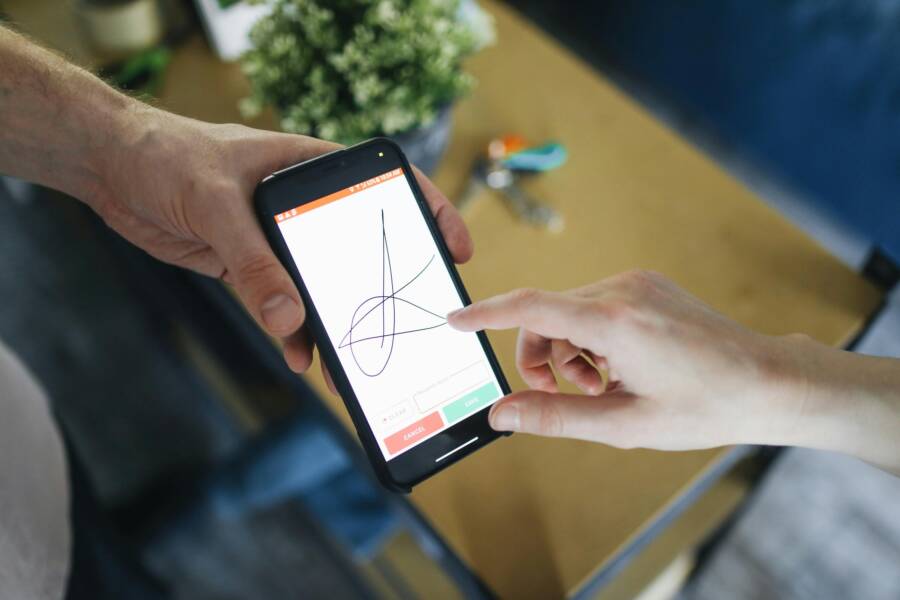
Signing a PDF on the go can feel like a small win that saves a big hassle. Picture this: you’re leaving the office, but a contract prompt lands in your inbox and needs your signature before a deadline. You pull out your phone, and in minutes the document is signed, mailed back, and done. No printers, no scanners, no back-and-forth delays.
This post shows you how to sign PDFs with just your phone, using tools you already have. You don’t need extra hardware or special apps. Most modern smartphones can capture a clean signature, apply it to a document, and save or share the result securely. The steps are quick, and you can repeat them any time you need to sign something important.
We’ll break down the process into simple parts. First, we’ll cover common signs that your device can sign PDFs right away. Next, you’ll see practical, step-by-step methods for both iPhone and Android users. We’ll highlight how to verify authenticity and protect your signature so you stay safe online.
By the end, you’ll know exactly how to sign a PDF on your smartphone with confidence. You’ll understand which apps work best, what to look for in a secure signing process, and how to avoid common mistakes. This guide is built for speed, clarity, and real-world use, so you can sign and move on with your day. The goal is straightforward: faster approvals, fewer chores, and smoother workflow, all from your pocket.
Why sign PDFs on your phone?
Signing PDFs on your phone offers a fast, convenient way to move contracts, approvals, and forms forward without the friction of printers or scanners. It’s a practical habit for busy days when you’re on the go, traveling, or working remotely. Your phone can capture a clean signature, attach it to a document, and send it off securely in minutes. This section breaks down why this approach makes sense and how it fits into a modern, efficiency-minded workflow. For many people, mobile signing is not just a convenience but a reliable standard for timely, professional communication. If you haven’t tried it yet, you may be surprised by how effortless it feels to finalize agreements anywhere you happen to be.
 Photo by Polina Tankilevitch
https://www.pexels.com/@polina-tankilevitch
Photo by Polina Tankilevitch
https://www.pexels.com/@polina-tankilevitch
Benefits at a glance include faster turnarounds, reduced paper waste, and fewer missed deadlines. With a few taps, you can sign, date, and share, keeping the process smooth and auditable. Mobile signing also works well for teams that rely on real-time approvals, client sign-offs, or fieldwork where a desktop is impractical. If you frequently handle forms, invoices, or NDAs, your phone becomes a portable signing desk. For added credibility, you can pair your signature with a trusted e-signature service that offers tamper-evident seals and secure transmission, so recipients see a professional, legally sound document. To explore practical options, see examples of mobile signing apps used by organizations and individuals alike.
- Speedy approvals: Sign documents in minutes, not hours.
- Less paperwork: Cut down on printing and scanning.
- Anytime, anywhere: Sign during a commute or at a client site.
- Secure transmission: Use reputable services to protect data in transit.
- Audit trails: Keep a record of who signed and when.
- Cost savings: Save on ink, paper, and mailing.
- User-friendly: Intuitive tools make signing simple for non-tech users.
- Consistent branding: Add a signature that matches your professional look.
For readers who want to see real-world demonstrations, many providers publish step-by-step guides showing how to sign PDFs on a phone. This helps you compare features like in-app signatures, the ability to fill fields, and how signatures are verified by recipients. If you’re curious about the broader landscape, you can learn how mobile signing fits with other e-signature options and what makes a solution reliable for business use. For more context on how e-signatures compare to digital signatures, check reputable overviews from industry sources.
External resources:
- How to Sign a PDF Electronically on mobile devices by SignWell
- An overview of e-signature versus digital signature by industry experts
When it is a good idea and when to avoid
Signing PDFs on a phone shines in scenarios that require quick turns and mobile flexibility. If you’re traveling, meeting a client, or responding to a time-sensitive agreement at a cafe, your phone is often the best tool. For interior office tasks, or documents with heavy legal language, a laptop or desktop may offer more precise control and easier review. If you’re dealing with documents that contain sensitive financial information or strict compliance needs, verify your signing method meets the required standards. In those cases, a dedicated signing solution with robust authentication and an auditable trail can provide peace of mind. For simple forms, waivers, or consent forms, signing on a phone saves time and keeps you moving.
Situations to avoid signing on mobile include documents that require multiple parties to sign in a specific order, files that demand advanced cryptographic protection, or records that will undergo an official archival process where strict provenance is essential. When in doubt, test the workflow with a non-critical sample first, then scale up to real contracts. If a recipient insists on a particular platform, follow their guidance to ensure compatibility and acceptance. Overall, reserve mobile signing for routine, straightforward documents while keeping stricter processes for high-stakes or regulated paperwork. This approach keeps you efficient without compromising security or compliance.
- On the move? Sign on your phone for speed and convenience.
- Signing a complex, multi-party document? Consider a desktop workflow.
- Dealing with highly sensitive data? Use a trusted PKI-based solution when required.
External resources to deepen understanding of when to sign on mobile and best practices:
- Best practices for electronic signatures on mobile by a trusted provider
- Guide to best practices for signing PDFs safely
Key terms to know
Understanding a few core terms helps you choose the right signing method and explain it to others. Here are simple definitions that fit everyday use.
- e-signature: An electronic indication of agreement, such as a scanned signature, initials, or a typed name with a timestamp. It’s legally recognized in many contexts, especially when backed by proper procedures.
- digital signature: A cryptographic seal that confirms the signer’s identity and that the document hasn’t been altered since signing. It relies on encryption and a certificate.
- PKI (Public Key Infrastructure): A framework that uses cryptographic keys and digital certificates to manage identity and secure signatures. PKI underpins trusted digital signatures and strong authentication.
- PDF signing: The act of applying one or more signatures to a PDF file, which can include visible or invisible marks and may attach an audit trail for verification.
For a clearer picture of how these terms relate, you can explore professional explanations from security and signing platforms. These concepts matter because they influence how easily recipients can verify signatures and how legally binding the document remains.
Relevant resources:
- Overview of electronic signatures vs digital signatures
- How PKI supports trusted digital signatures
By understanding these terms, you’ll feel confident choosing the right method for each document. You’ll also know what to look for when evaluating signing tools, from ease of use to the strength of the verification method. Whether you’re signing a simple consent form or a complex contract, the right terms help you explain and defend your choices to clients and colleagues.
What you need before you sign
Signing a PDF from your phone works best when you have a clear plan. Before you tap the first signature, take a moment to consider the tool, the document, and the rules that govern it. This section covers what to check so your mobile signing is smooth, legal, and easy to verify. Think of it as the preflight checklist that keeps your signing process fast and trustworthy, whether you’re in a coffee shop, on a plane, or at a client site.
Choose the right app for signing
When you sign on a smartphone, you can choose between built-in options and third party apps. Built in tools are convenient and often free, but they may offer fewer controls for compliance or auditing. Third party apps can provide stronger verification, secure transmission, and better records, yet they might come with a subscription. Consider how you plan to use signatures: for quick approvals, built in options may be enough; for formal contracts, a dedicated app with a tamper evident seal often makes more sense.
Key factors to weigh include legal validity in your jurisdiction, ease of use, offline access, and cost. Some apps offer offline signing and later syncing, which is handy when you have unreliable connectivity. If your workflow involves multiple signers or official archives, look for features like audit trails and ID verification. For a quick comparison, explore resources like Top Apps to Sign PDFs on Android & iOS to see how popular options stack up. If you want a fillable, ready to sign experience, you can also check guides such as The Best PDF Signature Apps for iOS & Android (2025 Edition) to understand feature differences and pricing.
- Legal validity: Ensure the app supports your required form of signature for your region.
- Ease of use: A simple flow reduces mistakes and speeds up signoffs.
- Offline access: Signing without internet can save time in meetings or travel.
- Cost: Some tools are free for basic use; others charge monthly fees for advanced features.
If you’re unsure where to start, a trusted path is to test a couple of options with non critical documents first. This helps you confirm that the signing flow works as expected and that recipients can verify the signature without hassle.
For practical guidance on how to pick a signing app, see the overview of electronic signing tools and the role of digital signatures in verification.
- https://www.pexels.com/@polina-tankilevitch
Prepare the PDF for signing
A smooth signing experience starts with a document that lends itself to signing. If you can, work with a PDF that already contains fillable fields or a designated signature area. Avoid scans of paper documents when possible, as they can be harder to sign and verify electronically. If a document isn’t fillable, you can often convert or annotate it to add a signature field, or place a visible signature box where you’ll attach your mark.
Before signing, verify legibility and structure. Clear typography, high contrast, and properly oriented pages reduce the chance of misreads or misapplications of your signature. If you’re preparing a form for someone else to sign, include instructions within the PDF so recipients know exactly where to sign and how to verify the document. A well prepared file minimizes back and forth and helps preserve the document’s integrity.
If you need to turn a non fillable PDF into a signable form, look for a step by step guide like How to Make a PDF Fillable. For those who want the easiest route, using a platform that lets you create and manage fillable fields in one place can save time and avoid compatibility issues. When you’re ready to add a signature field, many apps walk you through placing the field, resizing it, and locking other parts of the document to prevent edits after signing.
- Quick tip: keep signature areas clearly labeled with your name and date to avoid confusion later.
- If you’re handling a form that will be reviewed by others, ensure fields are properly tab order accessible for screen readers.
- Always save a backup copy before making changes to the original document.
Examples and practical guides to prepare PDFs for signing can be explored through resources that explain fillable PDFs and signing workflows.
- https://www.signwell.com/resources/how-to-make-pdf-fillable/
Understand formats and security
Knowing the different signature formats helps you pick the right method and explain it to others. In simple terms, an electronic signature is a way to indicate agreement online. A digital signature adds cryptographic protection that verifies who signed and ensures the document hasn’t been altered afterward. In many cases, both forms are legally acceptable when implemented correctly with appropriate authentication and audit trails.
- e signature: A broad term for electronic marks like a typed name, scanned image, or initials with a time stamp. It is commonly accepted for everyday agreements.
- digital signature: A cryptographic seal that links the signer to a certificate. It confirms identity and document integrity.
- verification: A secure method that shows the signature is genuine and the content remains unchanged.
- auditable trail: A record showing who signed and when, which is crucial for compliance.
Understanding these formats helps you decide whether you need a simple ink style sign, a functionally verified seal, or a full PKI based solution. If you want to dive deeper into how these formats work in practice, you can read an overview of electronic signatures and digital signatures from trusted sources, and check how different tools implement verification and compliance.
- https://www.clio.com/blog/are-electronic-signatures-legal/
- https://globalsign.com/en/blog/how-to-sign-pdf-documents-with-digital-signatures
This knowledge makes it easier to answer recipients who ask about authenticity and to defend your signing choices when documents move through regulated workflows. As you explore, keep an eye out for features like tamper evident seals, time stamps, and certificate based validation that strengthen credibility. You’ll find these capabilities vary by app, so testing a couple of options helps you pick the right fit for your needs.
- The right choice for a one off contract may be a straightforward e signature.
- A regulated filing or a high value agreement may benefit from a digital signature with PKI.
For more background on legality and practical verification, see resources that compare electronic and digital signatures and explain how PKI supports trusted signatures.
- https://www.globalsign.com/en/blog/how-to-sign-pdf-documents-with-digital-signatures
Sign PDFs with built in tools on your phone
Signing PDFs on your phone is one of those small, powerful actions that streamlines your day. With just a few taps, you can approve a contract, return a form, or finalize a request without hunting for a printer or scanner. Built in tools on iPhone, iPad, and Android devices let you mark up, sign, and share documents securely. In the sections below, you’ll find crisp, step by step instructions for each platform, plus practical tips to keep your signatures clean and professional.
iPhone and iPad using Markup
 Photo by Karola G
If you use an iPhone or iPad, Markup makes it easy to sign PDFs right inside the Files app or in Preview. Here are clear steps to get your signature on the page fast:
- Open the PDF in the app you’ll use to sign (Files, Mail, or Preview).
- Tap the markup or pen icon to enter Markup mode. If you don’t see it, look for a pencil or pen tool in the toolbar.
- Choose Signature. If you’ve signed with Markup before, your saved signature appears; otherwise, create a new signature using your finger, stylus, or Apple Pencil.
- Draw or insert your signature. You can also place initials in smaller forms if needed.
- Position the signature on the designated line or box. Use pinch and drag to resize for accuracy.
- Save the document. In many apps, tapping Done or Save will preserve the signed PDF.
Tips for accuracy and a neat result:
- Use a clean, flat surface when signing with your finger or Apple Pencil.
- Zoom in to place the signature exactly where you want it, then zoom out to confirm alignment.
- If your signature is jagged, try using the Apple Pencil or a steadier hand on a larger screen.
- Add the date and your name as a visible text field near the signature for clarity.
For more detailed guidance from Apple, check their official guide on filling forms and signing documents with iPhone. You’ll find step by step visuals and tips that match the workflow above.
- Apple: Fill out forms, sign documents, and create signatures on iPhone
If you want a quick video walkthrough, a short clip demonstrates the Markup workflow clearly.
- How to sign a document with Markup on your iPhone
Android devices using built in tools
Android devices offer built in annotation and signing features in apps like Google Drive and the PDF viewer. The steps are similar to iOS, but the paths may vary by device and app version. Here’s a practical, straight path you can follow:
- Open the PDF in Google Drive or your device’s PDF viewer.
- Tap the pen or annotate tool to enter drawing mode.
- Select Signature or a similar option. If you don’t see it, look for Insert or Draw.
- Create your signature with your finger or a stylus.
- Drag the signature to the right spot and resize if needed.
- Save or export the signed PDF. If you’re in Drive, you can keep the file in Drive or download a copy.
If you prefer Google’s ecosystem, Google Docs’ eSignature feature lets you send the document for signatures directly from Drive or Docs. This can help track who signed and when, and it integrates with your existing files for easier management. For Android users who want a quick overview of the process, Google’s support pages and third party how-to guides offer clear step by step instructions.
- Google Docs Editors Help: Sign documents with eSignature
If you’re using Drive, you can take advantage of the built in eSignature flow to request signatures from others as well, which is handy for team workflows.
- Tips for using Drive to sign PDFs and manage signatures
In practice, many Android users also rely on apps embedded in the ecosystem that support quick annotations and signing directly in Drive. The key is to keep the workflow simple and to ensure the recipient can verify the signature just as easily as you can sign it.
For a deeper dive, explore guides that compare signing on Android across different apps and the best practices for keeping signatures verifiable.
- Electronic signing in Google Drive with eSignature
Tips for clean signatures on small screens
Signing on a small screen can feel fiddly. A few practical tricks make a big difference:
- Zoom in before you sign to improve control and legibility.
- Use a stylus if you have one; it delivers smoother, more credible lines than a fingertip.
- Keep the signature simple and consistent. A clean, legible mark with a clear baseline reads better than a flourish.
- Use a steady, even motion and rest your hand on the screen to reduce wobble.
- If the device supports it, predefine a signature with the same stroke thickness and color for uniformity across documents.
These simple habits help your signatures look professional whether you’re signing a quick waiver or a formal contract. For additional tips, you can read practical guides on mobile signing best practices and how to maintain signature quality on mobile devices.
- Best practices for mobile signatures and verification
By applying these tips, you’ll avoid the most common signs of sloppiness, such as jagged edges or misalignment. A crisp signature not only looks better but also enhances trust and readability for recipients.
In case you want to compare different approaches, you can review articles that show how to sign PDFs on Android using a mix of built in tools and lightweight apps. This helps you decide whether to stay native or add a trusted signing app to your toolkit.
- How to sign a PDF on Android: step by step guide
External resources and practical examples:
- How to sign a PDF on Android: a step-by-step guide
- Creating fillable and mobile friendly PDFs: best practices
Images and visuals can reinforce the process. A well-chosen photo showing a hand signing a document on a phone can help readers visualize the flow.
- Close-up contract signing on mobile devices
Using third party apps and services to sign PDFs
When you need more than a basic markup to sign a PDF, third party apps can offer stronger verification, audit trails, and easier collaboration. These tools often provide built in templates, multi party signing workflows, and robust security features that help your documents stay compliant. Below are concise, practical sections to help you understand the strengths of popular options and how to choose the right fit for your needs.
Adobe Acrobat mobile signing
Adobe Acrobat’s mobile signing experience is designed to feel seamless whether you’re on a commute or at a client site. The app supports applying signatures to PDFs, along with fillable fields and secure transmission. To sign a document on your phone:
- Open the PDF in the Acrobat app.
- Tap the Sign icon and choose the signature you want to apply.
- Place the signature on the designated line and adjust its size for a clean look.
- Save or share the signed file.
Adobe emphasizes cloud integration, so you can store signed PDFs in a linked service like Adobe Cloud, Google Drive, or other major cloud storage options. If you’re offline, some features still work and will sync once connectivity returns. This makes it a solid choice for professionals who already rely on Adobe for document workflows and need reliable verification and auditable records when completing contracts or forms on the go. For a more visual guide, see Adobe’s official mobile signing resources.
- Quick tip: Use Apple’s or Google’s native storage to keep backups accessible across devices.
- Useful resource: How to Sign a PDF on a Phone or Tablet from Adobe
External references:
- https://www.adobe.com/au/acrobat/roc/blog/how-to-sign-pdf-on-phone-or-tablet.html
- https://www.adobe.com/acrobat/mobile/acrobat-reader.html
DocuSign, SignNow, HelloSign comparison
Choosing between DocuSign, SignNow, and HelloSign often comes down to workflow needs, price, and how you manage audits. Each platform offers robust signing capabilities, but they differ in ease of use, templates, and enterprise features.
- DocuSign: Strong in enterprise deployments with advanced authentication options and comprehensive audit trails. Great for high volume signings and regulated environments.
- HelloSign: Known for a straightforward user experience and solid API support for teams that want easy integration with other tools.
- SignNow: A balanced option with competitive pricing and strong collaboration features, including templates and bulk signing.
Typical use cases map to the environment you sign in most: client agreements, vendor contracts, or internal approvals. Price ranges vary by plan but many offer scalable options for individuals and teams. Legally, all three are widely accepted when configured with appropriate authentication and tamper evident controls. For a side-by-side view of features and pricing, consult comprehensive comparisons like those from industry analyses or official product pages.
External references:
- https://www.signnow.com/alternative/docusign-vs-hellosign-alternative-signnow
- https://oneflow.com/blog/docusign-vs-signnow
- https://zapier.com/blog/best-digital-signature-apps/
- https://www.blueink.com/blog/hellosign-vs-docusign-comparison-features-pricing-and-reviews
- https://blog.linksquares.com/docusign-vs-adobe-sign-vs-hellosign-pandadoc
Choosing the right tool for your needs
A quick decision guide helps you pick based on document type, audit needs, and budget. If you sign mostly simple forms and want a smooth, low friction experience, a streamlined consumer-grade option may suffice. For multi signer contracts, regulated filings, or documents that require a formal audit trail, choose a platform with strong authentication, time stamps, and certificate based verification. Budget matters too; some services offer free plans with basic signing, while others target teams with tiered pricing for templates, bulk sending, and compliance reports.
- Document type: simple forms or high value contracts?
- Audit trails: required for compliance or internal governance?
- Budget: do you need advanced features or a basic signing flow?
External resources:
- https://fillfaster.com/audit-trail-for-electronic-signatures/
- https://www.adobe.com/sign/integrations/microsoft-powerapps-flow.html
- https://helpx.adobe.com/sign/config/global/audit-report.html
This quick framework helps you avoid overpaying for features you won’t use while ensuring you can verify signatures when it matters most. As you test options, look for practical signs of reliability like tamper evident seals, clear time stamps, and straightforward verification methods. A small pilot with a non critical document can reveal how the workflow fits your smartphone routine and whether recipients can verify signatures with ease.
Best practices for secure and legal signatures on mobile
Signing documents on the go should feel effortless and safe. In this section, you’ll learn how to verify signatures, protect your documents, and avoid common signing mistakes on mobile devices. The goal is to keep approvals fast without sacrificing trust or compliance. Along the way, you’ll find practical tips and reliable resources to deepen your understanding of secure mobile signing.
Verify the signature and the document
Verifying a signature on a mobile device starts with confirming the signature itself is valid and that the document hasn’t been altered since signing. Use a PDF viewer with built in signature verification to see a clear status indicator, such as a green check or a verification badge. Read the signing trail to understand who signed, when, and which parts of the document were protected. If you see any tampering alerts, treat the file with caution and request a re-signature from the originator. For a thorough walkthrough of validation practices, you can reference expert guidance on digital signature validation and how to read audit trails. Online resources from reputable providers outline how to verify signatures on mobile devices and what to look for in a trusted signing workflow.
- External link: How do I verify a document I Received on a mobile device? (SIGNiX)
- External link: Our Expert Guide to Digital Signature Validation (+ Best … (SignWell))
- External link: Validate digital signatures (Adobe Acrobat)
A practical tip is to open the signed PDF in a viewer that supports validation workflows and certificate based checks. If the document includes a tamper evident seal or a time stamp, confirm they are present and intact. This helps ensure you’re not signing or relying on an altered file. For complex cases, compare the signing certificate details with the signer’s known authority and, if needed, request an additional validation step from your recipient.
Protect your documents
Security starts long before you sign. Store signed PDFs in trusted cloud or local storage with strong access controls, and share only via secure channels. When sharing a signed document, use links that are protected by authentication or expiring access to minimize exposure. Encrypt sensitive files if your app supports it, and keep backup copies in separate locations to guard against device loss. For deeper guidance, explore best practices for secure file sharing and storage from reputable security resources.
- External link: Secure File Sharing and Storage: A Comprehensive Guide (Kiteworks)
- External link: Best Practices for Secure Document Sharing (daily.dev)
- External link: How to Share a PDF as a Link Securely: Best Practices and Security Considerations (VeryPDF)
A simple habit is to attach a short, readable access policy to each shared file. Include who can view, who can re-share, and how edits are tracked. When possible, use a signing flow that provides an auditable trail and restricts copying or printing if your workflow demands it. If you must use a link, choose a service that supports link protection, temporary access, and activity logs. This approach keeps your workflow compliant while maintaining the ease of mobile signing.
Common mistakes to avoid
Signing on a small screen is convenient but invites slip ups if you rush. Common mistakes include signing without checking the recipient, misplacing the signature, or ignoring field validation in the document. Also, some apps apply signatures without clearly showing the signer’s identity or the verification method. To prevent these issues, slow down during placement, verify the signer’s details, and confirm that the signature is tied to the correct document version. If you ever see a missing audit trail or weak authentication, re-run the signing process with a trusted app and re-send for approval. For quick guidance on typical mobile signing errors and how to avoid them, check practical guides that cover mobile signing mistakes and verification best practices.
- External link: Signing PDF Documents with Your Phone Guide (Printfriendly)
- External link: How to Protect Your E-Signature in a PDF: 5 Simple Methods (PDF.Net)
- External link: 12 Common PDF Accessibility Mistakes and How to Fix Them (ADASiteCompliance)
A few specific tips to keep things clean: always place your signature in the intended area, confirm the date and signer name are visible, and avoid altering other parts of the document after signing. Double-check that the signature format matches the required trust level for the document type. If you’re unsure, perform a quick test on a non-critical file first, then proceed with the real contract.
Conclusion
Signing PDFs on your smartphone is a small habit that yields big results. You gain speed, cut clutter, and keep work moving no matter where you are. The key is to choose the right tools, prepare your document, and verify each signature so recipients trust your work. A well managed mobile signing flow blends convenience with solid controls.
In practice, built in tools on iPhone and Android cover most daily needs. For higher stakes documents, third party apps provide audit trails and stronger verification. Regardless of the path, aim for clear, legible signatures and consistent formatting. The result is a professional look that stands up to scrutiny and keeps your approvals on track.
Quick checklist you can use next time
- Confirm the document has a clear signature area and any required fields.
- Pick a signing method that fits the document’s importance and the recipient’s expectations.
- Sign on a flat surface, use a stylus if possible, and place the mark precisely.
- Save a backup copy and share via a secure channel with an auditable trail.
- Verify the signature with a compatible viewer or service.
Smartphone signing works best when you stay deliberate. Keep your workflow simple, test with non critical files, and use a trusted app for high value contracts. As you apply these steps, you’ll finish faster and still meet standards for authenticity and compliance. If you have feedback or a tip that helped you, share it so others can benefit.
Take a moment to try a quick sign on your next mobile task and notice the time you save.