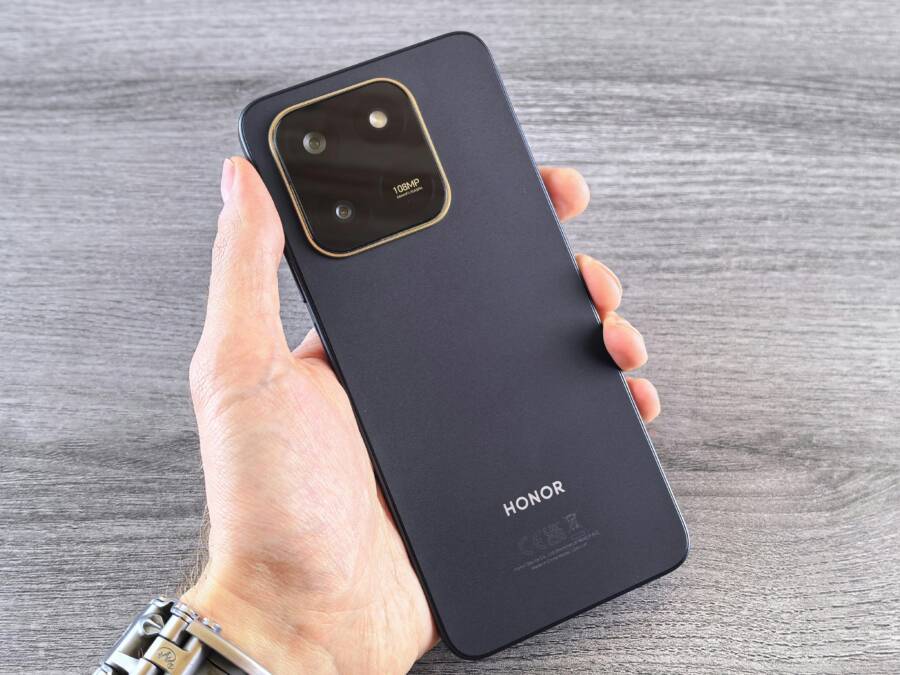
Picture this: your phone’s battery drops fast even when idle. You check settings and see Bluetooth scanning lights up without your touch. It happens often on Android phones. This feature helps apps pinpoint your spot by detecting nearby Bluetooth signals alongside GPS and Wi-Fi. Apps use it for better maps or fitness tracking.
The issue bugs many users. It drains battery quick because the phone scans constantly for devices like headphones or beacons. Main causes include apps running in back, loose location permissions, and software glitches. Don’t worry. This guide walks you through fixes step by step. You’ll stop it fast and save power on your smartphone. Follow along for relief in minutes.
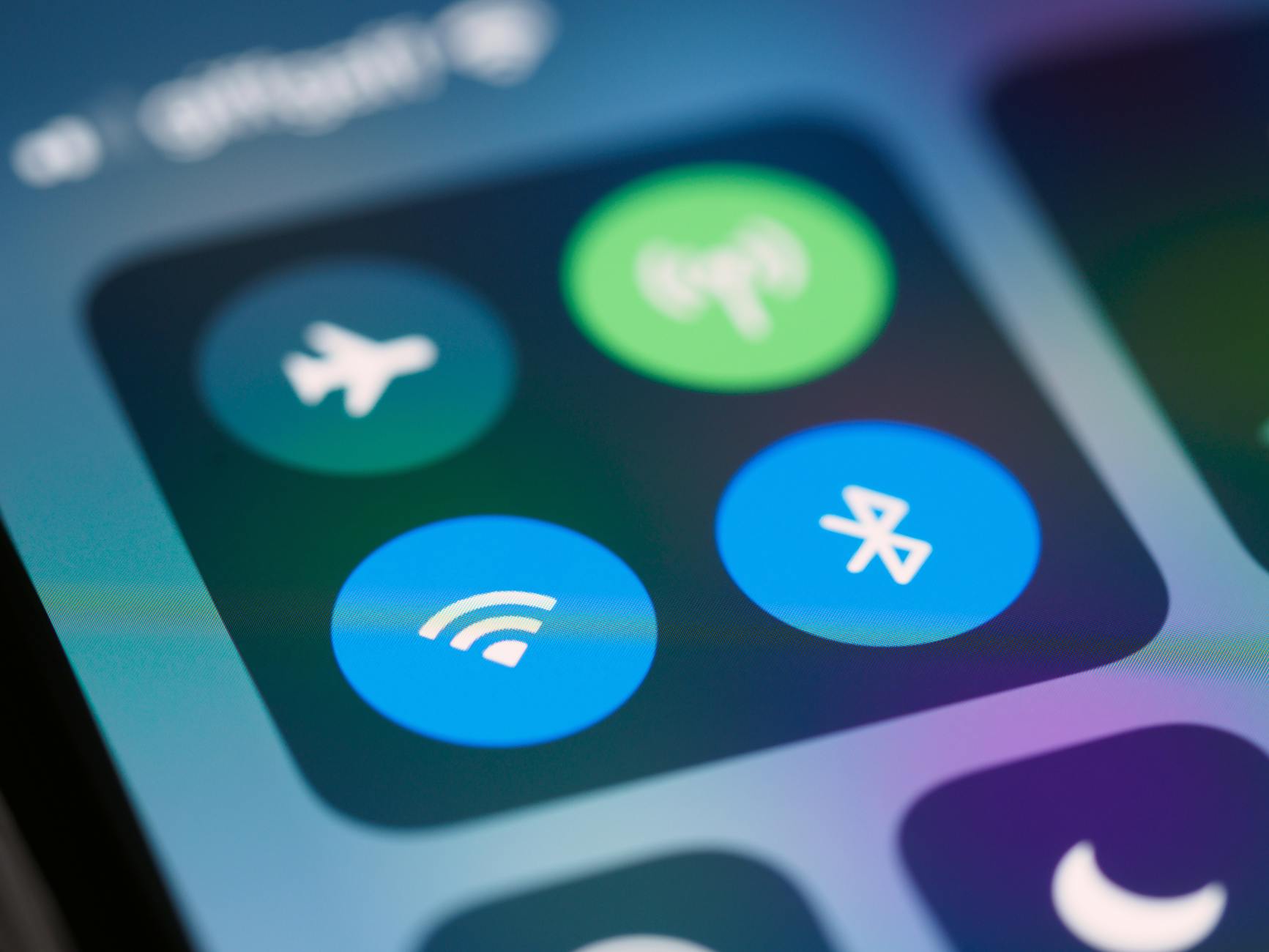
Photo by Brett Jordan
Why Bluetooth Scanning Activates Automatically on Your Phone
Bluetooth scanning turns on solo for clear reasons. Apps, settings, and bugs team up to keep it running. Once you spot the trigger, fixes get simple.
Apps need location data to work right. They ask for Bluetooth access to find nearby signals. This boosts accuracy indoors where GPS falters. But it runs often and saps battery life on your smartphone.
Background Apps Triggering Scans
Apps hide in the background and start scans without notice. Google Maps pings for beacons to refine routes. Fitness trackers like Google Fit hunt heart rate bands or gym gear.
Common culprits include:
- Google Play services: Handles location for many apps.
- Health and fitness apps: Pair with wearables.
- Nearby Share or Quick Share: Scans for devices to send files.
These request permissions quietly. Your phone grants them to keep features smooth. Scans happen every few minutes. That constant check eats power.
Location Services and Permission Slips
Android ties Bluetooth scanning to location services. In settings, a toggle called “Bluetooth scanning” sits under advanced options. Flip it on, and apps grab signals anytime location runs.
It’s like giving apps a key to your neighborhood. They peek for devices to guess your spot. High accuracy mode amps this up. Apps ignore your main Bluetooth switch. They scan anyway if permitted.
Users miss this menu. It hides deep in location settings. Once active, it stays until you hunt it down.
Software Bugs or Outdated Updates
OS glitches spark random activations too. A recent update might flip the switch wrong. Older Android versions like 11 or 12 show this more.
Patches fix it often. Bugs make scans loop or restart after sleep. Check your model. Samsung or Pixel phones see it post big updates.
Battery stats reveal the drain. Bluetooth logs high use. An update clears most cases.
Easy Steps to Stop Bluetooth Scanning on Your Android Phone
Start with basics. These work on most devices like Pixel, Samsung, or OnePlus. Test one at a time. Check if scanning stops via quick settings or battery use.
You’ll need five minutes max. No tools required.
Turn Off Bluetooth Scanning in Location Settings
Head to core location controls first. This cuts scans at the source.
- Open Settings.
- Tap Location (or Security & location on some phones).
- Scroll to Advanced or Location services.
- Find Wi-Fi scanning and Bluetooth scanning.
- Toggle both off.
Apps lose Bluetooth data now. Maps fall back to GPS. Fitness trackers pair less often. Battery holds longer. Test by watching quick settings tile. It stays off.
Some skins like One UI hide it under More location settings. Search “Bluetooth scanning” in settings bar for quick jump.
Review and Revoke App Permissions
Apps beg for access. Pull it back.
- Go to Settings > Apps.
- Tap See all apps or menu for full list.
- Select suspect like Google Maps or Fit.
- Choose Permissions > Nearby devices (or Location).
- Set to Deny or Allow only while using.
Nearby devices permission fuels scans. Revoke from:
- Google services.
- Share tools.
- AR or indoor nav apps.
Check battery screen for top drainers. Revoke there first. Changes stick until app asks again.
Restart Your Phone and Clear Cache
A reboot flushes glitches. It resets temp files.
- Press power button.
- Tap Restart.
- Wait for full boot.
Clear Bluetooth cache next. It holds old scan data.
For most:
- Settings > Apps > See all > Show system.
- Find Bluetooth (or Bluetooth share).
- Tap Storage > Clear cache.
No data loss. Scans stop fresh. If cache option hides, skip to developer options later. Restart alone fixes half cases.
Advanced Fixes When Basic Steps Fail
Basic tweaks miss sometimes. Stubborn apps or deep bugs linger. Try these next. Go slow to avoid hassle.
Safe mode pins bad apps. Network reset clears connections. Updates patch holes.
Boot into Safe Mode to Check Apps
Safe mode runs core Android only. Third-party apps sleep.
Steps vary by model:
- Power off phone.
- Hold power button until logo.
- Long-press Power off till safe mode pops.
- Boot in. Check if scanning stops.
If off, a downloaded app causes it. Uninstall recent ones:
- Fitness trackers.
- Cleaners.
- Location boosters.
Exit by restart. Test normal mode.
Reset Network Settings or Update Software
Network reset wipes Wi-Fi, Bluetooth, mobile data configs. Scans reset too.
- Settings > System > Reset options.
- Tap Reset Wi-Fi, mobile & Bluetooth.
- Confirm.
Passwords need re-entry. No app data lost.
Update OS last:
- Settings > System > System update.
- Tap Check for update.
- Install if ready.
Patches fix scan bugs. Samsung gets monthly. Pixels auto-push.
Factory reset ends it all. Back up first. It wipes everything.
Wrapping Up: Take Control of Your Phone’s Bluetooth Scanning
Bluetooth scanning flips on from apps, permissions, or bugs. Turn it off in location settings. Revoke app access. Restart and clear cache. For tough spots, safe mode or resets work.
Try steps in order. You’ll cut battery drain and gain peace. Your Android phone runs smoother now.
Share your fix in comments. Did it work? Subscribe for more troubleshooting tips. This issue solves easy with patience. Enjoy longer battery life.