There Is a Frequency That the Wealthiest Families Have Used for Generations and Most People Will Never Know It Exists
>>> Open the Door <<<

Have you run into Bluetooth woes on your phone that won’t quit, even after re-pairing devices? A quick reset often helps, and it starts with understanding the Bluetooth cache and why clearing it can fix stubborn connections. This guide covers both Android and iPhone, offering clear, step-by-step instructions and practical troubleshooting tips to help you start fresh and get back to smooth wireless basics.
Why clearing Bluetooth cache helps your phone
A quick Bluetooth reset can often fix stubborn connection glitches. Clearing the Bluetooth cache is a simple, low-risk step that helps your phone start fresh with its wireless settings. It’s especially useful after software updates, device changes, or when you notice odd pairing behavior. Think of it as giving your smartphone a clean slate for Bluetooth in the same way you’d clear browser data to speed things up.
What is Bluetooth cache and why it builds up
Bluetooth cache is storehouse of temporary data that helps devices connect faster. It contains pairing information, connection keys, and other settings that your phone uses to re-establish a link with known devices. Over time, this data can become outdated or corrupted, especially after system updates or when you pair and unpair many devices. Clearing the cache removes these stale files and forces the phone to rebuild fresh connection data. This reset often resolves mismatches between devices or incorrect connection profiles that can slow you down.
Common problems caused by stale cache
- Slow or failed pairing with familiar devices that used to connect smoothly.
- Devices not appearing in the list when you try to pair.
- Frequent Bluetooth dropouts during music playback or calls.
- Unusual battery drain tied to Bluetooth usage or screen-on time.
- Odd behavior like devices showing up with odd names or failing to stay connected after a handshake.
In many cases these symptoms point to outdated cache data rather than a hardware fault. A clean cache clears out the clutter and makes room for correct, up-to-date connection details. For readers facing a stubborn issue on an iPhone or Android smartphone, this step is worth trying before more involved troubleshooting.
Thousands of People Were Struggling With Money Until They Discovered This One Ancient Secret Hidden in Sound
>>> Unlock It Now <<<

What you gain after a clean cache
- Faster, more reliable pairing as the system rebuilds fresh connection data.
- More stable connections with fewer dropouts during calls, audio, or streaming.
- Fewer recognition errors when new devices are introduced or old ones are re-paired.
- A smoother overall experience since Bluetooth won’t chase stale settings.
Clearing the Bluetooth cache is a safe, routine troubleshooting step. It often resolves nagging issues without affecting your personal data or other phone functions. If you still encounter problems after a cache clear, you can take additional steps like updating device firmware, re-pairing devices from scratch, or checking for app-specific Bluetooth settings. For further guidance, see how other users and guides describe the process and its benefits, such as step-by-step Android and iPhone instructions in reputable sources. For instance, you can explore practical explanations and steps in resources like Business Insider’s Bluetooth cache guide and related help discussions, which cover both Android and iPhone scenarios. You can also review Apple’s community guidance for handling Bluetooth cache questions and common troubleshooting paths. For Android-specific steps, Google’s support community provides user-centric threads on clearing Bluetooth cache and reinitializing connections. If you’re looking for device-specific tips, Samsung’s troubleshooting pages often offer targeted advice for Galaxy devices and Bluetooth stability.
External reading:
- https://www.businessinsider.com/reference/how-to-clear-bluetooth-cache
- https://help.apple.com/ios/
- https://support.google.com/android/thread/188142983/how-do-i-clear-my-bluetooth-cache?hl=en
- https://www.samsung.com/us/support/troubleshooting/TSG01209182/
- https://www.indiatoday.in/information/story/want-to-clear-bluetooth-cache-on-android-and-ios-devices-know-how-1833729-2021-07-28
Tips to keep Bluetooth healthy after a cache clear:
- Re-pair devices in a fresh, organized order.
- Update devices and apps that rely on Bluetooth functionality.
- If issues persist, reset network settings as a broader step of last resort.
References to real-world usage can help readers see how a cache clear translates into tangible improvements. For more context on why stale Bluetooth data creates problems and how a reset helps, consult the linked guides and community discussions.
Step-by-step guides to clear Bluetooth cache on Android and iPhone
If you’re fighting flaky Bluetooth connections, clearing the cache can reset stubborn quirks and get devices talking again. Below are focused, practical guides for Android and iPhone users. These steps are designed to be quick, reliable, and easy to follow, with notes on variations you might encounter across brands and OS versions.
Android: how to clear Bluetooth cache
Android devices store a Bluetooth data cache to speed up future connections. Over time, this cache can become outdated or corrupted, especially after software updates or switching between many devices. Clearing it gives Bluetooth a fresh start and can fix issues like devices not appearing, failing to pair, or audio dropouts.
How to proceed
- Start at Settings. From there, look for Apps or Apps & notifications.
- If you don’t see Bluetooth in the main list, choose “System” or “See all apps,” then enable “Show system apps.”
- Tap Bluetooth in the apps list. This opens the app details.
- Go to Storage. You’ll see options for Clear Cache and Clear Data.
- Tap Clear Cache first. If problems persist after this, you can also select Clear Data, then confirm. Note that Clear Data resets Bluetooth to its default state, which may require you to re-pair devices.
Important notes
- Steps can vary slightly by manufacturer and Android version. On some devices, you might need to first disable Bluetooth, then clear cache, or navigate through a slightly different path like Settings > Apps > All apps > Bluetooth > Storage.
- After you clear the cache, a quick restart helps ensure all system components reload cleanly.
- If you still have trouble, try re-pairing from scratch or updating the device’s firmware and the Bluetooth accessories.
Real-world context
- Clearing the Bluetooth cache is a low-risk step that often unblocks stubborn connections after a system update or when devices repeatedly fail to pair.
- For deeper troubleshooting, you can reset network settings as a broader last resort. This won’t affect personal data but will reset Wi-Fi networks and passwords, cellular settings, and VPNs.
Helpful reference
- For a step-by-step android-specific walkthrough, see this practical guide: “How to Clear Bluetooth Cache on Android” (LittleBird Support). It walks through the exact paths and options you’ll see on many devices. https://help.golittlebird.com/support/solutions/articles/61000306177-how-to-clear-your-android-phone-s-bluetooth-cache-android-12-or-older
What to do after the reset
What If the Only Thing Between You and the Life You Deserve Is a Hidden Wealth Code Waiting to Be Activated
>>> Open the Door <<<

- Re-pair your devices in a clean, orderly order. Start with the most frequently used accessories.
- Check for firmware updates on both your Android phone and the Bluetooth devices.
- If issues pop up again, try removing a problematic device from the Bluetooth list and re-adding it.
Tip
- If you’re using a Galaxy or other brand with a heavy customization layer, you may find a slightly different route like Settings > Apps > Bluetooth > Storage. The core idea stays the same: clear cache first, then test the connection.
iPhone: how to clear Bluetooth cache
iPhones don’t offer a direct Bluetooth cache clear option. Instead, you reset the Bluetooth connections by forgetting devices and rebooting. This achieves the same effect as a cache reset by removing old pairing data and forcing iOS to rebuild clean connection profiles.
What to do
- Open Settings and go to Bluetooth.
- For each device you’re having trouble with, tap the info button (i) next to the device and choose Forget This Device. Do this for all problematic devices.
- After you’ve cleared out the problematic connections, restart your iPhone. A fresh boot helps the system reinitialize Bluetooth services.
- Reconnect devices one by one. Start with the ones you use most often to confirm everything functions as expected.
Optional deeper step
- If Bluetooth problems persist after forget-and-restart, you can reset network settings. This is broader and affects Wi‑Fi passwords and cellular settings, so make sure you have those handy before proceeding. Go to Settings > General > Transfer or Reset iPhone > Reset > Reset Network Settings. Confirm, then reboot.
Why this works
- Apple’s Bluetooth stack relies on clean pairing records. Forgetting devices removes stale data, and a reboot reinitializes the Bluetooth service. This approach mirrors clearing a cache in spirit, without a dedicated button.
Notes and context
- The iPhone does not provide a built-in Bluetooth cache clear function. Forgetting devices and restarting achieves the same outcome as a cache reset.
- If you rely on HomeKit accessories or third-party apps that connect via Bluetooth, you may also need to reconfigure those associations after the reset.
External resources
- For an overview of how to manage Bluetooth on iPhone, see Business Insider’s guide on clearing Bluetooth cache on phones and tablets. https://www.businessinsider.com/reference/how-to-clear-bluetooth-cache
Putting it into practice
- If you own multiple iOS devices, you might want to repeat the forget-and-restart process on each one if you notice persistent issues across devices.
- After cleaning up, keep a tidy Bluetooth device list. Periodically remove devices you no longer use to reduce clutter and potential conflicts.
References you may find helpful
- Apple community discussions about Bluetooth behavior and managing cached data. https://discussions.apple.com/thread/254816373
- Apple Support and official guidance on iOS Bluetooth usage. https://help.apple.com/ios/
Closing thought
Clearing Bluetooth cache or its equivalent on Android and iPhone is a simple, practical move when connections misbehave. It’s quick, carries minimal risk, and often yields a noticeable improvement in reliability and speed. If you’re still facing trouble after these steps, the next moves are targeted device updates, re-pairing from scratch, or a broader network/settings reset.
Re-pair devices and optimize Bluetooth after a cache clear
A fresh Bluetooth start helps you reclaim reliable connections. After clearing the cache, re-pairing devices in a clean, organized way reduces confusion and speeds up the process. Below are practical steps for Android and iPhone users, plus actionable tips to prevent future hiccups. Keeping device names clear and consistent makes it easy to pick the right accessory next time.
Forget old devices and re-pair safely
Clearing the cache often leaves behind stale pairings. Removing old connections beforehand prevents mixups and ensures you reconnect with the right device. Here’s a simple, reliable approach for both Android and iPhone.
Thousands of People Were Struggling With Money Until They Discovered This One Ancient Secret Hidden in Sound
>>> Unlock It Now <<<
- Android: prepare to re-pair
- Go to Settings > Bluetooth and note the list of connected devices.
- For each device you no longer use or that caused trouble, tap the gear icon or i next to the device and choose “Forget” or “Remove.”
- Leave Bluetooth off for a few seconds, then turn it back on to refresh the list.
- Re-pair in this order: most-used accessories first, then others as needed.
- When naming devices, use clear labels like “Car Audio,” “Home Speaker,” or the brand and model so you can tell them apart quickly.
- iPhone: prepare to re-pair
- Open Settings > Bluetooth.
- Tap the info button (i) next to problematic devices and choose Forget This Device for each one.
- Restart your iPhone to reboot the Bluetooth services.
- Turn Bluetooth back on and pair devices one by one, starting with the ones you use most often.
- Give each device a distinct name if you can, or rely on the existing model naming that you recognize.
Tips for naming devices clearly
- Include the room or use case, for example, “Living Room Speaker” or “Work Laptop.”
- Add the brand if needed, like “Sony Headphones” or “Bose Portable Speaker.”
- Keep names short but descriptive to avoid confusion when you’re pairing in a noisy environment.
External reference: How to remove paired Bluetooth devices on Android provides a practical walkthrough if you want a quick, device-by-device guide.
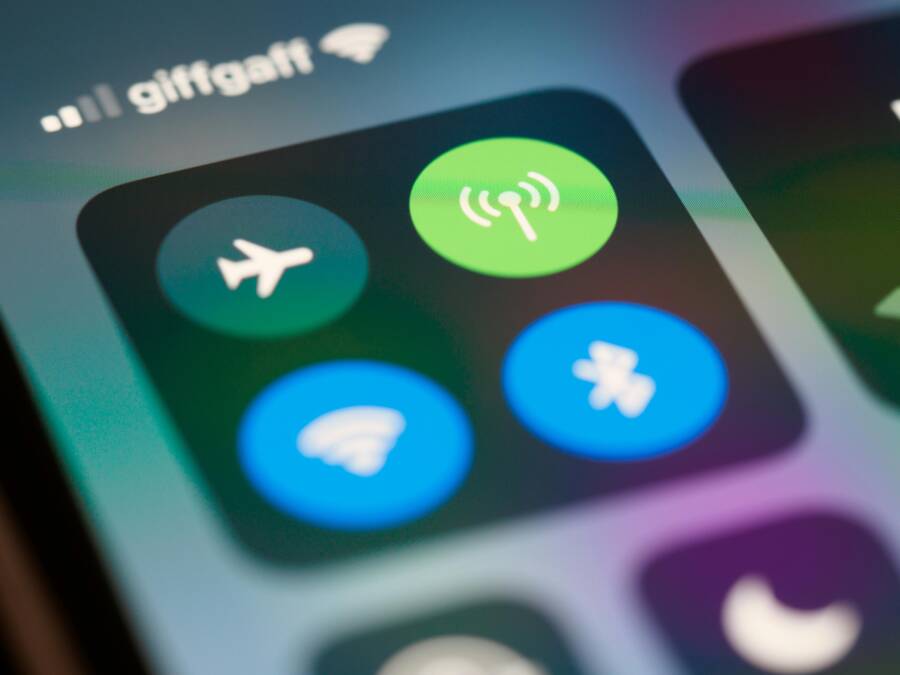
 Photo by Brett Jordan
- After you re-pair, test each device with a short audio or data transfer to confirm stable connections.
- If a device still misbehaves, recheck its firmware and app settings; sometimes the issue lies with the accessory rather than the phone.
Additional notes
- Some Android skins route Bluetooth through separate system menus. If you can’t see Bluetooth in the main settings, search for it in the app list as a system app and clear its cache or data if needed.
- On iPhone, if issues persist after forget-and-restart, consider a broader reset of network settings. This won’t erase personal data but will reset saved networks and passwords.
External resources
- How to remove paired Bluetooth devices on Android: https://howtogeek.com/how-to-remove-paired-bluetooth-devices-on-android
- How to clear Bluetooth cache on iPhone or Android: https://www.businessinsider.com/reference/how-to-clear-bluetooth-cache
Tips to prevent future Bluetooth problems
A little daily maintenance goes a long way for stable wireless connections. Here are practical habits that keep your Bluetooth running smoothly.
- Keep devices and apps updated
- Regular firmware updates on your phone and on Bluetooth devices fix bugs and improve compatibility.
- Enable automatic updates where practical, but review each update for potential changes in behavior.
- Avoid interference and optimize placement
- Maintain a clear line of sight when possible; obstacles like walls or metal objects can degrade signals.
- Keep other strong wireless devices out of the immediate area during pairing or streaming.
- Manage battery health and power settings
- Low battery can affect Bluetooth performance. Charge devices or swap to fresh batteries for some accessories.
- Some phones have battery optimization features that limit background activity; ensure Bluetooth has permission to run when the screen is off.
- Build a quick re-pair list
- Maintain a small, current list of your most-used devices. This reduces guesswork when you reconnect after a cache clear.
- Consider keeping notes on how each device should be named and grouped in your settings.
- Stay mindful of environment and usage
- In cars or workspaces with many devices, prioritize essential connections first.
- If you switch between several Bluetooth devices often, re-pair in a predictable order to minimize cross-talk.
External link for broader Bluetooth safety tips: Wireless Connections and Bluetooth Security Tips
- Regular checks after software updates
- A quick test after a major OS update helps catch issues early.
- If a device begins to misbehave again, re-pair from scratch with the steps above to reset the profile.
Real-world note
- Keeping a tidy list of devices helps when you need to re-pair quickly. If a device repeatedly causes issues, consider removing it and re-adding after firmware checks.
What to do if problems persist
- Revisit firmware on both ends and look for known issues in manufacturer support pages.
- Temporarily disable other nearby Bluetooth devices to see if interference is the culprit.
- If needed, reset all Bluetooth-related settings and start fresh from scratch with a clean pairing slate.
External resource
- How to stop Bluetooth interference or interruptions: https://support.jbl.com/us/en/howto/how-to-avoid-bluetooth-interference-or-interruptions-us/000017063.html
Images credit
- Photo by Brett Jordan from Pexels
By adopting a disciplined re-pairing routine and adopting preventative habits, you’ll experience fewer dropouts, faster pairings, and more reliable audio and data transfers. If you encounter stubborn issues after a cache clear, revisit the steps above and consider a broader device update or a network settings reset as a last resort.
Troubleshooting and advanced options if problems persist
If clearing the Bluetooth cache didn’t fully fix the issue, you still have a handful of solid steps to try. This section covers practical next moves to verify compatibility, rule out hardware issues, and decide when a deeper reset is warranted. Think of it as the no-nonsense path to a reliable Bluetooth setup for your daily smartphone use.
When problems persist after a cache clear
Even after a clean cache, some stubborn problems can linger. Start by confirming the basics are solid and then methodically test with a known-good setup. Here’s how to proceed:
- Check device compatibility and supported profiles. Some accessories use specific Bluetooth versions or audio profiles (A2DP, HFP) that may not play nicely with older or newer devices. If a particular device still misbehaves, verify that both ends support the needed profile and that no firmware gaps exist.
- Test with a known-good device. Use a different Bluetooth accessory that you know works well with your phone. If the new device pairs normally and streams clean audio or data, the problem is likely with the original accessory rather than the phone. If both devices have issues, the root cause is more likely the phone or the environment.
- Update firmware on both ends. Manufacturers push small fixes that improve stability. Check for updates on your Android phone, the Bluetooth accessory, and, if applicable, the car infotainment system or speakers.
- Look for hardware constraints. Some phones run into issues when Bluetooth is pushed to its limits by multiple active connections or in environments with heavy wireless interference. If you notice a pattern during travel, in a car, or near dense Wi‑Fi networks, try a quieter setup to see if performance improves.
- Rule out interference. Close nearby Bluetooth devices or temporarily disable other wireless radios to see if the connection stabilizes. In busy spaces, even a nearby router or a neighbor’s Bluetooth device can cause occasional dropouts.
- Revisit the pairing order. After a cache clear, re-pair devices in a deliberate order. Start with the device you use most often and then add others one by one. This helps ensure the most important connection remains stable.
- Check for app-specific settings. Some apps control Bluetooth usage differently, such as music players, file transfer tools, or health devices. Open the app’s settings and confirm it’s allowed to use Bluetooth without restrictions.
If you want practical context from others who’ve faced similar situations, you can explore community discussions and step-by-step guides. For instance, Apple discussions and Android forums frequently cover how users navigate stubborn Bluetooth behavior after updates, including steps beyond a simple cache clear. These resources can provide real-world scenarios that mirror what you’re experiencing. For broader guidance, reputable sources such as business and support communities regularly share tested approaches for Android and iPhone devices.
What you gain from this stage is a clearer view of where the issue sits. If testing with a known-good device fails to improve the situation, consider a broader reset such as resetting network settings. This is a deeper reset that clears more than just Bluetooth data, and it can eliminate stubborn misconfigurations that a basic cache refresh can miss.
Helpful context and further reading:
- Explore the idea of a broader network reset on Android to see what it clears and how it can help when basic steps fail. You can reference guides that walk through the exact menus and prompts on different brands and versions.
Example: What does Network Setting Reset do on Android? - If you’re troubleshooting iPhone Bluetooth specifically, remember that Apple’s approach often centers on removing problematic pairings and rebooting, which acts as a de facto cache refresh for the Bluetooth stack. You’ll find community discussions and official support notes that outline the Forget This Device steps and why a clean reboot helps.
- When you’re ready to dive into more device-specific advice, look for forums or support pages from the device maker or carrier. These often have product-specific tips that address quirks tied to a particular model or firmware version.
Links to start with (for context and deeper dives):
- https://discussions.apple.com/thread/256180011
- https://help.apple.com/ios/
- https://support.google.com/android/thread/188142983/how-do-i-clear-my-bluetooth-cache?hl=en
- https://www.samsung.com/us/support/troubleshooting/TSG01209182/
Reset network settings as a last resort
If none of the above resolves the problem, a network settings reset can be the decisive step. This action resets all network-related settings to their defaults, which often clears stubborn misconfigurations. It’s more sweeping than clearing the Bluetooth cache, so it should be reserved for when basic troubleshooting fails.
What gets erased and what stays
- Android: A network reset wipes saved Wi‑Fi networks and passwords, Bluetooth pairings, cellular settings, and VPN configurations. It does not delete your personal data such as photos, messages, or installed apps. You’ll need to re-enter Wi‑Fi passwords and re-pair Bluetooth devices afterward.
- iPhone: A network reset clears saved Wi‑Fi networks and their passwords, Bluetooth connections, and cellular/Mobile data settings. Like Android, your files and apps remain intact, but you will need to reconfigure network connections and re-pair Bluetooth devices.
How to perform the reset
- Android devices
- Open Settings and navigate to System > Reset options.
- Tap Reset Wi-Fi, mobile & Bluetooth.
- Confirm the action and restart the phone.
- After reboot, reconnect to your Wi‑Fi networks and re-pair Bluetooth devices.
- iPhone
- Open Settings > General > Transfer or Reset iPhone > Reset > Reset Network Settings.
- Confirm, then the device will restart.
- Reconnect to Wi‑Fi networks and re-pair Bluetooth devices as needed.
What to expect after the reset
- A clean slate for network profiles and Bluetooth pairings.
- You may notice a brief drop in battery efficiency until connections settle.
- Reestablishing trusted networks should be straightforward, but you’ll need to re-enter passwords and re-pair devices.
When to choose this option
- When persistent Bluetooth issues surface after firmware updates or after multiple pairing changes.
- If the problem appears across several accessories, not just one device.
- If interference or misconfigured network profiles are suspected, a network settings reset can clear the way for stable operation.
Reader tips
- Before you reset network settings, write down important Wi‑Fi passwords and note any VPN configurations you use. This avoids getting stuck if you rely on a handful of networks for work or travel.
- After a reset, test Bluetooth with a known-good device first, then bring back your regular accessories one by one to confirm stability.
External reading that complements this approach:
- A practical Android network reset guide that walks through the exact steps and expected outcomes.
- An overview of what happens when you reset network settings on iPhone, with notes on what data is affected and how to reconfigure connections afterward.
By approaching problems in this order — confirm compatibility, test with a known-good device, update firmware, and consider a deeper network reset as a last resort — you maintain control over the troubleshooting process. This path helps you avoid unnecessary resets while giving you a clear plan if the issue stubbornly persists. If you follow these steps and still encounter trouble, you’ll be well positioned to reach out to support with specific details about your device models, firmware versions, and the exact sequence of events when the problem occurs.
Conclusion
Clearing the Bluetooth cache is a safe, effective first move when your connections misbehave. It gives your smartphone a fresh start and often fixes slow pairing, dropouts, and misidentified devices. After a cache clear, re-pair your favorite accessories in a clear, deliberate order to keep things tidy and reliable. If issues persist, consider targeted firmware updates or a broader network reset, then share this guide with others who might benefit. For more practical smartphone troubleshooting tips, explore the rest of our guides on iPro+ 知識酷.
What If the Only Thing Between You and the Life You Deserve Is a Hidden Wealth Code Waiting to Be Activated
>>> Open the Door <<<