How to Fix Battery Saver Turning On by Itself (Android & iPhone)
Your phone dims its screen or slows to a crawl right when you need it most. Apps lag, notifications delay, and the whole day grinds down. That’s battery saver turning on by itself, a frustration that hits Android and iPhone users alike.
Battery saver mode kicks in to stretch your charge. It cuts background activity, dims the display, and throttles performance. But when it triggers without warning, even at 50% battery, something’s off.
Common culprits include adaptive power saving that learns your habits and flips on automatically. Low battery thresholds, scheduled routines, or even software glitches can do it too. Faulty battery health or app cache issues make it worse on your smartphone.
Don’t worry; you can fix this fast. We’ll walk through checks for both Android and iPhone. You’ll learn to spot adaptive settings, disable sneaky automations, and tweak thresholds.
This post covers step-by-step guides to stop it for good. Update your OS, clear caches, and test battery health along the way. Get back to smooth, full-power use today.
Why Does Battery Saver Turn On Automatically? Common Causes
Your smartphone flips to battery saver mode without you tapping a thing. This cuts power to background tasks and dims the screen. It saves juice, but the surprise activation annoys users. Most times, built-in features or small issues cause it. Let’s break down the top reasons for Android phones and iPhones.
Top Causes on Android Phones
Android devices pack smart features that watch your battery use. These kick in battery saver to prevent a dead phone mid-day. One big player stands out.
Adaptive power saving learns from your habits. It predicts drain based on patterns, like heavy weekday app use. Your phone might turn saver on early if it spots a drop coming. Google calls this Adaptive Battery, active by default on Pixels. Samsung adds similar tools that tweak CPU speed and screen refresh.
Next, auto-triggers at low battery follow set levels. Go to Settings > Battery, and you see options at 15%, 20%, or 30%. Hit that point, and saver starts. It’s like an alarm you set yourself but forgot.
Bad apps drain power fast, forcing saver to activate sooner. Rogue apps run wild in the background. Social media or games pull extra current. Check Battery usage stats to spot them.
System glitches round out the list. Outdated software or full caches confuse the system. After an update, saver might toggle on and off. A quick restart often fixes it.
These causes stack up on your Android. Spot them early to keep full power longer.
Reasons It Happens on iPhones
iPhones handle low power mode with simple rules, but surprises still pop up. Your device prompts at key battery drops. It aims to stretch the charge without fuss.
Low battery prompts trigger at 20% or 10%. iOS shows a yellow warning first. Ignore it, and low power mode engages. Sometimes it starts even higher if drain speeds up. Users report this in Apple discussions, where it auto-starts below a threshold.
Automations in the Shortcuts app add another layer. You might set one to flip low power on during low battery or sleep hours. Check Shortcuts > Automation. A forgotten routine runs silent.
iOS bugs cause random flips too. Glitches after updates make mode stick or trigger wrong. Restart or toggle Airplane Mode to clear them.
Low power mode cuts mail fetch and brightens less on iPhones. It auto-engages at very low levels to protect the battery. Worn cells make these triggers more common on older smartphones.
Know these reasons, and you gain control. Next steps show how to stop the auto-start.
Quick Fixes to Turn Off Battery Saver Right Now
If your phone flips on battery saver without you asking, you’re not alone. These quick moves help you regain full power fast and stop the auto-activation from sabotaging performance. Think of it as a rapid tuner session for your device, so you can get back to a bright screen and snappy apps without the surprise yellow warning.

Photo by Andrey Matveev
Quick check: confirm which battery saver is active
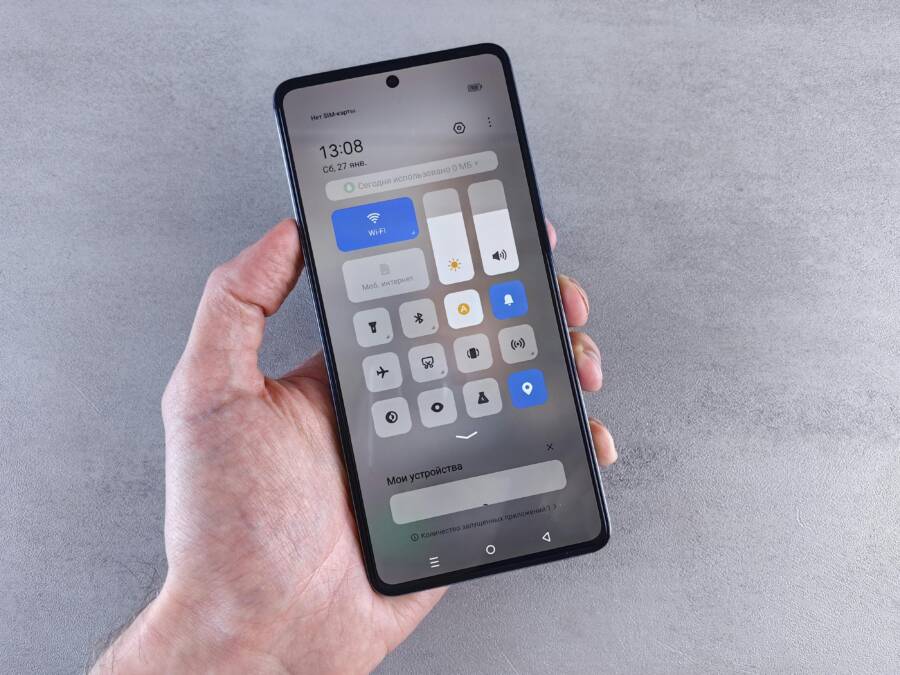
Before you dive into settings, confirm what’s actually happening. On most devices, you’ll see a yellow battery or a battery icon in the status bar when battery saver is on. Check notifications and the quick settings panel to see if Low Power Mode (iPhone) or Power Saving/Adaptive Battery (Android) is labeled as active. If you’re unsure, a quick toggle off and back on can reveal whether the feature is turning on automatically or if there’s a hidden automation at work. For Android, you may also notice reduced background activity or a dimmed display as clues.
Android fixes you can apply in under 2 minutes
- Disable automatic triggers at low battery. Open Settings > Battery > Battery saver preferences. Look for “Turn on automatically” or a similar option and switch it off or adjust the threshold to a higher percentage.
- Turn off adaptive power saving. Some devices label this as Adaptive Battery or similar. If you spot it, toggle it off to stop the system from learning usage patterns and flipping saver on.
- Review battery usage by app. Go to Settings > Battery > Battery usage. If a single app shows unusually high drain, you may feel saver kick in sooner. Force-stop or restrict background activity for that app if needed.
- Clear cache and restart. A quick cache wipe plus a restart can clear a software hiccup that triggers saver spuriously.
- Update the OS. If you’re behind on software, install the latest update. Manufacturers patch energy quirks in updates.
iPhone fixes you can try immediately
- Turn off Low Power Mode. Go to Settings > Battery, then toggle Low Power Mode off. If you own a newer model, you may see “Power Mode” terminology.
- Check for automation in Shortcuts. Open the Shortcuts app, then Automation. Look for any automation that turns Low Power Mode on during certain hours or events. Delete or disable any unintended routines.
- Disable automatic prompts. iOS sometimes prompts to enable Low Power Mode. If you don’t want it, keep it off and avoid tapping prompts that could reenable it later.
- Restart to clear glitches. A simple restart often resolves random glitches that flip Low Power Mode on.
- Inspect battery health. If your battery is aging, the system may behave oddly. Go to Settings > Battery > Battery Health to see if a replacement is advised.
Practical steps you can take in one go
- Disable automatic triggers (both Android and iPhone)
- Review recently installed apps that run in the background
- Update your device to the latest software
- Restart to clear any minor glitches
- Test by using the phone normally for an hour or two to confirm the setting stays off
Quick test: does turning it off stick?
After applying the fixes, run a simple test. Use a few apps that usually run in the background, like email fetch, messaging, and a streaming app. Monitor the status bar for saver indicators and watch the screen brightness. If the device remains in full power mode during regular use, you’ve likely knocked out the auto activation.
When to dive deeper or seek help
If battery saver still turns on by itself after these quick fixes, you may be dealing with a deeper issue. Consider the following next steps:
- Perform a factory reset as a last resort after backing up data.
- Contact the device manufacturer’s support if the problem persists after a clean OS install.
- Check for known issues in your device’s community forums or official support pages.
Extra tips for long-term reliability
- Keep apps up to date and review background activity weekly.
- Monitor battery health every few months, especially on older devices.
- Use a reputable charger and avoid extreme temperatures, which can affect battery performance and trigger saver modes unnecessarily.
For further reading on turning off battery saving features, you can explore official guidance from Apple and Android support pages as referenced in trusted sources.
Step-by-Step Fixes for Android Phones
When your battery saver switches on by itself, it can feel like your phone is betraying you at the worst moments. The good news is that most activations are caused by easily adjustable settings or minor software glitches. In this section, you’ll get a practical, step-by-step approach to stop auto activation on Android devices. Each fix is designed to be quick, with tangible results, so you can get back to a bright screen and snappy performance without hunting through menus for hours.
Disable Adaptive Power Saving and Schedules
Adaptive power saving learns how you use your device and makes decisions to conserve energy. While helpful in theory, it can misfire and turn on battery saver at surprising times. Turn off adaptive features and any schedules that automatically enable power saving.
Exact path: Settings > Battery > Battery Saver > menu > turn off adaptive. Reset schedules.
- Why this helps: If the system is predicting drain and toggling saver early, disabling adaptive logic prevents it from acting on learned patterns.
- What to check: Look for “Adaptive Battery” or similarly named options and switch them off. Also reset any automated schedules you might have set for low power modes.
- Quick verification: After turning off, monitor background activity over a few hours. If the screen stays bright and apps stay responsive, you’ve likely disabled the misbehaving automation.
For further context on adaptive battery management across devices, reputable guides explain how these settings influence idle and active states. See official guidance and user experiences to understand where these controls live on different Android skins. Android support on battery optimization and adaptive battery
Update Apps, Clear Cache, and Restart
Software habits on your device can cause odd battery behavior. Outdated apps, misbehaving cache, or a stale system build can trigger unintended power-saving actions. A clean start helps many users regain stable behavior.
- Update Apps: Open the Play Store, go to your profile, and update all apps with available updates. Keeping apps current reduces the chance of background mischief that trips battery saver.
- Clear App Cache and Data (where appropriate): Clearing caches removes old data that may cause apps to request more background activity than expected. If you’re unsure, start with a few key apps that run continuously in the background (messaging, email, social media).
- Clear System Cache and Restart: A device restart clears transient glitches. If your phone offers a recovery mode option to wipe cache, use it as a first step if you’re comfortable.
- Check for System Updates: An up-to-date OS includes bug fixes for energy management and wake locks. Install any pending updates and reboot.
Guidance on refreshing the system and services is commonly shared across Android communities. For a general how-to, see articles on clearing cache and optimizing storage on Android devices. How to clear cache and delete cookies on your phone
If you want deeper background on safe, effective cache maintenance, reputable outlets explain practical steps to refresh a laggy device without losing data. How to clear your Android phone cache (and wipe out lag for good)
Review Battery-Hungry Apps and Routines
Some apps relentlessly push background work, while certain routines or modes can accelerate battery drain. Identifying these culprits can stop battery saver from kicking in unexpectedly.
- Uninstall suspects: If you notice a particular app constantly in the top of the battery usage chart, consider uninstalling it or restricting its background activity.
- Check Modes and Routines on Samsung: Samsung phones offer Modes and Routines (or Bixby Routines) that automate actions based on time, location, or battery level. A routine might switch on power saving when you least expect it. Review and disable any routine that turns on battery saver without your direct input.
- Test with a clean slate: After removing or restricting power-hungry apps and disabling suspect routines, use the phone normally for a day and observe whether battery saver still activates on its own.
If you’re curious about device-specific automation features, Samsung’s Modes and Routines can be a frequent source of automated power management. Understanding how they work helps you quiet unintended activations. Save Battery at Night with Modes and Routines
Another helpful resource covers practical settings and routines for best power usage on Samsung devices. It’s worth reviewing if you own a Galaxy phone. Hi Samsung users, Use these Settings and Routines For Best Battery Life
For a broader view on power saving on a Galaxy device, Samsung’s own guide explains how to enable and tune Power Saving modes. This can help you decide which level of restriction is right for your usage. Use Power saving mode on your Galaxy phone
- Practical takeaway: After you identify the heavy hitters, suppress background activity for those apps and ensure no routine triggers occur during hours you’re actively using the phone. This keeps battery saver from turning on unless you explicitly request it.
If you want broader insight into Android’s energy management, you can read official and expert explanations on battery optimization and how it affects everyday use. Get the most life from your Android device’s battery
Extra tips for reliability across devices:
- Regularly review which apps run in the background.
- Keep your device on the latest software.
- Be mindful of heat and charging habits, since thermal conditions can influence power management behavior.
Transitioning to a quick, practical test helps you confirm that the fixes hold. After applying the changes, put your phone through a typical day with normal app use. Watch for the absence of unexpected battery saver activations and note any changes in brightness or background activity. If the saver remains stubborn, it’s a sign to explore deeper system diagnostics or factory reset as a last measure.
- When to seek further help: If the problem persists after trying these steps, you may be facing a deeper software or hardware issue. Consider backing up your data and performing a factory reset to clear out stubborn bugs. If that still doesn’t fix it, contact the device maker’s support team or check official support forums for model-specific advice.
- Long-term habits: Set a regular check for app permissions and background activity. Monthly reviews help catch rogue behavior before it spills into automatic battery saver activations. Also, avoid unfamiliar charging accessories that can affect battery health.
External guidance and community experiences can provide additional reassurance. Always balance what you read with what you observe on your own device. If you’d like, I can tailor these steps to a specific device model you own.
Notes on related safeguards and reading further:
- Android help pages offer practical tips for prolonging battery life and managing battery usage. Get the most life from your Android device’s battery
- For Samsung users, the Modes and Routines and Power Saving guidance can be particularly helpful to customize how your phone uses power. Use Power saving mode on your Galaxy phone
- If you suspect app behavior, clear cache, and refresh the system. This is a common step that resolves many spurious activations. How to clear cache and delete cookies on Android
Easy Solutions for iPhone Low Power Mode
When battery saver sneaks in at the worst moments, your smartphone becomes less responsive just when you need performance most. These practical steps focus on iPhone settings and reliable fixes you can trust. The goal is simple: stop automatic low power mode from interrupting your day, while keeping your battery healthy and your apps humming. You’ll learn to identify hidden automations, reset stubborn preferences, and ensure iOS stays up to date so you get maximum longevity from every charge.
Delete Battery Automations and Restart
Shortcuts automations can quietly flip Low Power Mode on or off, especially if you set routines for certain times, locations, or battery levels. If a forgotten automation is the culprit, you may notice the mode turning on even when you haven’t touched a switch. Here’s how to clear it out and test the result.
- Open the Shortcuts app and navigate to Automation. Review every automation that mentions Battery, Low Power Mode, or Power. Delete any that you don’t recognize or no longer need.
- After cleaning automations, perform a full restart of your iPhone. A simple reboot clears minor glitches that could cause the feature to re-enable itself.
- Verify the change by a quick test. Allow the phone to run normally for a bit, then observe whether Low Power Mode stays off during typical usage.
Related guidance highlights how automations can impact iPhone behavior and how to manage them effectively. For additional context, see guidance discussing automation and battery considerations in iPhone Shortcuts resources and community posts.
Pro tip: if you recently transferred data or installed new apps, a stale automation might have crept in. Removing it now prevents surprises later and keeps your daily use smooth.
In practice, this approach gives you a clean slate. If the iPhone still toggles Low Power Mode unexpectedly, move to the next steps to reset and refresh the system while keeping your data intact.
For quick reference, you can review Apple’s official Shortcuts and automation resources to understand how automations interact with system power features. Apple’s guidance around automations helps you distinguish between intentional routines and stray triggers.
Reset Settings and Update iOS
If automations aren’t the issue, resetting settings and updating iOS can fix the underlying software quirks that cause Low Power Mode to act up. This approach preserves your data while returning all system preferences to a known good state. It also ensures you’re running the latest fixes that address energy management and wake behavior.
- General > Transfer or Reset > Reset All Settings. This option resets network settings, privacy permissions, display settings, and other preferences without erasing your apps or data. It’s often enough to stop erroneous power mode triggers caused by corrupted preferences.
- Software Update path. After the reset, or if you prefer, check for an OS update. Newer iOS versions include bug fixes, performance improvements, and refined power management logic that reduce false activations of Low Power Mode.
- Post-reset checks. Once you’re back on the home screen, test battery behavior across your typical day. Use a mix of apps, push emails, and streaming to confirm the mode only engages when you want it.
Why this matters: iOS updates frequently patch battery-related bugs and refine the logic that determines when Low Power Mode turns on or off. Keeping software current reduces the chance of spontaneous mode changes and helps extend overall battery life.
Apple provides step by step paths for resetting settings and updating iOS, so you can follow along with confidence. If you run into any prompts or questions during the process, you’ll have clear, actionable options to proceed.
In addition, it’s wise to back up your iPhone before performing a reset. This ensures you can restore your data quickly if you need to revert any changes or reconfigure your preferences after the update.
A practical note: if you carry a lot of automations or have a complex setup, reset can feel like a reset of confidence as well. Take the time to reconfigure essential options gradually, testing power behaviors as you go. This helps you confirm that Low Power Mode behaves predictably again.
Helpful resources you can consult as you go include Apple’s official reset and update guides. They offer reliable, model-specific instructions and notes on any known issues that accompany new iOS releases. By following trusted sources, you’ll minimize confusion and speed up the fix.
What to do next if the issue persists: if Low Power Mode still activates on its own after resetting and updating, you may want to consider a broader diagnostic. This could include a factory reset as a last resort (after backing up) or contacting Apple Support for model-specific advice. A professional check can confirm whether a battery health concern is feeding the behavior.
Extra tips for keeping Low Power Mode under control long term:
- Schedule periodic checks of battery health and usage patterns.
- Avoid overtaxing the device with simultaneously heavy tasks in hot weather.
- Regularly review app permissions that influence background activity.
If you’d like, I can tailor these steps to your exact iPhone model and iOS version, so you get precise menu paths and terminology. Apple’s support resources and community discussions are solid companions as you work through any lingering issues. For quick reference, see official Apple guides on resetting settings and saving battery life with power modes.
External guidance and reputable sources you can consult as you implement these fixes:
- Reset iPhone settings to their defaults. Apple Support
- Save battery life with Power Modes on iPhone. Apple Support
- Use Low Power Mode to save battery life on your iPhone or iPad. Apple Support
- If the battery in your iPhone or iPad drains too quickly. Apple Support
Notes: If you’re curious about how iOS handles adaptive power and wake management in the latest releases, you can review third party analyses and official updates for practical context. A well-tuned iPhone setup balances performance and battery, reducing unexpected activations while keeping your daily workflow uninterrupted.
Prevent Battery Saver from Activating Alone Again
When your device suddenly switches to battery saver mode on its own, it feels like a mystery you have to solve in the middle of a busy day. The screen dims, apps throttle back, and the entire user experience takes a hit. The good news: most auto activations come from easily tunable settings or minor software quirks. In this section, you’ll learn practical, repeatable steps to prevent battery saver from triggering without your input, whether you’re using Android, iPhone, or a mix of devices you rely on daily.
Understand what’s really happening
Before you tweak, confirm what’s turning on. Battery saver can be an automatic feature, a schedule, or a reaction to a specific trigger. On many Android phones, the system can enable adaptive battery management or a low-battery threshold. On iPhones, Low Power Mode is controlled by battery level, usage patterns, and Shortcuts automations. A quick mental map helps you pick the right fixes without chasing the wrong culprit.
- Look for the icon or color cue in the status bar and the quick settings panel. This tells you which feature is active.
- Note the trigger point. Is it at 20 percent, 15 percent, or another threshold? Or is it tied to an automation in Shortcuts on iPhone?
- Check for recent changes. A new app install, a system update, or a change in charging habits can set off a fresh round of energy management.
If you want a quick reference, reputable guidance from Android and Apple support pages explains how these power controls behave and where to find them. For Android, explore how Adaptive Battery and battery optimization work; for iPhone, review the steps to manage Power Modes and optimized charging. These resources provide model-agnostic context to help you navigate settings with confidence.
External references you can consult:
- Android: Keep Adaptive Battery and battery optimization on, but adjust how aggressively the system works. This helps balance performance and power without surprises.
- Apple: Save battery life with Power Modes on iPhone and understand optimized charging to reduce wear over time.
Stop adaptive power saving from turning the lights out
Adaptive power saving is designed to prolong life by learning your usage. Sometimes it learns the wrong pattern and toggles saver on when you least expect it. The remedy is simple: turn off or tightly constrain adaptive behavior and remove any schedules that automate power saving.
- Android path to disable: Settings > Battery > Battery Saver > menu, then turn off “adaptive” or “adaptive power saving.” If you see a separate “Turn on automatically” option, disable it or raise the threshold.
- iPhone tangents: If you’ve enabled automations that flip Low Power Mode on at certain times or locations, these can override your manual preference. Remove or disable automations that involve battery saving.
Why this matters: if the device is predicting drain and flipping saver early, removing the predictive logic stops the unrequested mode.
A quick verification test after disabling adaptive features is to monitor background activity for a few hours and use a normal mix of apps. If brightness and performance stay steady, you’ve cut off the unintended trigger. For deeper context, see official Android and iPhone guidance on battery optimization and automation, which explains how these controls live in different ecosystems.
Tighten low-battery triggers and schedules
Low-battery triggers are the most common auto-activators. The key is to set reasonable, predictable thresholds and remove any hidden schedules that may reenable saver when you’re not looking.
- Android: Go to Settings > Battery > Battery saver. If your device supports “Turn on automatically,” set a higher threshold or disable it entirely. Some skins allow per-app exemptions or smart management rules; review those and turn off anything you didn’t authorize.
- iPhone: Review whether Low Power Mode is tied to an automation in Shortcuts. If there’s a routine that flips Power Mode on during a commute or at specific times, delete or disable it.
Tip: If you rely on a device that runs in the background for critical tasks, consider exempting that device from automatic power saving or using a more conservative threshold that still keeps you in control.
Inspect apps with heavy power demands
Certain apps hog energy