What If the Only Thing Between You and the Life You Deserve Is a Hidden Wealth Code Waiting to Be Activated
>>> Open the Door <<<

Picture this: you rush out the door for work, plug in your phone to charge, and bam, the screen flashes “accessory not supported.” That message hits iPhone and Android users hard. It stops charging dead and lets the battery drain fast. Common causes include faulty cables, dirty ports, or software hiccups.
Don’t worry. This guide walks you through fixes, from quick checks to deeper steps. Most people solve it with the basics. We’ll cover hardware swaps, port cleaning, restarts, updates, damage checks, and prevention tips. These steps work on most phones. Follow them in order, and you’ll charge up again soon.

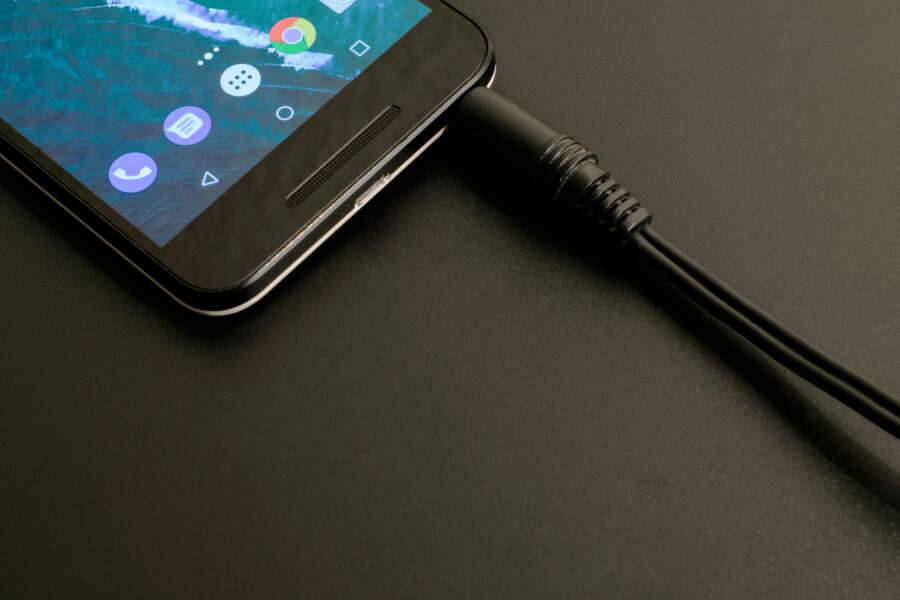
Photo by Polina Zimmerman
Try These Basic Fixes First to Resume Charging
Start here because nine times out of ten, the issue hides in hardware. These checks take less than five minutes and work for iPhones and Android phones alike. Test one at a time. Grab spare gear if you have it, and note what works.
There Is a Frequency That the Wealthiest Families Have Used for Generations and Most People Will Never Know It Exists
>>> Open the Door <<<

Swap Out Your Cable and Charger
Cables wear out fast, especially cheap ones. iPhones need cables with MFi chips for safety. Android devices prefer certified USB-C options. A bad cable sends wrong signals and triggers the error.
Follow these steps:
Thousands of People Were Struggling With Money Until They Discovered This One Ancient Secret Hidden in Sound
>>> Unlock It Now <<<

- Pick an official Apple Lightning cable or certified third-party for iPhone. For Android, grab a USB-C from a trusted brand like Anker or Belkin.
- Plug it into a wall outlet, not a computer USB port. Computers send low power and confuse the phone.
- Try a different outlet or port on your charger block.
- Borrow a friend’s setup to test. If it charges, your gear caused the problem.
- Label good cables with tape so you grab them next time.
Skip super-cheap no-name cables; they fail quick and risk damage. This fix works because fresh cables pass clean power signals. Users report success in minutes. If your cable frays or bends, toss it now.
Clean the Charging Port Gently
Pockets fill ports with lint and dust over time. That blocks the pins and mimics a bad accessory. It’s a top fix for both Lightning and USB-C ports.
Power off your phone first. Here’s how to clean:
- Shine a flashlight into the port. Spot any debris?
- Use a plastic toothpick or guitar pick. Never metal; it scratches pins.
- Gently scrape out fluff. Twist lightly if stuck.
- Blow out bits with canned air or your breath. Skip vacuums; they suck too hard.
- Wipe the port edge with a dry microfiber cloth.
Test charging right after. No liquids ever; they cause shorts. This clears the connection path. One user found a full pocket’s worth of lint and charged fine after. Repeat monthly to stay ahead.
Fix Software Glitches Behind the Charging Error
If basics flop, software bugs often lurk. iOS glitches hit hard on iPhones, but Android sees them too. Restarts clear junk data. Updates patch known charging flaws. These steps reset without data loss.
Restart Your Phone the Right Way
A restart flushes temporary glitches from memory. It mimics unplugging a stubborn charger.
For iPhone:
- Press volume up quickly, then volume down quickly.
- Hold the side button until the Apple logo appears. Let go.
For Android (varies by model):
- Hold power and volume down together for 10-30 seconds.
- Release when the logo shows.
Charge right after. No luck? Try force restart: same steps but hold longer. Android users, boot to safe mode by holding volume down during restart. This skips third-party apps. If it charges in safe mode, delete recent apps. Restarts fix 30% of stubborn cases by refreshing the system.
Check and Install Software Updates
Bugs in old software block charging. Apple and Google release fixes often.
On iPhone:
What If the Only Thing Between You and the Life You Deserve Is a Hidden Wealth Code Waiting to Be Activated
>>> Open the Door <<<
- Go to Settings, General, Software Update.
- Connect to Wi-Fi. Tap Download and Install if ready.
On Android:
- Open Settings, System, System Update (or Software Update).
- Check for updates over Wi-Fi.
Backup first with iCloud or Google Drive. Charge to at least 50% before updating; low battery halts it. Install takes 10-30 minutes. No update? You’re current. This patches accessory detection flaws. One update fixed errors for thousands after a bad iOS release.
Deal with Hardware Issues and Stop It from Happening Again
Persistent errors point to hardware wear. Ignore them, and battery life suffers. Check for damage now. Build habits to avoid repeats and keep your phone reliable.
Check for Port or Cable Damage
Look close for trouble signs. Bent pins in the port, green corrosion, or frayed cable wires scream replacement.
Inspect like this:
- Use a light and magnifier app. Check pins straight?
- Wiggle the cable gently while plugged in. Intermittent charging means loose contact.
- Try a wireless charger if you have one. Skips the port.
- Plug into a computer USB. If it detects but won’t charge fast, port issue likely.
Bent pins? Don’t fix yourself. Frayed cables spark fires. Options: new cable from Apple Store ($19) or USB-C hub. Severe port damage needs pro repair, around $100. Early checks save cash.
Smart Habits to Prevent Charging Errors
Good routines extend gear life. Your smartphone will thank you with steady charges.
Adopt these:
Store cables right: Coil loosely, not tight knots. Use bags or clips.
Buy certified only: Stick to MFi for iPhone, USB-IF for Android.
Clean ports monthly: Quick light check and toothpick swipe.
Use protective cases wisely: Skip ones with tight port flaps.
Go wireless when possible: Pads like Belkin boost avoid wear.
Replace yearly: Cables hit limit after heavy use.
Carry a spare cable in your bag. Test gear every few months. These steps cut errors by 80%. Phones last longer with care.
Most fixes start with a cable swap or port clean. Add a restart and update, and you’re set. Try steps in order. Still stuck? Head to an Apple Store or phone repair shop for a pro look.
Share your success in the comments. What fixed yours? Keep spare cables handy, and charge without worry. Your phone runs smooth now.
She Pressed Play on a Strange Audio Track and Within Days Her Financial Reality Started Shifting in Ways She Could Not Explain
>>> See How It Works <<<
