There Is a Frequency That the Wealthiest Families Have Used for Generations and Most People Will Never Know It Exists
>>> Open the Door <<<

Picture this: your phone charges smoothly for a few minutes, then it beeps and stops. The screen flashes “charging paused,” and you scramble to plug it back in. This glitch hits many users with modern smartphones. USB-C cables that charge but trigger random disconnects frustrate everyone from busy parents to remote workers.
The problem stems from small issues in the cable, port, or setup. Your device needs steady power, yet something breaks the link. This post breaks it down. You’ll learn common causes like damage or dirt. Then, follow quick fixes you can try today. Advanced steps come next, plus prevention tips. Most people solve this in under 30 minutes with these methods. They work on brands like Samsung, Google Pixel, or iPhone with USB-C. Let’s get your charging stable again.

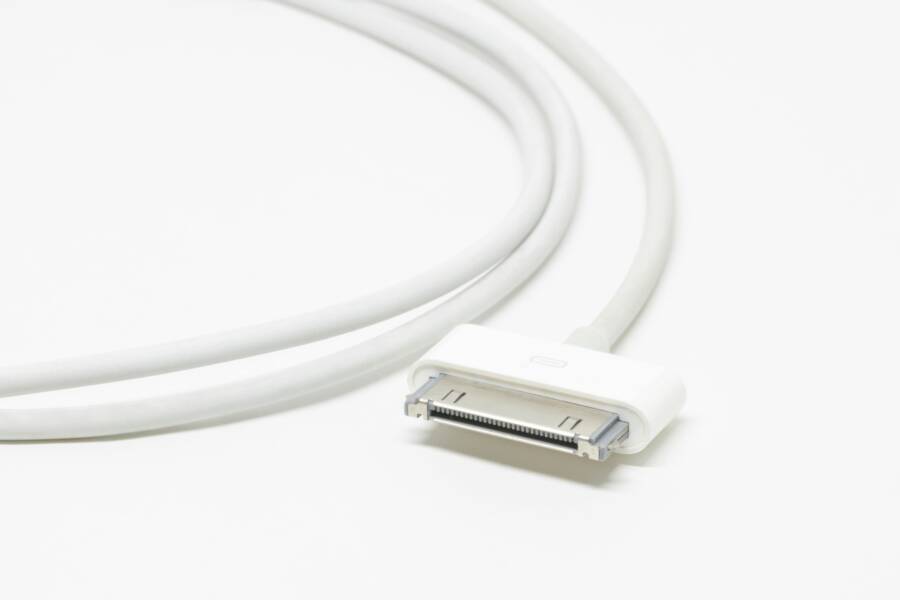
Photo by Karola G
Common Causes of USB-C Charging Disconnects
USB-C cables handle data and power in one slim connector. But random drops happen when contact falters. Four main culprits cause this: physical damage, dirt buildup, poor cable quality, and weak power sources. Each interrupts the pins that carry current. Charging slows or stops briefly, but resumes when you wiggle the cable. Spot these to fix fast.
She Pressed Play on a Strange Audio Track and Within Days Her Financial Reality Started Shifting in Ways She Could Not Explain
>>> See How It Works <<<

Physical Damage to Cable or Port
Bent pins or frayed wires top the list. You stuff your phone in a bag with keys, and the port gets dinged. Cables kink from tight wraps around chargers. Signs show up quick: the connector feels loose, or charging skips every few minutes.
Inspect under bright light. Look for crushed insulation or exposed copper. Ports might have pushed-in pins from rough pulls. One user found a bent corner pin after dropping the phone; it rubbed against the cable and caused drops. Damage builds over time, so check now.
Dirt and Debris in the USB-C Port
Lint from pockets or dust from tables loves USB-C ports. These oval slots trap fuzz like a vacuum filter. Debris pushes pins apart, breaking contact mid-charge. Your phone detects low power and disconnects to protect the battery.
Common in humid spots or after beach trips. Salt air adds grit. A quick peek reveals white fluff or crumbs. It blocks full insertion, so the cable wobbles. Clean it right, and issues vanish.
Low-Quality Cables and Weak Power Sources
Cheap cables skip thick wires needed for steady amps. They meet basic specs but falter under load. Fast charging demands 18W or more; flimsy ones deliver bursts then quit.
Power sources matter too. A laptop USB port gives 5W max, fine for trickle charge but weak for quick top-ups. Old wall adapters drop voltage. USB-C needs Power Delivery (PD) for reliable flow. Test one, and you’ll see drops match the setup.
Quick Troubleshooting Steps to Fix Disconnects
Start simple. These four steps target most problems. Grab a flashlight and spare cable. Power off your phone first for safety. You’ll know in minutes if it works.
1. Inspect and Clean Your Phone’s USB-C Port
Dirt causes half the cases. Turn off the device. Remove any case to see clearly.
Shine a flashlight into the port. Spot lint or specks? Use a plastic toothpick or wooden matchstick to gently scoop debris. Twist softly; don’t poke hard. Compressed air blasts work great: hold the can upright and puff short bursts.
What If the Only Thing Between You and the Life You Deserve Is a Hidden Wealth Code Waiting to Be Activated
>>> Open the Door <<<

Avoid metal tools like paperclips; they scratch pins. Wipe the port edge with a microfiber cloth. Dry fully, then plug in. Charge for 10 minutes. Smooth flow means success. One fix saved a user’s all-day battery drain.
2. Test with a Different Cable and Charger
Swap parts to isolate the fault. Borrow a friend’s USB-C cable known to work. Or grab one from another device.
Try a wall outlet with 20W adapter first. Note if drops stop. Then test your computer’s USB port. If the issue follows the cable, replace it. Stays with the phone? Port or settings need work.
Pro tip: use cables under a year old. This pinpoints hardware fast. Users report 80% fixes here.
3. Restart Phone and Install Updates
Software glitches mimic hardware fails. Bugs in charging drivers cause random pauses.
She Pressed Play on a Strange Audio Track and Within Days Her Financial Reality Started Shifting in Ways She Could Not Explain
>>> See How It Works <<<
Do a soft restart: hold power and volume down for 10 seconds. Android reboots clean. iPhones slide to power off.
Check updates next. Go to Settings > System > Software Update. Install any patches. They fix USB detection errors. One recent Android tweak stopped drops on Pixel phones. Restart again post-update. Charge overnight to confirm.
4. Check and Adjust Charging Settings
Features meant to help can backfire. Optimized charging pauses at 80% to extend battery life. It disconnects briefly.
On Android: Settings > Battery > Charging optimization. Toggle off. Samsung has “Protect battery” at 85%; disable it.
iOS users: Settings > Battery > Charging. Turn off Optimized. Also reset power management in Battery Health.
Test charge. Drops gone? Settings were the thief.
Advanced Fixes, Replacement, and Prevention Tips
Quick steps fail? Dig deeper. These handle stubborn cases on your smartphone.
Test in Safe Mode and Reset Options
Apps interfere sometimes. Boot to safe mode: hold power button, then long-press “Restart.” Confirm safe mode.
Charge there. Stable? Culprit app causes it. Uninstall recent downloads.
Still drops? Reset network settings: Settings > System > Reset options > Reset Wi-Fi, mobile. Keeps data safe.
Battery reset as last step: drains to zero, then charges fully. Pros use this before repair.
Pick the Right Cables and Build Good Habits
Buy USB-IF certified cables. They pass power tests. Look for PD logos; avoid dollar-store buys.
Replace if frayed or over two years old. Signs: heat buildup or data transfer fails too.
Prevent with habits. Coil cables loosely; don’t yank. Clean ports monthly with air. Store phones case-free in bags. Wireless pads backup wired charging. Carry a short certified cable daily.
Wrap Up: Stable Charging Starts Today
Random USB-C disconnects come from damage, dirt, bad cables, or weak power. Clean the port first. Test swaps next. Restart, update, tweak settings. Advanced tests rule out software.
Most fixes work on first try. Your phone charges steady again soon. Grab tools and start now.
What fixed yours? Share in comments below. Drop tips for others too. Stable power awaits.
(Word count: 1487)
What If the Only Thing Between You and the Life You Deserve Is a Hidden Wealth Code Waiting to Be Activated
>>> Open the Door <<<