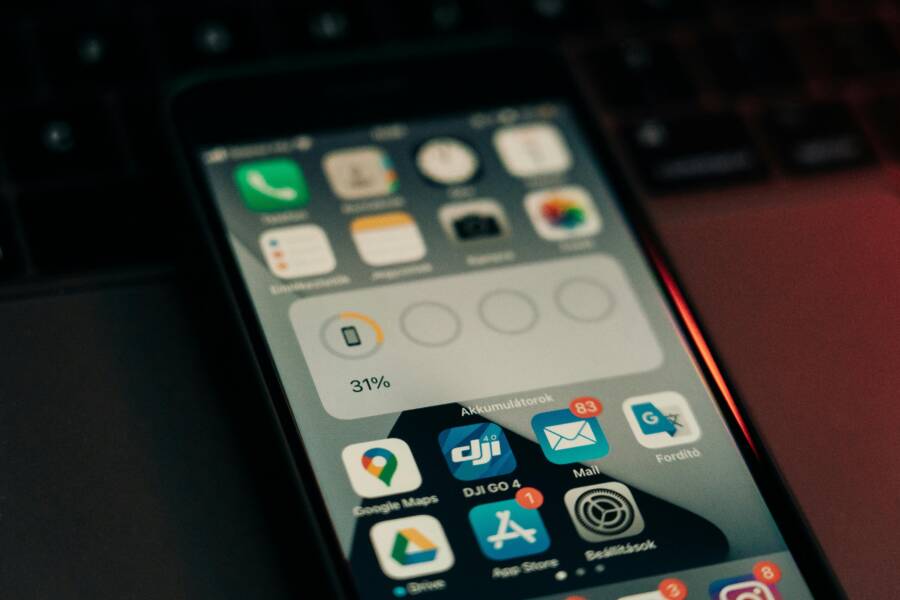
Stopping apps from auto starting on your phone can give you a noticeable boost in battery life and performance. When apps run in the background, they drain power, use data, and can slow down your device, even if you don’t open them. This guide shows you simple steps to regain control and keep your phone snappy.
First, understand what auto start means. Some apps launch automatically when you restart your phone or when you install them, and a few push background updates that aren’t always obvious. By limiting these launches, you keep resources available for the apps you actually use.
Quick actions you can try right away
- Go to your phone’s Settings and look for Apps or App Management, then disable auto start for nonessential apps.
- Check Background usage limits or Battery optimization and restrict background activity for apps that don’t need to stay awake.
Across Android and iOS there are different paths, but the goal is the same: reduce background activity, conserve battery, and improve responsiveness. The next steps walk you through the precise settings on both platforms and offer practical tips that work on most phones.
Why apps auto start and why you should stop them
Auto starting apps are designed to be ready the moment you open your phone. That convenience comes at a cost. Apps waking up in the background can quietly sip energy, pump data, and keep your device from feeling as responsive as it could be. In this section, you’ll learn what triggers auto start, why it matters, and how stopping these launches can reclaim battery life and speed.
 Photo by Szabó Viktor
https://www.pexels.com/@szaboviktor
Photo by Szabó Viktor
https://www.pexels.com/@szaboviktor
What triggers auto start on modern smartphones
Smartphones manage many tasks in the background. Several triggers commonly cause apps to start without you opening them:
- Boot and install events: Some apps launch when you reboot the device or after installation. This ensures features like messaging services stay active without manual setup.
- Background updates and push services: Apps periodically check in for new content, even if you haven’t opened them. This keeps notifications timely but can wake the app frequently.
- System and vendor optimizations: Some platforms preload certain apps to speed up critical tasks or to maintain compatibility with accessories and features.
- Permissions and unattended tasks: Apps with location, health data, or other sensitive permissions may run background services to track or sync data.
These triggers exist for good reasons, but they also mean you’re paying a price in battery and memory use whether you notice it or not.
How auto start hurts battery life and performance
Background activity adds up quickly. Even when you’re not actively using an app, it can drain power, consume network data, and steal CPU cycles that would otherwise go to the apps you actually use. Over time, this leads to:
- Shorter battery life: More wakeups mean more charging cycles and less time between charges.
- Slower device response: Background tasks compete for processor time, which can slow your interactions.
- Higher data usage: Apps quietly syncing can eat into your data plan, especially if you’re not on Wi-Fi.
- Heat generation: Constant activity can warm the device, which further reduces efficiency.
Think of auto starting apps as background workers that never clock out. The more workers you have, the more resources are tied up, even when you’re just checking your messages or browsing.
Why you should stop or limit auto start
Limiting auto start gives you clearer control over your device. Benefits include:
- Longer battery life for the apps you care about.
- Snappier performance when you tap to open an app.
- More predictable data usage, which helps with plans and caps.
- Simpler background activity, making it easier to spot which apps are truly essential.
Stopping auto start isn’t about removing useful features. It’s about choosing which apps deserve access to wake and run in the background. You set the rules, and your device follows.
A practical approach to stop auto start on Android and iPhone
Here’s a practical, straightforward path that works on most devices. Start with the simplest steps and move to more granular controls as needed.
- Review and disable auto start for nonessential apps: Open Settings > Apps or App Management. From there, look for apps that relaunch on boot or when a notification is received, and turn off those options.
- Tighten background activity per app: Go to Settings > Battery or Background usage limits. For apps you rarely use, restrict background activity or set them to “restricted” or “optimized.”
- Use the platform’s built-in protections: Enable features like Adaptive Battery on Android or low power mode on iOS when you need a quick boost.
- Keep apps updated: Updates often bring battery optimizations and better background management, so install them regularly.
For Android users, these steps can vary by manufacturer and Android version, but the general ideas are the same. The goal is to reduce wakeups and keep only the apps you truly rely on running in the background. For iPhone users, the process focuses more on per-app background refresh settings and system-wide battery saving modes.
Quick guide: platform-specific steps you can use today
- Android
- Settings > Apps > [App name] > Battery > Background restriction
- Settings > Apps > Special access > Back G round activity or Start in background (where available)
- Settings > Battery > Adaptive Battery to prioritize frequently used apps
- iPhone
- Settings > General > Background App Refresh, turn off for nonessential apps
- Settings > Battery > Low Power Mode when you need a quick boost
- Settings > Privacy > Location Services, adjust per-app permissions to limit background tasks
Real-world example: a typical Android phone in daily use
Imagine you have five apps you use every day, plus a handful you rarely touch. If all of them are allowed to auto start, your battery could drain faster than you expect. By turning off background activity for the rarely used apps and enabling background restrictions, you reclaim several hours of screen-on time. You’ll notice apps launch only when you open them, and your phone feels noticeably more responsive.
When to loosen the reins
If you rely on certain apps for timely updates, like messaging or banking, you might want to keep some background tasks enabled. The trick is balance. Limit auto start to essential apps and keep others in a sleep state until you actually need them. You can also periodically review settings as apps update and new features roll out.
Related guidance and further reading
If you’re looking for deeper steps and more nuanced control, these resources offer practical, step-by-step instructions:
- How to prevent apps from auto starting on Android and keep battery healthy. This guide explains practical methods for Android users and includes common troubleshooting steps. You can read more here: 7 Ways to Prevent Apps from Auto Starting on Android Phones
- A reliable look at apps quietly draining battery and how to shut them down. This article highlights the most common culprits and the best ways to stop them. Learn more at: These apps are quietly draining your phone battery – how to find and shut them down
- Android users can find specific steps to reduce background activity and improve battery life. See: How to Stop Apps from Draining Battery on Android
A note on practical use: if you want a quick sanity check, try a one-week test. Disable nonessential auto-start for a week, then reassess. If you miss important updates or notifications, reintroduce them selectively. The aim is a balanced setup that saves power without losing essential functionality for your everyday smartphone tasks.
Android: Stop apps from auto starting on your Android phone
Stopping apps from auto starting helps extend battery life and keep your phone responsive. This section breaks down practical steps you can take to control which apps wake up and run in the background. Follow these subsections to tailor your device to your usage without losing essential features.
Find the app and limit its background activity
Start by identifying which apps wake up and run in the background. A simple, scannable approach helps you decide where to start.
- Open Settings and go to Apps or App Management.
- Tap the app you want to control.
- Look for Battery or Background restriction and set it to restricted or optimized.
- If you see a separate option for Background activity, disable it for nonessential apps.
Quick checklist
- Identify top offenders (apps you rarely use but wake up often)
- Disable auto start or background activity for those apps
- Recheck after installing updates or new apps
- Repeat monthly or after major OS updates
 Photo by Andrey Matveev
Tightly control battery and background limits
Battery optimization is a powerful tool, but it can affect how some apps function. Learn to apply optimization thoughtfully and keep your essential features active.
- Enable Battery optimization for most apps. Android will auto-optimize in the background, but you can override for important apps.
- Add exceptions for apps that rely on background activity, like messaging or fitness trackers, if necessary.
- For apps that push notifications or sync data in real time, consider keeping them in a more permissive state if you rely on timely updates.
Important cautions
- Some apps use background activity for critical features. If you turn off background tasks entirely, you might miss messages or timely data.
- Balance is key. Prioritize apps you actually use daily while letting only essential services wake up.
Disable startup behavior in OEM launchers or special access
Some phones include startup controls built into the launcher or a dedicated startup manager. This can be the fastest way to stop auto starts without digging through app lists.
- Check your launcher settings for an Auto Start or Startup Manager option.
- Some devices label this as Startup Manager, Auto Launch, or Start in background. You may find it under Special Access or Permissions.
- Toggle off auto start for nonessential apps individually.
- Remember that the exact path varies by device and Android version, so you might need to explore a bit.
If you don’t see a clear startup control in the launcher, search within Settings for keywords like “start,” “auto,” or “background.” The goal is to prevent apps from launching on boot or when they aren’t needed.
Check for app specific or system level auto start options
Some apps offer their own controls beyond the system settings. They may have a startup preference inside the app or within its own Settings menu.
- Open the app and navigate to its Settings. Look for terms like “start on boot,” “auto start,” or “background refresh.”
- Review permissions granted to the app. Location, health, and notification permissions can enable background tasks.
- Disable auto start options when possible, while ensuring essential functions still work.
- If the app requires background activity for core features, consider keeping it enabled but restricted to only necessary times.
In many cases, turning off in-app auto start settings reduces wakeups without touching broader system protections. If you’re unsure, start with the app most responsible for wakeups and test performance for a week.
Real-world example: a practical setup you can copy
Imagine you have five apps you use every day along with a handful you rarely touch. By restricting background activity for the rarely used apps and enabling optimization for daily essentials, you gain several hours of screen-on time. Your phone feels noticeably more responsive, and you’re less tempted to pick it up just to check for updates.
Quick platform references you can put to use today
- Android
- Settings > Apps > [App name] > Battery > Background restriction
- Settings > Apps > Special access > Background activity or Start in background (where available)
- Settings > Battery > Adaptive Battery to prioritize frequently used apps
- iPhone
- Settings > General > Background App Refresh, turn off for nonessential apps
- Settings > Battery > Low Power Mode when you need a quick boost
- Settings > Privacy > Location Services, adjust per-app permissions to limit background tasks
Related guidance and further reading
If you want deeper, step-by-step guidance, these resources can help. They cover common Android behaviors and targeted tweaks that work on most devices:
- How to stop Android background apps from draining your battery. Learn practical steps that apply across brands. 7 Ways to Prevent Apps from Auto Starting on Android Phones
- A thorough look at apps draining battery and how to shut them down. Practical tips and examples. These apps are quietly draining your phone battery – how to find and shut them down
- Specific steps for reducing background activity on Android. Clear instructions you can follow. Stop Apps Draining Battery on Android
A quick sanity check you can run now
- Disable nonessential auto-start for a week.
- Reassess notifications and essential updates.
- Reintroduce background activity only for apps you truly rely on.
If you’d like more tailored advice for a particular device or brand, share your phone model and Android version and I’ll map out exact steps.
iPhone and iOS: Stop apps from auto starting on an iPhone
iPhones let apps refresh content in the background to keep notifications current. This feature saves time but drains battery and slows your smartphone. You can stop it with targeted settings. These steps focus on iOS controls to limit wakeups and boost efficiency.
Disable Background App Refresh by app
Background App Refresh pulls new data for apps even when closed. Turn it off for specific apps to cut power use and data without losing all updates.
Follow these steps:
- Open Settings and tap General.
- Select Background App Refresh.
- Scroll to the app list and toggle off switches for nonessential apps like games or social media.
This saves battery since apps won’t fetch data until you open them. It might delay some content, such as email previews, but core notifications still arrive. For a full walkthrough, check Apple’s guide on turning off Background App Refresh.
Use Focus modes to limit app wakeups
Focus modes quiet notifications and reduce background activity during work, sleep, or driving. They block apps from waking your iPhone unnecessarily.
Set it up like this:
- Go to Settings > Focus.
- Pick or create a mode, like Work or Sleep.
- Tap Apps and allow only essential ones, such as Messages or Phone.
- Schedule the mode or link it to location and time.
Your smartphone stays responsive for key tasks while others sleep. Customize per scenario to match your day. Apple details more in their Focus notifications support page.
Review app updates and permissions
Apps with broad permissions run more in the background. Check these to limit activity and improve battery.
Start here:
- Open Settings > Privacy & Security. Review Location Services, Background App Refresh, and notifications per app.
- In Settings > Battery, see which apps use most power. Tap them and restrict refresh.
- Keep messaging apps permitted but block others.
This targets power hogs without broad changes. Updated permissions mean fewer wakeups.
Keep iOS and apps up to date
New iOS versions fix background bugs and add power savings. Apps get similar tweaks.
Update now:
- Go to Settings > General > Software Update.
- Install iOS updates promptly.
- In App Store, tap your profile and update apps.
Fresh software manages battery better and cuts rogue activity. Your iPhone runs smoother overall. See Apple’s battery saving tips for more.
General strategies that work across Android and iPhone
A practical approach to keeping your smartphone fast and battery healthy is to apply strategies that work on both platforms. You’ll want to start with a clear view of permissions, then use built in controls to limit wakeups, and finally prune apps that misbehave or introduce unnecessary background activity. The aim is a responsive device that still keeps you connected and informed. Below are cross platform tactics you can apply today, followed by device specific steps you can try right away.
Review app permissions and data access
Auditing permissions is one of the simplest, most effective ways to reduce background activity. When an app has access to location, microphone, contacts, or health data, it sometimes runs background services to sync that information. By tightening these permissions, you reduce wakeups and background checks, which in turn preserves battery and speeds up the user experience.
- Start with the basics: review which apps actually need sensitive data. If a game requests location access, consider denying it or setting it to while using the app only.
- Reassess notification permissions: many apps wake up to fetch data just to deliver a notification. If a notification is optional, turn off push access and rely on manual updates.
- Tolerate essential data only: for utilities like banking or messaging, keep necessary permissions but disable non essential ones such as contacts for apps that don’t need them.
Why this matters for both platforms: fewer permissions means fewer background tasks and fewer wakeups. The benefits show up as longer screen time between charges and a smoother interface when you tap an app.
For more practical steps on Android, you can explore steps like disabling background activity for specific apps. On iPhone, tightening per app Privacy and Location permissions yields similar gains. If you want a quick how-to, see guides like “7 Ways to Prevent Apps from Auto Starting on Android.” It provides concrete steps you can translate to your device (link below).
External reference for Android users: 7 Ways to Prevent Apps from Auto Starting on Android
Smartphone owners who want a balanced setup often start here. It’s a straightforward way to cut down wakeups without removing features you rely on. After you finish the permission review, you’ll find a noticeable drop in background activity and a more predictable battery life.
Use built in tools to manage startup apps
Across Android and iPhone, built in tools handle background activity, startup behavior, and overall battery strategy. These controls include background activity restrictions, battery optimization, and focus or do not disturb modes. The key is to apply them in layers so you don’t accidentally throttle essential apps.
- Background activity controls let you block unnecessary wakeups without turning an app off completely. This is typically found in the app settings under battery or background usage.
- Battery optimization helps the system manage wakeups intelligently. Some apps won’t run in the background unless you explicitly allow them to, while the OS protects essential services.
- Focus modes help you tailor behavior during work, sleep, or driving. They suppress noisy apps that would normally keep waking up your phone.
Here’s a quick recipe you can use to handle several apps at once:
- Open Settings and locate Battery or Background usage limits.
- Review the apps listed as using background activity.
- Restrict background activity for non essential apps.
- Enable a Focus or Do Not Disturb mode during times when you don’t want distractions.
- Recheck after app updates, since permissions and background tasks can change.
On Android, you’ll typically find these under Settings > Battery or Settings > Apps > [App] > Background restriction. On iPhone, look for Background App Refresh under Settings > General and Focus under Settings > Focus.
For deeper guidance, see a practical Android overview like “How to Stop Apps Draining Battery on Android” and related resources linked below.
External references for practical steps:
- Android background control overview: How to Stop Apps Draining Battery on Android
- General Android background management: 7 Ways to Prevent Apps from Auto Starting on Android
Smartphone owners who keep a few essential apps enabled in the background can maintain timely updates while cutting down on needless wakeups. The goal is not to disable every background task but to distribute wakeups to the apps you actually rely on.
Uninstall or disable misbehaving apps
Some apps simply refuse to stay quiet. If an app keeps starting on boot or constantly wakes the device, it may be time to prune it from your lineup. Removing or disabling such apps often yields immediate benefits in battery life and overall responsiveness.
- Start by identifying culprits: apps that you rarely use but wake up frequently. A quick look through Settings > Battery or similar sections can reveal which apps consume power in the background.
- Disable or uninstall: if an app doesn’t add real value, removing it is a clean solution. If you use it occasionally, consider re installing only when needed.
- Recheck after removal: monitor battery life and device responsiveness for a week. If wakeups drop and performance improves, you likely found the offender.
If you decide to remove an app, make sure you still have access to essential services such as messaging or banking through alternative apps or the browser.
Real-world result: many users report several hours of additional screen time after removing a high wakeup app. The device becomes noticeably more responsive as background tasks reduce.
Helpful tip: after uninstalling, keep a short list of apps you use daily. Reintroduce new apps slowly and test their impact before adding more.
External reference for uninstalling and testing: none required, but you can review platform guides on app removal for Android and iPhone as needed.
Be cautious with new installs
New apps often come with broad background permissions or aggressive startup behavior. Before you install, scan the permissions and read reviews about background activity. Avoid apps that request many background permissions for features you rarely use.
- Check the permissions requested during installation. If you don’t need location, health data, or constant background access, move on.
- Read reviews focusing on battery and performance. Look for mentions of background drains or constant wakeups.
- Consider the value of the app against its background footprint. If you’re unsure, try a free alternative with a lighter background profile.
A thoughtful approach here saves you more than a few battery cycles. You’ll enjoy a more predictable experience and less anxiety about constant updates you don’t need.
External reference for app reviews and permissions: a general best practice, with guides and reviews available online.
Smartphone owners who pay attention at install time prevent problems before they start. It’s much easier to manage permissions before an app is on your device than to chase wakeups after the fact.
In this section you’ve seen practical, cross platform steps to reduce background activity and keep your smartphone snappy. For readers who want a deeper dive, the next sections offer device specific steps and testing tips so you can fine tune your setup without sacrificing essential features. If you want more tailored guidance for a particular brand or OS version, share your device details and I’ll map out precise steps.
Troubleshooting and next steps if auto start persists
If you still notice apps waking up in the background after trying the basics, you need a focused, methodical approach. This section gives you practical steps to identify stubborn wakeups, confirm changes, and decide when to escalate. The goal is to regain predictable battery life and a responsive device without sacrificing essential notifications or features.
Restart and update your device
A simple restart can clear stuck background tasks and reset temporary glitches. After reboot, check for the latest OS update, because many improvements and bug fixes address background activity. Install any available updates, then re-evaluate which apps wake up and which settings you still want to adjust. A fresh start can reveal whether persistent auto start is due to old software, not your usage pattern.
Reset app preferences or network settings
If misconfigured defaults or corrupted permissions are at the root of continued wakeups, resetting app preferences is a safe, non-destructive option. This resets defaults for disabled apps, notifications, and permission settings without erasing personal data. After the reset, you’ll need to re-tune a few items, but you’ll often see fewer unexpected wakeups. If you want to take a deeper dive, a detailed Android guide covers exactly what gets reset and how to proceed. For broader guidance on Android resets, explore resources like reset app preferences and related tutorials 7 Ways to Prevent Apps from Auto Starting on Android.
If you’re troubleshooting on Android, you can also review more technical details about restoring default app behavior and notification settings. For additional, practical steps, consider Android-specific guides that walk you through resetting individual app settings and permissions to clear stubborn wakeups.
Seek help when needed
When persistent auto start becomes a barrier to a smooth daily experience, it’s smart to reach out. Contact the device manufacturer’s support team or the app developer for precise, device-specific guidance. Before you do, run a quick malware check to rule out suspicious apps or software as the culprit. If you detect anything unusual, use reputable malware scanners or security guidance from trusted sources to isolate the issue. For a path to official support, you can connect with Apple or Google support channels depending on your device, or use the general help pages to start a ticket. If you want to verify the safety of your device first, reputable security resources offer clear steps on malware detection and removal. For Android, you can reference official or well-known security guidance, such as malware protection and safe software practices. For iPhone users, official Apple support channels provide direct help with device health and background behavior.
If the problem persists after help from the maker or app developer, you may need to perform more targeted checks, such as safe mode testing on Android to identify misbehaving apps. Safe mode temporarily disables third-party apps, allowing you to confirm whether the issue originates from the system or a specific app. If safe mode resolves the wakeups, reinstall apps one by one to pinpoint the offender. When you’re ready to escalate, prepare a concise summary: device model, OS version, exact app names, and times when wakeups occur.
If you’d like tailored guidance for a specific device, share your model and OS version and I’ll map out precise steps you can follow.
Additional resources you may find helpful:
- Android help and troubleshooting topics from Google’s official support
- Apple Support for iPhone troubleshooting and device health
External references you can consult for broader context and step-by-step help:
- Android background control and troubleshooting: How to Stop Apps Draining Battery on Android
- Android startup and auto start guidance: 7 Ways to Prevent Apps from Auto Starting on Android
- Background refresh behavior on iPhone: How Background App Refresh Really Works on Your iPhone
- Apple support contact options: Contact Apple Support – Apple Support (TM)
If you want a quick sanity check, run a week of careful monitoring after applying fixes. Note any changes in battery life, app wakeups, and notification timeliness. If you still see persistent wakeups, the next steps are to perform a more granular review of per-app permissions and consider a deeper system reset with guidance from official support.
Key takeaways
- Start with a restart and check for updates to resolve common glitches.
- Use a safe reset of app preferences to fix misconfigurations without data loss.
- When problems persist, seek official support and consider malware checks and safe mode testing to isolate the cause.
- Document symptoms and steps taken to speed up the path to a resolution.
Conclusion
Small changes to auto start settings add up over time. Review which apps wake up in the background, then restrict or remove those that aren’t essential. Use built in tools on both Android and iPhone to place wakeups under tighter control, and uninstall misbehaving apps when needed. A few tweaks can slow the drain and keep your smartphone responsive.
Tight permissions and selective background activity deliver steady power savings without sacrificing important updates. You’ll notice longer battery life and quicker app launches as wakeups fall and the system has more room to breathe. Keep the process simple and steady; it’s easier to maintain a snappy device than to chase big fixes later.
Try a quick change today, then review results after a day. If you see no ill effects, keep refining your setup with a longer term plan. Your smartphone will run smoother, and you’ll feel the difference in everyday use.