Thousands of People Were Struggling With Money Until They Discovered This One Ancient Secret Hidden in Sound
>>> Unlock It Now <<<

How to Fix a Slow Phone After New Apps (Android & iOS)
You grab that shiny new app, full of excitement for fresh features and fun. But moments later, your phone stutters. Scrolls lag, apps freeze, and simple tasks turn frustrating.
This happens a lot with smartphones. New apps pile on, and suddenly everything slows. Common culprits include full storage that chokes performance, background processes eating up RAM, and cache buildup from temp files.
Don’t worry. You can fix this fast with straightforward steps. These work on both Android and iOS devices.
We’ll start by spotting exact causes like bloated storage or rogue apps running wild. Then dive into quick clears for cache and backgrounds. You’ll get tailored guides: one for Android users, another for iPhone owners.
Thousands of People Were Struggling With Money Until They Discovered This One Ancient Secret Hidden in Sound
>>> Unlock It Now <<<
Expect tips to free space, force-close apps, and restart smartly. Plus ways to prevent slowdowns next time. Stick around, and your phone runs smooth again in minutes.
Why Your Phone Slows Down After New Apps
When you install a handful of new apps, your device seems to turn into a snail. Tasks that once felt snappy suddenly lag, animations stutter, and general navigation feels slower. The reason isn’t just “more apps” on the screen; it’s how those apps use your phone’s resources over time. In this section, we break down the main ways fresh apps slow things down and set you up with practical fixes you can apply right away.
Storage Space Gets Too Full Too Fast
New apps don’t just take up space with their own files. They bring data, caches, media, and offshoots from ongoing updates that quietly chew through storage. When your internal storage dips below about 10–20 percent free, performance drops become noticeable. Here’s why this happens and how to spot the signs:
- App data and media accumulation: Messaging apps store photos, videos, and chat backups. Social apps sync high-resolution media, often cached for quick viewing.
- System needs space for operations: The OS uses free space to swap and manage tasks. Less space means more work for the system to move things around.
- Updates and app leftovers: After you update or uninstall apps, temporary files can linger, taking up space and slowing responsiveness.
Real-world examples you might recognize:
- Your camera backs up photos locally as you shoot, then a video-heavy gallery grows while the same apps run in the background.
- A messaging app saves large picture messages and temporary media in a hidden cache, which can balloon after a few chats or group conversations.
- Game installs bring multi-gigabyte files, plus opt-in media for saves, leading to a quick fill of storage if you’re not actively managing it.
What you can do now:
- Review storage usage by category in your device settings and delete or offload unused apps, large videos, and old photos you don’t need.
- Move media to the cloud or a computer periodically. This frees space without forcing you to delete memories.
- Enable settings that limit cache growth temporarily, or clear cache from apps that allow it without losing essential data.
Background Apps Eat Up Memory and Power
When you install apps, not all of them stay quiet after you close them. Some run background processes that keep refreshing in the background, constantly using RAM and CPU cycles. Over time, several apps doing this simultaneously can overwhelm a device that already has modest hardware.
- RAM overload: When many apps stay resident in memory, you’ve got less space for new tasks. This leads to slower app launches, laggy switching, and delayed responses.
- CPU drain: Background tasks like syncing, updating data, or playing updates can spike CPU usage. If several apps are doing this at once, the phone can feel sluggish even when you’re not actively using them.
- Cumulative effect after installs: Each new app adds potential background activity. If you don’t manage them, you’ll notice reduced responsiveness during everyday tasks.
What you can do now:
- Close apps you don’t need. On Android, use the Recent Apps view to swipe away unused tasks; on iOS, double-click or swipe up to dismiss apps.
- Review which apps have background activity rights and restrict unnecessary ones. Turn off background data or limit background refresh where possible.
- Restart periodically. A quick reboot clears the RAM and stops stuck processes that may have lingered after updates or installs.
Cache and Temp Files Build Up Quickly
Temporary files and cache data accumulate as you use apps and the system. This buildup tends to accelerate after software updates, when apps reindex data, or when you reinstall large apps. Caches are designed to speed things up, but if they become bloated, they slow the device instead.
- Install leftovers: The installer often leaves behind temporary files to speed up future installs. If you update apps frequently, these leftovers pile up.
- App-specific caches: Video streams, social feeds, and map data cache frequently. Over time, these caches take meaningful space and require more CPU to manage.
- System caches: The operating system itself maintains swap and cache layers. If free space is tight, these caches can become less efficient.
A practical example:
- After a big OS or app update, a batch of temporary files remains, creating a laggy feel during startup or when opening apps. Clearing caches and old temporary files helps restore speed.
What you can do now:
- Clear app caches for apps that let you do so without risking data loss. This is common in apps like browsers, social media, and video streaming services.
- Clear system caches where your device allows it, or perform a full device restart to reset cache layers.
- Keep updates lean by turning off auto-downloads for large updates when you’re not connected to Wi-Fi or when storage is tight.
This section outlines the core reasons a phone slows after adding new apps. The next sections will walk you through practical steps to reclaim speed, with guidance tailored for Android and iOS users. If you want, I can tailor the recommendations to your specific device model and OS version to maximize relevance.
Quick Fixes to Try on Any Phone First
When your phone slows after installing new apps, you don’t have to reach for the big overhaul right away. Start with these quick, practical fixes that work on both Android and iOS. They’re simple, safe, and often deliver a noticeable boost in speed. Think of them as the first line of defense before you dive into deeper troubleshooting.
Restart Your Phone to Clear the Clutter
A clean restart can do wonders by freeing up RAM and closing processes that linger after updates or installations. Here’s how to do it without drama:
- Android: Hold the power button, then tap Restart. If the device is unresponsive, try holding power and volume up for a forced restart they may differ slightly by model. After reboot, you’ll notice apps start quicker and menus feel snappier.
- iPhone: What you’ll do depends on your model. For most devices, press and hold the side button and either volume button until the power-off slider appears. Slide to power off, then wait 20–30 seconds and press the side button again to turn it back on. If you’re on an older iPhone with a home button, press and hold the top or side button until the slider shows, then restart similarly.
Why this helps: RAM isn’t a limitless resource. When you restart, you flush out apps that lurk in memory, clear transient tasks, and reset background activity. The device gets a fresh baseline, which often yields immediate responsiveness.
Tips to keep in mind:
- If your device is acting up after a specific update, a restart can help you gauge whether the issue is transient or persistent.
- Pro tip: perform a restart after completing big downloads or heavy app installations to ensure a clean state.
For further guidance on restarting across platforms, you can check official steps for iPhone and Android from reliable support sources:
- Restart your iPhone: https://support.apple.com/en-us/118259
- Fix an Android device that’s restarting or crashing: https://support.google.com/android/answer/7664448?hl=en
Close Background Apps and Free Storage
Background apps quietly run and refresh, eating RAM and storage. Freeing up both can restore a noticeably smoother experience.
Thousands of People Were Struggling With Money Until They Discovered This One Ancient Secret Hidden in Sound
>>> Unlock It Now <<<
How to do it on both platforms:
- Close unnecessary apps:
- Android: Use the Recent Apps view and swipe away apps you aren’t using.
- iOS: Double-click the Home button or swipe up from the bottom and dismiss apps.
- Free up storage:
- Remove unused apps and large videos or old photos you don’t need.
- Move media to the cloud or to a computer to reclaim space without losing memories.
- Manage background activity:
- On iOS, limit background app refresh for apps that don’t need to stay up to date in the background.
- On Android, restrict background data or background activity for apps that don’t require it.
What to aim for: keep 10–20 percent free space to maintain system responsiveness. When storage tightens, even calm, routine tasks can slow down as the OS fights for space.
Helpful resources to deepen understanding:
- How to Free Up Storage on Android and iPhone: https://techcabal.com/2025/12/01/how-to-free-up-storage-on-android-iphone/
- How to turn off background apps on your iPhone and Android: https://www.asurion.com/connect/tech-tips/conserve-phone-data-by-turning-off-the-background-refresh/
Update Apps and Your Phone’s Software
Updates aren’t just about new features; they bring performance and security improvements that can noticeably speed things up.
Step-by-step checklists:
- Check app updates:
- Open your platform’s app store (Google Play or Apple App Store).
- Tap your profile or the updates tab to install pending updates.
- Check OS updates:
- Android: Settings > System > Software Update. If an update is available, download and install.
- iOS: Settings > General > Software Update. Install any available updates.
- Benefits you should expect:
- Bug fixes that reduce crash loops and background drains.
- Performance tweaks that improve app launch times and overall responsiveness.
- Security patches that prevent slowdowns caused by malware or flaky background processes.
Tips to maximize relevance:
- Install updates over Wi‑Fi to avoid interruptions and ensure you have ample space.
- After updating, restart your device to ensure changes take full effect.
Helpful resources for updates:
- How to Update Your Smartphone and Tablet Apps: https://www.pcmag.com/how-to/how-to-update-your-smartphone-and-tablet-apps
- How to update your Android smartphone or iPhone: https://www.avira.com/en/blog/how-to-update-your-android-smartphone-or-iphone?srsltid=AfmBOoo6Bsow2aoy7eU1a-0uA9t2H2gtVxtdcrWSo4gsxrKBrQsOc0DI
- OS updates impact apps: https://www.inspiringapps.com/blog/how-do-os-updates-impact-apps
A few quick wins after updating:
- Reboot to clear any lingering post-update cache.
- Recheck storage after the updates because new apps or updates can add temporary files.
- If an older device struggles with a new OS, consider staying on a supported version until a lighter update arrives.
Closing note for this section: these quick fixes are designed to be quick wins that you can apply immediately. They’ll often restore speed without needing deep technical tweaks. If you’d like, I can tailor the steps to your exact device model and OS version for maximum relevance.
Android Fixes for Faster Performance After App Installs
Installing new apps can slow your Android device as caches grow, background activity increases, and storage fills up. This section focuses on practical, device-friendly fixes that specifically target Android users. You’ll learn how to reclaim speed by clearing caches, trimming system data, and choosing lighter app alternatives that keep your phone snappy. These steps are safe, straightforward, and work across a wide range of devices.

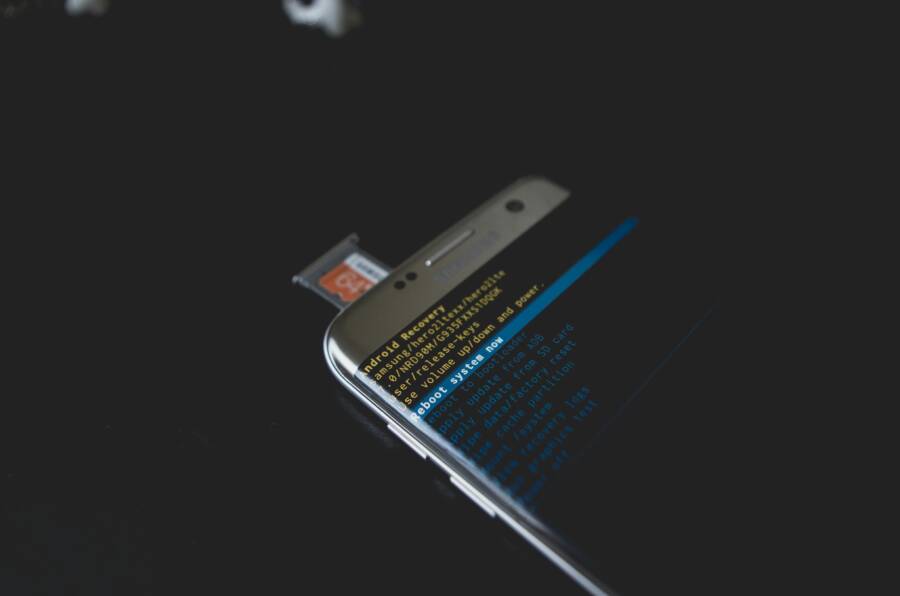
Photo by Kelvin Valerio
Clear Cache for Specific Apps and System
Caches can become a silent drag on performance after you install new apps. Clearing caches helps free up space and speeds up app launches without touching essential data. Start with app caches you use most or those known to accumulate large temporary files, then look at system caches if your device supports a reset option.
How to clear app caches on most Android devices:
- Open Settings, then go to Apps & notifications.
- Tap the target app, then choose Storage & cache.
- Select Clear cache (and, if needed, Clear storage for a fresh start). Reopen the app to rebuild a clean cache.
System cache and recovery options:
- Some devices offer a dedicated cache clearing option within the recovery or maintenance menus. This can purge low-level caches that accumulate over time.
- If you’re unsure, start with the app caches above. If performance remains slow, perform a reboot and revisit system-level options.
A practical reminder: clearing cache does not delete your login data or saved content. It only removes temporary files the apps use to load faster. If you want a deeper reset, you can perform a recovery-mode reset, but back up important data first.
Helpful reference for Android cache cleanup:
- How to Clear Cache and Delete Cookies on Your Phone. This guide explains how cache can slow things down and how to clear it safely. https://www.android.com/articles/clear-cache-and-cookies/
Recovery mode steps are device dependent. If you need a tailored guide for your specific model, I can map out the exact menu paths.
Recovery Mode and Safe Cache Management
If you suspect system-level caches are dragging speed, you can explore recovery mode options. This is more advanced and device-specific, so proceed with caution and back up data beforehand.
- Boot into recovery mode: power down, then hold the power and volume buttons simultaneously (the exact combo varies by model).
- Use the volume keys to navigate to options like Wipe cache partition or Clear cache. Confirm with the power button.
- Reboot and assess performance. If you still notice slowdowns, you may want to perform a factory reset as a last resort after backing up data.
Notes:
- Recovery mode steps differ across manufacturers. If you’re uncertain, consult your device’s official support page or ask for model-specific guidance.
- After any cache purge, give your device a few minutes to rebuild essential caches so you can gauge the real impact.
Why this matters: system caches store data that helps apps load quickly. When they’re bloated, your device spends extra cycles managing them, which can produce a laggy feel during regular use.
Thousands of People Were Struggling With Money Until They Discovered This One Ancient Secret Hidden in Sound
>>> Unlock It Now <<<
Switch to Lite Apps and Limit Startups
Lite versions of popular apps are designed to be lighter on resources while delivering core features. They use less memory, storage, and battery, which translates to smoother performance on mid-range devices. If you’re noticing slowdowns after installing several apps, this strategy can make a noticeable difference.
What to look for:
- Lite or Go variants of apps you use daily, especially social, messaging, maps, and media apps.
- Apps that offer fewer background features by default, reducing background data and refresh activity.
How to implement this strategy:
- Identify apps with known lite options. Install the lite version alongside the full app, then compare performance and feature trade-offs.
- Disable or uninstall the full version if you don’t need its extra capabilities.
- For ongoing performance, opt for lite versions as your default when possible.
Limit auto-starts to keep background activity in check:
- Android devices often allow you to control which apps auto-start. This helps prevent background work from consuming RAM and processing power right after boot.
- To manage auto-start, head to Settings > Apps & notifications > Special app access > Auto-start (path may vary by device) and disable auto-start for apps that aren’t essential at startup.
Practical examples:
- Disable auto-start for games, heavy photo editors, and social apps that you don’t need immediately after boot.
- Keep essential services enabled, such as messaging apps or system security tools that need to run in the background.
Why this helps: fewer apps waking up at launch means less RAM churn and faster app opens. It also reduces occasional stutter when navigating home screens or switching between apps.
Useful references for managing app behavior:
- Delete, disable and manage unused apps on Android. This official guide explains how to remove or disable apps, helping reclaim storage and cut background activity. https://support.google.com/android/answer/2521768?hl=en-GB
Additional perspective on auto-start control:
- Auto-Start Management – Android App Overview. This resource lists tools and approaches to control which apps start automatically, a practical way to trim background load. https://android.izzysoft.de/applists/category/named/tools_autostart?lang=en
When to consider lite apps:
- If you rely on a couple of apps daily and notice slowness after installs, test a lite version for a week. You’ll often find a good balance between performance and core functionality.
Key takeaways:
- Start with Lite versions for the heaviest hitters in your lineup.
- Disable auto-start for nonessential apps to reduce background activity.
- Regularly revisit your app lineup to keep background load in check.
This section equips you with practical Android-specific tweaks to speed up your device after adding new apps. The next sections will tailor these ideas to different Android variants and scenarios, ensuring you have a fast, responsive phone no matter your setup. If you’d like, I can tailor the steps to your exact device model and OS version for maximum relevance.
iPhone Steps to Speed Up After New Apps
When you install fresh apps, your iPhone may feel a little slower. The good news is you can reclaim speed with a few targeted tweaks. Below are practical steps you can take right away to restore snappiness without diving into complex fixes. Each sub-section focuses on a specific approach, so you can mix and match based on what your device needs most.
Force Close Apps and Manage Background Refresh
Completely closing apps and tightening background activity can yield an immediate throughput bump. Start with the basics and only keep essential tasks running in the background.
- Force close apps:
- On iPhone X and later: swipe up from the bottom and pause slightly to open the app switcher, then swipe up on each unnecessary app to close it.
- On older iPhones with a home button: double-press the Home button and swipe up on apps you don’t need.
- Manage background refresh:
- Go to Settings > General > Background App Refresh.
- Turn off Background App Refresh for apps that don’t need to stay up to date in real time.
- If you prefer a middle ground, set Background App Refresh to Wi‑Fi or restrict it to essential apps only.
Why it helps: apps you don’t use often can wake up, sync, and consume memory even when you’re not actively using them. Reducing that activity frees up RAM for the tasks you care about most.
Practical tip: after you close a batch of apps and limit refresh, give your iPhone a quick test by opening a few commonly used apps to feel the difference in responsiveness.
Image: 
Photo by Field Engineer
Reinstall Problem Apps or Reset as Last Step
If certain apps consistently stall or cause slowdowns, a targeted reinstall can fix corrupted data or misbehaving caches. When you exhaust other options, a reset can be decisive.
- Reinstall problem apps:
- Delete the app from the Home screen by pressing and holding the app icon, then selecting Remove App and confirming Delete App.
- Reinstall from the App Store and sign back in if needed.
- When to reset:
- If several apps misbehave, or if you notice slow performance across many functions after a major update, a factory reset with a backup can be the cleanest path.
- Always back up first: use iCloud or a computer backup to preserve photos, messages, and settings.
- Backup tips:
- For iCloud backups, ensure enough available storage and perform a quick manual backup before resetting.
- If you use a computer, back up essential data to USB or external storage as an extra precaution.
What to consider before a reset:
- A reset erases all content and settings on the device, so ensure you have a complete backup.
- After restoring from a backup, you may want to reinstall essential apps gradually to monitor if a specific one triggers a slowdown.
Practical example: you notice lag only after sending a large batch of photos to a friend via a messaging app. Reinstalling that app first can resolve the issue without touching other apps.
External resource: official steps for deleting and reinstalling apps on iPhone often help clarify the process and ensure you don’t lose data. If you want, I can tailor the steps to your exact iOS version and device model for maximum relevance.
Prevent Slowdowns and Keep Your Phone Running Smooth
A slow phone after adding new apps can be frustrating, but you don’t have to live with it. This section dives into practical strategies that keep Android and iOS devices responsive even as your app lineup grows. Think of it as a lightweight tune-up routine for your smartphone that targets storage, memory, and background activity without overhauling your setup.
Tidy up storage and tame cache growth
When storage gets crowded, the system struggles to move data efficiently. That slows everything from app launches to photo captures. Start with a clean sweep of space and caches so the device can breathe again.
- Free up space by offloading or removing unused apps and large media you don’t need right now.
- Move photos and videos to the cloud or a computer so you’re not juggling local copies.
- Clear app caches for the most active apps. Caches are meant to speed things up, but when they balloon, they slow down the very apps they support.
For many users, the biggest wins come from removing large videos and unused games, then enabling automatic storage management where available. After cleaning up, give the phone a quick restart to let the system reindex and rebuild caches cleanly. If you want a deeper dive, reputable guides cover detailed steps for both Android and iPhone.
Tip: set a monthly cleanup reminder. A short audit keeps your device from becoming a slow, cluttered smartphone.
Control background activity and memory usage
Background processes quietly siphon RAM and CPU, especially after new apps are installed. Limiting these chores frees up resources for the things you do most.
- Close apps you aren’t actively using. On Android, use the Recent Apps view; on iOS, swipe up to dismiss.
- Restrict background data and background refresh for apps that don’t need real-time syncing.
- Review startup behavior. Some apps automatically launch at boot and bog down the initial responsiveness.
This approach reduces RAM churn and helps apps open faster when you need them. After adjusting, monitor performance for a day or two to confirm the improvements.
External guidance on keeping background activity under control can offer additional device-specific tips and shortcuts.
Manage app updates and OS updates strategically
Updates bring fixes and performance tweaks, but they can also introduce new background activity or require more storage. A targeted update plan helps your device stay snappy.
- Check for and install app updates regularly, but avoid installing every update the moment it’s available if you’re tight on storage.
- Keep the latest compatible OS version, but beware of heavy updates on older hardware. When a new OS feels sluggish on your device, it’s sometimes better to wait for a lighter patch.
- Reboot after major updates. A fresh start helps the system reallocate resources more efficiently.
Where to look for guidance: reputable outlets regularly publish practical update strategies that fit both Android and iOS ecosystems. See how quick refreshes and bug fixes translate into real-world speed gains.
Battery health and thermal throttling
Battery wear and heating can throttle performance long before you notice a drain. If your phone gets unusually warm or the battery drains faster after installing new apps, speed may dip as the device protects itself.
- Check battery usage to spot rogue apps consuming disproportionate power.
- Avoid charging on heat during heavy tasks, and remove the case temporarily if it traps heat.
- Consider a battery health test if the device shows signs of aging. Replacing an aging battery can restore responsiveness.
Keeping the device cool and healthy helps maintain consistent performance during everyday tasks and gaming alike.
Prioritize lighter app options and selective autostart
Not every app needs to be a heavyweight resident on your device. Lite versions of popular apps reduce memory use and background activity.
- Identify apps that have lightweight variants and test them as defaults for day-to-day tasks.
- Disable nonessential apps from auto-starting. This lowers the amount of RAM churn at boot and reduces initial stutter when unlocking the device.
This tactic is especially useful on mid-range smartphones where every megabyte of free RAM matters. It also helps prevent occasional hiccups when you launch several apps in quick succession.
External references offer practical steps for choosing lighter apps and managing autostart behavior across platforms.
Quick-start checklist for ongoing speed
- Regularly review storage and offload media to the cloud.
- Limit background activity for seldom-used apps.
- Update thoughtfully and reboot after major changes.
- Use lite app versions where appropriate.
- Keep the device cool and monitor battery health.
If you’d like, I can tailor these steps to your exact device model and OS version for maximum relevance. For further reading on speed up strategies, consider sources that provide actionable Android and iPhone maintenance tips and real-world results.
Conclusion
If your phone slows after new apps, you already have a clear path to regain speed. Start with quick wins that don’t require a reset: free up space, close idle apps, and restart to refresh memory. These basic moves often unlock noticeable responsiveness right away.
Next, trim background activity and manage updates. Limiting background refresh, choosing lighter app versions where possible, and installing updates thoughtfully helps keep a smartphone feeling snappy. A well-timed reboot after updates also makes a real difference.
Don’t overlook caches and storage. Clearing caches for frequently used apps and moving media to the cloud or computer frees space and reduces churn. A periodic tidy up keeps performance steady without drastic changes.
If you still see slowdowns, consider targeted actions like reinstalling stubborn apps or a last resort reset after backing up data. Most users find relief long before that step, and hardware wear is the rare exception. In practice, software cleanups and smarter app choices do the heavy lifting.
Ready to act now? Start with a quick restart, then sweep storage and limit background activity. Those steps alone often restore a smooth experience for everyday tasks. If issues persist, drop a note in the comments with your device model and OS version so I can tailor ideas for you.
There Is a Frequency That the Wealthiest Families Have Used for Generations and Most People Will Never Know It Exists
>>> Open the Door <<<
