She Pressed Play on a Strange Audio Track and Within Days Her Financial Reality Started Shifting in Ways She Could Not Explain
>>> See How It Works <<<

Frustration hits when a favorite app won’t update and you’re staring at a spinning progress bar. You want your smartphone to run smoothly, not waste time on a stalled update.
This guide covers the main culprits behind update issues on Android and iOS, from weak internet connections to low storage and misconfigured settings. You’ll learn a straightforward, step by step plan that works for most users, so you can move on with your day without surprises.
We’ll walk through quick checks like boosting connectivity, freeing space, and refreshing the app store caches, then show you what to do if the problem persists on either platform. With these fixes, you’ll get back to updating your apps and using your smartphone with confidence.
Common Reasons Apps Won’t Update on Your Phone
When updates stall, it can feel like your phone is choosing to stay in the past. The most common culprits are simple to fix and don’t require drastic changes. In this section, we focus on two frequent blockers: not enough free space and unstable internet connections. Tackling these first often unlocks the update process and gets you back to smoother device performance.
Thousands of People Were Struggling With Money Until They Discovered This One Ancient Secret Hidden in Sound
>>> Unlock It Now <<<

Check for Low Storage Space
Apps need free space to download and install updates. Even if you have a lot of total storage, a large portion can be hidden in system caches or “other” data that isn’t immediately obvious. If you don’t have enough free space, the app store may fail to download or install updates, leaving you with a spinning wheel and no progress.
First, check how much space you actually have available. On Android, head to Settings > Storage to see a breakdown of used and free space. On iPhone or iPad, go to Settings > General > iPhone Storage. If free space is tight, you’ll want to free up space quickly. Here are practical steps:
- Offload unused apps on iOS. This keeps documents and data, but removes the app itself to reclaim space.
- Move photos and videos off the device or into a cloud backup service.
- Clear app caches where possible, especially for apps that store a lot of data in the background.
- Delete large files you don’t need, like old videos, downloaded maps, or caches from web browsers.
If freeing up space is challenging, consider temporarily uninstalling apps you rarely use and reinstalling them after you’ve run updates. On Android, some apps use a sizable portion of “cached data” that isn’t always visible in the storage tab; clearing this cache can reclaim valuable space without removing the app itself. On iOS, the system will also offer recommendations to optimize storage, such as reviewing large attachments in Messages or removing unused media from apps like Photos.
For a more concrete path to reclaim space, you can consult guides that cover freeing up storage on devices and handling the “not enough storage to update” scenario. For deeper context and steps, see resources like this discussion and official guidance on managing storage on iOS and Android.
- Not enough storage to update iPhone? Here’s how to fix it. https://www.insanelymac.com/blog/fix-not-enough-storage-on-iphone/
- How to free up storage space on your iPhone or iPad (video guide). https://www.youtube.com/watch?v=bwjcYyCneNc
If you still see a storage message after freeing space, restart your phone and attempt the update again. Sometimes the system needs a quick reset to recognize the newly available space. If the problem persists, you may want to review app-specific data usage. Some apps store large assets locally; clearing or deleting those assets can free significant space and allow updates to proceed.
Key takeaway: Adequate free space is non negotiable for updates. Check storage, clear cache, and consider temporary removal of large apps or media to create a clean slate for updates to complete.
Spot Internet Connection Problems
A slow or unstable internet connection is another common reason updates stall. Updates require a reliable data stream; if the connection drops mid-download or fluctuates under load, the update will fail or restart repeatedly. This is especially true for large app updates or updates that occur in the background while you’re using the device.
Begin with a quick connectivity check:
- Confirm you’re connected to a working network. On many phones, you’ll see a little Wi-Fi icon or cellular data indicator in the status bar.
- If you’re on Wi-Fi, test the connection by loading a website or streaming a short video. If pages struggle to load or videos buffer often, the issue is your network rather than the device.
- If possible, switch to a different network. A tethered hotspot from another device can help you determine whether the problem lies with your normal network.
- If you only have mobile data, ensure you have a strong signal. Poor reception can cause frequent drops during downloads.
When connectivity is the bottleneck, you can use a few practical steps:
- Move closer to the router or place the phone within a better range of the access point.
- Reboot the router to clear minor faults that may be affecting several devices at once.
- Disable VPNs or firewall apps temporarily, as they can interfere with the app store connection.
- Pause other high-bandwidth activities while updates run.
If the internet connection appears stable but updates still stall, you can try downloading updates over mobile data. Some users find updates download more reliably on cellular networks when Wi-Fi is congested or unstable, though this may consume data allowances. Also, ensure you’re connected to the official app store app rather than third-party clients, which can have different network behaviors.
For additional insight on internet related update issues on both major platforms, consider these resources:
- Fix problems downloading apps with basic troubleshooting steps. https://support.google.com/googleplay/answer/14122894?hl=en
- Apps not updating on Wi-Fi – Google Play Community. https://support.google.com/googleplay/thread/319133935/apps-not-updating-on-wifi
- Some apps say no internet connection on iPhone. https://discussions.apple.com/thread/252591266
In many cases a simple reset of your network settings or a quick router reboot resolves the issue. After you establish a solid connection, retry the update. If it still won’t complete, try updating the app while on cellular data or after switching networks to confirm whether the problem is network specific.
Takeaways: a stable connection is the lifeblood of updates. If your smartphone sits on a weak link, updates stall. Validate the network, try a different network, and don’t overlook simple resets as quick fixes.
If you want to go deeper, you can review official guidance on troubleshooting network issues for Android and iOS devices. This helps you apply the right steps without guesswork and ensures you’re following best practices for your device and carrier.
Basic Fixes to Try First on Any Phone
When apps refuse to update, it can feel like your phone is stuck in a loop. Before you dive into deeper troubleshooting, there are quick checks that fix a lot of issues. These basic fixes are fast, non-destructive, and work on most Android and iOS devices. Think of them as the first aid for your smartphone. By tackling power, storage, and connections, you set a solid foundation for updates to complete smoothly.
Restart Your Phone Quickly
A fresh restart clears temporary glitches that creep in after long uptimes. It can reset stuck processes, refresh network connections, and reinitialize app services. The exact taps differ between Android and iOS, but the goal is the same: give the device a clean slate.
- Android: Press and hold the power button until the power menu appears. Tap “Restart” or “Reboot.” If you don’t see a restart option, select “Power Off,” wait 15–30 seconds, then press the power button again to turn the device back on.
- iOS: Press and hold the side button (and either volume button on most models) until the slider appears. Slide to power off, wait 15–20 seconds, then hold the side button again to turn it back on.
If the device is unresponsive, you may need to force restart. On most Androids with responsive hardware, you can hold the power button for 10–20 seconds or perform a power + volume button combo. For iPhone models with Face ID or no Home button, a forced restart typically involves quickly pressing and releasing the Volume Up button, then the Volume Down button, and finally holding the Side button until the Apple logo appears.
Why this helps: a restart resets background tasks, clears minor memory leaks, and reestablishes a stable connection to the app store. It’s the simplest, fastest step you can take to unblock updates.
If you want extra context on how to restart devices on the go, you can check practical how-tos here: Android restart tutorials and iPhone restart guides.
- Android restart guidance: https://support.google.com/android/answer/2668665?hl=en
- iPhone force restart guidance: https://support.apple.com/guide/iphone/force-restart-iphone-iph8903c3ee6/ios
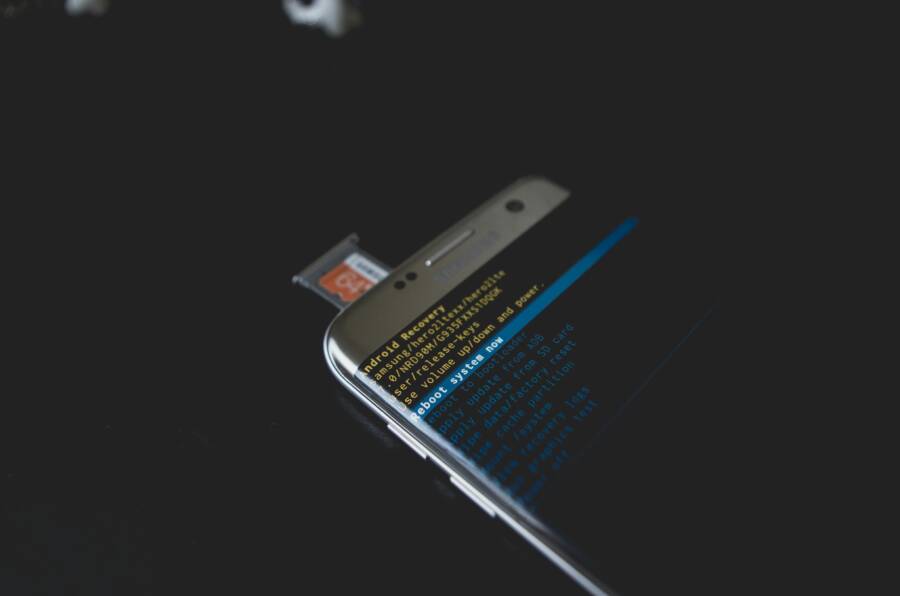
Image to accompany this step:

Photo by Kelvin Valerio
Key takeaway: a quick restart is often all you need. It’s quick, risk-free, and immediately fixes many update hiccups.
Free Up Storage the Easy Way
Low storage is a silent killer of app updates. Even if you have lots of total space, the system uses space for caches, temporary files, and app data that isn’t always obvious. If there isn’t enough free space, downloads stall or fail mid-progress.
Start by checking storage:
- Android: Settings > Storage shows a breakdown of used space and free space.
- iOS: Settings > General > iPhone Storage reveals what is taking space and which apps use the most data.
If free space is tight, act quickly with these practical steps:
- Offload or uninstall unused apps. On iOS, Offload Unused Apps preserves documents and data while removing the app itself. On Android, you can clear cached data for apps you rarely use without losing essential information.
- Move media to the cloud or a computer. Upload photos and videos to a cloud service or transfer them off the device to free local space.
- Clear caches and temporary files. Apps accumulate caches that can be large but are safe to remove. On Android, you can clear cache from individual apps in Settings > Apps. On iOS, browser caches and large message attachments are common culprits.
- Delete large files you don’t need. Old videos, downloaded maps, or large PDF files can be prime space hogs.
If freeing space is challenging, consider temporarily removing a few apps you rarely use and reinstall them after updates finish. Some apps store large assets locally; clearing those assets can unlock several gigabytes in some cases.
For deeper guidance, consider these approaches and do not hesitate to tailor them to your device:
- Clear Android cache to boost performance and free space: https://www.zdnet.com/article/how-to-clear-your-android-phone-cache-and-say-goodbye-to-slow-performance/
- Clear iPhone cache and cookies for more space: https://support.apple.com/guide/iphone/clear-your-cache-and-cookies-iphacc5f0202/ios
- How to clear cache on iPhone or iPad: https://macrumors.com/how-to/clear-cache-iphone-ipad
If you still see a storage warning after freeing space, restart your phone and retry the update. Sometimes the system needs a clean slate to recognize the newly available space.
Takeaways: without room to breathe, updates stall. Regularly prune caches and media, and keep a buffer of free space for fresh downloads.
Image to accompany this section:
(No image needed here if you prefer to keep the flow lean, but you can reuse the earlier image if appropriate.)
- Noteworthy: Freeing space is often the fastest route to success. The moment you reclaim space, updates tend to proceed smoothly.
External resources for further reading:
- How to clear cached data on Android to boost performance: https://www.zdnet.com/article/how-to-clear-your-android-phone-cache-and-say-goodbye-to-slow-performance/
- Guide to clearing cache on iPhone and iPad: https://macrumors.com/how-to/clear-cache-iphone-ipad
External links provide additional context and step-by-step visuals to support your actions across both platforms.
Image credits and caption: Photo by Kelvin Valerio on Pexels. Source: https://www.pexels.com/@kelvin809
Note: If you want to enrich the section with fresh visuals, consider pairing each subsection with a device-focused photo that shows a user performing a restart or a storage screen. The visual cue helps readers connect the steps with real-world actions.
Summary of the two essential quick fixes:
- Restart first to clear glitches and refresh connections.
- Free up storage to ensure updates have space to download and install.
This approach keeps your phone ready for the next steps and prevents common roadblocks in the update process. In the next sections, we’ll dive into more targeted fixes that address the underlying causes behind app update failures, including account issues, app store settings, and platform-specific quirks.
Thousands of People Were Struggling With Money Until They Discovered This One Ancient Secret Hidden in Sound
>>> Unlock It Now <<<
Android Fixes: Clear Play Store Cache and More
When updates stall on Android, the Play Store is often the first place to check. This section focuses on practical, quick actions that restore update flow and keep your apps current. You’ll learn how to adjust auto-update preferences, clear cache, and handle device-specific power or battery settings that can block updates. Think of it as a targeted tune-up for your smartphone that stops updates from being blocked by background processes or battery optimizations.
Adjust Auto-Update Settings in Play Store
Automatic updates can be a blessing or a curse. If they’re disabled or misconfigured, apps stay stuck on old versions. To ensure you never miss important updates, verify the built-in auto-update setting and tailor it to your data plan and network reality.
Exact path: profile > settings > auto-update.
- Check the auto-update option that fits your situation. You can allow updates over any network, only over Wi-Fi, or turn off auto-updates entirely if you’re managing data carefully.
- If you share the device, set preferences so updates happen when you’re comfortable with data usage, not at 2 A.M. when you’re asleep.
- For a quick audit, open the Play Store, tap your profile icon, go to Settings, then Auto-update apps. Confirm the chosen setting matches your needs.
If you notice updates still aren’t applying after adjusting this setting, consider clearing the Play Store cache to remove corrupted data that might block the install. A quick cache clear often resolves stubborn stalls and lets the store fetch fresh download assets. For a deeper dive into common Play Store issues and fixes, you can consult resources like this guide on auto-updates and cache clearing. Clear the cache, then retry the update to confirm the change sticks.
Key takeaway: correct auto-update settings prevent missed updates, and clearing stale data from the Play Store can unblock stubborn downloads.
External context and further reading:
- Google Play Store Not Auto Updating Apps: tips and fixes (details on checking auto-update preferences and related steps). https://www.makeuseof.com/google-play-store-not-auto-updating-apps/
Handle Brand Battery Restrictions
Battery optimization can quietly block background tasks, including app updates. Many Android devices come with aggressive power management that limits what apps can do in the background. This is especially true for popular brands that layer their own optimization features onto stock Android.
What If the Only Thing Between You and the Life You Deserve Is a Hidden Wealth Code Waiting to Be Activated
>>> Open the Door <<<

Guidance by brand helps you avoid guesswork. Here are practical steps for Samsung and Xiaomi, two manufacturers that frequently trigger update pauses due to battery constraints.
- Samsung devices
- Go to Settings > Apps > Special app access > Battery optimization. Find the Play Store (or the app you’re updating) and set it to “Unrestricted” or “Not optimized.” This ensures the update process isn’t throttled.
- If you use Battery saver mode, disable it temporarily during updates or create a quick automation to disable it when you’re ready to update.
- Some Samsung models also offer an Energy Saver mode that can limit background data; make sure background data is allowed for the Play Store in Settings > Apps > Data usage.
- Xiaomi devices
- Open Settings > Battery & performance > App launch. Find the Play Store and set it to “Manage manually” or allow it to launch in the background. Turn off “Power saving” or “High performance” only if you notice updates get blocked by these modes.
- Disable any aggressive RAM management that could close background processes during the update window.
- In some MIUI versions, you’ll also find background activity restrictions under Security or Permissions; allow the Play Store to run in the background and access data freely.
If you’ve made these changes and updates still stall, reset network settings or temporarily disable any third-party battery optimization apps. While it’s tempting to let your device sip power, the pay-off is smoother updates and fewer manual retries. For broader guidance on Android battery optimization and app behavior, consider consulting user-focused guides that cover brand-specific tweaks and best practices.
Concrete takeaway: on many devices, a quick pass through battery optimization settings clears the path for background updates and avoids a false negative from the system’s power controls.
Additional context for brand-specific tweaks:
- Apps Not Updating in Google Play Store: Issues & Solutions (covers broader battery and background activity considerations). https://www.airdroid.com/app-management/apps-not-updating-in-play-store/
If you want to explore community discussions on this topic, Google’s own discussion threads often surface practical tips from real users dealing with brand-specific quirks. They can offer fresh angles that work with your device model and software version.
Pro tip: after adjusting battery restrictions, reboot the phone and retry updates. A fresh start helps the system apply the new allowances cleanly.
External reading to support device-specific steps:
- Google Play store not auto-updating apps (official support thread). https://support.google.com/googleplay/thread/11673714/google-play-store-not-auto-updating-apps?hl=en
Key takeaway: battery optimization can block updates even when everything else is correct. Tweak device-specific settings, then reattempt updates for a smoother experience.
Note: If you’re chasing a quick win and want more brand-focused guidance, you can look up tutorials that walk through the exact menu paths for Samsung and Xiaomi devices. This helps you apply the changes without trial and error.
Images and visuals
- A simple screenshot showing the path to auto-update settings and battery optimization screens can greatly reduce confusion. If you publish this section with visuals, pair each sub-section with a spot-on image that illustrates the steps in real time.
Putting it all together
- Ensure Play Store auto-update settings align with your data plan.
- Tweak brand-specific battery optimizations to allow updates to run in the background.
- If problems persist, combine these steps with a cache clear and, if needed, a device restart to reset background tasks.
In the next part, we’ll cover more targeted fixes that address other common blockers, such as account issues, Play Store cache, and platform-specific quirks. This approach helps you resolve most update problems without a lot of back-and-forth.
iPhone Fixes: Update Apps on iOS Smoothly
Updating apps on iPhone should be a quick, almost invisible task. When updates stall, you lose access to new features, security fixes, and performance improvements. In this section, you’ll find two focused fixes that address common iOS update hurdles. These steps are safe, straightforward, and designed to get updates moving again without drama.
Turn On App Updates in Settings
Keeping apps up to date automatically is the most reliable way to stay current. If auto updates are off, your iPhone will wait for you to install each update manually. Turning this feature on ensures critical fixes and enhancements install in the background whenever you’re connected to a Wi-Fi network or cellular data.
Path: Settings > App Store.
- Open Settings, then scroll to the App Store to confirm Auto Updates is enabled.
- Decide whether updates should occur over Wi‑Fi only or any network. If you’re conscious about data usage, use Wi‑Fi and keep notifications on for update availability.
- If automatic updates still lag, you can update apps manually. Open the App Store, tap your account avatar, and review Pending Updates. Tap Update next to the apps you want to refresh.
Pro tip: enabling automatic updates reduces the chances of missing important security patches. If you ever run into a hiccup, a quick manual update often resolves it without fuss. For official guidance, see Apple’s steps on updating apps from the App Store. How to manually update apps from the App Store
Image to accompany this subsection:

Photo by Brett Jordan
Key takeaway: turn on auto updates to keep apps fresh with minimal effort. If needed, supplement with a quick manual update from the App Store.
Reset Network If Stuck
If an update stalls due to network issues, a quick reset can clear temporary glitches that block downloads. A network reset will remove saved Wi-Fi passwords, so you’ll reconnect to familiar networks after the reset.
Warn it clears Wi-Fi passwords.
- Go to Settings > General > Reset (or Transfer or Reset iPhone, depending on iOS version) > Reset Network Settings.
- Confirm the reset. Your iPhone will restart, and you’ll re-enter your Wi‑Fi passwords and re-pair Bluetooth devices afterward.
After the reset, rejoin your networks and try the update again. If the problem persists, test the update over a different network or switch between Wi‑Fi and cellular data to determine if the issue is network specific. If you need deeper context, Apple provides guidance on Wi‑Fi connection issues and network resets to help you troubleshoot more effectively. See: If you can’t connect to Wi‑Fi on your iPhone or iPad. Support article
Image to accompany this subsection:
Photo by Brett Jordan
Key takeaway: a quick network reset clears common wifi and connection glitches, helping updates resume smoothly.
External resources for further reading:
- Update apps from the App Store on iPhone: https://support.apple.com/guide/iphone/update-apps-iph98709f167/ios
- If you can’t connect to Wi‑Fi on your iPhone or iPad: https://support.apple.com/en-us/111786
In the next part, we’ll walk through targeted checks that address storage, account states, and app store settings. These are the next logical steps if turning on auto updates and resetting the network don’t fully resolve the update stalls.
Still Stuck? Advanced Steps and When to Get Help
When the basics don’t fix the update stalemate, it’s time to escalate. This section walks you through advanced steps for Android and iOS and shows clear signs you should seek help. Think of it as the last mile of troubleshooting before you consider professional support or a more drastic move. A calm, methodical approach saves time and protects your data.
Android: Advanced fixes that often resolve stubborn update issues
If your updates still stall after basic checks, these targeted actions address deeper causes. Start with one change at a time and test after each step.
- Clear Play Store cache and data
- Open the Google Play Store app, go to Settings, and clear the cache. If issues persist, clear storage data for the Play Store as well. This can remove corrupted files that block downloads.
- Why it helps: older cache data can cause misreads of available space or stuck downloads, so a clean slate often resolves the problem.
- Review and adjust auto-update behavior
- Confirm auto-update settings align with your data plan. Set updates to occur only on Wi-Fi if you want to control data use, or allow updates over any network if you prefer hands-off maintenance.
- After changing settings, try updating an app manually to verify the change sticks.
- Inspect battery optimization and background activity
- Some brands throttle background tasks, including updates. Check battery optimization for Google Play Services and the Play Store. Allow these apps to run in the background or disable aggressive power saving during updates.
- If you notice updates still stall, temporarily disable battery saver features during the update window and test again.
- Validate account and payment constraints
- Make sure your Google account is in good standing and that there are no payment method prompts blocking free apps from updating. Sometimes a billing or account issue can surface as a download stall.
- Reinstall updates to the Play Store
- If updates continue to fail, uninstall Play Store updates and reinstall them. This reinitializes the app store with fresh components and can resolve stubborn bugs.
- Check brand-specific power and data settings
- Samsung and Xiaomi devices often include additional layers of optimization. Review app launch or background restrictions for the Play Store and related services. Turning off overly aggressive optimizations can unblock updates.
- Network settings reset as a last step
- Resetting network settings can clear misconfigurations that block downloads. Note this will remove saved Wi‑Fi networks and Bluetooth pairings, so be prepared to reconnect afterward.
Helpful resources you can consult for deeper guidance on Android specifics:
- Fix problems with the Google Play Store app
- Apps Not Updating in Google Play Store: Issues & Solutions
Key indicators you’re in this advanced territory: you’ve cleared cache, adjusted auto-update behavior, and ruled out power and account blockers, yet updates still refuse to move forward.
iPhone: Advanced checks for stubborn App Store updates
On iPhone, more stubborn stalls often point to a mix of network, account, or App Store settings. Use these steps to push updates through without a full reset.
- Verify and refresh App Store settings
- Ensure Automatic Updates are enabled (Settings > App Store). If updates still lag, try manually updating from the App Store under your account’s Pending Updates.
- If payments are involved or if you see a billing prompt, add or update a payment method to maintain smooth access to downloads.
- Network and DNS checks
- A flaky network can masquerade as App Store issues. Try switching between Wi-Fi and cellular data, or reset network settings if the problem persists.
- When resetting network settings, you’ll re-enter your Wi‑Fi passwords and re-pair Bluetooth devices, but it often clears stubborn connectivity glitches.
- Reinstall or reset App Store components
- If available, reinstall App Store updates or sign out and back into your Apple ID. This can refresh download permissions and fix stuck downloads.
- Manually updated apps can also help you verify the store is delivering updates correctly.
- Prioritize downloads and manage storage
- Ensure enough free space remains for new updates. If storage is tight, free up space before retrying updates to prevent the store from failing mid-download.
Key context: advanced fixes blend platform guidance with brand-specific settings. When you see updates still stall after these steps, Apple’s official support resources provide steps tailored to iOS devices, including how to manually update apps when needed.
Apple resources you may find helpful:
- If you can’t download or update apps on your iPhone or iPad
- How to manually update apps from the App Store
When to seek help: signs you should reach out
Sometimes the issue isn’t on your end. If you notice any of these, consider reaching out for professional help or official support:
- Repeated failures across multiple apps, with the same error message or code
- App Store or Google Play account warnings about billing, purchases, or device compatibility
- Persistent network or device health warnings from your carrier or device maker
- No updates available despite good storage, strong network, and correct settings
What help looks like
- Quick chat or callback from official support
- Guided remote troubleshooting or in-person diagnostics
- Hardware checks if the device shows signs of failing components (memory, storage health)
Before you seek help, back up your data. A routine backup ensures you don’t lose important information during more invasive steps.
Checklist for advanced help readiness
- Device model and OS version noted
- App Store or Google Play account information ready
- Recent changes to network or battery settings documented
- Backup completed or scheduled
Examples of credible support paths
- Google Play Help for Android devices
- Apple Support for iOS devices
In the next sections, we’ll summarize a practical decision flow and share a few quick pro tips to wrap up the troubleshooting journey. The goal is to keep you on track and out of a rabbit hole of unproductive fixes.
References for deeper dives and official guidance
- Fix problems with the Google Play Store app
- How to manually update apps from the App Store
- If you can’t download or update apps on your iPhone or iPad
By following these advanced steps, you’ll handle most stubborn update issues with confidence. If the problem remains after exhausting these options, you’ll be well prepared to get targeted help from customer support or a local technician, with your data securely backed up.
Conclusion
You now have a clear path to fix a phone that won’t update apps. Start with quick, low risk steps and move toward deeper checks only if needed. Each fix builds on the last, so you can confirm progress before trying the next one.
A stable network and enough free space are non negotiable for updates. Restarting the device clears glitches and refreshes connections. Clearing the app store cache removes corrupted data that can block installs. If these basics fail, inspect store settings, battery optimization, and account constraints to rule out hidden blockers. On Android and iPhone alike, these steps empower you to take control without calling for help.
Keep your device ready for updates by staying on top of monthly OS maintenance. Regular software updates fix bugs, improve security, and prevent update stalls down the road. A well cared for smartphone is less likely to stumble over common update hurdles.
Checklist: follow these steps in order
- Restart your device to reset background tasks
- Free up storage and clear app caches
- Check app store or Play Store auto update settings
- Test the network with a quick site load or video
- Disable battery optimization for the store during updates
- If needed, reset network settings or sign out and back into your account
- Keep OS updated monthly to reduce future issues
If you fixed it, share what worked for you in the comments so others can learn from your experience. Your hands on tips can save someone time and frustration.
He Was Drowning in Bills and Burnout Until a Simple Daily Ritual Rewired His Brain for Wealth in Less Than a Week
>>> Start Your Shift Today <<<
