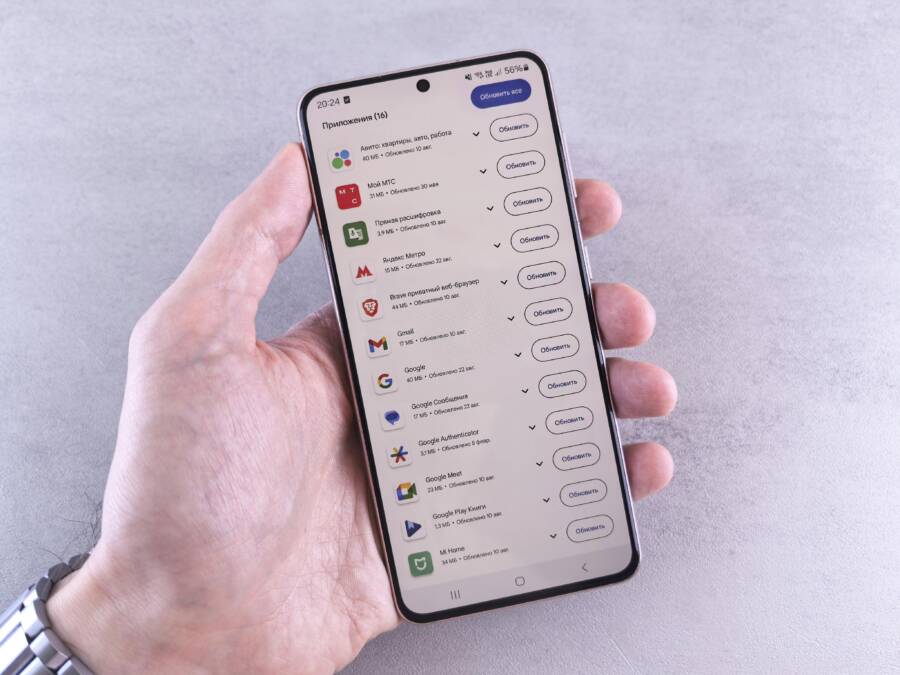
Have you ever waited what feels like forever for app updates to finish, only to see the progress bar stall right in the middle? It happens to everyone, and it can happen on both Android and iPhone alike during busy days when you need your apps the most. A phone that sits stuck during updates can slow you down, disrupt work, and drain curiosity as you chase what you need most.
This post cuts through the frustration with practical, step by step advice. You’ll learn the most common culprits behind updates freezing or failing and how to spot them quickly. We’ll cover why weak internet, full storage, or odd software glitches can bring updates to a halt, and we’ll explain how to fix them without a complicated fuss.
You’ll get a clear, actionable sequence for both platforms. Expect fast checks like confirming network stability, freeing up space, and refreshing your store credentials, plus small tweaks that often do the trick. You’ll also find simple, safe remedies you can try right away before reaching out for official support.
By the end, you’ll know exactly what to do when your device stalls on an update and how to reduce the odds of it happening again. This guide is designed for everyday users who want reliable, easy fixes they can follow in minutes. If you’re ready to move past the stuck screen, this quick read will put you back in control of your smartphone updates. Have you ever been stuck with an update that just wouldn’t finish? This guide will help you fix phone stuck updating apps.
Common Reasons Your Phone Sticks on App Updates
When updates stall, it can feel like your device has hit a wall. The reasons are often simple, and a few quick checks can get updates moving again. Below, you’ll find the most common causes for Android and iPhone alike, along with practical fixes you can apply right away. The goal is to restore smooth updates without guessing or fuss. Think of it as a quick diagnostic that saves you time and frustration.
Top Causes on Android Phones
Android devices frequently stall updates because of a shaky internet connection, limited storage, or a cluttered cache. Poor network stability can leave the Google Play Store hanging on “updating” or “pending.” Likewise, when your device runs low on space, new files from updates can’t be saved, forcing a stop. A bloated cache can mislead the store into misreporting status, while aggressive battery optimization or background restrictions can throttle the update process. If you have many accounts signed in, conflicts can arise that block progress. In practice, these issues all funnel through Google Play, so a quick check of your network, storage, and cache typically resolves the problem. For a deeper look at common Play Store hiccups, see expert guidance here: https://www.androidauthority.com/play-store-download-pending-error-1004826/
- Glitches in the Play Store app can freeze updates midstream.
- Poor internet or unstable Wi-Fi stymies downloads and progress bars.
- Low storage space prevents new update data from being saved.
- Bad cache files can cause incorrect progress reporting.
- Battery or background limits throttle background updates.
- Outdated Google Play Services or OS may fail to negotiate updates.
- Multiple active Google accounts can create sign-in conflicts that block updates.
Keeping these in mind helps you run a focused, fast check. Start by confirming network stability, then verify there’s enough free space, and finally clear the Play Store cache to reset update progress.
Top Causes on iPhones
On iPhone, update stalls are often tied to connectivity issues, App Store glitches, or account problems. A flaky Wi-Fi or cellular connection can prevent downloads from starting or finishing, especially when the App Store requires a stable link to retrieve data. App Store glitches can interrupt the update queue, leaving apps stuck at waiting. Apple IDs that aren’t in good standing or payment method problems can also block updates for apps that aren’t free, even if you only want to refresh free software. Low available storage coupled with certain parental or device restrictions can further complicate the process. For a targeted overview of App Store related obstacles, explore this Apple support resource: https://support.apple.com/en-us/102632
- Bad or unstable Wi-Fi disrupts the download pipeline.
- App Store glitches can halt or slow updates.
- Apple ID or payment issues interfere with app retrieval and verification.
- Low device storage prevents new app data from saving.
- Restrictions or screen time limits block app updates in some setups.
If updates still stall, try toggling Airplane Mode briefly, signing out and back into your Apple ID, or restarting the device. These steps often reestablish a smooth connection to the App Store and clear minor glitches that block progress.
Quick Fixes That Work on Every Phone
When your device stalls during app updates, there are quick, reliable steps that apply to both Android and iPhone. These fixes focus on the basics: a solid network, enough storage, and a clean start. Use them in order, and you’ll usually get updates moving again without a lot of fuss. Think of these as the first-aid kit for stuck updates, designed for real-world, on-the-go use.
 Photo by Andrey Matveev
Restart Your Phone Right Now
A full restart clears temporary glitches that can trap updates. On Android, power off, wait 10–15 seconds, then turn the device back on. For iPhone, a quick method works too: hold the side button and either volume button, then slide to power off; wait a moment before powering back on. Restarting resets background processes, reestablishes connections, and often resets stalled update queues. If you’re unsure, a simple reboot can be enough to reset the system.
Fix Your Internet Connection Fast
A stable connection is the backbone of smooth updates. Begin by testing both Wi-Fi and mobile data: try loading a webpage or streaming a short clip to confirm download stability. If issues appear, switch networks or move closer to the router. Restart your router if needed, and reboot your phone afterward. Ensure the device is charging during updates to avoid throttling and interruptions. For extra guidance, see expert tips on common Play Store hiccups: https://www.androidauthority.com/play-store-download-pending-error-1004826/
Free Up Space for Smooth Updates
Storage space is a frequent bottleneck. Check both devices’ storage to confirm you have at least 1 GB free for updates. On Android, delete unused apps and clear cached data from the Play Store. On iPhone, offload unused apps and review large files in iCloud Drive or the Files app. After freeing space, retry the updates. A little free space makes a big difference in how quickly new data can be written and verified. If you need a quick reference, Apple’s guidance covers common issues: https://support.apple.com/en-us/102632
Android Fixes to Resume App Updates
When updates stall on Android, the fix is usually straightforward and repeatable. This section breaks down practical, easy-to-follow steps that you can apply in minutes. You’ll learn targeted actions that address the common culprits behind a stuck update, from connectivity and storage to background processes. Think of these as a fast diagnostic kit you can use anytime your Play Store queue freezes.
Clear Cache and Data in Play Store
Exact steps: Settings > Apps > Play Store > Storage > Clear. Repeat for Services. Restart after.
Clearing the Play Store cache resets how the app talks to Google’s servers without touching your actual purchases or app data. If the issue traces to stale files, this move often unblocks the update queue and refreshes the progress indicator. After the reset, open the Play Store again and attempt the update once more. If problems persist, clearing data for Google Play Services can help reestablish proper communication with the network. For a deeper dive into common Play Store hiccups, see expert guidance from Android Authority: https://www.androidauthority.com/play-store-download-pending-error-1004826/
Tweak Battery and Background Rules
Find settings to allow Play Store unrestricted. Turn off saver during updates.
Battery saving modes and strict background limits can throttle updates in the background. To ensure updates proceed without unnecessary pauses, permit the Play Store to run without limits while updates are in progress. Disable any battery saver or throttling for the duration of the update session, and check if background activity restrictions are turned off for the Play Store and Google Play Services. This simple adjustment helps downloads continue smoothly and prevents random pauses caused by power-saving logic.
Update Your Android Software
Path to system updates. Why it helps compatibility.
Software updates can fix underlying compatibility issues that block app updates. Navigate to Settings > System > Software Update (the path may vary by device). Check for available updates and install them if found. Even small OS improvements can improve how apps install and verify updates, reducing the chance of stalls caused by mismatched system components. Keeping Android up to date gives apps a friendlier environment for download and installation.
Other Android Tricks Like Account Switch
Log out extras, uninstall/reinstall app. Last resort factory reset warning with backup.
If the update queue still stalls, try refreshing your account state. Sign out of your Google account, reboot, then sign back in and retry updates. If you suspect a specific app is causing the hold up, uninstall and reinstall it to reset its update pathway. As a last resort, consider a factory reset only after backing up your data. A reset can clear stubborn software conflicts that block updates, but it wipes local settings and apps, so proceed with caution. For a quick reference, ensure you back up essential data first.
iPhone Steps to Unfreeze App Store Updates
If your iPhone gets stuck on updating apps, there are targeted steps that address the most common culprits. You’ll learn practical methods that restore smooth updates without a lot of hassle. Follow these actions in order, and you’ll likely finish updates quickly and regain control over your smartphone experience.
Pause and Restart the Update
If the update shows as stalled, pause it briefly, then resume. On the Home screen, locate the app that’s updating and tap its icon to initiate a pause, then tap again to restart. Often this simple nudge clears minor hiccups in the update queue. A quick pause can break a stuck loop and reset the progress indicator without removing the app.
Sign Out and Back into Apple ID
Account issues can block updates even for free apps. Open Settings, tap your name at the top, scroll to Sign Out, then sign back in with your Apple ID. After reauthenticating, restart the iPhone to reinitialize the connection to the App Store. This refresh often resolves permission or verification problems that halt updates midstream.
Turn Off Screen Time Blocks
Restrictions can prevent updates from completing. Check Settings > Screen Time > Content & Privacy Restrictions. If restrictions are on, review the allowed content and app settings, then try updating again. If updates resume, consider adjusting the limits to avoid future blocks and keep your routine apps updating smoothly.
Reset Settings or Delete App
If nothing else works, reset settings or remove the problematic app. To reset settings, go to Settings > General > Transfer or Reset iPhone > Reset > Reset All Settings. This won’t erase your data but will restore system defaults that might unblock the update flow. If a specific app仍 causes trouble, offload or delete it, then reinstall from the App Store. When in doubt, a quick contact to Apple Support can offer precise guidance and preserve important information.
Prevent Stuck Updates and What to Do Next
Stuck updates can be a speed bump, not a roadblock. By building in a few simple checks and routines, you can reduce the odds of a stall and recover quickly when one happens. Think of this section as your preflight checklist for Android and iPhone updates. It covers preventive habits, quick in-session tweaks, and clear next steps if you do encounter a snag. A well-structured approach keeps your smartphone performing at its best and minimizes downtime.
Preventive habits that keep updates flowing smoothly
Proactive maintenance saves you time in the moment. Start with reliable connectivity, ample free space, and clean app stores. Regularly review storage usage so you don’t run into space constraints during a critical update window. Keeping your router firmware up to date can also prevent network hiccups that block downloads. It helps to sign out and back into your account occasionally to revalidate credentials and reduce sign-in conflicts that can slow updates.
- Keep at least 1 GB of free storage on both devices for updates.
- Test your network by loading a page or streaming a short clip to confirm stability before starting a large update.
- Clear cache for your app store to reset progress indicators without touching your personal data.
- Update system software when available; OS updates often improve update compatibility.
For deeper guidance on common hiccups and preventive steps, see expert tips on app store behavior and update issues: https://www.androidauthority.com/play-store-download-pending-error-1004826/
In-session tweaks that prevent stalls during updates
If you’re mid-update and things feel slow or frozen, apply quick in-session adjustments. Prioritize stable power and network conditions, then manage background activity to avoid throttling. Avoid heavy apps or tasks that compete for bandwidth during updates. Pausing nonessential downloads can also give the update queue the bandwidth it needs to finish.
- Use a steady Wi-Fi connection or mobile data with strong signal.
- Keep the device plugged in or ensure a healthy charge level during updates.
- Pause other large downloads or streaming activities temporarily.
- If you’re on Android, ensure Google Play Services and Play Store have broad background access; if you’re on iPhone, keep the App Store online during the update window.
If you want a quick reference on common Android update quirks, a reliable explainer covers issues like pending downloads and cache resets: https://www.androidauthority.com/play-store-download-pending-error-1004826/
Post-update checks to avoid recurring stalls
After updates complete, run a quick sanity check. Open a few apps you updated to confirm they load promptly and don’t crash. If you notice repeated stalls on the same app, consider removing and reinstalling that app to reset its update pathway. Regularly reviewing app permissions and background activity can help keep new versions from getting blocked by restrictive settings.
- On Android, verify that the Play Store and Google Play Services are current and not blocked by battery saver or background limits.
- On iPhone, confirm that Screen Time restrictions or content & privacy settings aren’t interfering with automatic updates.
- Reboot periodically to refresh system processes if you notice any lag between steps.
A practical guide to App Store issues and updates includes these preventive steps: https://support.apple.com/en-us/102632
When to seek help and what to tell support
If preventive steps don’t resolve the issue, gather a small set of information before contacting support. Note the device model, OS version, and the exact behavior (for example, “update stuck at 42%”). List recently installed new apps or settings changes, and indicate whether the problem occurs with all apps or a specific one. With this context, support can diagnose whether the stall is device-wide or app-specific.
- Preserve recent error messages or screenshots.
- Record steps you took before the stall began.
- Be ready to try recommended recovery steps, like signing out and back into your account or resetting network settings.
If you’re dealing with iPhone specific behavior, a discussion thread from Apple users highlights common stuck-update scenarios and practical workarounds: https://discussions.apple.com/thread/7283802
Quick decision tree to minimize downtime
- Step 1: Check connection and storage. If either is insufficient, address it immediately.
- Step 2: Pause or cancel a large update and restart the device.
- Step 3: Clear cache for the app store and related services.
- Step 4: Sign out and back into your account, then retry updates.
- Step 5: If problems persist, update the system software and consider a reinstall of the troubled app.
This simple flow helps you reset the most common bottlenecks without diving into deep troubleshooting. For a practical overview of when updates get stuck and how to fix it, you can review resources that cover both iPhone and Android scenarios: https://verizon.com/support/troubleshooter/install-update-fix-apps
By adopting these practices, you reduce the chance of stuck updates and keep your smartphone ready for action. When issues do arise, you’ll have a clear path to follow that minimizes downtime and keeps your device aligned with your daily routine.
Conclusion
A stuck update is a temporary roadblock, not a dead end. By recapping the core steps—restart the device, check storage, confirm a stable internet connection, clear app store caches, and reauthenticate in the store—you can usually push updates back on track without heavy troubleshooting. These quick actions apply to both Android and iPhone, and they’re designed to be simple, repeatable, and effective for a busy smartphone user.
If updates still stall, you have a few reliable next steps to try, such as updating the system software, or signing out and back into your app store account. Don’t skip post-update checks: open a few recently updated apps to confirm they run smoothly and don’t crash. Sharing your experience helps others troubleshoot faster, so drop a comment with what worked for you.
For readers who want a deeper dive, you can explore related guides on optimizing app updates and maintaining storage, and you’ll find practical, step-by-step tips that align with this post. A quick note—these remedies are built to be low risk and easy to repeat, giving you back control without lengthy downtime.
Enjoy smooth apps now, and if you found this helpful, tell us what you tried in the comments. Your experience guides others, and it keeps this smartphone troubleshooting guide moving forward.